> ## Documentation Index
> Fetch the complete documentation index at: https://infisical.com/docs/llms.txt
> Use this file to discover all available pages before exploring further.
# Secret Insights
> Monitor upcoming rotations, reminders, stale secrets, and secret access patterns across your project.
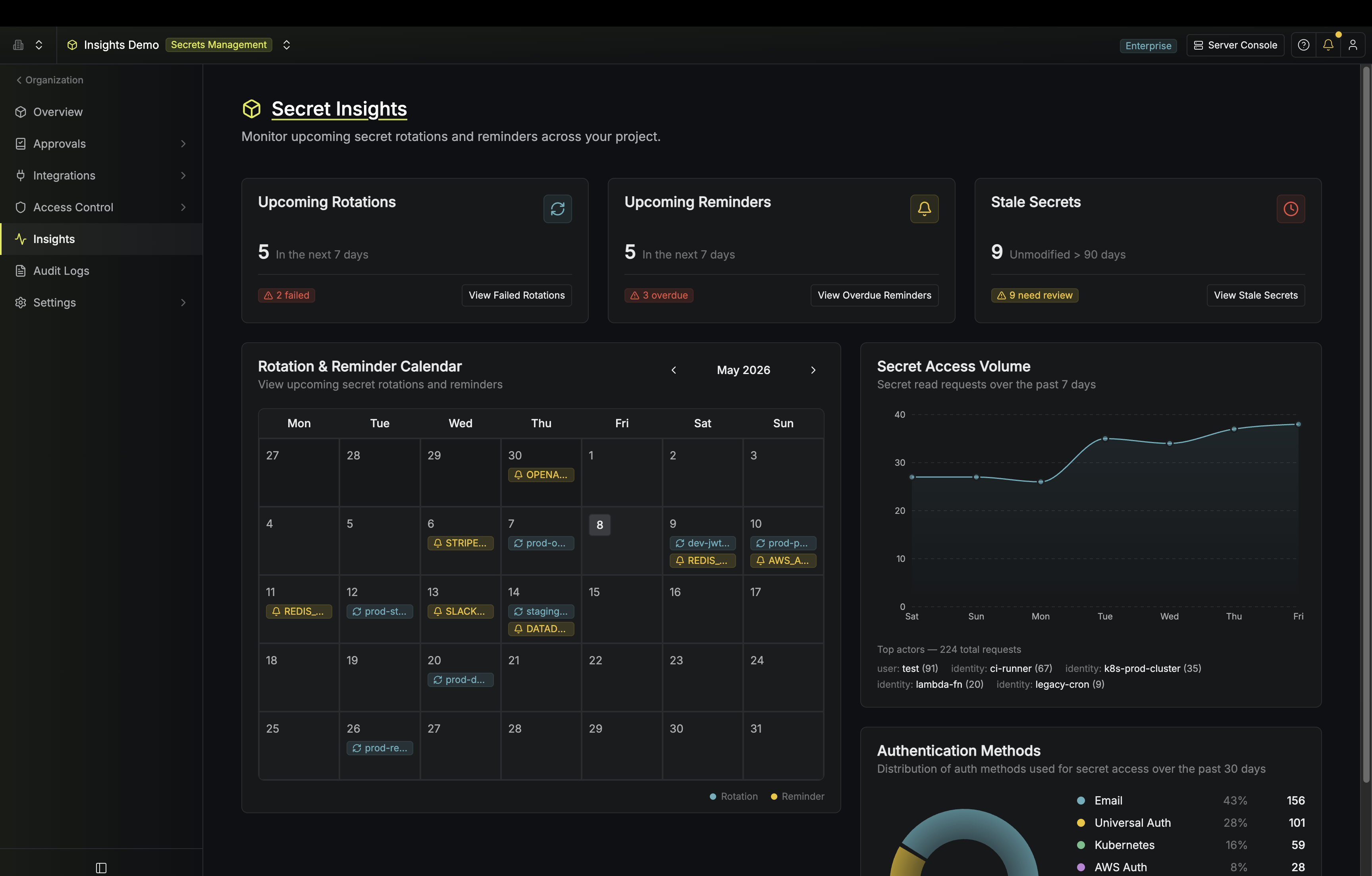
Secret Insights is an observability dashboard for your Secrets Management project. It surfaces the questions you care about most — *Which secrets are due for rotation? Which reminders are overdue? What hasn't been touched in months? Who's actually reading my secrets?* — and links you straight to the secrets you need to act on.
The page is read-only. Every metric is computed from data already collected by Infisical (rotation schedules, reminders, secret modification times, access logs), so there's nothing to configure to start using it.
 Secret Insights is a paid feature.
On Infisical Cloud it is available on plans that include `secretAccessInsights`. If you're self-hosting Infisical, contact [sales@infisical.com](mailto:sales@infisical.com) for an enterprise license.
Viewing the page also requires the **Insights → Read** project permission.
## Accessing Insights
From a Secret Manager project, open the **Insights** tab in the project sidebar. The page is divided into four sections:
* **Summary cards** — three at-a-glance counters for rotations, reminders, and stale secrets.
* **Rotation & Reminder Calendar** — a month-by-month view of every upcoming rotation and reminder.
* **Secret Access Volume** — read-request trends over the past 7 days, plus the top callers.
* **Authentication Methods** — how identities are authenticating to read secrets, over the past 30 days.
## Summary
The three cards along the top of the page give you a quick read on what needs attention. Each card opens a popover with a table you can drill into; clicking a row jumps directly to the matching secret in the **Overview** page with the appropriate filters applied.
### Upcoming Rotations
Counts secret rotations scheduled to run in the **next 7 days**.
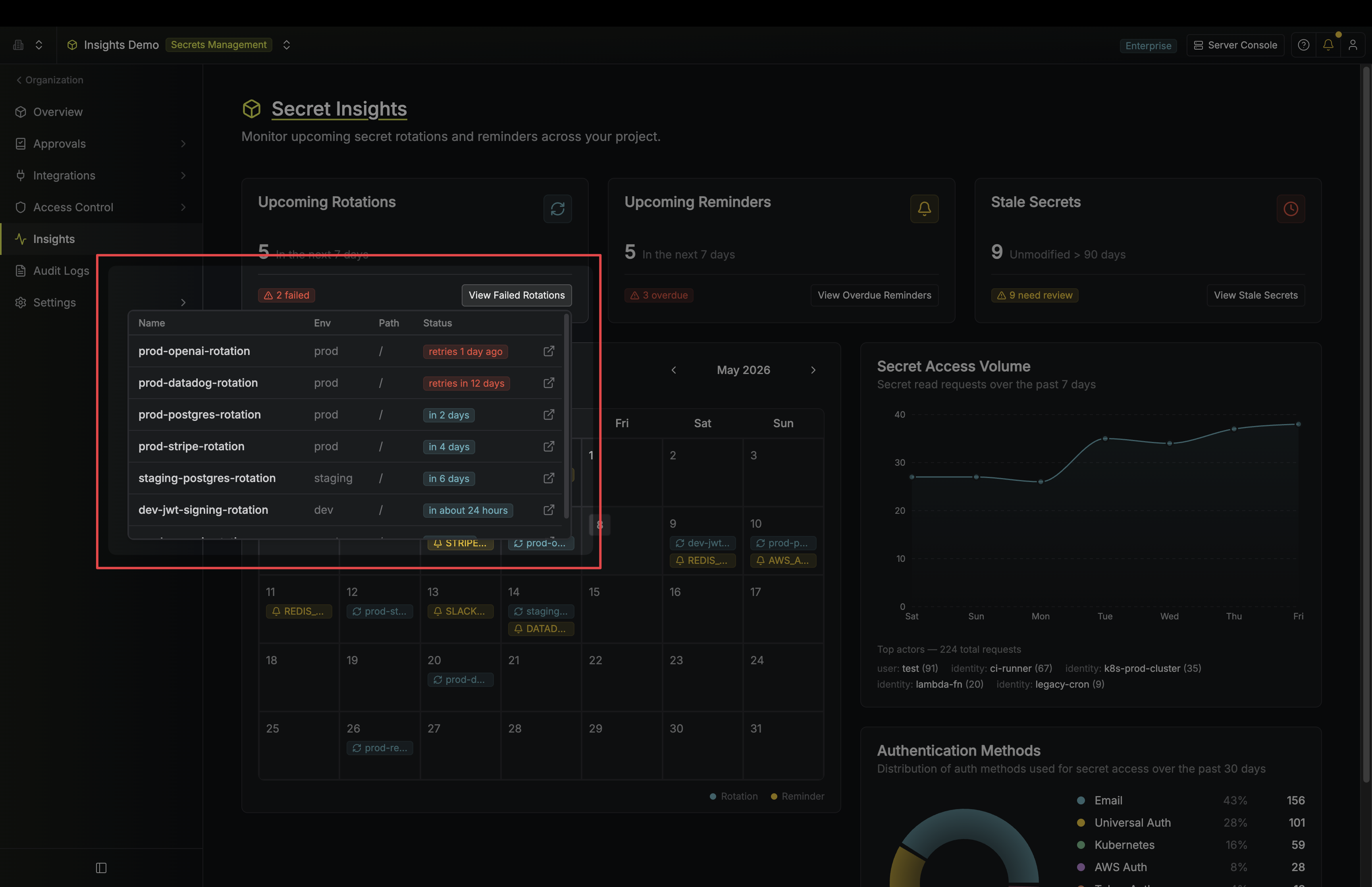
A status badge on the card calls out failed rotations:
* A green badge reads **No failed rotations** when everything is healthy.
* A red badge shows **{N} failed** when one or more rotations are in a failed state and need investigation.
Click **View Rotations** (or **View Failed Rotations**) to see the full list. Each row shows the rotation name, environment, secret path, and a relative-time status (`scheduled`, `in 3 days`, `retries in 1h`, or `failed`). Click a row to open that rotation's secret in the Overview page filtered by rotation.
Secret Insights is a paid feature.
On Infisical Cloud it is available on plans that include `secretAccessInsights`. If you're self-hosting Infisical, contact [sales@infisical.com](mailto:sales@infisical.com) for an enterprise license.
Viewing the page also requires the **Insights → Read** project permission.
## Accessing Insights
From a Secret Manager project, open the **Insights** tab in the project sidebar. The page is divided into four sections:
* **Summary cards** — three at-a-glance counters for rotations, reminders, and stale secrets.
* **Rotation & Reminder Calendar** — a month-by-month view of every upcoming rotation and reminder.
* **Secret Access Volume** — read-request trends over the past 7 days, plus the top callers.
* **Authentication Methods** — how identities are authenticating to read secrets, over the past 30 days.
## Summary
The three cards along the top of the page give you a quick read on what needs attention. Each card opens a popover with a table you can drill into; clicking a row jumps directly to the matching secret in the **Overview** page with the appropriate filters applied.
### Upcoming Rotations
Counts secret rotations scheduled to run in the **next 7 days**.
A status badge on the card calls out failed rotations:
* A green badge reads **No failed rotations** when everything is healthy.
* A red badge shows **{N} failed** when one or more rotations are in a failed state and need investigation.
Click **View Rotations** (or **View Failed Rotations**) to see the full list. Each row shows the rotation name, environment, secret path, and a relative-time status (`scheduled`, `in 3 days`, `retries in 1h`, or `failed`). Click a row to open that rotation's secret in the Overview page filtered by rotation.
 ### Upcoming Reminders
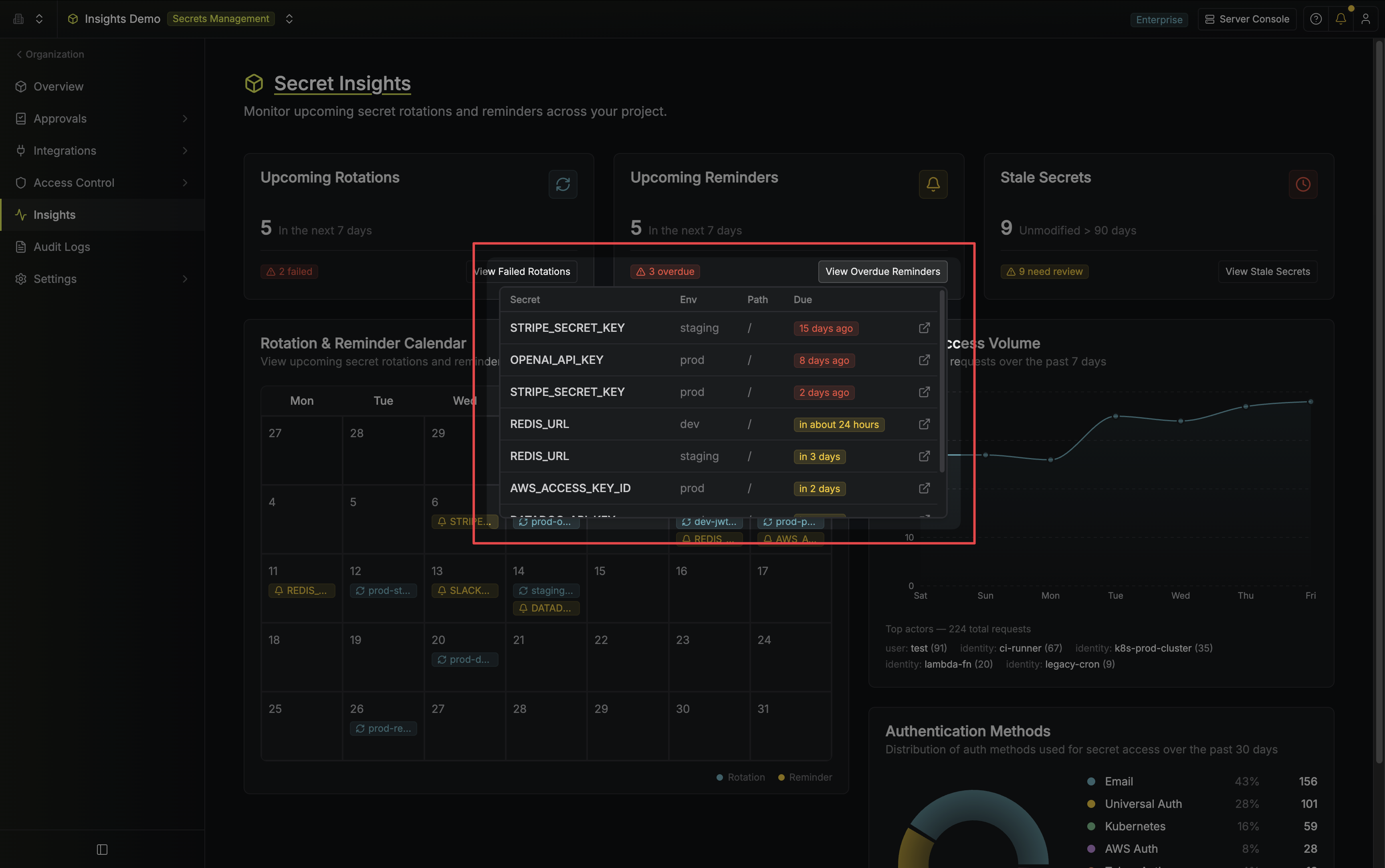
Counts secret reminders due in the **next 7 days**.
A status badge calls out overdue reminders:
* A green badge reads **No overdue reminders** when you're caught up.
* A red badge shows **{N} overdue** when reminders have passed their due date without being acknowledged.
Click **View Upcoming Reminders** (or **View Overdue Reminders**) to see the list. Each row shows the secret key, environment, path, and how soon it's due (or how long it's been overdue). Click a row to jump to that secret in the Overview page.
### Upcoming Reminders
Counts secret reminders due in the **next 7 days**.
A status badge calls out overdue reminders:
* A green badge reads **No overdue reminders** when you're caught up.
* A red badge shows **{N} overdue** when reminders have passed their due date without being acknowledged.
Click **View Upcoming Reminders** (or **View Overdue Reminders**) to see the list. Each row shows the secret key, environment, path, and how soon it's due (or how long it's been overdue). Click a row to jump to that secret in the Overview page.
 ### Stale Secrets
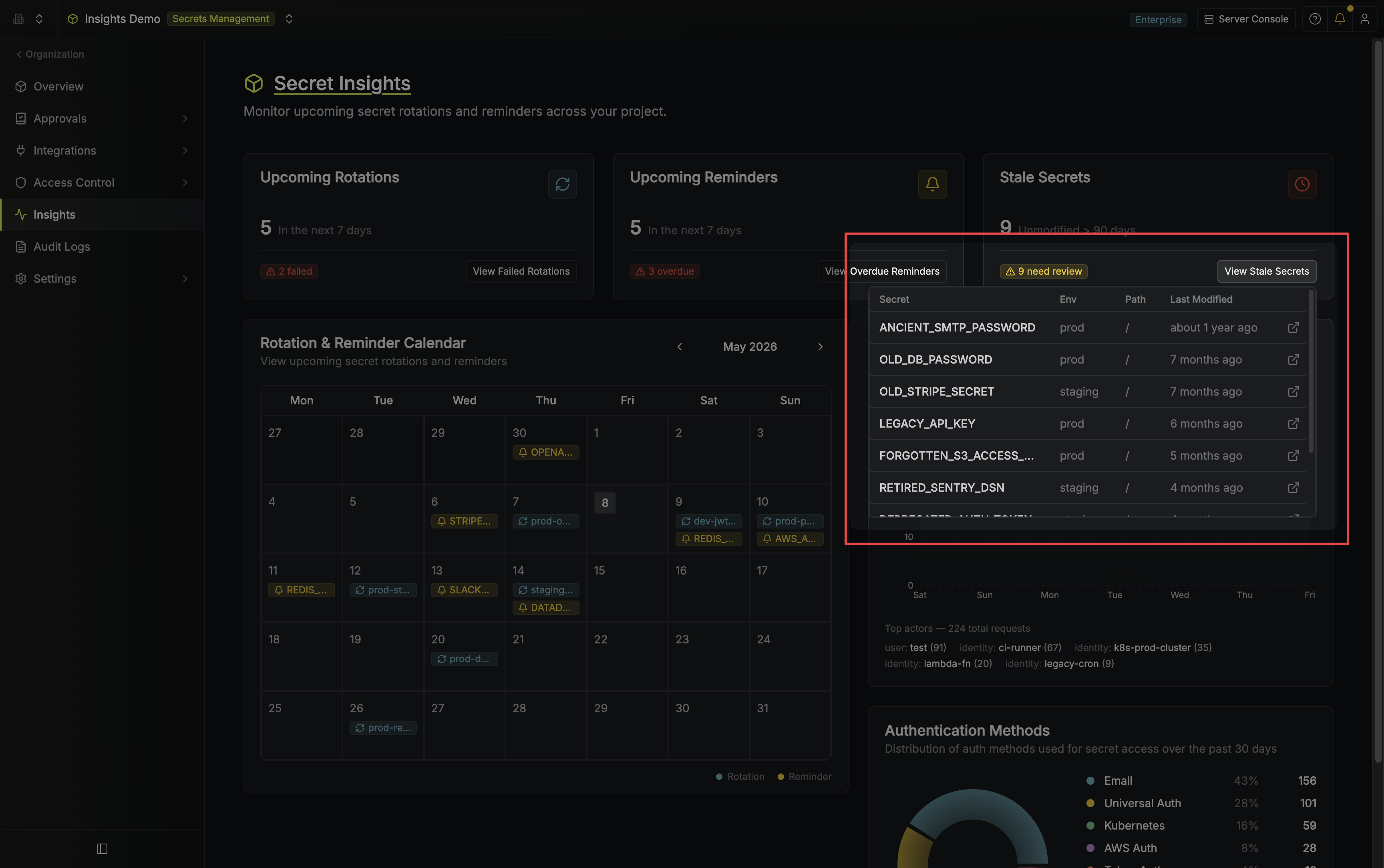
Counts secrets that **haven't been modified in more than 90 days**.
The card shows either **All secrets up to date** when nothing is stale, or **{N} need(s) review** when there are stale secrets to look at. The popover table is paginated 10 rows at a time and shows each secret's key, environment, path, and last-modified time. Click a row to open it in Overview.
Stale secrets aren't necessarily a problem — long-lived configuration values are normal. The list is meant as a prompt to review whether anything should be rotated, removed, or refreshed.
### Stale Secrets
Counts secrets that **haven't been modified in more than 90 days**.
The card shows either **All secrets up to date** when nothing is stale, or **{N} need(s) review** when there are stale secrets to look at. The popover table is paginated 10 rows at a time and shows each secret's key, environment, path, and last-modified time. Click a row to open it in Overview.
Stale secrets aren't necessarily a problem — long-lived configuration values are normal. The list is meant as a prompt to review whether anything should be rotated, removed, or refreshed.
 ## Rotation & Reminder Calendar
The calendar panel shows every upcoming rotation and reminder laid out on a month grid, so you can see the cadence of upcoming work at a glance.
## Rotation & Reminder Calendar
The calendar panel shows every upcoming rotation and reminder laid out on a month grid, so you can see the cadence of upcoming work at a glance.
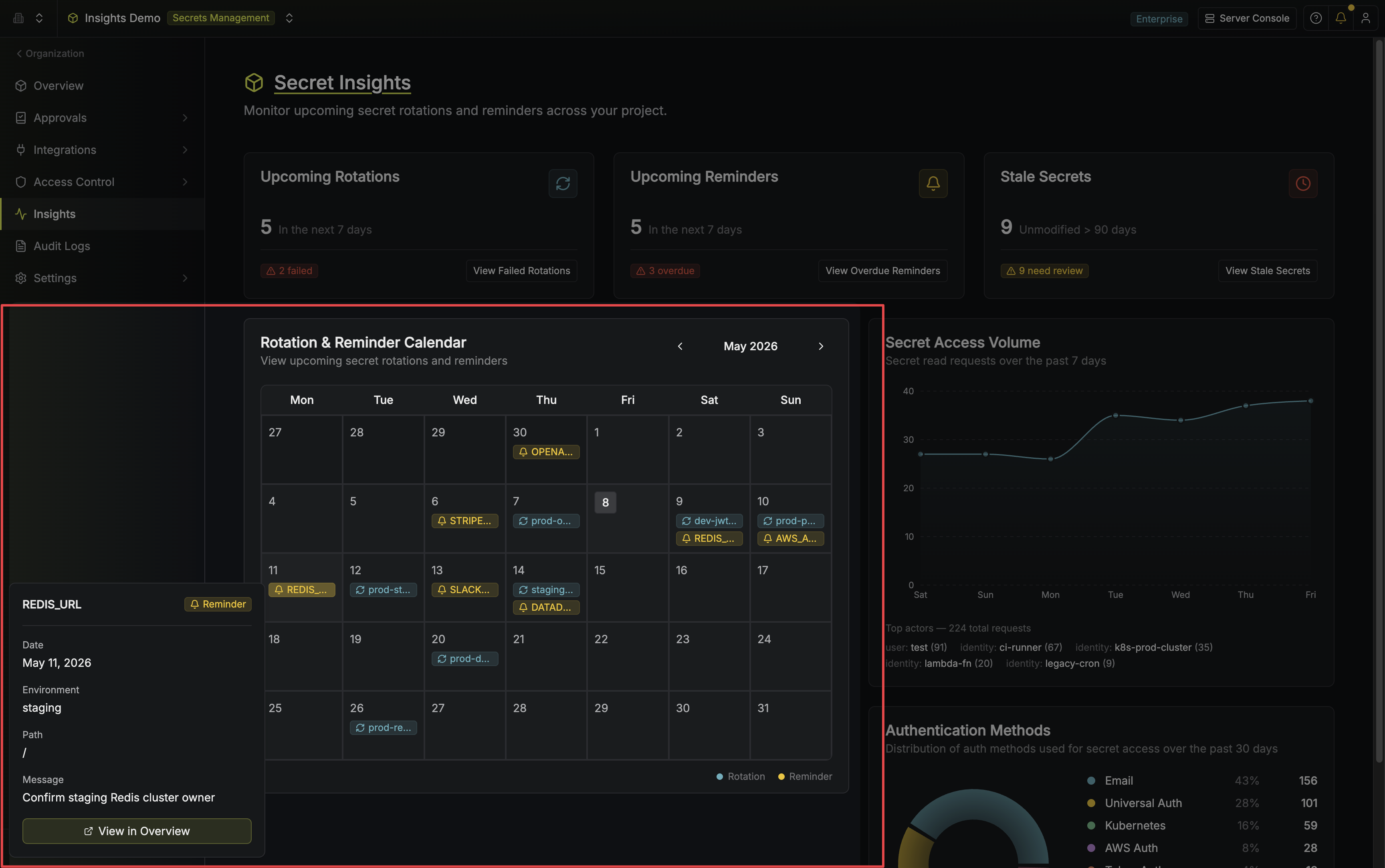 **Navigation.** Use the chevrons in the panel header to move between months. The current day is highlighted with a colored border.
**Event pills.** Each day cell shows up to two events; when there are more, the second slot is replaced by a **+N more** pill that expands the rest. Pills are color-coded:
| Color | Event Type |
| ------------------------- | ---------- |
| Blue, with a refresh icon | Rotation |
| Orange, with a bell icon | Reminder |
**Event details.** Click a pill to view its details, then use the **View in Overview** button to jump to the corresponding secret in the project Overview with filters applied.
## Secret Access Volume
This panel shows how many times secrets have been read across the project over the **past 7 days**, plotted as a daily area chart.
**Navigation.** Use the chevrons in the panel header to move between months. The current day is highlighted with a colored border.
**Event pills.** Each day cell shows up to two events; when there are more, the second slot is replaced by a **+N more** pill that expands the rest. Pills are color-coded:
| Color | Event Type |
| ------------------------- | ---------- |
| Blue, with a refresh icon | Rotation |
| Orange, with a bell icon | Reminder |
**Event details.** Click a pill to view its details, then use the **View in Overview** button to jump to the corresponding secret in the project Overview with filters applied.
## Secret Access Volume
This panel shows how many times secrets have been read across the project over the **past 7 days**, plotted as a daily area chart.
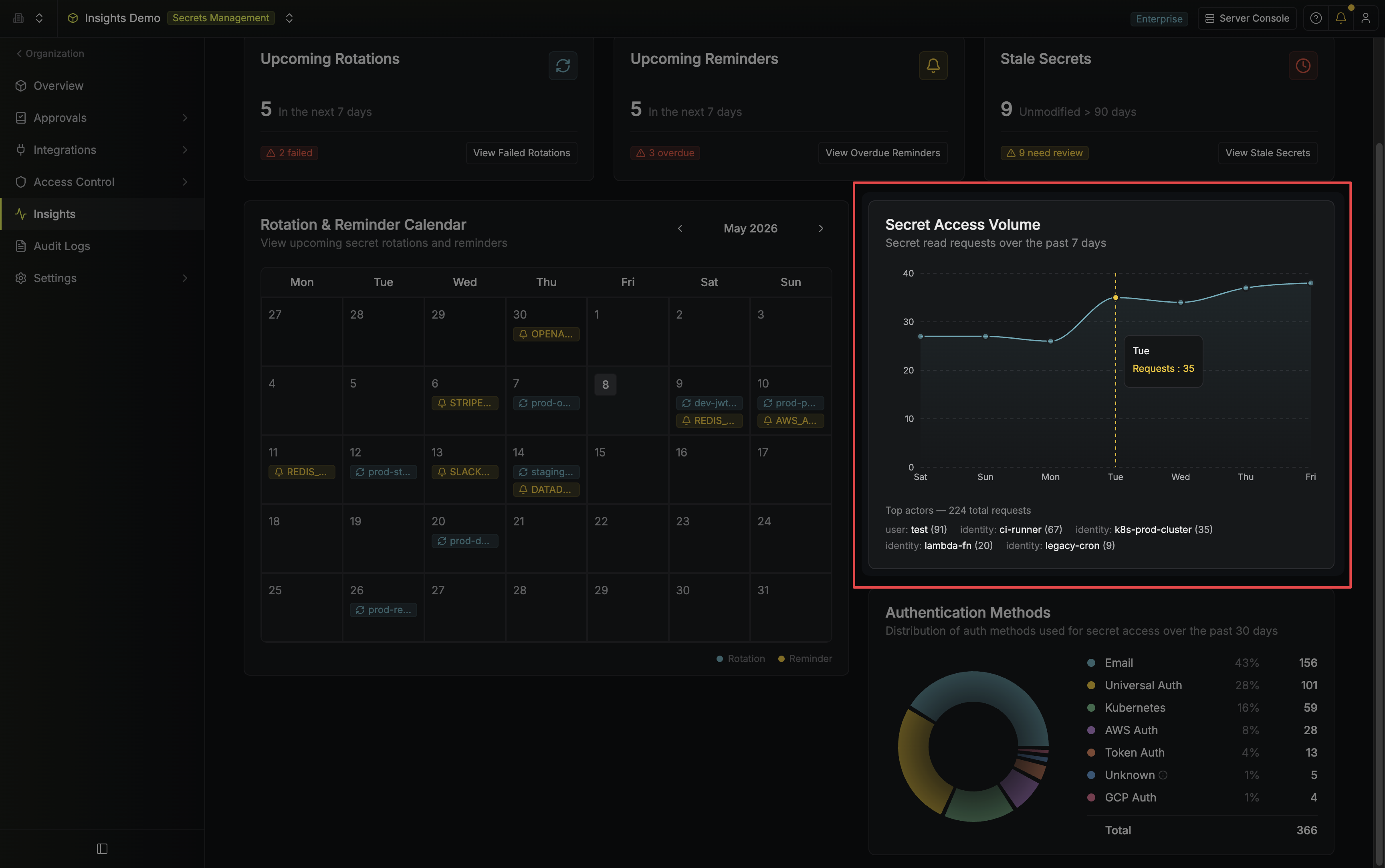 Each point represents the total number of read requests on that day, regardless of which secret was read or how it was read (UI, CLI, SDK, API, agent, operator, etc.).
Below the chart, the **Top actors** row lists the up-to-five identities that issued the most read requests in the same 7-day window, along with their request counts. Actor entries are formatted as `{type}: {name} ({count})` — for example, `Service: ci-runner (5,234)` or `User: alex@acme.com (812)`.
Use this panel to spot unusual spikes, identify the heaviest consumers of your secrets, and confirm that traffic patterns match what you expect from your services.
## Authentication Methods
This panel shows the distribution of authentication methods used to read secrets over the **past 30 days**, plotted as a donut chart with a breakdown table beside it.
Each point represents the total number of read requests on that day, regardless of which secret was read or how it was read (UI, CLI, SDK, API, agent, operator, etc.).
Below the chart, the **Top actors** row lists the up-to-five identities that issued the most read requests in the same 7-day window, along with their request counts. Actor entries are formatted as `{type}: {name} ({count})` — for example, `Service: ci-runner (5,234)` or `User: alex@acme.com (812)`.
Use this panel to spot unusual spikes, identify the heaviest consumers of your secrets, and confirm that traffic patterns match what you expect from your services.
## Authentication Methods
This panel shows the distribution of authentication methods used to read secrets over the **past 30 days**, plotted as a donut chart with a breakdown table beside it.
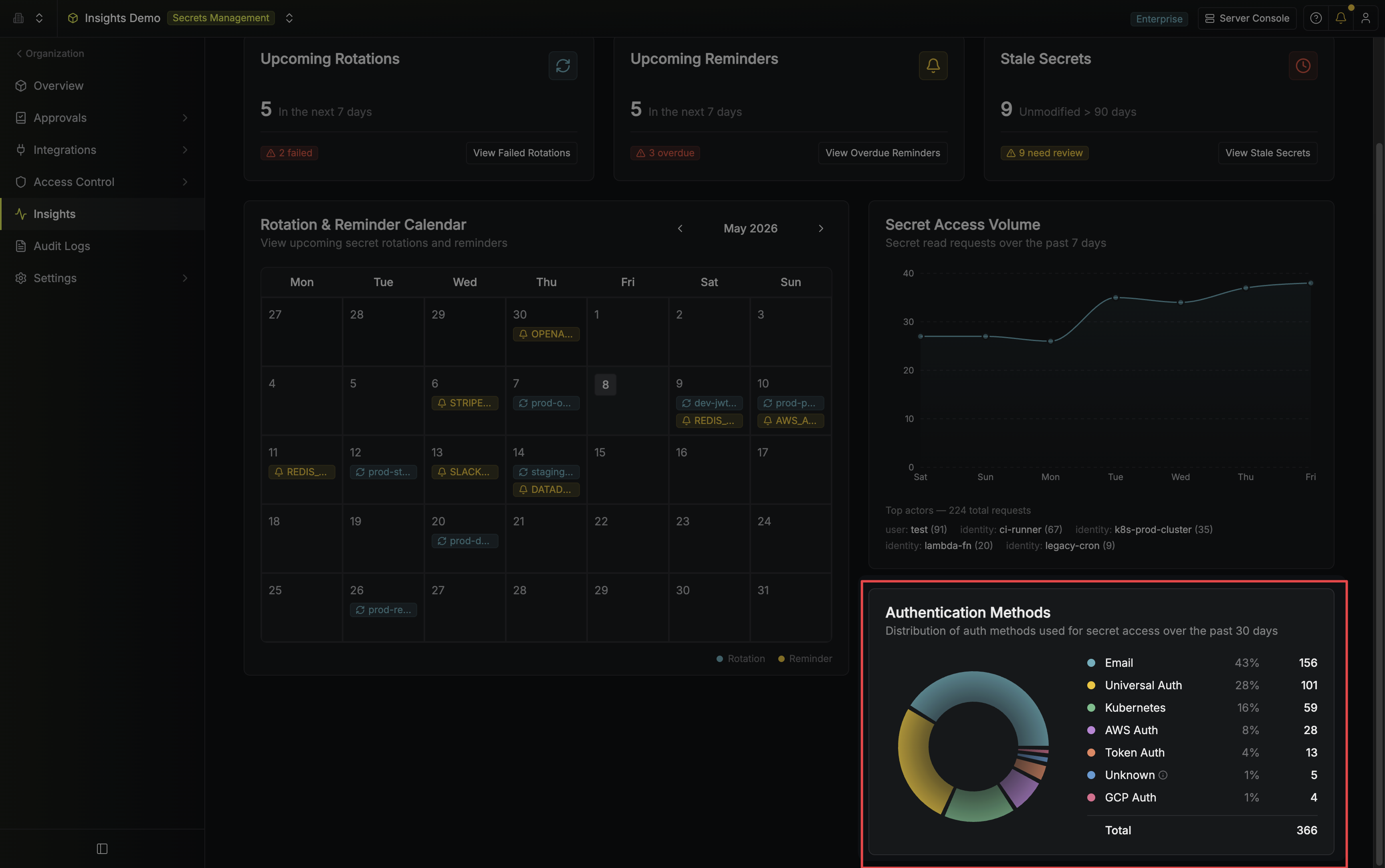 Each slice represents an auth method (for example, Universal Auth, Kubernetes Auth, AWS Auth, Token Auth, JWT). The breakdown shows the method name, percentage of total reads, and absolute request count, with a **Total** row at the bottom.
You may see an **Unknown** bucket. This represents older read requests that were issued before Infisical began recording the auth method on each request. Only newer requests carry this metadata, so the Unknown share will shrink over time as historical data ages out of the 30-day window.
Use this panel to understand how your workloads are authenticating, spot identities still using older auth methods you'd like to retire, and verify that auth-method migrations are taking effect.
Each slice represents an auth method (for example, Universal Auth, Kubernetes Auth, AWS Auth, Token Auth, JWT). The breakdown shows the method name, percentage of total reads, and absolute request count, with a **Total** row at the bottom.
You may see an **Unknown** bucket. This represents older read requests that were issued before Infisical began recording the auth method on each request. Only newer requests carry this metadata, so the Unknown share will shrink over time as historical data ages out of the 30-day window.
Use this panel to understand how your workloads are authenticating, spot identities still using older auth methods you'd like to retire, and verify that auth-method migrations are taking effect.