> ## Documentation Index
> Fetch the complete documentation index at: https://infisical.com/docs/llms.txt
> Use this file to discover all available pages before exploring further.
# LiteLLM API Key
> Learn how to automatically rotate LiteLLM API keys.
**Rotation Type: Dual-Phase**
This rotation maintains two active credential sets with overlapping validity, ensuring zero-downtime during rotation cycles.
## Prerequisites
* Create a [LiteLLM Connection](/integrations/app-connections/litellm) using a **management-capable API key**. That connection is used to create and delete API keys on your behalf during rotation.
## Create a LiteLLM API Key Rotation in Infisical
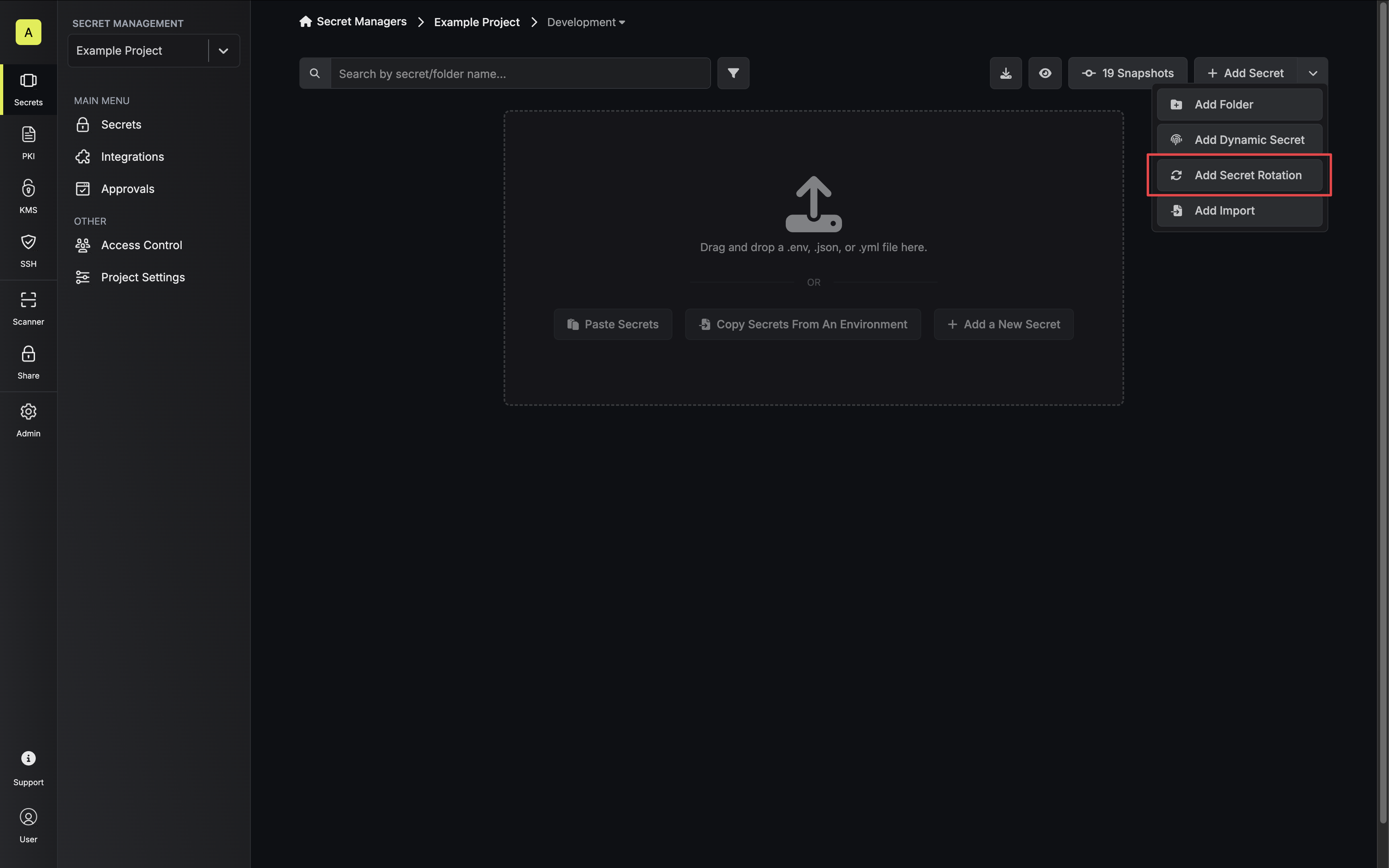
1. Navigate to your Secret Manager Project's Dashboard and select **Add Secret Rotation** from the actions dropdown.
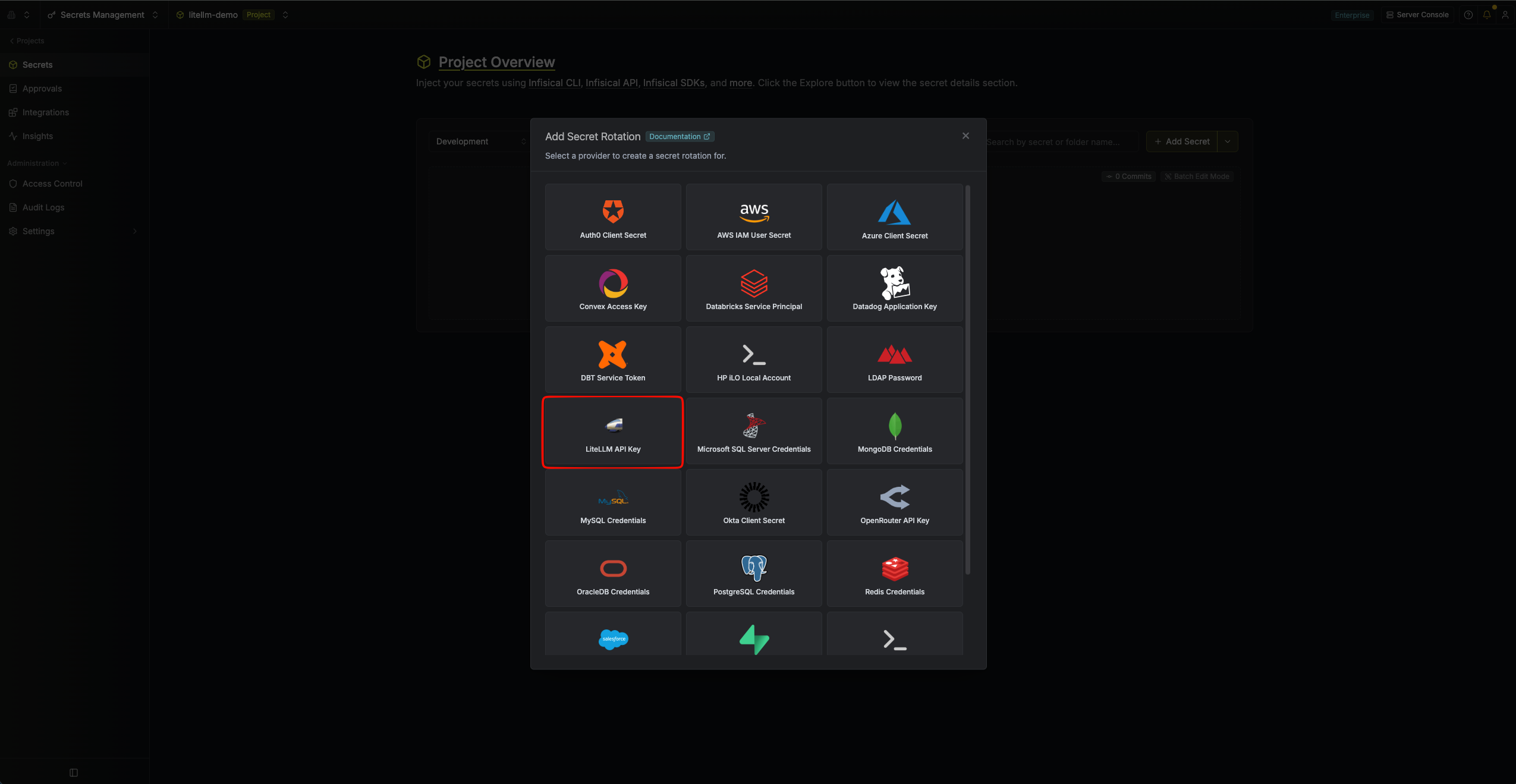
 2. Select the **LiteLLM API Key** option.
 3. Configure the rotation behavior, then click **Next**.
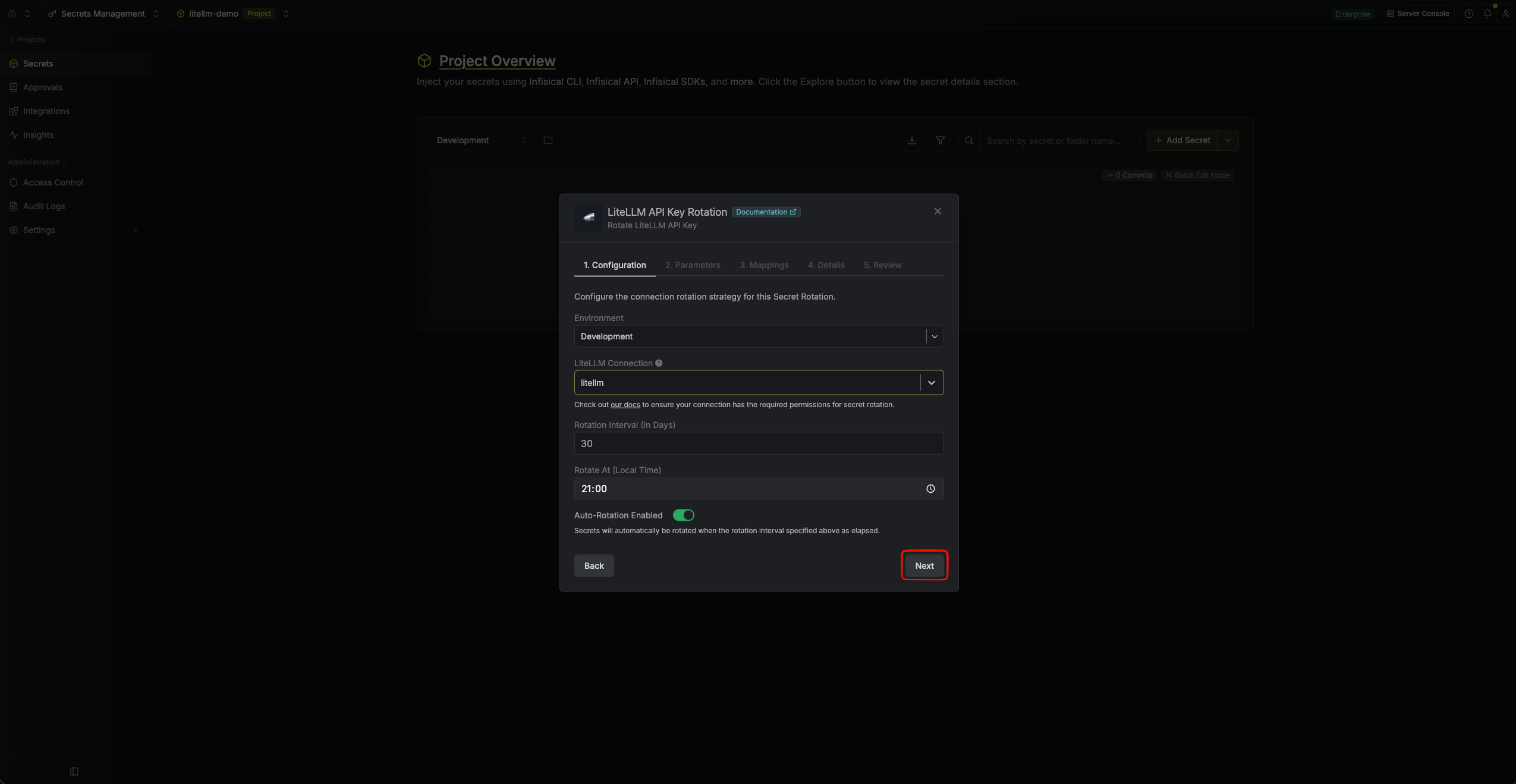 * **Environment** – The environment where the rotated secret will be stored.
* **LiteLLM Connection** – The connection that will create and delete API keys during rotation.
* **Rotation Interval** – The interval, in days, after which a rotation is triggered.
* **Rotate At** – The local time of day when rotation runs once the interval has elapsed.
* **Auto-Rotation Enabled** – Whether to rotate automatically on the interval. Turn off to rotate only manually or pause rotation.
4. Set the LiteLLM API key parameters, then click **Next**. The parameters are split across two tabs, **General** and **Advanced**.
* **Environment** – The environment where the rotated secret will be stored.
* **LiteLLM Connection** – The connection that will create and delete API keys during rotation.
* **Rotation Interval** – The interval, in days, after which a rotation is triggered.
* **Rotate At** – The local time of day when rotation runs once the interval has elapsed.
* **Auto-Rotation Enabled** – Whether to rotate automatically on the interval. Turn off to rotate only manually or pause rotation.
4. Set the LiteLLM API key parameters, then click **Next**. The parameters are split across two tabs, **General** and **Advanced**.
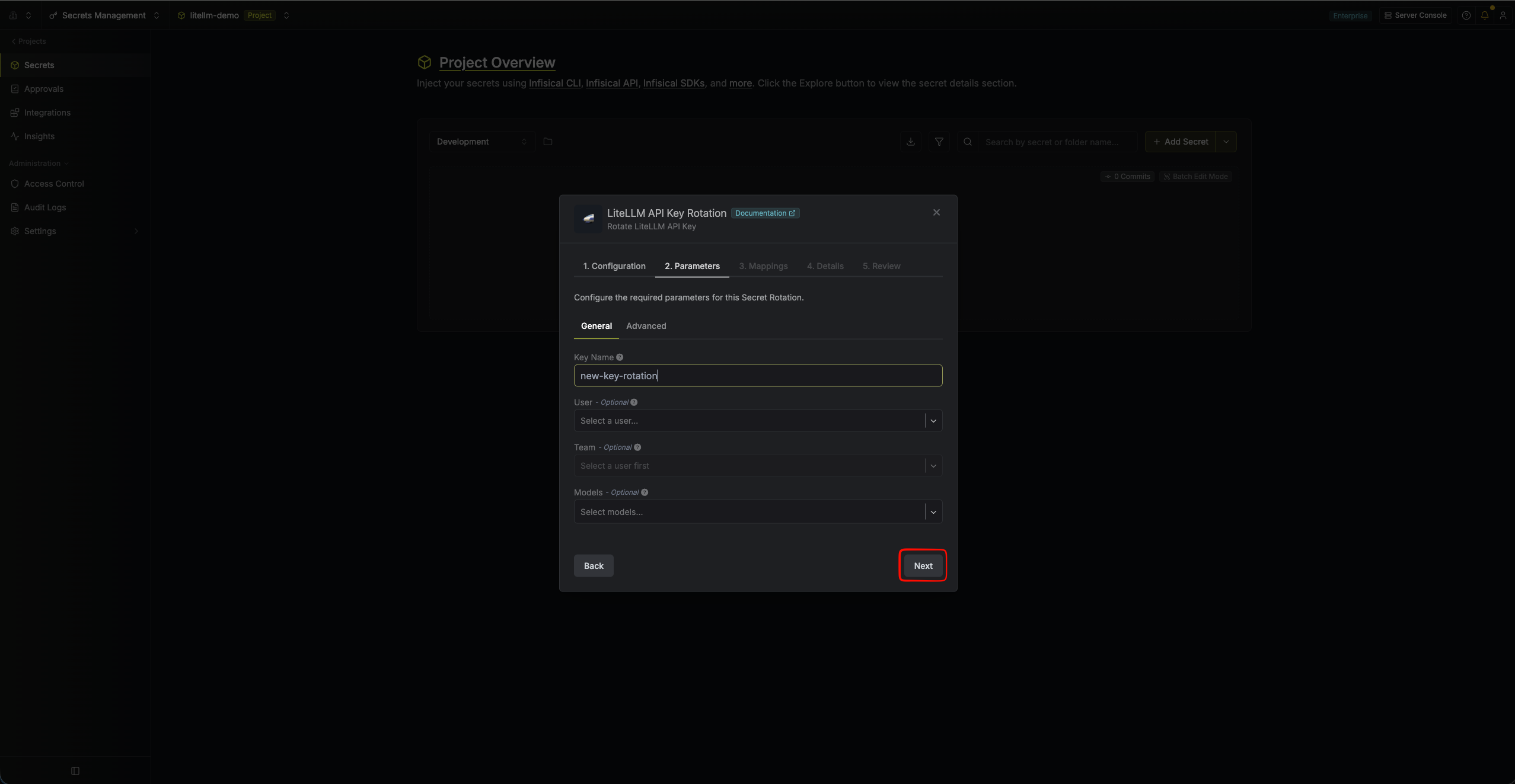 **General**
* **Key Name** (required) – A descriptive name for the generated key. Infisical appends a timestamp so each rotated key stays unique and records its creation time.
* **User** (optional) – Associate the generated key with a LiteLLM user.
* **Team** (optional) – Associate the generated key with a team the selected user belongs to. Select a user first; teams are scoped to the chosen user.
* **Models** (optional) – Restrict the generated key to specific models. Leave empty to allow all models.
**Advanced**
* **Additional Key Options (JSON)** (optional) – A JSON object of additional `/key/generate` options (e.g. `max_budget`, `tpm_limit`, `rpm_limit`, `metadata`). See [Advanced key options](#advanced-key-options) below.
5. Specify the secret name that the rotated API key will be mapped to. Then click **Next**.
**General**
* **Key Name** (required) – A descriptive name for the generated key. Infisical appends a timestamp so each rotated key stays unique and records its creation time.
* **User** (optional) – Associate the generated key with a LiteLLM user.
* **Team** (optional) – Associate the generated key with a team the selected user belongs to. Select a user first; teams are scoped to the chosen user.
* **Models** (optional) – Restrict the generated key to specific models. Leave empty to allow all models.
**Advanced**
* **Additional Key Options (JSON)** (optional) – A JSON object of additional `/key/generate` options (e.g. `max_budget`, `tpm_limit`, `rpm_limit`, `metadata`). See [Advanced key options](#advanced-key-options) below.
5. Specify the secret name that the rotated API key will be mapped to. Then click **Next**.
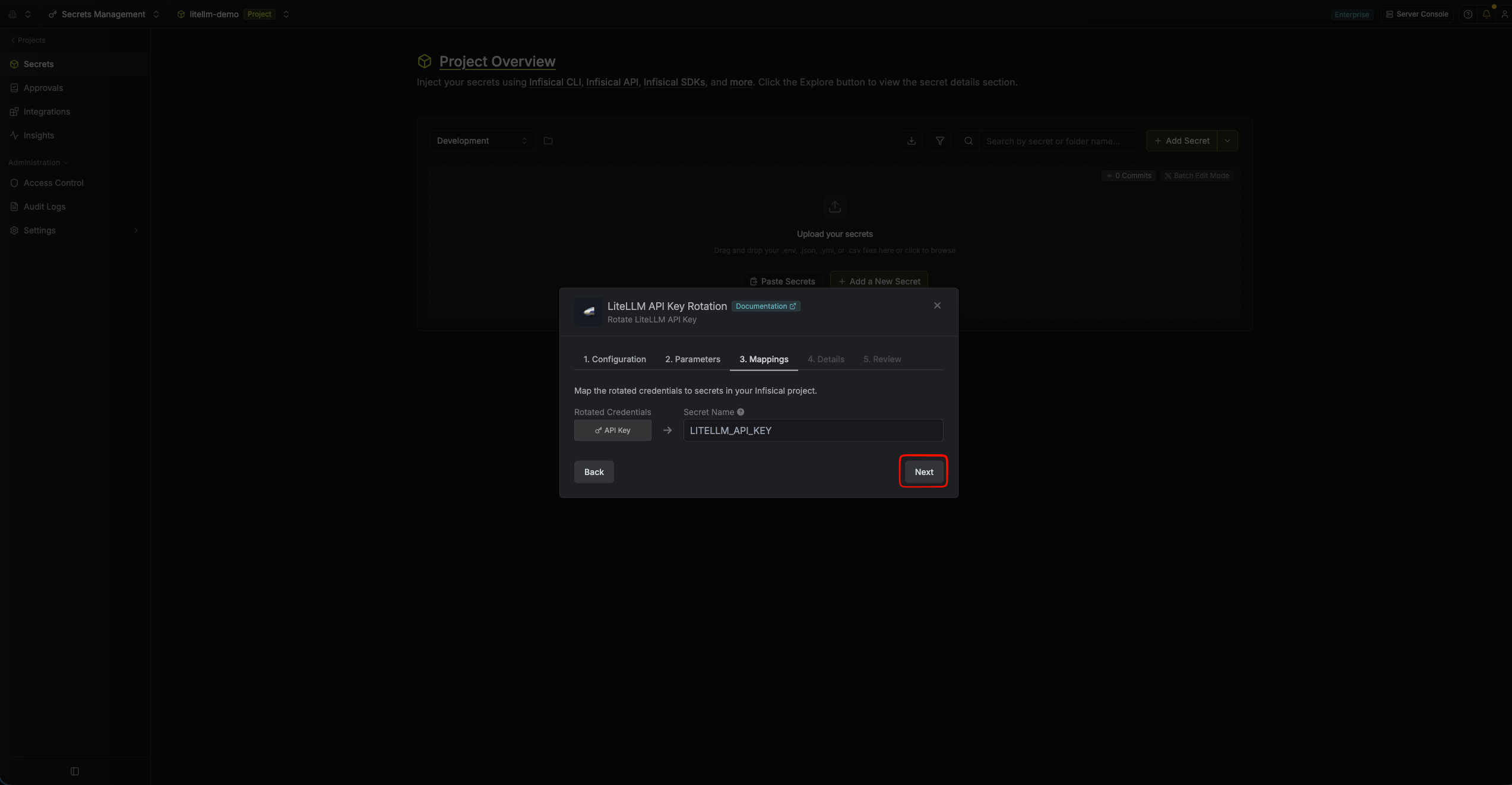 * **API Key** – The name of the secret in Infisical where the rotated API key value will be stored.
6. Give your rotation a name and description (optional). Then click **Next**.
* **API Key** – The name of the secret in Infisical where the rotated API key value will be stored.
6. Give your rotation a name and description (optional). Then click **Next**.
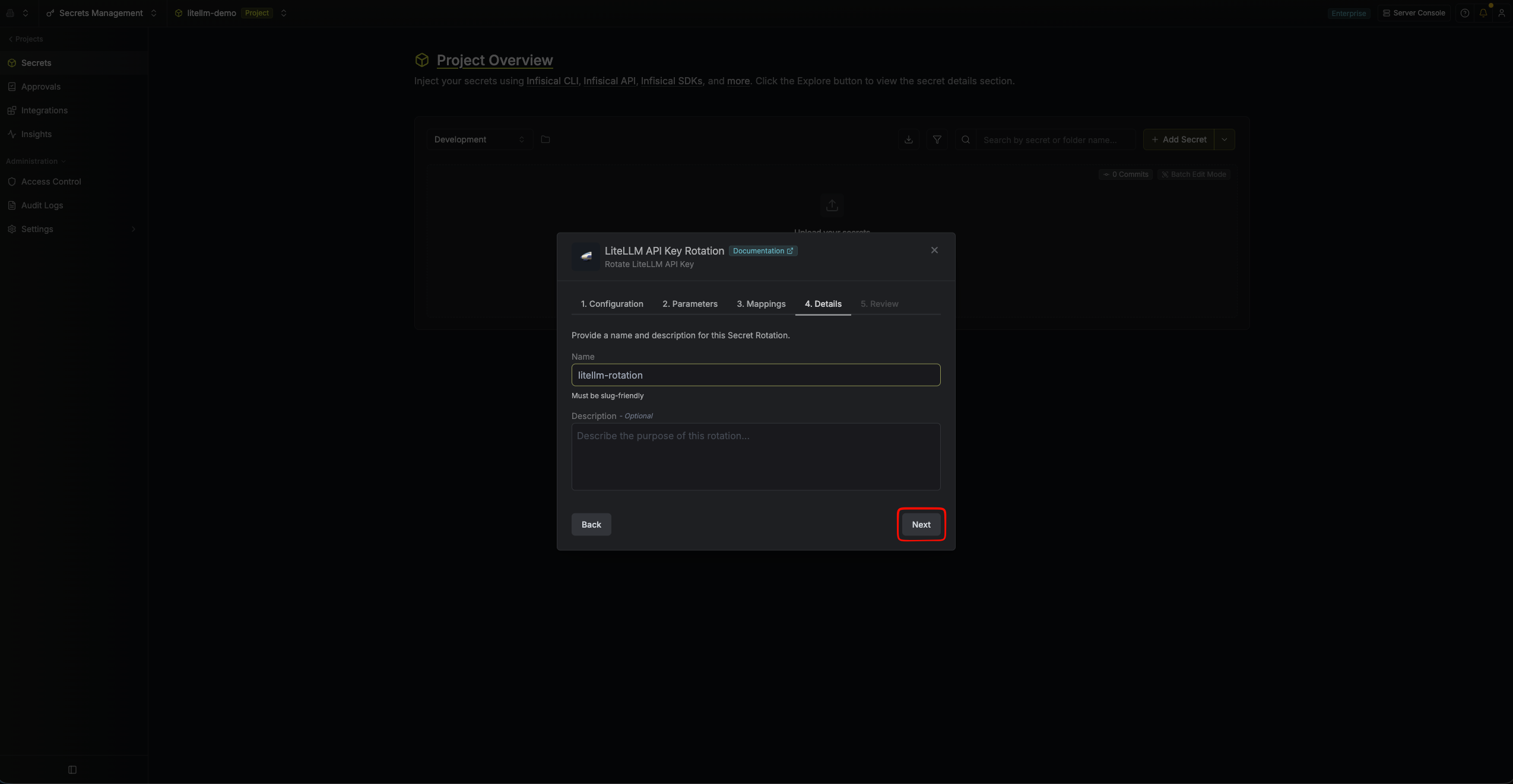 * **Name** – A slug-friendly name for this rotation configuration.
* **Description** (optional) – Notes about this rotation.
7. Review your configuration, then click **Create Secret Rotation**.
* **Name** – A slug-friendly name for this rotation configuration.
* **Description** (optional) – Notes about this rotation.
7. Review your configuration, then click **Create Secret Rotation**.
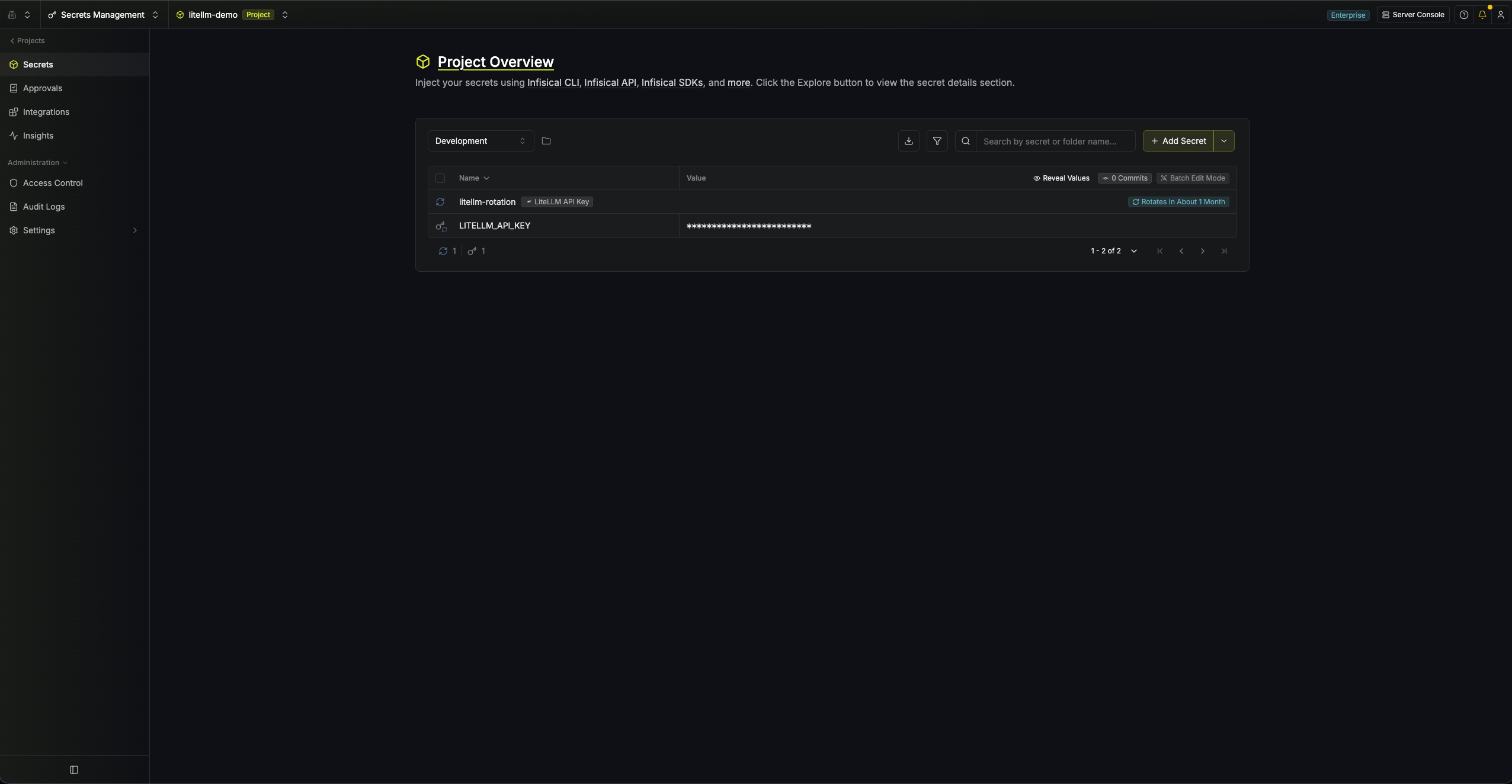
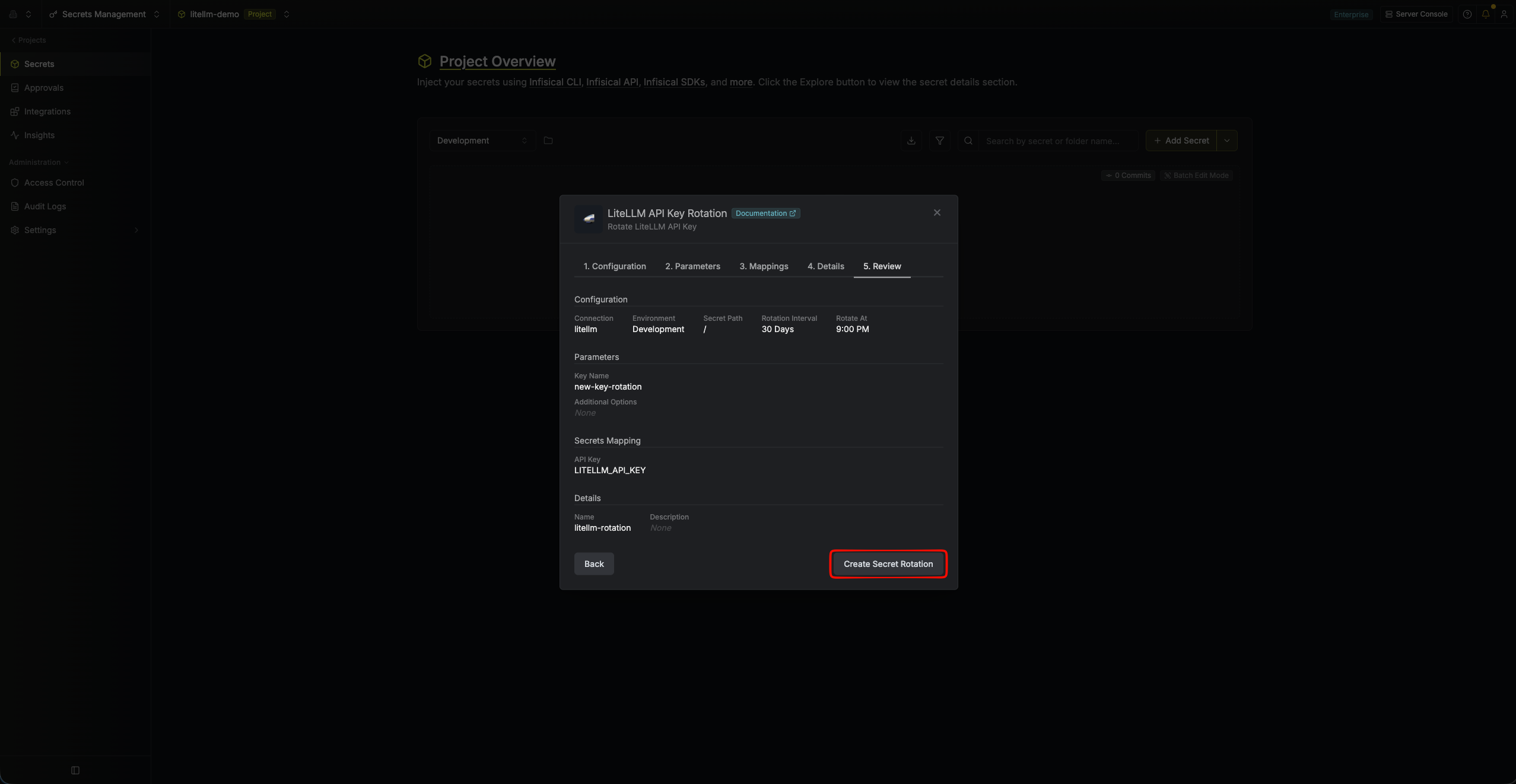 8. Your **LiteLLM API Key** rotation is created. The current API key is available as a secret at the mapped path. Rotations will create a new key, switch the active secret to it, then revoke the previous key for zero-downtime rotation.
 To create a LiteLLM API Key rotation, call the [Create LiteLLM API Key Rotation](/api-reference/endpoints/secret-rotations/litellm-api-key/create) API endpoint.
### Sample request
```bash Request theme={"dark"}
curl --request POST \
--url https://us.infisical.com/api/v2/secret-rotations/litellm-api-key \
--header 'Content-Type: application/json' \
--data '{
"name": "my-litellm-rotation",
"projectId": "",
"description": "LiteLLM API key rotation",
"connectionId": "",
"environment": "dev",
"secretPath": "/",
"isAutoRotationEnabled": true,
"rotationInterval": 30,
"rotateAtUtc": {
"hours": 0,
"minutes": 0
},
"parameters": {
"name": "my-app-key",
"userId": "",
"teamId": "",
"models": ["gpt-4o"],
"additionalOptions": "{\"max_budget\": 100}"
},
"secretsMapping": {
"apiKey": "LITELLM_API_KEY"
}
}'
```
`userId`, `teamId`, `models`, and `additionalOptions` are optional and may be omitted.
### Sample response
```bash Response theme={"dark"}
{
"secretRotation": {
"id": "",
"name": "my-litellm-rotation",
"description": "LiteLLM API key rotation",
"secretsMapping": {
"apiKey": "LITELLM_API_KEY"
},
"isAutoRotationEnabled": true,
"activeIndex": 0,
"connectionId": "",
"rotationInterval": 30,
"rotateAtUtc": { "hours": 0, "minutes": 0 },
"type": "litellm-api-key",
"parameters": {
"name": "my-app-key",
"userId": "",
"teamId": "",
"models": ["gpt-4o"],
"additionalOptions": "{\"max_budget\": 100}"
}
}
}
```
## Advanced key options
The **Additional Key Options (JSON)** field lets you pass extra parameters to LiteLLM's `/key/generate` endpoint when each rotated key is created. It must be a JSON object. Common fields include:
* **`max_budget`** (number) – Maximum spend allowed for the key.
* **`tpm_limit`** / **`rpm_limit`** (numbers) – Tokens-per-minute and requests-per-minute rate limits.
* **`metadata`** (object) – Arbitrary metadata to attach to the key.
For the full list of supported fields, see the [LiteLLM key generation API](https://docs.litellm.ai/docs/proxy/virtual_keys).
The following options are managed by Infisical and cannot be set here: `key_alias`, `auto_rotate`, `rotation_interval`, `duration`, `send_invite_email`, `key_type`, `user_id`, `team_id`, and `models`. Use the dedicated **User**, **Team**, and **Models** fields in the General tab to scope the key instead.
To create a LiteLLM API Key rotation, call the [Create LiteLLM API Key Rotation](/api-reference/endpoints/secret-rotations/litellm-api-key/create) API endpoint.
### Sample request
```bash Request theme={"dark"}
curl --request POST \
--url https://us.infisical.com/api/v2/secret-rotations/litellm-api-key \
--header 'Content-Type: application/json' \
--data '{
"name": "my-litellm-rotation",
"projectId": "",
"description": "LiteLLM API key rotation",
"connectionId": "",
"environment": "dev",
"secretPath": "/",
"isAutoRotationEnabled": true,
"rotationInterval": 30,
"rotateAtUtc": {
"hours": 0,
"minutes": 0
},
"parameters": {
"name": "my-app-key",
"userId": "",
"teamId": "",
"models": ["gpt-4o"],
"additionalOptions": "{\"max_budget\": 100}"
},
"secretsMapping": {
"apiKey": "LITELLM_API_KEY"
}
}'
```
`userId`, `teamId`, `models`, and `additionalOptions` are optional and may be omitted.
### Sample response
```bash Response theme={"dark"}
{
"secretRotation": {
"id": "",
"name": "my-litellm-rotation",
"description": "LiteLLM API key rotation",
"secretsMapping": {
"apiKey": "LITELLM_API_KEY"
},
"isAutoRotationEnabled": true,
"activeIndex": 0,
"connectionId": "",
"rotationInterval": 30,
"rotateAtUtc": { "hours": 0, "minutes": 0 },
"type": "litellm-api-key",
"parameters": {
"name": "my-app-key",
"userId": "",
"teamId": "",
"models": ["gpt-4o"],
"additionalOptions": "{\"max_budget\": 100}"
}
}
}
```
## Advanced key options
The **Additional Key Options (JSON)** field lets you pass extra parameters to LiteLLM's `/key/generate` endpoint when each rotated key is created. It must be a JSON object. Common fields include:
* **`max_budget`** (number) – Maximum spend allowed for the key.
* **`tpm_limit`** / **`rpm_limit`** (numbers) – Tokens-per-minute and requests-per-minute rate limits.
* **`metadata`** (object) – Arbitrary metadata to attach to the key.
For the full list of supported fields, see the [LiteLLM key generation API](https://docs.litellm.ai/docs/proxy/virtual_keys).
The following options are managed by Infisical and cannot be set here: `key_alias`, `auto_rotate`, `rotation_interval`, `duration`, `send_invite_email`, `key_type`, `user_id`, `team_id`, and `models`. Use the dedicated **User**, **Team**, and **Models** fields in the General tab to scope the key instead.