> ## Documentation Index
> Fetch the complete documentation index at: https://infisical.com/docs/llms.txt
> Use this file to discover all available pages before exploring further.
# OpenRouter API Key
> Learn how to automatically rotate OpenRouter API keys.
**Rotation Type: Dual-Phase**
This rotation maintains two active credential sets with overlapping validity, ensuring zero-downtime during rotation cycles.
## Prerequisites
* Create an [OpenRouter Connection](/integrations/app-connections/openrouter) using a **Provisioning API key**. That connection is used to create and delete API keys on your behalf during rotation.
## Create an OpenRouter API Key Rotation in Infisical
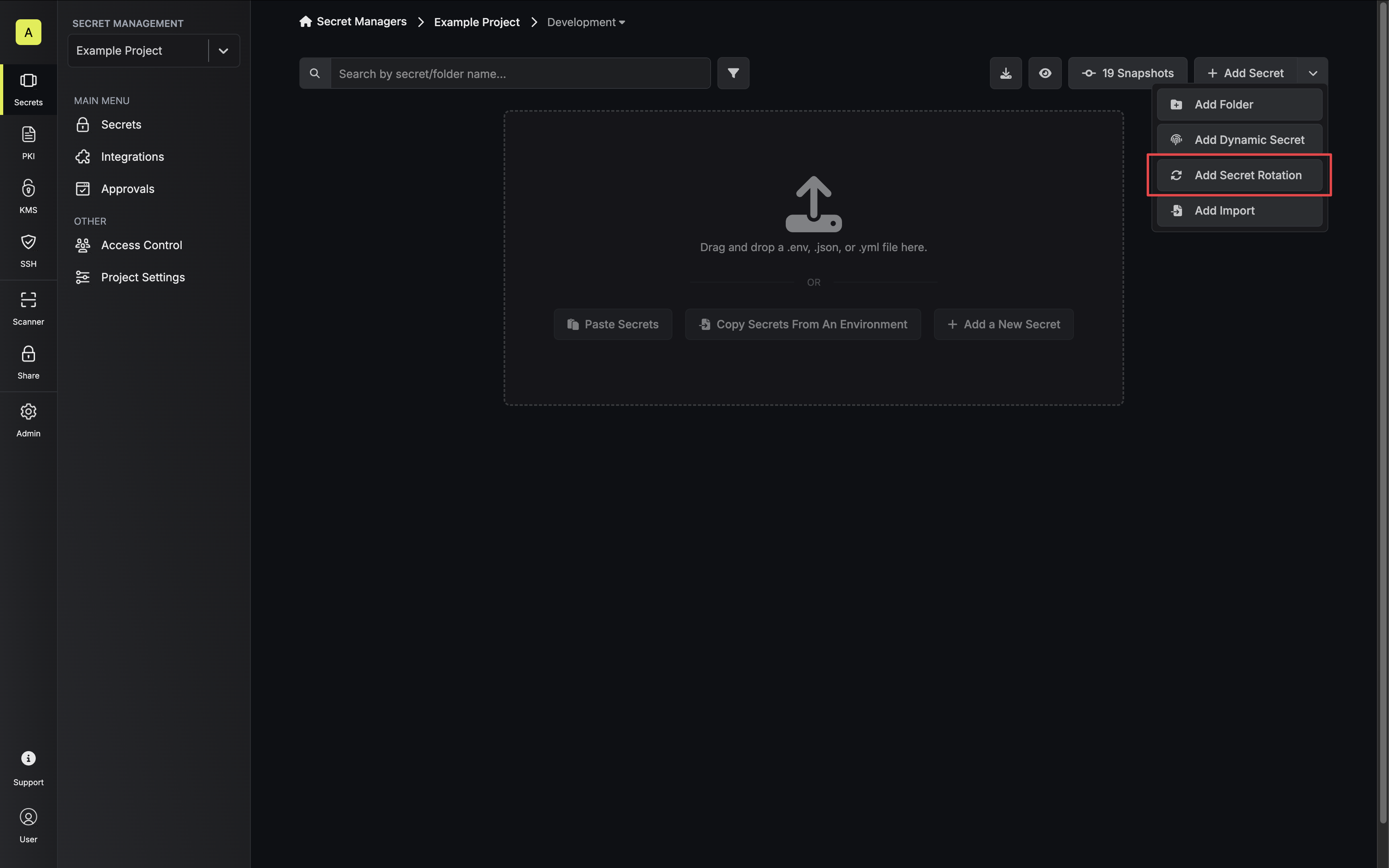
1. Navigate to your Secret Manager Project's Dashboard and select **Add Secret Rotation** from the actions dropdown.
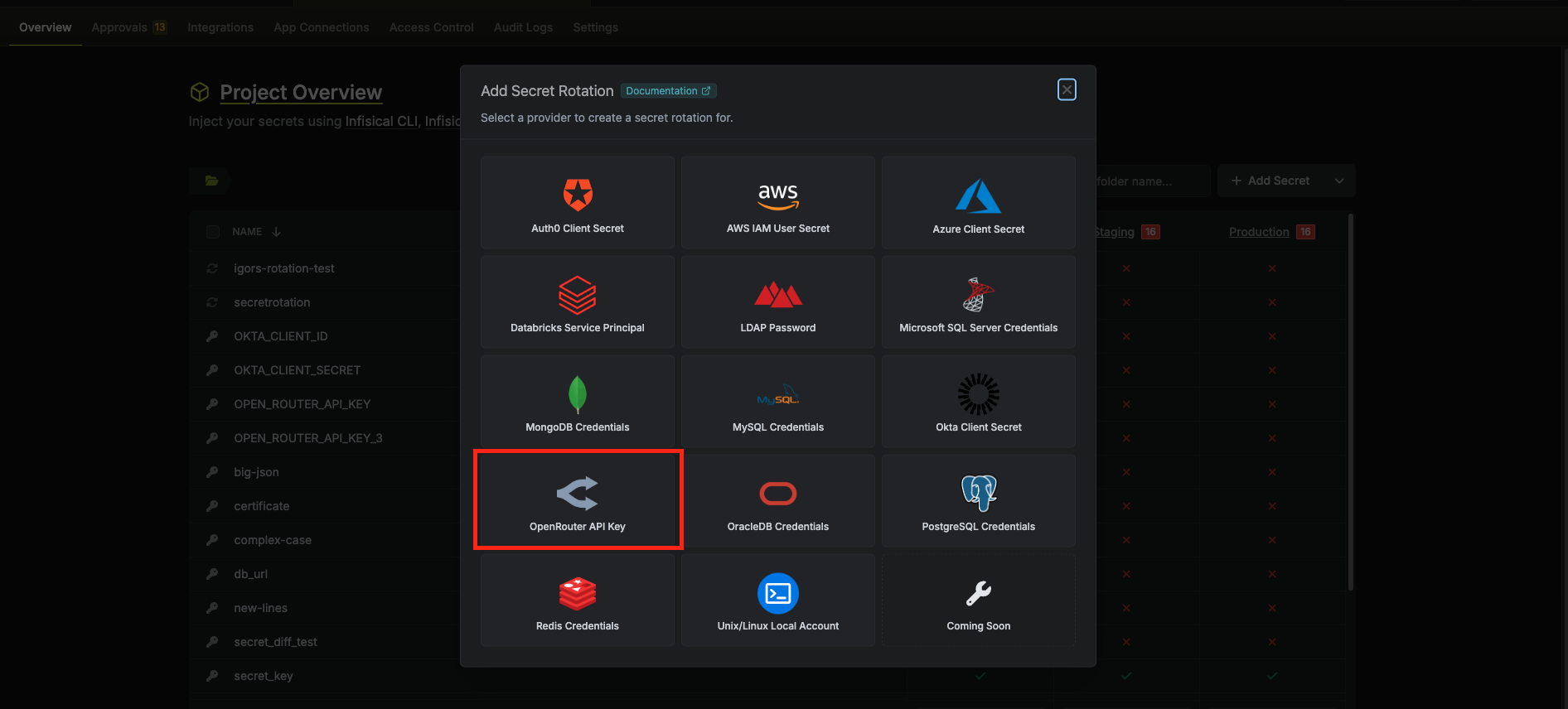
 2. Select the **OpenRouter API Key** option.
 3. Configure the rotation behavior, then click **Next**.
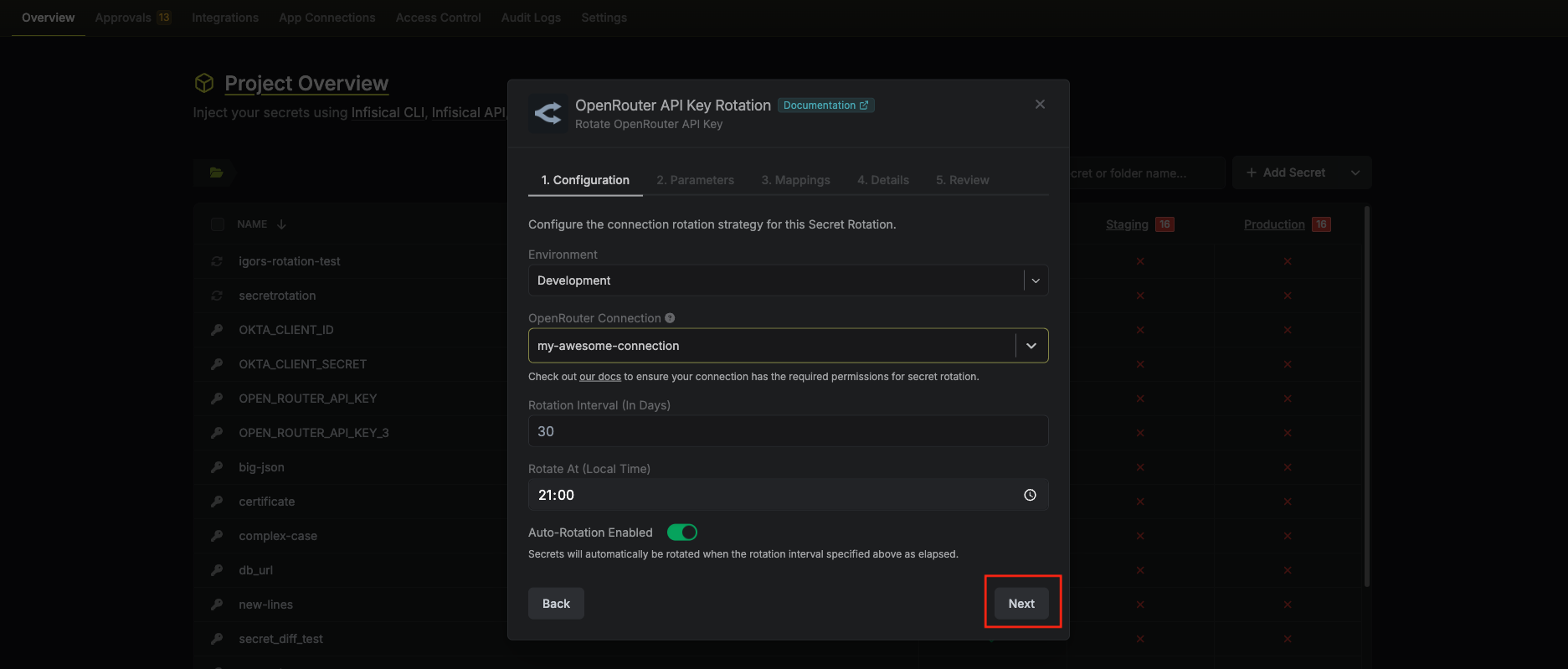 * **OpenRouter Connection** – The connection (with a Provisioning API key) that will create and delete API keys during rotation.
* **Rotation Interval** – The interval, in days, after which a rotation is triggered.
* **Rotate At** – The local time of day when rotation runs once the interval has elapsed.
* **Auto-Rotation Enabled** – Whether to rotate automatically on the interval. Turn off to rotate only manually or pause rotation.
4. Set the OpenRouter API key parameters, then click **Next**.
* **OpenRouter Connection** – The connection (with a Provisioning API key) that will create and delete API keys during rotation.
* **Rotation Interval** – The interval, in days, after which a rotation is triggered.
* **Rotate At** – The local time of day when rotation runs once the interval has elapsed.
* **Auto-Rotation Enabled** – Whether to rotate automatically on the interval. Turn off to rotate only manually or pause rotation.
4. Set the OpenRouter API key parameters, then click **Next**.
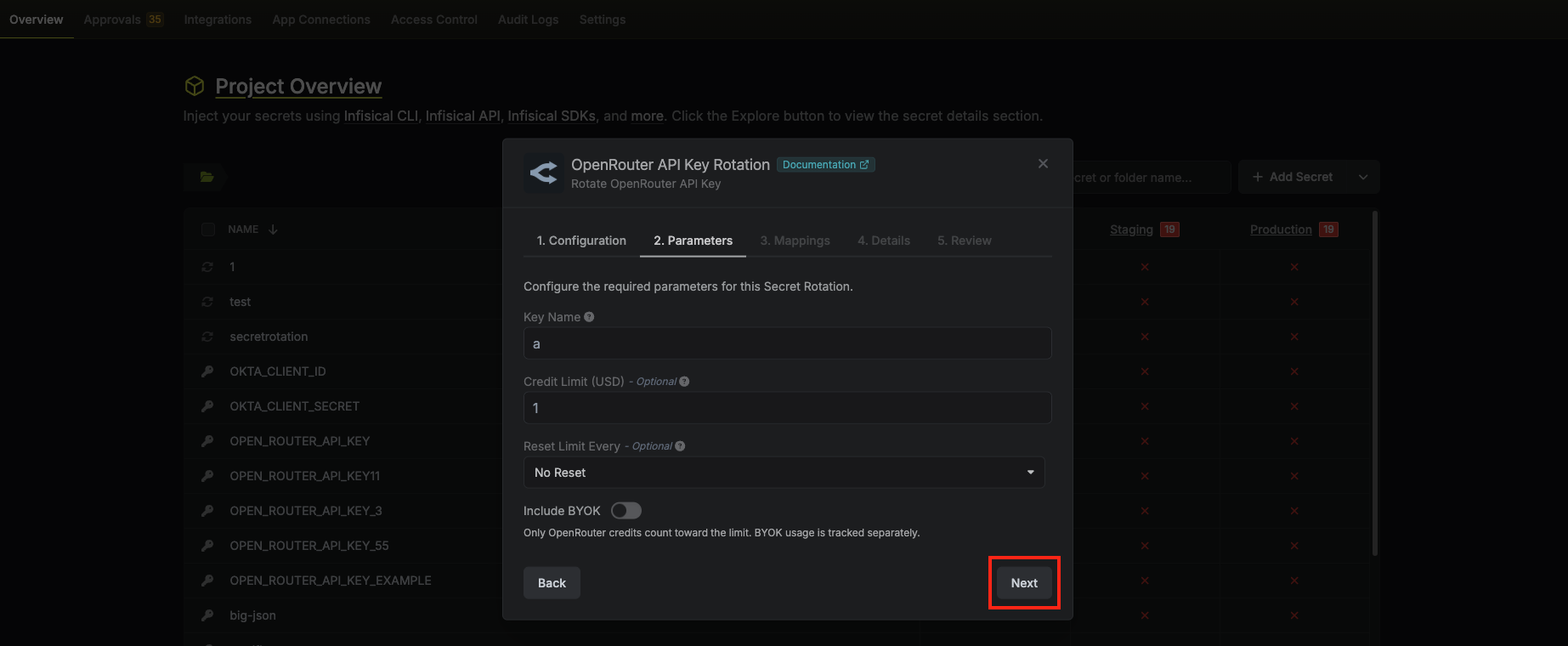 * **Key name** – Display name for the key in OpenRouter (required).
* **Limit** (optional) – Spending limit in USD for this key.
* **Limit reset** (optional) – How often the limit resets: daily, weekly, or monthly.
* **Include BYOK in limit** (optional) – When enabled, usage from your own provider keys ([BYOK](https://openrouter.ai/docs/guides/overview/auth/byok)—Bring Your Own Key) counts toward this key's spending limit. When disabled, only OpenRouter credits are counted. See [OpenRouter BYOK](https://openrouter.ai/docs/guides/overview/auth/byok) for details.
5. Specify the secret name that the rotated API key will be mapped to. Then click **Next**.
* **Key name** – Display name for the key in OpenRouter (required).
* **Limit** (optional) – Spending limit in USD for this key.
* **Limit reset** (optional) – How often the limit resets: daily, weekly, or monthly.
* **Include BYOK in limit** (optional) – When enabled, usage from your own provider keys ([BYOK](https://openrouter.ai/docs/guides/overview/auth/byok)—Bring Your Own Key) counts toward this key's spending limit. When disabled, only OpenRouter credits are counted. See [OpenRouter BYOK](https://openrouter.ai/docs/guides/overview/auth/byok) for details.
5. Specify the secret name that the rotated API key will be mapped to. Then click **Next**.
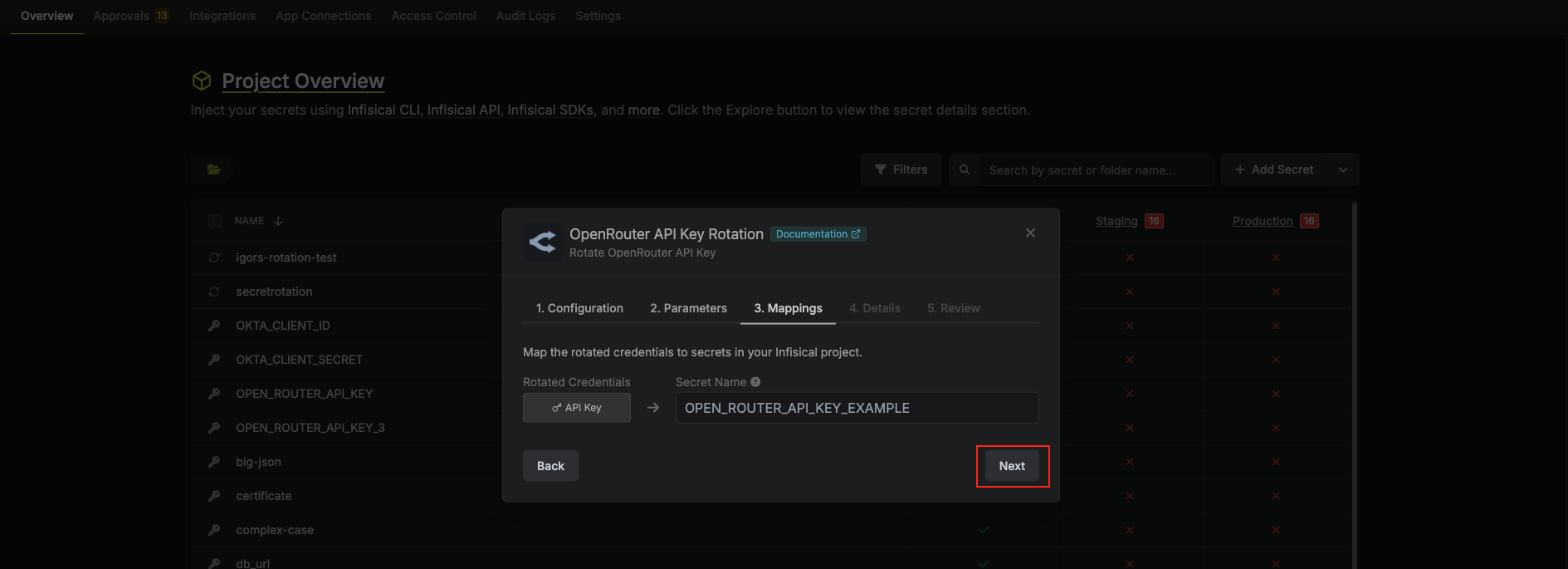 * **API Key** – The name of the secret in Infisical where the rotated API key value will be stored.
6. Give your rotation a name and description (optional). Then click **Next**.
* **API Key** – The name of the secret in Infisical where the rotated API key value will be stored.
6. Give your rotation a name and description (optional). Then click **Next**.
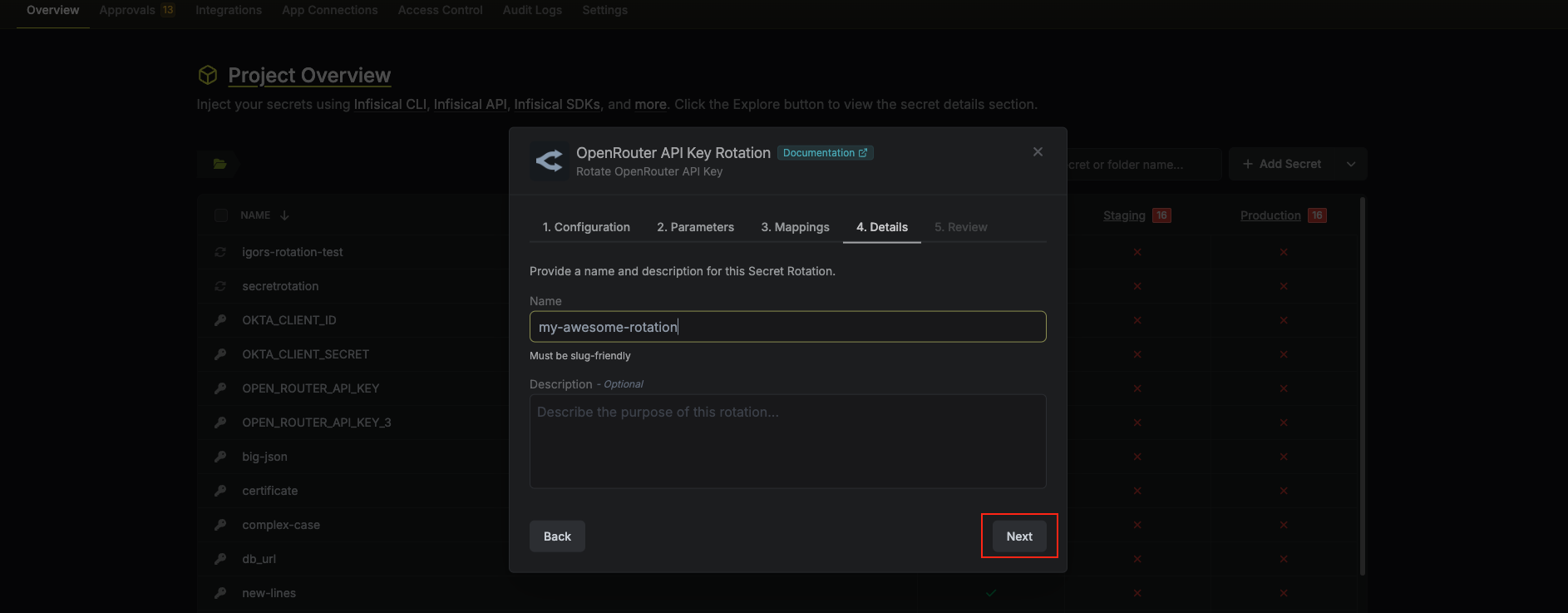 * **Name** – A slug-friendly name for this rotation configuration.
* **Description** (optional) – Notes about this rotation.
7. Review your configuration, then click **Create Secret Rotation**.
* **Name** – A slug-friendly name for this rotation configuration.
* **Description** (optional) – Notes about this rotation.
7. Review your configuration, then click **Create Secret Rotation**.
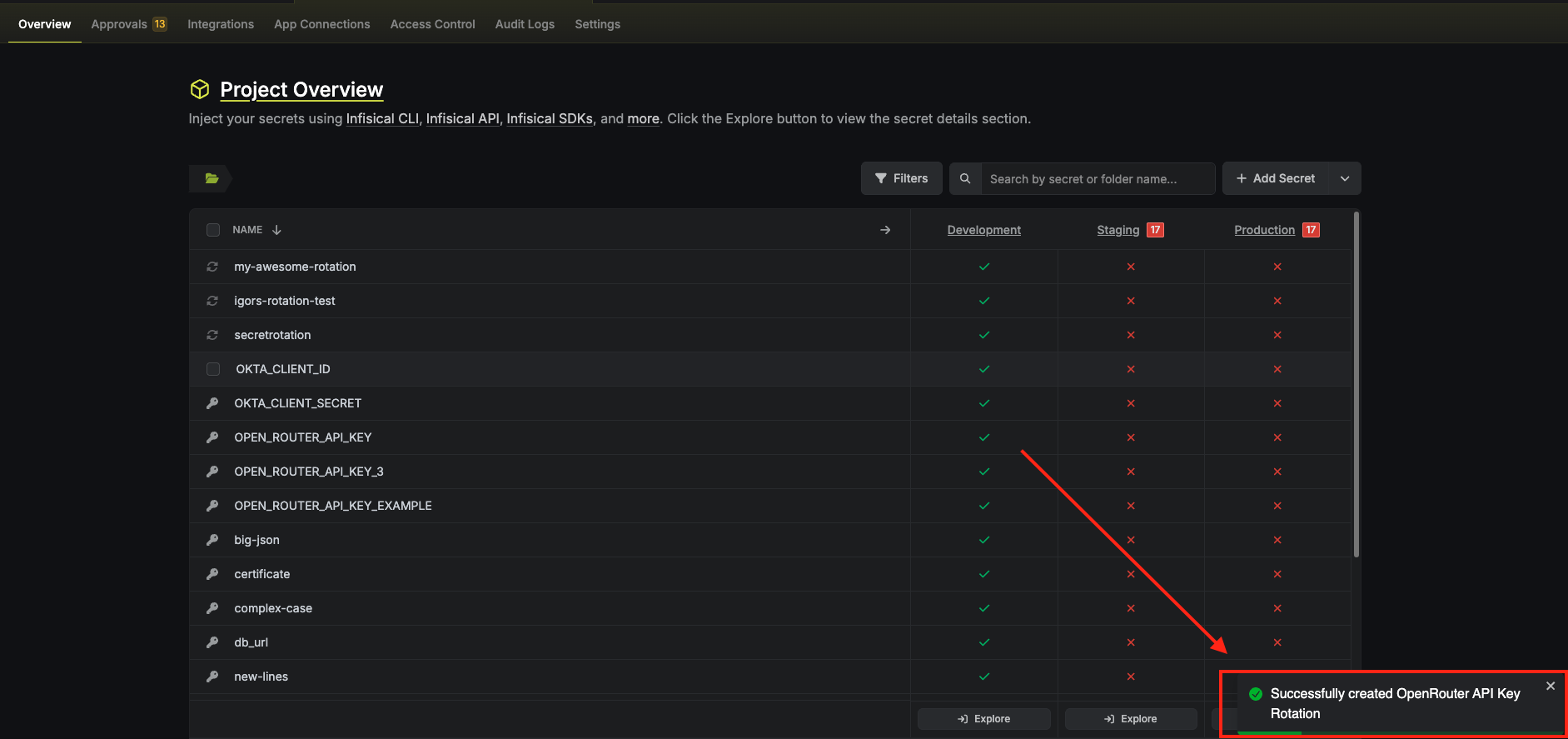
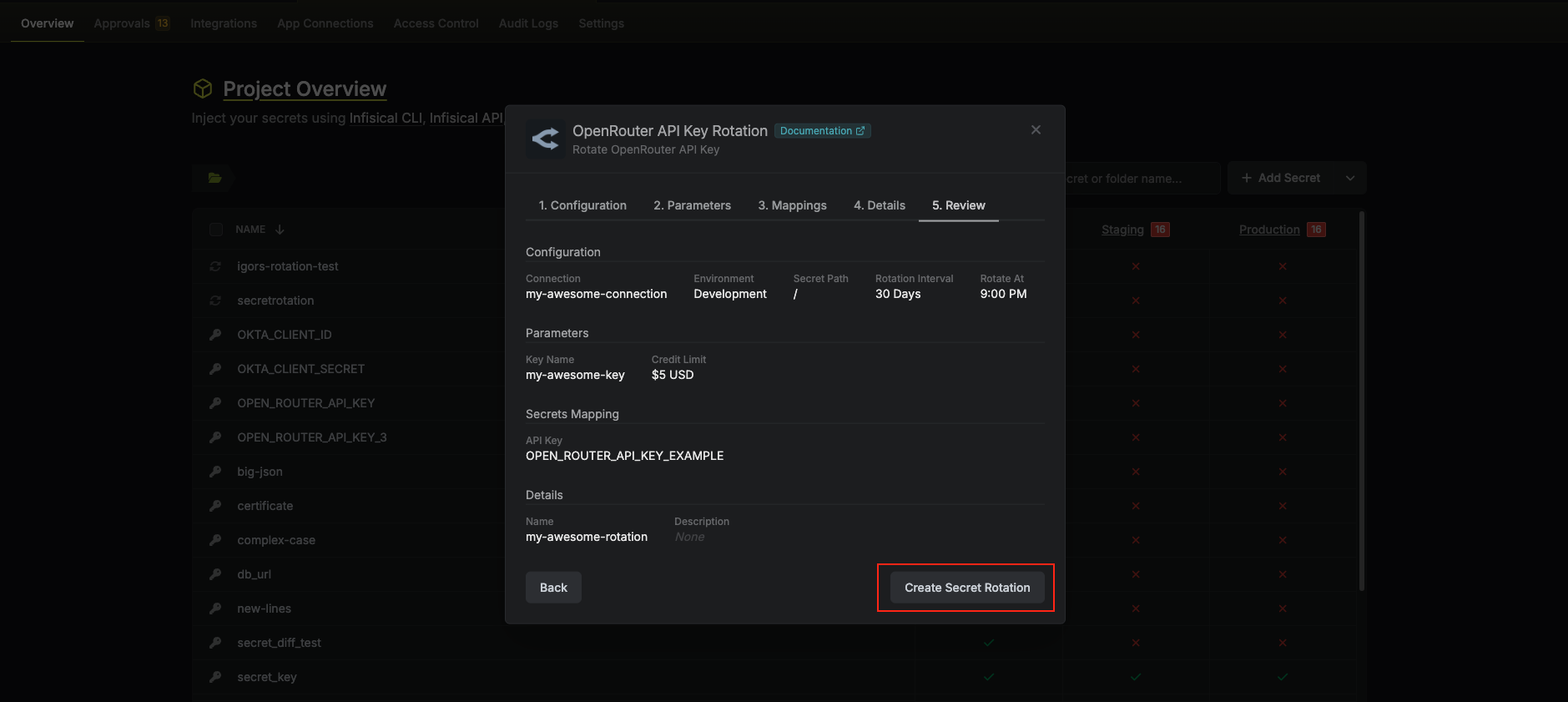 8. Your **OpenRouter API Key** rotation is created. The current API key is available as a secret at the mapped path. Rotations will create a new key, switch the active secret to it, then revoke the previous key for zero-downtime rotation.
 To create an OpenRouter API Key rotation, call the [Create OpenRouter API Key Rotation](/api-reference/endpoints/secret-rotations/openrouter-api-key/create) API endpoint.
### Sample request
```bash Request theme={"dark"}
curl --request POST \
--url https://us.infisical.com/api/v2/secret-rotations/open-router-api-key \
--header 'Content-Type: application/json' \
--data '{
"name": "my-openrouter-rotation",
"projectId": "",
"description": "OpenRouter API key rotation",
"connectionId": "",
"environment": "dev",
"secretPath": "/",
"isAutoRotationEnabled": true,
"rotationInterval": 30,
"rotateAtUtc": {
"hours": 0,
"minutes": 0
},
"parameters": {
"name": "my-app-key",
"limit": 100,
"limitReset": "monthly",
"includeByokInLimit": false
},
"secretsMapping": {
"apiKey": "OPEN_ROUTER_API_KEY"
}
}'
```
### Sample response
```bash Response theme={"dark"}
{
"secretRotation": {
"id": "",
"name": "my-openrouter-rotation",
"description": "OpenRouter API key rotation",
"secretsMapping": {
"apiKey": "OPEN_ROUTER_API_KEY"
},
"isAutoRotationEnabled": true,
"activeIndex": 0,
"connectionId": "",
"rotationInterval": 30,
"rotateAtUtc": { "hours": 0, "minutes": 0 },
"type": "openrouter-api-key",
"parameters": {
"name": "my-app-key",
"limit": 100,
"limitReset": "monthly",
"includeByokInLimit": false
}
}
}
```
## Include BYOK in limit (optional)
**BYOK** (Bring Your Own Key) on OpenRouter lets you use your own provider API keys (e.g. OpenAI, Anthropic) so you pay providers directly; OpenRouter charges a small fee on those requests. The **Include BYOK in limit** option controls whether that BYOK usage counts toward this key's spending limit:
* **Enabled (Yes)** – Usage from your own provider keys is included in the limit. Once the limit is reached, the key is subject to OpenRouter's rate limits until the next reset.
* **Disabled (No)** – Only OpenRouter credit usage counts toward the limit. BYOK usage is tracked separately and does not consume the limit.
This is optional; if you don't use BYOK or don't set a limit, you can leave it off. For more details, see [OpenRouter BYOK](https://openrouter.ai/docs/guides/overview/auth/byok) and [OpenRouter limits](https://openrouter.ai/docs/api/reference/limits).
To create an OpenRouter API Key rotation, call the [Create OpenRouter API Key Rotation](/api-reference/endpoints/secret-rotations/openrouter-api-key/create) API endpoint.
### Sample request
```bash Request theme={"dark"}
curl --request POST \
--url https://us.infisical.com/api/v2/secret-rotations/open-router-api-key \
--header 'Content-Type: application/json' \
--data '{
"name": "my-openrouter-rotation",
"projectId": "",
"description": "OpenRouter API key rotation",
"connectionId": "",
"environment": "dev",
"secretPath": "/",
"isAutoRotationEnabled": true,
"rotationInterval": 30,
"rotateAtUtc": {
"hours": 0,
"minutes": 0
},
"parameters": {
"name": "my-app-key",
"limit": 100,
"limitReset": "monthly",
"includeByokInLimit": false
},
"secretsMapping": {
"apiKey": "OPEN_ROUTER_API_KEY"
}
}'
```
### Sample response
```bash Response theme={"dark"}
{
"secretRotation": {
"id": "",
"name": "my-openrouter-rotation",
"description": "OpenRouter API key rotation",
"secretsMapping": {
"apiKey": "OPEN_ROUTER_API_KEY"
},
"isAutoRotationEnabled": true,
"activeIndex": 0,
"connectionId": "",
"rotationInterval": 30,
"rotateAtUtc": { "hours": 0, "minutes": 0 },
"type": "openrouter-api-key",
"parameters": {
"name": "my-app-key",
"limit": 100,
"limitReset": "monthly",
"includeByokInLimit": false
}
}
}
```
## Include BYOK in limit (optional)
**BYOK** (Bring Your Own Key) on OpenRouter lets you use your own provider API keys (e.g. OpenAI, Anthropic) so you pay providers directly; OpenRouter charges a small fee on those requests. The **Include BYOK in limit** option controls whether that BYOK usage counts toward this key's spending limit:
* **Enabled (Yes)** – Usage from your own provider keys is included in the limit. Once the limit is reached, the key is subject to OpenRouter's rate limits until the next reset.
* **Disabled (No)** – Only OpenRouter credit usage counts toward the limit. BYOK usage is tracked separately and does not consume the limit.
This is optional; if you don't use BYOK or don't set a limit, you can leave it off. For more details, see [OpenRouter BYOK](https://openrouter.ai/docs/guides/overview/auth/byok) and [OpenRouter limits](https://openrouter.ai/docs/api/reference/limits).