> ## Documentation Index
> Fetch the complete documentation index at: https://infisical.com/docs/llms.txt
> Use this file to discover all available pages before exploring further.
# Redis Credentials Rotation
> Learn how to automatically rotate Redis credentials.
**Rotation Type: Dual-Phase**
This rotation maintains two active credential sets with overlapping validity, ensuring zero-downtime during rotation cycles.
## Prerequisites
1. Create a [Redis Connection](/integrations/app-connections/redis) with the required **Secret Rotation** permissions
2. Ensure your network security policies allow incoming requests from Infisical to this rotation provider, if network restrictions apply.
Create a Redis Credentials Rotation in Infisical
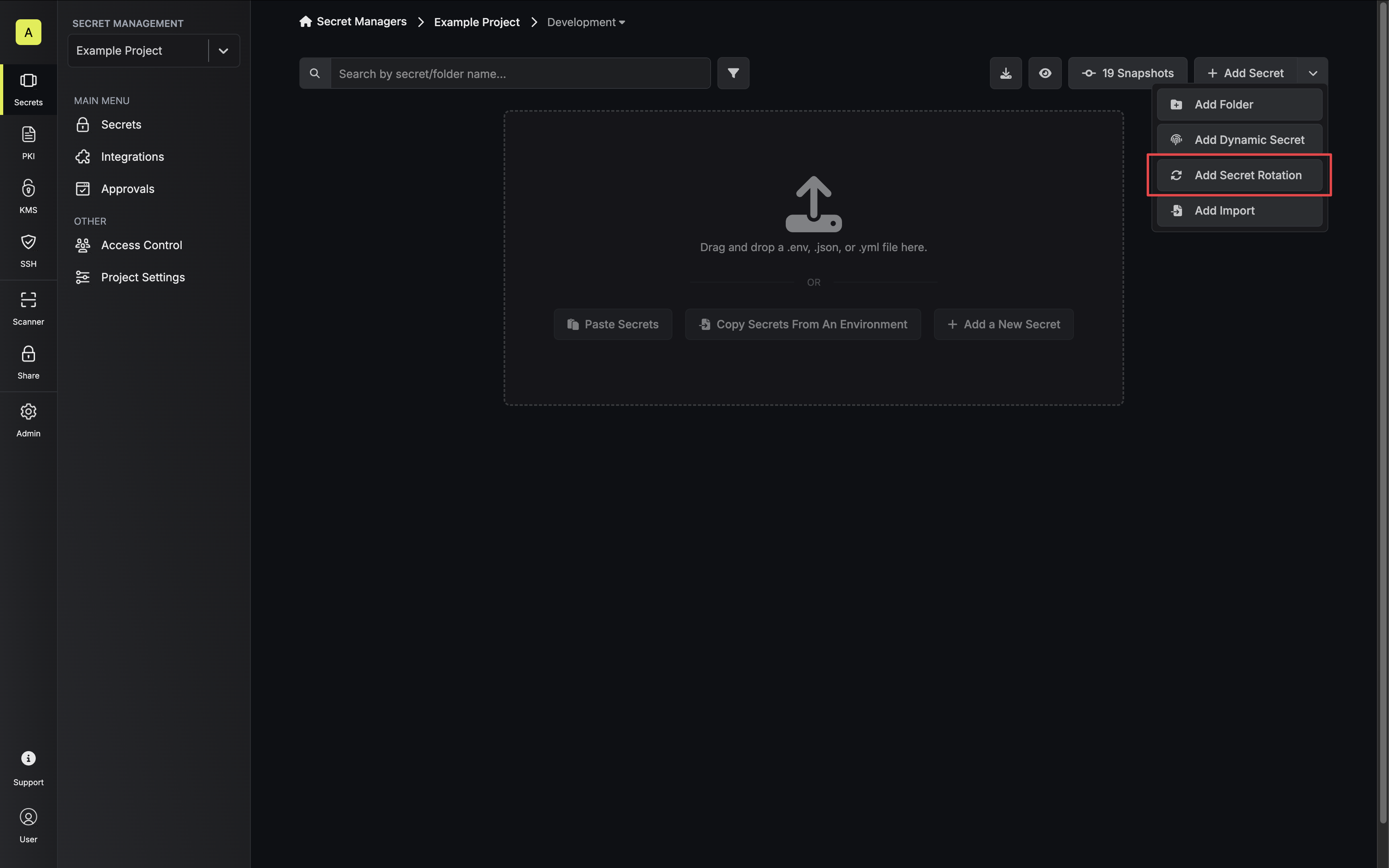
1. Navigate to your Secret Manager Project's Dashboard and select **Add Secret Rotation** from the actions dropdown.
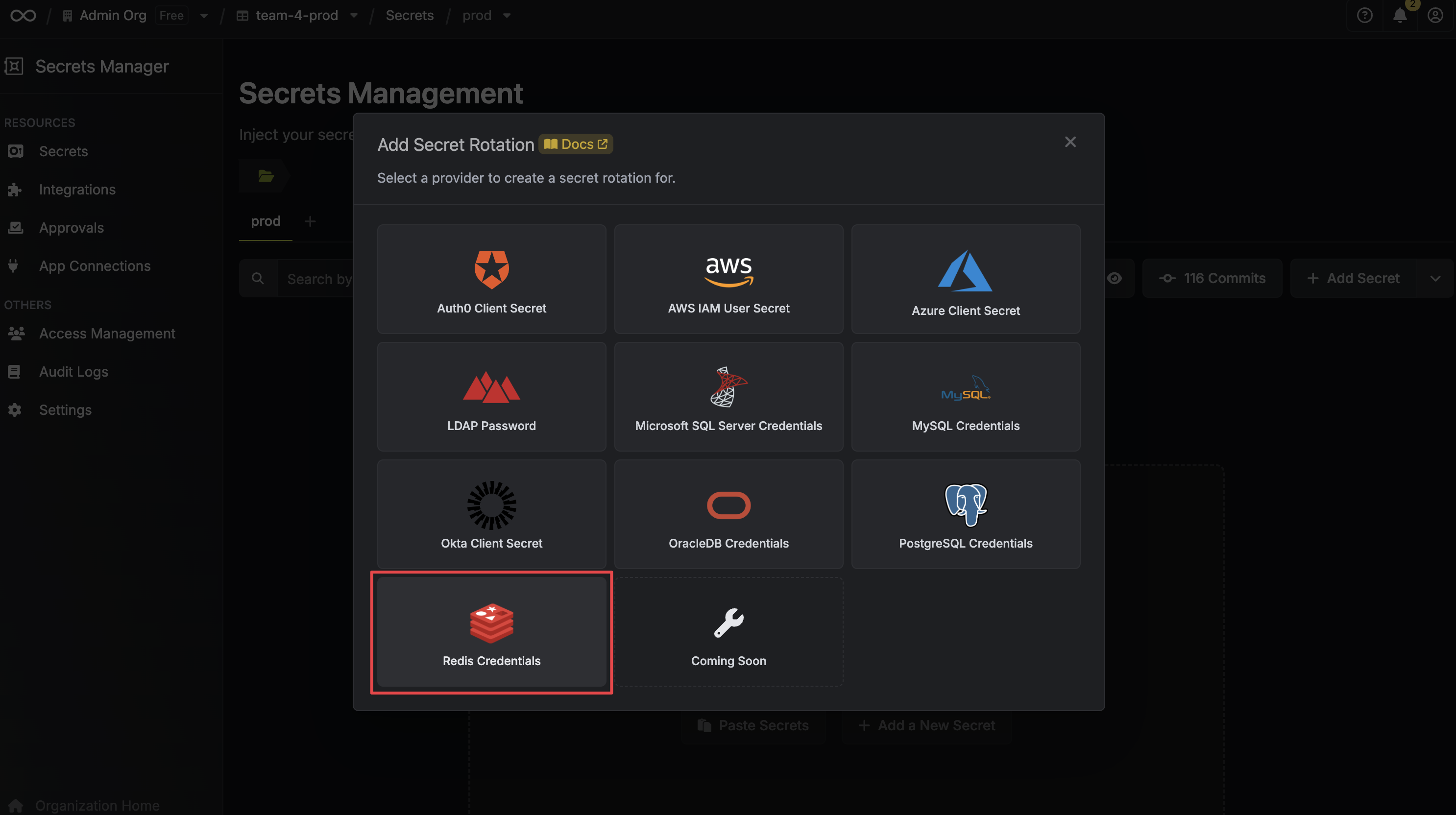
 2. Select the **Redis Credentials** option.
 3. Select the **Redis Connection** to use and configure the rotation behavior. Then click **Next**.
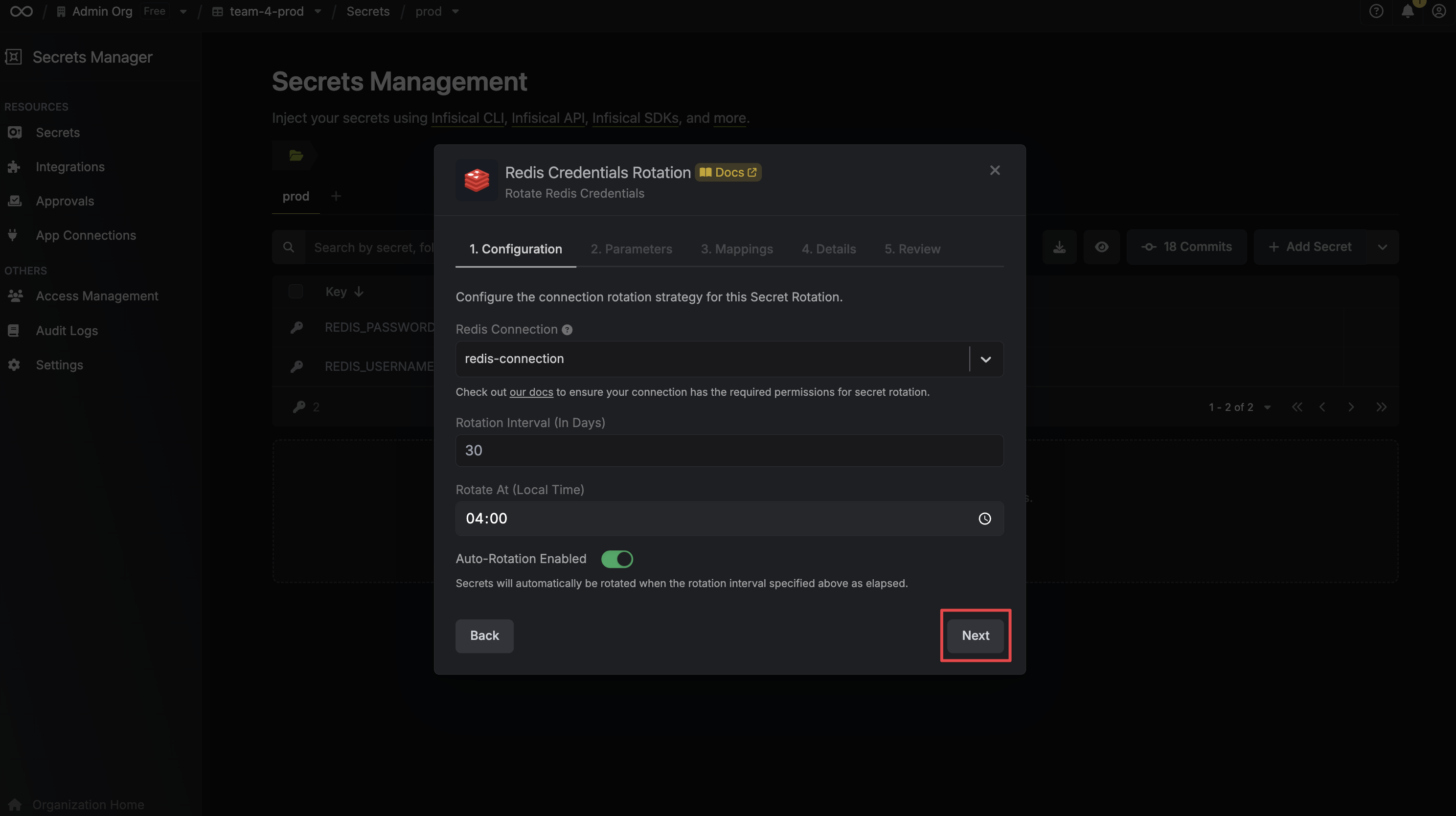 * **Redis Connection** - the connection that will perform the rotation of the configured database user credentials.
* **Rotation Interval** - the interval, in days, that once elapsed will trigger a rotation.
* **Rotate At** - the local time of day when rotation should occur once the interval has elapsed.
* **Auto-Rotation Enabled** - whether secrets should automatically be rotated once the rotation interval has elapsed. Disable this option to manually rotate secrets or pause secret rotation.
4. Input the password requirements and permission scope for the Redis users that will be created for the rotation. Then click **Next**.
* **Redis Connection** - the connection that will perform the rotation of the configured database user credentials.
* **Rotation Interval** - the interval, in days, that once elapsed will trigger a rotation.
* **Rotate At** - the local time of day when rotation should occur once the interval has elapsed.
* **Auto-Rotation Enabled** - whether secrets should automatically be rotated once the rotation interval has elapsed. Disable this option to manually rotate secrets or pause secret rotation.
4. Input the password requirements and permission scope for the Redis users that will be created for the rotation. Then click **Next**.
 * **Permission Scope** - The scope of the Redis users that will be created for the rotation. This will default to `~* +@all` if not specified.
* **Password Requirements** - The requirements for the password of the Redis users that will be created for the rotation.
5. Specify the secret names that the active credentials should be mapped to. Then click **Next**.
* **Permission Scope** - The scope of the Redis users that will be created for the rotation. This will default to `~* +@all` if not specified.
* **Password Requirements** - The requirements for the password of the Redis users that will be created for the rotation.
5. Specify the secret names that the active credentials should be mapped to. Then click **Next**.
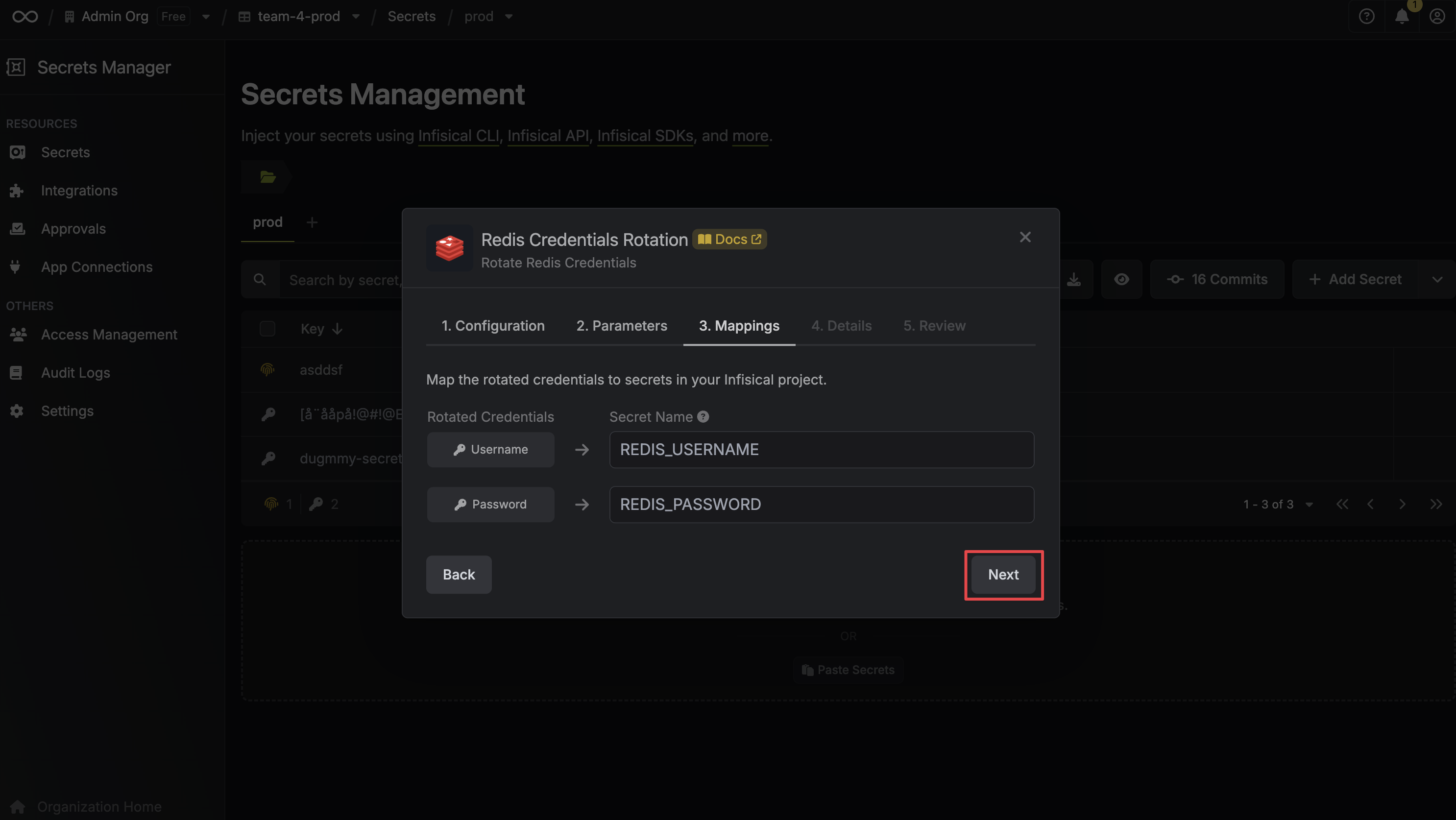 * **Username** - the name of the secret that the active username will be mapped to.
* **Password** - the name of the secret that the active password will be mapped to.
6. Give your rotation a name and description (optional). Then click **Next**.
* **Username** - the name of the secret that the active username will be mapped to.
* **Password** - the name of the secret that the active password will be mapped to.
6. Give your rotation a name and description (optional). Then click **Next**.
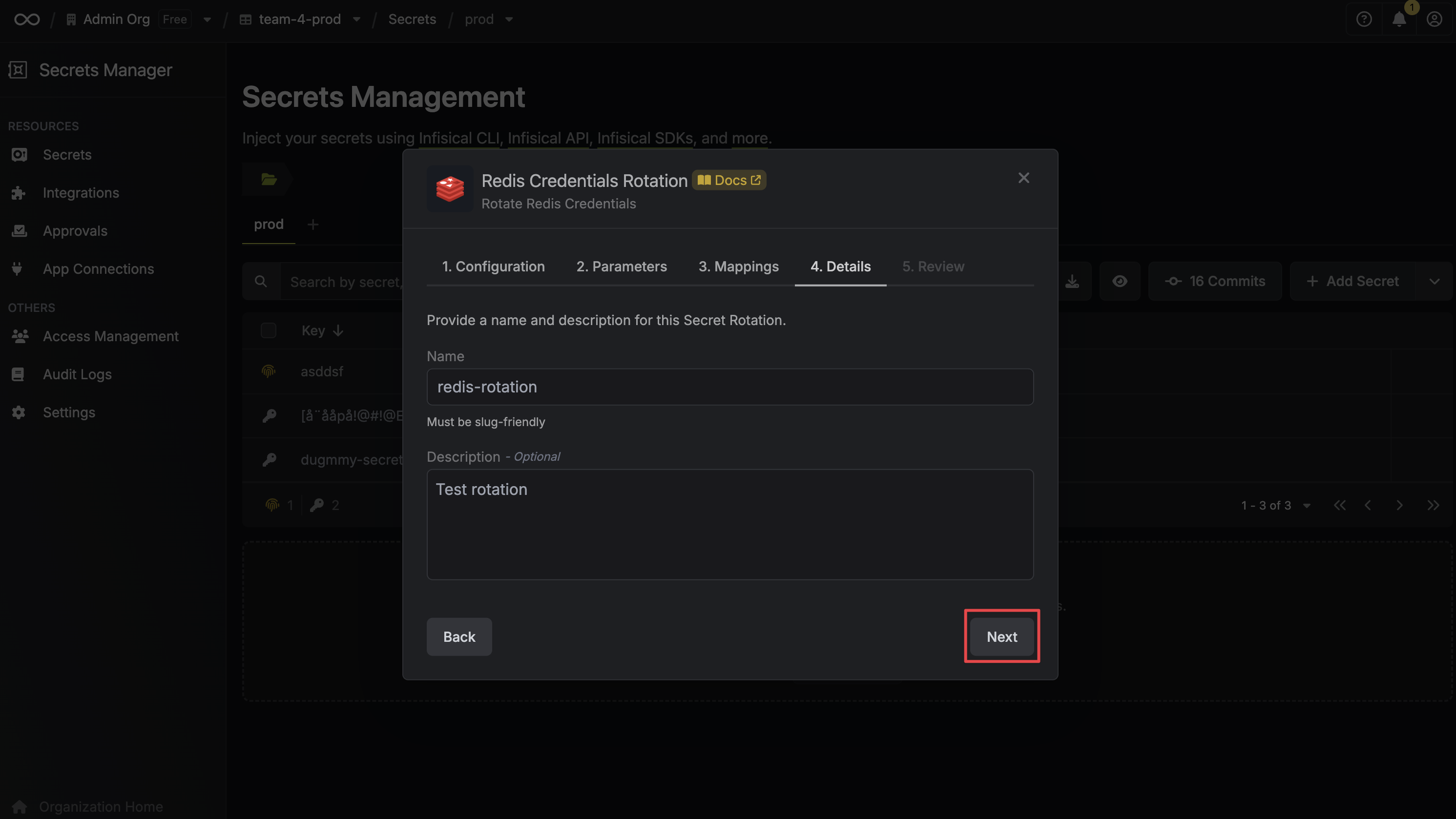 * **Name** - the name of the secret rotation configuration. Must be slug-friendly.
* **Description** (optional) - a description of this rotation configuration.
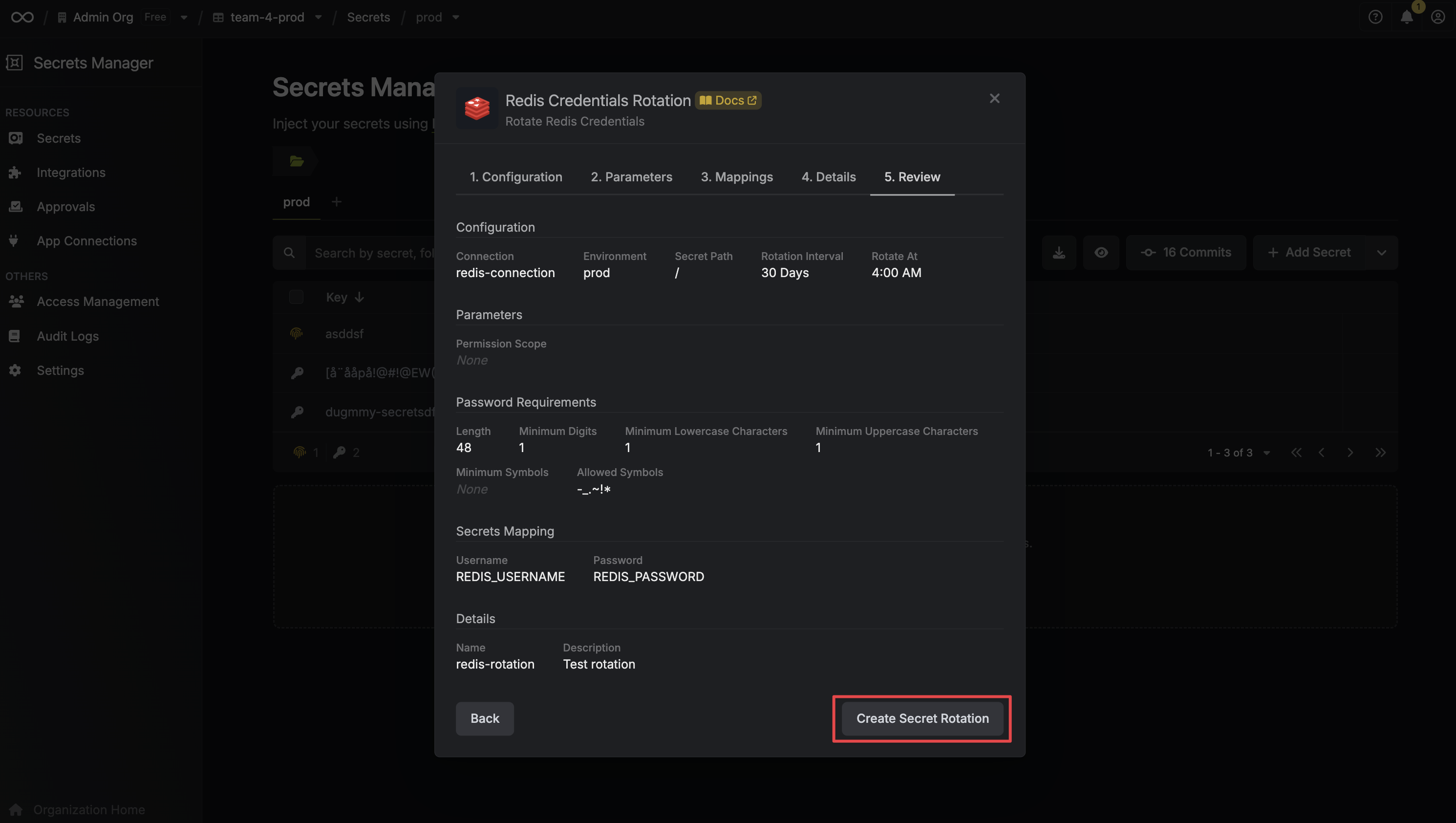
7. Review your configuration, then click **Create Secret Rotation**.
* **Name** - the name of the secret rotation configuration. Must be slug-friendly.
* **Description** (optional) - a description of this rotation configuration.
7. Review your configuration, then click **Create Secret Rotation**.
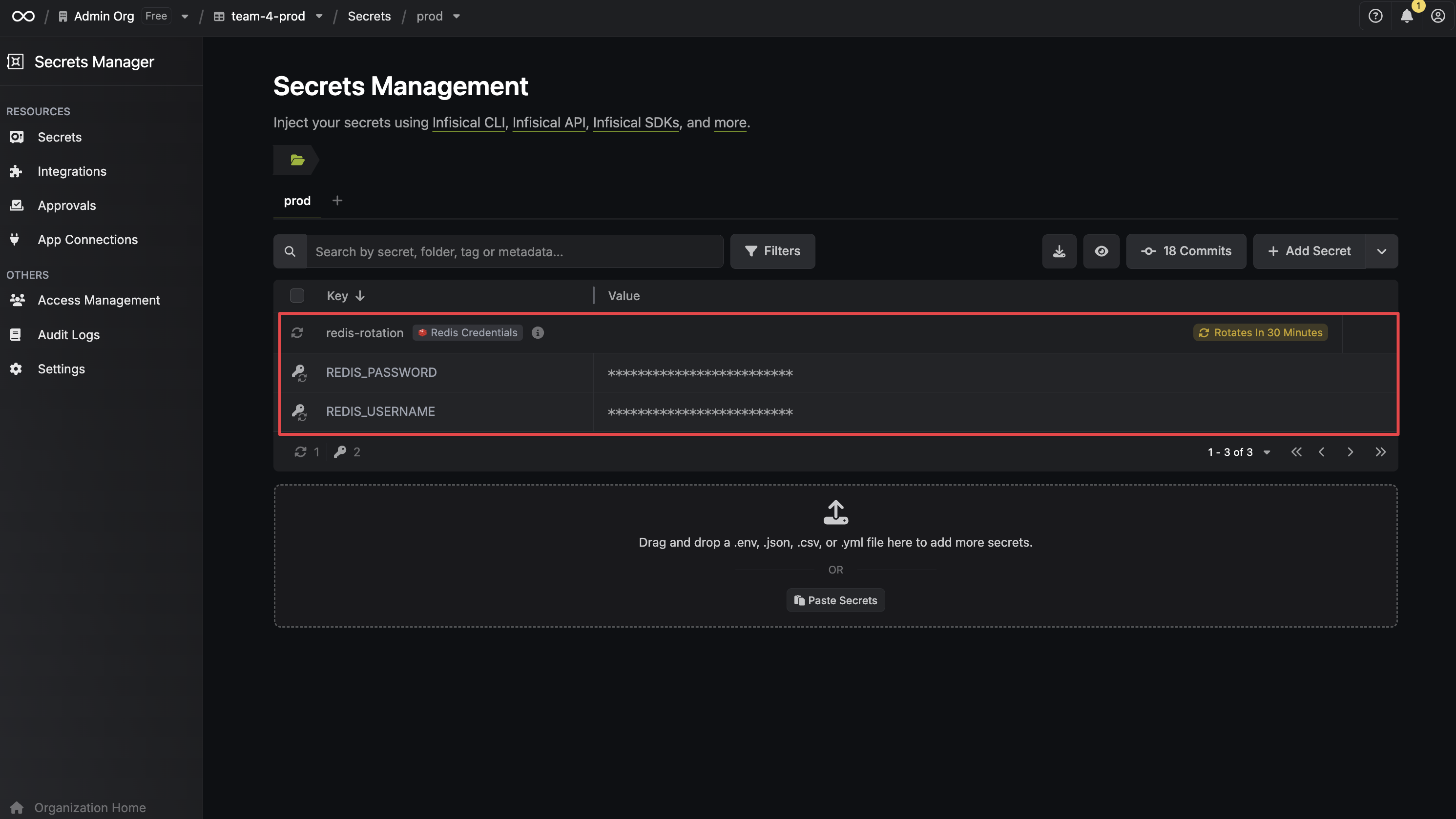
 8. Your **Redis Credentials** are now available for use via the mapped secrets.
 To create a Redis Credentials Rotation, make an API request to the [Create Redis
Credentials Rotation](/api-reference/endpoints/secret-rotations/redis-credentials/create) API endpoint.
### Sample request
```bash Request theme={"dark"}
curl --request POST \
--url https://us.infisical.com/api/v2/secret-rotations/redis-credentials \
--header 'Content-Type: application/json' \
--data '{
"name": my-redis-rotation",
"projectId": "",
"description": "",
"connectionId": "",
"environment": "dev|staging|prod",
"secretPath": "",
"isAutoRotationEnabled": true,
"rotationInterval": 2,
"rotateAtUtc": {
"hours": 11.5,
"minutes": 29.5
},
"parameters": {
"passwordRequirements": {
"length": 64,
"required": {
"digits": 1,
"lowercase": 1,
"uppercase": 1,
"symbols": 1
},
"allowedSymbols": "@!+"
},
"permissionScope": "~* +@all"
},
"secretsMapping": {
"username": "REDIS_USERNAME",
"password": "REDIS_PASSWORD"
}
}'
```
### Sample response
```bash Response theme={"dark"}
{
"secretRotation": {
"id": "3c90c3cc-0d44-4b50-8888-8dd25736052a",
"name": "my-redis-rotation",
"description": "my database credentials rotation",
"isAutoRotationEnabled": true,
"activeIndex": 0,
"folderId": "3c90c3cc-0d44-4b50-8888-8dd25736052a",
"connectionId": "3c90c3cc-0d44-4b50-8888-8dd25736052a",
"createdAt": "2023-11-07T05:31:56Z",
"updatedAt": "2023-11-07T05:31:56Z",
"rotationInterval": 30,
"rotationStatus": "success",
"lastRotationAttemptedAt": "2023-11-07T05:31:56Z",
"lastRotatedAt": "2023-11-07T05:31:56Z",
"lastRotationJobId": "3c90c3cc-0d44-4b50-8888-8dd25736052a",
"nextRotationAt": "2023-11-07T05:31:56Z",
"connection": {
"app": "redis",
"name": "my-redis-connection",
"id": "3c90c3cc-0d44-4b50-8888-8dd25736052a"
},
"environment": {
"slug": "dev",
"name": "Development",
"id": "3c90c3cc-0d44-4b50-8888-8dd25736052a"
},
"projectId": "3c90c3cc-0d44-4b50-8888-8dd25736052a",
"folder": {
"id": "3c90c3cc-0d44-4b50-8888-8dd25736052a",
"path": "/"
},
"rotateAtUtc": {
"hours": 0,
"minutes": 0
},
"lastRotationMessage": null,
"type": "redis-credentials",
"parameters": {
"passwordRequirements": {
"length": 64,
"required": {
"digits": 1,
"lowercase": 1,
"uppercase": 1,
"symbols": 1
},
"allowedSymbols": "@!+"
},
"permissionScope": "~* +@all"
},
"secretsMapping": {
"username": "REDIS_USERNAME",
"password": "REDIS_PASSWORD"
}
}
}
```
To create a Redis Credentials Rotation, make an API request to the [Create Redis
Credentials Rotation](/api-reference/endpoints/secret-rotations/redis-credentials/create) API endpoint.
### Sample request
```bash Request theme={"dark"}
curl --request POST \
--url https://us.infisical.com/api/v2/secret-rotations/redis-credentials \
--header 'Content-Type: application/json' \
--data '{
"name": my-redis-rotation",
"projectId": "",
"description": "",
"connectionId": "",
"environment": "dev|staging|prod",
"secretPath": "",
"isAutoRotationEnabled": true,
"rotationInterval": 2,
"rotateAtUtc": {
"hours": 11.5,
"minutes": 29.5
},
"parameters": {
"passwordRequirements": {
"length": 64,
"required": {
"digits": 1,
"lowercase": 1,
"uppercase": 1,
"symbols": 1
},
"allowedSymbols": "@!+"
},
"permissionScope": "~* +@all"
},
"secretsMapping": {
"username": "REDIS_USERNAME",
"password": "REDIS_PASSWORD"
}
}'
```
### Sample response
```bash Response theme={"dark"}
{
"secretRotation": {
"id": "3c90c3cc-0d44-4b50-8888-8dd25736052a",
"name": "my-redis-rotation",
"description": "my database credentials rotation",
"isAutoRotationEnabled": true,
"activeIndex": 0,
"folderId": "3c90c3cc-0d44-4b50-8888-8dd25736052a",
"connectionId": "3c90c3cc-0d44-4b50-8888-8dd25736052a",
"createdAt": "2023-11-07T05:31:56Z",
"updatedAt": "2023-11-07T05:31:56Z",
"rotationInterval": 30,
"rotationStatus": "success",
"lastRotationAttemptedAt": "2023-11-07T05:31:56Z",
"lastRotatedAt": "2023-11-07T05:31:56Z",
"lastRotationJobId": "3c90c3cc-0d44-4b50-8888-8dd25736052a",
"nextRotationAt": "2023-11-07T05:31:56Z",
"connection": {
"app": "redis",
"name": "my-redis-connection",
"id": "3c90c3cc-0d44-4b50-8888-8dd25736052a"
},
"environment": {
"slug": "dev",
"name": "Development",
"id": "3c90c3cc-0d44-4b50-8888-8dd25736052a"
},
"projectId": "3c90c3cc-0d44-4b50-8888-8dd25736052a",
"folder": {
"id": "3c90c3cc-0d44-4b50-8888-8dd25736052a",
"path": "/"
},
"rotateAtUtc": {
"hours": 0,
"minutes": 0
},
"lastRotationMessage": null,
"type": "redis-credentials",
"parameters": {
"passwordRequirements": {
"length": 64,
"required": {
"digits": 1,
"lowercase": 1,
"uppercase": 1,
"symbols": 1
},
"allowedSymbols": "@!+"
},
"permissionScope": "~* +@all"
},
"secretsMapping": {
"username": "REDIS_USERNAME",
"password": "REDIS_PASSWORD"
}
}
}
```