> ## Documentation Index
> Fetch the complete documentation index at: https://infisical.com/docs/llms.txt
> Use this file to discover all available pages before exploring further.
# Projects
> Learn about Infisical projects and how to manage secrets across environments.
A secrets management project in Infisical is a dedicated workspace for managing application secrets such as API keys, database credentials, configuration, etc. used by your applications.
Secrets are organized into a clear hierarchy of environments, folders, and individual secrets, making it easy to manage values across different stages of your development lifecycle (e.g., development, staging, production).
The short video below walks through Infisical projects, covering how secrets are organized into environments and folders, and the dashboard features available to manage them.
## Project environments
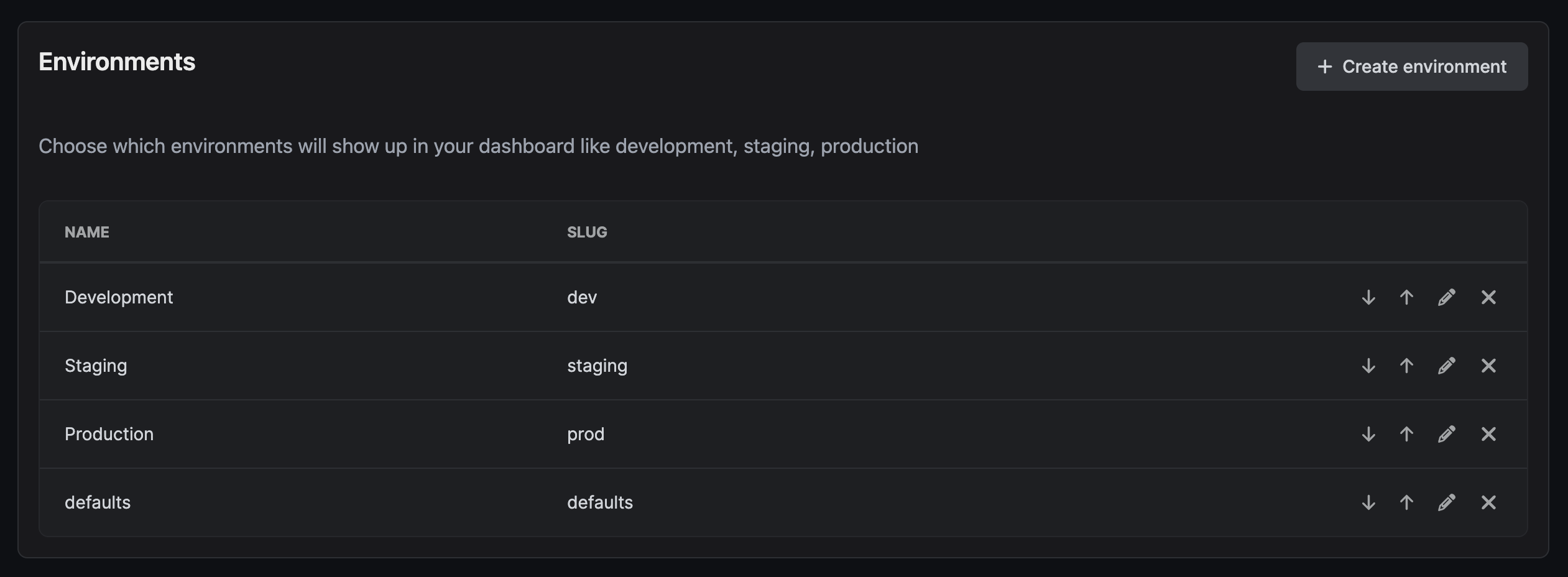
Infisical lets you split secrets into environments (e.g., development, staging, production) for both visual and organizational structure. You can customize environments in project settings.
The short video below walks through how to use environments in Infisical.
## Secrets overview
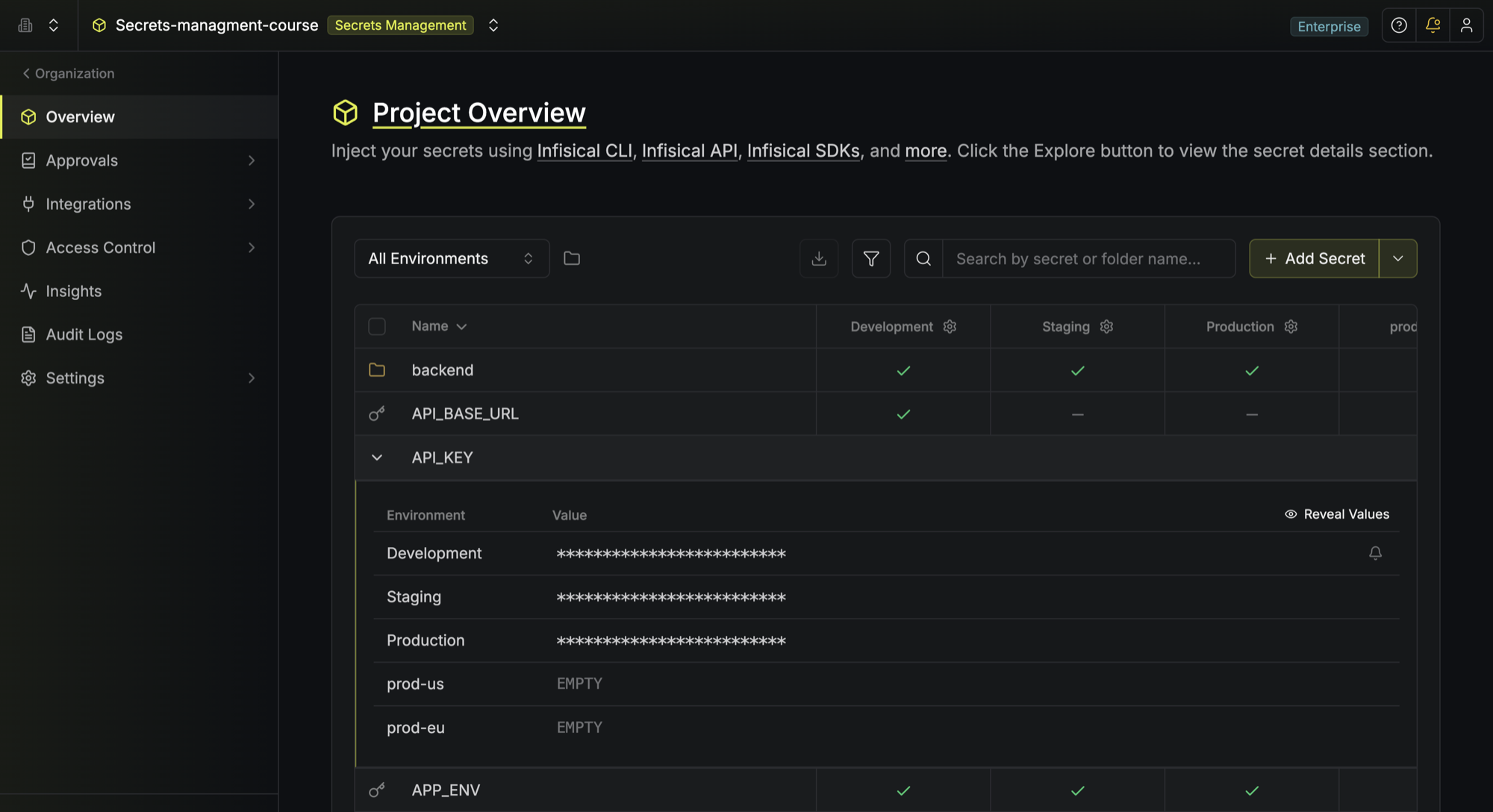
The **Secrets Overview** page captures a bird's-eye view of secrets and [folders](/docs/documentation/platform/folder) across environments.
This is useful for comparing secrets, identifying if anything is missing, and making quick changes.
## Secrets dashboard
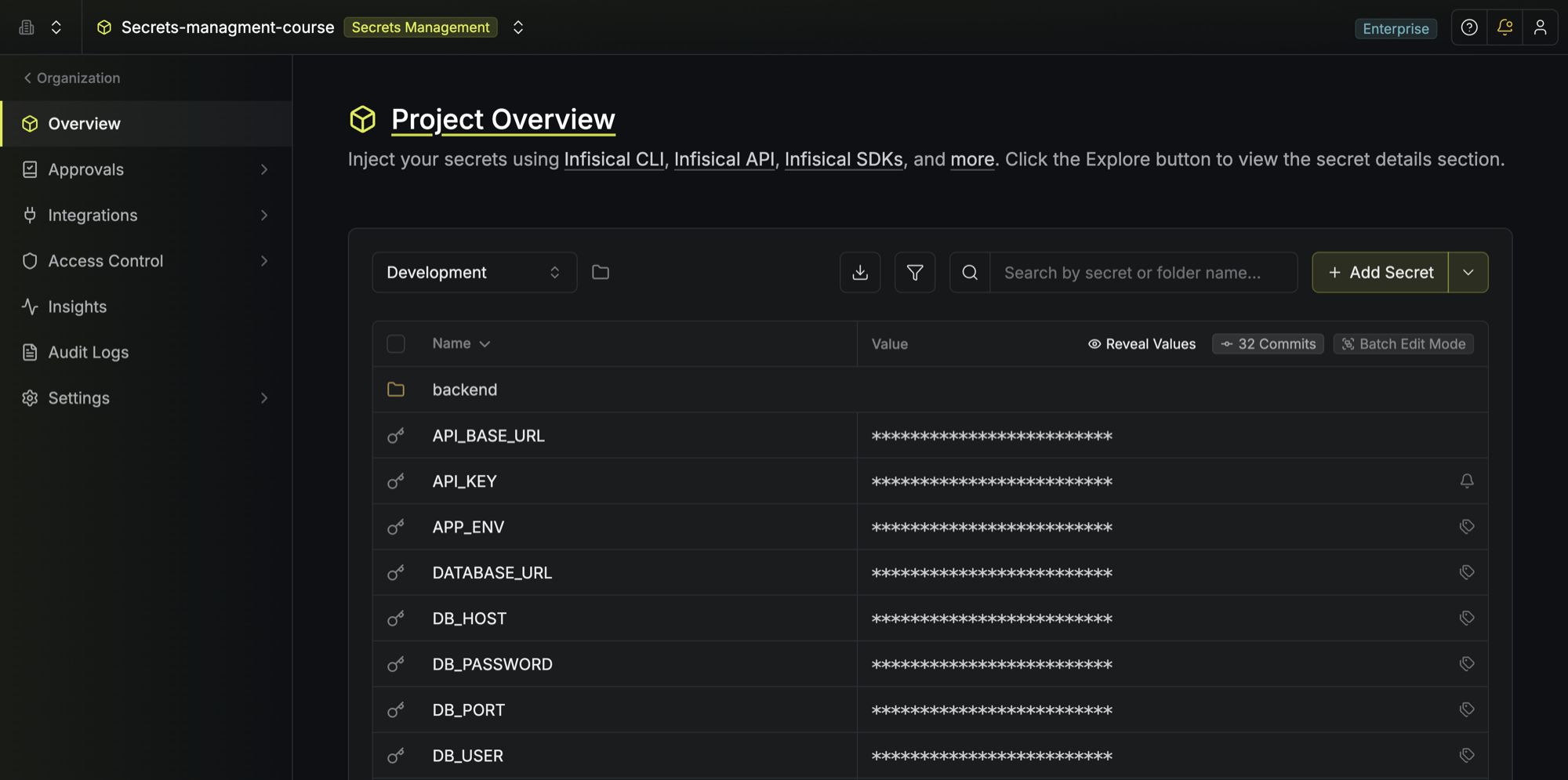
The **Secrets Dashboard** page appears when you select a specific environment to manage its secrets.
### Secrets
To add a secret, click the **Add Secret** button at the top of the dashboard.
For a new project, it can be convenient to populate the dashboard by dropping a `.env` file into the provided pane as shown below:
To delete a secret, hover over it and click the three dots on the right side, then select **Delete secret** from the dropdown.
To delete multiple secrets at once, hover over and select the secrets you'd like to delete
and click the **Delete** button that appears at the top.
### Search
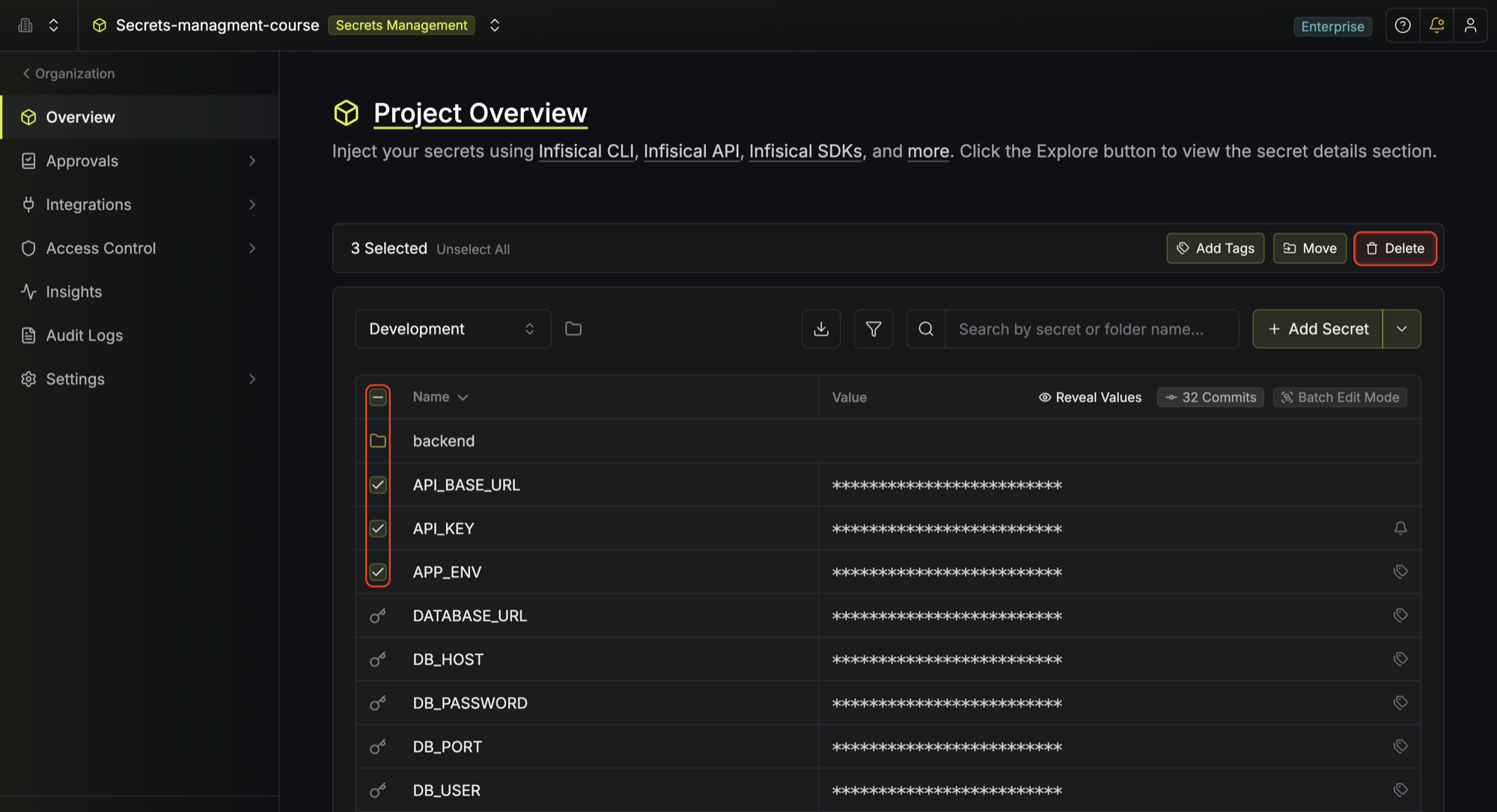
To search for specific secrets by their key name, you can use the search bar.
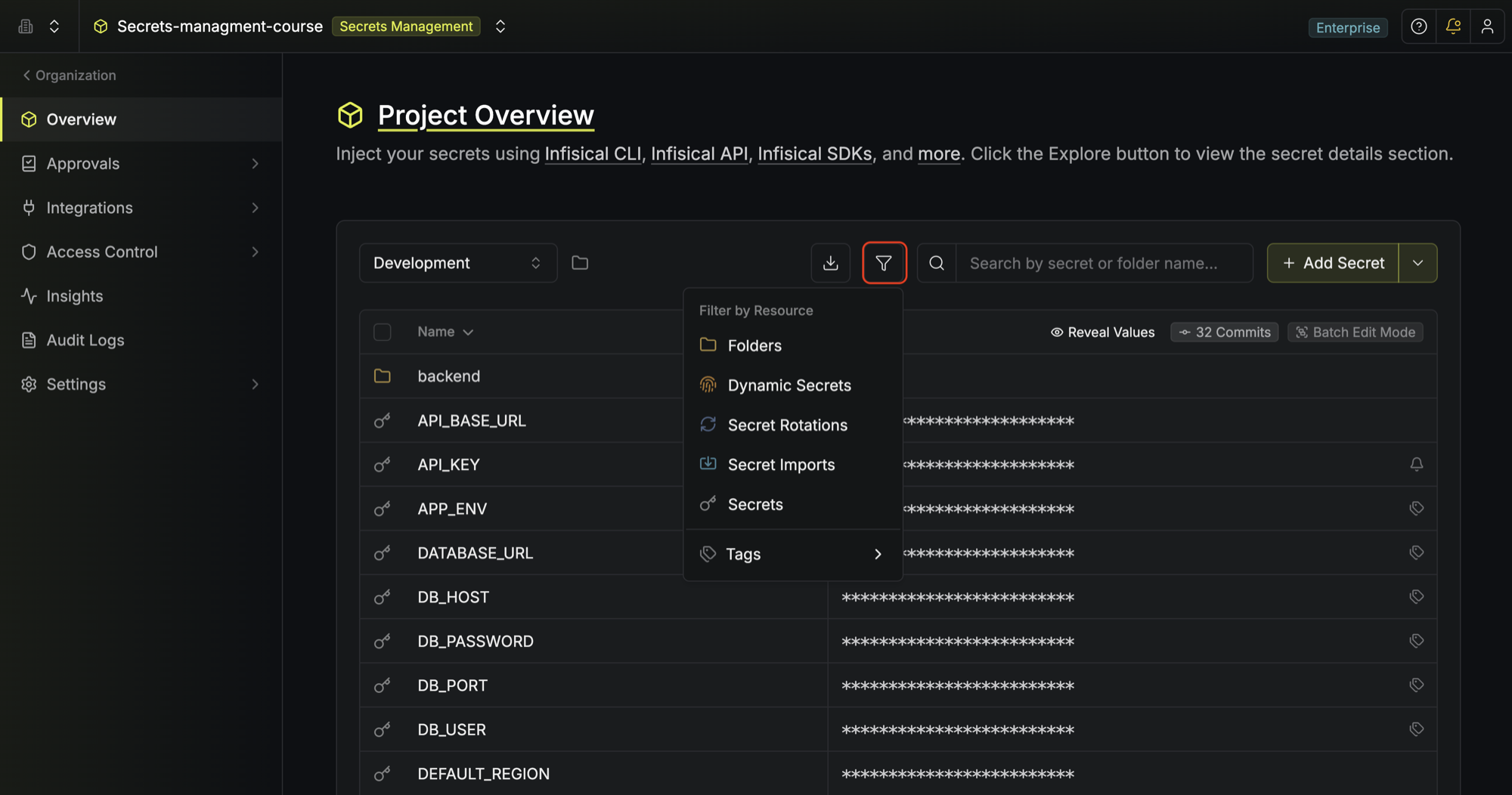
To assist you with finding secrets, you can also group them by similar prefixes and filter them by tags (if applicable).
### Reveal values
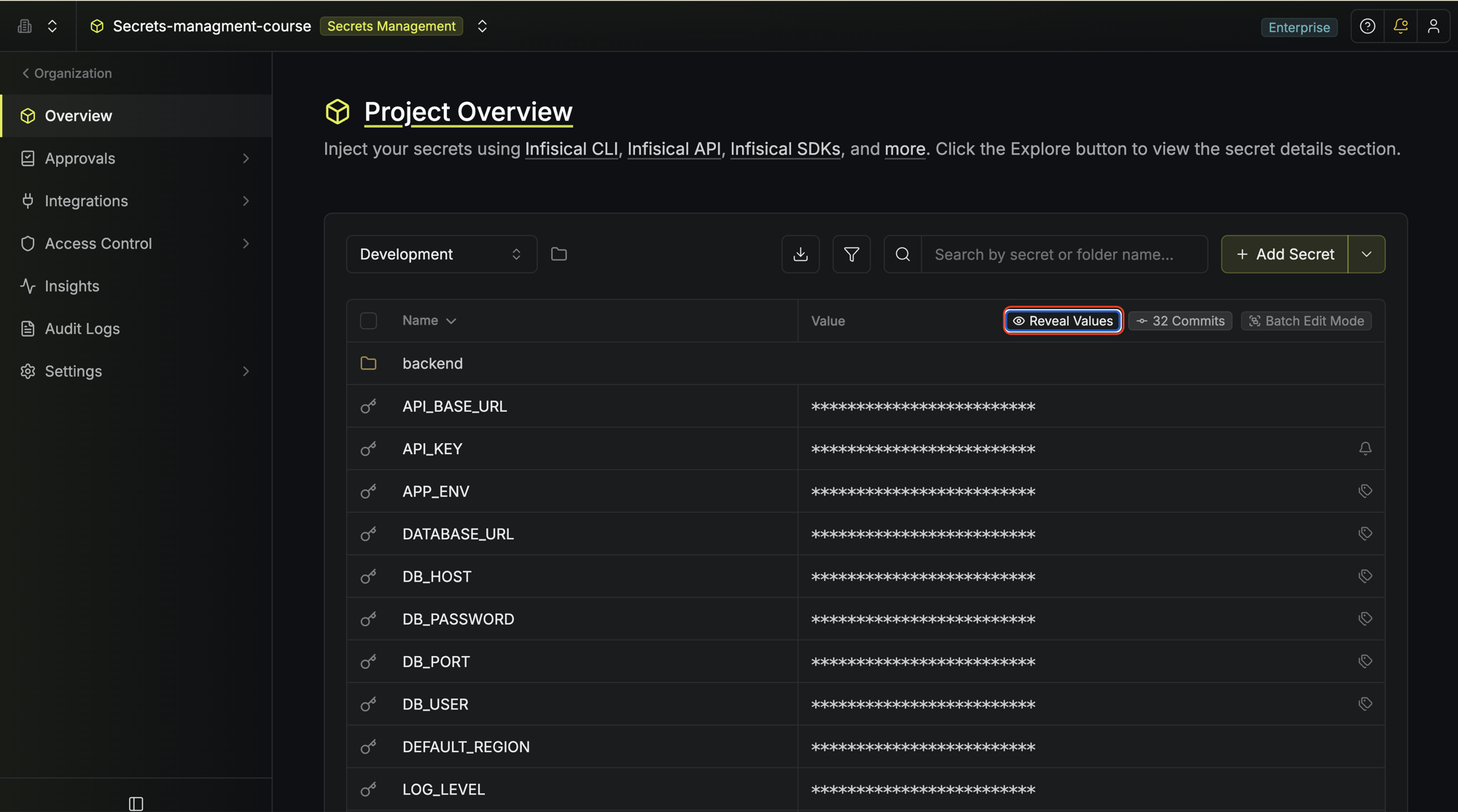
To view all secret values at once, toggle the **Reveal values** button.
### Download as .env
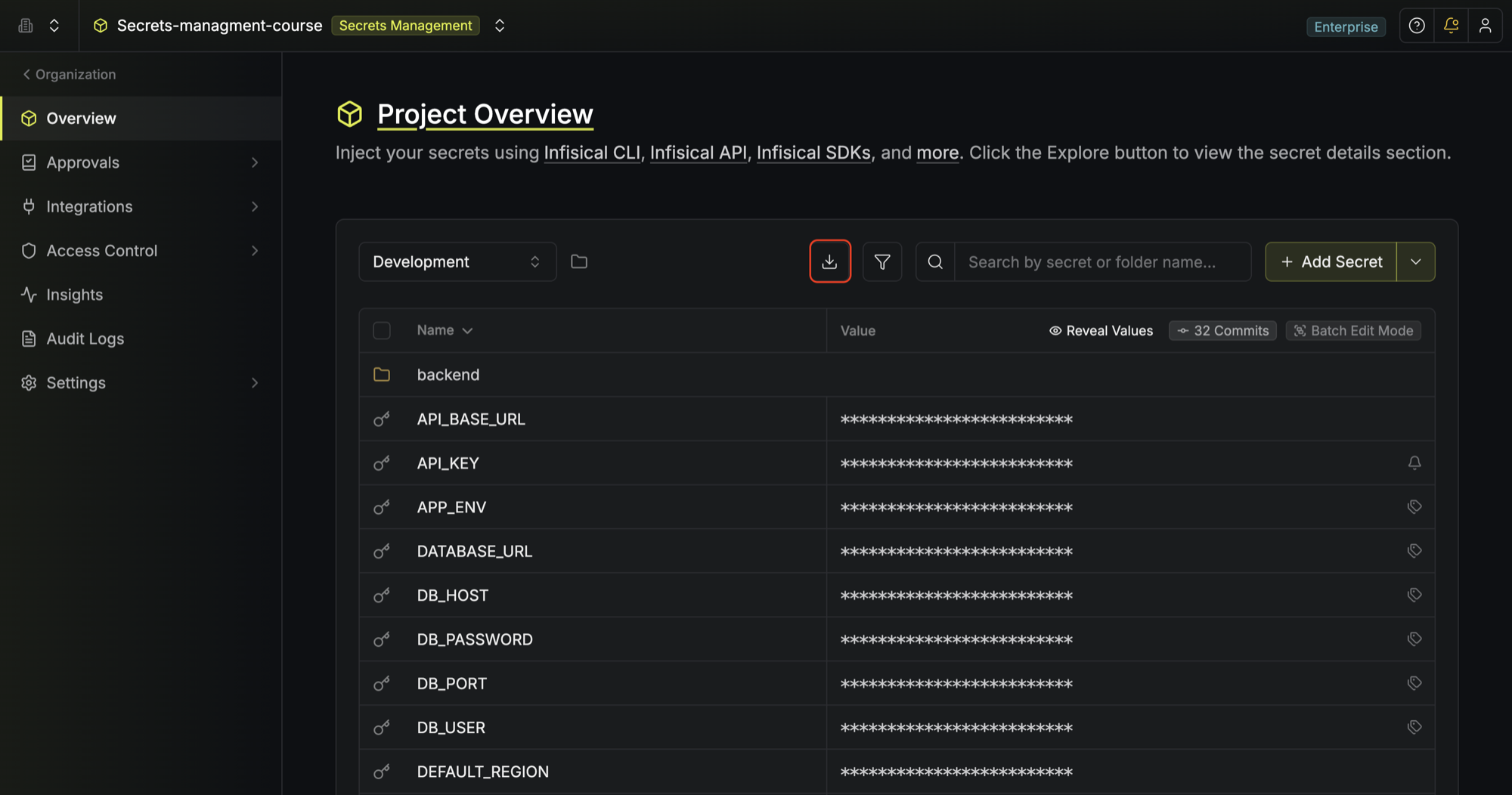
To download/export secrets back into a `.env` file, click the download button.
The short video below walks through tagging, comments, and personal overrides, three ways to organize, annotate, and customize secrets in the dashboard.
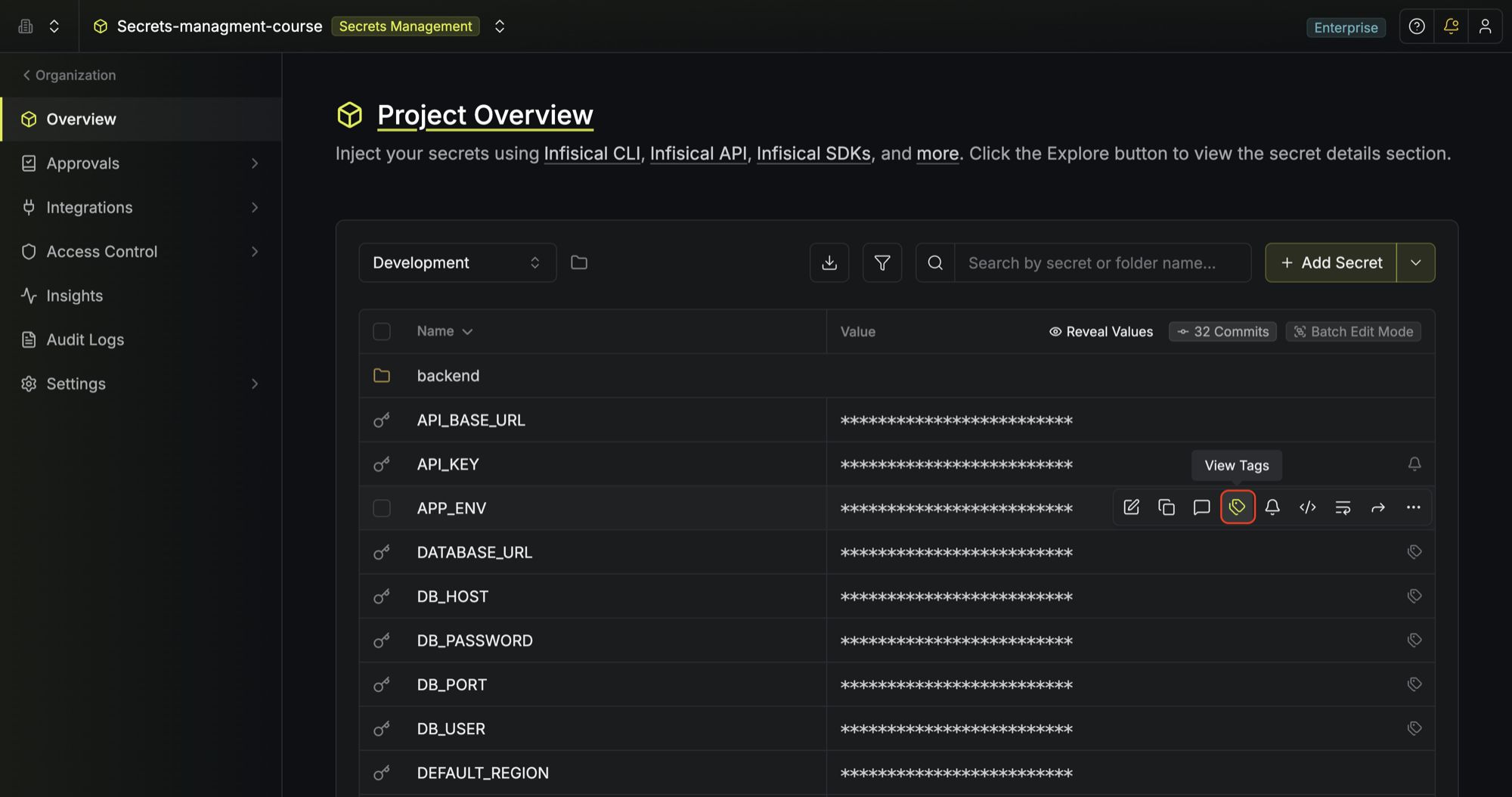
### Tags
To better organize similar secrets, hover over them and label them with a tag.
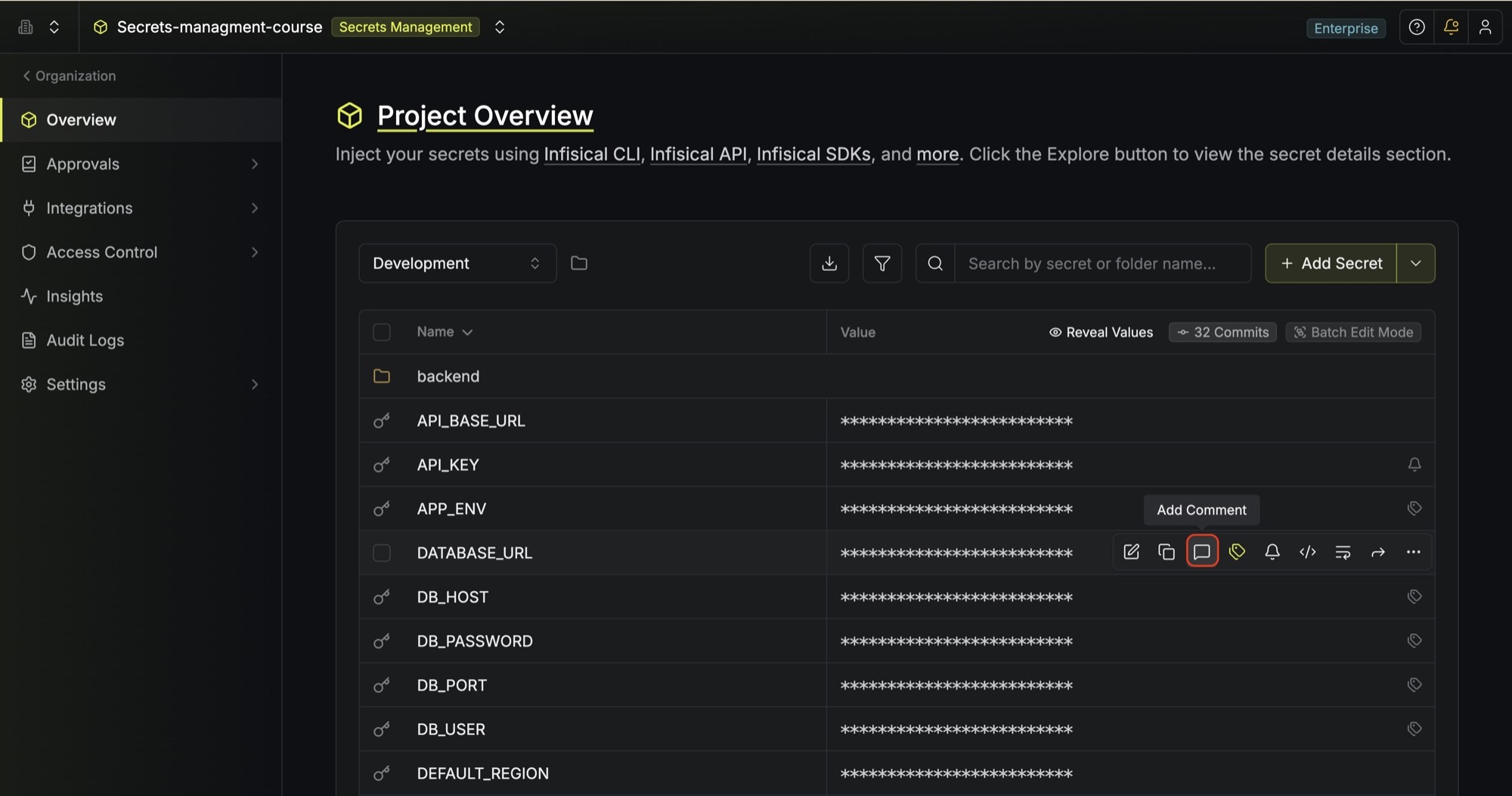
### Comments
To provide more context about a given secret, especially for your team, hover over it and click the comment button.
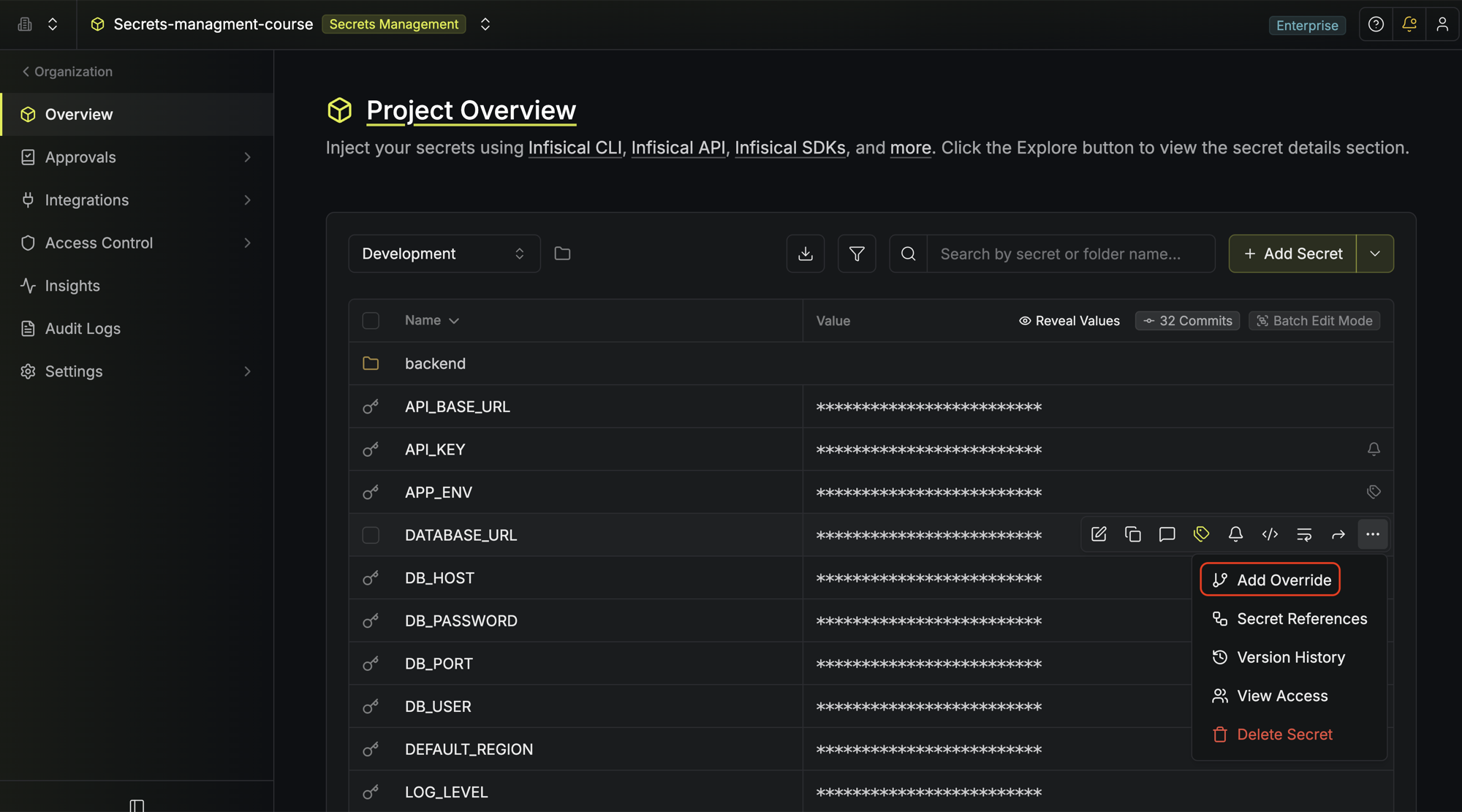
### Personal overrides
Infisical employs the concept of **shared** and **personal** secrets to address the need
for common and custom secret values, or branching, amongst members of a team during software development.
To provide a helpful analogy: a shared value is to a `main` branch as a personal value is to a custom branch.
Consider:
* A team with users A, B, and C.
* A project with an environment containing a shared secret called D with the value E.
Suppose user A overrides the value of secret D with the value F.
Then:
* If user A fetches secret D, they get the value F.
* If users B and C fetch secret D, they both get the value E.
Secret reminders don't work with personal overrides.
 ## Secrets overview
The **Secrets Overview** page captures a bird's-eye view of secrets and [folders](/docs/documentation/platform/folder) across environments.
This is useful for comparing secrets, identifying if anything is missing, and making quick changes.
## Secrets overview
The **Secrets Overview** page captures a bird's-eye view of secrets and [folders](/docs/documentation/platform/folder) across environments.
This is useful for comparing secrets, identifying if anything is missing, and making quick changes.
 ## Secrets dashboard
The **Secrets Dashboard** page appears when you select a specific environment to manage its secrets.
## Secrets dashboard
The **Secrets Dashboard** page appears when you select a specific environment to manage its secrets.
 ### Secrets
To add a secret, click the **Add Secret** button at the top of the dashboard.
### Secrets
To add a secret, click the **Add Secret** button at the top of the dashboard.
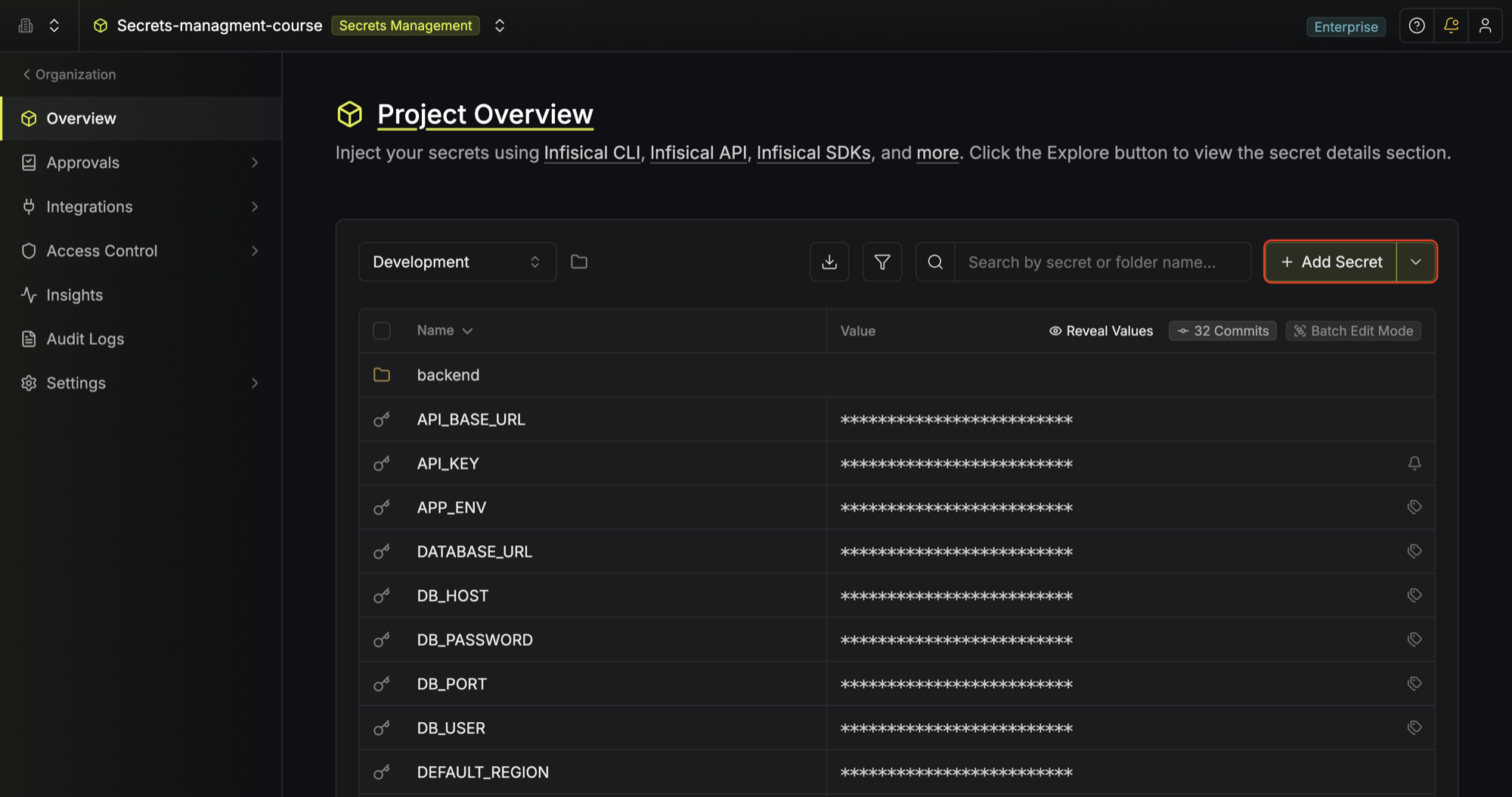 For a new project, it can be convenient to populate the dashboard by dropping a `.env` file into the provided pane as shown below:
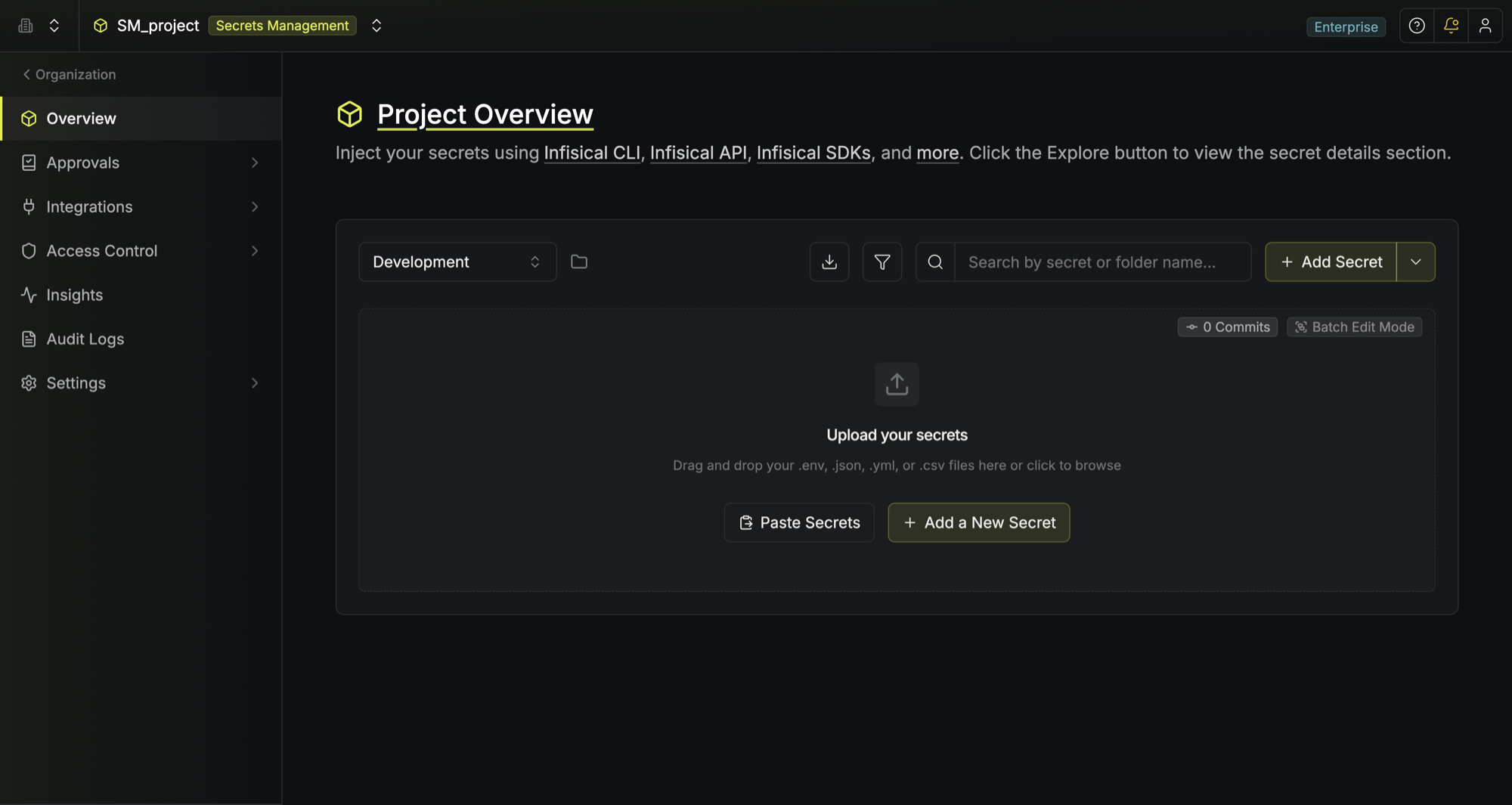 To delete a secret, hover over it and click the three dots on the right side, then select **Delete secret** from the dropdown.
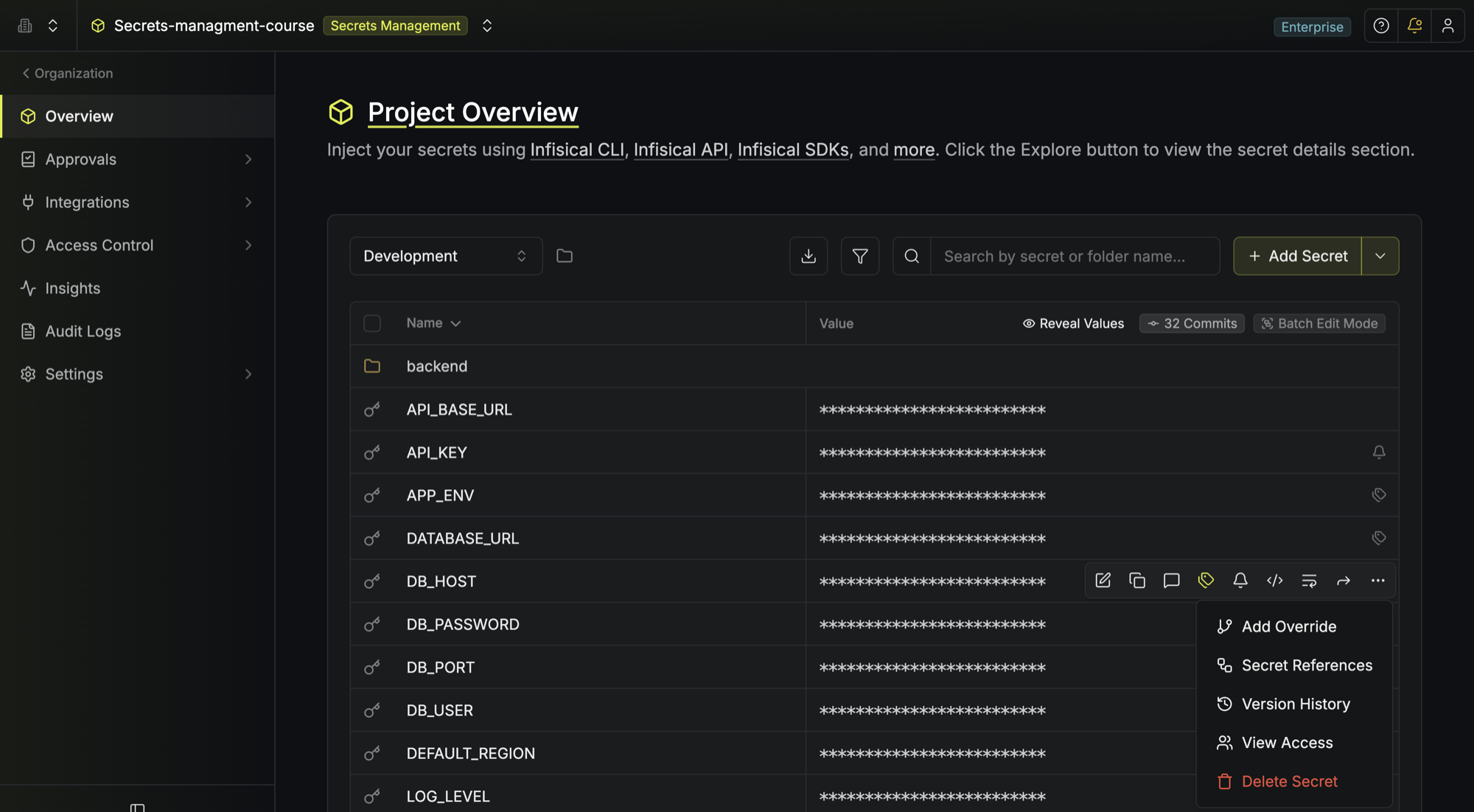 To delete multiple secrets at once, hover over and select the secrets you'd like to delete
and click the **Delete** button that appears at the top.
To delete multiple secrets at once, hover over and select the secrets you'd like to delete
and click the **Delete** button that appears at the top.
 ### Search
To search for specific secrets by their key name, you can use the search bar.
### Search
To search for specific secrets by their key name, you can use the search bar.
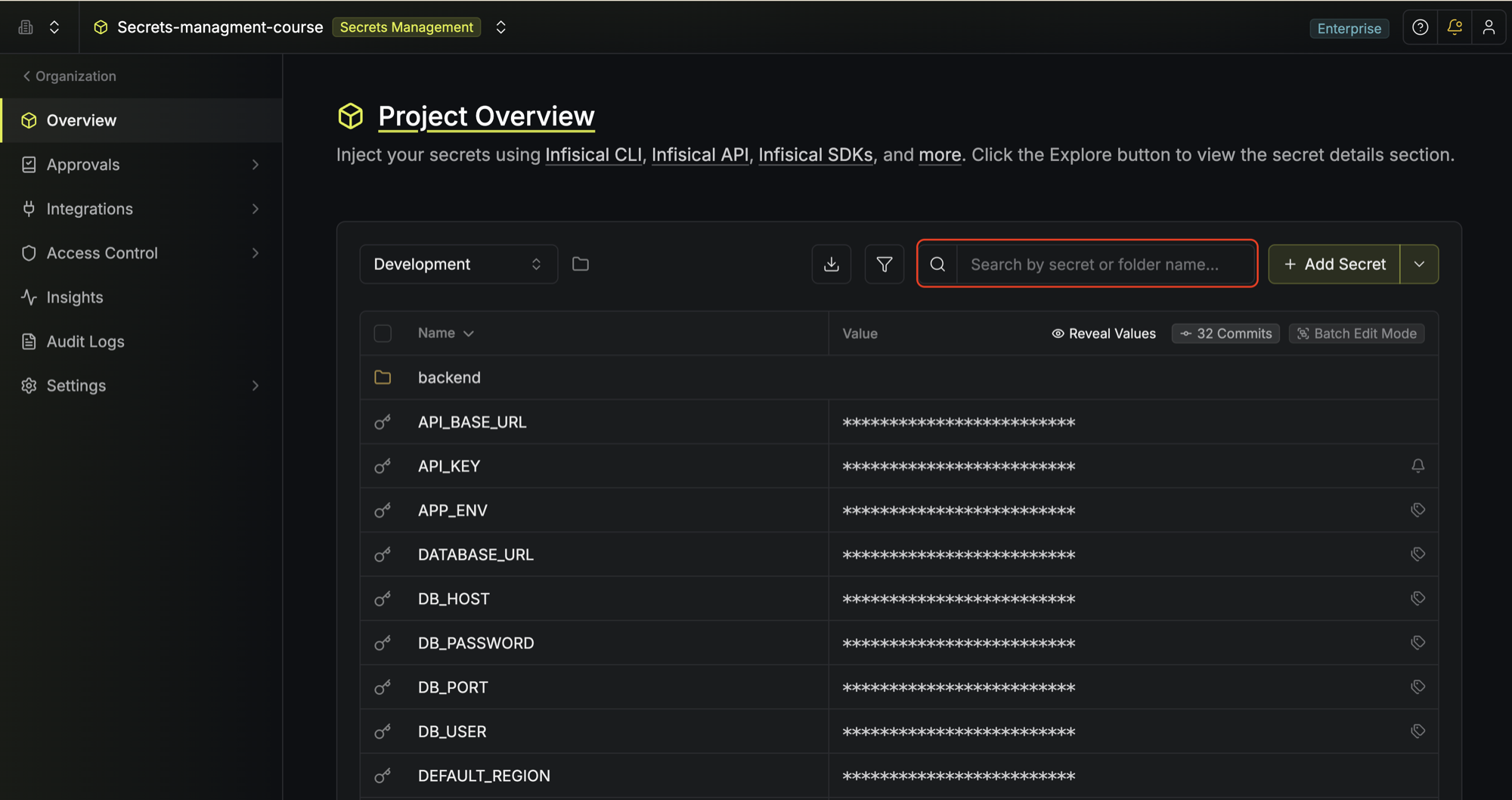 To assist you with finding secrets, you can also group them by similar prefixes and filter them by tags (if applicable).
 ### Reveal values
To view all secret values at once, toggle the **Reveal values** button.
### Reveal values
To view all secret values at once, toggle the **Reveal values** button.
 ### Download as .env
To download/export secrets back into a `.env` file, click the download button.
### Download as .env
To download/export secrets back into a `.env` file, click the download button.
 The short video below walks through tagging, comments, and personal overrides, three ways to organize, annotate, and customize secrets in the dashboard.
 ### Comments
To provide more context about a given secret, especially for your team, hover over it and click the comment button.
### Comments
To provide more context about a given secret, especially for your team, hover over it and click the comment button.
 ### Personal overrides
Infisical employs the concept of **shared** and **personal** secrets to address the need
for common and custom secret values, or branching, amongst members of a team during software development.
To provide a helpful analogy: a shared value is to a `main` branch as a personal value is to a custom branch.
Consider:
* A team with users A, B, and C.
* A project with an environment containing a shared secret called D with the value E.
Suppose user A overrides the value of secret D with the value F.
Then:
* If user A fetches secret D, they get the value F.
* If users B and C fetch secret D, they both get the value E.
### Personal overrides
Infisical employs the concept of **shared** and **personal** secrets to address the need
for common and custom secret values, or branching, amongst members of a team during software development.
To provide a helpful analogy: a shared value is to a `main` branch as a personal value is to a custom branch.
Consider:
* A team with users A, B, and C.
* A project with an environment containing a shared secret called D with the value E.
Suppose user A overrides the value of secret D with the value F.
Then:
* If user A fetches secret D, they get the value F.
* If users B and C fetch secret D, they both get the value E.