> ## Documentation Index
> Fetch the complete documentation index at: https://infisical.com/docs/llms.txt
> Use this file to discover all available pages before exploring further.
# Keycloak OIDC Overview
> Learn how to configure Keycloak OIDC for Infisical SSO.
Keycloak OIDC SSO is a paid feature. If you're using Infisical Cloud, then it
is available under the **Pro Tier**. If you're self-hosting Infisical, then
you should contact [sales@infisical.com](mailto:sales@infisical.com) to purchase a self-hosted license to
use it.
SSO authentication requires [Email Domain Verification](/documentation/platform/email-domain).
You must verify your organization's email domain before users can log in via SSO.
1.1. In your realm, navigate to the **Clients** tab and click **Create client** to create a new client application.
 You don’t typically need to make a realm dedicated to Infisical. We recommend adding Infisical as a client to your primary realm.
1.2. In the General Settings step, set **Client type** to **OpenID Connect**, the **Client ID** field to an appropriate identifier, and the **Name** field to a friendly name like **Infisical**.
You don’t typically need to make a realm dedicated to Infisical. We recommend adding Infisical as a client to your primary realm.
1.2. In the General Settings step, set **Client type** to **OpenID Connect**, the **Client ID** field to an appropriate identifier, and the **Name** field to a friendly name like **Infisical**.
 1.3. Next, in the Capability Config step, ensure that **Client Authentication** is set to On and that **Standard flow** is enabled in the Authentication flow section.
 1.4. In the Login Settings step, set the following values:
* Root URL: `https://app.infisical.com`.
* Home URL: `https://app.infisical.com`.
* Valid Redirect URIs: `https://app.infisical.com/api/v1/sso/oidc/callback`.
* Web origins: `https://app.infisical.com`.
1.4. In the Login Settings step, set the following values:
* Root URL: `https://app.infisical.com`.
* Home URL: `https://app.infisical.com`.
* Valid Redirect URIs: `https://app.infisical.com/api/v1/sso/oidc/callback`.
* Web origins: `https://app.infisical.com`.
 If you’re self-hosting Infisical, then you will want to replace [https://app.infisical.com](https://app.infisical.com) (base URL) with your own domain.
1.5. Next, navigate to the **Client scopes** tab and select the client's dedicated scope.
If you’re self-hosting Infisical, then you will want to replace [https://app.infisical.com](https://app.infisical.com) (base URL) with your own domain.
1.5. Next, navigate to the **Client scopes** tab and select the client's dedicated scope.
 1.6. Next, click **Add predefined mapper**.
 1.7. Select the **email**, **given name**, **family name** attributes and click **Add**.

 Once you've completed the above steps, the list of mappers should look like the following:
 2.1. Back in Keycloak, navigate to Configure > Realm settings > General tab > Endpoints > OpenID Endpoint Configuration and copy the opened URL. This is what is to referred to as the Discovery Document URL and it takes the form: `https://keycloak-mysite.com/realms/myrealm/.well-known/openid-configuration`.
 2.2. From the Clients page, navigate to the Credential tab and copy the **Client Secret** to be used in the next steps.
 3.1. Back in Infisical, head to the **Single Sign-On (SSO)** page and select the **General** tab. Click **Connect** for **OIDC**.
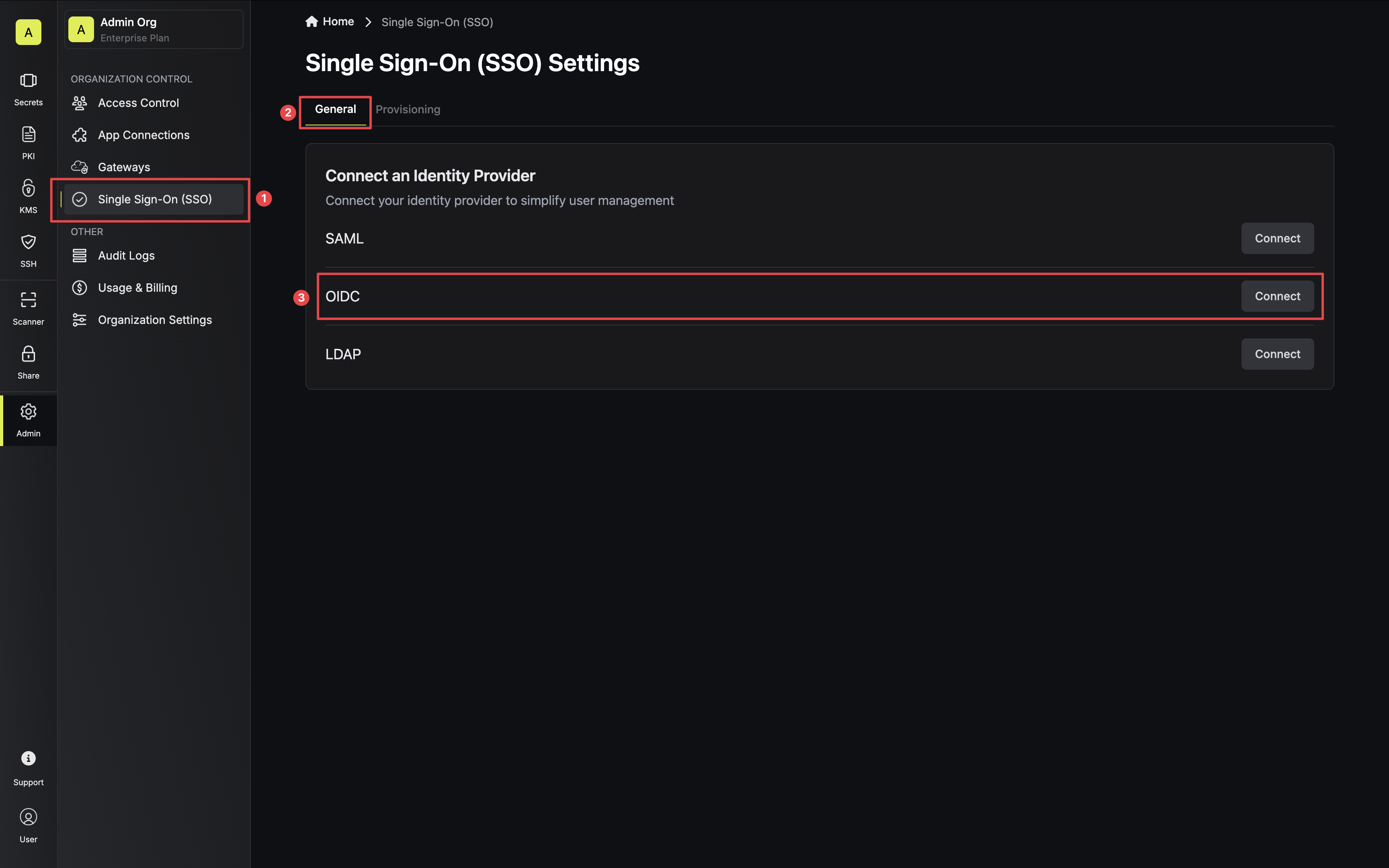 3.2. For configuration type, select Discovery URL. Then, set the appropriate values for **Discovery Document URL**, **JWT Signature Algorithm**, **Client ID**, and **Client Secret**.
 Currently, the following JWT signature algorithms are supported: RS256, RS512, HS256, and EdDSA
Once you've done that, press **Update** to complete the required configuration.
Enabling OIDC SSO allows members in your organization to log into Infisical via Keycloak.
Currently, the following JWT signature algorithms are supported: RS256, RS512, HS256, and EdDSA
Once you've done that, press **Update** to complete the required configuration.
Enabling OIDC SSO allows members in your organization to log into Infisical via Keycloak.
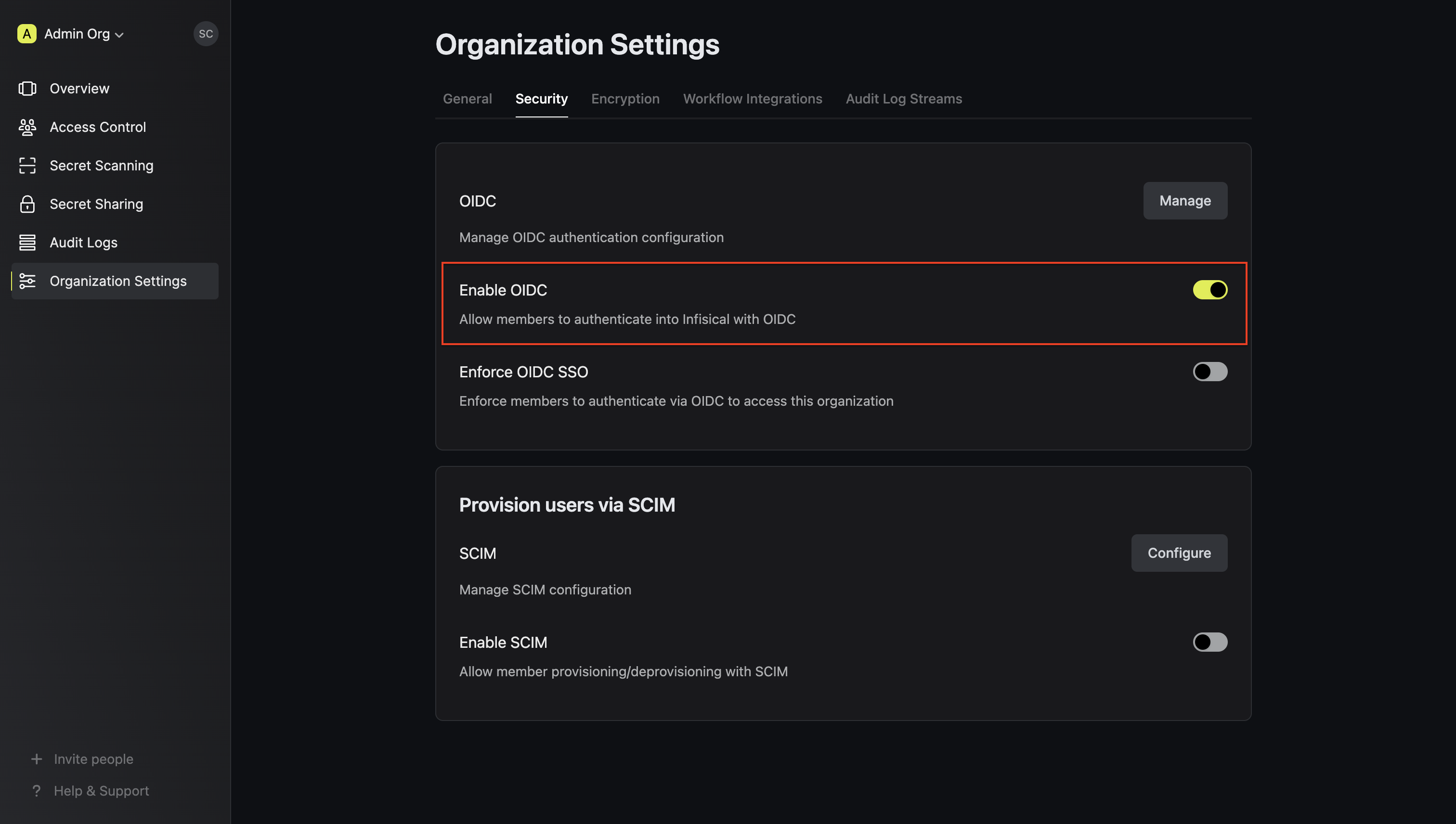 Enforcing OIDC SSO ensures that members in your organization can only access Infisical
by logging into the organization via Keycloak.
To enforce OIDC SSO, you're required to test out the OpenID connection by successfully authenticating at least one Keycloak user with Infisical.
Once you've completed this requirement, you can toggle the **Enforce OIDC SSO** button to enforce OIDC SSO.
We recommend ensuring that your account is provisioned using the application in Keycloak
prior to enforcing OIDC SSO to prevent any unintended issues.
In case of a lockout, an organization admin can use the [Admin Login Portal](https://infisical.com/docs/documentation/platform/sso/overview#admin-login-portal) in the `/login/admin` path e.g. [https://app.infisical.com/login/admin](https://app.infisical.com/login/admin).
If you are only using one organization on your Infisical instance, you can configure a default organization in the [Server Admin Console](/documentation/platform/admin-panel/server-admin#default-organization) to expedite OIDC login.
If you're configuring OIDC SSO on a self-hosted instance of Infisical, make
sure to set the `AUTH_SECRET` and `SITE_URL` environment variable for it to
work:
* `AUTH_SECRET`: A secret key used for signing and verifying JWT. This
can be a random 32-byte base64 string generated with `openssl rand -base64
32`.
* `SITE_URL`: The absolute URL of your self-hosted instance of Infisical including the protocol (e.g. [https://app.infisical.com](https://app.infisical.com))
Enforcing OIDC SSO ensures that members in your organization can only access Infisical
by logging into the organization via Keycloak.
To enforce OIDC SSO, you're required to test out the OpenID connection by successfully authenticating at least one Keycloak user with Infisical.
Once you've completed this requirement, you can toggle the **Enforce OIDC SSO** button to enforce OIDC SSO.
We recommend ensuring that your account is provisioned using the application in Keycloak
prior to enforcing OIDC SSO to prevent any unintended issues.
In case of a lockout, an organization admin can use the [Admin Login Portal](https://infisical.com/docs/documentation/platform/sso/overview#admin-login-portal) in the `/login/admin` path e.g. [https://app.infisical.com/login/admin](https://app.infisical.com/login/admin).
If you are only using one organization on your Infisical instance, you can configure a default organization in the [Server Admin Console](/documentation/platform/admin-panel/server-admin#default-organization) to expedite OIDC login.
If you're configuring OIDC SSO on a self-hosted instance of Infisical, make
sure to set the `AUTH_SECRET` and `SITE_URL` environment variable for it to
work:
* `AUTH_SECRET`: A secret key used for signing and verifying JWT. This
can be a random 32-byte base64 string generated with `openssl rand -base64
32`.
* `SITE_URL`: The absolute URL of your self-hosted instance of Infisical including the protocol (e.g. [https://app.infisical.com](https://app.infisical.com))