> ## Documentation Index
> Fetch the complete documentation index at: https://infisical.com/docs/llms.txt
> Use this file to discover all available pages before exploring further.
# DigitalOcean Connection
> Learn how to configure a DigitalOcean Connection for Infisical.
Infisical supports the use of [API Tokens](https://cloud.digitalocean.com/account/api/tokens) to connect with DigitalOcean.
## Create a DigitalOcean API Token
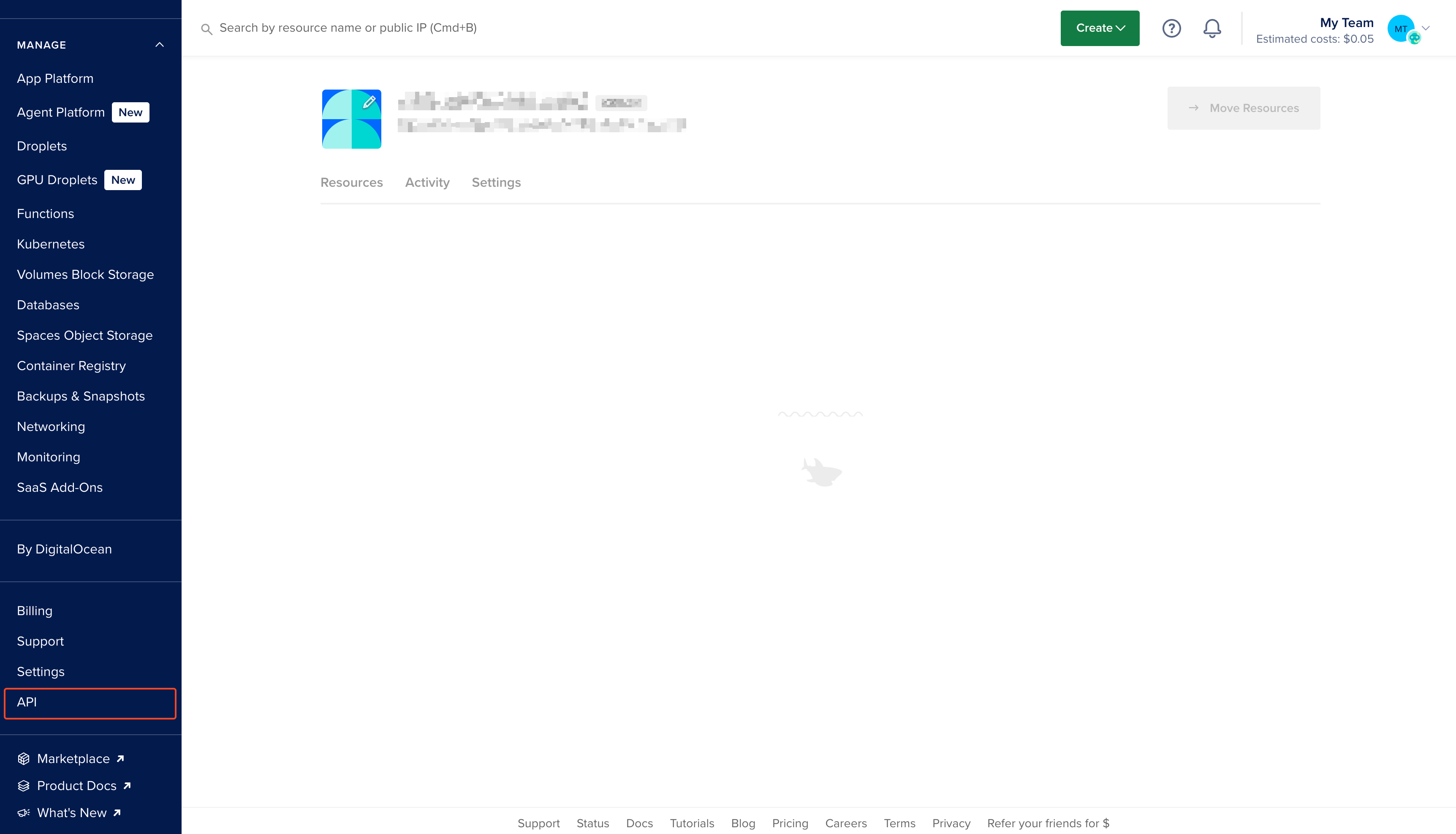
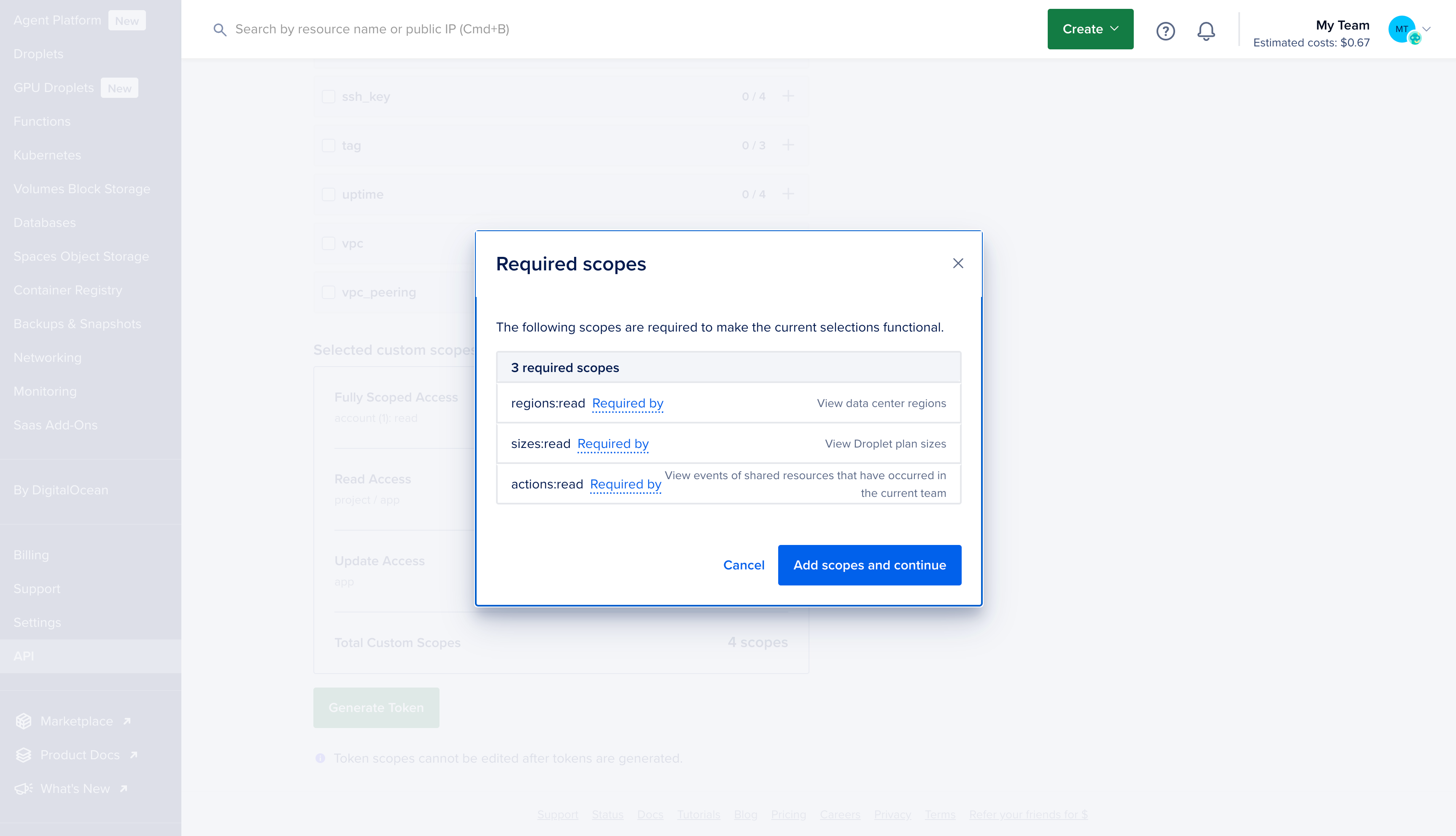
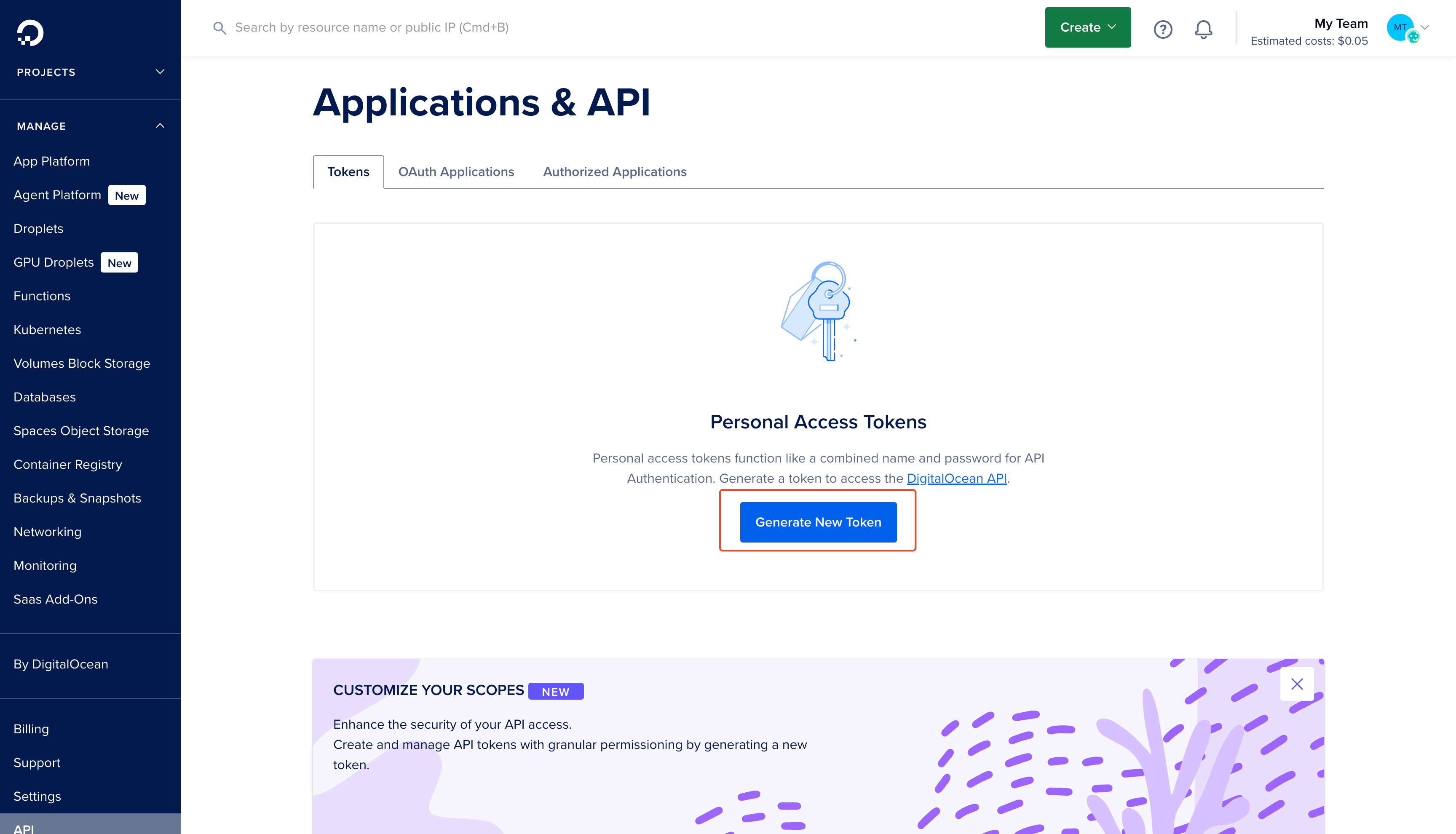 Give your token a descriptive name and ensure custom scopes is selected.
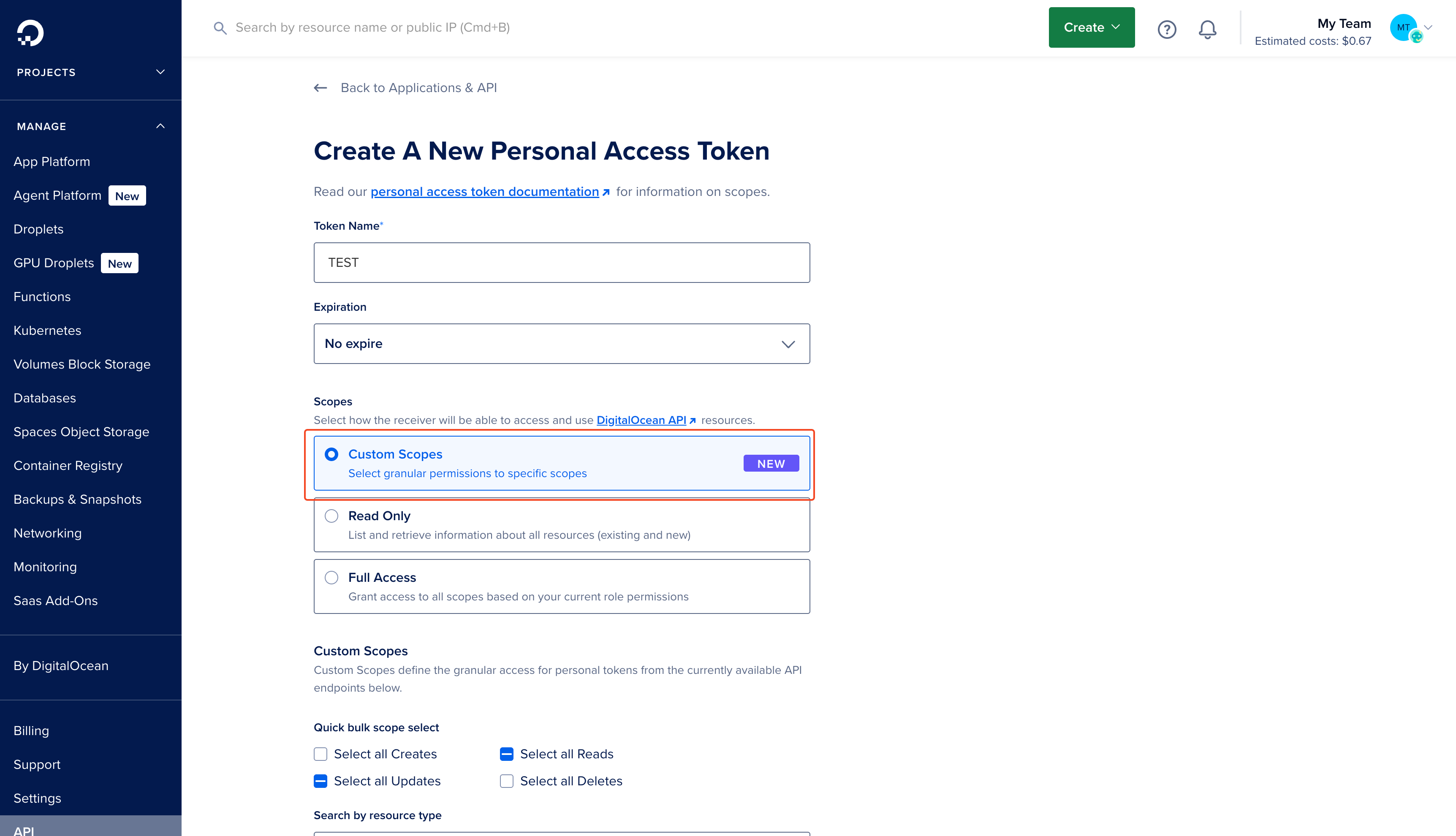 ```
read:account
read:actions
read:regions
read:sizes
read:app/projects
update:app
```
```
read:account
read:actions
read:regions
read:sizes
read:app/projects
update:app
```
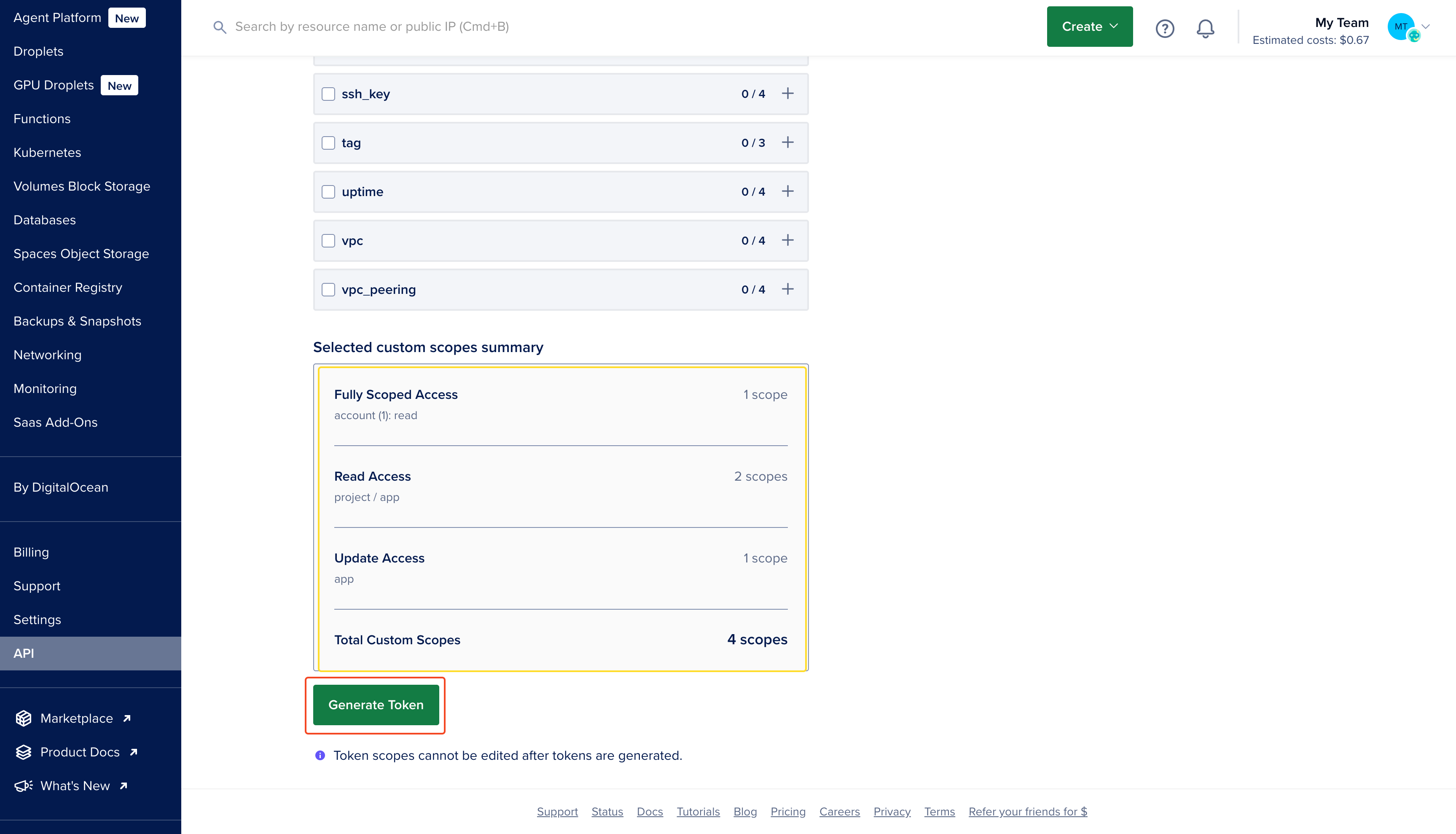
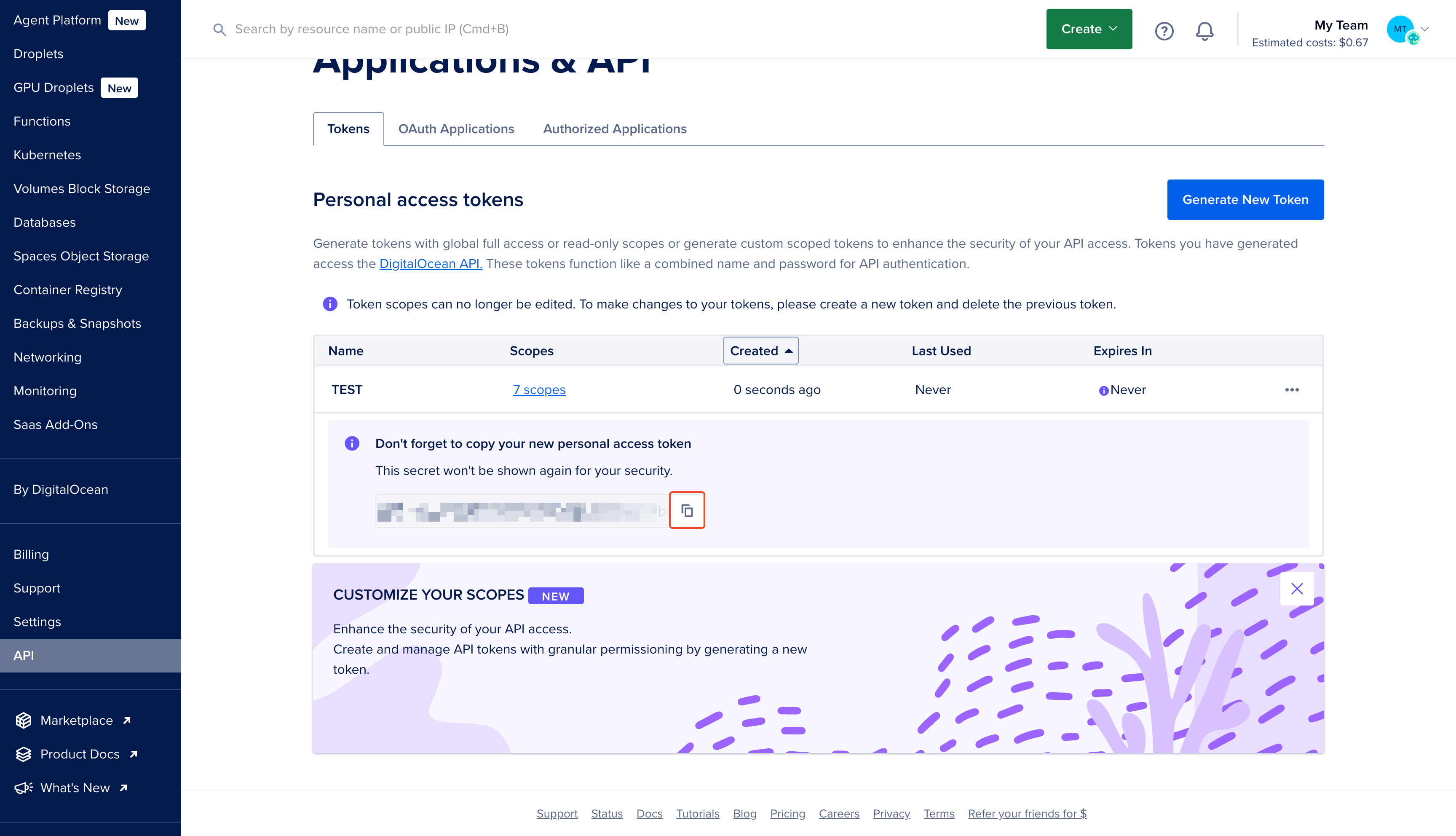
 Make sure to copy the token now—you won't be able to see it again.
 ## Create a DigitalOcean Connection in Infisical
In your Infisical dashboard, navigate to the **Integrations** tab in the desired project, then select **App Connections**.
## Create a DigitalOcean Connection in Infisical
In your Infisical dashboard, navigate to the **Integrations** tab in the desired project, then select **App Connections**.
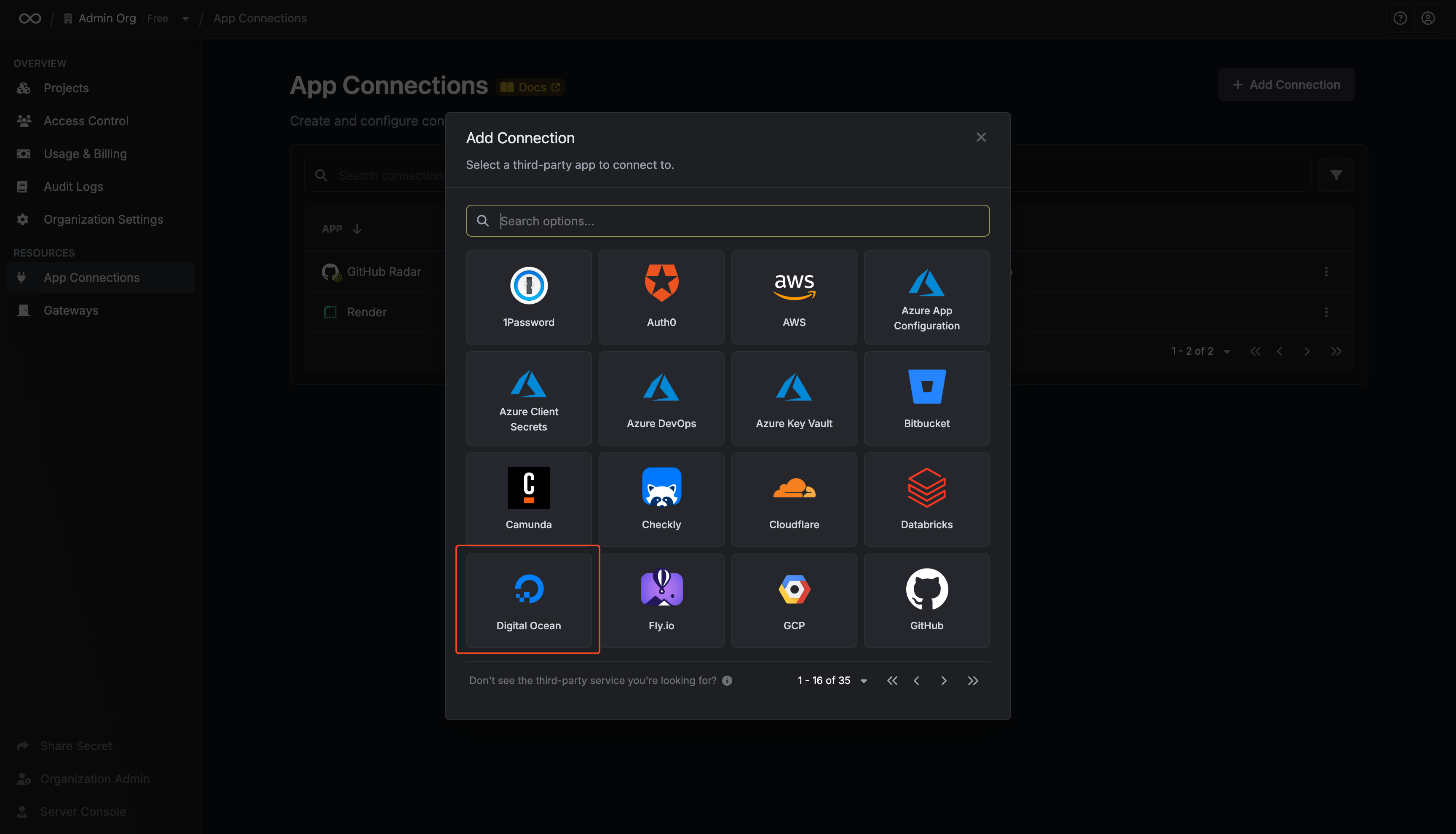
 Click **+ Add Connection** and choose **DigitalOcean Connection** from the list of integrations.
 Complete the form by providing:
* A descriptive name for the connection
* An optional description
* The API Token from the previous step
Complete the form by providing:
* A descriptive name for the connection
* An optional description
* The API Token from the previous step
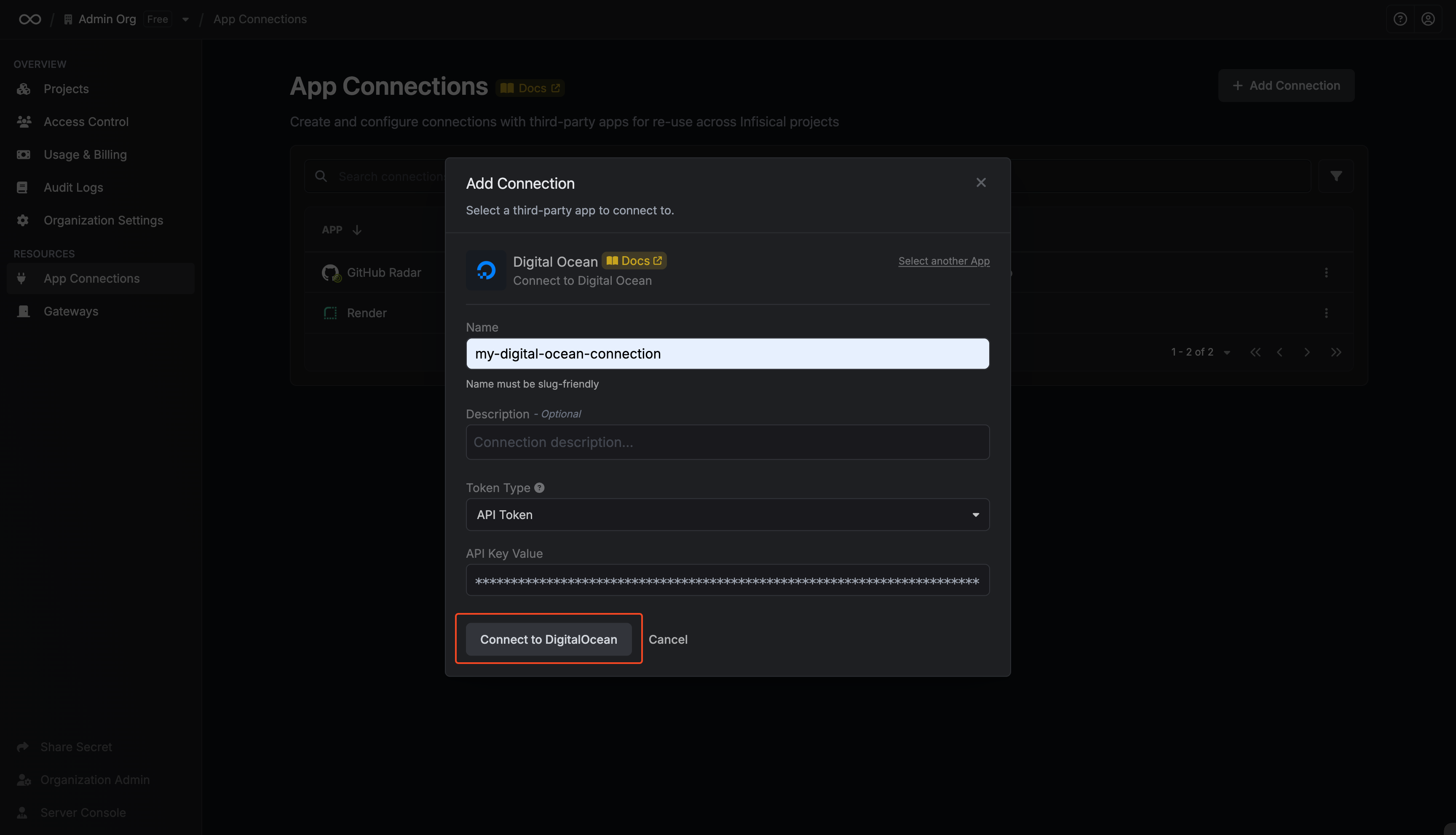 After submitting the form, your **DigitalOcean Connection** will be successfully created and ready to use with your Infisical project.
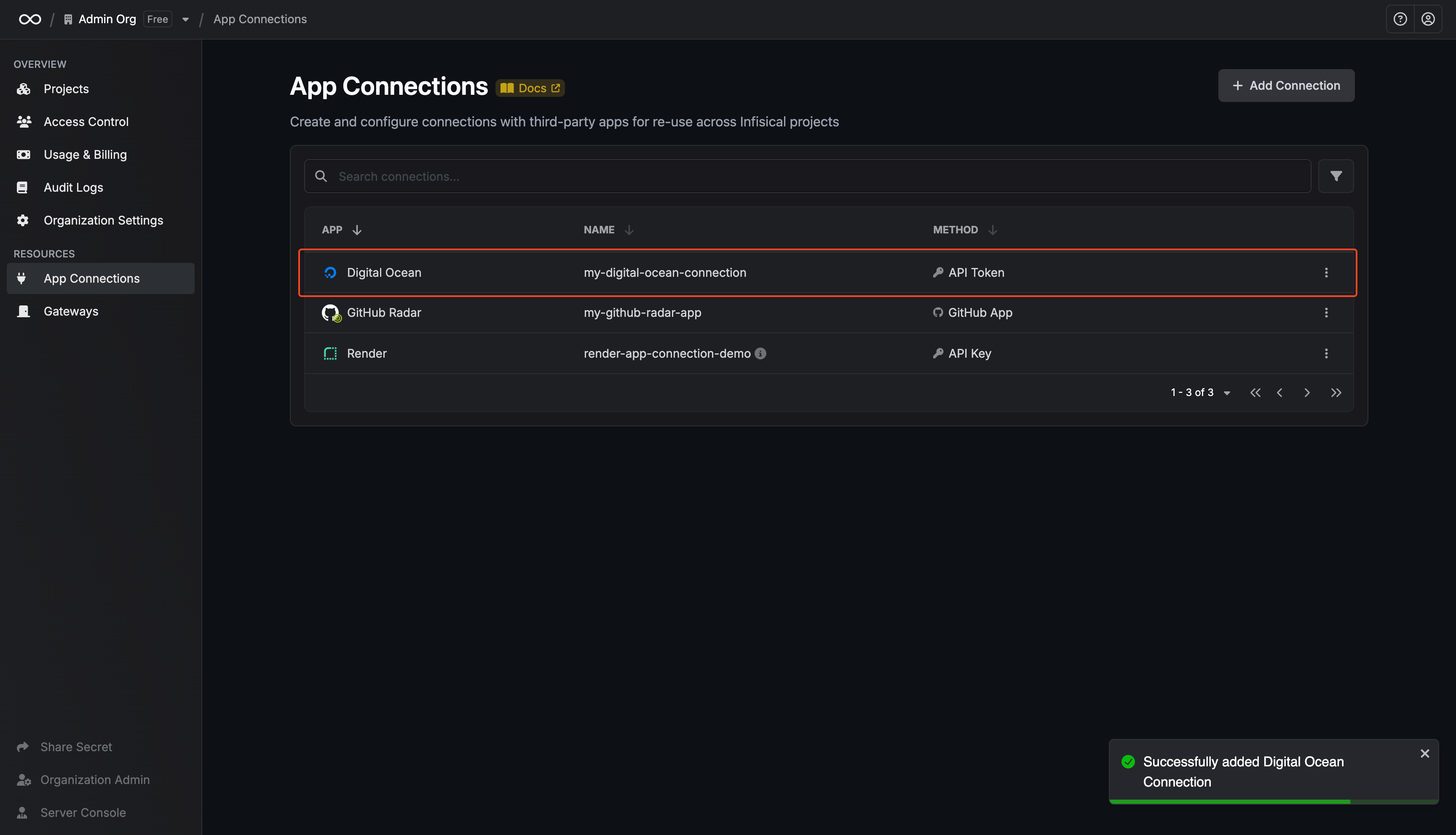 To create a DigitalOcean Connection via API, send a request to the [Create DigitalOcean Connection](/api-reference/endpoints/app-connections/digital-ocean/create) endpoint.
### Sample request
```bash Request theme={"dark"}
curl --request POST \
--url https://app.infisical.com/api/v1/app-connections/digital-ocean \
--header 'Content-Type: application/json' \
--data '{
"name": "my-digitalocean-connection",
"method": "api-token",
"projectId": "7ffbb072-2575-495a-b5b0-127f88caef78",
"credentials": {
"apiToken": "[API TOKEN]"
}
}'
```
### Sample response
```bash Response theme={"dark"}
{
"appConnection": {
"id": "a1b2c3d4-5678-90ab-cdef-1234567890ab",
"name": "my-digitalocean-connection",
"projectId": "7ffbb072-2575-495a-b5b0-127f88caef78",
"description": null,
"version": 1,
"orgId": "abcdef12-3456-7890-abcd-ef1234567890",
"createdAt": "2025-07-19T10:15:00.000Z",
"updatedAt": "2025-07-19T10:15:00.000Z",
"isPlatformManagedCredentials": false,
"credentialsHash": "d41d8cd98f00b204e9800998ecf8427e",
"app": "digital-ocean",
"method": "api-token",
"credentials": {}
}
}
```
To create a DigitalOcean Connection via API, send a request to the [Create DigitalOcean Connection](/api-reference/endpoints/app-connections/digital-ocean/create) endpoint.
### Sample request
```bash Request theme={"dark"}
curl --request POST \
--url https://app.infisical.com/api/v1/app-connections/digital-ocean \
--header 'Content-Type: application/json' \
--data '{
"name": "my-digitalocean-connection",
"method": "api-token",
"projectId": "7ffbb072-2575-495a-b5b0-127f88caef78",
"credentials": {
"apiToken": "[API TOKEN]"
}
}'
```
### Sample response
```bash Response theme={"dark"}
{
"appConnection": {
"id": "a1b2c3d4-5678-90ab-cdef-1234567890ab",
"name": "my-digitalocean-connection",
"projectId": "7ffbb072-2575-495a-b5b0-127f88caef78",
"description": null,
"version": 1,
"orgId": "abcdef12-3456-7890-abcd-ef1234567890",
"createdAt": "2025-07-19T10:15:00.000Z",
"updatedAt": "2025-07-19T10:15:00.000Z",
"isPlatformManagedCredentials": false,
"credentialsHash": "d41d8cd98f00b204e9800998ecf8427e",
"app": "digital-ocean",
"method": "api-token",
"credentials": {}
}
}
```