> ## Documentation Index
> Fetch the complete documentation index at: https://infisical.com/docs/llms.txt
> Use this file to discover all available pages before exploring further.
# Doppler Connection
> Learn how to configure a Doppler Connection for Infisical.
Infisical supports the use of API Tokens to connect with Doppler. This connection is used for importing secrets from Doppler into Infisical via the [external migration tool](/documentation/platform/external-migrations/doppler).
## Create a Doppler API Token
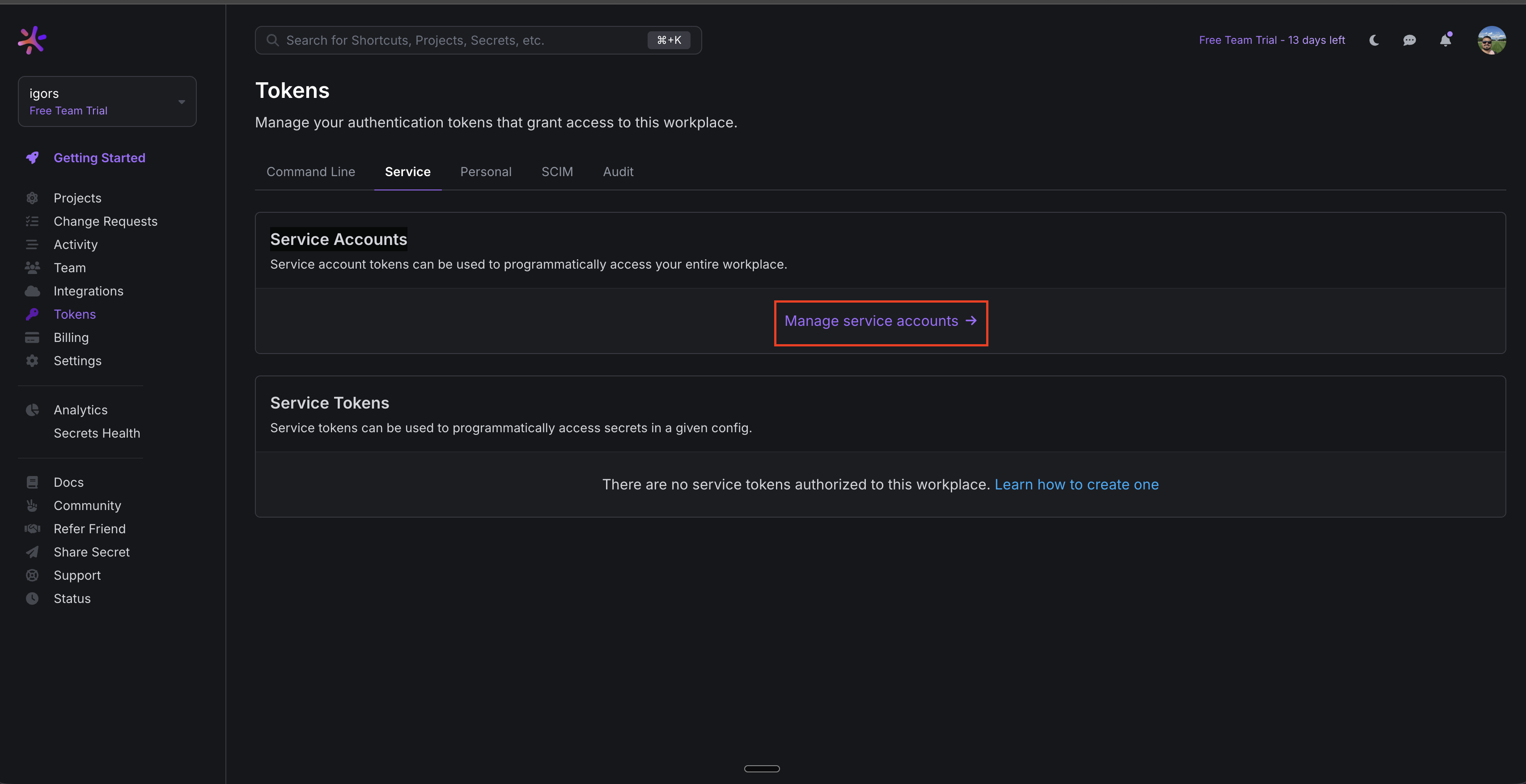
Log in to your Doppler account and go to the Tokens tab.
 In the User Tokens page, click in **Manage service accounts** .
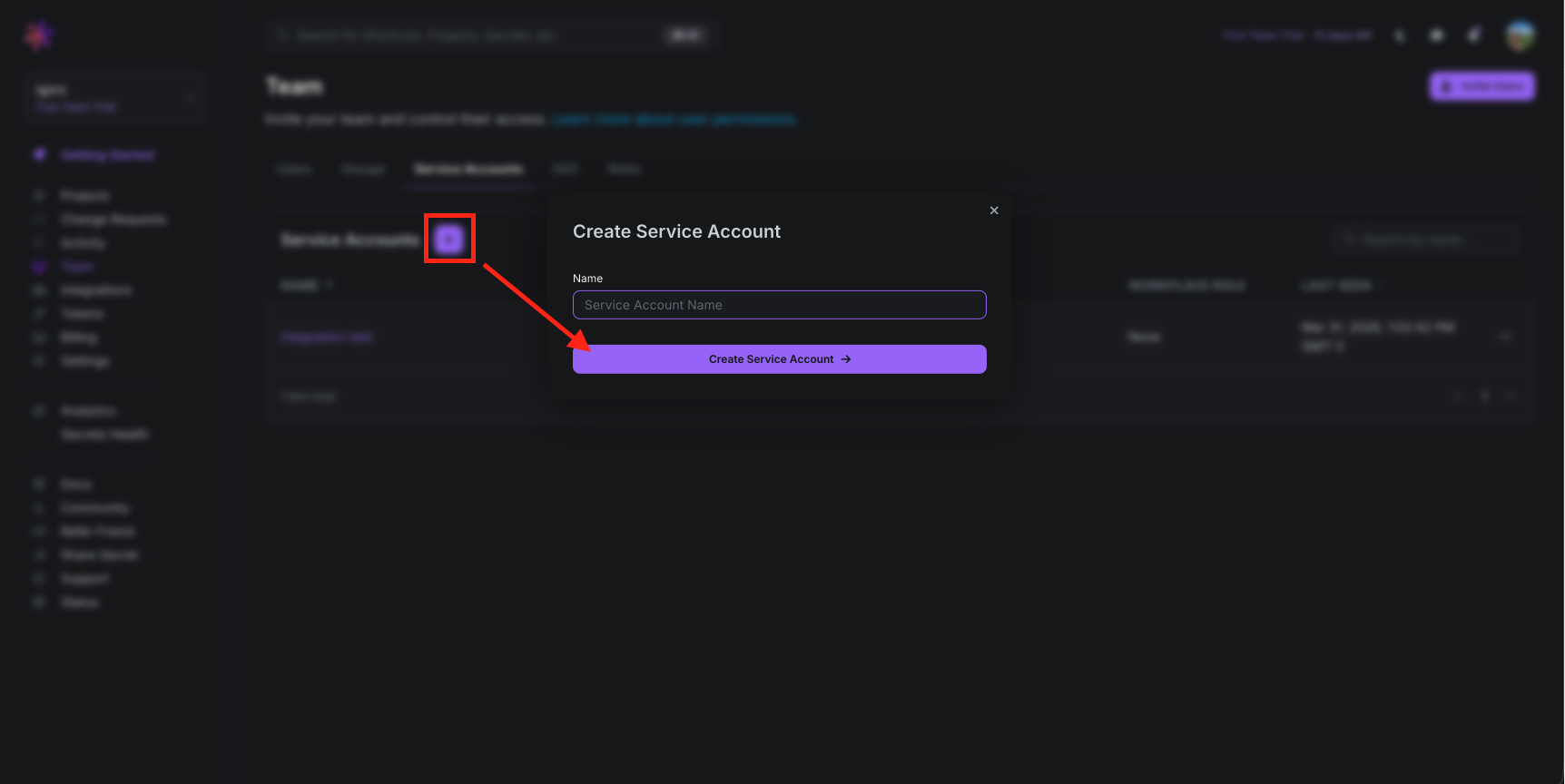
 Click in the "+" icon, provide a descriptive name, and confirm creation.
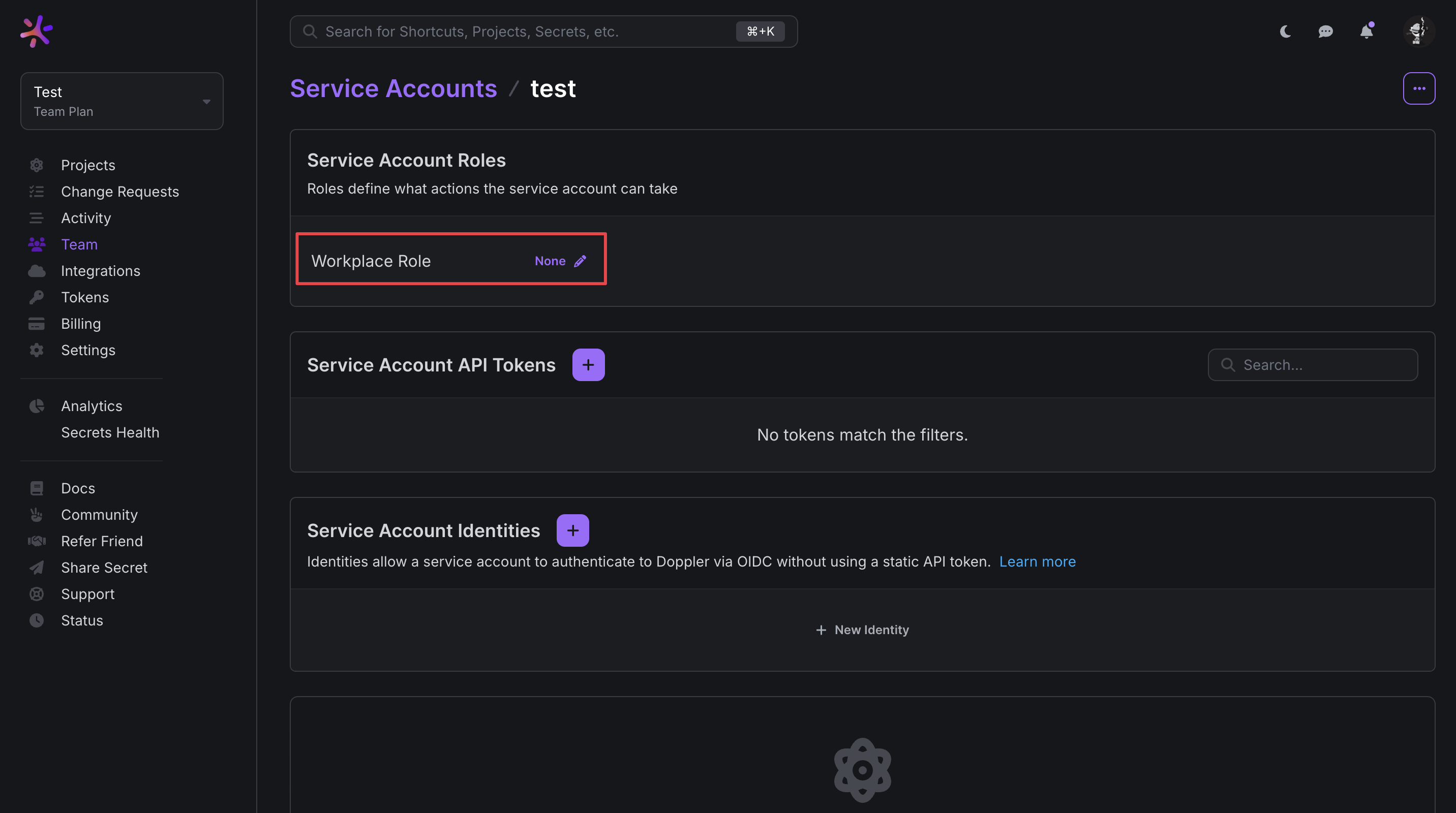
 Click the pencil icon next to your service account role to modify the role of the service account.
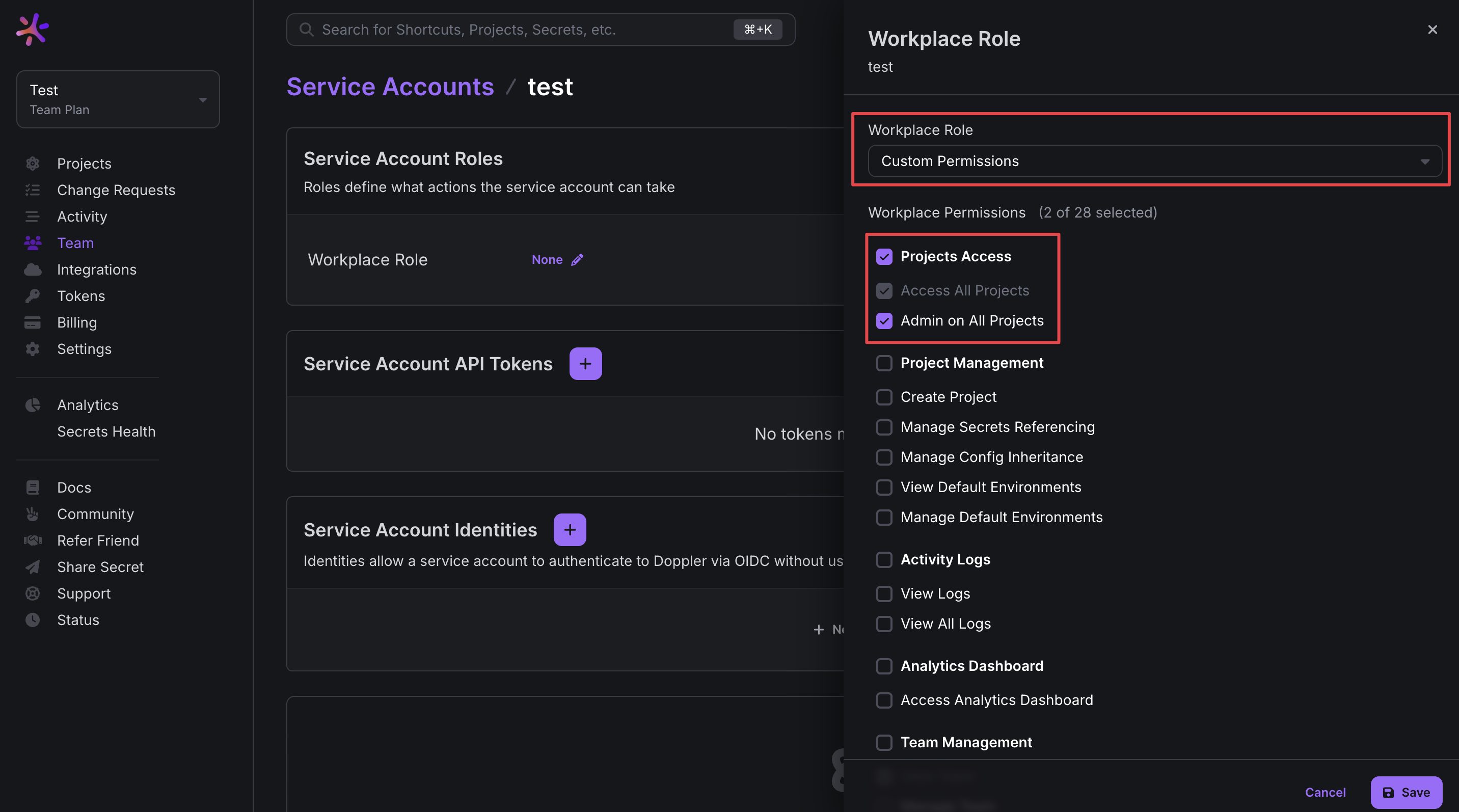
 For the best migration experience, we recommend that you give the service account full access to all your projects in order to migrate from all projects within Doppler.
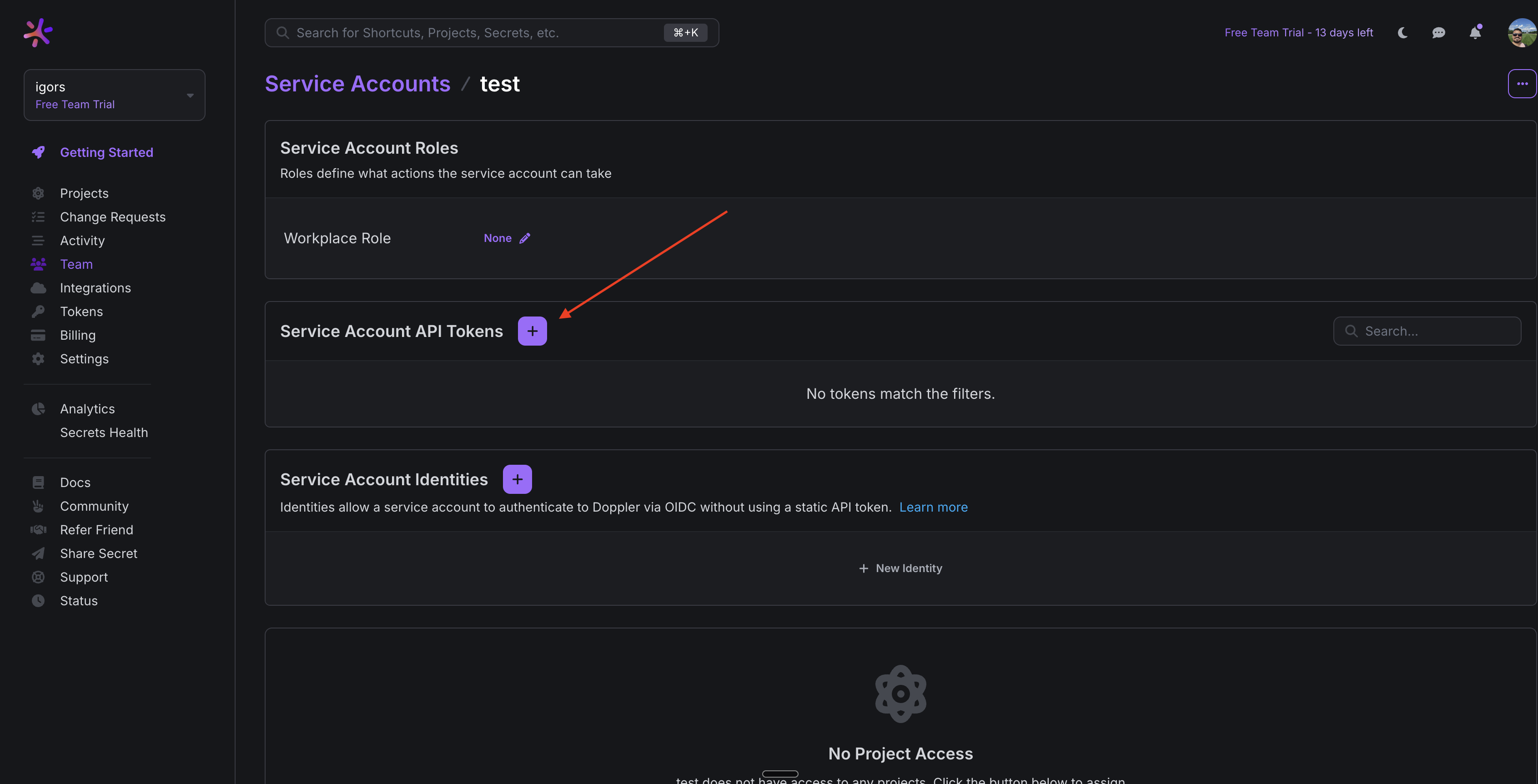
 Click in the "+" icon in the Service Account API Tokens container
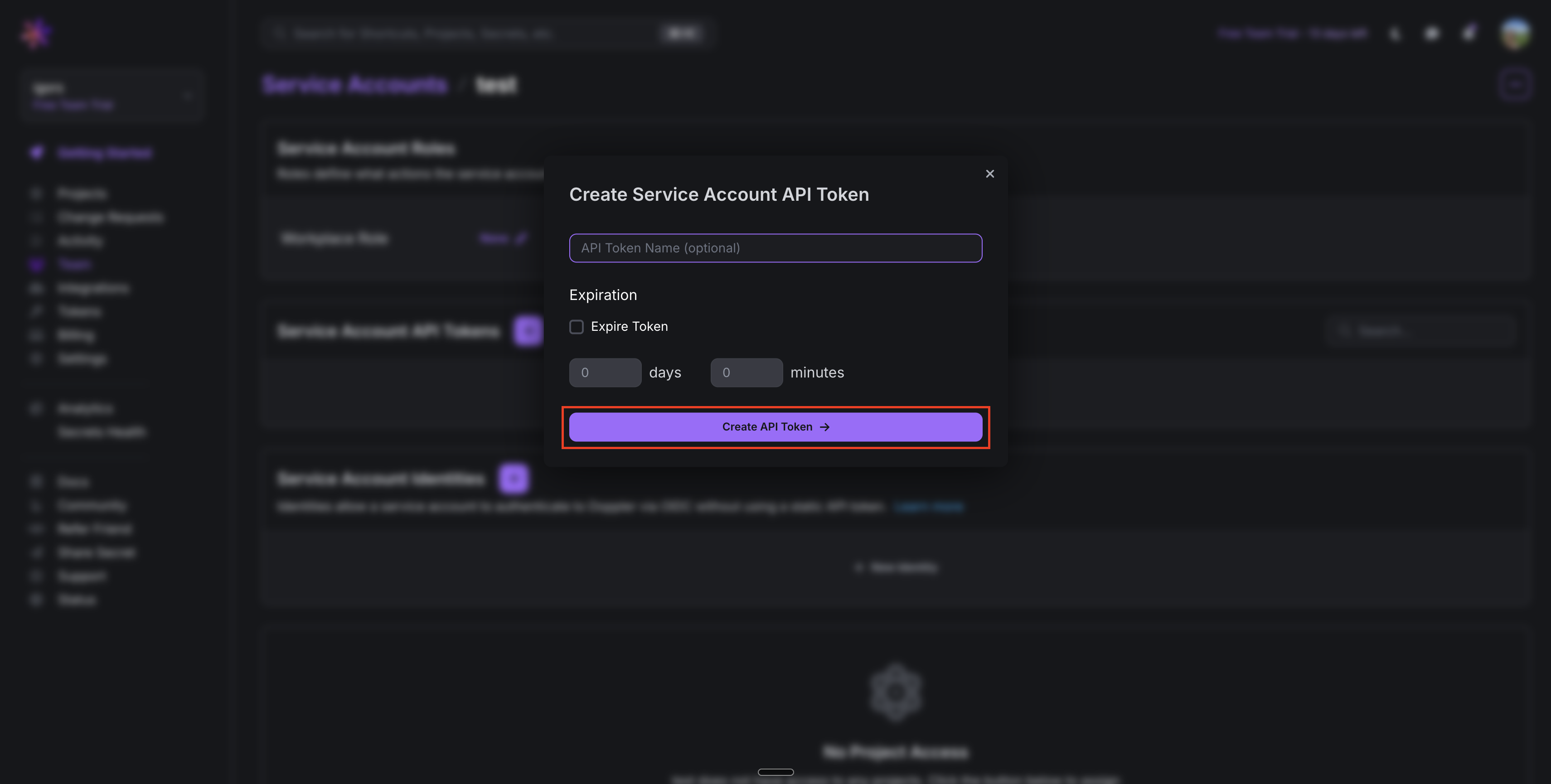
 Add a name for the API Token and click in Create API Token
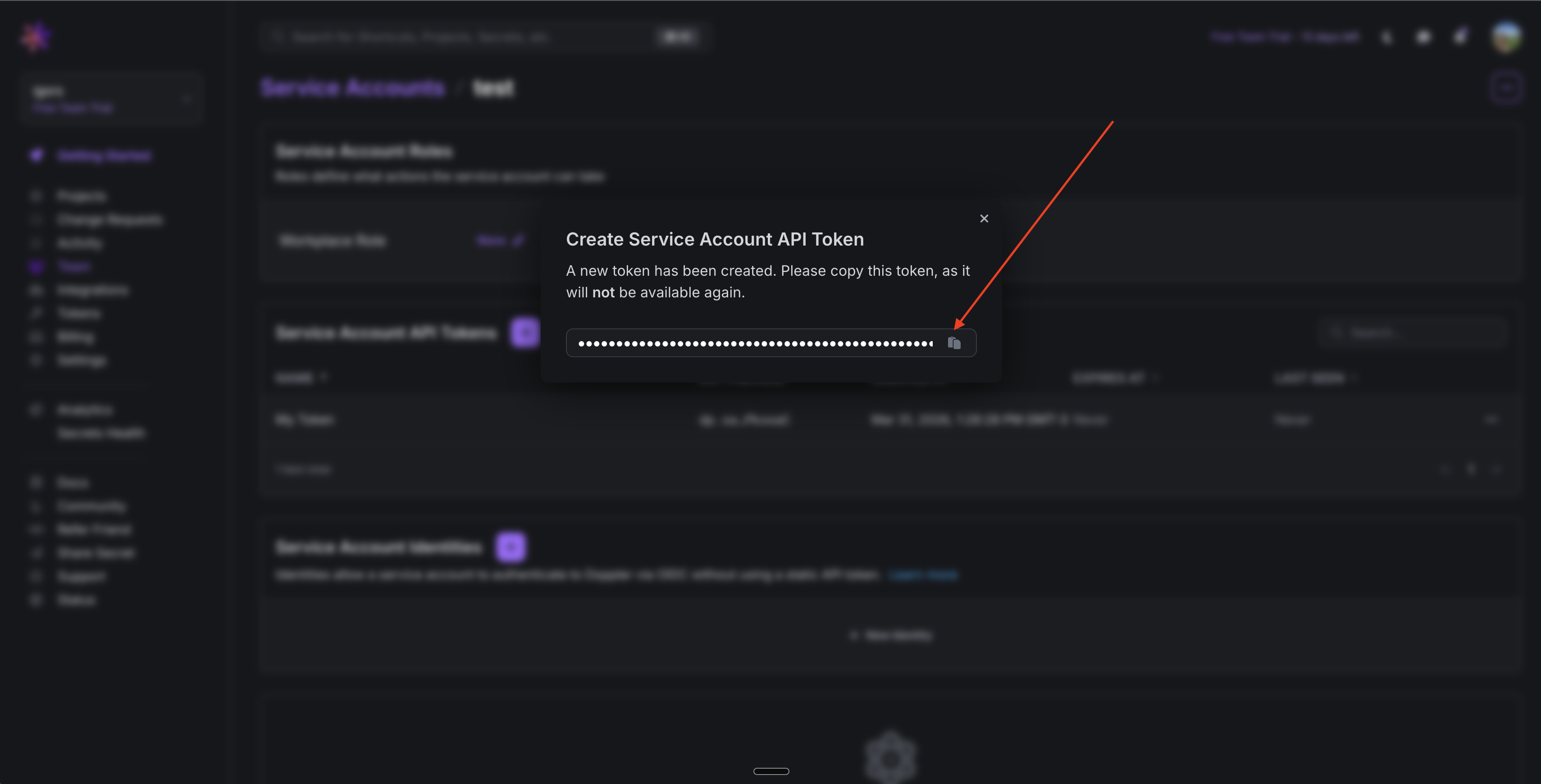
 Copy the generated token and save it, you will need it in the nexts steps
 ## Create a Doppler Connection in Infisical
In your Infisical dashboard, navigate to **Organization Settings** and select the **App Connections** tab.
## Create a Doppler Connection in Infisical
In your Infisical dashboard, navigate to **Organization Settings** and select the **App Connections** tab.
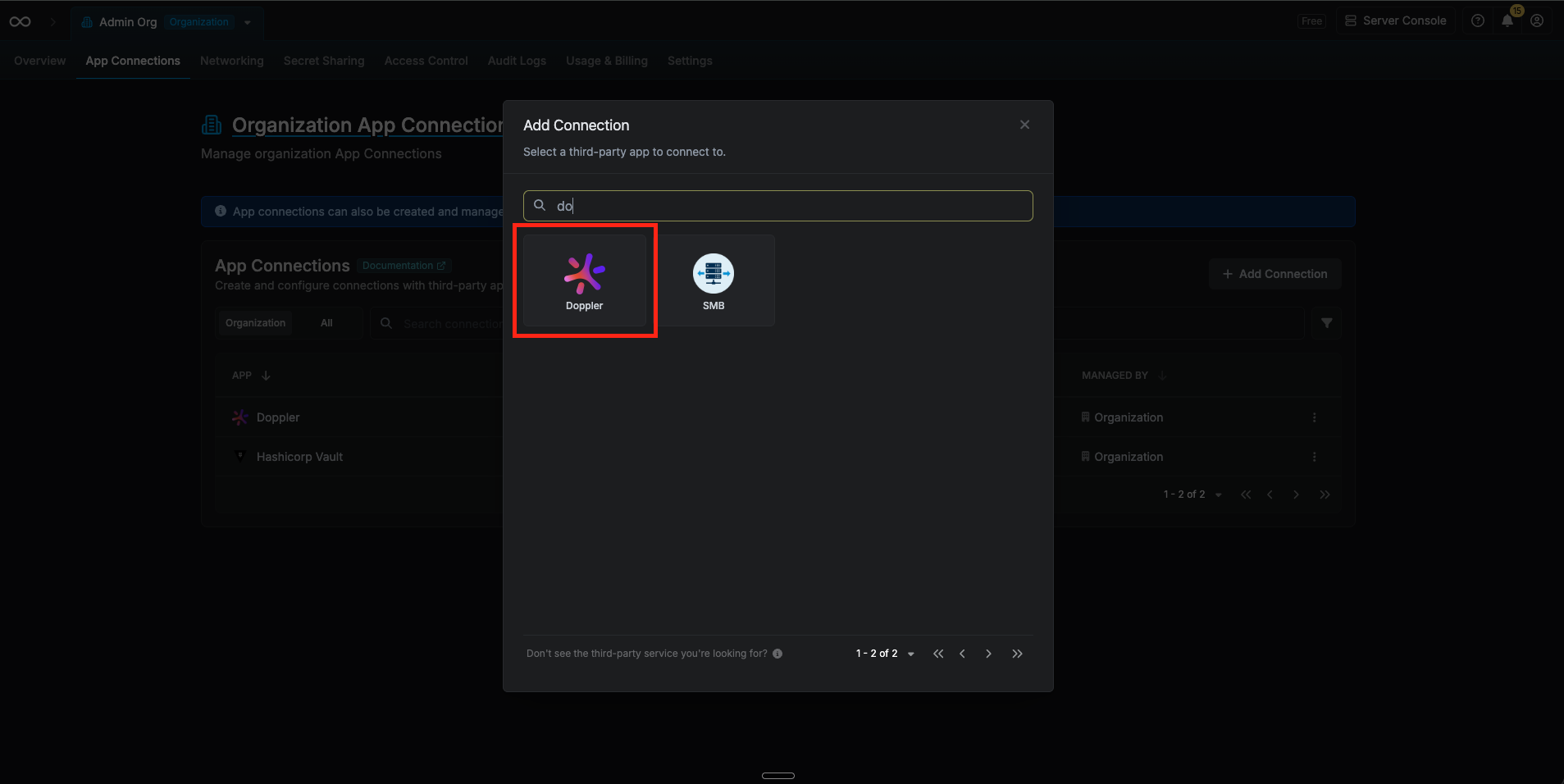
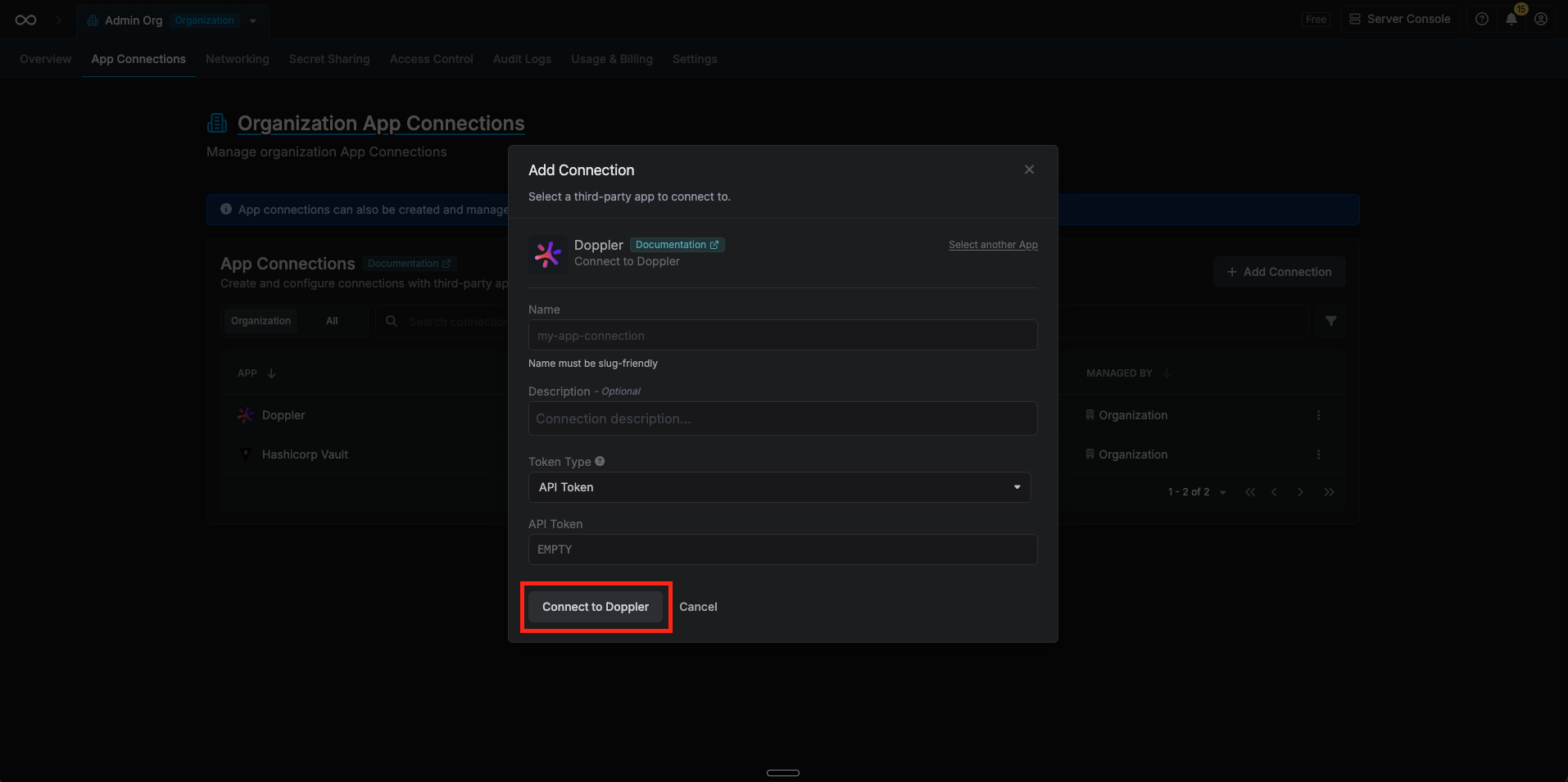
 Click **+ Add Connection** and choose **Doppler Connection** from the list of available connections.
 Complete the form by providing:
* A descriptive name for the connection
* An optional description
* The API Token value from the previous step
Complete the form by providing:
* A descriptive name for the connection
* An optional description
* The API Token value from the previous step
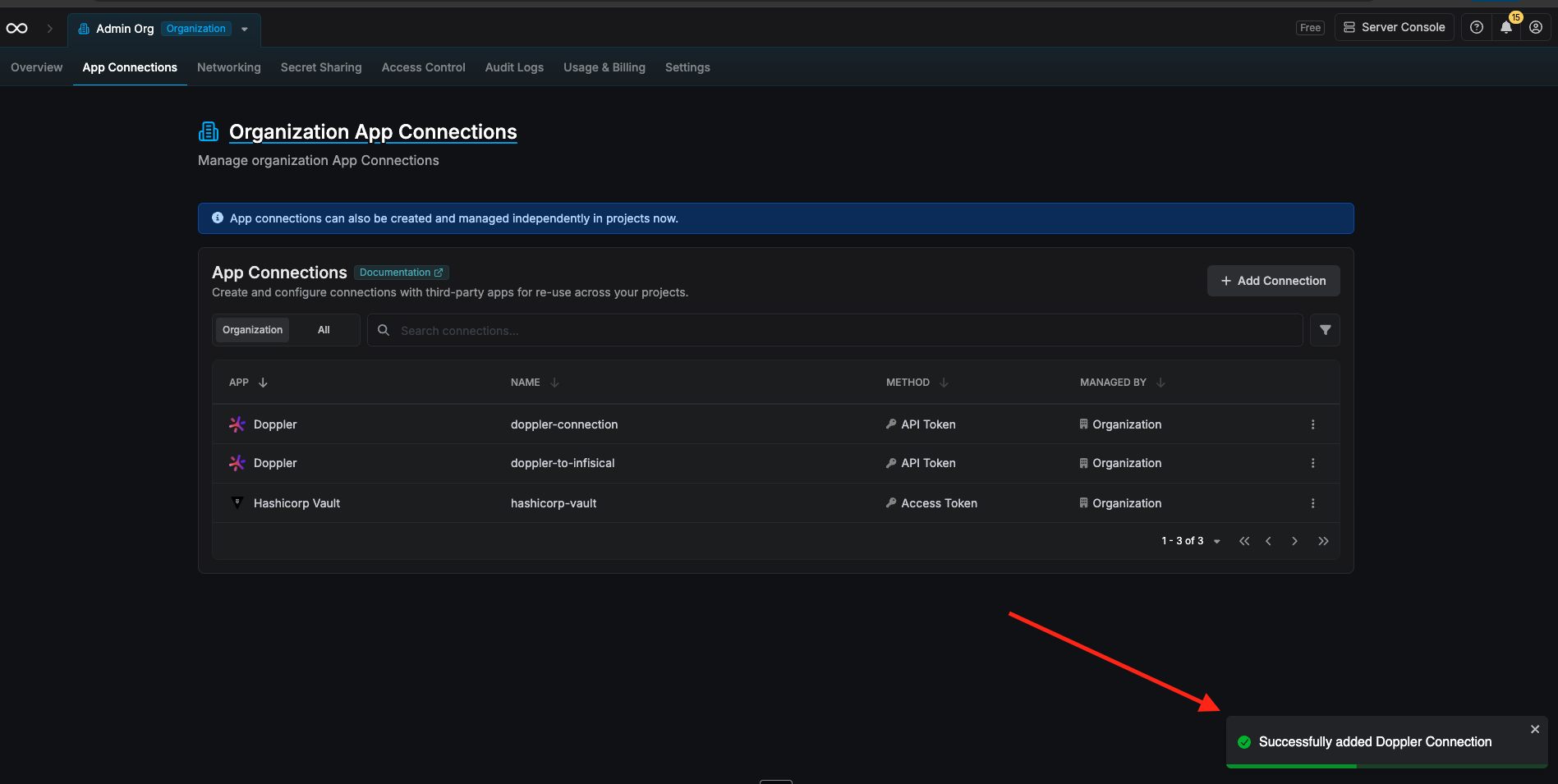
 After submitting the form, your **Doppler Connection** will be successfully created and ready to use for importing secrets into Infisical.
 To create a Doppler Connection via API, send a request to the [Create Doppler Connection](/api-reference/endpoints/app-connections/doppler/create) endpoint.
### Sample request
```bash Request theme={"dark"}
curl --request POST \
--url https://app.infisical.com/api/v1/app-connections/doppler \
--header 'Content-Type: application/json' \
--data '{
"name": "my-doppler-connection",
"method": "api-token",
"credentials": {
"apiToken": "[API TOKEN]"
}
}'
```
### Sample response
```bash Response theme={"dark"}
{
"appConnection": {
"id": "3c2a1b4d-97e6-4f18-b3c2-8e5d9a0f1234",
"name": "my-doppler-connection",
"description": null,
"version": 1,
"orgId": "6f03caa1-a5de-43ce-b127-95a145d3464c",
"createdAt": "2025-04-23T19:46:34.831Z",
"updatedAt": "2025-04-23T19:46:34.831Z",
"isPlatformManagedCredentials": false,
"credentialsHash": "9a1e482fbc306g93b1d6e2ce0d081b340dfcbg99f005b7c506f3ecd1391772g0",
"app": "doppler",
"method": "api-token",
"credentials": {}
}
}
```
To create a Doppler Connection via API, send a request to the [Create Doppler Connection](/api-reference/endpoints/app-connections/doppler/create) endpoint.
### Sample request
```bash Request theme={"dark"}
curl --request POST \
--url https://app.infisical.com/api/v1/app-connections/doppler \
--header 'Content-Type: application/json' \
--data '{
"name": "my-doppler-connection",
"method": "api-token",
"credentials": {
"apiToken": "[API TOKEN]"
}
}'
```
### Sample response
```bash Response theme={"dark"}
{
"appConnection": {
"id": "3c2a1b4d-97e6-4f18-b3c2-8e5d9a0f1234",
"name": "my-doppler-connection",
"description": null,
"version": 1,
"orgId": "6f03caa1-a5de-43ce-b127-95a145d3464c",
"createdAt": "2025-04-23T19:46:34.831Z",
"updatedAt": "2025-04-23T19:46:34.831Z",
"isPlatformManagedCredentials": false,
"credentialsHash": "9a1e482fbc306g93b1d6e2ce0d081b340dfcbg99f005b7c506f3ecd1391772g0",
"app": "doppler",
"method": "api-token",
"credentials": {}
}
}
```