> ## Documentation Index
> Fetch the complete documentation index at: https://infisical.com/docs/llms.txt
> Use this file to discover all available pages before exploring further.
# Fireworks Connection
> Learn how to configure a Fireworks AI connection for Infisical.
[Fireworks AI](https://fireworks.ai/) is an AI inference platform for running and fine-tuning large language models. Infisical supports connecting to Fireworks using an **API Key** and **Account ID**.
## Prerequisites
* A [Fireworks AI](https://fireworks.ai/) account with API access.
* An **API Key** with permissions to create and delete API keys for the target service account.
* Your **Account ID**, which can be found in your Fireworks account settings.
## Create a Fireworks API Key
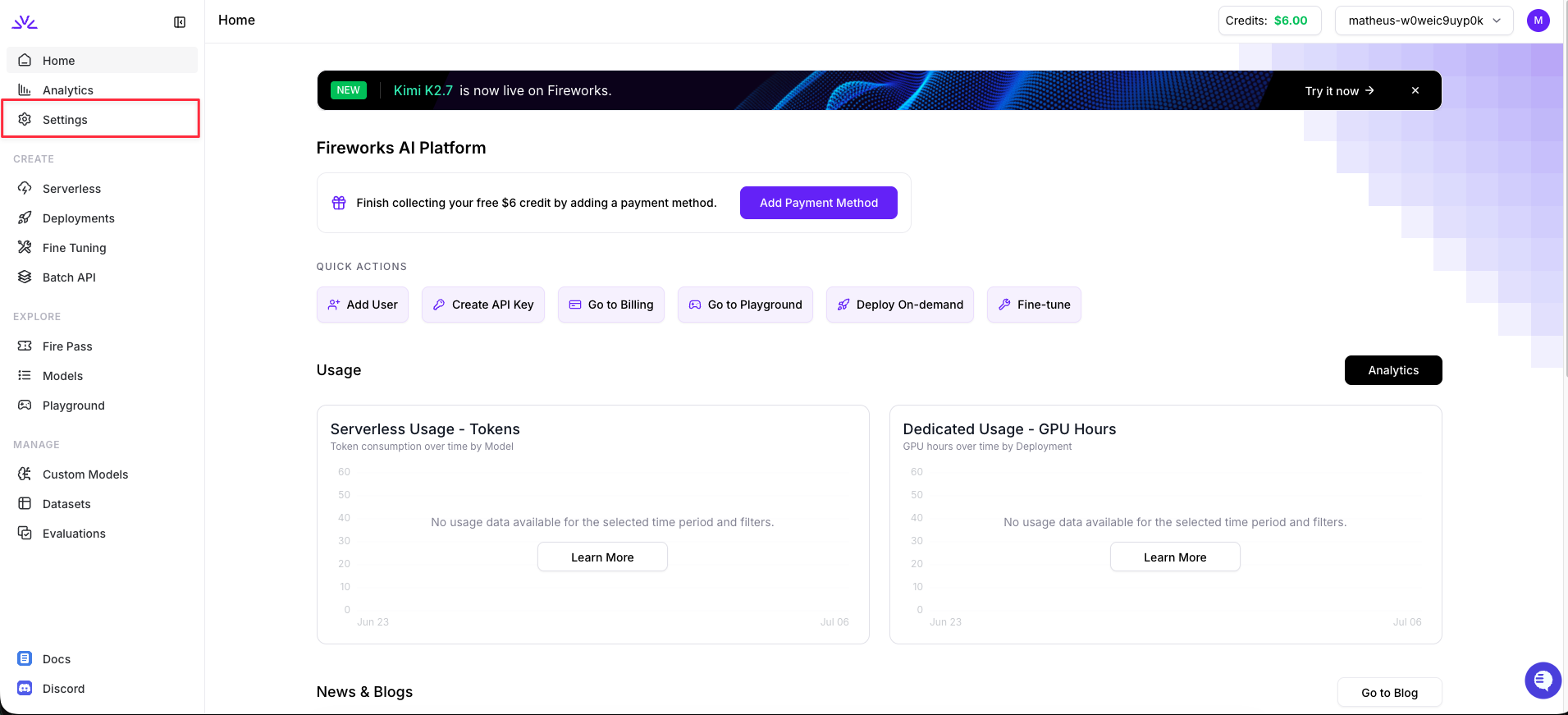
In your [Fireworks AI account](https://app.fireworks.ai/), click **Settings** in the left sidebar.
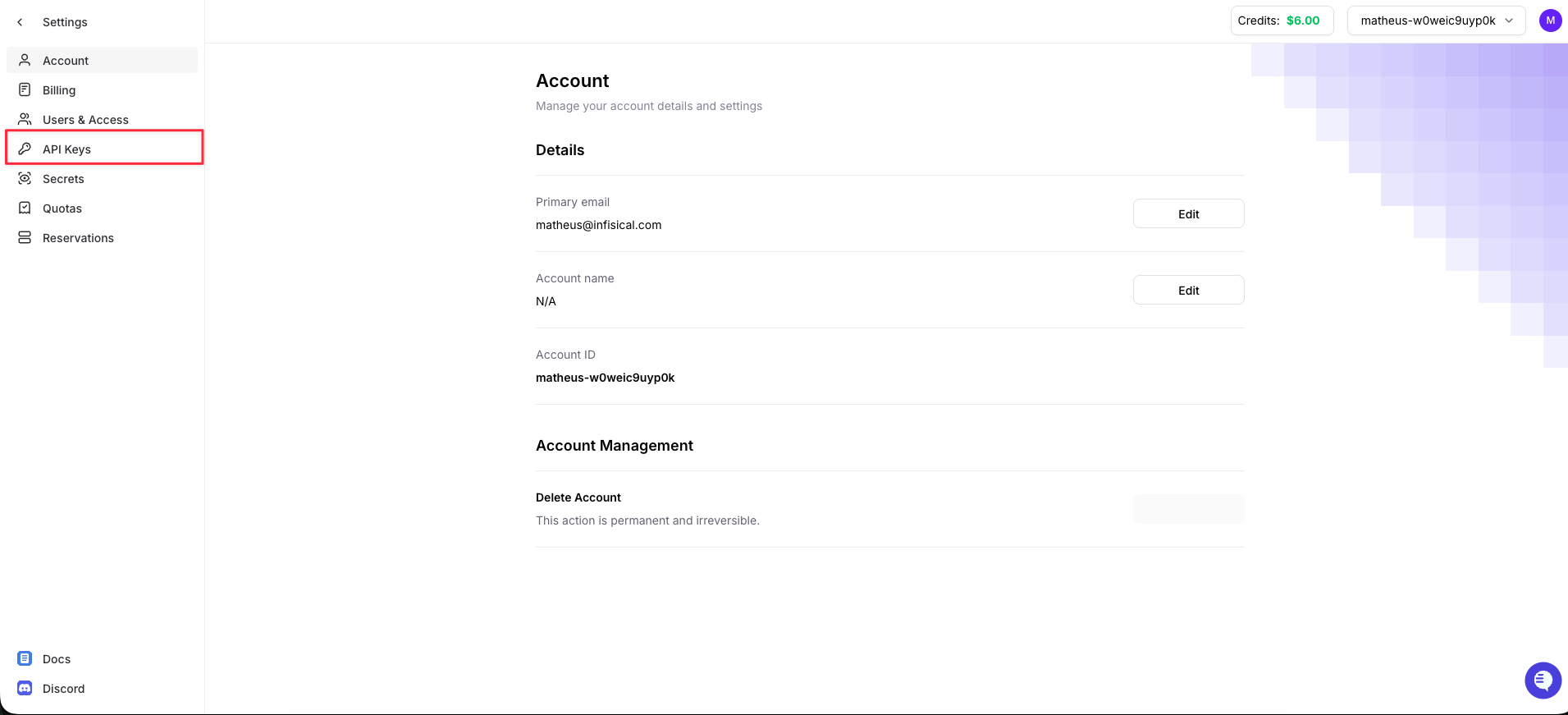
 In the Settings sidebar, click **API Keys**.
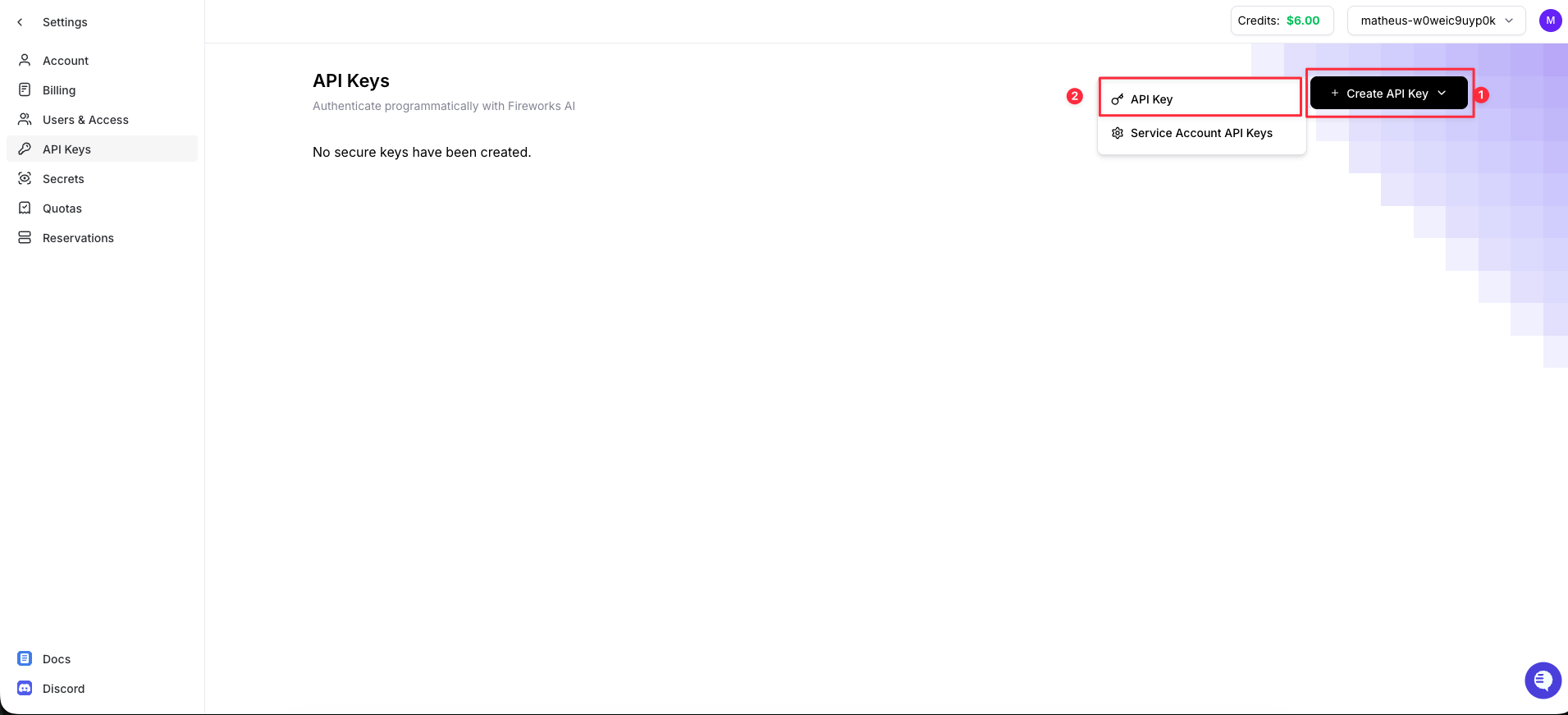
 Click **+ Create API Key** and select **API Key** from the dropdown.
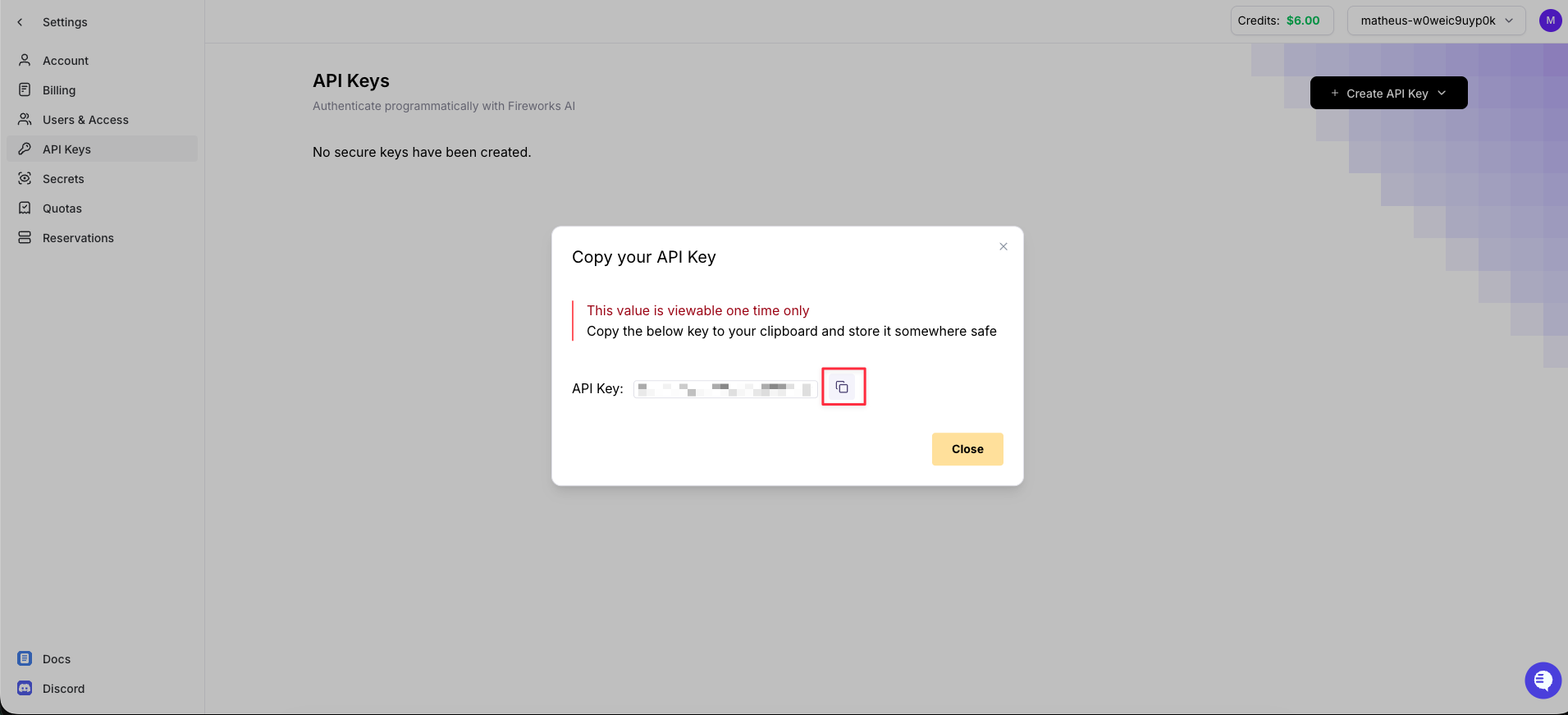
 Give the key a name and generate it. Copy the generated API key and store it securely. This value is viewable one time only, you will need it when creating the Infisical connection.
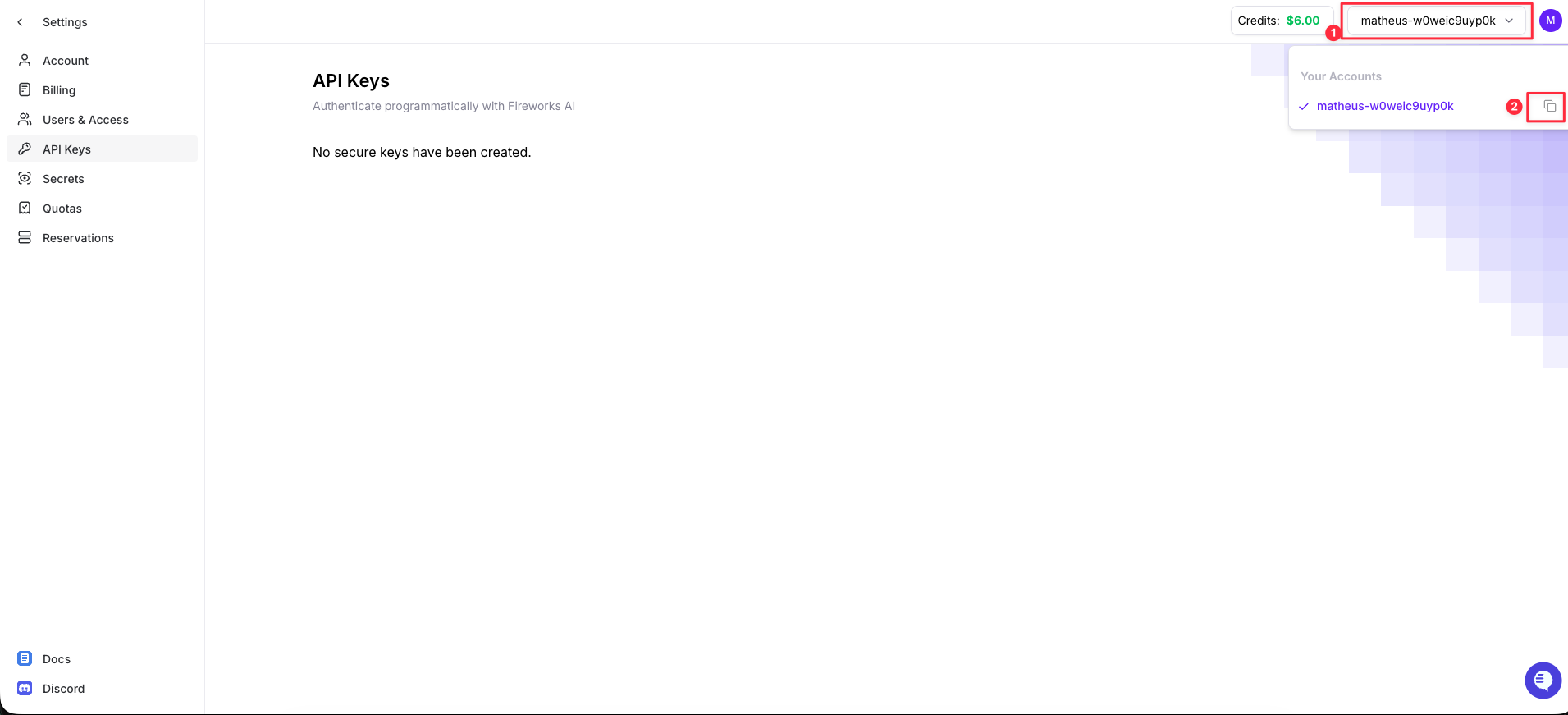
 Click the account dropdown in the top-right corner and copy your **Account ID** using the copy button. You will also need this when creating the connection.
 ## Setup Fireworks Connection in Infisical
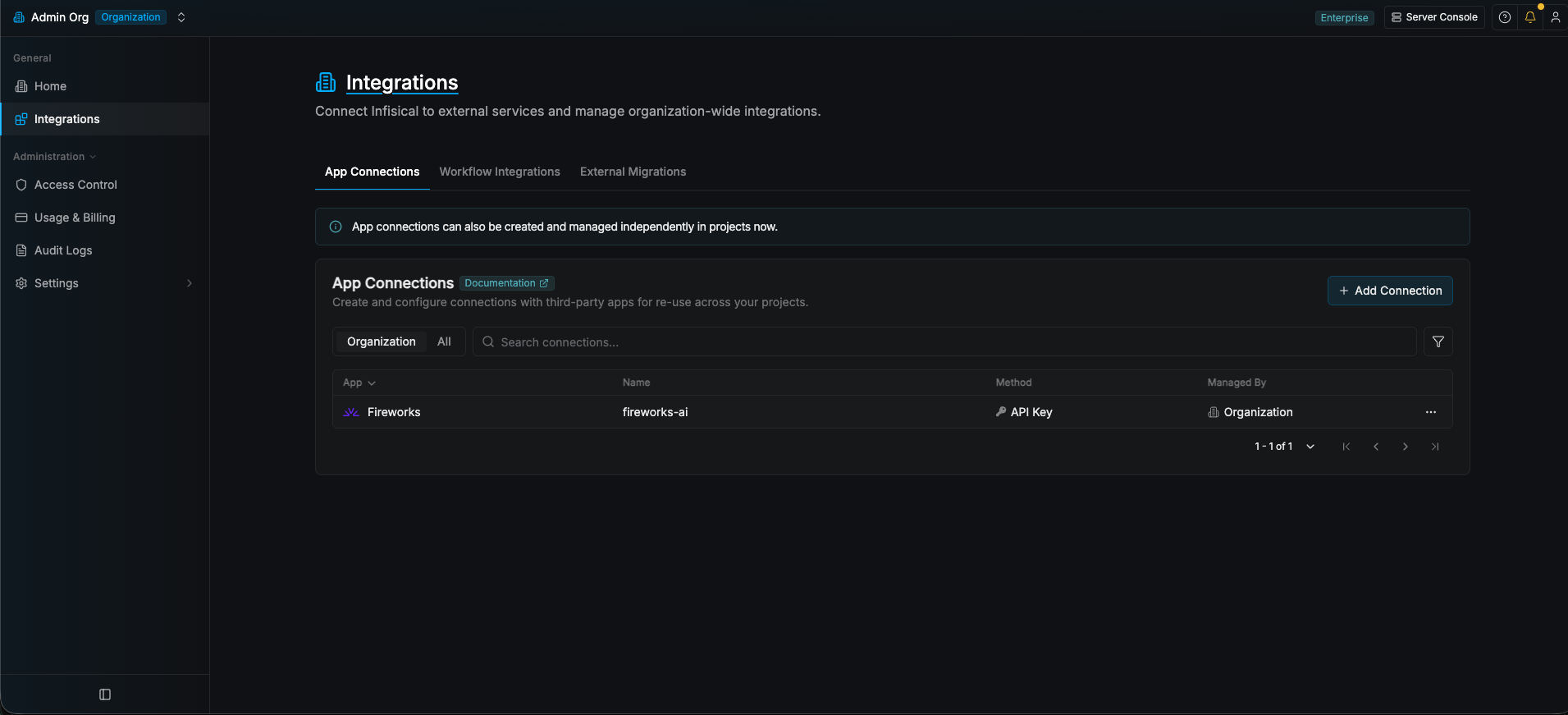
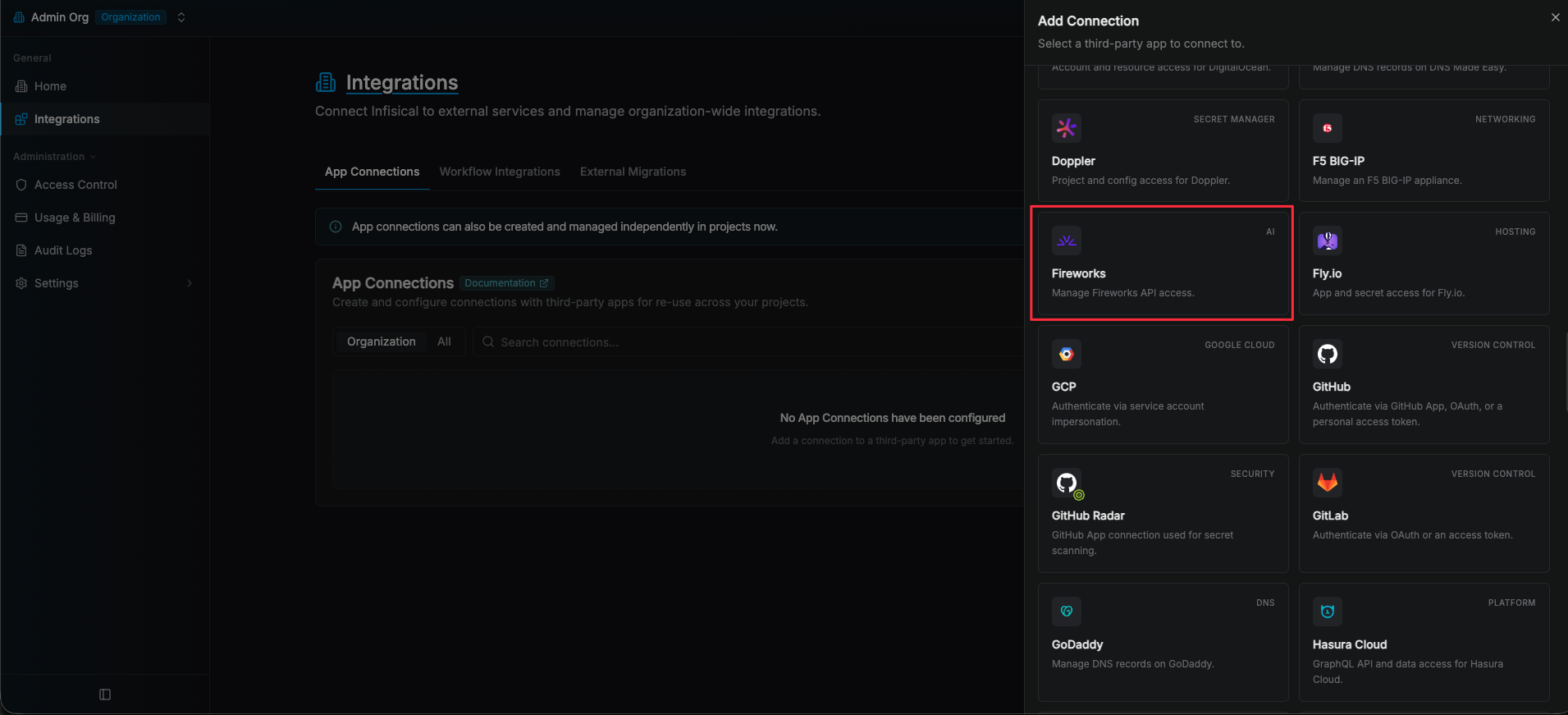
Navigate to the **App Connections** tab in your organization and click **+ Add Connection**. Select the **Fireworks** option.
## Setup Fireworks Connection in Infisical
Navigate to the **App Connections** tab in your organization and click **+ Add Connection**. Select the **Fireworks** option.
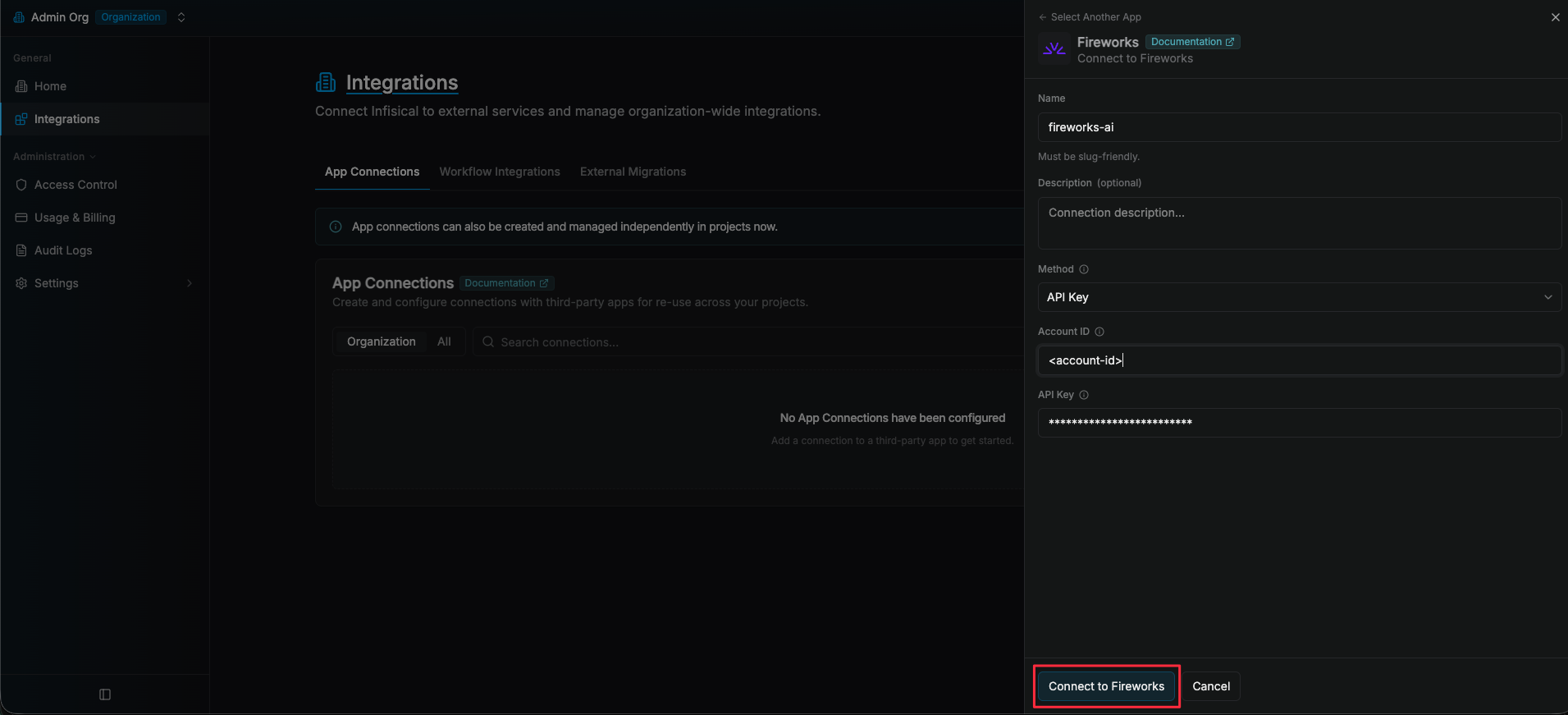
 Fill in the connection **Name**, select the **API Key** method, paste the **Account ID** and **API Key** you copied earlier, and click **Connect to Fireworks**.
 Your **Fireworks Connection** is now available for use with [Fireworks API Key Secret Rotation](/documentation/platform/secret-rotation/fireworks-api-key).