> ## Documentation Index
> Fetch the complete documentation index at: https://infisical.com/docs/llms.txt
> Use this file to discover all available pages before exploring further.
# Hashicorp Vault Connection
> Learn how to configure a Hashicorp Vault Connection for Infisical.
Infisical is compatible with Vault Self-hosted, HCP Vault Dedicated, and HCP Vault Enterprise deployments. Please note that HCP Generic Secrets are currently not supported.
Infisical supports two methods for connecting to Hashicorp Vault.
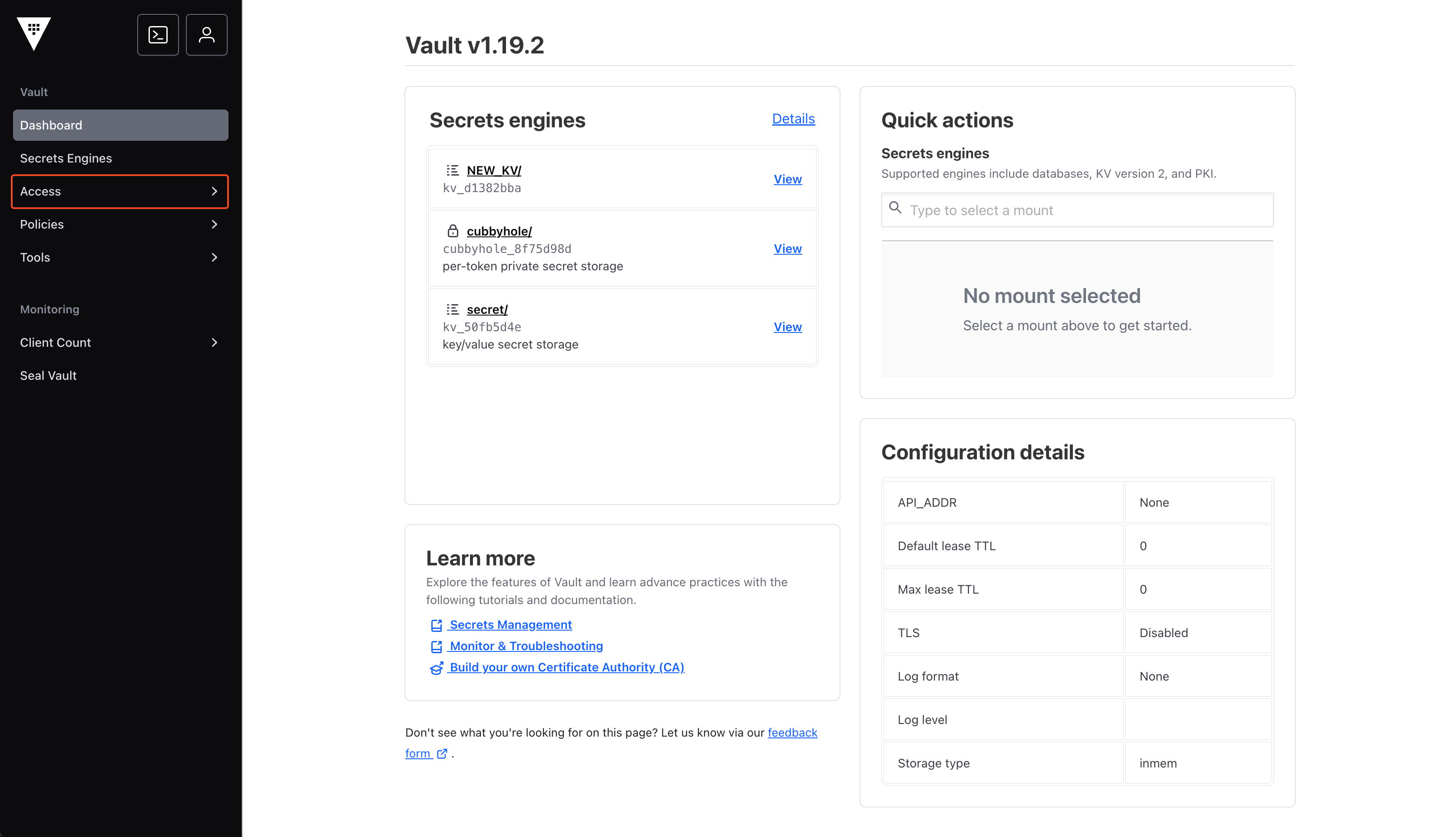 In the **Authentication Methods** tab, click on **Enable new method**.
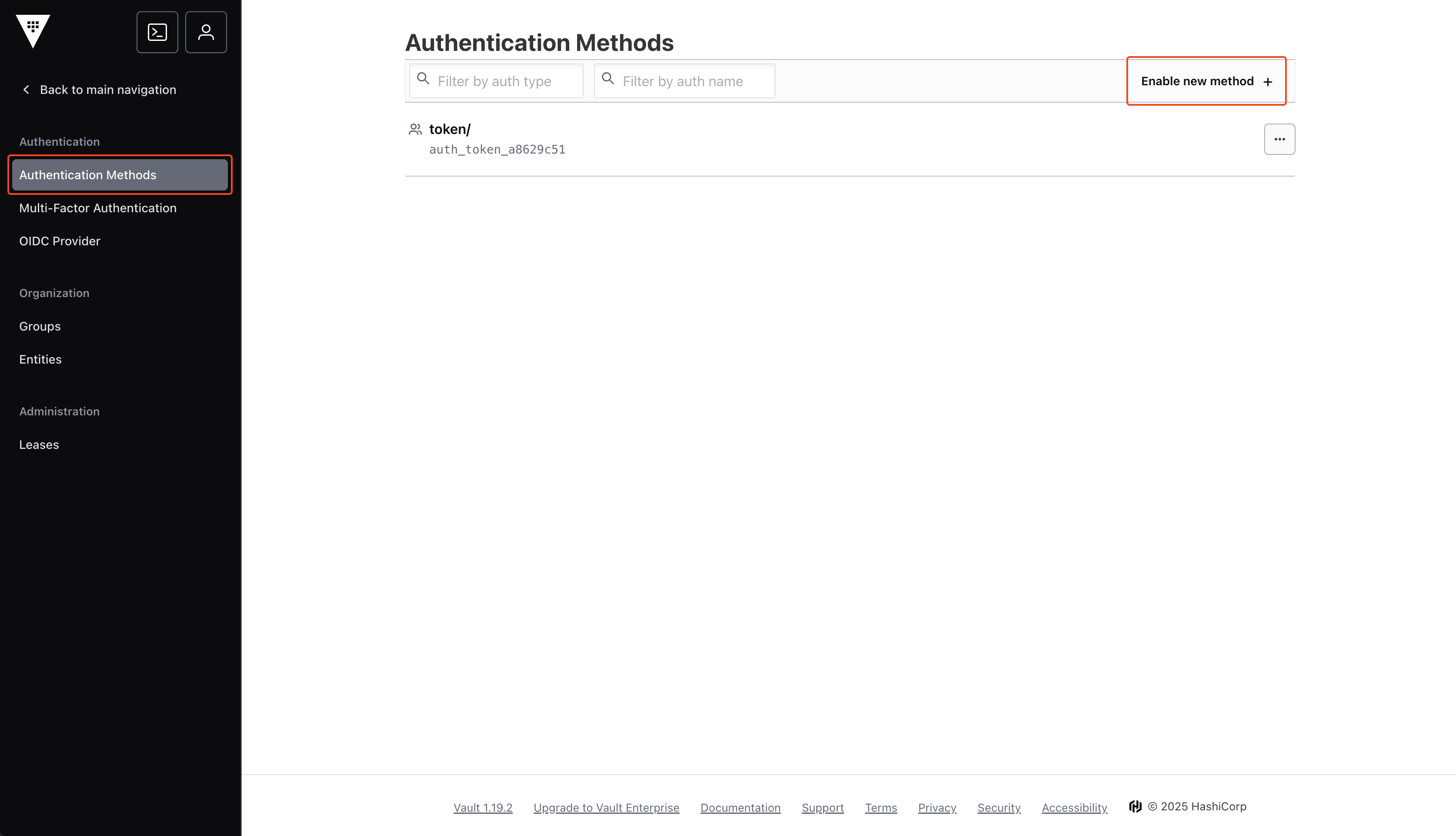
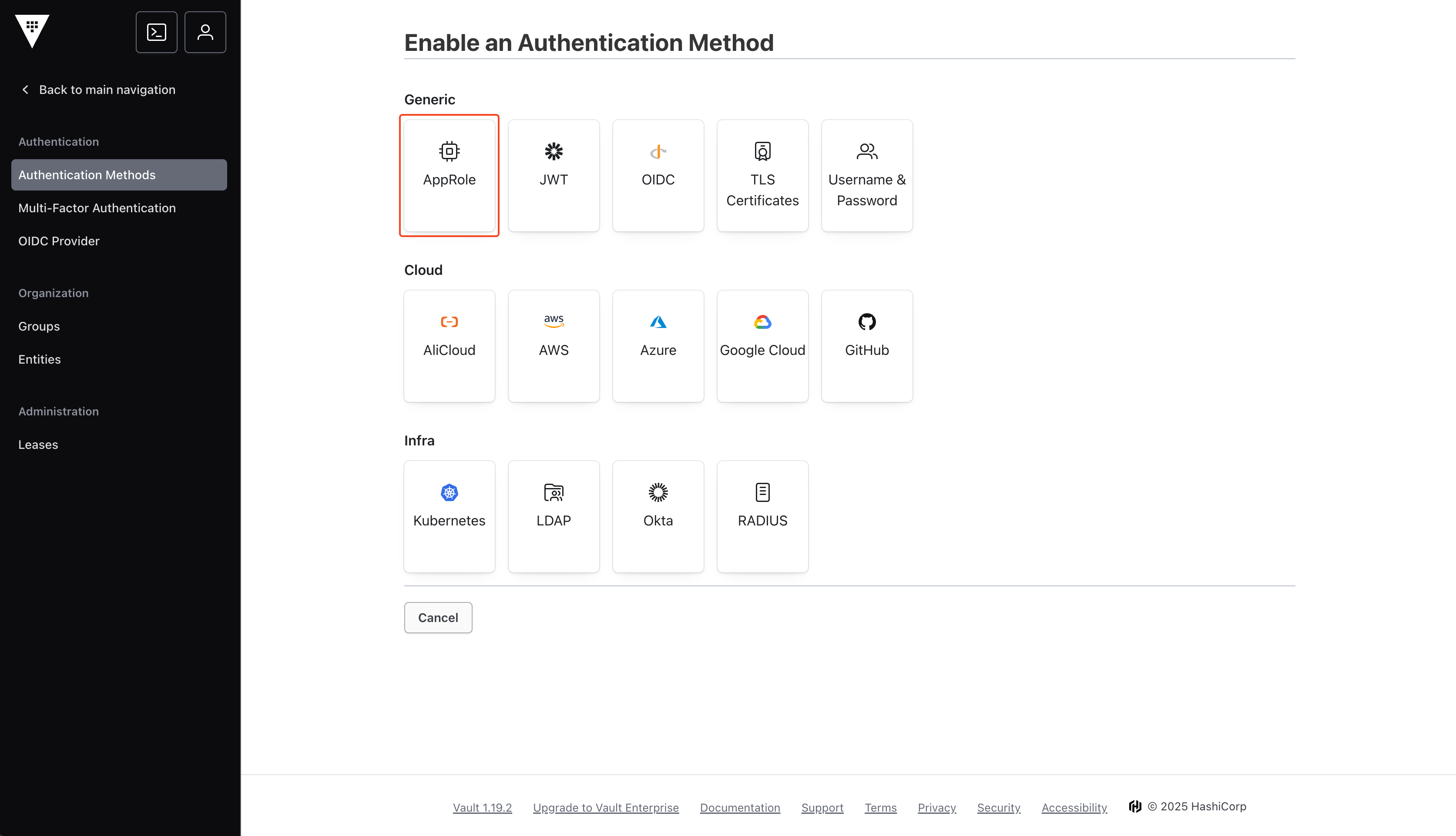 You may change the name of the method, but we suggest keeping it as `approle`.
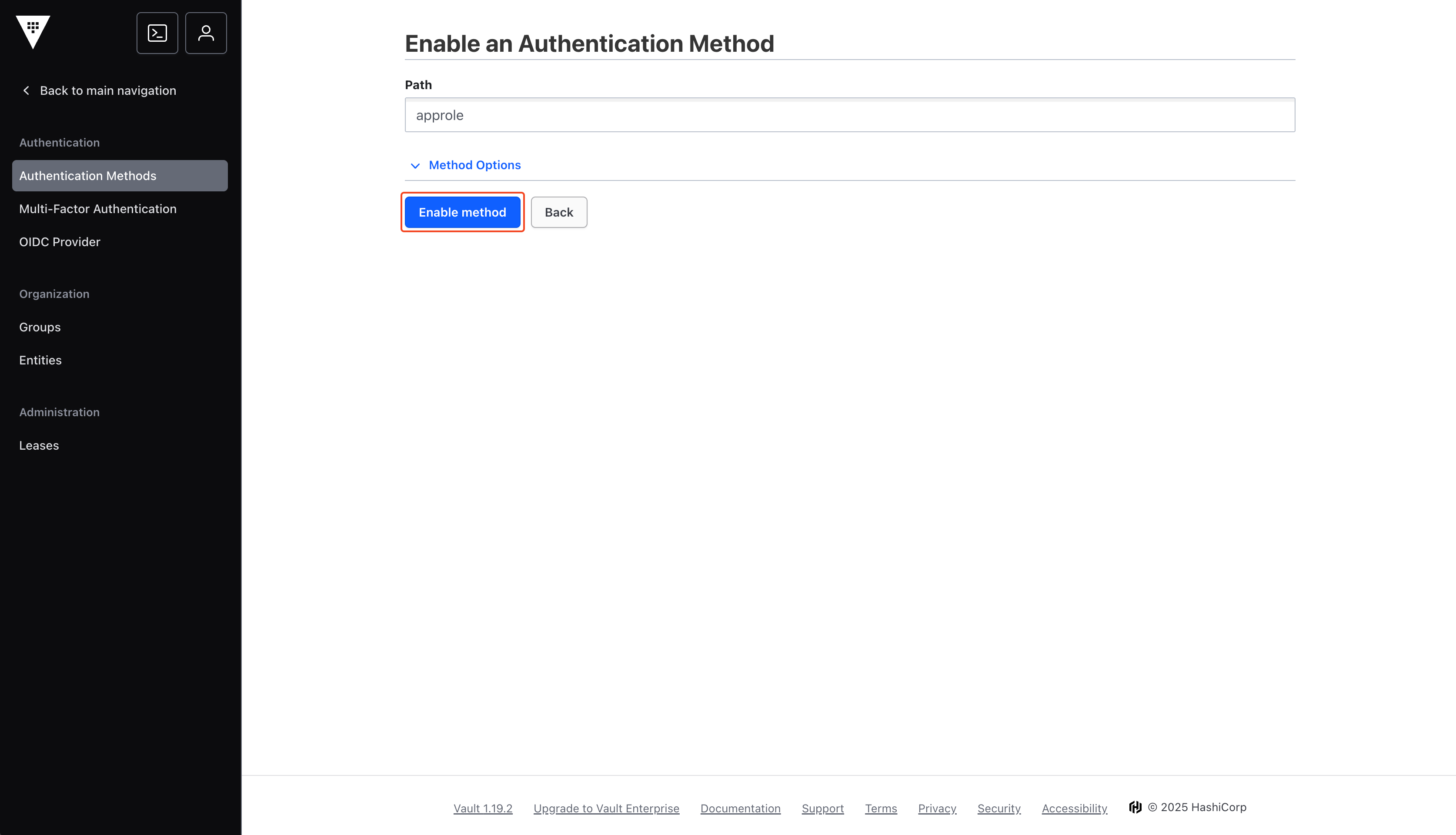 From the home page, navigate to **Policies**.
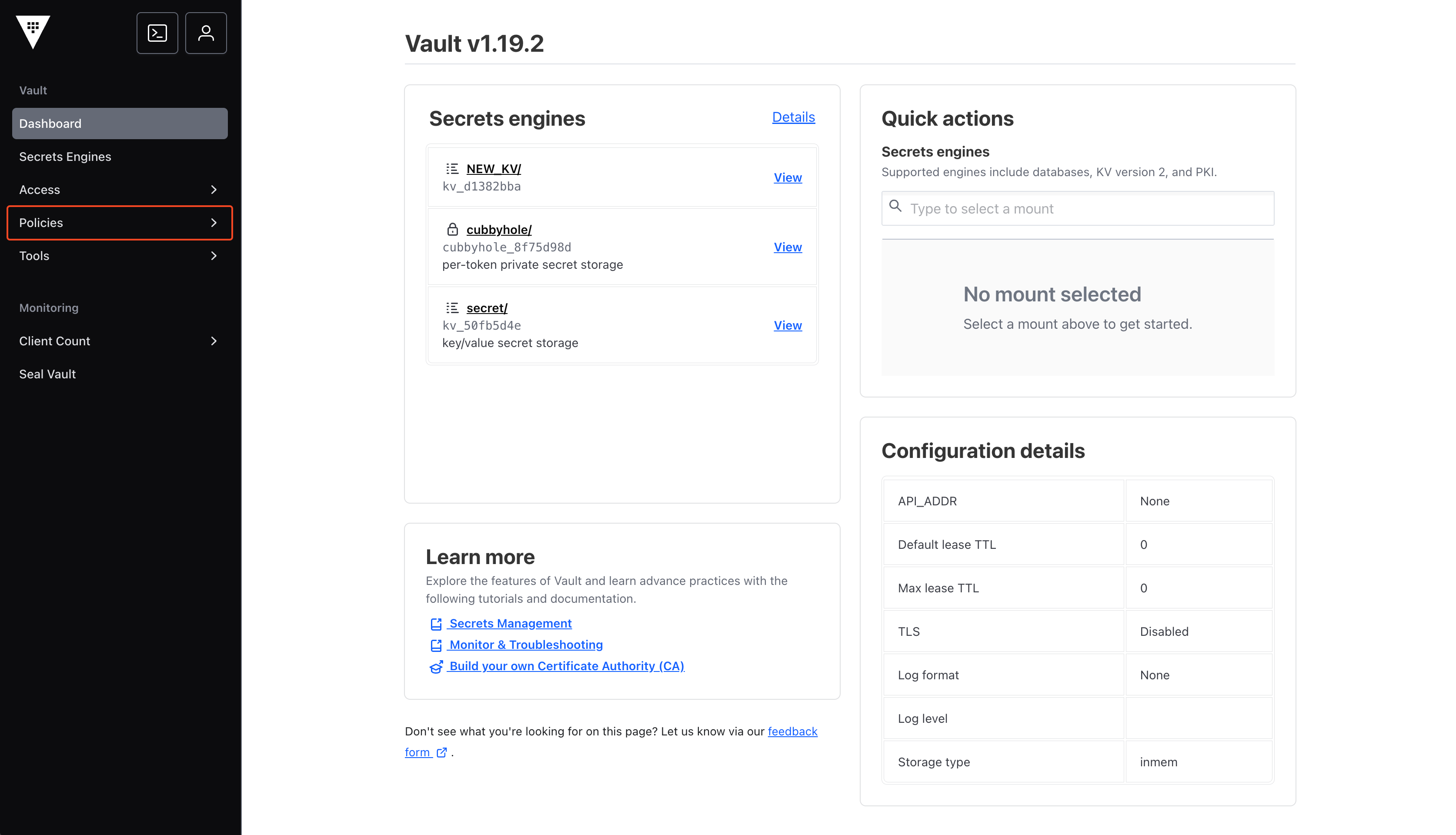
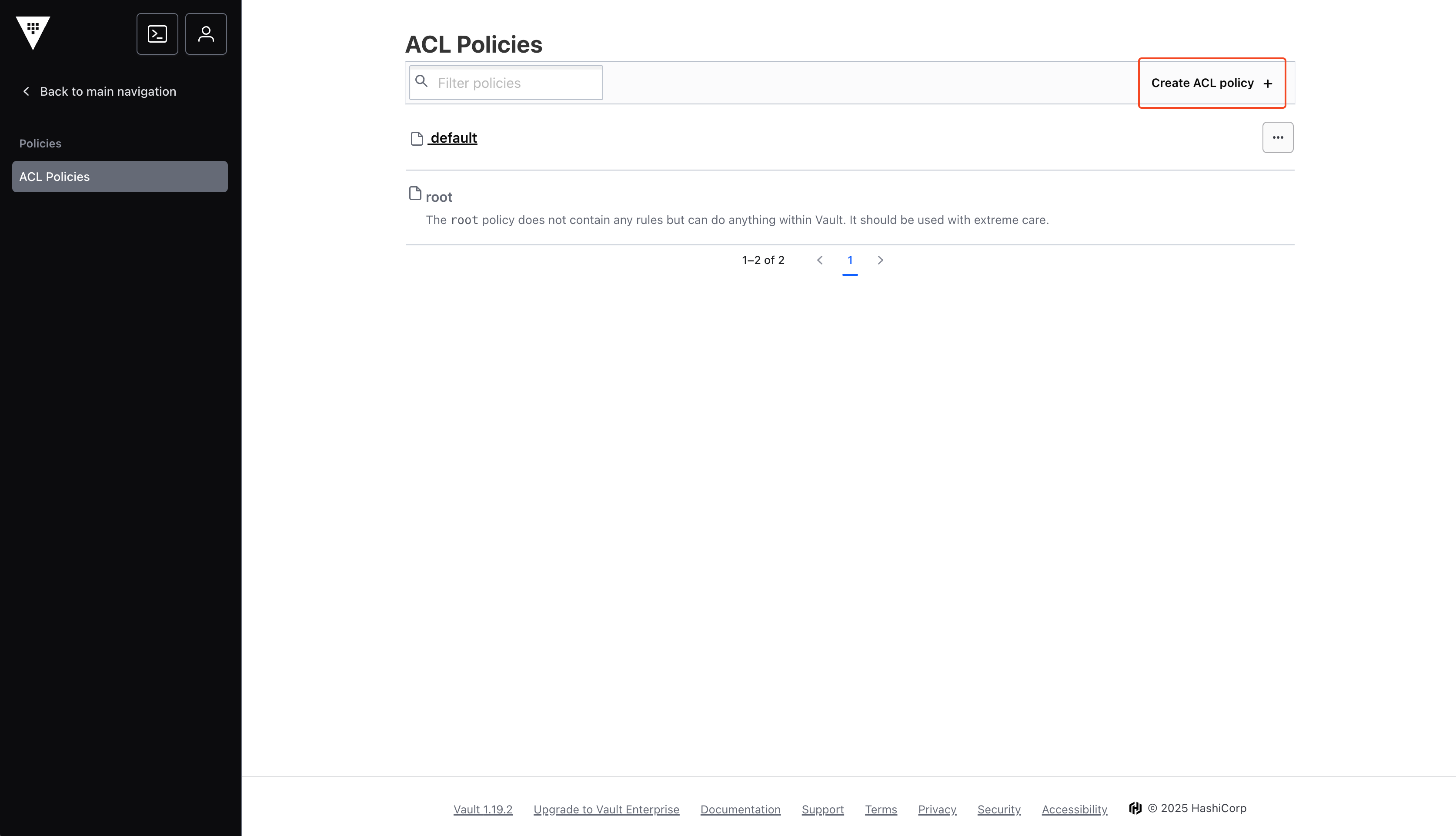 You may name your policy whatever you want, but remember the name as it will be used in future steps.
Depending on your use case, you may have different policy configurations:
```hcl theme={"dark"}
path "demo_mount/data/*" {
capabilities = [ "create", "read", "update", "delete" ]
}
path "sys/mounts" {
capabilities = ["read"]
}
```
* **demo\_mount**: The name of the target secrets engine (e.g., 'secret', 'kv').
* **data/\***: The path within the secrets engine used for storing secrets. The wildcard (\*) grants access to all secrets within this mount point.
Make sure to replace the policy path with the specific path where you intend to sync your secrets. For better security and control, it's recommended to use a more granular path instead of a wildcard (\*). You can also specify a path that doesn’t yet exist—Infisical will automatically create it for you during the sync process.
You may name your policy whatever you want, but remember the name as it will be used in future steps.
Depending on your use case, you may have different policy configurations:
```hcl theme={"dark"}
path "demo_mount/data/*" {
capabilities = [ "create", "read", "update", "delete" ]
}
path "sys/mounts" {
capabilities = ["read"]
}
```
* **demo\_mount**: The name of the target secrets engine (e.g., 'secret', 'kv').
* **data/\***: The path within the secrets engine used for storing secrets. The wildcard (\*) grants access to all secrets within this mount point.
Make sure to replace the policy path with the specific path where you intend to sync your secrets. For better security and control, it's recommended to use a more granular path instead of a wildcard (\*). You can also specify a path that doesn’t yet exist—Infisical will automatically create it for you during the sync process.
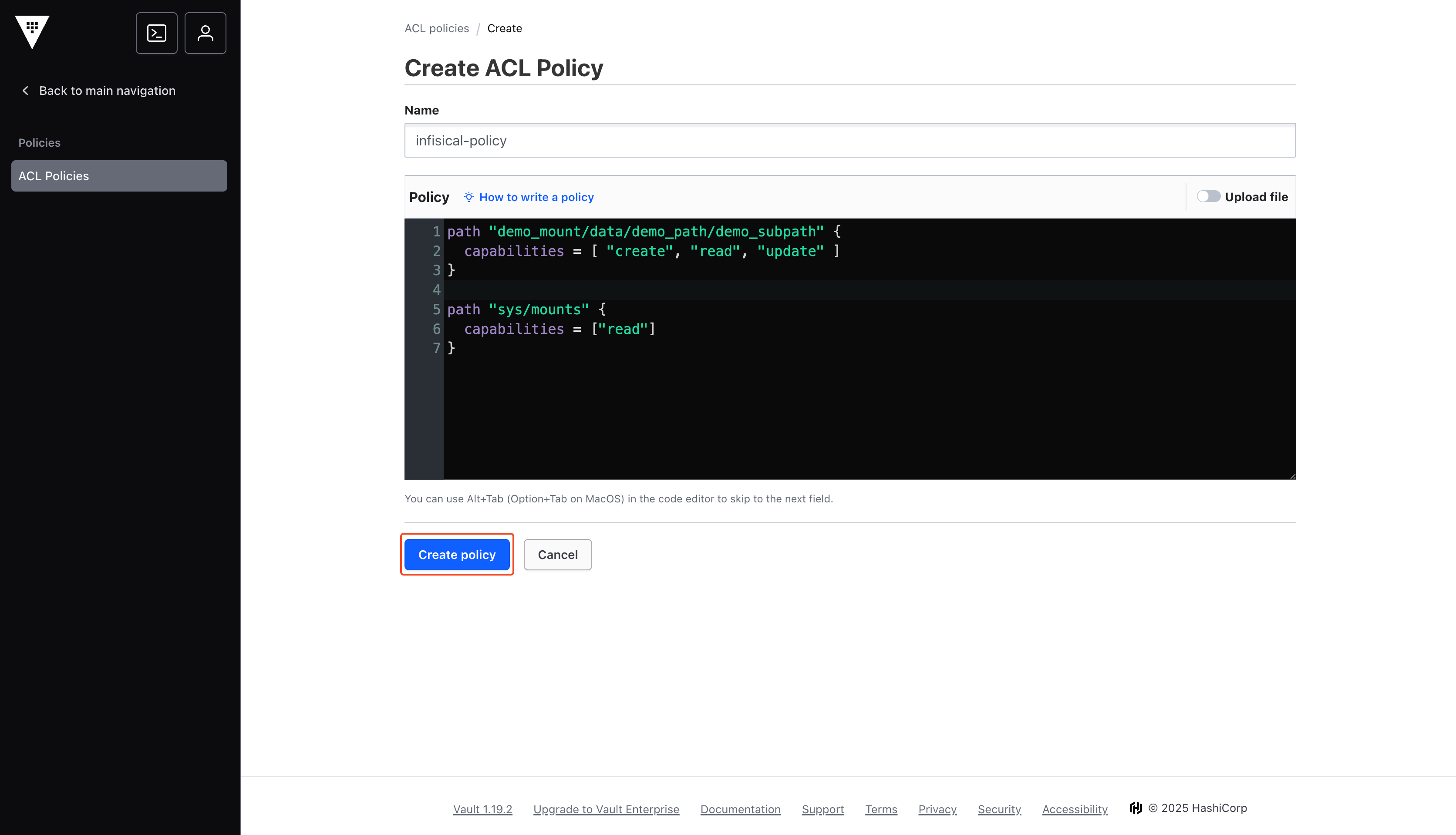 **Open Vault Shell**
 If you used custom approle or policy names in previous steps, you'll need to customize the following commands.
**Create Infisical Role**
```hcl theme={"dark"}
vault write auth/approle/role/infisical token_policies="infisical-policy" token_ttl=30s token_max_ttl=2m
```
**Read RoleID**
```hcl theme={"dark"}
vault read auth/approle/role/infisical/role-id
```
**Generate New SecretID**
```hcl theme={"dark"}
vault write -force auth/approle/role/infisical/secret-id
```
Your shell output should look similar to the image below. Save the RoleID and SecretID values for later steps.
If you used custom approle or policy names in previous steps, you'll need to customize the following commands.
**Create Infisical Role**
```hcl theme={"dark"}
vault write auth/approle/role/infisical token_policies="infisical-policy" token_ttl=30s token_max_ttl=2m
```
**Read RoleID**
```hcl theme={"dark"}
vault read auth/approle/role/infisical/role-id
```
**Generate New SecretID**
```hcl theme={"dark"}
vault write -force auth/approle/role/infisical/secret-id
```
Your shell output should look similar to the image below. Save the RoleID and SecretID values for later steps.
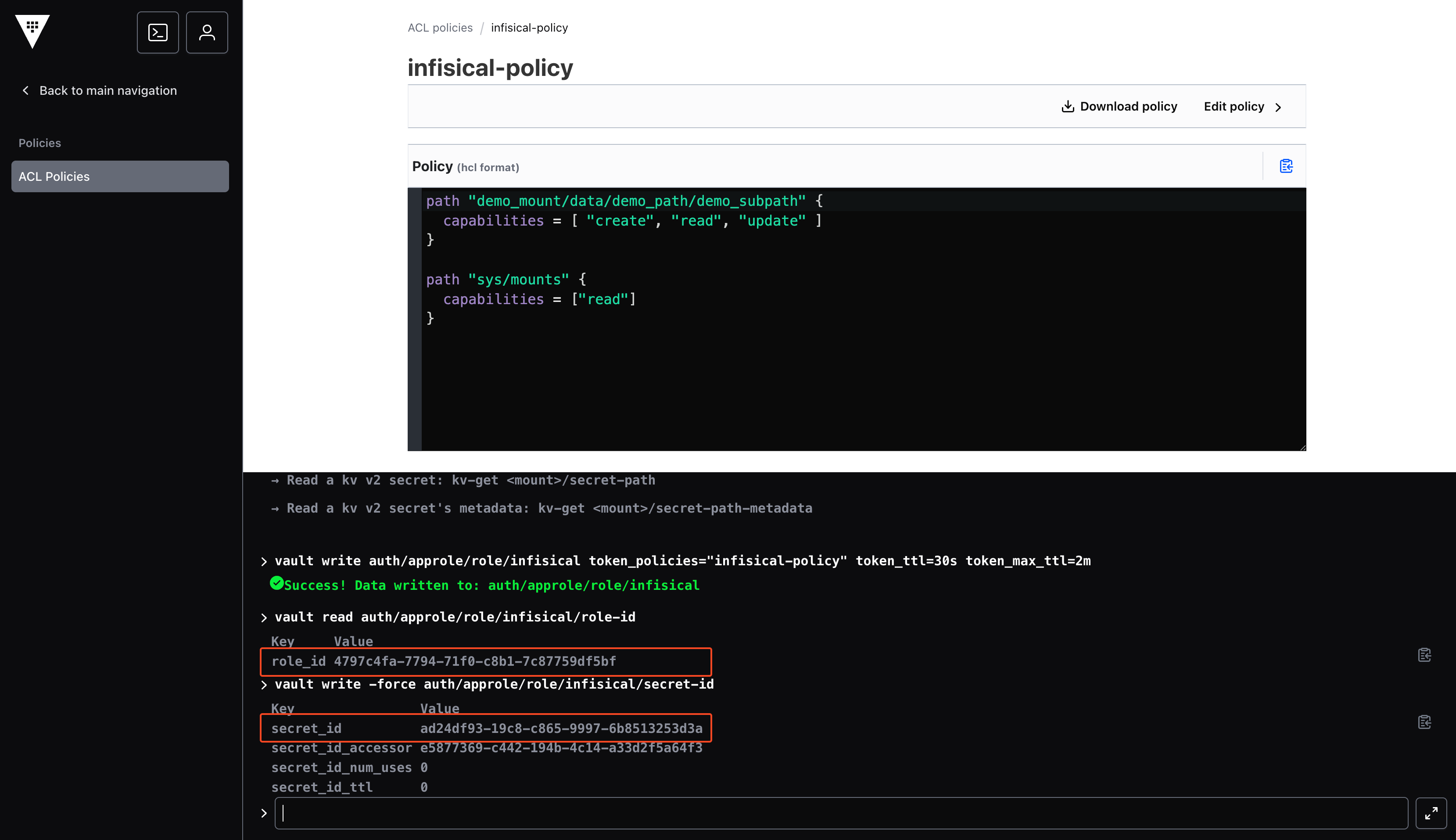 ## Get a Hashicorp Vault Access Token
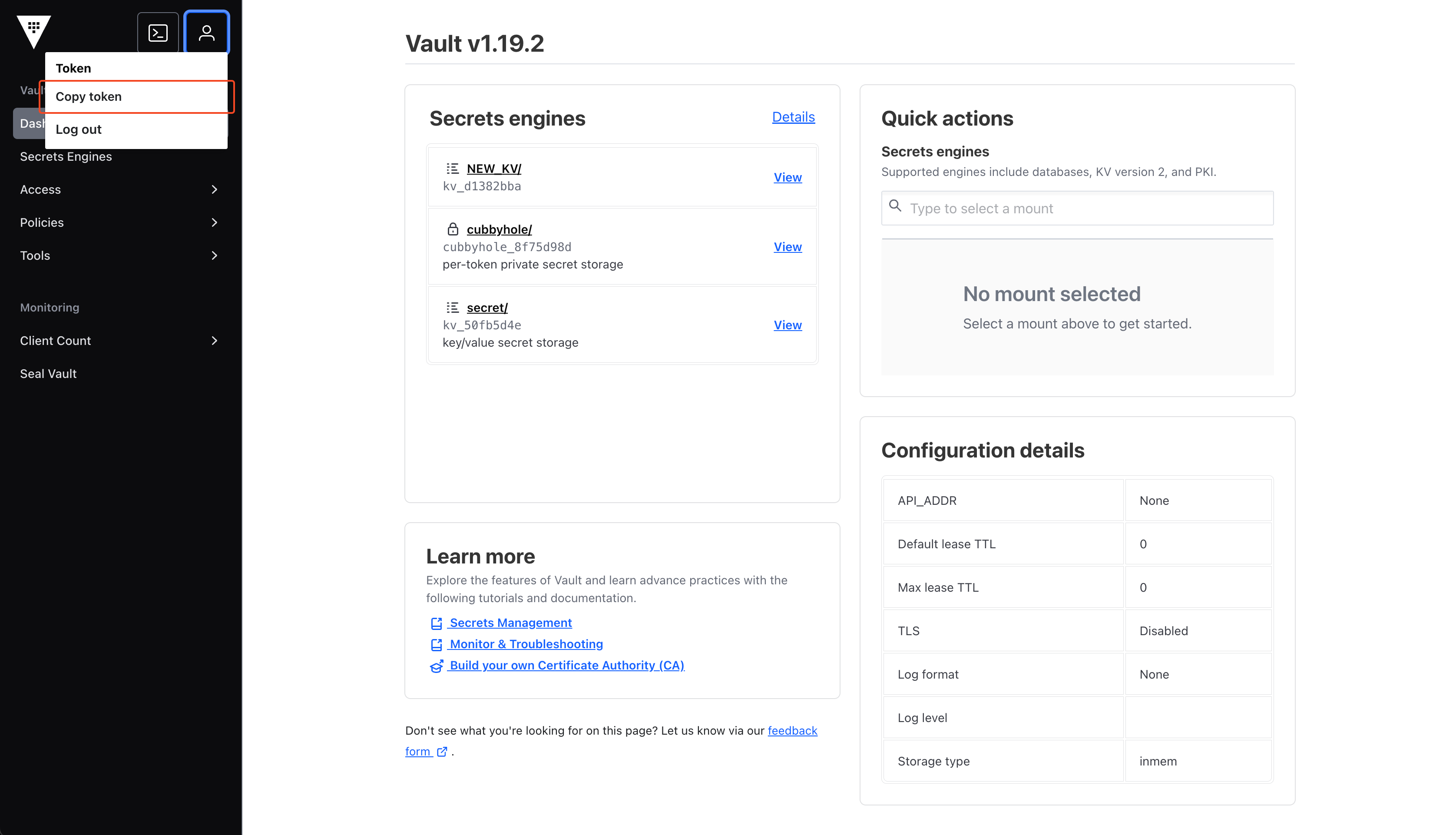
Open your profile dropdown and click **Copy token**. This token will be used in later steps.
## Get a Hashicorp Vault Access Token
Open your profile dropdown and click **Copy token**. This token will be used in later steps.
 ## Getting Vault Instance URL
For self-hosted instances, locate and copy your vault's base URL (for example: `https://vault.example.com`).
Save the URL for later steps.
On HCP instances, you may need to navigate to **Cluster Overview** to see your cluster URL. Save this value for later steps.
## Getting Vault Instance URL
For self-hosted instances, locate and copy your vault's base URL (for example: `https://vault.example.com`).
Save the URL for later steps.
On HCP instances, you may need to navigate to **Cluster Overview** to see your cluster URL. Save this value for later steps.
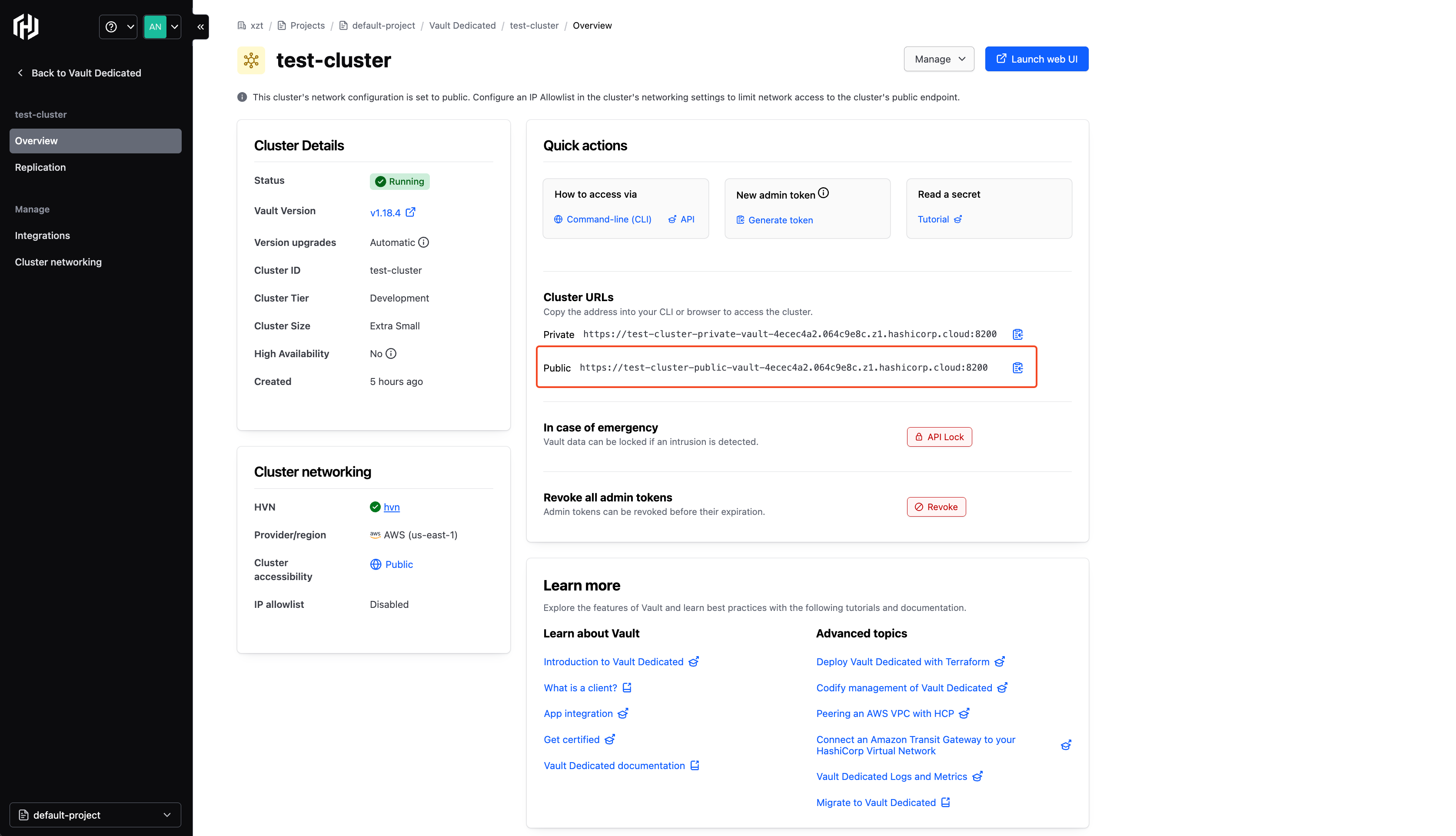 Cluster Overview is found in the HCP dashboard, not in your cluster's web UI.
## Setup Vault Connection in Infisical
In your Infisical dashboard, navigate to the **Integrations** tab in the desired project, then select **App Connections**.
Cluster Overview is found in the HCP dashboard, not in your cluster's web UI.
## Setup Vault Connection in Infisical
In your Infisical dashboard, navigate to the **Integrations** tab in the desired project, then select **App Connections**.
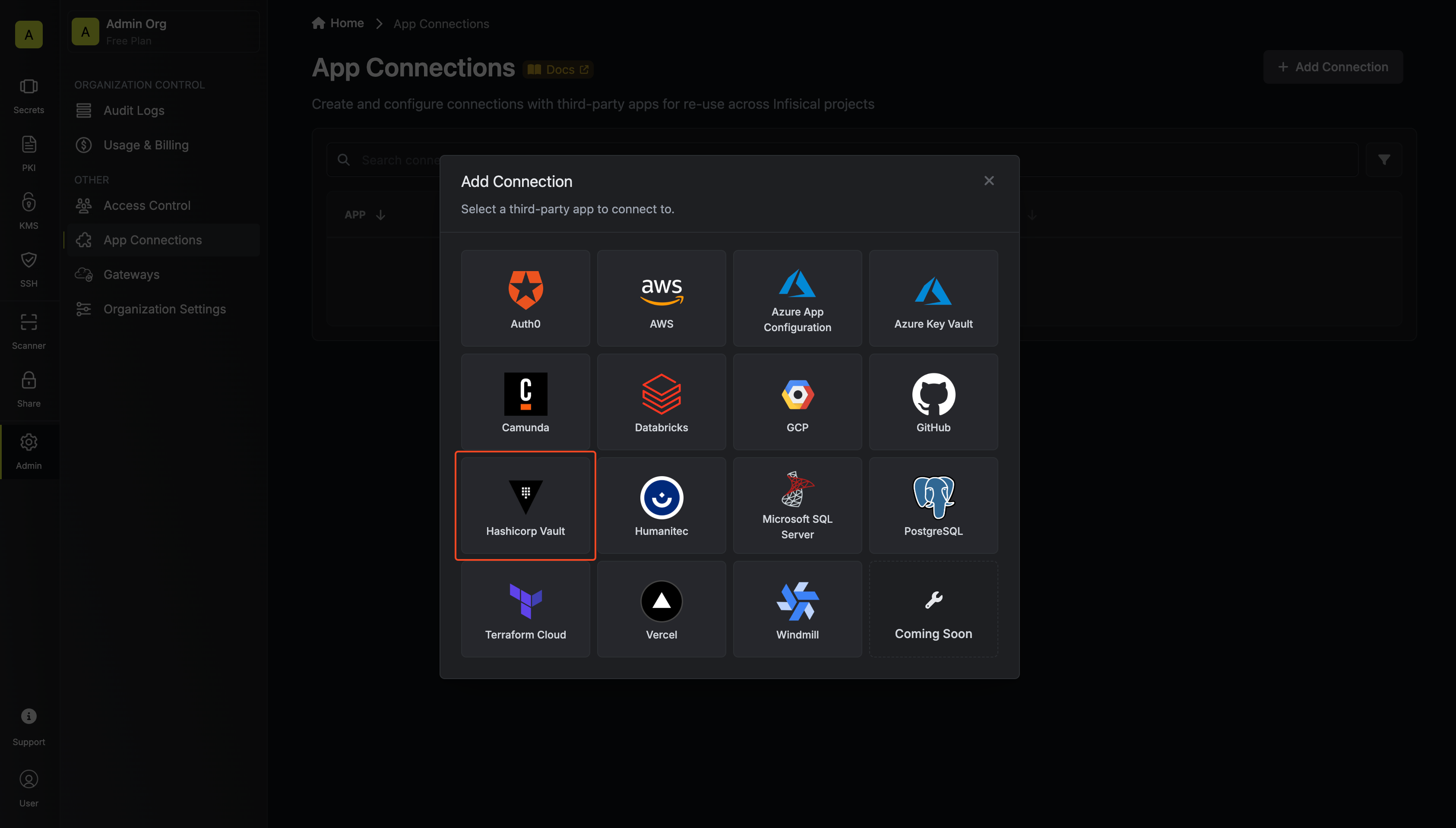
 Click the **+ Add Connection** button and select the **Hashicorp Vault Connection** option.
 Configure your Vault Connection using the Instance URL and credentials from the steps above. **Depending on if you chose to authenticate with an Access Token or AppRole, you may need to input different information.**
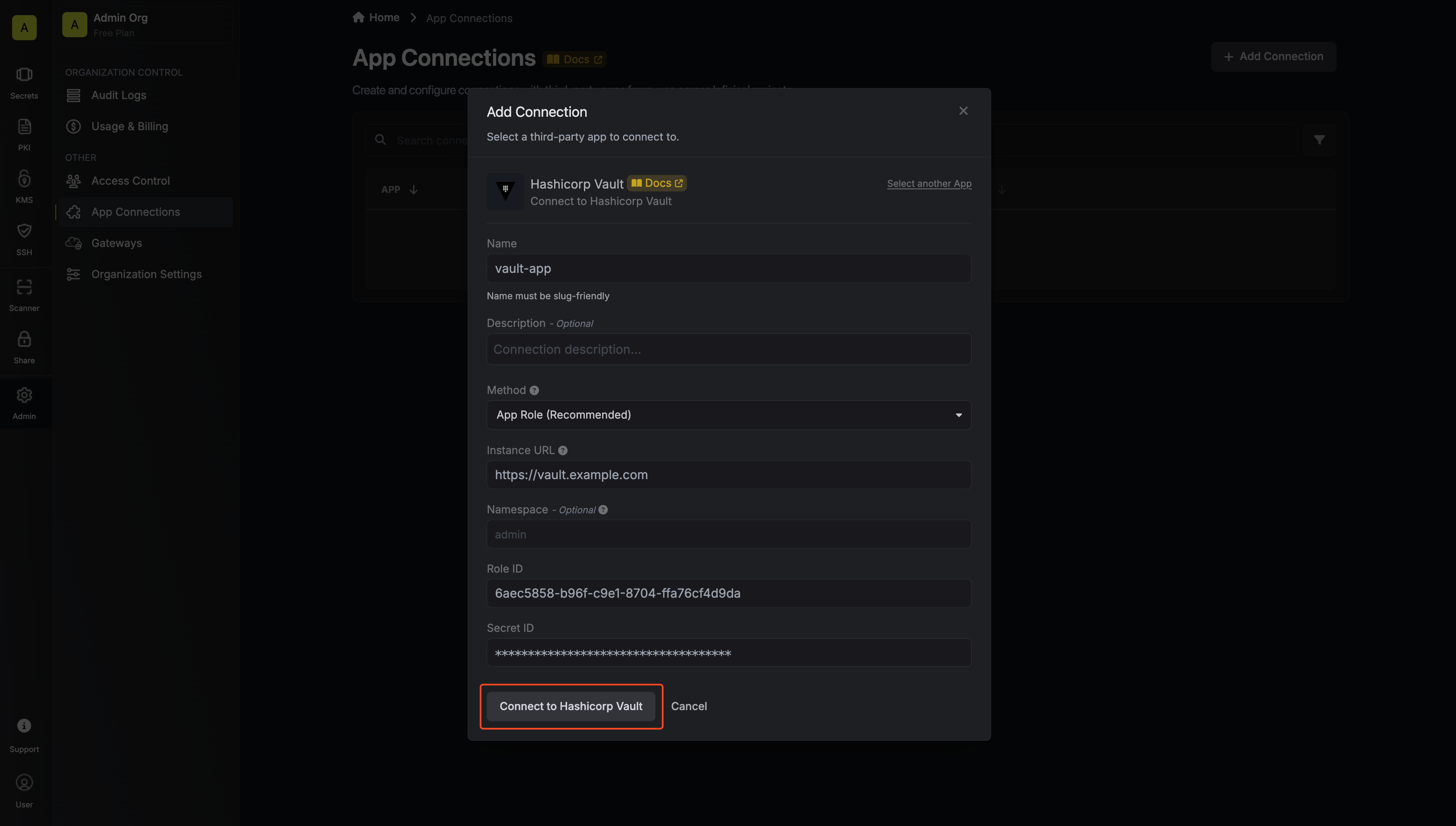 * **Name**: The name of the connection being created. Must be slug-friendly.
* **Description**: An optional description to provide details about this connection.
* **Gateway (optional):** The gateway connected to your private network. All requests made to your Vault instance will be made through the configured gateway.
* **Instance URL**: The URL of your Hashicorp Vault instance.
* **Namespace (optional)**: The namespace within your vault. Self-hosted and enterprise clusters may not use namespaces.
* **Role ID**: The Role ID generated in the steps above.
* **Secret ID**: The Secret ID generated in the steps above.
* **Name**: The name of the connection being created. Must be slug-friendly.
* **Description**: An optional description to provide details about this connection.
* **Gateway (optional):** The gateway connected to your private network. All requests made to your Vault instance will be made through the configured gateway.
* **Instance URL**: The URL of your Hashicorp Vault instance.
* **Namespace (optional)**: The namespace within your vault. Self-hosted and enterprise clusters may not use namespaces.
* **Access Token**: The Access Token generated in the steps above.
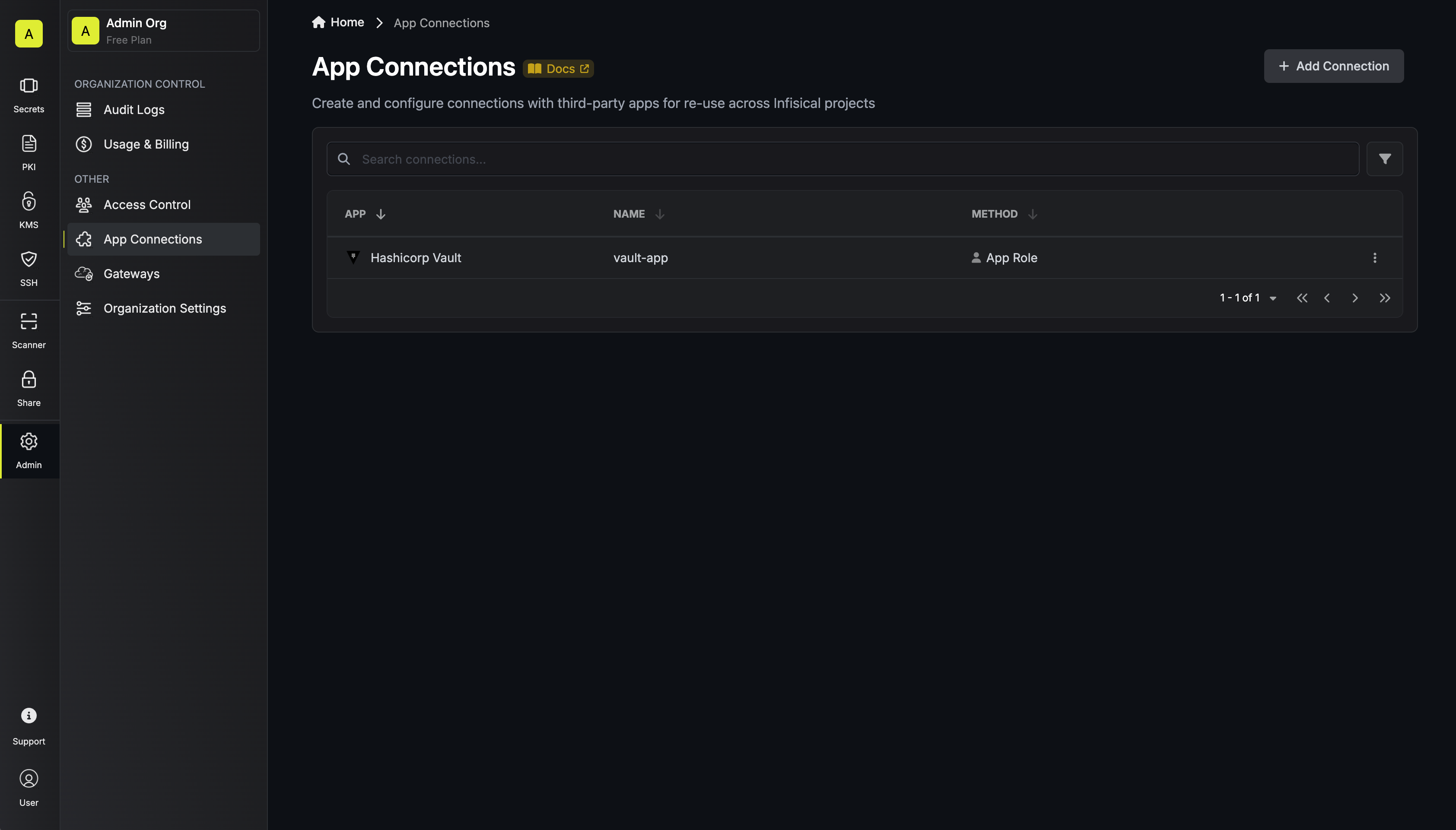
Your Vault Connection is now available for use.
* **Name**: The name of the connection being created. Must be slug-friendly.
* **Description**: An optional description to provide details about this connection.
* **Gateway (optional):** The gateway connected to your private network. All requests made to your Vault instance will be made through the configured gateway.
* **Instance URL**: The URL of your Hashicorp Vault instance.
* **Namespace (optional)**: The namespace within your vault. Self-hosted and enterprise clusters may not use namespaces.
* **Role ID**: The Role ID generated in the steps above.
* **Secret ID**: The Secret ID generated in the steps above.
* **Name**: The name of the connection being created. Must be slug-friendly.
* **Description**: An optional description to provide details about this connection.
* **Gateway (optional):** The gateway connected to your private network. All requests made to your Vault instance will be made through the configured gateway.
* **Instance URL**: The URL of your Hashicorp Vault instance.
* **Namespace (optional)**: The namespace within your vault. Self-hosted and enterprise clusters may not use namespaces.
* **Access Token**: The Access Token generated in the steps above.
Your Vault Connection is now available for use.
 To create a Vault Connection, make an API request to the [Create Hashicorp Vault
Connection](/api-reference/endpoints/app-connections/hashicorp-vault/create) API endpoint.
### Sample request
```bash Request theme={"dark"}
curl --request POST \
--url https://app.infisical.com/api/v1/app-connections/hashicorp-vault \
--header 'Content-Type: application/json' \
--data '{
"name": "my-vault-connection",
"method": "app-role",
"projectId": "7ffbb072-2575-495a-b5b0-127f88caef78",
"credentials": {
"instanceUrl": "https://vault.example.com",
"roleId": "4797c4fa-7794-71f0-c8b1-7c87759df5bf",
"secretId": "ad24df93-19c8-c865-9997-6b8513253d3a"
}
}'
```
### Sample response
```bash Response theme={"dark"}
{
"appConnection": {
"id": "3c90c3cc-0d44-4b50-8888-8dd25736052a",
"name": "my-vault-connection",
"projectId": "7ffbb072-2575-495a-b5b0-127f88caef78",
"version": 1,
"orgId": "3c90c3cc-0d44-4b50-8888-8dd25736052a",
"createdAt": "2025-04-01T05:31:56Z",
"updatedAt": "2025-04-01T05:31:56Z",
"app": "hashicorp-vault",
"method": "app-role",
"credentials": {
"instanceUrl": "https://vault.example.com",
"roleId": "4797c4fa-7794-71f0-c8b1-7c87759df5bf"
}
}
}
```
To create a Vault Connection, make an API request to the [Create Hashicorp Vault
Connection](/api-reference/endpoints/app-connections/hashicorp-vault/create) API endpoint.
### Sample request
```bash Request theme={"dark"}
curl --request POST \
--url https://app.infisical.com/api/v1/app-connections/hashicorp-vault \
--header 'Content-Type: application/json' \
--data '{
"name": "my-vault-connection",
"method": "app-role",
"projectId": "7ffbb072-2575-495a-b5b0-127f88caef78",
"credentials": {
"instanceUrl": "https://vault.example.com",
"roleId": "4797c4fa-7794-71f0-c8b1-7c87759df5bf",
"secretId": "ad24df93-19c8-c865-9997-6b8513253d3a"
}
}'
```
### Sample response
```bash Response theme={"dark"}
{
"appConnection": {
"id": "3c90c3cc-0d44-4b50-8888-8dd25736052a",
"name": "my-vault-connection",
"projectId": "7ffbb072-2575-495a-b5b0-127f88caef78",
"version": 1,
"orgId": "3c90c3cc-0d44-4b50-8888-8dd25736052a",
"createdAt": "2025-04-01T05:31:56Z",
"updatedAt": "2025-04-01T05:31:56Z",
"app": "hashicorp-vault",
"method": "app-role",
"credentials": {
"instanceUrl": "https://vault.example.com",
"roleId": "4797c4fa-7794-71f0-c8b1-7c87759df5bf"
}
}
}
```