> ## Documentation Index
> Fetch the complete documentation index at: https://infisical.com/docs/llms.txt
> Use this file to discover all available pages before exploring further.
# Keeper connection
> Learn how to configure a Keeper connection for Infisical.
A Keeper connection authenticates Infisical to [Keeper Commander Service Mode](https://docs.keeper.io/keeperpam/commander-cli/service-mode-rest-api) with the API key Commander generates. Service Mode is a REST API for Keeper Commander that you run in your own infrastructure. Commander signs in to Keeper as a user you create for Infisical, so Infisical can only reach the shared folders you share with that user.
This guide only authenticates Infisical with Keeper. Once the app connection
is ready, you can [use it to set up
integrations](#step-3-configure-integrations).
## Prerequisites
* Permission to add users in the Keeper Admin Console
* A host that Infisical can reach over HTTPS
## Step 1: Set up Keeper Commander
Infisical sends commands to Keeper Commander, not to Keeper directly. You run Commander in Service Mode on your own host, signed in as a Keeper user you create for Infisical.
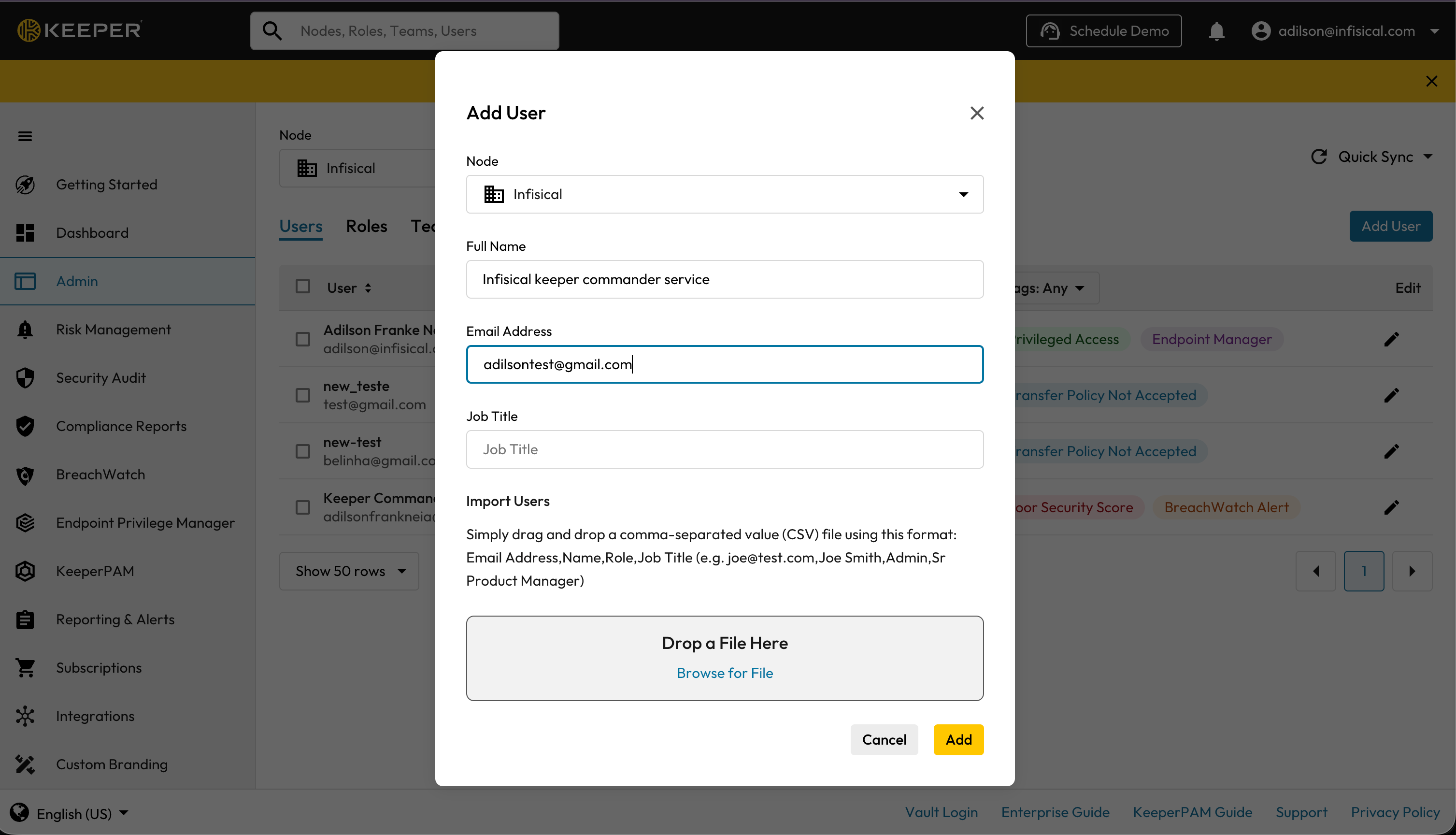
In the Keeper Admin Console, go to **Admin**, open the **Users** tab, and select **Add User**. Enter a **Full Name** and an **Email Address** for the Infisical user, such as `infisical-sync@company.com`, then select **Add**.
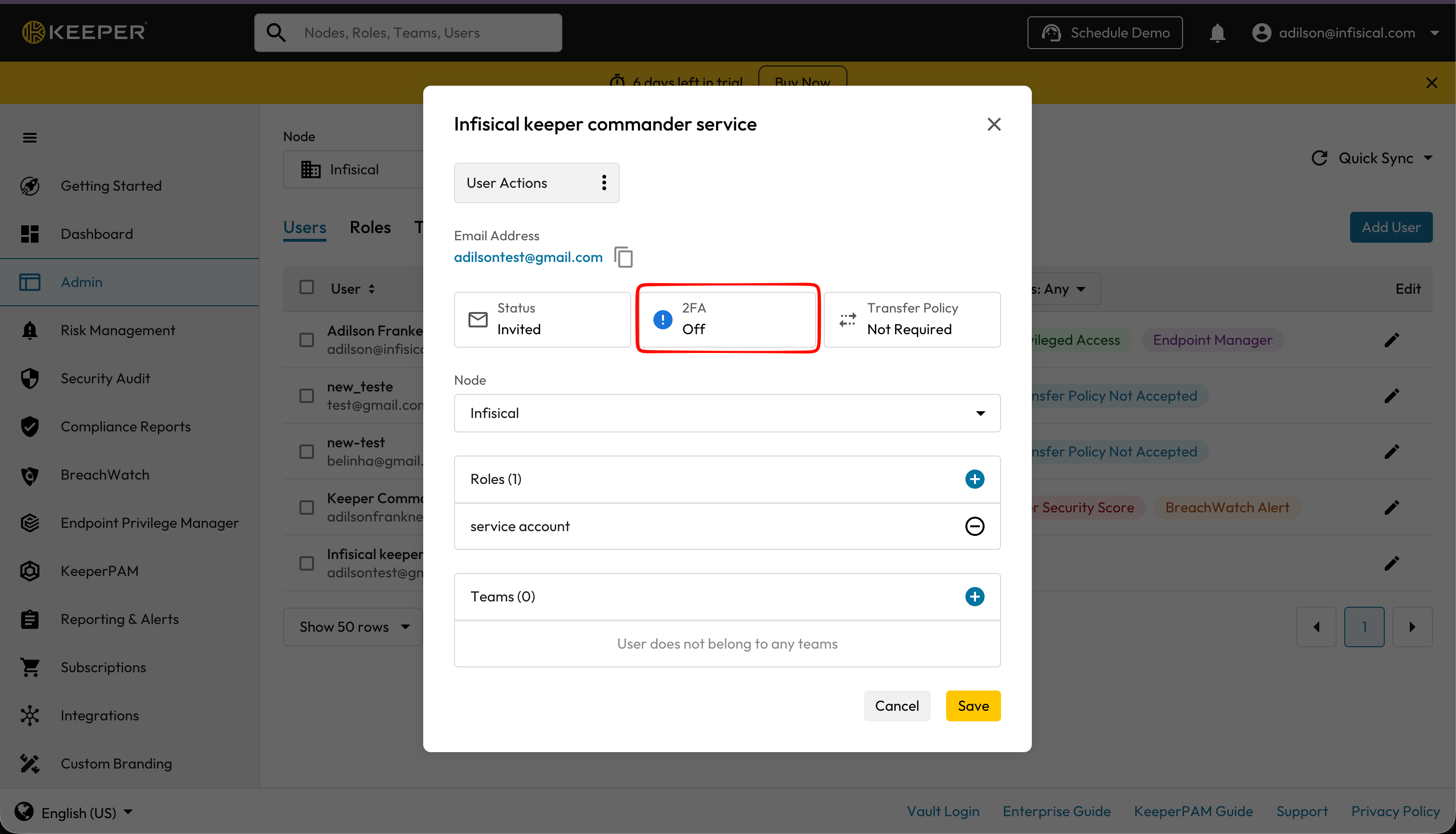
 Select the edit icon next to the new user to open the user's details, and check that **2FA** is **Off**. Two-factor authentication must stay off for the Infisical user.
 Keeper emails the user an invitation. Accept the invitation and set a master password for the user. The user can't be SSO-only, because Commander signs in with a master password.
On the host that will run Commander, install Commander and start its shell:
```bash theme={"dark"}
pip install keepercommander
keeper shell
```
In the Commander shell, sign in once as the Infisical user, approving the device when Keeper prompts you:
```bash theme={"dark"}
login --config-file infisical-sync@company.com
this-device register
this-device persistent-login on
this-device timeout 30d
```
Commander saves the session to `~/.keeper/config.json`. Without `--config-file`, newer Commander versions save the session to the operating system's keychain instead, and the container can't read the keychain. Before you continue, check that `config.json` contains `"config_storage": "file"` and a `device_token`.
Start Commander in Service Mode with Docker, mounting the `config.json` file from the previous step:
```bash theme={"dark"}
docker run -d --name keeper-service --restart unless-stopped \
-p 8900:8900 \
-v $HOME/.keeper/config.json:/home/commander/.keeper/config.json \
keeper/commander:latest \
service-create -p 8900 -f json -q n \
-c 'whoami,list-sf,ls,get,record-add,record-update,rm,sync-down' \
-rl 120/minute -aip ''
```
* `-q n` turns off Commander's request queue, so Commander serves the v1 API that Infisical calls
* `-c` lists the commands Commander accepts, which are exactly the seven commands Infisical runs
* `-rl` sets how many requests Commander accepts per minute
* `-aip` lists the IP addresses allowed to call Commander; set it to the IP addresses Infisical connects from
For other options, see Keeper's [Docker deployment guide](https://docs.keeper.io/keeperpam/commander-cli/service-mode-rest-api/docker-deployment).
Infisical must be able to reach Commander at the URL you enter in the connection. Serve Commander over HTTPS with a certificate from a public certificate authority, for example through a reverse proxy in front of port `8900`. Infisical doesn't accept self-signed certificates, and it refuses `localhost` and private IP addresses. If you self-host Infisical and Commander runs on your private network, set [`ALLOW_INTERNAL_IP_CONNECTIONS`](/docs/self-hosting/configuration/envars#param-allow-internal-ip-connections) to `true` on your Infisical instance.
Find the API key Commander generated in the container logs, on the line that starts with `Generated API key:`:
```bash theme={"dark"}
docker logs keeper-service
```
Copy the key. You need it to create the connection in Infisical.
## Step 2: Create the app connection
Next, create the app connection in Infisical.
To create the connection using the API, use the [Create Keeper
Connection](/docs/api-reference/endpoints/app-connections/keeper/create) endpoint.
In the sidebar, select **Integrations**, then open the **App Connections** tab.
Keeper emails the user an invitation. Accept the invitation and set a master password for the user. The user can't be SSO-only, because Commander signs in with a master password.
On the host that will run Commander, install Commander and start its shell:
```bash theme={"dark"}
pip install keepercommander
keeper shell
```
In the Commander shell, sign in once as the Infisical user, approving the device when Keeper prompts you:
```bash theme={"dark"}
login --config-file infisical-sync@company.com
this-device register
this-device persistent-login on
this-device timeout 30d
```
Commander saves the session to `~/.keeper/config.json`. Without `--config-file`, newer Commander versions save the session to the operating system's keychain instead, and the container can't read the keychain. Before you continue, check that `config.json` contains `"config_storage": "file"` and a `device_token`.
Start Commander in Service Mode with Docker, mounting the `config.json` file from the previous step:
```bash theme={"dark"}
docker run -d --name keeper-service --restart unless-stopped \
-p 8900:8900 \
-v $HOME/.keeper/config.json:/home/commander/.keeper/config.json \
keeper/commander:latest \
service-create -p 8900 -f json -q n \
-c 'whoami,list-sf,ls,get,record-add,record-update,rm,sync-down' \
-rl 120/minute -aip ''
```
* `-q n` turns off Commander's request queue, so Commander serves the v1 API that Infisical calls
* `-c` lists the commands Commander accepts, which are exactly the seven commands Infisical runs
* `-rl` sets how many requests Commander accepts per minute
* `-aip` lists the IP addresses allowed to call Commander; set it to the IP addresses Infisical connects from
For other options, see Keeper's [Docker deployment guide](https://docs.keeper.io/keeperpam/commander-cli/service-mode-rest-api/docker-deployment).
Infisical must be able to reach Commander at the URL you enter in the connection. Serve Commander over HTTPS with a certificate from a public certificate authority, for example through a reverse proxy in front of port `8900`. Infisical doesn't accept self-signed certificates, and it refuses `localhost` and private IP addresses. If you self-host Infisical and Commander runs on your private network, set [`ALLOW_INTERNAL_IP_CONNECTIONS`](/docs/self-hosting/configuration/envars#param-allow-internal-ip-connections) to `true` on your Infisical instance.
Find the API key Commander generated in the container logs, on the line that starts with `Generated API key:`:
```bash theme={"dark"}
docker logs keeper-service
```
Copy the key. You need it to create the connection in Infisical.
## Step 2: Create the app connection
Next, create the app connection in Infisical.
To create the connection using the API, use the [Create Keeper
Connection](/docs/api-reference/endpoints/app-connections/keeper/create) endpoint.
In the sidebar, select **Integrations**, then open the **App Connections** tab.
 Select **Add Connection** and choose **Keeper**.
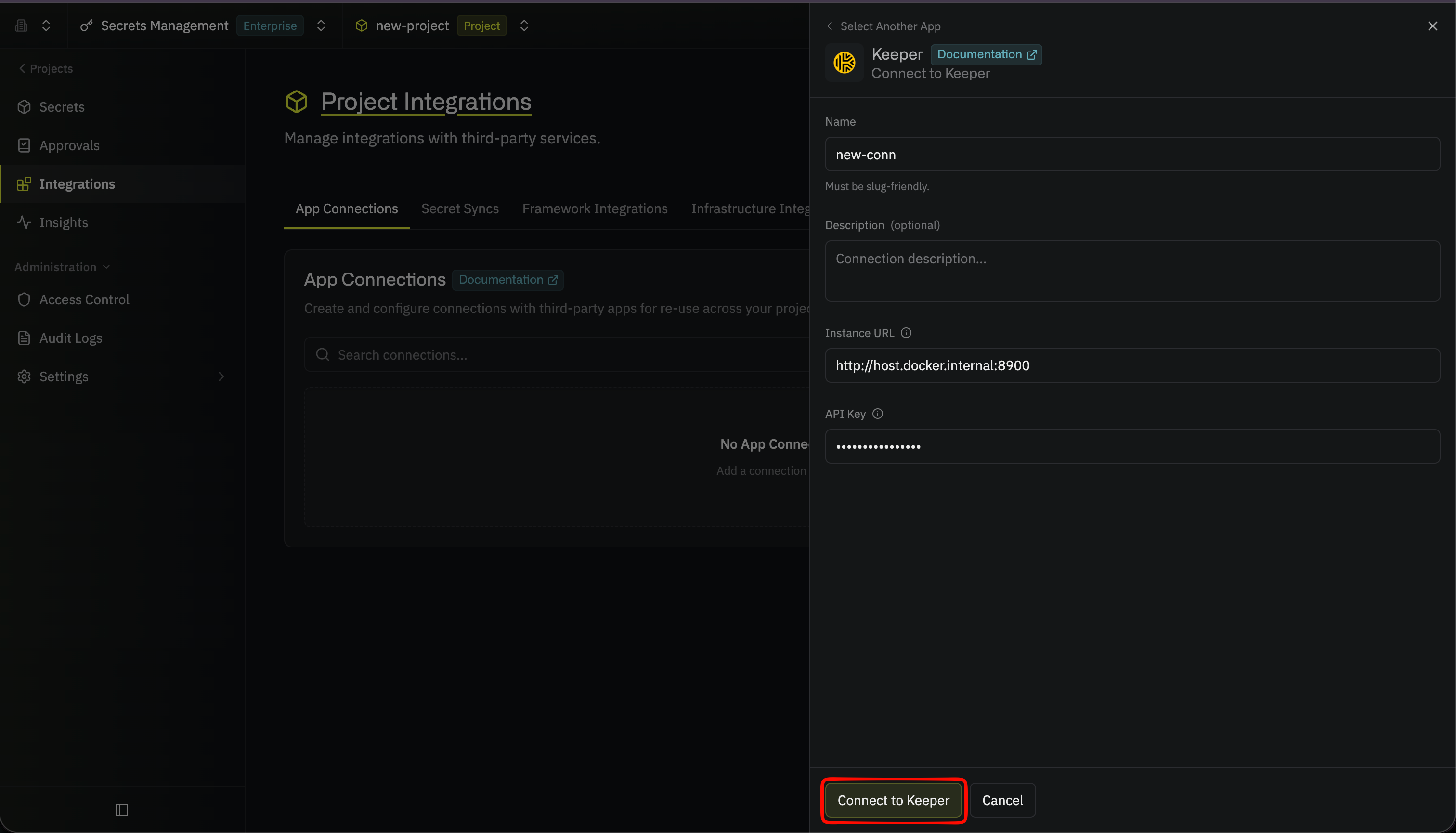
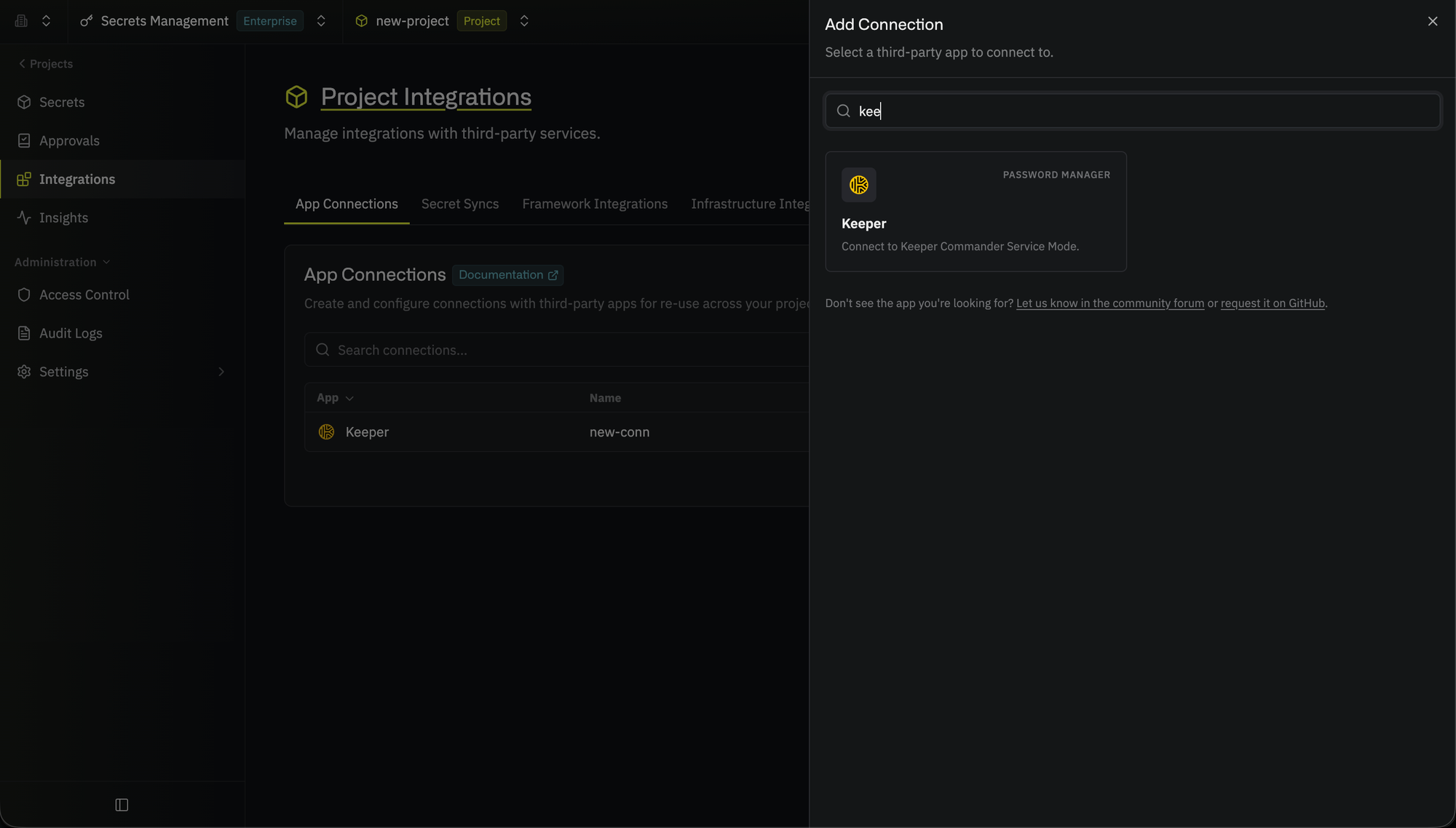 Fill out the form's fields:
* **Name**: A descriptive name for the connection, such as `keeper-prod`
* **Description** (optional): A note for future reference
* **Instance URL**: The base URL of your Commander Service Mode instance, such as `https://keeper.company.com`, without an `/api` path
* **API Key**: The key you copied when you [set up Keeper Commander](/docs/integrations/app-connections/keeper#step-1-set-up-keeper-commander)
Then, select **Connect to Keeper**.
Fill out the form's fields:
* **Name**: A descriptive name for the connection, such as `keeper-prod`
* **Description** (optional): A note for future reference
* **Instance URL**: The base URL of your Commander Service Mode instance, such as `https://keeper.company.com`, without an `/api` path
* **API Key**: The key you copied when you [set up Keeper Commander](/docs/integrations/app-connections/keeper#step-1-set-up-keeper-commander)
Then, select **Connect to Keeper**.
 The new connection appears in the **App Connections** tab.
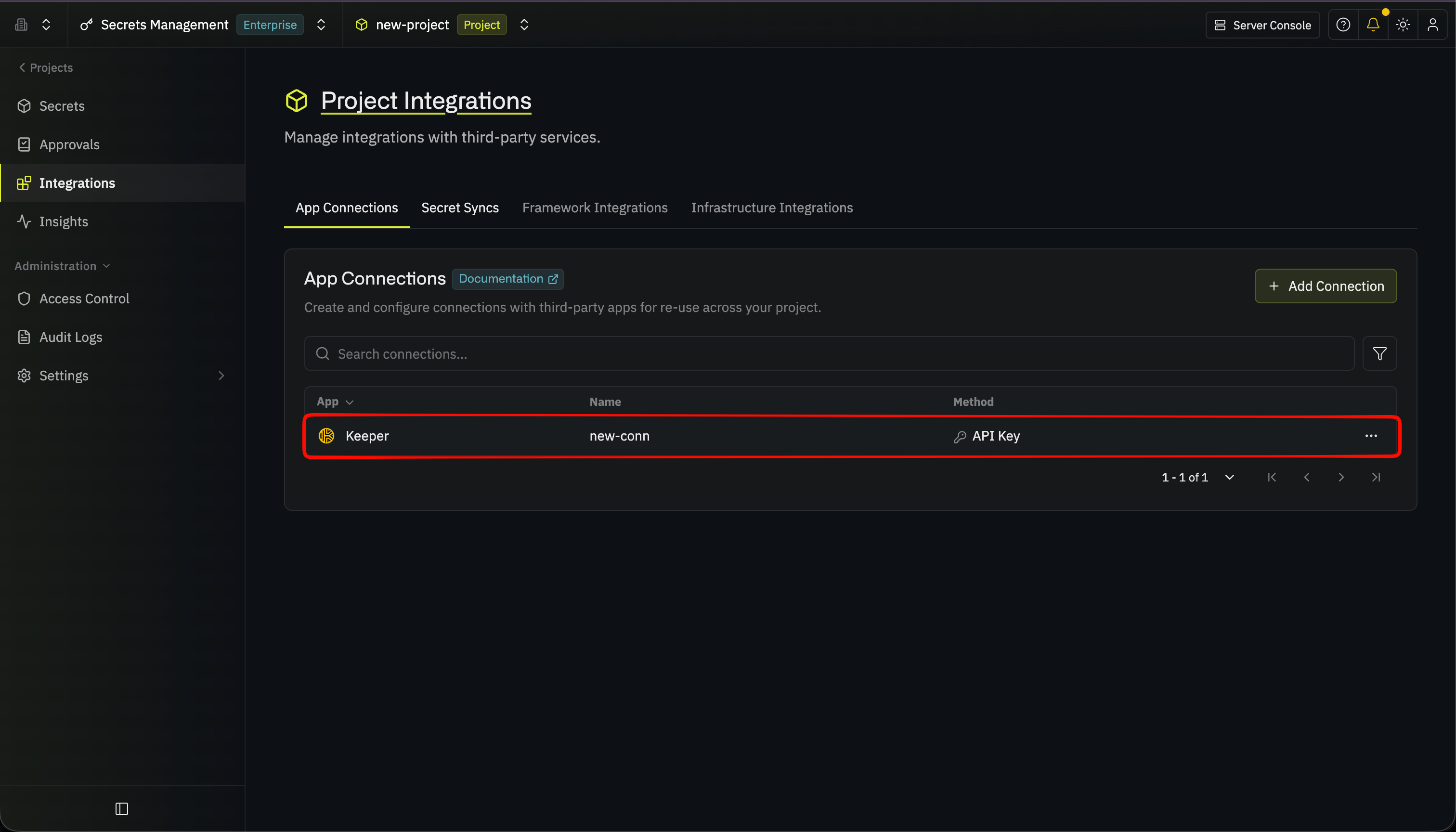 In your Secrets Manager project, select **Integrations** from the sidebar, then open the **App Connections** tab.
Select **Add Connection** and choose **Keeper**.
Fill out the form's fields:
* **Name**: A descriptive name for the connection, such as `keeper-prod`
* **Description** (optional): A note for future reference
* **Instance URL**: The base URL of your Commander Service Mode instance, such as `https://keeper.company.com`, without an `/api` path
* **API Key**: The key you copied when you [set up Keeper Commander](/docs/integrations/app-connections/keeper#step-1-set-up-keeper-commander)
Then, select **Connect to Keeper**.
The new connection appears in the **App Connections** tab.
When you select **Connect to Keeper**, Infisical runs Commander's `whoami` command to check that it can reach Commander and that Commander accepts the API key.
Your Keeper app connection is ready to use.
## Step 3: Configure integrations
Now that your Keeper app connection is configured, you can use it to set up the following integrations:
Sync secrets from Infisical to a Keeper shared folder.
This documentation is built and hosted on [Mintlify](https://mintlify.com), a developer documentation platform.
In your Secrets Manager project, select **Integrations** from the sidebar, then open the **App Connections** tab.
Select **Add Connection** and choose **Keeper**.
Fill out the form's fields:
* **Name**: A descriptive name for the connection, such as `keeper-prod`
* **Description** (optional): A note for future reference
* **Instance URL**: The base URL of your Commander Service Mode instance, such as `https://keeper.company.com`, without an `/api` path
* **API Key**: The key you copied when you [set up Keeper Commander](/docs/integrations/app-connections/keeper#step-1-set-up-keeper-commander)
Then, select **Connect to Keeper**.
The new connection appears in the **App Connections** tab.
When you select **Connect to Keeper**, Infisical runs Commander's `whoami` command to check that it can reach Commander and that Commander accepts the API key.
Your Keeper app connection is ready to use.
## Step 3: Configure integrations
Now that your Keeper app connection is configured, you can use it to set up the following integrations:
Sync secrets from Infisical to a Keeper shared folder.
This documentation is built and hosted on [Mintlify](https://mintlify.com), a developer documentation platform.