> ## Documentation Index
> Fetch the complete documentation index at: https://infisical.com/docs/llms.txt
> Use this file to discover all available pages before exploring further.
# LiteLLM Connection
> Learn how to configure a LiteLLM connection for Infisical.
[LiteLLM](https://www.litellm.ai/) is an open-source LLM gateway that exposes a unified, OpenAI-compatible API in front of hundreds of large language models. Infisical supports connecting to a self-hosted LiteLLM proxy using an **API Key**. This connection is used to manage and rotate LiteLLM API keys via [Secret Rotation](/documentation/platform/secret-rotation/litellm-api-key).
## Prerequisites
* A running **LiteLLM proxy** that Infisical can reach over the network, along with its base URL (e.g. `https://litellm.example.com`).
* A **management-capable API key** for that proxy. Infisical uses this key to create, list, and delete keys on your behalf, so it must be the proxy **master key** or an admin/management key with key-management permissions. A standard virtual key limited to model completions will not work.
See LiteLLM's [Virtual Keys](https://docs.litellm.ai/docs/proxy/virtual_keys) documentation for details on the proxy master key and key management.
## Create LiteLLM Connection in Infisical
We recommend creating a dedicated user and issuing a scoped key for Infisical to manage your API keys, rather than using the master key directly. This restricts Infisical's access to only the routes it needs.
First, create a user with the `proxy_admin` role. This role is required so the key can delete keys it did not issue:
```bash Create user theme={"dark"}
curl --request POST \
--url /user/new \
--header 'Authorization: Bearer ' \
--header 'Content-Type: application/json' \
--data '{
"user_id": "infisical-user-rotation",
"user_role": "proxy_admin",
"user_alias": "infisical-proxy-admin-client"
}'
```
Then issue a scoped key for that user:
```bash Issue scoped key theme={"dark"}
curl --request POST \
--url /key/generate \
--header 'Authorization: Bearer ' \
--header 'Content-Type: application/json' \
--data '{
"key_alias": "admin-key-rotation",
"user_id": "infisical-user-rotation",
"allowed_routes": [
"/key/generate",
"/key/delete",
"/key/info",
"/health/readiness",
"/models",
"/v2/team/list",
"/user/list"
]
}' | jq ".key"
```
The `/models`, `/v2/team/list`, and `/user/list` routes are optional. They are only used to populate the user, team, and model dropdowns in the Infisical UI when configuring a rotation.
Use the generated key as your **API Key** and your instance address as the **Instance URL** when creating the connection below.
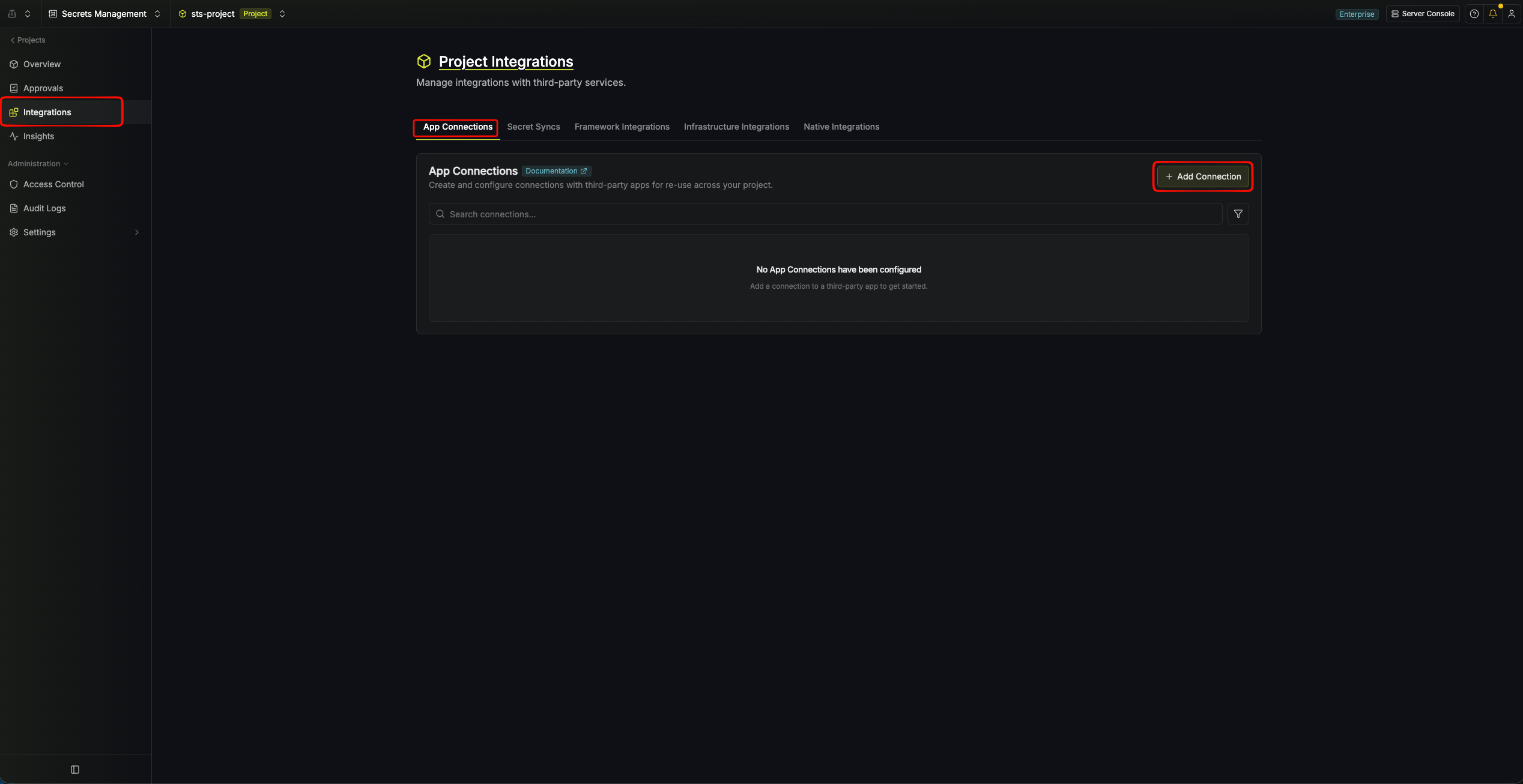
In your Infisical dashboard, go to **Organization Settings** → **App Connections** (or the **Integrations** → **App Connections** tab in your project).
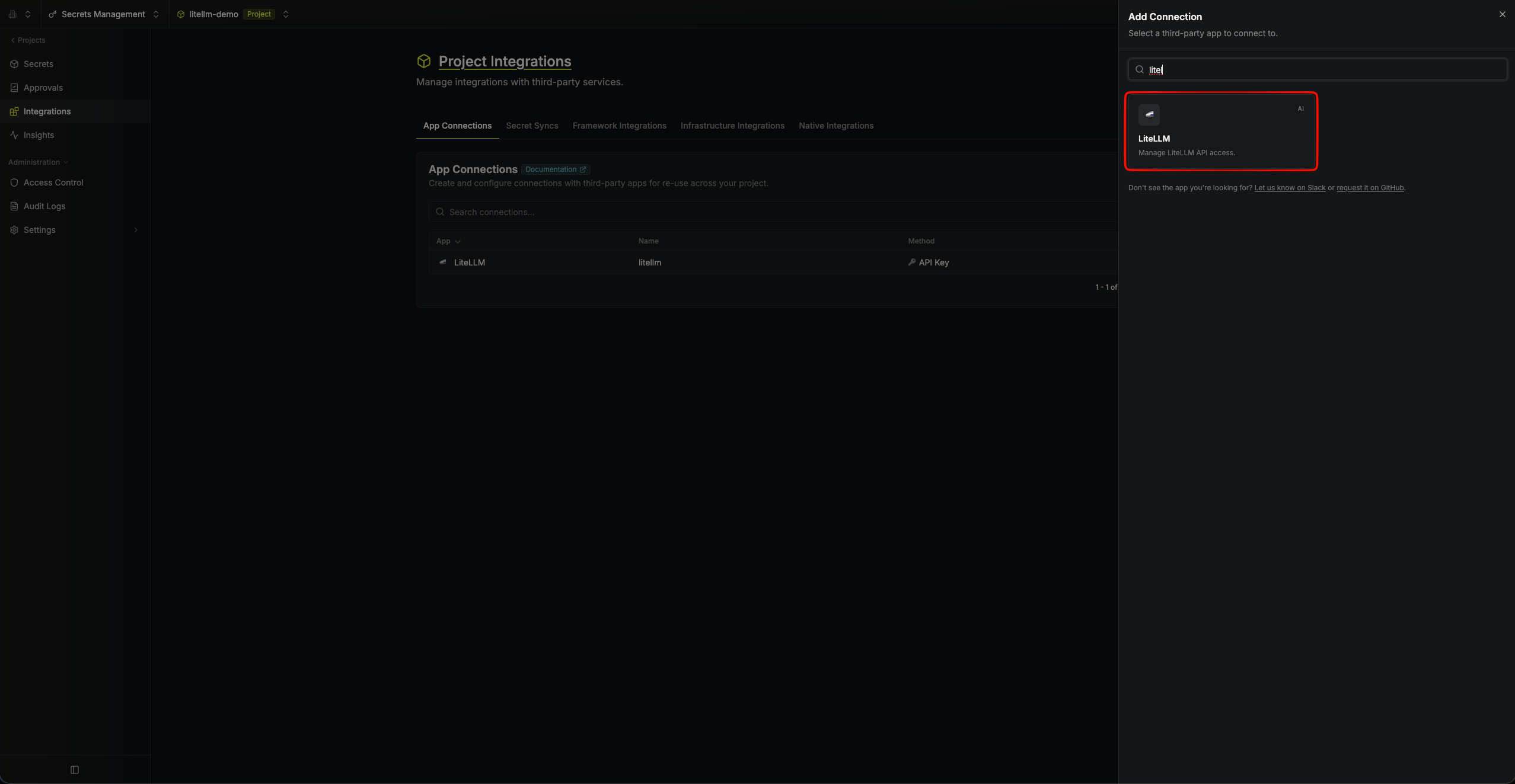
 Click **Add Connection** and choose **LiteLLM** from the list of available connections.
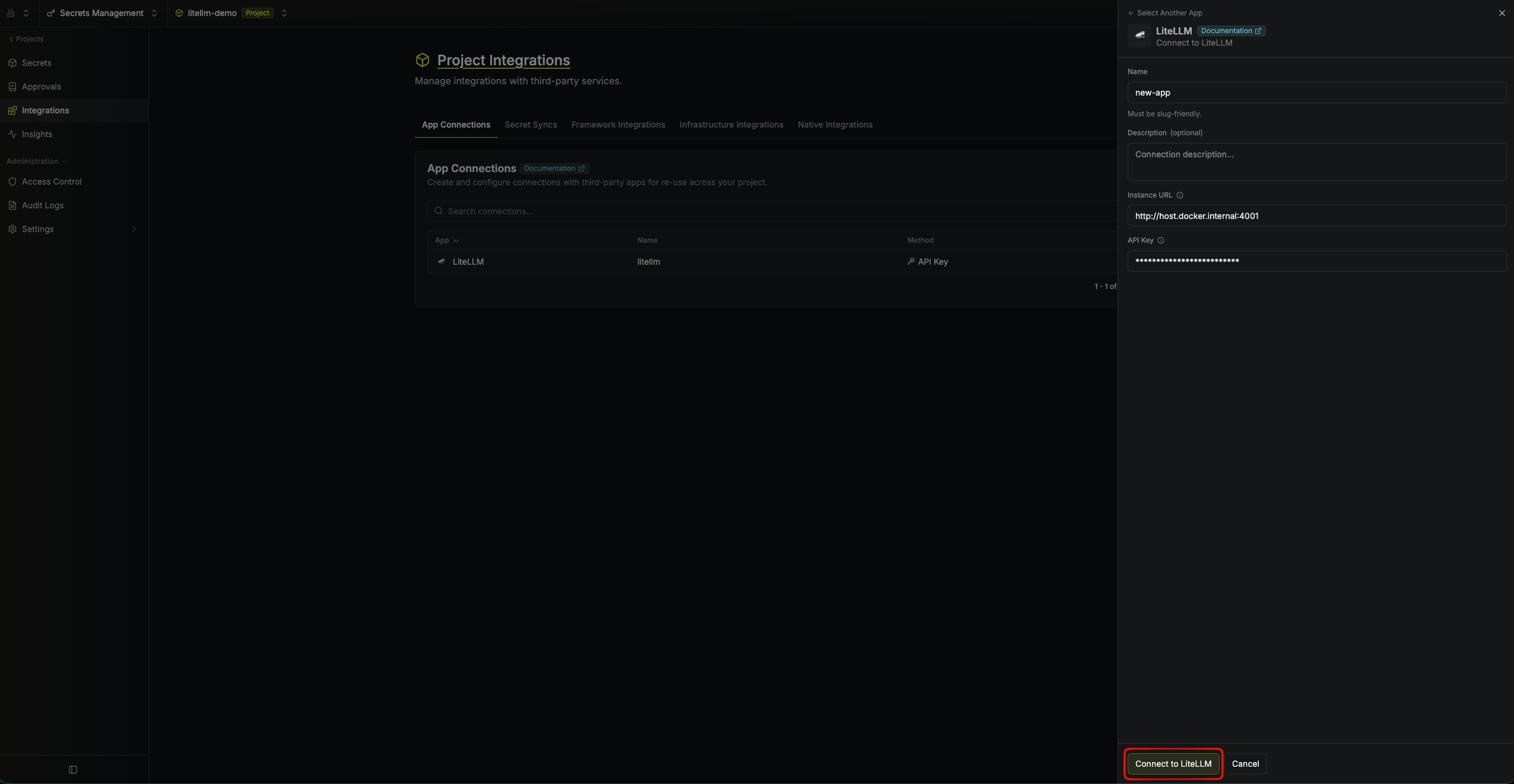
 Complete the form with:
* A **name** for the connection (e.g. `litellm-prod`)
* An optional **description**
* Your **LiteLLM Instance URL** (e.g. `https://litellm.example.com`)
* Your **LiteLLM API Key** (a management-capable key, as described above)
Complete the form with:
* A **name** for the connection (e.g. `litellm-prod`)
* An optional **description**
* Your **LiteLLM Instance URL** (e.g. `https://litellm.example.com`)
* Your **LiteLLM API Key** (a management-capable key, as described above)
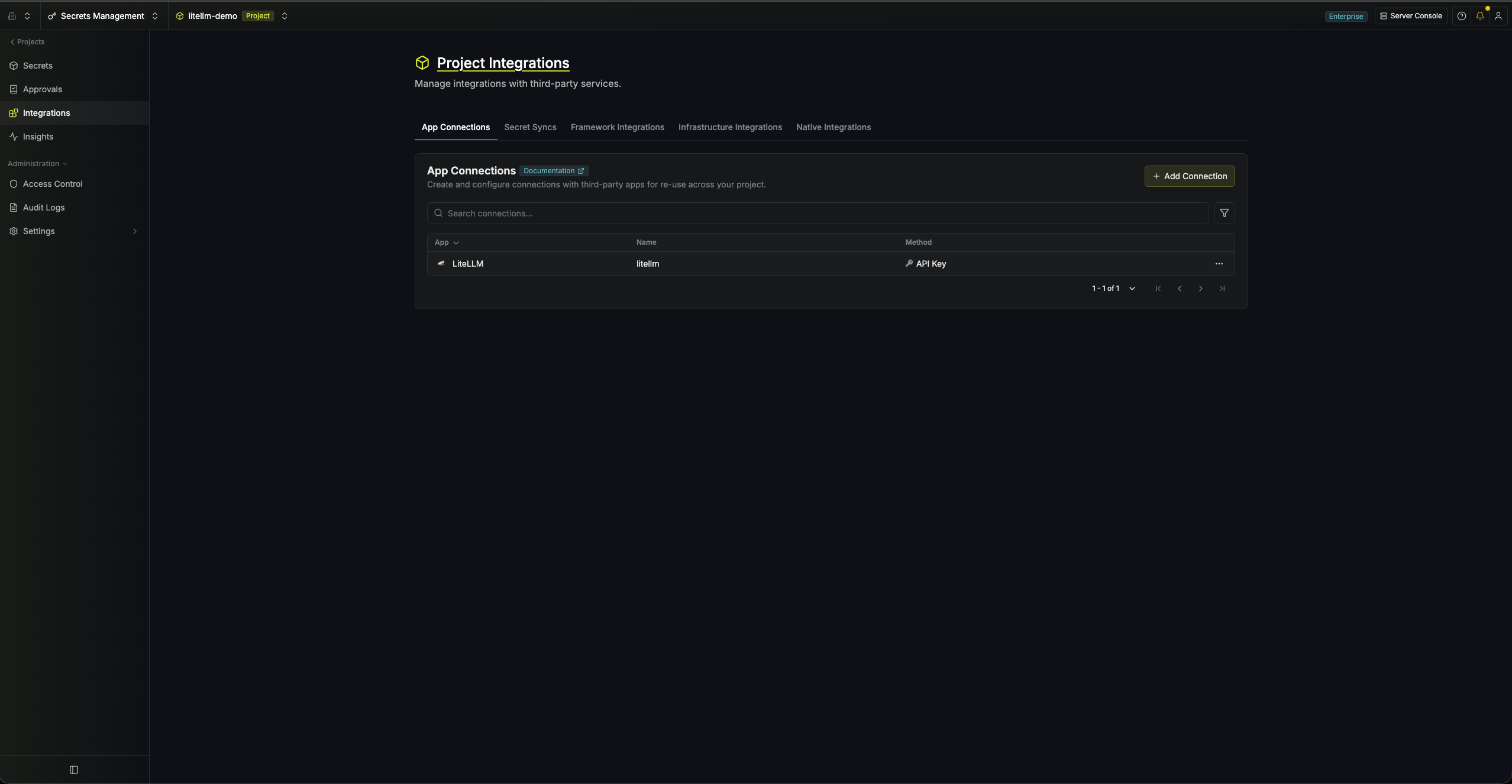
 After clicking **Connect to LiteLLM**, Infisical validates the credentials against your LiteLLM instance. Your **LiteLLM Connection** is then ready to use for [LiteLLM API Key Secret Rotation](/documentation/platform/secret-rotation/litellm-api-key).
 Create a LiteLLM connection via the [Create LiteLLM Connection](/api-reference/endpoints/app-connections/litellm/create) API endpoint.
### Sample request
```bash Request theme={"dark"}
curl --request POST \
--url https://app.infisical.com/api/v1/app-connections/litellm \
--header 'Content-Type: application/json' \
--data '{
"name": "my-litellm-connection",
"method": "api-key",
"projectId": "7ffbb072-2575-495a-b5b0-127f88caef78",
"credentials": {
"apiKey": "",
"instanceUrl": "https://litellm.example.com"
}
}'
```
### Sample response
```bash Response theme={"dark"}
{
"appConnection": {
"id": "e5d18aca-86f7-4026-a95e-efb8aeb0d8e6",
"name": "my-litellm-connection",
"projectId": "7ffbb072-2575-495a-b5b0-127f88caef78",
"description": null,
"version": 1,
"orgId": "6f03caa1-a5de-43ce-b127-95a145d3464c",
"createdAt": "2025-04-23T19:46:34.831Z",
"updatedAt": "2025-04-23T19:46:34.831Z",
"isPlatformManagedCredentials": false,
"credentialsHash": "...",
"app": "litellm",
"method": "api-key",
"credentials": {
"instanceUrl": "https://litellm.example.com"
}
}
}
```
Create a LiteLLM connection via the [Create LiteLLM Connection](/api-reference/endpoints/app-connections/litellm/create) API endpoint.
### Sample request
```bash Request theme={"dark"}
curl --request POST \
--url https://app.infisical.com/api/v1/app-connections/litellm \
--header 'Content-Type: application/json' \
--data '{
"name": "my-litellm-connection",
"method": "api-key",
"projectId": "7ffbb072-2575-495a-b5b0-127f88caef78",
"credentials": {
"apiKey": "",
"instanceUrl": "https://litellm.example.com"
}
}'
```
### Sample response
```bash Response theme={"dark"}
{
"appConnection": {
"id": "e5d18aca-86f7-4026-a95e-efb8aeb0d8e6",
"name": "my-litellm-connection",
"projectId": "7ffbb072-2575-495a-b5b0-127f88caef78",
"description": null,
"version": 1,
"orgId": "6f03caa1-a5de-43ce-b127-95a145d3464c",
"createdAt": "2025-04-23T19:46:34.831Z",
"updatedAt": "2025-04-23T19:46:34.831Z",
"isPlatformManagedCredentials": false,
"credentialsHash": "...",
"app": "litellm",
"method": "api-key",
"credentials": {
"instanceUrl": "https://litellm.example.com"
}
}
}
```