> ## Documentation Index
> Fetch the complete documentation index at: https://infisical.com/docs/llms.txt
> Use this file to discover all available pages before exploring further.
# MongoDB Connection
> Learn how to configure a MongoDB Connection for Infisical.
Infisical supports the use of Username & Password authentication to connect with MongoDB databases.
## Configure a MongoDB user for Infisical
Infisical recommends creating a designated user in your MongoDB database for your connection.
```bash theme={"dark"}
use [TARGET-DATABASE]
db.createUser({
user: "infisical_manager",
pwd: "[ENTER-YOUR-USER-PASSWORD]",
roles: []
})
```
Depending on how you intend to use your MongoDB connection, you'll need to grant one or more of the following permissions.
To learn more about MongoDB's permission system, please visit their [documentation](https://www.mongodb.com/docs/manual/core/security-built-in-roles/).
For Secret Rotations, your Infisical user will require the ability to create, update, and delete users in the target database:
```bash theme={"dark"}
use [TARGET-DATABASE]
db.grantRolesToUser("infisical_manager", [
{ role: "userAdmin", db: "[TARGET-DATABASE]" }
])
```
The `userAdmin` role allows managing users (create, update passwords, delete) within the specified database.
## Create MongoDB Connection in Infisical
In your Infisical dashboard, navigate to the **Integrations** tab in the desired project, then select **App Connections**.
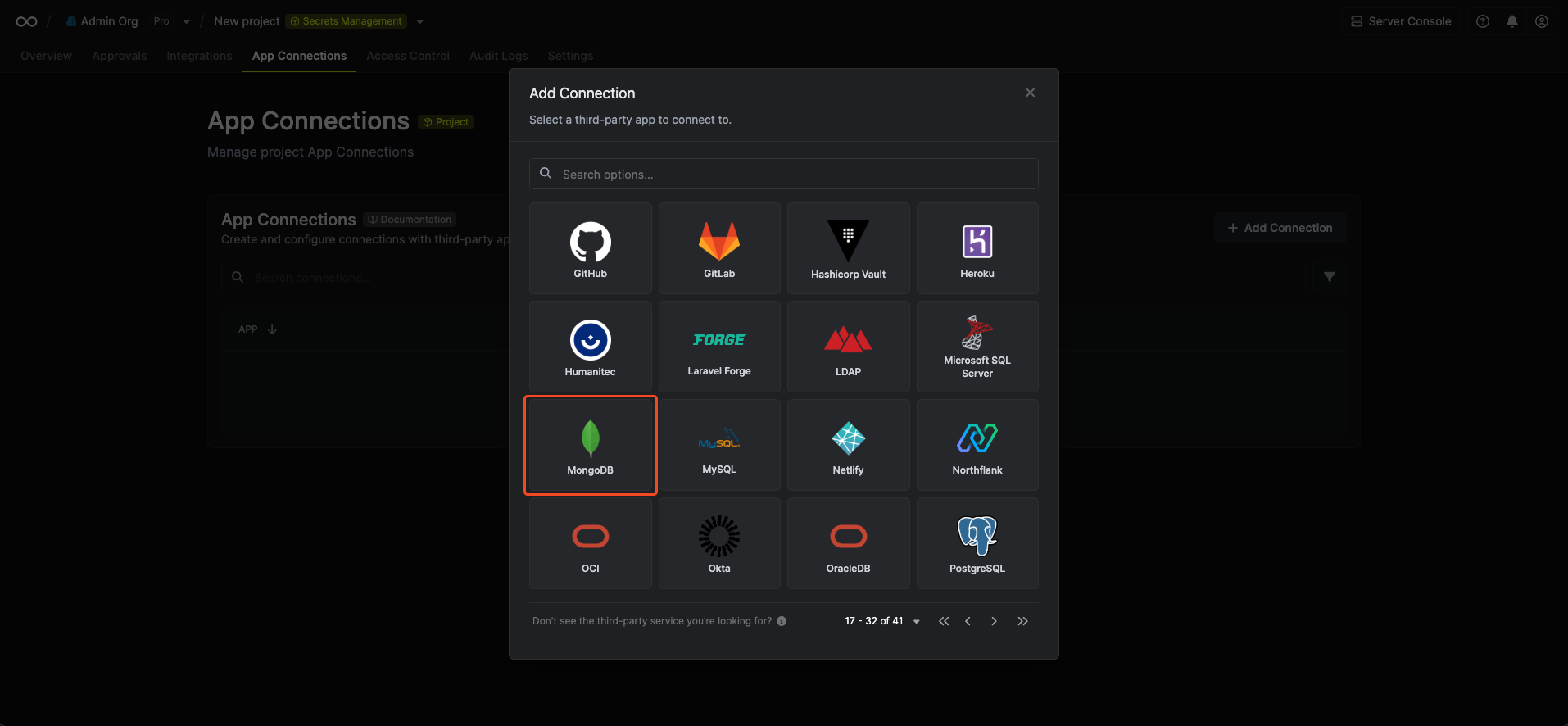
 Click the **+ Add Connection** button and select the **MongoDB Connection** option from the available integrations.
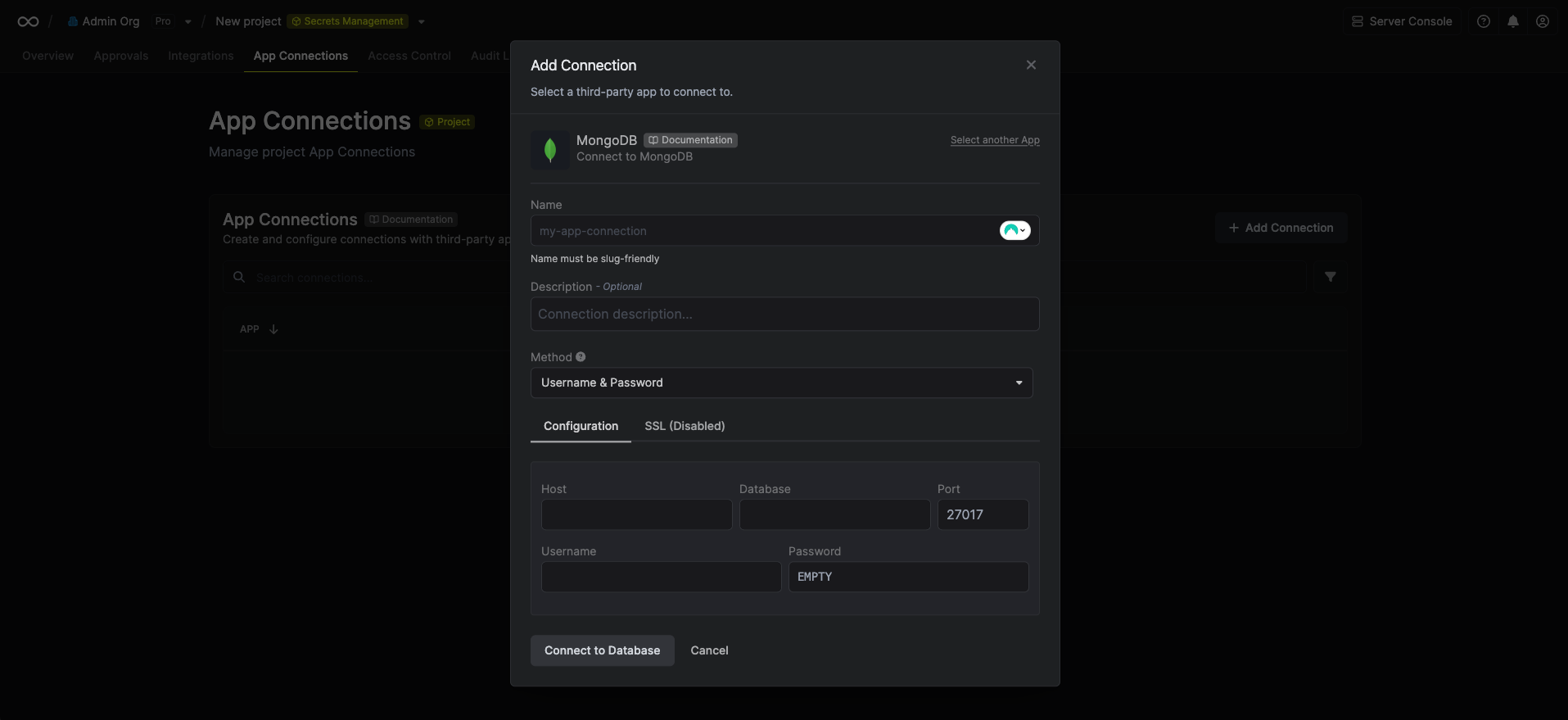
 Complete the MongoDB Connection form by entering:
* A descriptive name for the connection
* An optional description for future reference
* The MongoDB host URL for your database
* The MongoDB port for your database
* The MongoDB username for your database
* The MongoDB password for your database
* The MongoDB database name to connect to
You can optionally configure SSL/TLS for your MongoDB connection in the **SSL** section.
Complete the MongoDB Connection form by entering:
* A descriptive name for the connection
* An optional description for future reference
* The MongoDB host URL for your database
* The MongoDB port for your database
* The MongoDB username for your database
* The MongoDB password for your database
* The MongoDB database name to connect to
You can optionally configure SSL/TLS for your MongoDB connection in the **SSL** section.
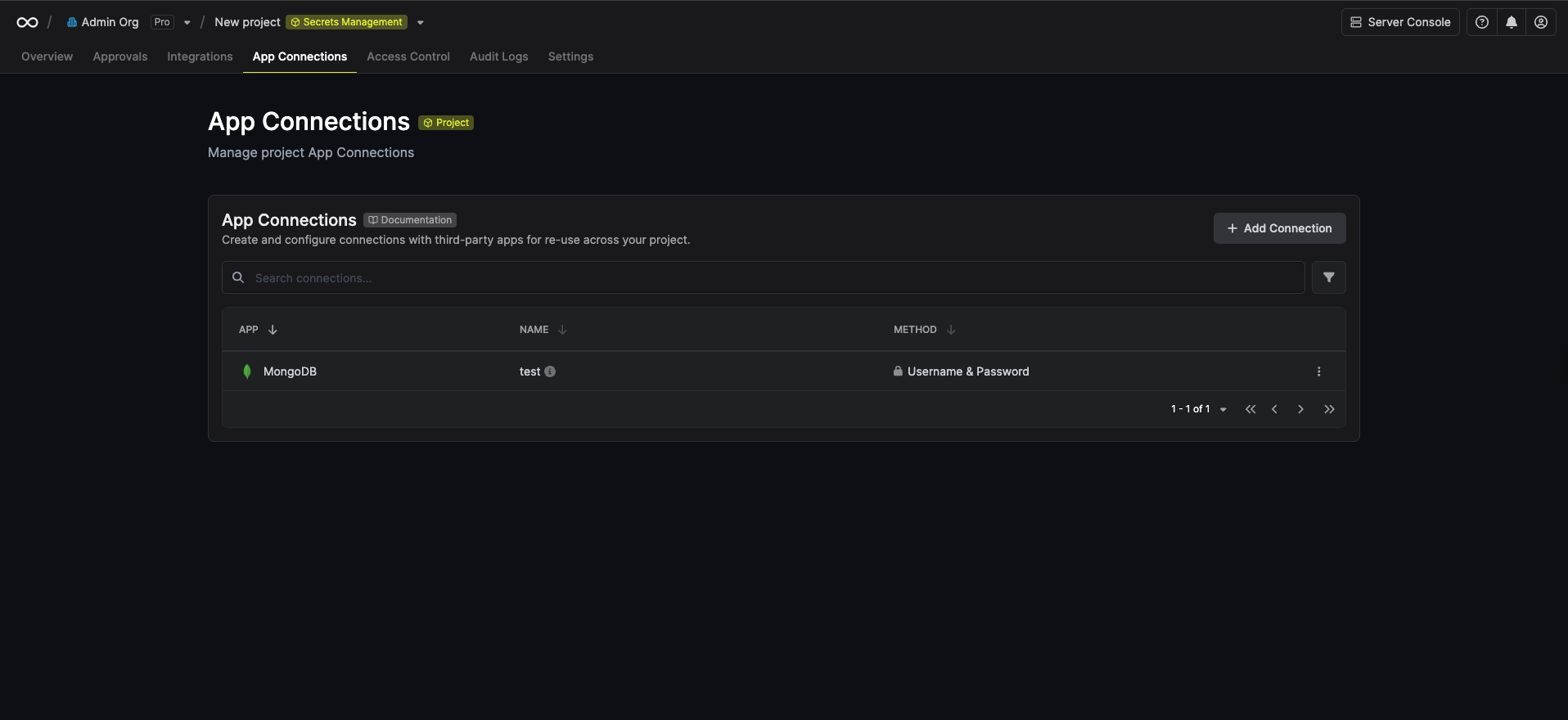
 After clicking Create, your **MongoDB Connection** is established and ready to use with your Infisical project.
 To create a MongoDB Connection, make an API request to the [Create MongoDB Connection](/api-reference/endpoints/app-connections/mongodb/create) API endpoint.
### Sample request
```bash Request theme={"dark"}
curl --request POST \
--url https://app.infisical.com/api/v1/app-connections/mongodb \
--header 'Content-Type: application/json' \
--data '{
"name": "my-mongodb-connection",
"method": "username-and-password",
"projectId": "7ffbb072-2575-495a-b5b0-127f88caef78",
"credentials": {
"host": "[MONGODB HOST]",
"port": 27017,
"username": "[MONGODB USERNAME]",
"password": "[MONGODB PASSWORD]",
"database": "[MONGODB DATABASE]"
}
}'
```
### Sample response
```bash Response theme={"dark"}
{
"appConnection": {
"id": "e5d18aca-86f7-4026-a95e-efb8aeb0d8e6",
"name": "my-mongodb-connection",
"projectId": "7ffbb072-2575-495a-b5b0-127f88caef78",
"description": null,
"version": 1,
"orgId": "6f03caa1-a5de-43ce-b127-95a145d3464c",
"createdAt": "2025-04-23T19:46:34.831Z",
"updatedAt": "2025-04-23T19:46:34.831Z",
"isPlatformManagedCredentials": false,
"credentialsHash": "d41d8cd98f00b204e9800998ecf8427e",
"app": "mongodb",
"method": "username-and-password",
"credentials": {
"host": "[MONGODB HOST]",
"port": 27017,
"username": "[MONGODB USERNAME]",
"database": "[MONGODB DATABASE]",
"sslEnabled": false,
"sslRejectUnauthorized": false,
"sslCertificate": ""
}
}
}
```
To create a MongoDB Connection, make an API request to the [Create MongoDB Connection](/api-reference/endpoints/app-connections/mongodb/create) API endpoint.
### Sample request
```bash Request theme={"dark"}
curl --request POST \
--url https://app.infisical.com/api/v1/app-connections/mongodb \
--header 'Content-Type: application/json' \
--data '{
"name": "my-mongodb-connection",
"method": "username-and-password",
"projectId": "7ffbb072-2575-495a-b5b0-127f88caef78",
"credentials": {
"host": "[MONGODB HOST]",
"port": 27017,
"username": "[MONGODB USERNAME]",
"password": "[MONGODB PASSWORD]",
"database": "[MONGODB DATABASE]"
}
}'
```
### Sample response
```bash Response theme={"dark"}
{
"appConnection": {
"id": "e5d18aca-86f7-4026-a95e-efb8aeb0d8e6",
"name": "my-mongodb-connection",
"projectId": "7ffbb072-2575-495a-b5b0-127f88caef78",
"description": null,
"version": 1,
"orgId": "6f03caa1-a5de-43ce-b127-95a145d3464c",
"createdAt": "2025-04-23T19:46:34.831Z",
"updatedAt": "2025-04-23T19:46:34.831Z",
"isPlatformManagedCredentials": false,
"credentialsHash": "d41d8cd98f00b204e9800998ecf8427e",
"app": "mongodb",
"method": "username-and-password",
"credentials": {
"host": "[MONGODB HOST]",
"port": 27017,
"username": "[MONGODB USERNAME]",
"database": "[MONGODB DATABASE]",
"sslEnabled": false,
"sslRejectUnauthorized": false,
"sslCertificate": ""
}
}
}
```