> ## Documentation Index
> Fetch the complete documentation index at: https://infisical.com/docs/llms.txt
> Use this file to discover all available pages before exploring further.
# Ona Connection
> Learn how to configure an Ona Connection for Infisical.
Infisical supports connecting to [Ona](https://www.gitpod.io/) (Gitpod's cloud development environment platform) using a Personal Access Token (PAT).
## Create an Ona Personal Access Token
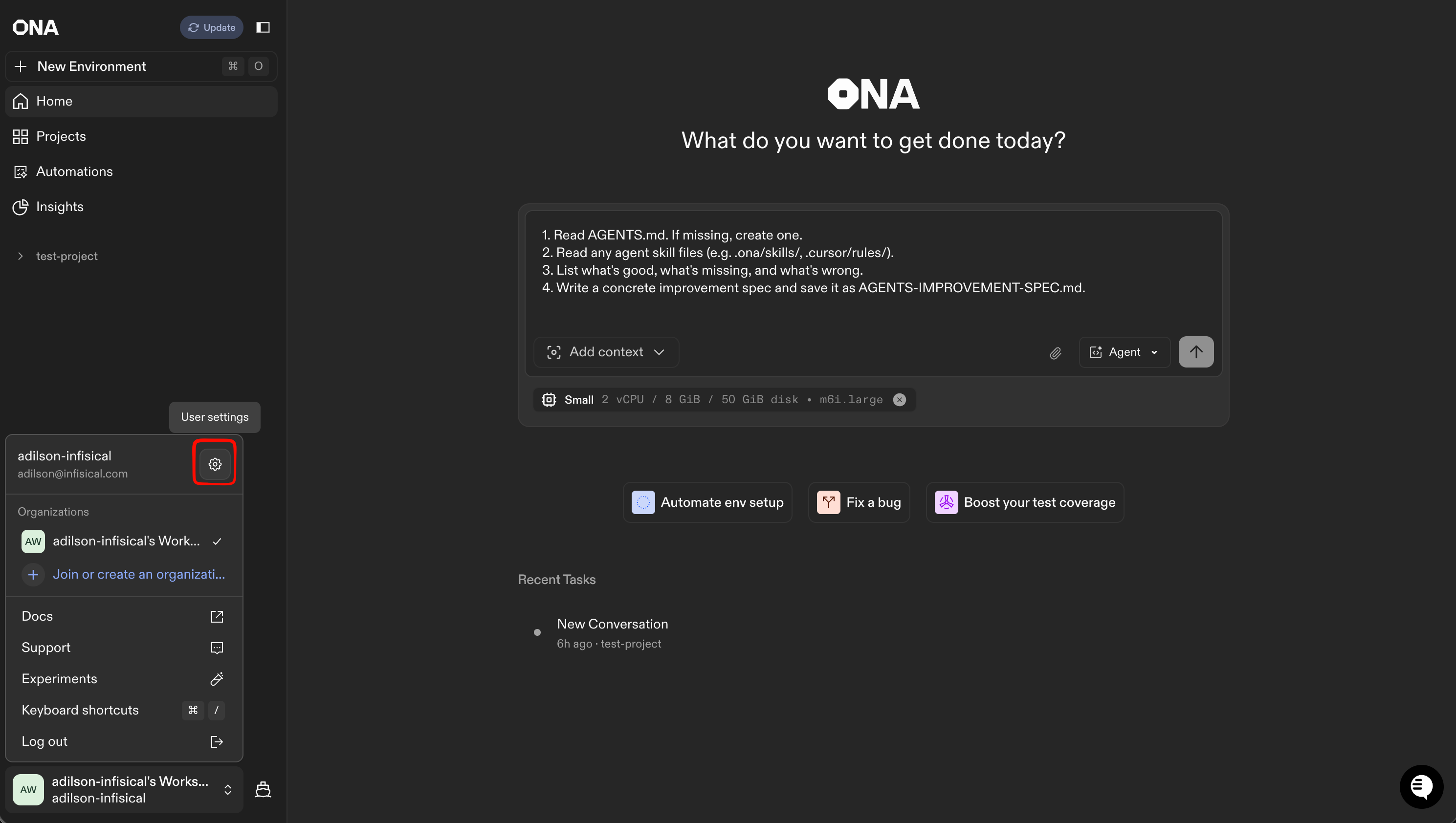
In the lower-left corner of Ona, select your name, then click the gear icon to open user settings.
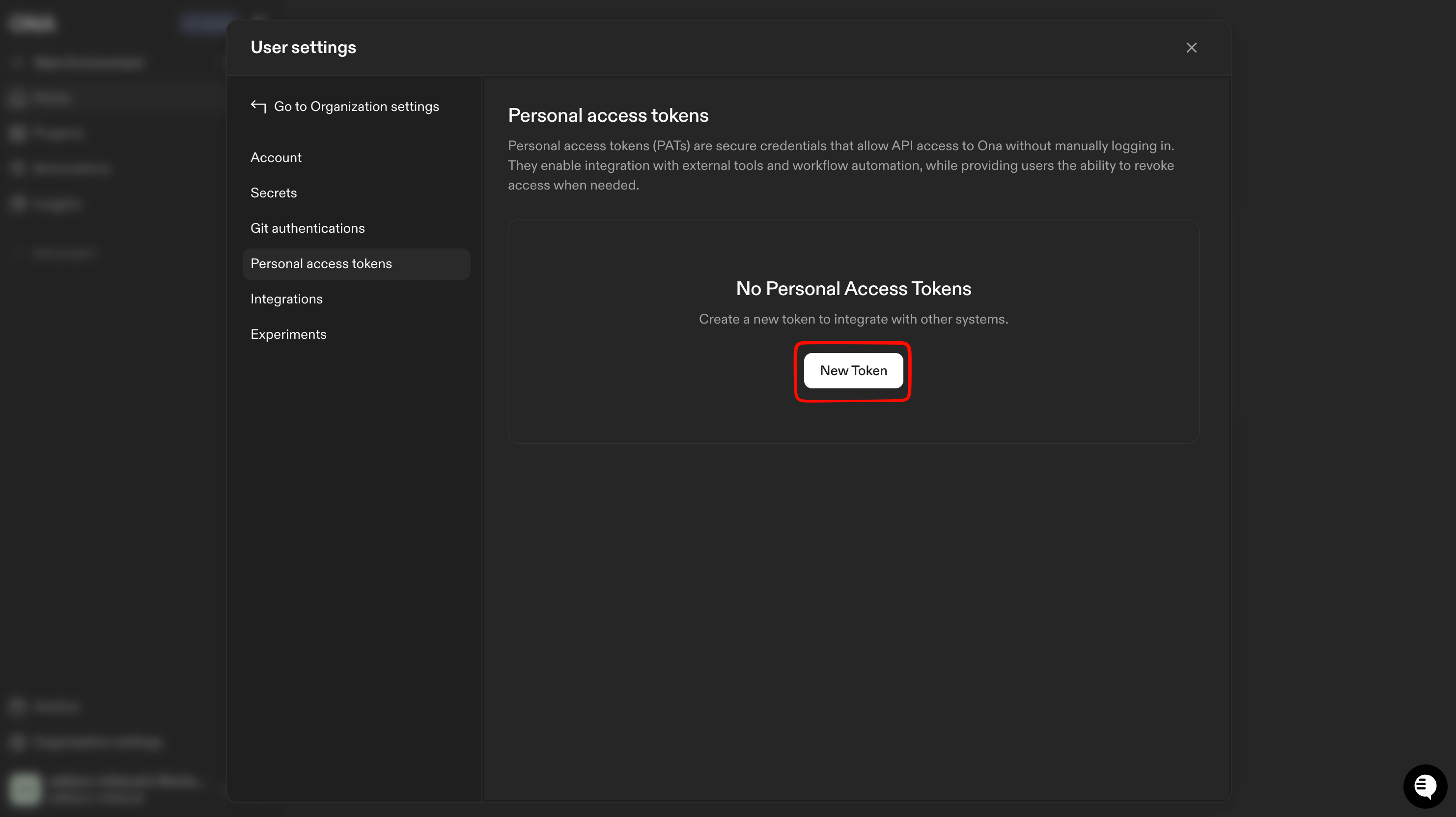
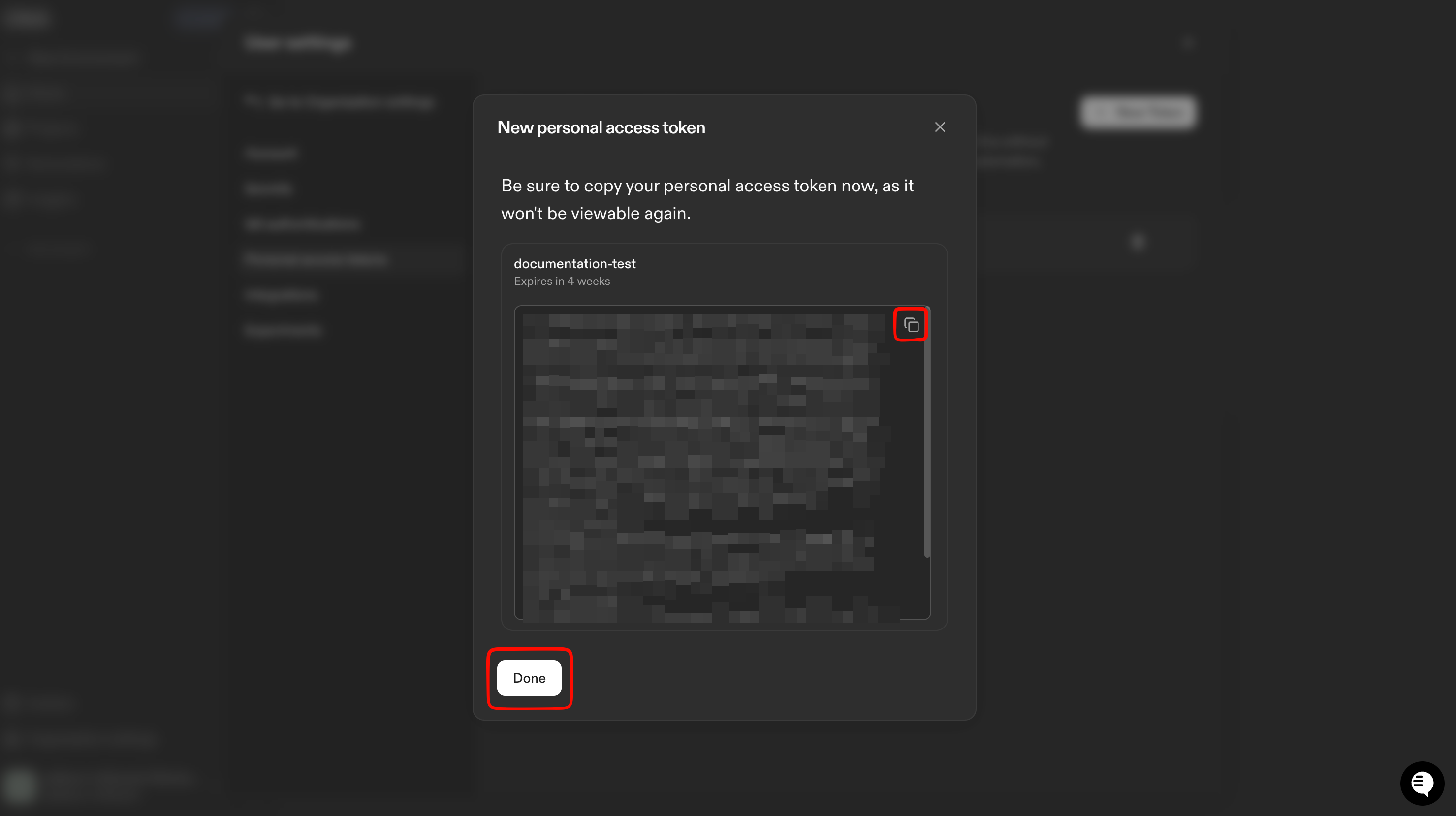
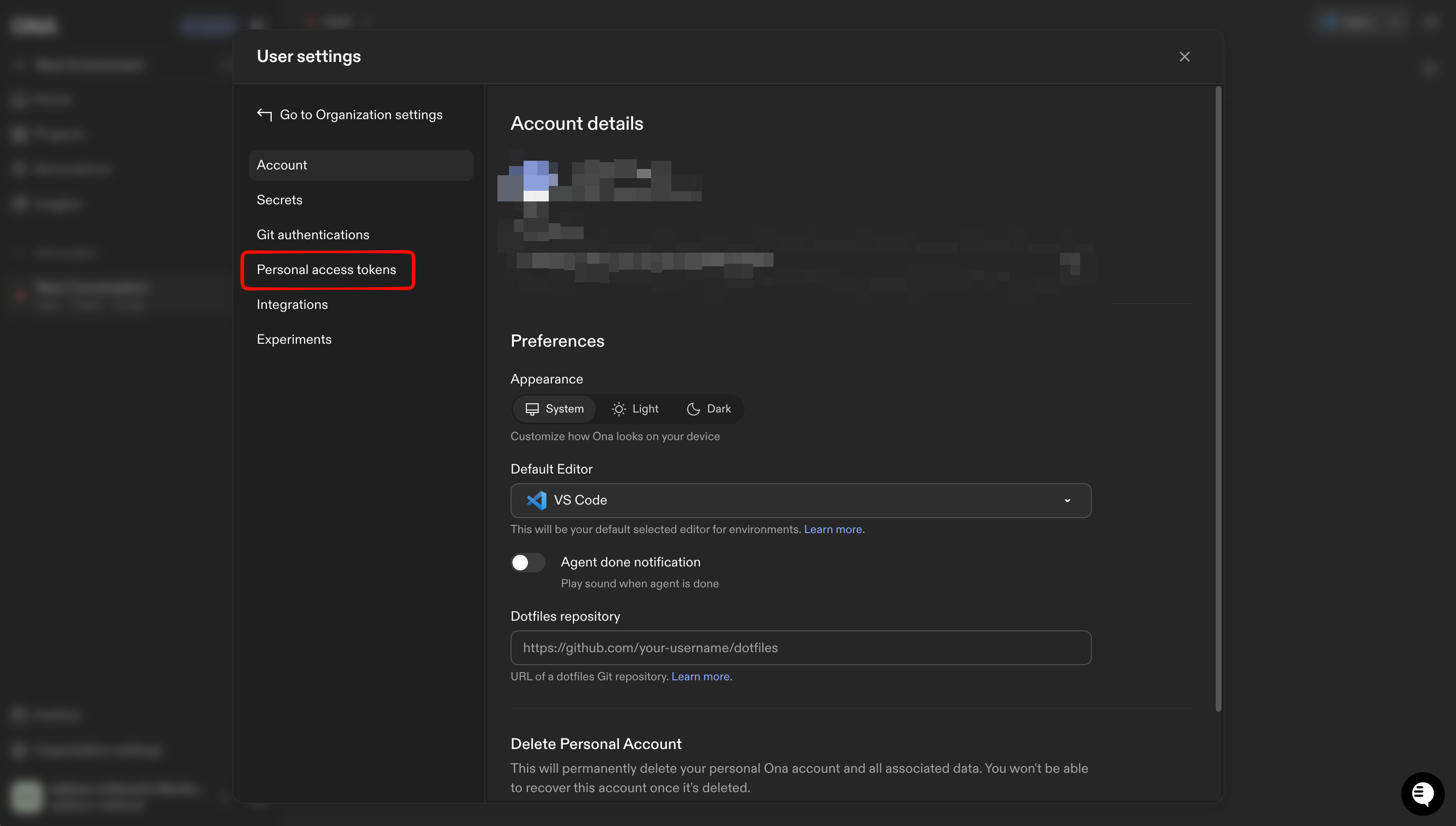 Click the **New Token** button and add a description for the token (eg, "infisical integration"). The token must have Read & Write access so that Infisical can apply changes in Ona.
Personal access tokens have an expiration date, so you will need to manually rotate them before they expire to avoid integration downtime. Consider setting a calendar reminder for this task.
Click the **New Token** button and add a description for the token (eg, "infisical integration"). The token must have Read & Write access so that Infisical can apply changes in Ona.
Personal access tokens have an expiration date, so you will need to manually rotate them before they expire to avoid integration downtime. Consider setting a calendar reminder for this task.
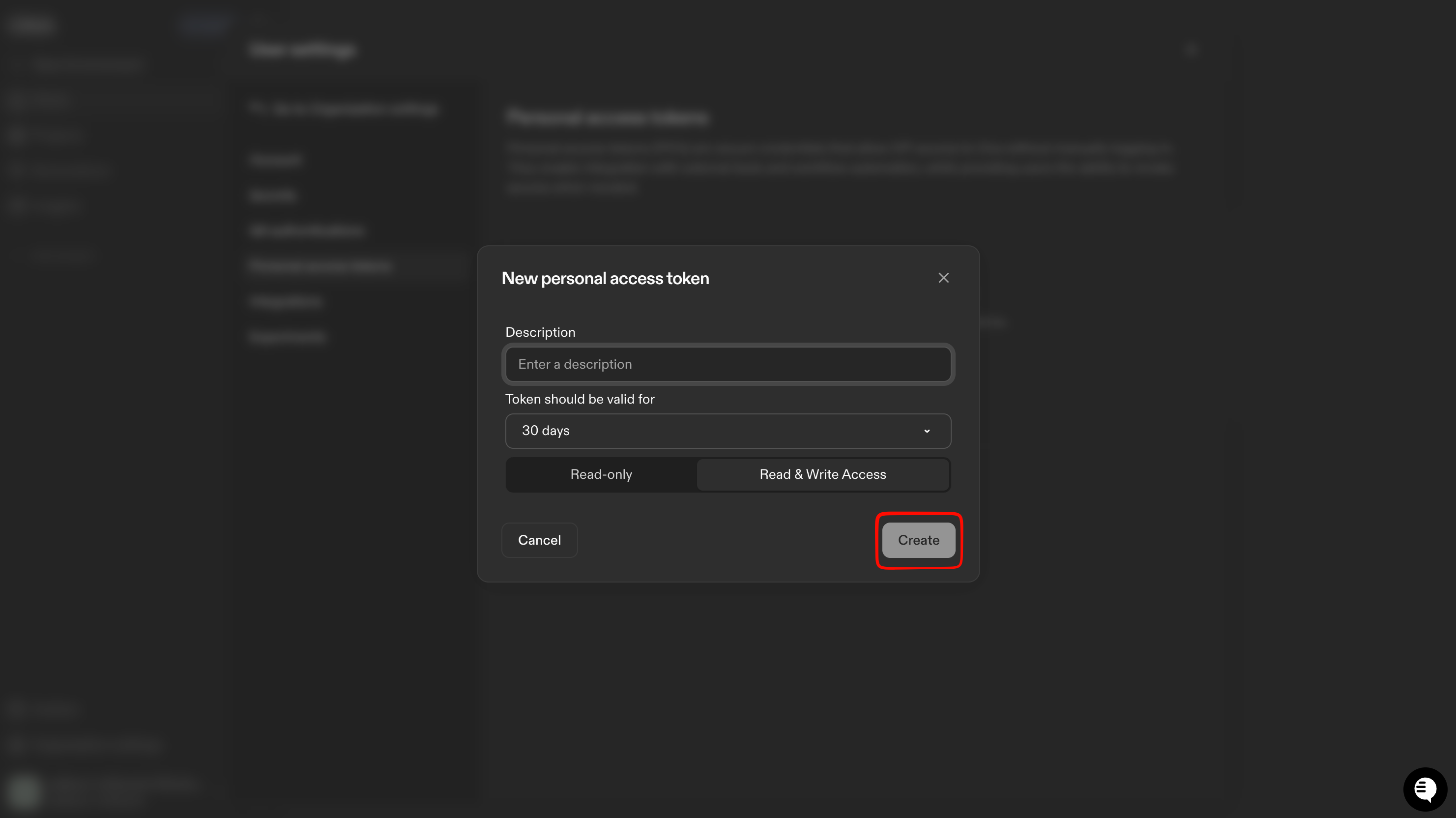 Make sure to save the token, as it won't be shown again.
 ## Create an Ona Connection in Infisical
In your Infisical dashboard, open the **Integrations** tab for the desired project and select **App Connections**. Click **+ Add Connection**.
## Create an Ona Connection in Infisical
In your Infisical dashboard, open the **Integrations** tab for the desired project and select **App Connections**. Click **+ Add Connection**.
 Choose **Ona Connection** from the list of integrations.
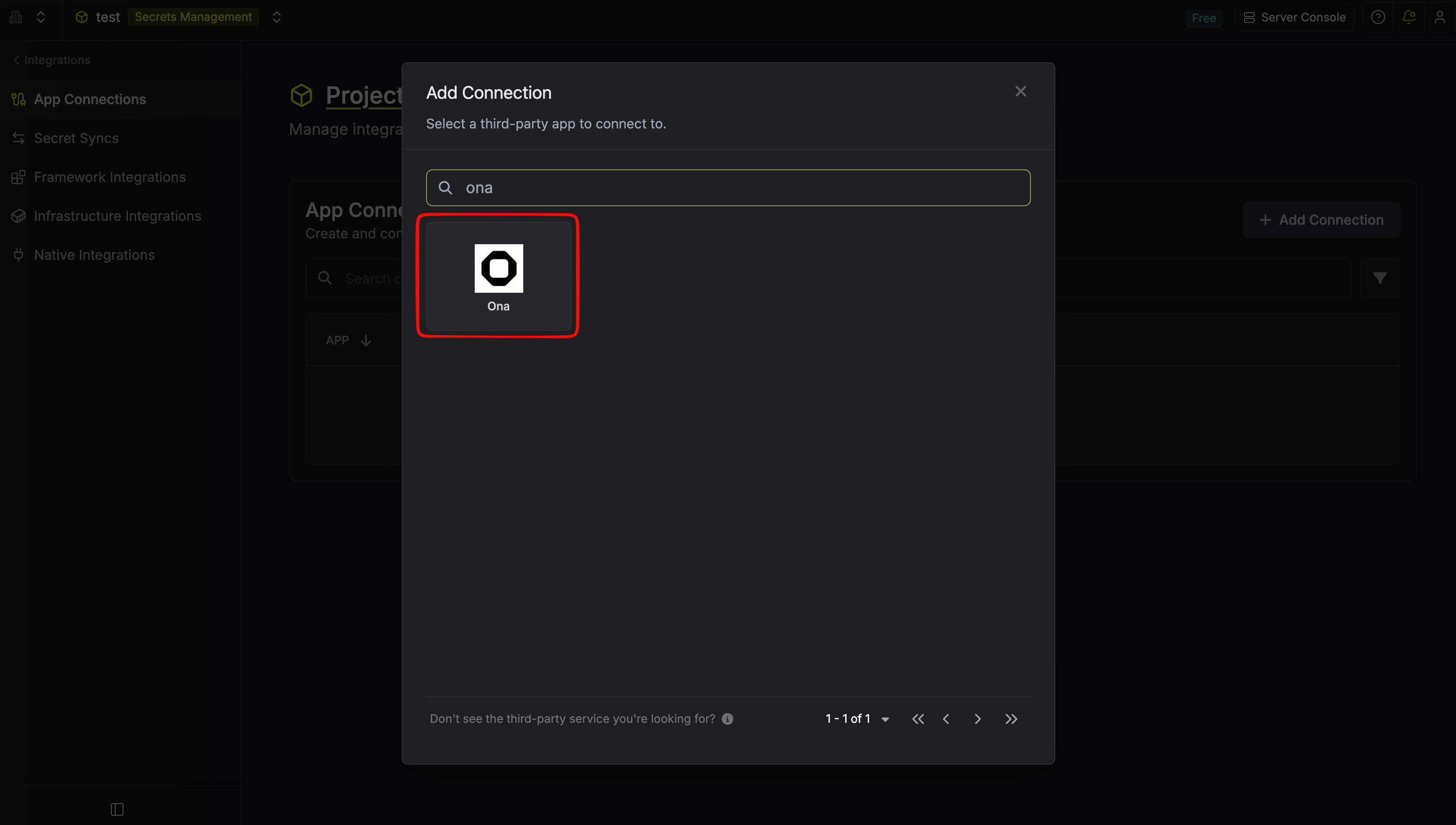 Complete the form by providing:
* A descriptive **Name** for the connection.
* An optional **Description**.
* The **Personal Access Token** you generated in Ona.
Complete the form by providing:
* A descriptive **Name** for the connection.
* An optional **Description**.
* The **Personal Access Token** you generated in Ona.
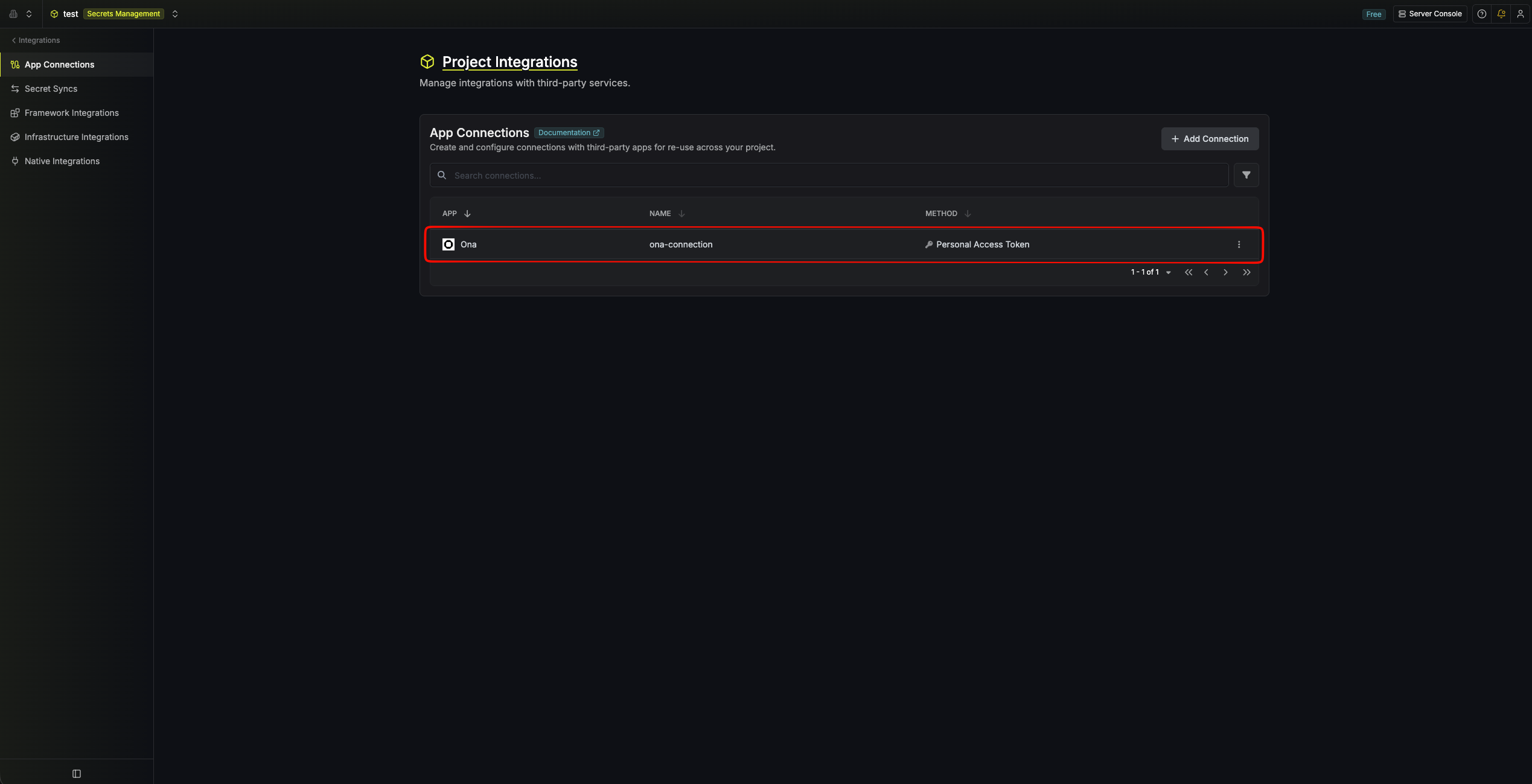
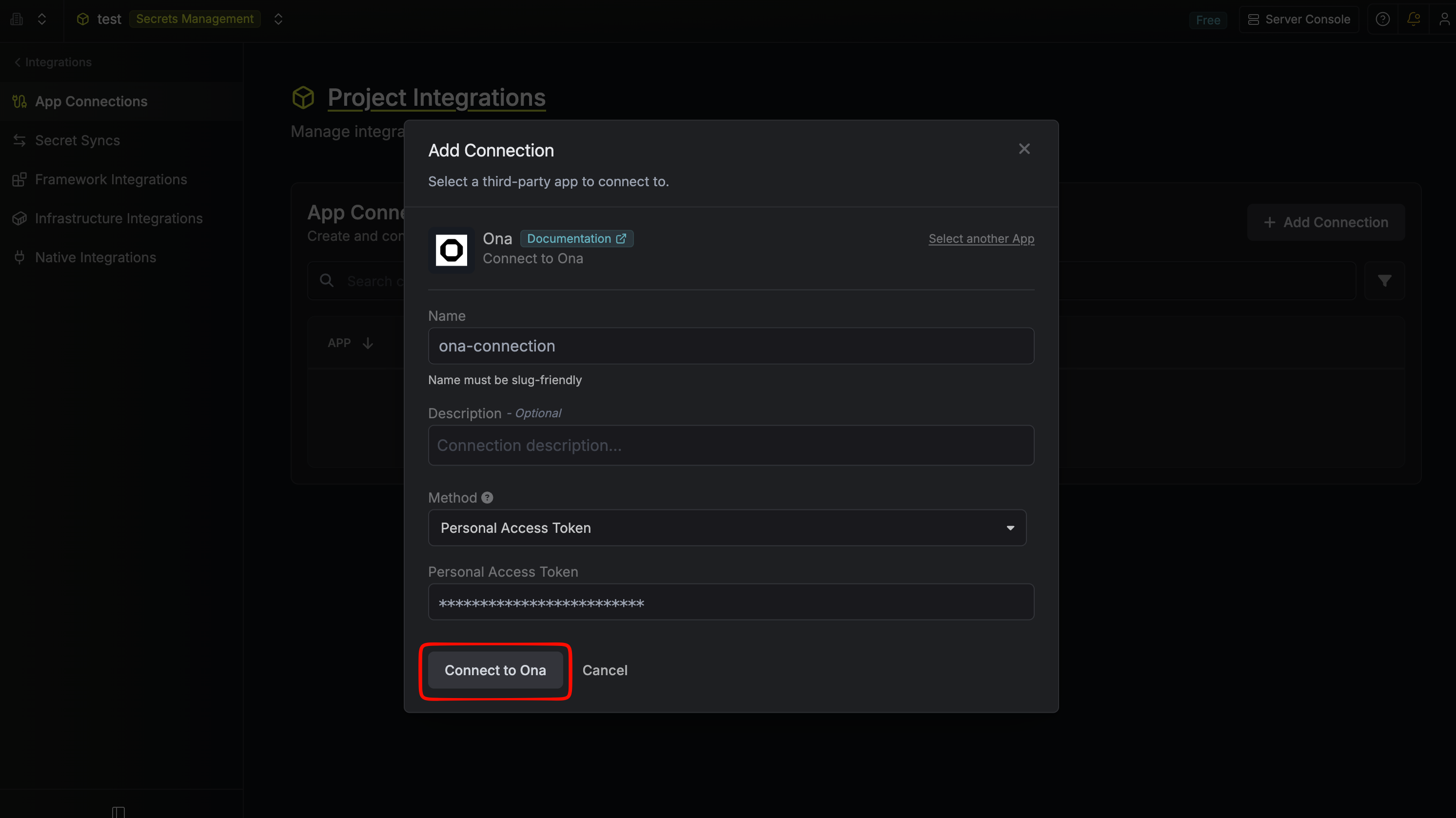 After submitting the form, your **Ona Connection** will be created.
 To create an Ona Connection via API, send a request to the [Create Ona Connection](/api-reference/endpoints/app-connections/ona/create) endpoint.
### Sample request
```bash Request theme={"dark"}
curl --request POST \
--url https://app.infisical.com/api/v1/app-connections/ona \
--header 'Content-Type: application/json' \
--data '{
"name": "my-ona-connection",
"method": "personal-access-token",
"projectId": "abcdef12-3456-7890-abcd-ef1234567890",
"credentials": {
"personalAccessToken": "[PERSONAL ACCESS TOKEN]"
}
}'
```
### Sample response
```bash Response theme={"dark"}
{
"appConnection": {
"id": "a1b2c3d4-5678-90ab-cdef-1234567890ab",
"name": "my-ona-connection",
"description": null,
"projectId": "abcdef12-3456-7890-abcd-ef1234567890",
"version": 1,
"orgId": "abcdef12-3456-7890-abcd-ef1234567890",
"createdAt": "2025-01-23T10:15:00.000Z",
"updatedAt": "2025-01-23T10:15:00.000Z",
"isPlatformManagedCredentials": false,
"credentialsHash": "d41d8cd98f00b204e9800998ecf8427e",
"app": "ona",
"method": "personal-access-token",
"credentials": {}
}
}
```
To create an Ona Connection via API, send a request to the [Create Ona Connection](/api-reference/endpoints/app-connections/ona/create) endpoint.
### Sample request
```bash Request theme={"dark"}
curl --request POST \
--url https://app.infisical.com/api/v1/app-connections/ona \
--header 'Content-Type: application/json' \
--data '{
"name": "my-ona-connection",
"method": "personal-access-token",
"projectId": "abcdef12-3456-7890-abcd-ef1234567890",
"credentials": {
"personalAccessToken": "[PERSONAL ACCESS TOKEN]"
}
}'
```
### Sample response
```bash Response theme={"dark"}
{
"appConnection": {
"id": "a1b2c3d4-5678-90ab-cdef-1234567890ab",
"name": "my-ona-connection",
"description": null,
"projectId": "abcdef12-3456-7890-abcd-ef1234567890",
"version": 1,
"orgId": "abcdef12-3456-7890-abcd-ef1234567890",
"createdAt": "2025-01-23T10:15:00.000Z",
"updatedAt": "2025-01-23T10:15:00.000Z",
"isPlatformManagedCredentials": false,
"credentialsHash": "d41d8cd98f00b204e9800998ecf8427e",
"app": "ona",
"method": "personal-access-token",
"credentials": {}
}
}
```