> ## Documentation Index
> Fetch the complete documentation index at: https://infisical.com/docs/llms.txt
> Use this file to discover all available pages before exploring further.
# Linux (HA)
> Infisical High Availability Deployment architecture for Linux
This guide describes how to achieve a highly available deployment of Infisical on Linux machines without containerization. The architecture provided serves as a foundation for minimum high availability, which you can scale based on your specific requirements.
## Architecture Overview
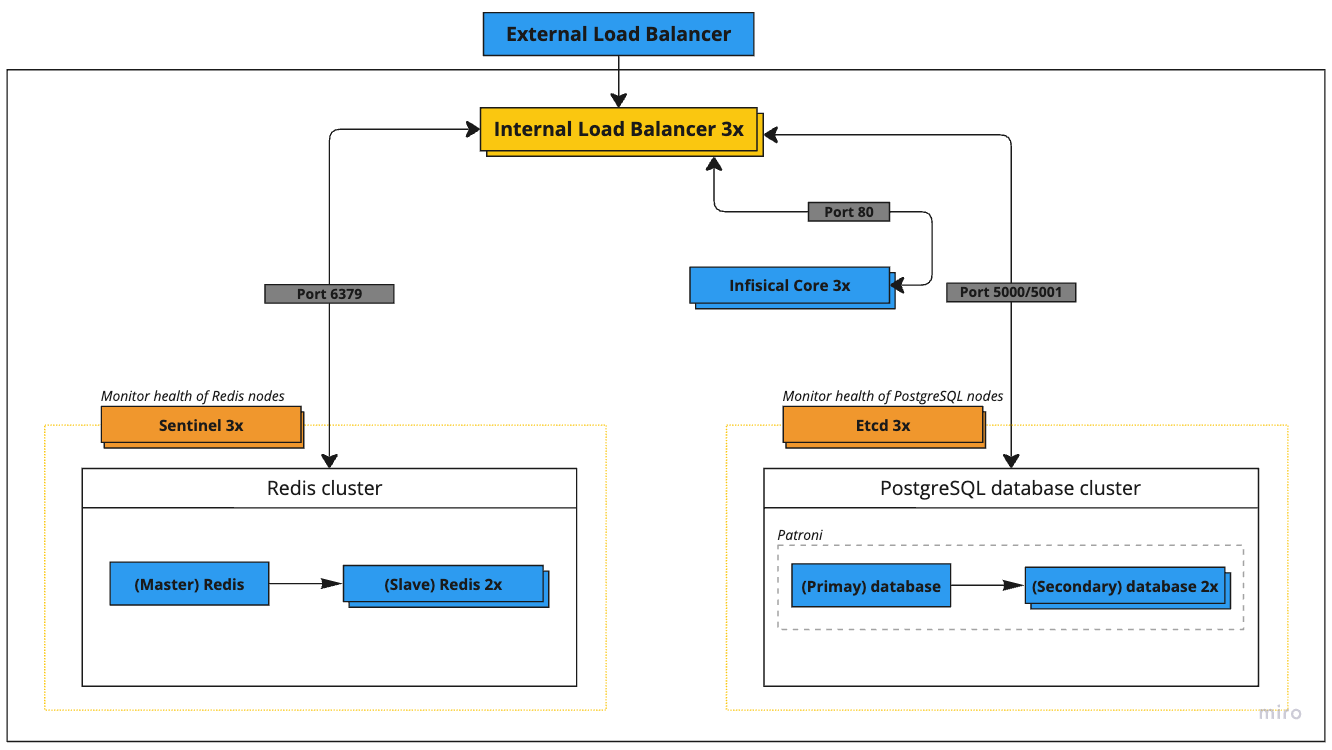 The deployment consists of the following key components:
| Service | Nodes | Recommended Specs | GCP Instance | AWS Instance |
| ---------------------- | ----- | ------------------- | ------------- | ------------ |
| External Load Balancer | 1 | 4 vCPU, 4 GB memory | n1-highcpu-4 | c5n.xlarge |
| Internal Load Balancer | 1 | 4 vCPU, 4 GB memory | n1-highcpu-4 | c5n.xlarge |
| Etcd Cluster | 3 | 4 vCPU, 4 GB memory | n1-highcpu-4 | c5n.xlarge |
| PostgreSQL Cluster | 3 | 2 vCPU, 8 GB memory | n1-standard-2 | m5.large |
| Redis + Sentinel | 3+3 | 2 vCPU, 8 GB memory | n1-standard-2 | m5.large |
| Infisical Core | 3 | 2 vCPU, 4 GB memory | n1-highcpu-2 | c5.large |
### Network Architecture
All servers operate within the 52.1.0.0/24 private network range with the following IP assignments:
| Service | IP Address |
| ---------------------- | ---------- |
| External Load Balancer | 52.1.0.1 |
| Internal Load Balancer | 52.1.0.2 |
| Etcd Node 1 | 52.1.0.3 |
| Etcd Node 2 | 52.1.0.4 |
| Etcd Node 3 | 52.1.0.5 |
| PostgreSQL Node 1 | 52.1.0.6 |
| PostgreSQL Node 2 | 52.1.0.7 |
| PostgreSQL Node 3 | 52.1.0.8 |
| Redis Node 1 | 52.1.0.9 |
| Redis Node 2 | 52.1.0.10 |
| Redis Node 3 | 52.1.0.11 |
| Sentinel Node 1 | 52.1.0.12 |
| Sentinel Node 2 | 52.1.0.13 |
| Sentinel Node 3 | 52.1.0.14 |
| Infisical Core 1 | 52.1.0.15 |
| Infisical Core 2 | 52.1.0.16 |
| Infisical Core 3 | 52.1.0.17 |
## Component Setup Guide
### 1. Configure Etcd Cluster
The Etcd cluster is needed for leader election in the PostgreSQL HA setup. Skip this step if using managed PostgreSQL.
1. Install Etcd on each node:
```bash theme={"dark"}
sudo apt update
sudo apt install etcd
```
2. Configure each node with unique identifiers and cluster membership. Example configuration for Node 1 (`/etc/etcd/etcd.conf`):
```yaml theme={"dark"}
name: etcd1
data-dir: /var/lib/etcd
initial-cluster-state: new
initial-cluster-token: etcd-cluster-1
initial-cluster: etcd1=http://52.1.0.3:2380,etcd2=http://52.1.0.4:2380,etcd3=http://52.1.0.5:2380
initial-advertise-peer-urls: http://52.1.0.3:2380
listen-peer-urls: http://52.1.0.3:2380
listen-client-urls: http://52.1.0.3:2379,http://127.0.0.1:2379
advertise-client-urls: http://52.1.0.3:2379
```
### 2. Configure PostgreSQL
For production deployments, you have two options for highly available PostgreSQL:
#### Option A: Managed PostgreSQL Service (Recommended for Most Users)
Use cloud provider managed services:
* AWS: Amazon RDS for PostgreSQL with Multi-AZ
* GCP: Cloud SQL for PostgreSQL with HA configuration
* Azure: Azure Database for PostgreSQL with zone redundant HA
These services handle replication, failover, and maintenance automatically.
#### Option B: Self-Managed PostgreSQL Cluster
Full HA installation guide of PostgreSQL is beyond the scope of this document. However, we have provided an overview of resources and code snippets below to guide your deployment.
1. Required Components:
* PostgreSQL 14+ on each node
* Patroni for cluster management
* Etcd for distributed consensus
2. Documentation we recommend you read:
* [Complete Patroni Setup Guide](https://patroni.readthedocs.io/en/latest/README.html)
* [PostgreSQL Replication Documentation](https://www.postgresql.org/docs/current/high-availability.html)
3. Key Steps Overview:
```bash theme={"dark"}
# 1. Install requirements on each PostgreSQL node
sudo apt update
sudo apt install -y postgresql-14 postgresql-contrib-14 python3-pip
pip3 install patroni[etcd] psycopg2-binary
# 2. Create Patroni config directory
sudo mkdir /etc/patroni
sudo chown postgres:postgres /etc/patroni
# 3. Create Patroni configuration (example for first node)
# /etc/patroni/config.yml - REQUIRES CAREFUL CUSTOMIZATION
```
```yaml theme={"dark"}
scope: infisical-cluster
namespace: /db/
name: postgresql1
restapi:
listen: 52.1.0.6:8008
connect_address: 52.1.0.6:8008
etcd:
hosts: 52.1.0.3:2379,52.1.0.4:2379,52.1.0.5:2379
bootstrap:
dcs:
ttl: 30
loop_wait: 10
retry_timeout: 10
maximum_lag_on_failover: 1048576
postgresql:
use_pg_rewind: true
parameters:
max_connections: 1000
shared_buffers: 2GB
work_mem: 8MB
max_worker_processes: 8
max_parallel_workers_per_gather: 4
max_parallel_workers: 8
wal_level: replica
hot_standby: "on"
max_wal_senders: 10
max_replication_slots: 10
hot_standby_feedback: "on"
```
4. Important considerations:
* Proper disk configuration for WAL and data directories
* Network latency between nodes
* Backup strategy and point-in-time recovery
* Monitoring and alerting setup
* Connection pooling configuration
* Security and network access controls
5. Recommended readings:
* [PostgreSQL Backup and Recovery](https://www.postgresql.org/docs/current/backup.html)
* [PostgreSQL Monitoring](https://www.postgresql.org/docs/current/monitoring.html)
### 3. Configure Redis and Sentinel
Similar to PostgreSQL, a full HA Redis setup guide is beyond the scope of this document. Below are the key resources and considerations for your deployment.
#### Option A: Managed Redis Service (Recommended for Most Users)
Use cloud provider managed Redis services:
* AWS: ElastiCache for Redis with Multi-AZ
* GCP: Memorystore for Redis with HA
* Azure: Azure Cache for Redis with zone redundancy
Follow your cloud provider's documentation:
* [AWS ElastiCache Documentation](https://docs.aws.amazon.com/AmazonElastiCache/latest/red-ug/WhatIs.html)
* [GCP Memorystore Documentation](https://cloud.google.com/memorystore/docs/redis)
* [Azure Redis Cache Documentation](https://learn.microsoft.com/en-us/azure/azure-cache-for-redis/)
#### Option B: Self-Managed Redis Cluster
Setting up a production Redis HA cluster requires understanding several components. Refer to these linked resources:
1. Required Reading:
* [Redis Sentinel Documentation](https://redis.io/docs/management/sentinel/)
* [Redis Replication Guide](https://redis.io/topics/replication)
* [Redis Security Guide](https://redis.io/topics/security)
2. Key Steps Overview:
```bash theme={"dark"}
# 1. Install Redis on all nodes
sudo apt update
sudo apt install redis-server
# 2. Configure master node (52.1.0.9)
# /etc/redis/redis.conf
```
```conf theme={"dark"}
bind 52.1.0.9
port 6379
dir /var/lib/redis
maxmemory 3gb
maxmemory-policy noeviction
requirepass "your_redis_password"
masterauth "your_redis_password"
```
3. Configure replica nodes (`52.1.0.10`, `52.1.0.11`):
```conf theme={"dark"}
bind 52.1.0.10 # Change for each replica
port 6379
dir /var/lib/redis
replicaof 52.1.0.9 6379
masterauth "your_redis_password"
requirepass "your_redis_password"
```
4. Configure Sentinel nodes (`52.1.0.12`, `52.1.0.13`, `52.1.0.14`):
```conf theme={"dark"}
port 26379
sentinel monitor mymaster 52.1.0.9 6379 2
sentinel auth-pass mymaster "your_redis_password"
sentinel down-after-milliseconds mymaster 5000
sentinel failover-timeout mymaster 60000
sentinel parallel-syncs mymaster 1
```
5. Recommended Additional Reading:
* [Redis High Availability Tools](https://redis.io/topics/high-availability)
* [Redis Sentinel Client Implementation](https://redis.io/topics/sentinel-clients)
### 4. Configure HAProxy Load Balancer
Install and configure HAProxy for internal load balancing:
```conf ha-proxy-config theme={"dark"}
global
maxconn 10000
log stdout format raw local0
defaults
log global
mode tcp
retries 3
timeout client 30m
timeout connect 10s
timeout server 30m
timeout check 5s
listen stats
mode http
bind *:7000
stats enable
stats uri /
resolvers hostdns
nameserver dns 127.0.0.11:53
resolve_retries 3
timeout resolve 1s
timeout retry 1s
hold valid 5s
frontend postgres_master
bind *:5000
default_backend postgres_master_backend
frontend postgres_replicas
bind *:5001
default_backend postgres_replica_backend
backend postgres_master_backend
option httpchk GET /master
http-check expect status 200
default-server inter 3s fall 3 rise 2 on-marked-down shutdown-sessions
server postgres-1 52.1.0.6:5432 check port 8008
server postgres-2 52.1.0.7:5432 check port 8008
server postgres-3 52.1.0.8:5432 check port 8008
backend postgres_replica_backend
option httpchk GET /replica
http-check expect status 200
default-server inter 3s fall 3 rise 2 on-marked-down shutdown-sessions
server postgres-1 52.1.0.6:5432 check port 8008
server postgres-2 52.1.0.7:5432 check port 8008
server postgres-3 52.1.0.8:5432 check port 8008
frontend redis_master_frontend
bind *:6379
default_backend redis_master_backend
backend redis_master_backend
option tcp-check
tcp-check send AUTH\ 123456\r\n
tcp-check expect string +OK
tcp-check send PING\r\n
tcp-check expect string +PONG
tcp-check send info\ replication\r\n
tcp-check expect string role:master
tcp-check send QUIT\r\n
tcp-check expect string +OK
server redis-1 52.1.0.9:6379 check inter 1s
server redis-2 52.1.0.10:6379 check inter 1s
server redis-3 52.1.0.11:6379 check inter 1s
frontend infisical_frontend
bind *:80
default_backend infisical_backend
backend infisical_backend
option httpchk GET /api/status
http-check expect status 200
server infisical-1 52.1.0.15:8080 check inter 1s
server infisical-2 52.1.0.16:8080 check inter 1s
server infisical-3 52.1.0.17:8080 check inter 1s
```
### 5. Deploy Infisical Core
First, add the Infisical repository:
```bash theme={"dark"}
curl -1sLf 'https://artifacts-infisical-core.infisical.com/setup.deb.sh' | sudo -E bash
```
Then install Infisical:
```bash theme={"dark"}
sudo apt-get update && sudo apt-get install -y infisical-core
```
For production environments, we strongly recommend installing a specific version of the package to maintain consistency across reinstalls. [View available versions](https://github.com/Infisical/infisical/releases).
First, add the Infisical repository:
```bash theme={"dark"}
curl -1sLf 'https://artifacts-infisical-core.infisical.com/setup.rpm.sh' | sudo -E bash
```
Then install Infisical:
```bash theme={"dark"}
sudo yum install infisical-core
```
For production environments, we strongly recommend installing a specific version of the package to maintain consistency across reinstalls. [View available versions](https://github.com/Infisical/infisical/releases).
Next, create configuration file `/etc/infisical/infisical.rb` with the following:
```ruby theme={"dark"}
infisical_core['ENCRYPTION_KEY'] = 'your-secure-encryption-key'
infisical_core['AUTH_SECRET'] = 'your-secure-auth-secret'
infisical_core['DB_CONNECTION_URI'] = 'postgres://user:pass@52.1.0.2:5000/infisical'
infisical_core['REDIS_URL'] = 'redis://52.1.0.2:6379'
infisical_core['PORT'] = 8080
```
To generate `ENCRYPTION_KEY` and `AUTH_SECRET` view the [following configurations documentation here](/self-hosting/configuration/envars).
If you are using managed services for either Postgres or Redis, please replace the values of the secrets accordingly.
Lastly, start and verify each node running infisical-core:
```bash theme={"dark"}
sudo infisical-ctl reconfigure
sudo infisical-ctl status
```
## Monitoring and Maintenance
1. Monitor HAProxy stats: `http://52.1.0.2:7000/haproxy?stats`
2. Monitor Infisical logs: `sudo infisical-ctl tail`
3. Check cluster health:
* Etcd: `etcdctl cluster-health`
* PostgreSQL: `patronictl list`
* Redis: `redis-cli info replication`
The deployment consists of the following key components:
| Service | Nodes | Recommended Specs | GCP Instance | AWS Instance |
| ---------------------- | ----- | ------------------- | ------------- | ------------ |
| External Load Balancer | 1 | 4 vCPU, 4 GB memory | n1-highcpu-4 | c5n.xlarge |
| Internal Load Balancer | 1 | 4 vCPU, 4 GB memory | n1-highcpu-4 | c5n.xlarge |
| Etcd Cluster | 3 | 4 vCPU, 4 GB memory | n1-highcpu-4 | c5n.xlarge |
| PostgreSQL Cluster | 3 | 2 vCPU, 8 GB memory | n1-standard-2 | m5.large |
| Redis + Sentinel | 3+3 | 2 vCPU, 8 GB memory | n1-standard-2 | m5.large |
| Infisical Core | 3 | 2 vCPU, 4 GB memory | n1-highcpu-2 | c5.large |
### Network Architecture
All servers operate within the 52.1.0.0/24 private network range with the following IP assignments:
| Service | IP Address |
| ---------------------- | ---------- |
| External Load Balancer | 52.1.0.1 |
| Internal Load Balancer | 52.1.0.2 |
| Etcd Node 1 | 52.1.0.3 |
| Etcd Node 2 | 52.1.0.4 |
| Etcd Node 3 | 52.1.0.5 |
| PostgreSQL Node 1 | 52.1.0.6 |
| PostgreSQL Node 2 | 52.1.0.7 |
| PostgreSQL Node 3 | 52.1.0.8 |
| Redis Node 1 | 52.1.0.9 |
| Redis Node 2 | 52.1.0.10 |
| Redis Node 3 | 52.1.0.11 |
| Sentinel Node 1 | 52.1.0.12 |
| Sentinel Node 2 | 52.1.0.13 |
| Sentinel Node 3 | 52.1.0.14 |
| Infisical Core 1 | 52.1.0.15 |
| Infisical Core 2 | 52.1.0.16 |
| Infisical Core 3 | 52.1.0.17 |
## Component Setup Guide
### 1. Configure Etcd Cluster
The Etcd cluster is needed for leader election in the PostgreSQL HA setup. Skip this step if using managed PostgreSQL.
1. Install Etcd on each node:
```bash theme={"dark"}
sudo apt update
sudo apt install etcd
```
2. Configure each node with unique identifiers and cluster membership. Example configuration for Node 1 (`/etc/etcd/etcd.conf`):
```yaml theme={"dark"}
name: etcd1
data-dir: /var/lib/etcd
initial-cluster-state: new
initial-cluster-token: etcd-cluster-1
initial-cluster: etcd1=http://52.1.0.3:2380,etcd2=http://52.1.0.4:2380,etcd3=http://52.1.0.5:2380
initial-advertise-peer-urls: http://52.1.0.3:2380
listen-peer-urls: http://52.1.0.3:2380
listen-client-urls: http://52.1.0.3:2379,http://127.0.0.1:2379
advertise-client-urls: http://52.1.0.3:2379
```
### 2. Configure PostgreSQL
For production deployments, you have two options for highly available PostgreSQL:
#### Option A: Managed PostgreSQL Service (Recommended for Most Users)
Use cloud provider managed services:
* AWS: Amazon RDS for PostgreSQL with Multi-AZ
* GCP: Cloud SQL for PostgreSQL with HA configuration
* Azure: Azure Database for PostgreSQL with zone redundant HA
These services handle replication, failover, and maintenance automatically.
#### Option B: Self-Managed PostgreSQL Cluster
Full HA installation guide of PostgreSQL is beyond the scope of this document. However, we have provided an overview of resources and code snippets below to guide your deployment.
1. Required Components:
* PostgreSQL 14+ on each node
* Patroni for cluster management
* Etcd for distributed consensus
2. Documentation we recommend you read:
* [Complete Patroni Setup Guide](https://patroni.readthedocs.io/en/latest/README.html)
* [PostgreSQL Replication Documentation](https://www.postgresql.org/docs/current/high-availability.html)
3. Key Steps Overview:
```bash theme={"dark"}
# 1. Install requirements on each PostgreSQL node
sudo apt update
sudo apt install -y postgresql-14 postgresql-contrib-14 python3-pip
pip3 install patroni[etcd] psycopg2-binary
# 2. Create Patroni config directory
sudo mkdir /etc/patroni
sudo chown postgres:postgres /etc/patroni
# 3. Create Patroni configuration (example for first node)
# /etc/patroni/config.yml - REQUIRES CAREFUL CUSTOMIZATION
```
```yaml theme={"dark"}
scope: infisical-cluster
namespace: /db/
name: postgresql1
restapi:
listen: 52.1.0.6:8008
connect_address: 52.1.0.6:8008
etcd:
hosts: 52.1.0.3:2379,52.1.0.4:2379,52.1.0.5:2379
bootstrap:
dcs:
ttl: 30
loop_wait: 10
retry_timeout: 10
maximum_lag_on_failover: 1048576
postgresql:
use_pg_rewind: true
parameters:
max_connections: 1000
shared_buffers: 2GB
work_mem: 8MB
max_worker_processes: 8
max_parallel_workers_per_gather: 4
max_parallel_workers: 8
wal_level: replica
hot_standby: "on"
max_wal_senders: 10
max_replication_slots: 10
hot_standby_feedback: "on"
```
4. Important considerations:
* Proper disk configuration for WAL and data directories
* Network latency between nodes
* Backup strategy and point-in-time recovery
* Monitoring and alerting setup
* Connection pooling configuration
* Security and network access controls
5. Recommended readings:
* [PostgreSQL Backup and Recovery](https://www.postgresql.org/docs/current/backup.html)
* [PostgreSQL Monitoring](https://www.postgresql.org/docs/current/monitoring.html)
### 3. Configure Redis and Sentinel
Similar to PostgreSQL, a full HA Redis setup guide is beyond the scope of this document. Below are the key resources and considerations for your deployment.
#### Option A: Managed Redis Service (Recommended for Most Users)
Use cloud provider managed Redis services:
* AWS: ElastiCache for Redis with Multi-AZ
* GCP: Memorystore for Redis with HA
* Azure: Azure Cache for Redis with zone redundancy
Follow your cloud provider's documentation:
* [AWS ElastiCache Documentation](https://docs.aws.amazon.com/AmazonElastiCache/latest/red-ug/WhatIs.html)
* [GCP Memorystore Documentation](https://cloud.google.com/memorystore/docs/redis)
* [Azure Redis Cache Documentation](https://learn.microsoft.com/en-us/azure/azure-cache-for-redis/)
#### Option B: Self-Managed Redis Cluster
Setting up a production Redis HA cluster requires understanding several components. Refer to these linked resources:
1. Required Reading:
* [Redis Sentinel Documentation](https://redis.io/docs/management/sentinel/)
* [Redis Replication Guide](https://redis.io/topics/replication)
* [Redis Security Guide](https://redis.io/topics/security)
2. Key Steps Overview:
```bash theme={"dark"}
# 1. Install Redis on all nodes
sudo apt update
sudo apt install redis-server
# 2. Configure master node (52.1.0.9)
# /etc/redis/redis.conf
```
```conf theme={"dark"}
bind 52.1.0.9
port 6379
dir /var/lib/redis
maxmemory 3gb
maxmemory-policy noeviction
requirepass "your_redis_password"
masterauth "your_redis_password"
```
3. Configure replica nodes (`52.1.0.10`, `52.1.0.11`):
```conf theme={"dark"}
bind 52.1.0.10 # Change for each replica
port 6379
dir /var/lib/redis
replicaof 52.1.0.9 6379
masterauth "your_redis_password"
requirepass "your_redis_password"
```
4. Configure Sentinel nodes (`52.1.0.12`, `52.1.0.13`, `52.1.0.14`):
```conf theme={"dark"}
port 26379
sentinel monitor mymaster 52.1.0.9 6379 2
sentinel auth-pass mymaster "your_redis_password"
sentinel down-after-milliseconds mymaster 5000
sentinel failover-timeout mymaster 60000
sentinel parallel-syncs mymaster 1
```
5. Recommended Additional Reading:
* [Redis High Availability Tools](https://redis.io/topics/high-availability)
* [Redis Sentinel Client Implementation](https://redis.io/topics/sentinel-clients)
### 4. Configure HAProxy Load Balancer
Install and configure HAProxy for internal load balancing:
```conf ha-proxy-config theme={"dark"}
global
maxconn 10000
log stdout format raw local0
defaults
log global
mode tcp
retries 3
timeout client 30m
timeout connect 10s
timeout server 30m
timeout check 5s
listen stats
mode http
bind *:7000
stats enable
stats uri /
resolvers hostdns
nameserver dns 127.0.0.11:53
resolve_retries 3
timeout resolve 1s
timeout retry 1s
hold valid 5s
frontend postgres_master
bind *:5000
default_backend postgres_master_backend
frontend postgres_replicas
bind *:5001
default_backend postgres_replica_backend
backend postgres_master_backend
option httpchk GET /master
http-check expect status 200
default-server inter 3s fall 3 rise 2 on-marked-down shutdown-sessions
server postgres-1 52.1.0.6:5432 check port 8008
server postgres-2 52.1.0.7:5432 check port 8008
server postgres-3 52.1.0.8:5432 check port 8008
backend postgres_replica_backend
option httpchk GET /replica
http-check expect status 200
default-server inter 3s fall 3 rise 2 on-marked-down shutdown-sessions
server postgres-1 52.1.0.6:5432 check port 8008
server postgres-2 52.1.0.7:5432 check port 8008
server postgres-3 52.1.0.8:5432 check port 8008
frontend redis_master_frontend
bind *:6379
default_backend redis_master_backend
backend redis_master_backend
option tcp-check
tcp-check send AUTH\ 123456\r\n
tcp-check expect string +OK
tcp-check send PING\r\n
tcp-check expect string +PONG
tcp-check send info\ replication\r\n
tcp-check expect string role:master
tcp-check send QUIT\r\n
tcp-check expect string +OK
server redis-1 52.1.0.9:6379 check inter 1s
server redis-2 52.1.0.10:6379 check inter 1s
server redis-3 52.1.0.11:6379 check inter 1s
frontend infisical_frontend
bind *:80
default_backend infisical_backend
backend infisical_backend
option httpchk GET /api/status
http-check expect status 200
server infisical-1 52.1.0.15:8080 check inter 1s
server infisical-2 52.1.0.16:8080 check inter 1s
server infisical-3 52.1.0.17:8080 check inter 1s
```
### 5. Deploy Infisical Core
First, add the Infisical repository:
```bash theme={"dark"}
curl -1sLf 'https://artifacts-infisical-core.infisical.com/setup.deb.sh' | sudo -E bash
```
Then install Infisical:
```bash theme={"dark"}
sudo apt-get update && sudo apt-get install -y infisical-core
```
For production environments, we strongly recommend installing a specific version of the package to maintain consistency across reinstalls. [View available versions](https://github.com/Infisical/infisical/releases).
First, add the Infisical repository:
```bash theme={"dark"}
curl -1sLf 'https://artifacts-infisical-core.infisical.com/setup.rpm.sh' | sudo -E bash
```
Then install Infisical:
```bash theme={"dark"}
sudo yum install infisical-core
```
For production environments, we strongly recommend installing a specific version of the package to maintain consistency across reinstalls. [View available versions](https://github.com/Infisical/infisical/releases).
Next, create configuration file `/etc/infisical/infisical.rb` with the following:
```ruby theme={"dark"}
infisical_core['ENCRYPTION_KEY'] = 'your-secure-encryption-key'
infisical_core['AUTH_SECRET'] = 'your-secure-auth-secret'
infisical_core['DB_CONNECTION_URI'] = 'postgres://user:pass@52.1.0.2:5000/infisical'
infisical_core['REDIS_URL'] = 'redis://52.1.0.2:6379'
infisical_core['PORT'] = 8080
```
To generate `ENCRYPTION_KEY` and `AUTH_SECRET` view the [following configurations documentation here](/self-hosting/configuration/envars).
If you are using managed services for either Postgres or Redis, please replace the values of the secrets accordingly.
Lastly, start and verify each node running infisical-core:
```bash theme={"dark"}
sudo infisical-ctl reconfigure
sudo infisical-ctl status
```
## Monitoring and Maintenance
1. Monitor HAProxy stats: `http://52.1.0.2:7000/haproxy?stats`
2. Monitor Infisical logs: `sudo infisical-ctl tail`
3. Check cluster health:
* Etcd: `etcdctl cluster-health`
* PostgreSQL: `patronictl list`
* Redis: `redis-cli info replication`