

How a scan works
How a scan works
- Infisical checks that each instance is reachable on the ports of the source’s PostgreSQL accounts, and skips the instances it can’t reach
- For each instance, Infisical first tries the account whose host matches the instance, then tries the other accounts until one signs in
- Infisical lists the roles on the instance that can sign in, and stages each one as a PostgreSQL account for that instance
postgres, Infisical stages two separate accounts. If no account can sign in to an instance, the scan reports the instance and continues with the others.Prerequisites
- A Gateway that can reach the instances you want to scan
- One or more PostgreSQL accounts that authenticate with a password, to sign in to the instances with
- The Product Admin role in PAM
- The Operator or Admin role on those PostgreSQL accounts, because the scan sends their passwords to every instance
Step 1: Create a source
1
Go to Privileged Access Management > Discovery and select Add Source.
2
Select PostgreSQL, then select Next.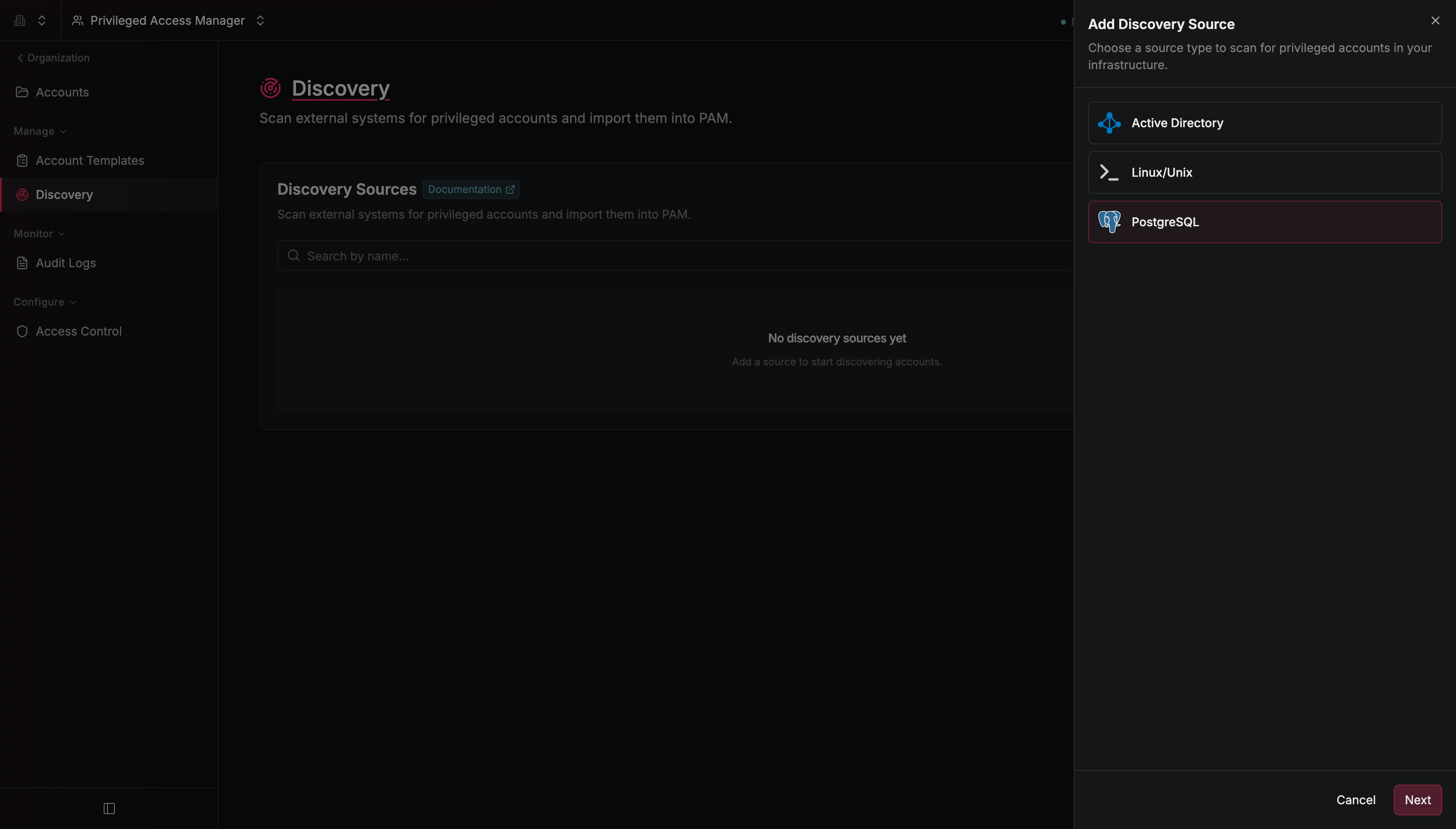
3
Configure the source: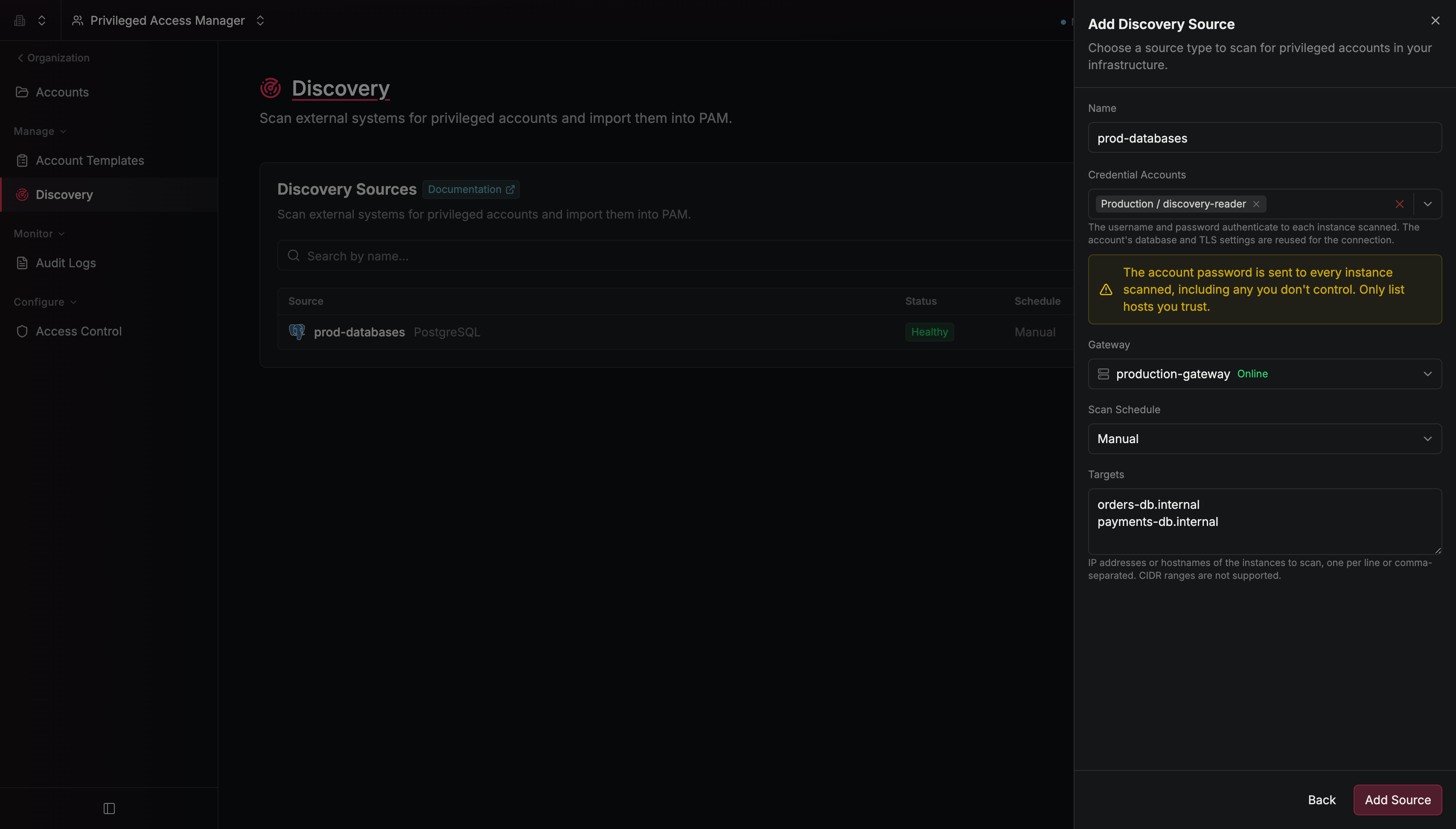
Infisical connects to each instance with the port, database, and TLS settings of the PostgreSQL account it signs in with.
4
Select Add Source.
Step 2: Run a scan
On the Discovery Sources table, select the options menu on the source’s row, then select Scan Now. A source can run one scan at a time.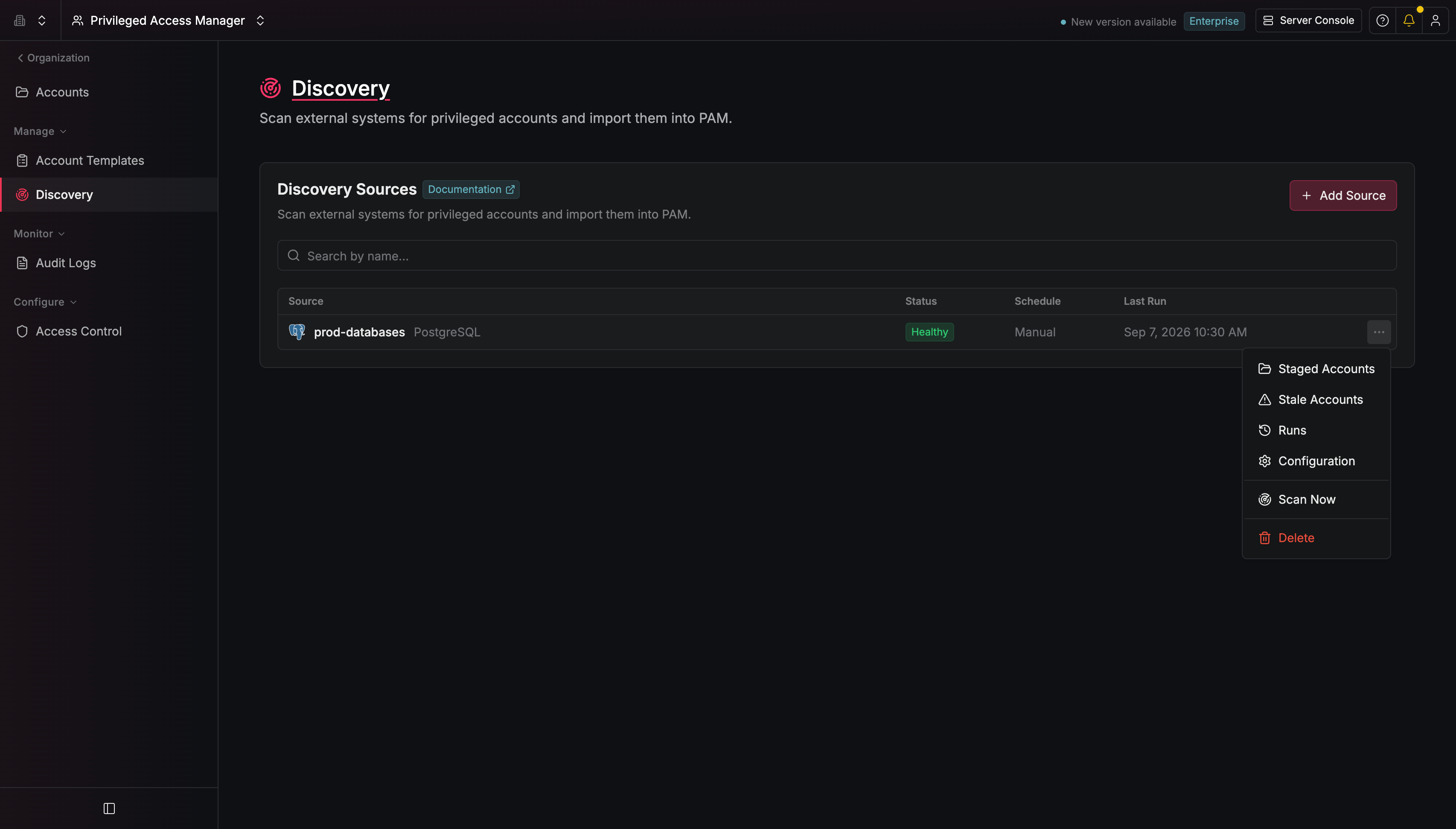
Step 3: Import accounts
1
On the Discovery Sources table, select the source.
2
On the Staged Accounts tab, select the accounts you want, then select Import Accounts.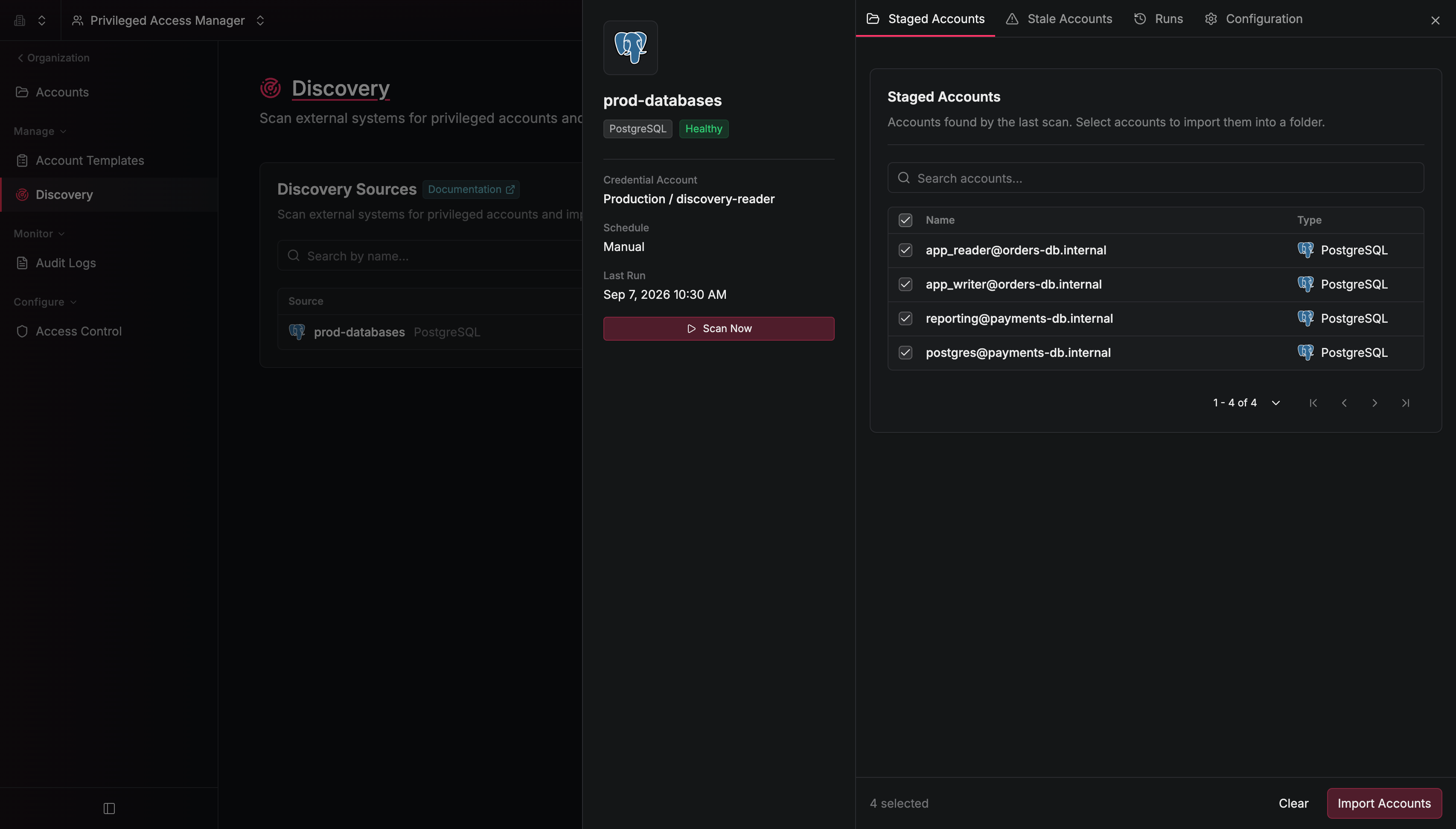
3
Select a Destination Folder and a PostgreSQL Template.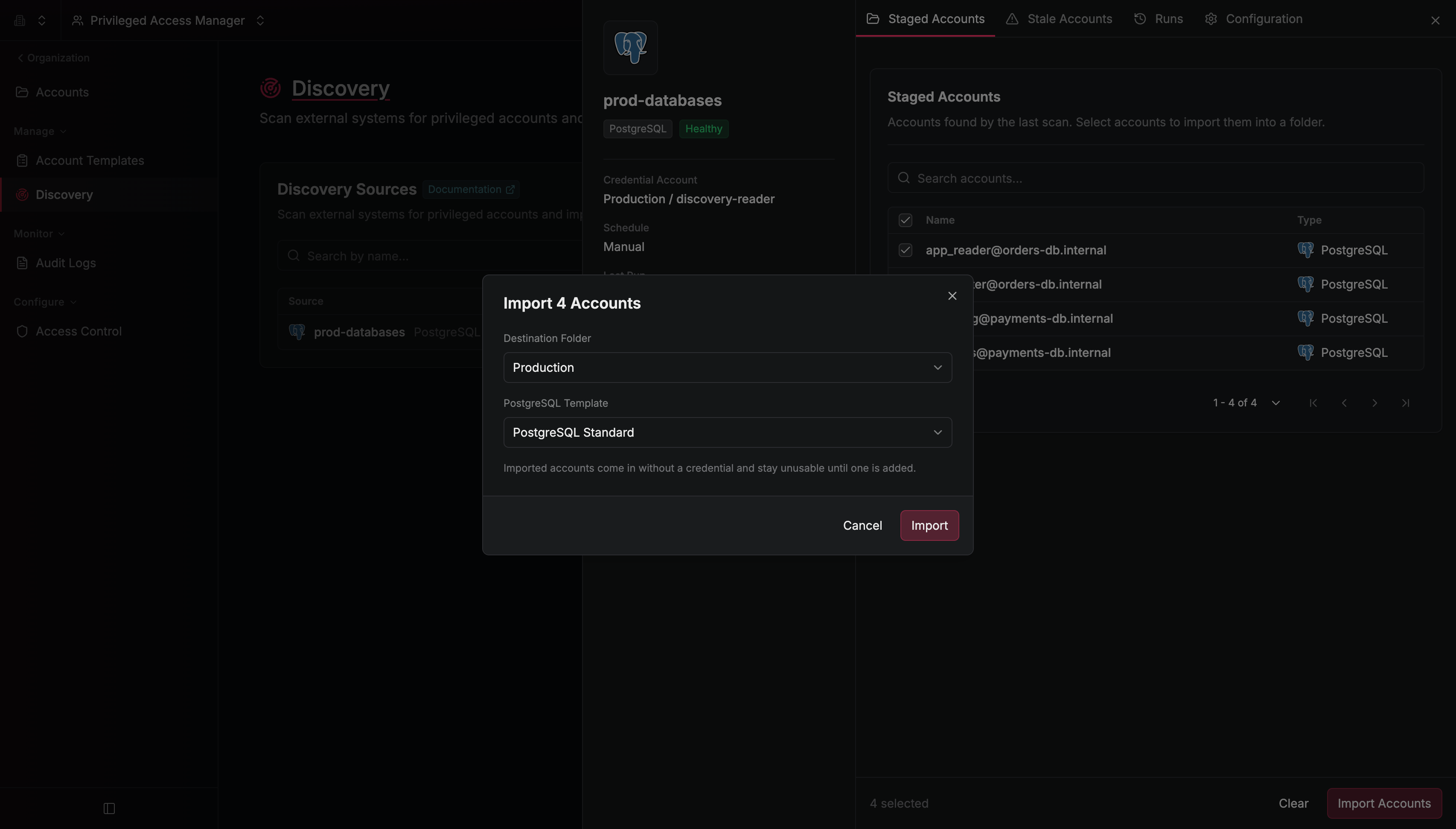
4
To have Infisical set a new password on each role during the import, turn on Rotate account passwords on import. Then pick the PostgreSQL Rotation Account, which is the rotation account that Infisical signs in as to change the passwords. By default, the field is set to one of the source’s credential accounts.A rotation account can only change passwords on its own instance (the same host and port), so Infisical imports roles from other instances without a password.
5
Select Import.
6
Go to Privileged Access Management > Accounts. The scan doesn’t read passwords, so each imported account that Infisical didn’t rotate shows Unavailable until you set its password. For each of those accounts, open the options menu on its row, select Configure, and enter the password for its PostgreSQL role on the Configuration tab.
Your PostgreSQL roles are in PAM. Anyone with access to the destination folder can launch sessions on them, and each scan of the source stages any new roles it finds.