Issue certificates to Microsoft Intune-managed devices over SCEP, with Intune validating every request before Infisical signs it.
This guide shows you how to issue certificates to devices managed by Microsoft Intune using Infisical’s SCEP enrollment. Intune delivers a certificate profile to each managed device, and Infisical validates every request with Intune before issuing a certificate.By the end, your Intune-managed devices will hold certificates from a CA you own, ready to point at Wi-Fi, VPN, or RADIUS authentication.
This guide is for administrators who manage both Microsoft Intune and Infisical Certificate Management. If your devices are managed by a different MDM tool, see the Jamf Pro guide, or use a static or dynamic challenge as described in SCEP enrollment.
How it works
Three systems are involved, and each has one job:
Infisical is the certificate authority. Of the three, it’s the only one that signs certificates.
Intune decides which devices should get a certificate and confirms that each request is genuine. It never issues a certificate itself.
The device generates a key pair, keeps the private key, and asks Infisical for a certificate covering the public half. The device does the asking. Nothing is pushed onto it.
Two certificates are in play, and they do different things:
Certificate
Where it comes from
What it does
Your CA certificate
Downloaded from Infisical once
Sits in every device’s trust store so the device recognizes what your CA signed
The device certificate
Issued to each device during enrollment
The device’s own identity, presented to Wi-Fi, VPN, or RADIUS
That distinction is why you’ll create two Intune profiles later: one to distribute the CA certificate, and one to request the device certificate.SCEP is the protocol a device uses to ask for a certificate. SCEP normally authenticates requests with a shared challenge password that every device carries, but with Intune validation you never distribute one. Intune seals a unique, single-use challenge into each device’s request, and Infisical asks Intune to confirm it before signing anything.Because Intune vouches for each individual request, every certificate Infisical issues is recorded against the device that asked for it.All of this happens inside a single request. Intune has no pending state, so anything that stops Infisical from issuing immediately is reported to Intune as a failed enrollment rather than held for a later decision.
Step 1: Prepare the certificate profile in Infisical
The certificate profile attached to your Infisical application must meet certain requirements to ensure it’s compatible with Intune. Check them below before going further.
Intune has no pending state, so the certificate profile must allow Infisical to issue each certificate within a single SCEP exchange. Infisical rejects the SCEP enrollment in Step 3 if either of these requirements isn’t met:
Approval policies hold requests for human review, and Intune has no pending state to wait in, so the request could never complete inside a single SCEP exchange
A SCEP request carries no validity period or extended key usages of its own. Set both on the certificate profile’s Certificate Defaults:
Setting
Value
Time to Live (TTL) in Days
Set the certificate lifetime you want. If you leave this field unset, the profile issues 90-day certificates
Extended Key Usages
Add Client Authentication to allow the certificate to authenticate the device to Wi-Fi, VPN, or RADIUS
On the certificate policy behind the profile, enable Set maximum validity and set Duration to the same lifetime as the profile’s TTL. The profile sets how long certificates remain valid, while the policy prevents it from issuing a certificate with a longer lifetime.
Leave every other section of the policy unconfigured, so it places no constraint on what your devices ask for. If you followed the issue your first certificate guide, your policy came from the TLS Server Certificate preset, which requires Server Authentication and rejects these requests until you turn those sections off.
When a device sends a certificate request, Infisical has to ask Intune whether that request was authorized. No user is signed in during that exchange, so Infisical needs its own identity in Microsoft.
First, register an application in Microsoft Entra ID. This gives Infisical an identity it can use to authenticate to Microsoft Entra without a user signing in.Set up an Azure application. Then, assign these two application permissions and grant tenant-wide admin consent for both:
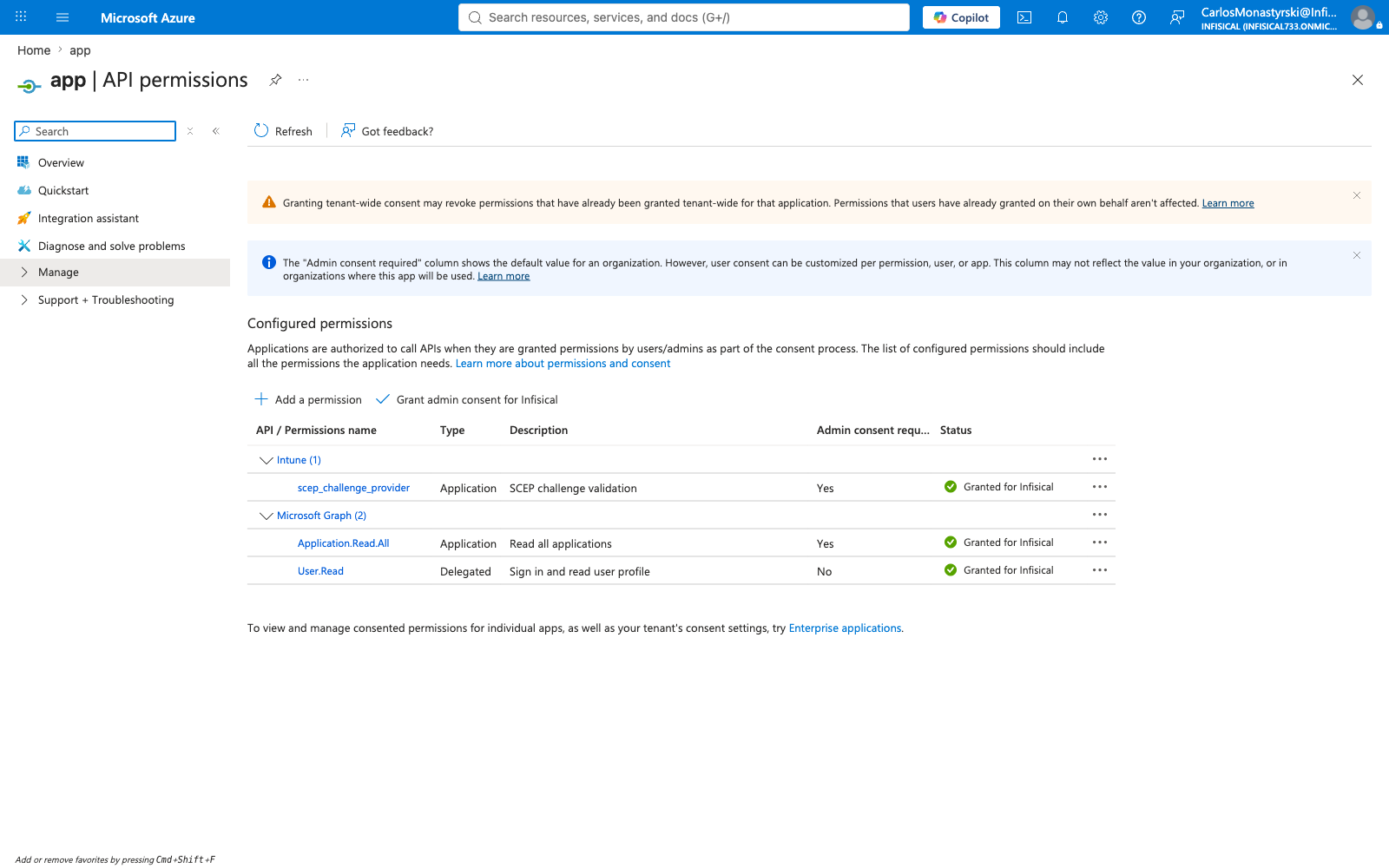
Permission
API
Purpose
Application.Read.All
Microsoft Graph
Discovers Intune’s SCEP validation service
scep_challenge_provider
Microsoft Intune
Validates challenges and reports issuance outcomes
Then, collect the Directory (tenant) ID, the Application (client) ID, and a Client Secret.
Copy the client secret while it’s on screen, because Entra won’t show it again. Note the expiry you chose as well. When that secret expires, certificate enrollment stops, and the failure your devices report won’t obviously point back here.
Infisical verifies the credentials when you save. If your app connection saves successfully, that confirms the permissions and admin consent were granted correctly.
Next, enable SCEP enrollment in Infisical. This creates the endpoint URL that your Intune-managed devices use to request certificates from this profile.
1
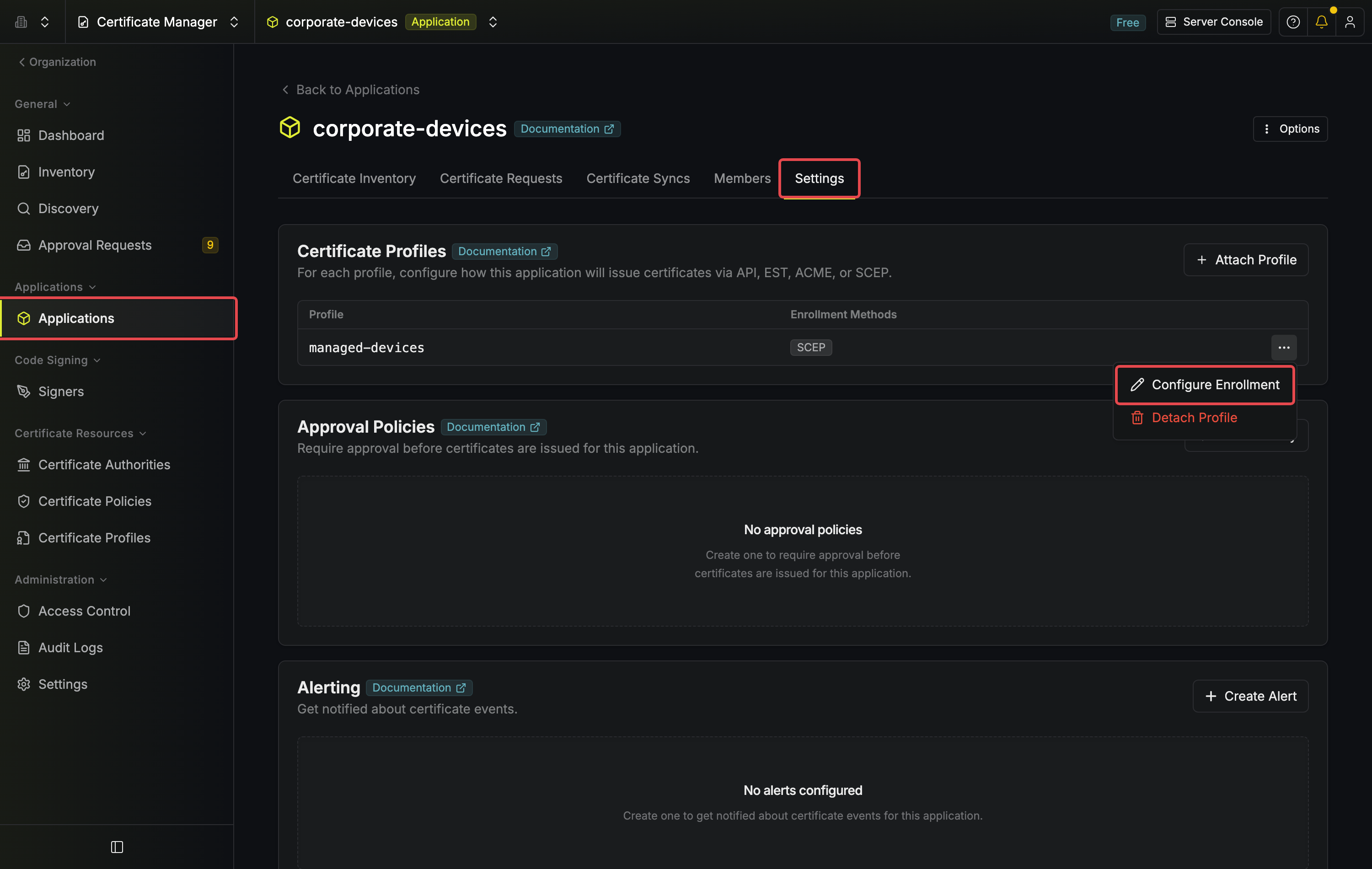
Open your application, go to the Settings tab, then open the row menu on your profile and select Configure Enrollment.
2
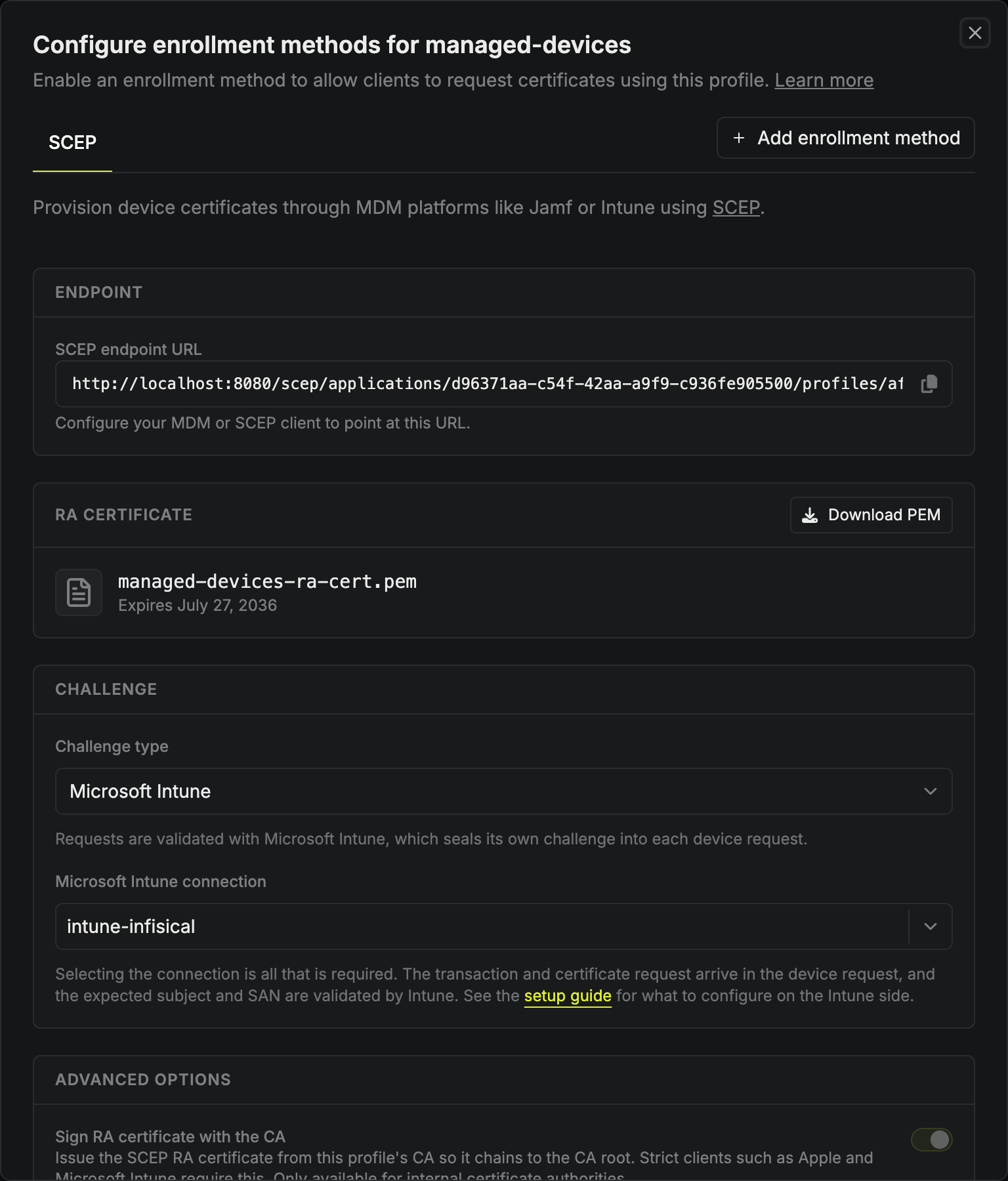
Select Add enrollment method, then select SCEP.
3
Under Challenge, set Challenge type to Microsoft Intune, then select the connection you created.
4
Under Advanced options, enable Sign RA certificate with the CA and leave Include CA cert in response enabled.
The Sign RA certificate with the CA option is required for Intune.The registration authority (RA) certificate is Infisical’s own identity in the SCEP exchange, and signing it with your CA makes it chain to the CA certificate you distribute in the next step.If you leave this option disabled, Intune rejects Infisical’s response before any device submits a request. It can’t be changed once SCEP enrollment exists, because changing it regenerates the identity and breaks devices that already trust the current one.
5
Save the enrollment, then copy the SCEP endpoint URL from the Endpoint section.
When a device requests a certificate, Infisical uses this connection to ask Intune whether the request is authorized. Intune also confirms that the requested subject and subject alternative name match the values it approved for the device.
On a self-hosted instance, your devices talk to the SCEP endpoint URL directly, so it has to be reachable from wherever those devices are.
Your devices need your CA’s certificate before anything else works. Download it from Infisical:
1
Select Certificate Authorities and open the CA behind your profile.
2
In the CA Certificates section, open the row menu on the current certificate and select Download CA Certificate.
3
Rename the downloaded cert.pem to cert.cer.
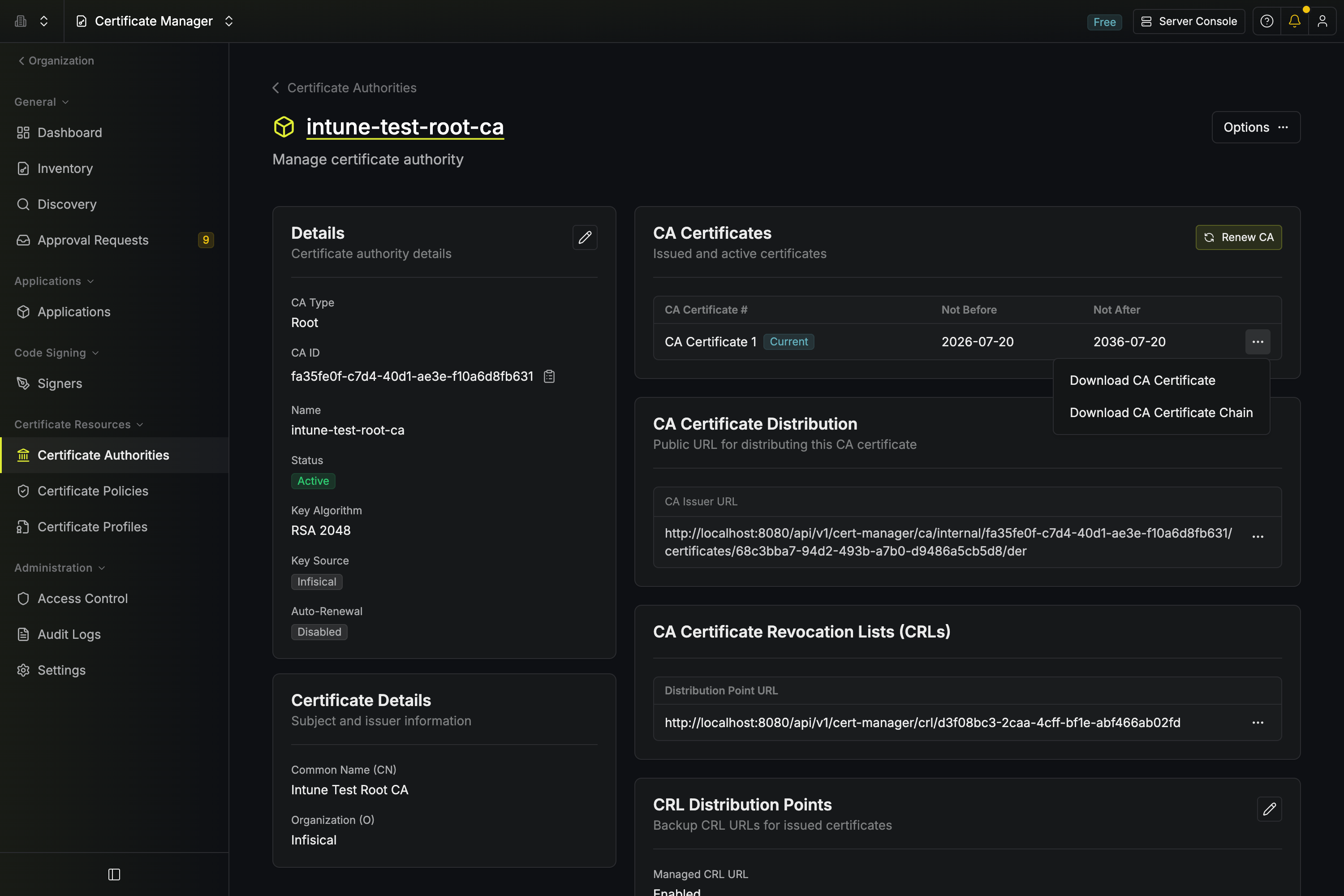
Infisical exports the certificate as cert.pem, and Intune’s upload field only accepts a .cer extension. It’s the same file, so changing the extension is enough.
This profile does one job: it installs your CA’s certificate onto every device you assign it to. From then on, those devices trust anything that CA signed.
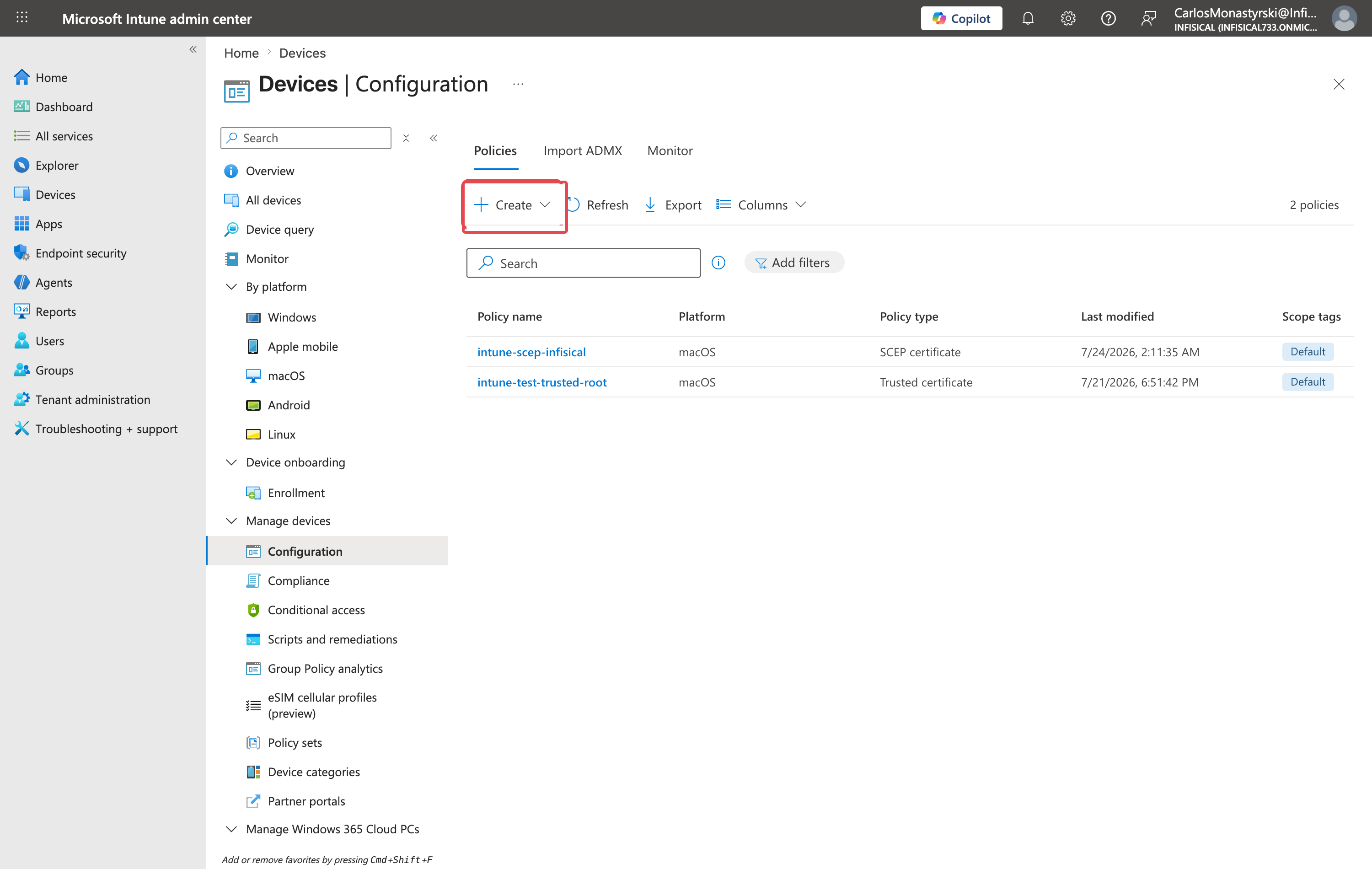
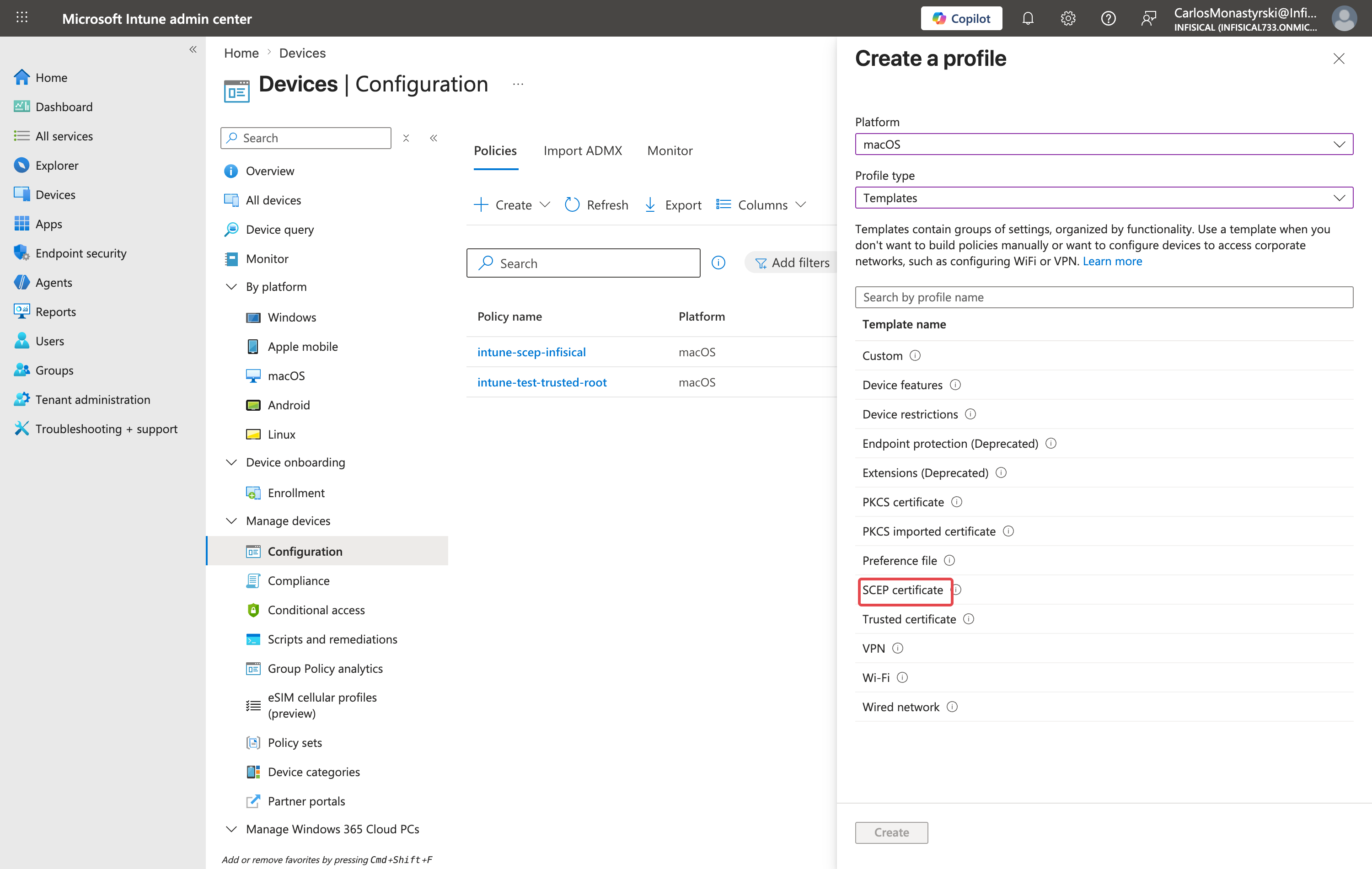
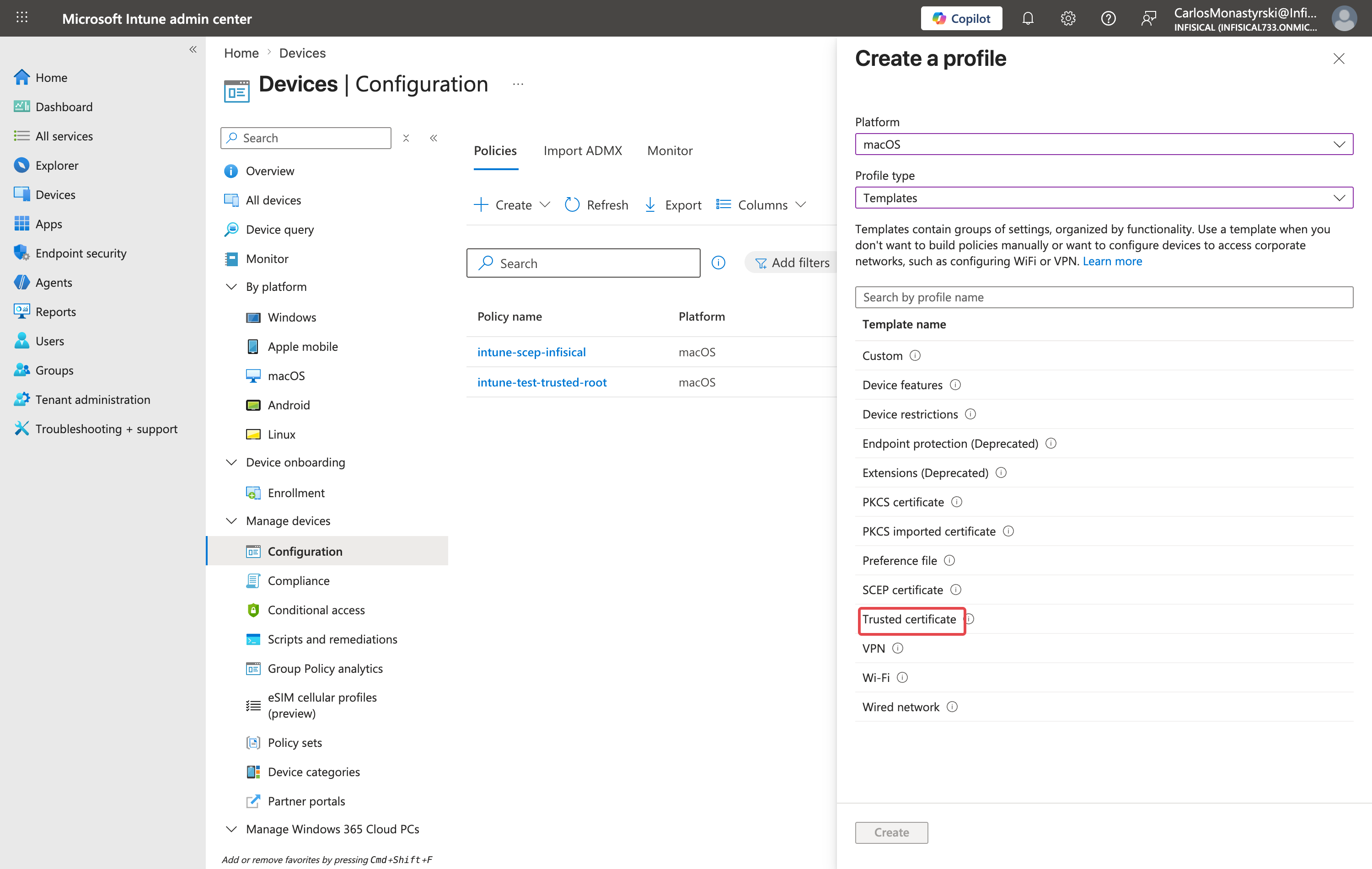
Select your Platform, set Profile type to Templates, then choose Trusted certificate.
3
Give the profile a name. For example: Infisical Issuing CA.
4
Choose where Intune installs the CA certificate:
Apple platforms
Windows
Set Deployment Channel to Device Channel, which installs the certificate for every user on the device and places it in the system keychain. Choose User Channel only where the certificate must be scoped to a single user.You can’t change the deployment channel after the profile is deployed, so switching later means building a new profile. Set the SCEP profile to the same channel in the next section.
Windows profiles have no deployment channel. Set Destination Store to Computer certificate store - Root.
5
Upload the .cer file, assign the profile to the device or user groups that should receive certificates, then create it.
Infisical’s SCEP identity needs no profile of its own. Because you signed it with your CA in the previous step, this profile already establishes trust for it.
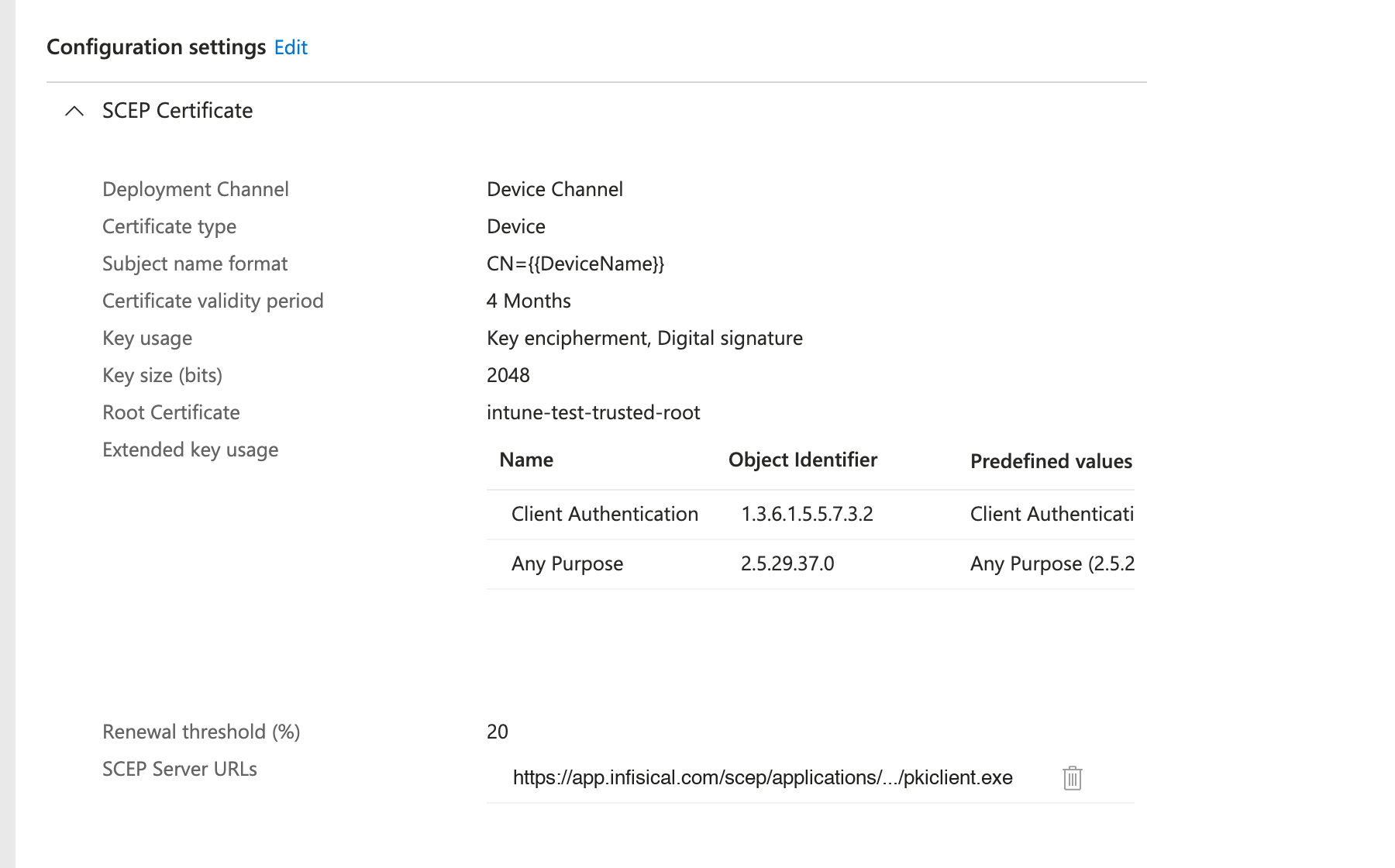
Client Authentication, matching the certificate profile
Renewal threshold (%)
20
SCEP Server URLs
The SCEP endpoint URL you copied from Infisical (remove /pkiclient.exe on Windows)
On Windows, remove /pkiclient.exe from the end of the URL. Windows adds /pkiclient.exe to the URL itself, so if you leave it in, the device requests .../pkiclient.exe/pkiclient.exe and never enrolls. On Apple platforms, keep the full URL.
Certificate validity period and Extended key usage are the two you’re mirroring from Step 1. Intune reports the enrollment as successful without comparing either one against the certificate it receives, so a mismatch here is never flagged.
Renewal threshold is a percentage of remaining life, not elapsed life. A threshold of 20 means the device asks for a new certificate once 80 percent of the lifetime is gone, so roughly ten months into a one-year certificate.
5
The subject name is the identity written into the certificate. You write it as a template with Intune variables in double curly braces, and Intune fills them in per device when it delivers the profile. CN={{DeviceName}} is the simplest useful version, and CN={{AzureADDeviceId}} keys on the device’s Entra ID, which a user can’t rename.
Choose the subject name format to match whatever you’ll authenticate against. That system reads this name to work out which device it’s talking to. If your RADIUS server matches on the Entra device ID and your certificate carries the device name instead, the certificate is issued perfectly and then rejected on the network.
6
Assign the profile to the same groups as the trusted certificate profile, then create it.
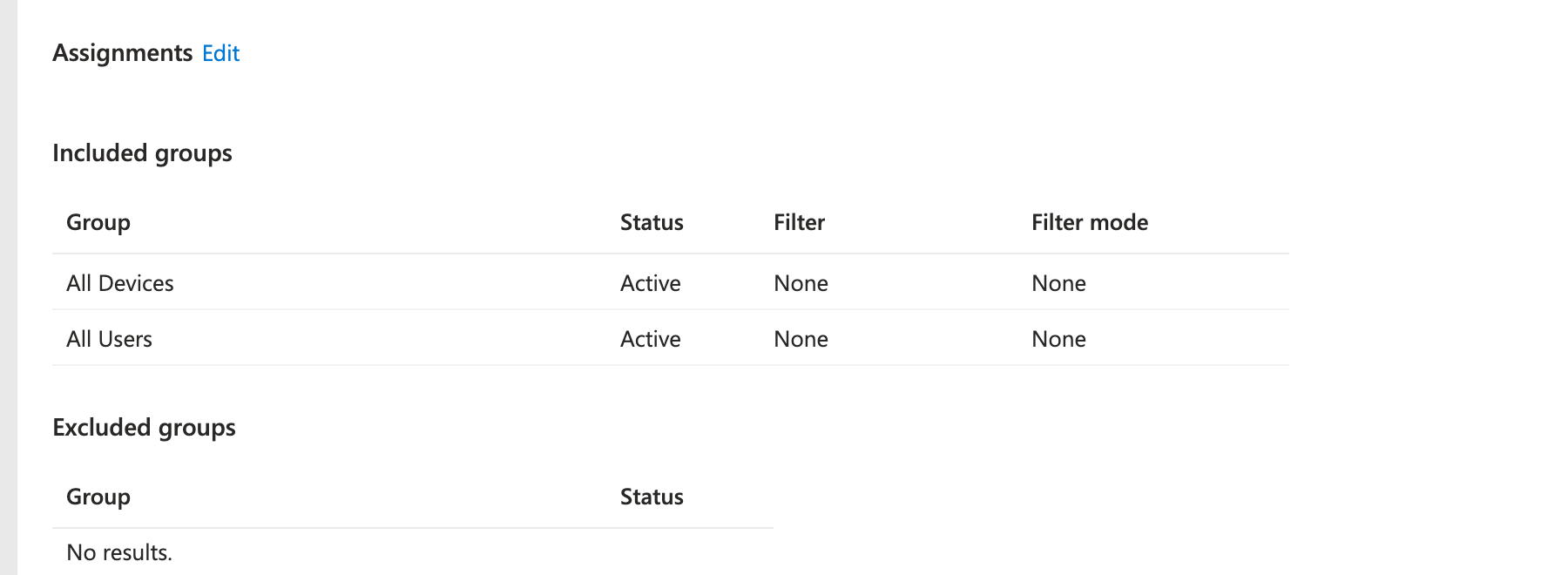
Intune configuration profiles are platform-specific, so each platform you support needs its own trusted certificate profile and SCEP certificate profile. Supporting Macs and Windows machines means four profiles. The Infisical side is shared, so every profile uses the same SCEP endpoint URL, with /pkiclient.exe removed on Windows.
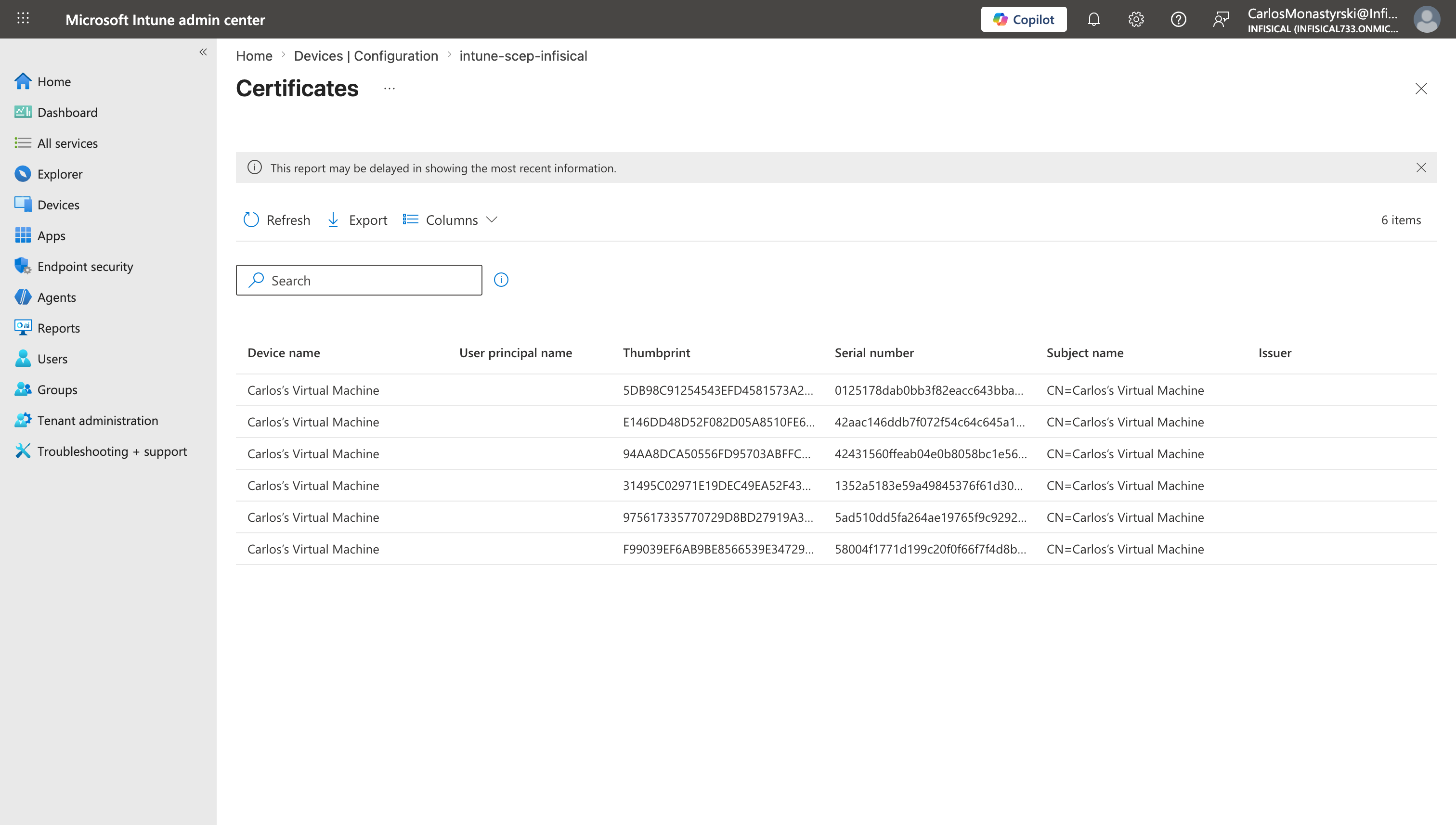
Sync a target device, or wait for its next check-in, then confirm the certificate arrived on all four sides:
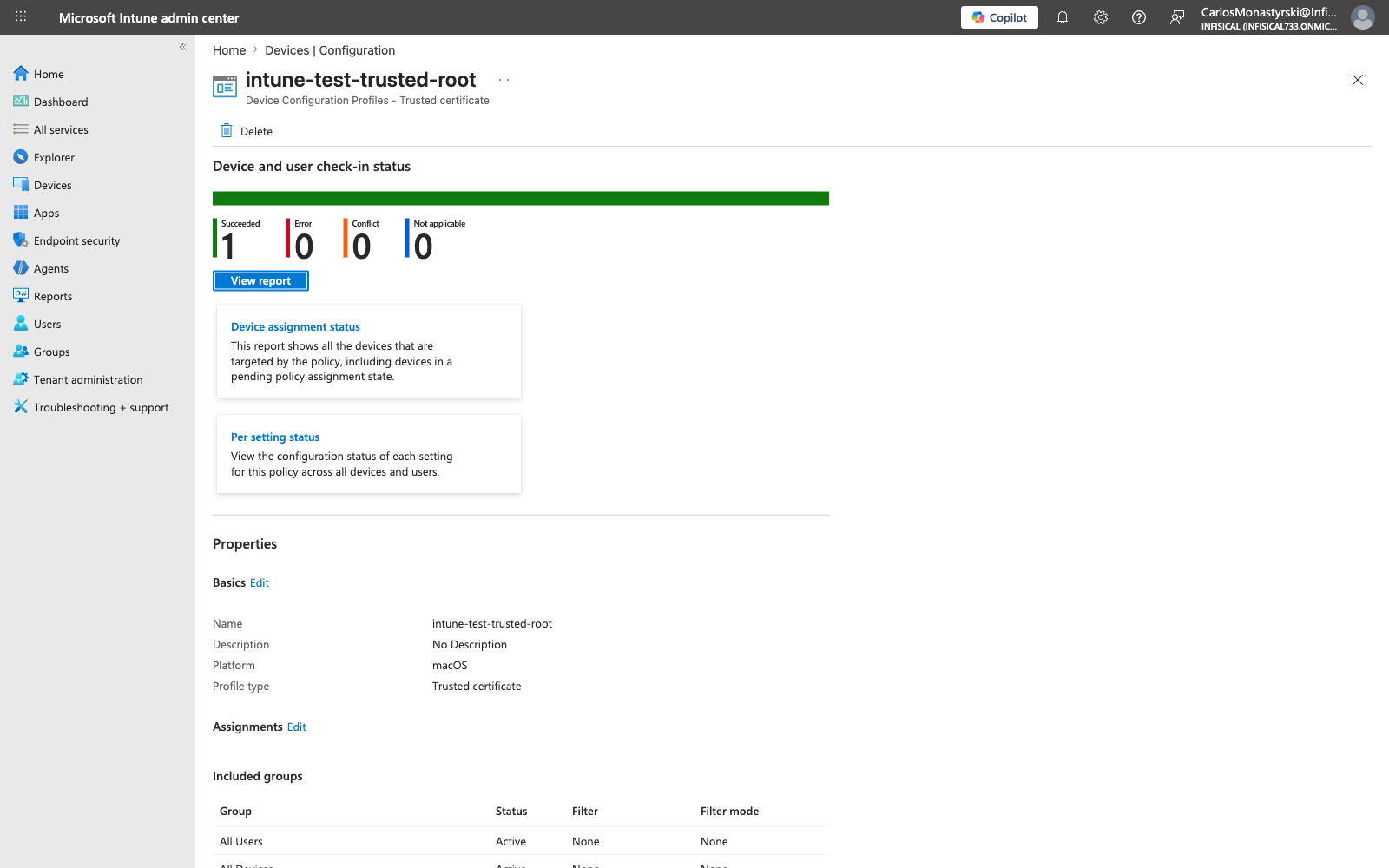
In Intune, open the SCEP profile and confirm Device and user check-in status reports Succeeded.
Open the Certificates report on that profile to see each issued certificate with its thumbprint, serial number, and subject.
On the device, confirm two things are present: the device’s own certificate, and your CA in the trusted roots. Use Keychain Access on macOS, or certlm.msc or certmgr.msc on Windows.
In Infisical, open your application and confirm the same certificates appear on the Certificate Inventory tab with their expiry dates.
Intune’s check-in status and Certificates report can lag behind the device by several hours, even after you manually sync the device. If the certificates are present on the device but Intune hasn’t updated, wait for its reporting to catch up before troubleshooting the enrollment.
Your devices now hold certificates from a CA you own, and the Certificate Inventory tab in your Infisical application lists every certificate issued to your fleet.
When a certificate crosses the Renewal threshold, Intune re-enrolls that device through the same SCEP profile, and that request carries a fresh challenge just like the first enrollment. The renewal is validated exactly the way the original request was, with no action from you.Infisical’s Allow cert-based renewal option stays off for Intune validation, and Infisical rejects an enrollment that tries to enable it. Renewing against an existing certificate would skip the challenge and bypass Intune’s per-request validation.
A Windows device never enrolls and the audit log shows no SCEP enrollment event
The SCEP Server URLs value in the Windows profile most likely still ends in /pkiclient.exe. Windows adds /pkiclient.exe to the URL itself, so the device requests a URL that doesn’t exist and stops before it sends a certificate request.Remove /pkiclient.exe from the end of the URL in the Windows SCEP profile, then sync the device. To confirm which URL the device used, open Event Viewer on the device and go to Applications and Services Logs > Microsoft > Windows > DeviceManagement-Enterprise-Diagnostics-Provider > Admin. Event 307 shows the SCEP server URL the device tried.
Enrollment fails immediately with a validation error
Infisical asked Intune to validate the challenge and Intune declined. Work through these in order:
Confirm the Entra application has both Application.Read.All and scep_challenge_provider, and that admin consent was granted for each.
Confirm the client secret hasn’t expired. This is the most common cause of an enrollment that worked for months and then stopped.
Confirm the device is enrolled in Intune and that the SCEP profile is actually assigned to it.
Infisical’s audit log records what Intune said when it was asked, which tells you which side refused.
Enrollment fails even though the challenge was accepted
The challenge passed but issuance didn’t complete. Either the requested certificate violates the certificate policy, or the profile is attached to an approval policy and the request is waiting for review.Check the Subject name format in the Intune profile, and the extended key usages and algorithms the policy permits, against the policy settings in Step 1. Intune has no pending state, so Infisical reports both cases to Intune as failures rather than leaving the device polling.
The device receives a certificate but doesn't trust it
The trusted certificate profile didn’t reach the device. Confirm it’s assigned to the same groups as the SCEP profile, that it holds the certificate of the CA behind your profile, and on Windows that Destination Store is set to Computer certificate store - Root.
The certificate is issued but rejected during network authentication
The certificate is valid, but its contents don’t match what the authenticating system expects. Compare the Subject name format in the SCEP profile against what your RADIUS server or VPN concentrator matches on, and compare Extended key usage against what it requires.Because Intune reports the enrollment as successful without checking the validity period or extended key usages of the certificate it receives, a mismatch between the Intune profile and the Infisical certificate profile passes silently and only surfaces here.
Intune validation requires a profile backed by an internal CA. External CAs issue asynchronously, and Intune has no pending state to wait in, so Infisical rejects the combination when you configure the enrollment.
Do I need separate profiles for each device platform?
Yes. Intune configuration profiles are platform-specific, so each platform needs its own trusted certificate profile and SCEP certificate profile. The Infisical side is shared, so every platform uses the same SCEP endpoint URL, with /pkiclient.exe removed on Windows.Which SCEP profile fields Intune offers also depends on the platform. Key storage provider appears on Windows, Hash algorithm on Windows and Android, and Deployment Channel on Apple platforms. See Use SCEP certificate profiles with Microsoft Intune for the full field list.
Can one Infisical profile serve both Intune devices and other SCEP clients?
No. The challenge type belongs to the SCEP enrollment, so a profile set to Microsoft Intune validation only accepts challenges that Intune issued. Attach a second certificate profile to the application with a static or dynamic challenge to serve clients that Intune doesn’t manage.
What happens if I move off Intune later?
You rebuild the profiles on the new MDM tool and add a new enrollment in Infisical. The CA stays as it is, certificates already issued stay valid, and anything configured to trust your CA keeps working.
Can I use this CA for things other than devices?
Yes. SCEP is one of four ways to enroll against a profile, alongside ACME, EST, and the API. The same CA, with the same root your devices now trust, can issue certificates to your servers, internal services, and Kubernetes workloads.
{"docsConfig":{"theme":"aspen","$schema":"https://mintlify.com/docs.json","name":"Infisical","colors":{"primary":"#26272b","light":"#dbf530","dark":"#A1B659"},"logo":{"light":"https://mintlify.s3.us-west-1.amazonaws.com/infisical/logo/light.svg","dark":"https://mintlify.s3.us-west-1.amazonaws.com/infisical/logo/dark.svg","href":"/"},"favicon":"https://mintlify.s3.us-west-1.amazonaws.com/infisical/favicon.ico","api":{"openapi":"https://app.infisical.com/api/docs/json","mdx":{"server":["https://app.infisical.com"]}},"appearance":{"default":"light"},"background":{"color":{"light":"#ffffff","dark":"#08090b"}},"navbar":{"links":[{"href":"https://app.infisical.com/login","label":"Log In"}],"primary":{"type":"button","label":"Start for Free","href":"https://app.infisical.com/signup"}},"footer":{"socials":{"x":"https://www.twitter.com/infisical","linkedin":"https://www.linkedin.com/company/infisical","github":"https://github.com/Infisical/infisical-cli","website":"https://community.infisical.com"},"links":[{"header":"PRODUCT","items":[{"label":"Secrets Management","href":"https://infisical.com/platform/secrets-management"},{"label":"Certificate Management","href":"https://infisical.com/platform/certificate-management"},{"label":"Privileged Access Management (PAM)","href":"https://infisical.com/platform/pam"},{"label":"Agent Vault","href":"https://infisical.com/platform/agent-vault"},{"label":"Key Management Service (KMS)","href":"https://infisical.com/docs/documentation/platform/kms/overview"},{"label":"Secret Scanning","href":"https://infisical.com/radar"},{"label":"Share Secrets","href":"https://app.infisical.com/share-secret"},{"label":"Pricing","href":"https://infisical.com/pricing"},{"label":"Security","href":"https://infisical.com/docs/internals/security"},{"label":"Blog","href":"https://infisical.com/blog"},{"label":"Infisical vs Vault","href":"https://infisical.com/infisical-vs-hashicorp-vault"},{"label":"Community","href":"https://community.infisical.com/"}]},{"header":"USE CASES","items":[{"label":"Infisical Agent","href":"https://infisical.com/docs/documentation/getting-started/introduction"},{"label":"Infisical Proxy","href":"https://infisical.com/docs/integrations/platforms/infisical-proxy"},{"label":"Kubernetes","href":"https://infisical.com/docs/integrations/platforms/kubernetes"},{"label":"Dynamic Secrets","href":"https://infisical.com/docs/documentation/platform/dynamic-secrets/overview"},{"label":"Terraform","href":"https://registry.terraform.io/providers/Infisical/infisical/latest/docs"},{"label":"Ansible","href":"https://infisical.com/docs/integrations/platforms/ansible"},{"label":"Jenkins","href":"https://infisical.com/docs/integrations/cicd/jenkins"},{"label":"Docker","href":"https://infisical.com/docs/integrations/platforms/docker"},{"label":"AWS ECS","href":"https://infisical.com/docs/integrations/platforms/ecs-with-agent"},{"label":"GitLab","href":"https://infisical.com/docs/integrations/cicd/gitlab"},{"label":"GitHub","href":"https://infisical.com/docs/integrations/cicd/githubactions"},{"label":"SDK","href":"https://infisical.com/docs/sdks/overview"}]},{"header":"DEVELOPERS","items":[{"label":"Changelog","href":"https://github.com/Infisical/infisical/releases"},{"label":"Status","href":"https://status.infisical.com/"},{"label":"Feedback \u0026 Requests","href":"https://github.com/Infisical/infisical/issues"},{"label":"Trust of Center","href":"https://app.vanta.com/infisical.com/trust/hoop8cr78cuarxo9sztvs"},{"label":"Open Source Friends","href":"https://infisical.com/infisical-friends"},{"label":"How to contribute","href":"https://www.infisical.com/infisical-heroes"}]},{"header":"OTHERS","items":[{"label":"Customers","href":"https://infisical.com/customers/traba"},{"label":"Company Handbook","href":"https://infisical.com/wiki/handbook/overview"},{"label":"Careers","href":"https://infisical.com/careers"},{"label":"Terms of Service","href":"https://infisical.com/terms"},{"label":"Privacy Policy","href":"https://infisical.com/privacy"},{"label":"Subprocessors","href":"https://infisical.com/subprocessors"},{"label":"SLA","href":"https://infisical.com/sla"},{"label":"Support Email","href":"mailto:support@infisical.com"},{"label":"Sales","href":"mailto:sales@infisical.com"},{"label":"Support","href":"https://community.infisical.com"}]}]},"fonts":{"heading":{"family":"Alliance","weight":400,"source":"https://infisical.com/docs/fonts/AllianceNo2-Regular.woff2","format":"woff2"}},"icons":{"library":"lucide"},"styling":{"eyebrows":"breadcrumbs","codeblocks":"dark","latex":false},"integrations":{"posthog":{"apiKey":"phc_Q0xfB3LeOqo7ySk4DE6zLNwDzHFesKcmigknCy4fTdV","apiHost":"https://p.infisical.com"},"koala":{"publicApiKey":"pk_b50d7184e0e39ddd5cdb43cf6abeadd9b97d"},"gtm":{"tagId":"GTM-WL5C7MWT"}},"contextual":{"options":["assistant","copy","view","chatgpt","claude","mcp"],"display":"header"},"thumbnails":{"appearance":"light"},"navigation":{"pages":[]}},"deployment":{"deploymentMetadataValue":{"subdomain":"infisical","hasAudioNarration":false,"actualSubdomain":"infisical","customDomains":["infisical.com"],"gitSource":{"type":"github","owner":"infisical","repo":"infisical","deployBranch":"main","contentDirectory":"docs","mountPath":"","label":""},"feedback":{"thumbs":true,"edits":true,"issues":true},"entitlements":{"AI_CHAT":{"status":"ENABLED"},"WEB_MCP":{"status":"ENABLED"},"NARRATION":{"status":"ENABLED"}},"buildId":"6aef4cdb5a64506a9069dd0f","clientVersion":"0.0.4076","searchFilterCounts":[{"language":"default","tag":"Reference","count":1883},{"language":"default","tag":"API","count":1840},{"language":"default","tag":"Secrets Management","count":913},{"language":"default","tag":"App connections","count":658},{"language":"default","tag":"Shared","count":572},{"language":"default","tag":"Secret syncs","count":420},{"language":"default","tag":"Products","count":375},{"language":"default","tag":"Certificate Management","count":324},{"language":"default","tag":"Platform","count":249},{"language":"default","tag":"Secret rotations","count":221}]},"assistantConfig":{"enableAskAiButton":true,"enableAskAiSearchBar":false},"basePath":"/docs","hasChatPermissions":true,"hasWebMcpPermissions":true,"toggles":[{"name":"kill-isr","enabled":true,"variant":{"name":"disabled","enabled":false,"feature_enabled":true},"impressionData":false},{"name":"selectively-prewarm","enabled":true,"variant":{"name":"disabled","enabled":false,"feature_enabled":true},"impressionData":false},{"name":"agent-mintlify-slack","enabled":true,"variant":{"name":"disabled","enabled":false,"feature_enabled":true},"impressionData":false},{"name":"agent-integrations-settings","enabled":true,"variant":{"name":"disabled","enabled":false,"feature_enabled":true},"impressionData":false},{"name":"rbac-expansion","enabled":true,"variant":{"name":"disabled","enabled":false,"feature_enabled":true},"impressionData":false},{"name":"automations-pr-grouping","enabled":true,"variant":{"name":"disabled","enabled":false,"feature_enabled":true},"impressionData":false},{"name":"custom-prefix","enabled":true,"variant":{"name":"disabled","enabled":false,"feature_enabled":true},"impressionData":false},{"name":"analytics-v7","enabled":true,"variant":{"name":"disabled","enabled":false,"feature_enabled":true},"impressionData":false},{"name":"user-flows-analytics","enabled":true,"variant":{"name":"disabled","enabled":false,"feature_enabled":true},"impressionData":false},{"name":"no-publish-flow","enabled":true,"variant":{"name":"disabled","enabled":false,"feature_enabled":true},"impressionData":false},{"name":"workos-onboarding","enabled":true,"variant":{"name":"disabled","enabled":false,"feature_enabled":true},"impressionData":false},{"name":"llms-txt-v2","enabled":true,"variant":{"name":"disabled","enabled":false,"feature_enabled":true},"impressionData":false},{"name":"snapshot-serving-live","enabled":true,"variant":{"name":"disabled","enabled":false,"feature_enabled":true},"impressionData":false},{"name":"stripTemperatureMiddleware","enabled":true,"variant":{"name":"disabled","enabled":false,"feature_enabled":true},"impressionData":false},{"name":"support-platform-pylon-zendesk","enabled":true,"variant":{"name":"disabled","enabled":false,"feature_enabled":true},"impressionData":false},{"name":"snapshot-serving","enabled":true,"variant":{"name":"disabled","enabled":false,"feature_enabled":true},"impressionData":false},{"name":"instant-rollback","enabled":true,"variant":{"name":"disabled","enabled":false,"feature_enabled":true},"impressionData":false},{"name":"granular-notifications-server","enabled":true,"variant":{"name":"disabled","enabled":false,"feature_enabled":true},"impressionData":false},{"name":"granular-notifications","enabled":true,"variant":{"name":"disabled","enabled":false,"feature_enabled":true},"impressionData":false},{"name":"automations-fable","enabled":true,"variant":{"name":"disabled","enabled":false,"feature_enabled":true},"impressionData":false},{"name":"fixed-ai-action-pricing","enabled":true,"variant":{"name":"disabled","enabled":false,"feature_enabled":true},"impressionData":false},{"name":"automation-resolve-merge-conflict","enabled":true,"variant":{"name":"disabled","enabled":false,"feature_enabled":true},"impressionData":false},{"name":"scoped-publishing","enabled":true,"variant":{"name":"disabled","enabled":false,"feature_enabled":true},"impressionData":false},{"name":"mintql","enabled":true,"variant":{"name":"disabled","enabled":false,"feature_enabled":true},"impressionData":false},{"name":"page-level-analytics","enabled":true,"variant":{"name":"disabled","enabled":false,"feature_enabled":true},"impressionData":false},{"name":"editor-version-history-v2","enabled":true,"variant":{"name":"disabled","enabled":false,"feature_enabled":true},"impressionData":false},{"name":"instinct-self-updating-docs","enabled":true,"variant":{"name":"disabled","enabled":false,"feature_enabled":true},"impressionData":false},{"name":"billing-page-v2","enabled":true,"variant":{"name":"disabled","enabled":false,"feature_enabled":true},"impressionData":false},{"name":"full-page-search","enabled":true,"variant":{"name":"disabled","enabled":false,"feature_enabled":true},"impressionData":false},{"name":"workspace-projects","enabled":true,"variant":{"name":"disabled","enabled":false,"feature_enabled":true},"impressionData":false},{"name":"assistant-v5","enabled":true,"variant":{"name":"disabled","enabled":false,"feature_enabled":true},"impressionData":false},{"name":"fork-pr-previews","enabled":true,"variant":{"name":"disabled","enabled":false,"feature_enabled":true},"impressionData":false},{"name":"revalidation-jwt","enabled":true,"variant":{"name":"disabled","enabled":false,"feature_enabled":true},"impressionData":false},{"name":"workos-sso-scim","enabled":true,"variant":{"name":"disabled","enabled":false,"feature_enabled":true},"impressionData":false},{"name":"hobby-abuse-scan","enabled":true,"variant":{"name":"disabled","enabled":false,"feature_enabled":true},"impressionData":false},{"name":"dashboard-inbox","enabled":true,"variant":{"name":"disabled","enabled":false,"feature_enabled":true},"impressionData":false},{"name":"workos-signup","enabled":true,"variant":{"name":"disabled","enabled":false,"feature_enabled":true},"impressionData":false},{"name":"turbopuffer-dual-write","enabled":true,"variant":{"name":"disabled","enabled":false,"feature_enabled":true},"impressionData":false},{"name":"workos-enabled","enabled":true,"variant":{"name":"disabled","enabled":false,"feature_enabled":true},"impressionData":false},{"name":"approve-review-flow","enabled":true,"variant":{"name":"disabled","enabled":false,"feature_enabled":true},"impressionData":false},{"name":"editor-metadata","enabled":true,"variant":{"name":"disabled","enabled":false,"feature_enabled":true},"impressionData":false},{"name":"sso-setup-deadline-banner","enabled":true,"variant":{"name":"disabled","enabled":false,"feature_enabled":true},"impressionData":false},{"name":"turbopuffer-serve","enabled":true,"variant":{"name":"disabled","enabled":false,"feature_enabled":true},"impressionData":false},{"name":"live-agents","enabled":true,"variant":{"name":"disabled","enabled":false,"feature_enabled":true},"impressionData":false},{"name":"comment-mode","enabled":true,"variant":{"name":"disabled","enabled":false,"feature_enabled":true},"impressionData":false}],"googleFontsInlined":false},"customCss":[{"filePath":"style.css","href":"/docs/_mintlify/custom/infisical/792e2875e269d30a/style.css"}],"page":{"pagePath":"documentation/platform/pki/guides/applications/microsoft-intune-scep","slug":"/documentation/platform/pki/guides/applications/microsoft-intune-scep","pageMetadata":{"title":"Microsoft Intune with SCEP","sidebarTitle":"Microsoft Intune","description":"Issue certificates to Microsoft Intune-managed devices over SCEP, with Intune validating every request before Infisical signs it.","href":"/documentation/platform/pki/guides/applications/microsoft-intune-scep"},"description":{"compiledSource":"\"use strict\";\nconst {jsx: _jsx} = arguments[0];\nconst {useMDXComponents: _provideComponents} = arguments[0];\nfunction _createMdxContent(props) {\n const _components = {\n p: \"p\",\n ..._provideComponents(),\n ...props.components\n };\n return _jsx(_components.p, {\n children: \"Issue certificates to Microsoft Intune-managed devices over SCEP, with Intune validating every request before Infisical signs it.\"\n });\n}\nfunction MDXContent(props = {}) {\n const {wrapper: MDXLayout} = {\n ..._provideComponents(),\n ...props.components\n };\n return MDXLayout ? _jsx(MDXLayout, {\n ...props,\n children: _jsx(_createMdxContent, {\n ...props\n })\n }) : _createMdxContent(props);\n}\nreturn {\n default: MDXContent\n};\n","frontmatter":{},"scope":{}},"pageType":"default","mdx":{"mdxSource":{"compiledSource":"\"use strict\";const{Fragment:_Fragment,jsx:_jsx,jsxs:_jsxs}=arguments[0];const{useMDXComponents:_provideComponents}=arguments[0];function _createMdxContent(props){const _components={a:`a`,code:`code`,li:`li`,ol:`ol`,p:`p`,strong:`strong`,tbody:`tbody`,td:`td`,th:`th`,thead:`thead`,tr:`tr`,ul:`ul`,..._provideComponents(),...props.components},{Accordion,AccordionGroup,Card,CardGroup,Check,Heading,Info,Mermaid,Note,OptimizedImage,Step,Steps,Tab,Table,Tabs,Tip,Warning}=_components;if(!Accordion)_missingMdxReference(`Accordion`,true);if(!AccordionGroup)_missingMdxReference(`AccordionGroup`,true);if(!Card)_missingMdxReference(`Card`,true);if(!CardGroup)_missingMdxReference(`CardGroup`,true);if(!Check)_missingMdxReference(`Check`,true);if(!Heading)_missingMdxReference(`Heading`,true);if(!Info)_missingMdxReference(`Info`,true);if(!Mermaid)_missingMdxReference(`Mermaid`,true);if(!Note)_missingMdxReference(`Note`,true);if(!OptimizedImage)_missingMdxReference(`OptimizedImage`,true);if(!Step)_missingMdxReference(`Step`,true);if(!Steps)_missingMdxReference(`Steps`,true);if(!Tab)_missingMdxReference(`Tab`,true);if(!Table)_missingMdxReference(`Table`,true);if(!Tabs)_missingMdxReference(`Tabs`,true);if(!Tip)_missingMdxReference(`Tip`,true);if(!Warning)_missingMdxReference(`Warning`,true);return _jsxs(_Fragment,{children:[_jsxs(_components.p,{children:[`This guide shows you how to issue certificates to devices managed by `,_jsx(_components.a,{href:`https://learn.microsoft.com/en-us/mem/intune/`,children:`Microsoft Intune`}),` using Infisical’s `,_jsx(_components.a,{href:`/documentation/platform/pki/applications/enrollment-methods/scep`,children:`SCEP enrollment`}),`. Intune delivers a certificate profile to each managed device, and Infisical validates every request with Intune before issuing a certificate.`]}),`\n`,_jsx(_components.p,{children:`By the end, your Intune-managed devices will hold certificates from a CA you own, ready to point at Wi-Fi, VPN, or RADIUS authentication.`}),`\n`,_jsx(Info,{children:_jsxs(_components.p,{children:[`This guide is for administrators who manage both Microsoft Intune and Infisical Certificate Management. If your devices are managed by a different MDM tool, see the `,_jsx(_components.a,{href:`/documentation/platform/pki/guides/applications/jamf-pro-scep`,children:`Jamf Pro guide`}),`, or use a static or dynamic challenge as described in `,_jsx(_components.a,{href:`/documentation/platform/pki/applications/enrollment-methods/scep`,children:`SCEP enrollment`}),`.`]})}),`\n`,_jsxs(Accordion,{title:`How it works`,id:`how-it-works`,children:[_jsx(_components.p,{children:`Three systems are involved, and each has one job:`}),_jsxs(_components.ul,{children:[`\n`,_jsxs(_components.li,{children:[_jsx(_components.strong,{children:`Infisical`}),` is the certificate authority. Of the three, it’s the only one that signs certificates.`]}),`\n`,_jsxs(_components.li,{children:[_jsx(_components.strong,{children:`Intune`}),` decides which devices should get a certificate and confirms that each request is genuine. It never issues a certificate itself.`]}),`\n`,_jsxs(_components.li,{children:[_jsx(_components.strong,{children:`The device`}),` generates a key pair, keeps the private key, and asks Infisical for a certificate covering the public half. The device does the asking. Nothing is pushed onto it.`]}),`\n`]}),_jsx(_components.p,{children:`Two certificates are in play, and they do different things:`}),_jsxs(Table,{children:[_jsx(_components.thead,{children:_jsxs(_components.tr,{children:[_jsx(_components.th,{children:`Certificate`}),_jsx(_components.th,{children:`Where it comes from`}),_jsx(_components.th,{children:`What it does`})]})}),_jsxs(_components.tbody,{children:[_jsxs(_components.tr,{children:[_jsx(_components.td,{children:`Your CA certificate`}),_jsx(_components.td,{children:`Downloaded from Infisical once`}),_jsx(_components.td,{children:`Sits in every device’s trust store so the device recognizes what your CA signed`})]}),_jsxs(_components.tr,{children:[_jsx(_components.td,{children:`The device certificate`}),_jsx(_components.td,{children:`Issued to each device during enrollment`}),_jsx(_components.td,{children:`The device’s own identity, presented to Wi-Fi, VPN, or RADIUS`})]})]})]}),_jsx(_components.p,{children:`That distinction is why you’ll create two Intune profiles later: one to distribute the CA certificate, and one to request the device certificate.`}),_jsxs(_components.p,{children:[_jsx(_components.a,{href:`/documentation/platform/pki/applications/enrollment-methods/scep`,children:`SCEP`}),` is the protocol a device uses to ask for a certificate. SCEP normally authenticates requests with a shared challenge password that every device carries, but with Intune validation you never distribute one. Intune seals a unique, single-use challenge into each device’s request, and Infisical asks Intune to confirm it before signing anything.`]}),_jsx(Mermaid,{chart:`sequenceDiagram\n participant Device as Managed device\n participant Intune as Microsoft Intune\n participant Infisical\n Intune->>Device: Deliver the SCEP profile with a unique challenge\n Device->>Infisical: Submit the SCEP request with the challenge\n Infisical->>Intune: Validate the challenge\n Intune-->>Infisical: Challenge accepted\n Infisical-->>Device: Return the issued certificate\n Infisical->>Intune: Report the issuance outcome`}),_jsx(_components.p,{children:`Because Intune vouches for each individual request, every certificate Infisical issues is recorded against the device that asked for it.`}),_jsx(_components.p,{children:`All of this happens inside a single request. Intune has no pending state, so anything that stops Infisical from issuing immediately is reported to Intune as a failed enrollment rather than held for a later decision.`})]}),`\n`,_jsx(Heading,{level:`2`,id:`prerequisites`,children:`Prerequisites`}),`\n`,_jsxs(_components.ul,{children:[`\n`,_jsx(_components.li,{children:`A Microsoft Entra ID tenant with Microsoft Intune enabled, and permission to grant tenant-wide admin consent`}),`\n`,_jsx(_components.li,{children:`One or more devices enrolled in Intune`}),`\n`,_jsxs(_components.li,{children:[`An `,_jsx(_components.a,{href:`/documentation/platform/pki/applications/overview`,children:`Application`}),` with a `,_jsx(_components.a,{href:`/documentation/platform/pki/settings/profiles`,children:`certificate profile`}),` attached, backed by an `,_jsx(_components.a,{href:`/documentation/platform/pki/ca/private-ca`,children:`internal root CA`})]}),`\n`,_jsx(_components.li,{children:`Permission to configure enrollment on that Application`}),`\n`,_jsxs(_components.li,{children:[`A paid plan, since Microsoft Intune is an enterprise `,_jsx(_components.a,{href:`/integrations/app-connections/overview`,children:`App Connection`})]}),`\n`]}),`\n`,_jsx(Note,{children:_jsxs(_components.p,{children:[`If you haven’t set up a certificate authority, policy, and profile yet, follow our guide to `,_jsx(_components.a,{href:`/documentation/platform/pki/quick-starts/issue-first-certificate`,children:`issuing your first certificate`}),`, then come back here.`]})}),`\n`,_jsx(Heading,{level:`2`,id:`step-1-prepare-the-certificate-profile-in-infisical`,children:`Step 1: Prepare the certificate profile in Infisical`}),`\n`,_jsx(_components.p,{children:`The certificate profile attached to your Infisical application must meet certain requirements to ensure it’s compatible with Intune. Check them below before going further.`}),`\n`,_jsx(Heading,{level:`3`,id:`ensure-certificates-can-be-issued-immediately`,children:`Ensure certificates can be issued immediately`}),`\n`,_jsxs(_components.p,{children:[`Intune has no pending state, so the certificate profile must allow Infisical to issue each certificate within a single SCEP exchange. Infisical rejects the SCEP enrollment in `,_jsx(_components.a,{href:`#step-3-turn-on-scep-enrollment-in-infisical`,children:`Step 3`}),` if either of these requirements isn’t met:`]}),`\n`,_jsxs(Table,{children:[_jsx(_components.thead,{children:_jsxs(_components.tr,{children:[_jsx(_components.th,{children:`Requirement`}),_jsx(_components.th,{children:`Why`})]})}),_jsxs(_components.tbody,{children:[_jsxs(_components.tr,{children:[_jsxs(_components.td,{children:[`Backed by an `,_jsx(_components.a,{href:`/documentation/platform/pki/ca/private-ca`,children:`internal CA`})]}),_jsx(_components.td,{children:`External CAs issue asynchronously, and Intune has no pending state to wait in, so the request could never complete inside a single SCEP exchange`})]}),_jsxs(_components.tr,{children:[_jsxs(_components.td,{children:[`No `,_jsx(_components.a,{href:`/documentation/platform/pki/applications/approvals`,children:`approval policy`}),` applied`]}),_jsx(_components.td,{children:`Approval policies hold requests for human review, and Intune has no pending state to wait in, so the request could never complete inside a single SCEP exchange`})]})]})]}),`\n`,_jsx(Heading,{level:`3`,id:`set-the-certificate-lifetime-and-usage`,children:`Set the certificate lifetime and usage`}),`\n`,_jsxs(_components.p,{children:[`A SCEP request carries no validity period or `,_jsx(_components.a,{href:`/documentation/platform/pki/settings/policies#extended-key-usages`,children:`extended key usages`}),` of its own. Set both on the certificate profile’s `,_jsx(_components.strong,{children:`Certificate Defaults`}),`:`]}),`\n`,_jsxs(Table,{children:[_jsx(_components.thead,{children:_jsxs(_components.tr,{children:[_jsx(_components.th,{children:`Setting`}),_jsx(_components.th,{children:`Value`})]})}),_jsxs(_components.tbody,{children:[_jsxs(_components.tr,{children:[_jsx(_components.td,{children:_jsx(_components.strong,{children:`Time to Live (TTL) in Days`})}),_jsx(_components.td,{children:`Set the certificate lifetime you want. If you leave this field unset, the profile issues 90-day certificates`})]}),_jsxs(_components.tr,{children:[_jsx(_components.td,{children:_jsx(_components.strong,{children:`Extended Key Usages`})}),_jsxs(_components.td,{children:[`Add `,_jsx(_components.strong,{children:`Client Authentication`}),` to allow the certificate to authenticate the device to Wi-Fi, VPN, or RADIUS`]})]})]})]}),`\n`,_jsxs(_components.p,{children:[`On the `,_jsx(_components.a,{href:`/documentation/platform/pki/settings/policies`,children:`certificate policy`}),` behind the profile, enable `,_jsx(_components.strong,{children:`Set maximum validity`}),` and set `,_jsx(_components.strong,{children:`Duration`}),` to the same lifetime as the profile’s TTL. The profile sets how long certificates remain valid, while the policy prevents it from issuing a certificate with a longer lifetime.`]}),`\n`,_jsx(Note,{children:_jsxs(_components.p,{children:[`Leave every other section of the policy unconfigured, so it places no constraint on what your devices ask for. If you followed the `,_jsx(_components.a,{href:`/documentation/platform/pki/quick-starts/issue-first-certificate`,children:`issue your first certificate`}),` guide, your policy came from the `,_jsx(_components.strong,{children:`TLS Server Certificate`}),` preset, which requires `,_jsx(_components.strong,{children:`Server Authentication`}),` and rejects these requests until you turn those sections off.`]})}),`\n`,_jsx(Heading,{level:`2`,id:`step-2-connect-infisical-to-intune`,children:`Step 2: Connect Infisical to Intune`}),`\n`,_jsx(_components.p,{children:`When a device sends a certificate request, Infisical has to ask Intune whether that request was authorized. No user is signed in during that exchange, so Infisical needs its own identity in Microsoft.`}),`\n`,_jsx(Heading,{level:`3`,id:`register-an-application-in-microsoft-entra-id`,children:`Register an application in Microsoft Entra ID`}),`\n`,_jsx(_components.p,{children:`First, register an application in Microsoft Entra ID. This gives Infisical an identity it can use to authenticate to Microsoft Entra without a user signing in.`}),`\n`,_jsxs(_components.p,{children:[_jsx(_components.a,{href:`/integrations/app-connections/microsoft-intune#setup-azure-application`,children:`Set up an Azure application`}),`. Then, assign these two application permissions and grant tenant-wide admin consent for both:`]}),`\n`,_jsxs(Table,{children:[_jsx(_components.thead,{children:_jsxs(_components.tr,{children:[_jsx(_components.th,{children:`Permission`}),_jsx(_components.th,{children:`API`}),_jsx(_components.th,{children:`Purpose`})]})}),_jsxs(_components.tbody,{children:[_jsxs(_components.tr,{children:[_jsx(_components.td,{children:_jsx(_components.code,{children:`Application.Read.All`})}),_jsx(_components.td,{children:`Microsoft Graph`}),_jsx(_components.td,{children:`Discovers Intune’s SCEP validation service`})]}),_jsxs(_components.tr,{children:[_jsx(_components.td,{children:_jsx(_components.code,{children:`scep_challenge_provider`})}),_jsx(_components.td,{children:`Microsoft Intune`}),_jsx(_components.td,{children:`Validates challenges and reports issuance outcomes`})]})]})]}),`\n`,_jsx(OptimizedImage,{src:`https://mintlify.s3.us-west-1.amazonaws.com/infisical/images/platform/pki/integrations/microsoft-intune/entra-api-permissions.png`,alt:`Entra application API permissions with scep_challenge_provider granted`}),`\n`,_jsxs(_components.p,{children:[`Then, collect the `,_jsx(_components.strong,{children:`Directory (tenant) ID`}),`, the `,_jsx(_components.strong,{children:`Application (client) ID`}),`, and a `,_jsx(_components.strong,{children:`Client Secret`}),`.`]}),`\n`,_jsx(Warning,{children:_jsx(_components.p,{children:`Copy the client secret while it’s on screen, because Entra won’t show it again. Note the expiry you chose as well. When that secret expires, certificate enrollment stops, and the failure your devices report won’t obviously point back here.`})}),`\n`,_jsx(Heading,{level:`3`,id:`create-the-microsoft-intune-connection`,children:`Create the Microsoft Intune connection`}),`\n`,_jsxs(_components.p,{children:[`Next, `,_jsx(_components.a,{href:`/integrations/app-connections/microsoft-intune`,children:`create a Microsoft Intune app connection`}),` using the three values you just copied.`]}),`\n`,_jsx(Tip,{children:_jsx(_components.p,{children:`Infisical verifies the credentials when you save. If your app connection saves successfully, that confirms the permissions and admin consent were granted correctly.`})}),`\n`,_jsx(Heading,{level:`2`,id:`step-3-turn-on-scep-enrollment-in-infisical`,children:`Step 3: Turn on SCEP enrollment in Infisical`}),`\n`,_jsx(_components.p,{children:`Next, enable SCEP enrollment in Infisical. This creates the endpoint URL that your Intune-managed devices use to request certificates from this profile.`}),`\n`,_jsxs(Steps,{children:[_jsxs(Step,{children:[_jsxs(_components.p,{children:[`Open your application, go to the `,_jsx(_components.strong,{children:`Settings`}),` tab, then open the row menu on your profile and select `,_jsx(_components.strong,{children:`Configure Enrollment`}),`.`]}),_jsx(OptimizedImage,{src:`https://mintlify.s3.us-west-1.amazonaws.com/infisical/images/platform/pki/integrations/microsoft-intune/infisical-configure-enrollment.png`,alt:`Application Settings tab with Applications, Settings, and Configure Enrollment highlighted`})]}),_jsx(Step,{children:_jsxs(_components.p,{children:[`Select `,_jsx(_components.strong,{children:`Add enrollment method`}),`, then select `,_jsx(_components.strong,{children:`SCEP`}),`.`]})}),_jsx(Step,{children:_jsxs(_components.p,{children:[`Under `,_jsx(_components.strong,{children:`Challenge`}),`, set `,_jsx(_components.strong,{children:`Challenge type`}),` to `,_jsx(_components.strong,{children:`Microsoft Intune`}),`, then select the connection you created.`]})}),_jsxs(Step,{children:[_jsxs(_components.p,{children:[`Under `,_jsx(_components.strong,{children:`Advanced options`}),`, enable `,_jsx(_components.strong,{children:`Sign RA certificate with the CA`}),` and leave `,_jsx(_components.strong,{children:`Include CA cert in response`}),` enabled.`]}),_jsxs(Warning,{children:[_jsxs(_components.p,{children:[`The `,_jsx(_components.strong,{children:`Sign RA certificate with the CA`}),` option is required for Intune.`]}),_jsx(_components.p,{children:`The registration authority (RA) certificate is Infisical’s own identity in the SCEP exchange, and signing it with your CA makes it chain to the CA certificate you distribute in the next step.`}),_jsx(_components.p,{children:`If you leave this option disabled, Intune rejects Infisical’s response before any device submits a request. It can’t be changed once SCEP enrollment exists, because changing it regenerates the identity and breaks devices that already trust the current one.`})]})]}),_jsxs(Step,{children:[_jsxs(_components.p,{children:[`Save the enrollment, then copy the `,_jsx(_components.strong,{children:`SCEP endpoint URL`}),` from the `,_jsx(_components.strong,{children:`Endpoint`}),` section.`]}),_jsx(OptimizedImage,{src:`https://mintlify.s3.us-west-1.amazonaws.com/infisical/images/platform/pki/integrations/microsoft-intune/infisical-scep-enrollment.png`,alt:`SCEP enrollment configured with Microsoft Intune validation`})]})]}),`\n`,_jsx(_components.p,{children:`When a device requests a certificate, Infisical uses this connection to ask Intune whether the request is authorized. Intune also confirms that the requested subject and subject alternative name match the values it approved for the device.`}),`\n`,_jsx(Note,{children:_jsx(_components.p,{children:`On a self-hosted instance, your devices talk to the SCEP endpoint URL directly, so it has to be reachable from wherever those devices are.`})}),`\n`,_jsx(Heading,{level:`2`,id:`step-4-configure-intune`,children:`Step 4: Configure Intune`}),`\n`,_jsx(_components.p,{children:`Intune needs two profiles per device platform:`}),`\n`,_jsxs(_components.ul,{children:[`\n`,_jsx(_components.li,{children:`A trusted certificate profile that installs your CA certificate on the device`}),`\n`,_jsx(_components.li,{children:`An SCEP profile that requests a device certificate`}),`\n`]}),`\n`,_jsx(_components.p,{children:`Create the trusted certificate profile first, because the SCEP profile references it.`}),`\n`,_jsx(Heading,{level:`3`,id:`download-the-ca-certificate`,children:`Download the CA certificate`}),`\n`,_jsx(_components.p,{children:`Your devices need your CA’s certificate before anything else works. Download it from Infisical:`}),`\n`,_jsxs(Steps,{children:[_jsx(Step,{children:_jsxs(_components.p,{children:[`Select `,_jsx(_components.strong,{children:`Certificate Authorities`}),` and open the CA behind your profile.`]})}),_jsx(Step,{children:_jsxs(_components.p,{children:[`In the `,_jsx(_components.strong,{children:`CA Certificates`}),` section, open the row menu on the current certificate and select `,_jsx(_components.strong,{children:`Download CA Certificate`}),`.`]})}),_jsx(Step,{children:_jsxs(_components.p,{children:[`Rename the downloaded `,_jsx(_components.code,{children:`cert.pem`}),` to `,_jsx(_components.code,{children:`cert.cer`}),`.`]})})]}),`\n`,_jsx(OptimizedImage,{src:`https://mintlify.s3.us-west-1.amazonaws.com/infisical/images/platform/pki/integrations/microsoft-intune/infisical-download-ca-cert.png`,alt:`Downloading the CA certificate from Infisical`}),`\n`,_jsx(Note,{children:_jsxs(_components.p,{children:[`Infisical exports the certificate as `,_jsx(_components.code,{children:`cert.pem`}),`, and Intune’s upload field only accepts a `,_jsx(_components.code,{children:`.cer`}),` extension. It’s the same file, so changing the extension is enough.`]})}),`\n`,_jsx(Heading,{level:`3`,id:`create-the-trusted-certificate-profile`,children:`Create the trusted certificate profile`}),`\n`,_jsx(_components.p,{children:`This profile does one job: it installs your CA’s certificate onto every device you assign it to. From then on, those devices trust anything that CA signed.`}),`\n`,_jsxs(Steps,{children:[_jsxs(Step,{children:[_jsxs(_components.p,{children:[`In the `,_jsx(_components.a,{href:`https://intune.microsoft.com`,children:`Microsoft Intune admin center`}),`, go to `,_jsx(_components.strong,{children:`Devices`}),` > `,_jsx(_components.strong,{children:`Configuration`}),`, then select `,_jsx(_components.strong,{children:`Create`}),` > `,_jsx(_components.strong,{children:`New Policy`}),`.`]}),_jsx(OptimizedImage,{src:`https://mintlify.s3.us-west-1.amazonaws.com/infisical/images/platform/pki/integrations/microsoft-intune/intune-nav-create-profile.png`,alt:`Devices Configuration page with the Create button highlighted`})]}),_jsxs(Step,{children:[_jsxs(_components.p,{children:[`Select your `,_jsx(_components.strong,{children:`Platform`}),`, set `,_jsx(_components.strong,{children:`Profile type`}),` to `,_jsx(_components.strong,{children:`Templates`}),`, then choose `,_jsx(_components.strong,{children:`Trusted certificate`}),`.`]}),_jsx(OptimizedImage,{src:`https://mintlify.s3.us-west-1.amazonaws.com/infisical/images/platform/pki/integrations/microsoft-intune/intune-create-trusted-cert.png`,alt:`Create a profile pane with the Trusted certificate template highlighted`})]}),_jsx(Step,{children:_jsxs(_components.p,{children:[`Give the profile a name. For example: `,_jsx(_components.code,{children:`Infisical Issuing CA`}),`.`]})}),_jsxs(Step,{children:[_jsx(_components.p,{children:`Choose where Intune installs the CA certificate:`}),_jsxs(Tabs,{children:[_jsxs(Tab,{title:`Apple platforms`,id:`apple-platforms`,children:[_jsxs(_components.p,{children:[`Set `,_jsx(_components.strong,{children:`Deployment Channel`}),` to `,_jsx(_components.strong,{children:`Device Channel`}),`, which installs the certificate for every user on the device and places it in the system keychain. Choose `,_jsx(_components.strong,{children:`User Channel`}),` only where the certificate must be scoped to a single user.`]}),_jsx(_components.p,{children:`You can’t change the deployment channel after the profile is deployed, so switching later means building a new profile. Set the SCEP profile to the same channel in the next section.`})]}),_jsx(Tab,{title:`Windows`,id:`windows`,children:_jsxs(_components.p,{children:[`Windows profiles have no deployment channel. Set `,_jsx(_components.strong,{children:`Destination Store`}),` to `,_jsx(_components.strong,{children:`Computer certificate store - Root`}),`.`]})})]})]}),_jsxs(Step,{children:[_jsxs(_components.p,{children:[`Upload the `,_jsx(_components.code,{children:`.cer`}),` file, assign the profile to the device or user groups that should receive certificates, then create it.`]}),_jsx(OptimizedImage,{src:`https://mintlify.s3.us-west-1.amazonaws.com/infisical/images/platform/pki/integrations/microsoft-intune/intune-trusted-cert-profile.png`,alt:`Intune Trusted certificate profile with the Infisical CA uploaded`})]})]}),`\n`,_jsx(Note,{children:_jsx(_components.p,{children:`Infisical’s SCEP identity needs no profile of its own. Because you signed it with your CA in the previous step, this profile already establishes trust for it.`})}),`\n`,_jsx(Heading,{level:`3`,id:`create-the-scep-certificate-profile`,children:`Create the SCEP certificate profile`}),`\n`,_jsx(_components.p,{children:`This profile gives each device the address of your endpoint and a single-use challenge from Intune.`}),`\n`,_jsxs(Steps,{children:[_jsx(Step,{children:_jsxs(_components.p,{children:[`Go to `,_jsx(_components.strong,{children:`Devices`}),` > `,_jsx(_components.strong,{children:`Configuration`}),` and select `,_jsx(_components.strong,{children:`Create`}),` > `,_jsx(_components.strong,{children:`New Policy`}),` again.`]})}),_jsxs(Step,{children:[_jsxs(_components.p,{children:[`Select the same `,_jsx(_components.strong,{children:`Platform`}),`, set `,_jsx(_components.strong,{children:`Profile type`}),` to `,_jsx(_components.strong,{children:`Templates`}),`, then choose `,_jsx(_components.strong,{children:`SCEP certificate`}),`.`]}),_jsx(OptimizedImage,{src:`https://mintlify.s3.us-west-1.amazonaws.com/infisical/images/platform/pki/integrations/microsoft-intune/intune-create-scep-cert.png`,alt:`Create a profile pane with the SCEP certificate template highlighted`})]}),_jsx(Step,{children:_jsxs(_components.p,{children:[`On Apple platforms, set `,_jsx(_components.strong,{children:`Deployment Channel`}),` to match the trusted certificate profile.`]})}),_jsxs(Step,{children:[_jsx(_components.p,{children:`Fill in these settings:`}),_jsxs(Table,{children:[_jsx(_components.thead,{children:_jsxs(_components.tr,{children:[_jsx(_components.th,{children:`Setting`}),_jsx(_components.th,{children:`Value`})]})}),_jsxs(_components.tbody,{children:[_jsxs(_components.tr,{children:[_jsx(_components.td,{children:_jsx(_components.strong,{children:`Certificate type`})}),_jsxs(_components.td,{children:[_jsx(_components.strong,{children:`Device`}),`, so the certificate identifies the machine rather than a person`]})]}),_jsxs(_components.tr,{children:[_jsx(_components.td,{children:_jsx(_components.strong,{children:`Subject name format`})}),_jsxs(_components.td,{children:[_jsx(_components.code,{children:`CN={{DeviceName}}`}),` or `,_jsx(_components.code,{children:`CN={{AzureADDeviceId}}`}),`, as described in the next step`]})]}),_jsxs(_components.tr,{children:[_jsx(_components.td,{children:_jsx(_components.strong,{children:`Subject alternative name`})}),_jsx(_components.td,{children:`Leave empty for a device certificate`})]}),_jsxs(_components.tr,{children:[_jsx(_components.td,{children:_jsx(_components.strong,{children:`Certificate validity period`})}),_jsxs(_components.td,{children:[`The same value as the profile’s TTL from `,_jsx(_components.a,{href:`#step-1-prepare-the-certificate-profile-in-infisical`,children:`Step 1`})]})]}),_jsxs(_components.tr,{children:[_jsx(_components.td,{children:_jsx(_components.strong,{children:`Key usage`})}),_jsxs(_components.td,{children:[_jsx(_components.strong,{children:`Digital signature`}),` and `,_jsx(_components.strong,{children:`Key encipherment`})]})]}),_jsxs(_components.tr,{children:[_jsx(_components.td,{children:_jsx(_components.strong,{children:`Key size (bits)`})}),_jsx(_components.td,{\"data-numeric\":`true`,children:`2048`})]}),_jsxs(_components.tr,{children:[_jsx(_components.td,{children:_jsx(_components.strong,{children:`Hash algorithm`})}),_jsx(_components.td,{children:`SHA-2, where the platform offers the field`})]}),_jsxs(_components.tr,{children:[_jsx(_components.td,{children:_jsx(_components.strong,{children:`Root Certificate`})}),_jsx(_components.td,{children:`The trusted certificate profile you just created`})]}),_jsxs(_components.tr,{children:[_jsx(_components.td,{children:_jsx(_components.strong,{children:`Extended key usage`})}),_jsxs(_components.td,{children:[_jsx(_components.strong,{children:`Client Authentication`}),`, matching the certificate profile`]})]}),_jsxs(_components.tr,{children:[_jsx(_components.td,{children:_jsx(_components.strong,{children:`Renewal threshold (%)`})}),_jsx(_components.td,{\"data-numeric\":`true`,children:`20`})]}),_jsxs(_components.tr,{children:[_jsx(_components.td,{children:_jsx(_components.strong,{children:`SCEP Server URLs`})}),_jsxs(_components.td,{children:[`The `,_jsx(_components.strong,{children:`SCEP endpoint URL`}),` you copied from Infisical (remove `,_jsx(_components.code,{children:`/pkiclient.exe`}),` on Windows)`]})]})]})]}),_jsx(OptimizedImage,{src:`https://mintlify.s3.us-west-1.amazonaws.com/infisical/images/platform/pki/integrations/microsoft-intune/intune-scep-profile-settings.png`,alt:`Intune SCEP certificate profile settings including the Infisical SCEP Server URL`}),_jsx(Note,{children:_jsxs(_components.p,{children:[`On Windows, remove `,_jsx(_components.code,{children:`/pkiclient.exe`}),` from the end of the URL. Windows adds `,_jsx(_components.code,{children:`/pkiclient.exe`}),` to the URL itself, so if you leave it in, the device requests `,_jsx(_components.code,{children:`.../pkiclient.exe/pkiclient.exe`}),` and never enrolls. On Apple platforms, keep the full URL.`]})}),_jsxs(_components.p,{children:[_jsx(_components.strong,{children:`Certificate validity period`}),` and `,_jsx(_components.strong,{children:`Extended key usage`}),` are the two you’re mirroring from `,_jsx(_components.a,{href:`#step-1-prepare-the-certificate-profile-in-infisical`,children:`Step 1`}),`. Intune reports the enrollment as successful without comparing either one against the certificate it receives, so a mismatch here is never flagged.`]}),_jsx(Note,{children:_jsxs(_components.p,{children:[_jsx(_components.strong,{children:`Renewal threshold is a percentage of remaining life, not elapsed life.`}),` A threshold of 20 means the device asks for a new certificate once 80 percent of the lifetime is gone, so roughly ten months into a one-year certificate.`]})})]}),_jsxs(Step,{children:[_jsxs(_components.p,{children:[`The subject name is the identity written into the certificate. You write it as a template with Intune variables in double curly braces, and Intune fills them in per device when it delivers the profile. `,_jsx(_components.code,{children:`CN={{DeviceName}}`}),` is the simplest useful version, and `,_jsx(_components.code,{children:`CN={{AzureADDeviceId}}`}),` keys on the device’s Entra ID, which a user can’t rename.`]}),_jsx(Warning,{children:_jsxs(_components.p,{children:[_jsx(_components.strong,{children:`Choose the subject name format to match whatever you’ll authenticate against.`}),` That system reads this name to work out which device it’s talking to. If your RADIUS server matches on the Entra device ID and your certificate carries the device name instead, the certificate is issued perfectly and then rejected on the network.`]})})]}),_jsxs(Step,{children:[_jsx(_components.p,{children:`Assign the profile to the same groups as the trusted certificate profile, then create it.`}),_jsx(OptimizedImage,{src:`https://mintlify.s3.us-west-1.amazonaws.com/infisical/images/platform/pki/integrations/microsoft-intune/intune-profile-assignments.png`,alt:`Assigning the SCEP profile to a device group`})]})]}),`\n`,_jsx(Note,{children:_jsxs(_components.p,{children:[`Intune configuration profiles are platform-specific, so each platform you support needs its own trusted certificate profile and SCEP certificate profile. Supporting Macs and Windows machines means four profiles. The Infisical side is shared, so every profile uses the same SCEP endpoint URL, with `,_jsx(_components.code,{children:`/pkiclient.exe`}),` removed on Windows.`]})}),`\n`,_jsx(Heading,{level:`2`,id:`step-5-verify-enrollment`,children:`Step 5: Verify enrollment`}),`\n`,_jsx(_components.p,{children:`Sync a target device, or wait for its next check-in, then confirm the certificate arrived on all four sides:`}),`\n`,_jsxs(_components.ul,{children:[`\n`,_jsxs(_components.li,{children:[`In Intune, open the SCEP profile and confirm `,_jsx(_components.strong,{children:`Device and user check-in status`}),` reports `,_jsx(_components.strong,{children:`Succeeded`}),`.`]}),`\n`,_jsxs(_components.li,{children:[`Open the `,_jsx(_components.strong,{children:`Certificates`}),` report on that profile to see each issued certificate with its thumbprint, serial number, and subject.`]}),`\n`,_jsxs(_components.li,{children:[`On the device, confirm two things are present: the device’s own certificate, and your CA in the trusted roots. Use `,_jsx(_components.strong,{children:`Keychain Access`}),` on macOS, or `,_jsx(_components.code,{children:`certlm.msc`}),` or `,_jsx(_components.code,{children:`certmgr.msc`}),` on Windows.`]}),`\n`,_jsxs(_components.li,{children:[`In Infisical, open your application and confirm the same certificates appear on the `,_jsx(_components.strong,{children:`Certificate Inventory`}),` tab with their expiry dates.`]}),`\n`]}),`\n`,_jsx(Note,{children:_jsxs(_components.p,{children:[`Intune’s check-in status and `,_jsx(_components.strong,{children:`Certificates`}),` report can lag behind the device by several hours, even after you manually sync the device. If the certificates are present on the device but Intune hasn’t updated, wait for its reporting to catch up before troubleshooting the enrollment.`]})}),`\n`,_jsx(OptimizedImage,{src:`https://mintlify.s3.us-west-1.amazonaws.com/infisical/images/platform/pki/integrations/microsoft-intune/intune-device-certificate.png`,alt:`Certificates report on the SCEP profile listing issued certificates`}),`\n`,_jsx(Check,{children:_jsxs(_components.p,{children:[`Your devices now hold certificates from a CA you own, and the `,_jsx(_components.strong,{children:`Certificate Inventory`}),` tab in your Infisical application lists every certificate issued to your fleet.`]})}),`\n`,_jsx(Heading,{level:`2`,id:`how-renewal-works`,children:`How renewal works`}),`\n`,_jsxs(_components.p,{children:[`When a certificate crosses the `,_jsx(_components.strong,{children:`Renewal threshold`}),`, Intune re-enrolls that device through the same SCEP profile, and that request carries a fresh challenge just like the first enrollment. The renewal is validated exactly the way the original request was, with no action from you.`]}),`\n`,_jsxs(_components.p,{children:[`Infisical’s `,_jsx(_components.strong,{children:`Allow cert-based renewal`}),` option stays off for Intune validation, and Infisical rejects an enrollment that tries to enable it. Renewing against an existing certificate would skip the challenge and bypass Intune’s per-request validation.`]}),`\n`,_jsx(Heading,{level:`2`,id:`troubleshooting`,children:`Troubleshooting`}),`\n`,_jsxs(AccordionGroup,{children:[_jsxs(Accordion,{title:`A Windows device never enrolls and the audit log shows no SCEP enrollment event`,id:`a-windows-device-never-enrolls-and-the-audit-log-shows-no-scep-enrollment-event`,children:[_jsxs(_components.p,{children:[`The `,_jsx(_components.strong,{children:`SCEP Server URLs`}),` value in the Windows profile most likely still ends in `,_jsx(_components.code,{children:`/pkiclient.exe`}),`. Windows adds `,_jsx(_components.code,{children:`/pkiclient.exe`}),` to the URL itself, so the device requests a URL that doesn’t exist and stops before it sends a certificate request.`]}),_jsxs(_components.p,{children:[`Remove `,_jsx(_components.code,{children:`/pkiclient.exe`}),` from the end of the URL in the Windows SCEP profile, then sync the device. To confirm which URL the device used, open Event Viewer on the device and go to `,_jsx(_components.strong,{children:`Applications and Services Logs`}),` > `,_jsx(_components.strong,{children:`Microsoft`}),` > `,_jsx(_components.strong,{children:`Windows`}),` > `,_jsx(_components.strong,{children:`DeviceManagement-Enterprise-Diagnostics-Provider`}),` > `,_jsx(_components.strong,{children:`Admin`}),`. Event 307 shows the SCEP server URL the device tried.`]})]}),_jsxs(Accordion,{title:`Enrollment fails immediately with a validation error`,id:`enrollment-fails-immediately-with-a-validation-error`,children:[_jsx(_components.p,{children:`Infisical asked Intune to validate the challenge and Intune declined. Work through these in order:`}),_jsxs(_components.ol,{children:[`\n`,_jsxs(_components.li,{children:[`Confirm the Entra application has both `,_jsx(_components.code,{children:`Application.Read.All`}),` and `,_jsx(_components.code,{children:`scep_challenge_provider`}),`, and that admin consent was granted for each.`]}),`\n`,_jsx(_components.li,{children:`Confirm the client secret hasn’t expired. This is the most common cause of an enrollment that worked for months and then stopped.`}),`\n`,_jsx(_components.li,{children:`Confirm the device is enrolled in Intune and that the SCEP profile is actually assigned to it.`}),`\n`]}),_jsx(_components.p,{children:`Infisical’s audit log records what Intune said when it was asked, which tells you which side refused.`})]}),_jsxs(Accordion,{title:`Enrollment fails even though the challenge was accepted`,id:`enrollment-fails-even-though-the-challenge-was-accepted`,children:[_jsxs(_components.p,{children:[`The challenge passed but issuance didn’t complete. Either the requested certificate violates the `,_jsx(_components.a,{href:`/documentation/platform/pki/settings/policies`,children:`certificate policy`}),`, or the profile is attached to an `,_jsx(_components.a,{href:`/documentation/platform/pki/applications/approvals`,children:`approval policy`}),` and the request is waiting for review.`]}),_jsxs(_components.p,{children:[`Check the `,_jsx(_components.strong,{children:`Subject name format`}),` in the Intune profile, and the extended key usages and algorithms the policy permits, against the policy settings in `,_jsx(_components.a,{href:`#step-1-prepare-the-certificate-profile-in-infisical`,children:`Step 1`}),`. Intune has no pending state, so Infisical reports both cases to Intune as failures rather than leaving the device polling.`]})]}),_jsx(Accordion,{title:`The device receives a certificate but doesn't trust it`,id:`the-device-receives-a-certificate-but-doesnt-trust-it`,children:_jsxs(_components.p,{children:[`The trusted certificate profile didn’t reach the device. Confirm it’s assigned to the same groups as the SCEP profile, that it holds the certificate of the CA behind your profile, and on Windows that `,_jsx(_components.strong,{children:`Destination Store`}),` is set to `,_jsx(_components.strong,{children:`Computer certificate store - Root`}),`.`]})}),_jsxs(Accordion,{title:`The certificate is issued but rejected during network authentication`,id:`the-certificate-is-issued-but-rejected-during-network-authentication`,children:[_jsxs(_components.p,{children:[`The certificate is valid, but its contents don’t match what the authenticating system expects. Compare the `,_jsx(_components.strong,{children:`Subject name format`}),` in the SCEP profile against what your RADIUS server or VPN concentrator matches on, and compare `,_jsx(_components.strong,{children:`Extended key usage`}),` against what it requires.`]}),_jsx(_components.p,{children:`Because Intune reports the enrollment as successful without checking the validity period or extended key usages of the certificate it receives, a mismatch between the Intune profile and the Infisical certificate profile passes silently and only surfaces here.`})]})]}),`\n`,_jsx(Heading,{level:`2`,id:`faq`,children:`FAQ`}),`\n`,_jsxs(AccordionGroup,{children:[_jsx(Accordion,{title:`Which certificate authorities can I use?`,id:`which-certificate-authorities-can-i-use`,children:_jsx(_components.p,{children:`Intune validation requires a profile backed by an internal CA. External CAs issue asynchronously, and Intune has no pending state to wait in, so Infisical rejects the combination when you configure the enrollment.`})}),_jsxs(Accordion,{title:`Do I need separate profiles for each device platform?`,id:`do-i-need-separate-profiles-for-each-device-platform`,children:[_jsxs(_components.p,{children:[`Yes. Intune configuration profiles are platform-specific, so each platform needs its own trusted certificate profile and SCEP certificate profile. The Infisical side is shared, so every platform uses the same SCEP endpoint URL, with `,_jsx(_components.code,{children:`/pkiclient.exe`}),` removed on Windows.`]}),_jsxs(_components.p,{children:[`Which SCEP profile fields Intune offers also depends on the platform. `,_jsx(_components.strong,{children:`Key storage provider`}),` appears on Windows, `,_jsx(_components.strong,{children:`Hash algorithm`}),` on Windows and Android, and `,_jsx(_components.strong,{children:`Deployment Channel`}),` on Apple platforms. See `,_jsx(_components.a,{href:`https://learn.microsoft.com/en-us/mem/intune/protect/certificates-profile-scep`,children:`Use SCEP certificate profiles with Microsoft Intune`}),` for the full field list.`]})]}),_jsx(Accordion,{title:`Can one Infisical profile serve both Intune devices and other SCEP clients?`,id:`can-one-infisical-profile-serve-both-intune-devices-and-other-scep-clients`,children:_jsx(_components.p,{children:`No. The challenge type belongs to the SCEP enrollment, so a profile set to Microsoft Intune validation only accepts challenges that Intune issued. Attach a second certificate profile to the application with a static or dynamic challenge to serve clients that Intune doesn’t manage.`})}),_jsx(Accordion,{title:`What happens if I move off Intune later?`,id:`what-happens-if-i-move-off-intune-later`,children:_jsx(_components.p,{children:`You rebuild the profiles on the new MDM tool and add a new enrollment in Infisical. The CA stays as it is, certificates already issued stay valid, and anything configured to trust your CA keeps working.`})}),_jsx(Accordion,{title:`Can I use this CA for things other than devices?`,id:`can-i-use-this-ca-for-things-other-than-devices`,children:_jsxs(_components.p,{children:[`Yes. SCEP is one of four ways to enroll against a profile, alongside `,_jsx(_components.a,{href:`/documentation/platform/pki/applications/enrollment-methods/acme`,children:`ACME`}),`, `,_jsx(_components.a,{href:`/documentation/platform/pki/applications/enrollment-methods/est`,children:`EST`}),`, and the API. The same CA, with the same root your devices now trust, can issue certificates to your servers, internal services, and Kubernetes workloads.`]})})]}),`\n`,_jsx(Heading,{level:`2`,id:`next-steps`,children:`Next steps`}),`\n`,_jsxs(CardGroup,{cols:2,children:[_jsx(Card,{title:`Alerting`,icon:`bell`,href:`/documentation/platform/pki/applications/alerting/overview`,children:_jsx(_components.p,{children:`Get notified before these certificates expire.`})}),_jsx(Card,{title:`Certificate Policies`,icon:`file-text`,href:`/documentation/platform/pki/settings/policies`,children:_jsx(_components.p,{children:`Tighten what this profile is allowed to issue.`})}),_jsx(Card,{title:`SCEP Enrollment`,icon:`smartphone`,href:`/documentation/platform/pki/applications/enrollment-methods/scep`,children:_jsx(_components.p,{children:`Review the full set of SCEP enrollment options.`})}),_jsx(Card,{title:`Managing Certificates`,icon:`list`,href:`/documentation/platform/pki/applications/certificates`,children:_jsx(_components.p,{children:`Work with the certificates your fleet holds.`})})]})]})}function MDXContent(props={}){const{wrapper:MDXLayout}={..._provideComponents(),...props.components};return MDXLayout?_jsx(MDXLayout,{...props,children:_jsx(_createMdxContent,{...props})}):_createMdxContent(props)}return{default:MDXContent};function _missingMdxReference(id,component){throw new Error(`Expected `+(component?`component`:`object`)+\" `\"+id+\"` to be defined: you likely forgot to import, pass, or provide it.\")}","frontmatter":{},"scope":{"codeStyling":"dark","config":{},"pageMetadata":{"title":"Microsoft Intune with SCEP","sidebarTitle":"Microsoft Intune","description":"Issue certificates to Microsoft Intune-managed devices over SCEP, with Intune validating every request before Infisical signs it.","href":"/documentation/platform/pki/guides/applications/microsoft-intune-scep"}}},"mdxSourceWithNoJs":null},"mdxExtracts":{"tableOfContents":[{"title":"Prerequisites","slug":"prerequisites","depth":2,"children":[]},{"title":"Step 1: Prepare the certificate profile in Infisical","slug":"step-1-prepare-the-certificate-profile-in-infisical","depth":2,"children":[{"title":"Ensure certificates can be issued immediately","slug":"ensure-certificates-can-be-issued-immediately","depth":3,"children":[]},{"title":"Set the certificate lifetime and usage","slug":"set-the-certificate-lifetime-and-usage","depth":3,"children":[]}]},{"title":"Step 2: Connect Infisical to Intune","slug":"step-2-connect-infisical-to-intune","depth":2,"children":[{"title":"Register an application in Microsoft Entra ID","slug":"register-an-application-in-microsoft-entra-id","depth":3,"children":[]},{"title":"Create the Microsoft Intune connection","slug":"create-the-microsoft-intune-connection","depth":3,"children":[]}]},{"title":"Step 3: Turn on SCEP enrollment in Infisical","slug":"step-3-turn-on-scep-enrollment-in-infisical","depth":2,"children":[]},{"title":"Step 4: Configure Intune","slug":"step-4-configure-intune","depth":2,"children":[{"title":"Download the CA certificate","slug":"download-the-ca-certificate","depth":3,"children":[]},{"title":"Create the trusted certificate profile","slug":"create-the-trusted-certificate-profile","depth":3,"children":[]},{"title":"Create the SCEP certificate profile","slug":"create-the-scep-certificate-profile","depth":3,"children":[]}]},{"title":"Step 5: Verify enrollment","slug":"step-5-verify-enrollment","depth":2,"children":[]},{"title":"How renewal works","slug":"how-renewal-works","depth":2,"children":[]},{"title":"Troubleshooting","slug":"troubleshooting","depth":2,"children":[]},{"title":"FAQ","slug":"faq","depth":2,"children":[]},{"title":"Next steps","slug":"next-steps","depth":2,"children":[]}],"codeExamples":{}},"jsLinks":["/docs/_mintlify/custom/infisical/b13a5df316344f52/unify.js","/docs/_mintlify/custom/infisical/bc9046d1d11b5448/field-name-copy.js","/docs/_mintlify/custom/infisical/fdfdc80c034be768/cli-reference-nav.js"],"subdomain":"infisical","siteName":"Infisical","title":"Microsoft Intune with SCEP - Infisical","navMaps":{"firstHrefInVersion":{},"firstHrefInLanguage":{}},"lastModified":"2026-10-22T23:09:41.826Z","originalFileLocation":"documentation/platform/pki/guides/applications/microsoft-intune-scep.mdx"},"headHtml":"\u003cscript data-mint-head>(function(){var d=document.documentElement,p=null;if(!p){try{p=localStorage.getItem(\"isDarkMode\")}catch(e){}if(p==='true')p='dark';else if(p==='false')p='light';if(p!=='light'\u0026\u0026p!=='dark'\u0026\u0026p!=='system')p=\"light\"}var r=p==='system'?(matchMedia(\"(prefers-color-scheme: dark)\").matches?'dark':'light'):p;d.classList.remove(r==='dark'?'light':'dark');d.classList.add(r);d.setAttribute(\"data-theme-preference\",p)})();\u003c/script>\u003cmeta data-mint-head name=\"description\" content=\"Issue certificates to Microsoft Intune-managed devices over SCEP, with Intune validating every request before Infisical signs it.\">\u003cmeta data-mint-head name=\"application-name\" content=\"Infisical\">\u003cmeta data-mint-head name=\"generator\" content=\"Mintlify\">\u003clink data-mint-head rel=\"apple-touch-icon\" type=\"image/x-icon\" sizes=\"180x180\" href=\"https://mintlify.s3.us-west-1.amazonaws.com/infisical/favicon.ico\">\u003clink data-mint-head rel=\"icon\" type=\"image/x-icon\" sizes=\"32x32\" href=\"https://mintlify.s3.us-west-1.amazonaws.com/infisical/favicon.ico\">\u003clink data-mint-head rel=\"icon\" type=\"image/x-icon\" sizes=\"16x16\" href=\"https://mintlify.s3.us-west-1.amazonaws.com/infisical/favicon.ico\">\u003clink data-mint-head rel=\"shortcut icon\" type=\"image/x-icon\" href=\"https://mintlify.s3.us-west-1.amazonaws.com/infisical/favicon.ico\">\u003cmeta data-mint-head property=\"og:title\" content=\"Microsoft Intune with SCEP - Infisical\">\u003cmeta data-mint-head property=\"og:description\" content=\"Issue certificates to Microsoft Intune-managed devices over SCEP, with Intune validating every request before Infisical signs it.\">\u003cmeta data-mint-head property=\"og:site_name\" content=\"Infisical\">\u003cmeta data-mint-head property=\"og:url\" content=\"https://infisical.com/docs/documentation/platform/pki/guides/applications/microsoft-intune-scep\">\u003cmeta data-mint-head property=\"og:type\" content=\"website\">\u003cmeta data-mint-head property=\"og:image\" content=\"https://infisical.mintlify.site/docs/_mintlify/api/og/v2?division=SCEP\u0026amp;title=Microsoft+Intune+with+SCEP\u0026amp;description=Issue+certificates+to+Microsoft+Intune-managed+devices+over+SCEP%2C+with+Intune+validating+every+request+before+Infisical+signs+it.\u0026amp;theme=48a50df3ba2e68203e367e83\u0026amp;signature=2d6171083388d950e5cffc657b2ed4b427036595187e683cd24a94ede32d722a\">\u003cmeta data-mint-head property=\"og:image:width\" content=\"1200\">\u003cmeta data-mint-head property=\"og:image:height\" content=\"630\">\u003cmeta data-mint-head name=\"twitter:card\" content=\"summary_large_image\">\u003cmeta data-mint-head name=\"twitter:title\" content=\"Microsoft Intune with SCEP - Infisical\">\u003cmeta data-mint-head name=\"twitter:description\" content=\"Issue certificates to Microsoft Intune-managed devices over SCEP, with Intune validating every request before Infisical signs it.\">\u003cmeta data-mint-head name=\"twitter:image\" content=\"https://infisical.mintlify.site/docs/_mintlify/api/og/v2?division=SCEP\u0026amp;title=Microsoft+Intune+with+SCEP\u0026amp;description=Issue+certificates+to+Microsoft+Intune-managed+devices+over+SCEP%2C+with+Intune+validating+every+request+before+Infisical+signs+it.\u0026amp;theme=48a50df3ba2e68203e367e83\u0026amp;signature=2d6171083388d950e5cffc657b2ed4b427036595187e683cd24a94ede32d722a\">\u003cmeta data-mint-head name=\"twitter:image:width\" content=\"1200\">\u003cmeta data-mint-head name=\"twitter:image:height\" content=\"630\">\u003cmeta data-mint-head name=\"msapplication-config\" content=\"https://mintlify.s3.us-west-1.amazonaws.com/infisical/_generated/favicon/browserconfig.xml?v=3\">\u003cmeta data-mint-head name=\"apple-mobile-web-app-title\" content=\"Infisical\">\u003cmeta data-mint-head name=\"msapplication-TileColor\" content=\"#26272b\">\u003clink data-mint-head rel=\"canonical\" href=\"https://infisical.com/docs/documentation/platform/pki/guides/applications/microsoft-intune-scep\">\u003clink data-mint-head rel=\"alternate\" type=\"application/xml\" href=\"/docs/sitemap.xml\">\u003clink data-mint-head rel=\"alternate\" type=\"text/markdown\" href=\"/docs/documentation/platform/pki/guides/applications/microsoft-intune-scep.md\">\u003cscript data-mint-head type=\"application/ld+json\">{\"@context\":\"https://schema.org\",\"@graph\":[{\"@type\":\"Organization\",\"@id\":\"https://infisical.com/#organization\",\"name\":\"Infisical\",\"url\":\"https://infisical.com\",\"logo\":{\"@type\":\"ImageObject\",\"url\":\"https://mintlify.s3.us-west-1.amazonaws.com/infisical/logo/light.svg\"}},{\"@type\":\"WebSite\",\"@id\":\"https://infisical.com/docs#website\",\"name\":\"Infisical\",\"url\":\"https://infisical.com/docs\",\"publisher\":{\"@id\":\"https://infisical.com/#organization\"}},{\"@type\":\"WebPage\",\"@id\":\"https://infisical.com/docs/documentation/platform/pki/guides/applications/microsoft-intune-scep#webpage\",\"url\":\"https://infisical.com/docs/documentation/platform/pki/guides/applications/microsoft-intune-scep\",\"name\":\"Microsoft Intune with SCEP\",\"description\":\"Issue certificates to Microsoft Intune-managed devices over SCEP, with Intune validating every request before Infisical signs it.\",\"dateModified\":\"2026-10-22T23:09:41.826Z\",\"isPartOf\":{\"@id\":\"https://infisical.com/docs#website\"},\"breadcrumb\":{\"@id\":\"https://infisical.com/docs/documentation/platform/pki/guides/applications/microsoft-intune-scep#breadcrumb\"}},{\"@type\":\"BreadcrumbList\",\"@id\":\"https://infisical.com/docs/documentation/platform/pki/guides/applications/microsoft-intune-scep#breadcrumb\",\"itemListElement\":[{\"@type\":\"ListItem\",\"position\":1,\"name\":\"Managing certificates\",\"item\":\"https://infisical.com/docs/documentation/platform/pki/applications/overview\"},{\"@type\":\"ListItem\",\"position\":2,\"name\":\"Enrollment methods\",\"item\":\"https://infisical.com/docs/documentation/platform/pki/applications/enrollment-methods/overview\"},{\"@type\":\"ListItem\",\"position\":3,\"name\":\"SCEP\",\"item\":\"https://infisical.com/docs/documentation/platform/pki/applications/enrollment-methods/scep\"},{\"@type\":\"ListItem\",\"position\":4,\"name\":\"Microsoft Intune with SCEP\",\"item\":\"https://infisical.com/docs/documentation/platform/pki/guides/applications/microsoft-intune-scep\"}]},{\"@type\":[\"Article\",\"TechArticle\"],\"@id\":\"https://infisical.com/docs/documentation/platform/pki/guides/applications/microsoft-intune-scep#article\",\"headline\":\"Microsoft Intune with SCEP\",\"name\":\"Microsoft Intune with SCEP\",\"description\":\"Issue certificates to Microsoft Intune-managed devices over SCEP, with Intune validating every request before Infisical signs it.\",\"url\":\"https://infisical.com/docs/documentation/platform/pki/guides/applications/microsoft-intune-scep\",\"mainEntityOfPage\":{\"@id\":\"https://infisical.com/docs/documentation/platform/pki/guides/applications/microsoft-intune-scep#webpage\"},\"dateModified\":\"2026-10-22T23:09:41.826Z\",\"publisher\":{\"@id\":\"https://infisical.com/#organization\"},\"isPartOf\":{\"@id\":\"https://infisical.com/docs#website\"}}]}\u003c/script>\u003cscript data-mint-head type=\"application/ld+json\">{\"@context\":\"https://schema.org\",\"@type\":\"WebSite\",\"name\":\"Infisical\",\"creator\":{\"@type\":\"Organization\",\"name\":\"Mintlify\",\"url\":\"https://mintlify.com\"}}\u003c/script>","siteName":"Infisical","nav":{"global":null,"tabs":[{"tab":"Get started","pages":[{"title":"Get started","href":"/documentation/getting-started/overview"}]},{"tab":"Products","menu":[{"item":"Secrets Management","icon":"key","pages":[{"title":"Secrets Management","href":"/documentation/platform/secrets-mgmt/overview"}]},{"item":"Certificate Management","icon":"file-key","pages":[{"title":"Certificate Management","sidebarTitle":"Certificate Management","icon":"file-key","href":"/documentation/platform/pki/overview"},{"title":"Migrate certificate projects to applications","sidebarTitle":"Migrate to applications","href":"/documentation/platform/pki/migration"},{"group":"Get started","pages":[{"title":"Issue your first certificate","sidebarTitle":"Issue first certificate","href":"/documentation/platform/pki/quick-starts/issue-first-certificate"},{"title":"Sign your first artifact","sidebarTitle":"Sign first artifact","href":"/documentation/platform/pki/quick-starts/sign-first-code"},{"group":"Concepts","pages":[{"title":"Certificate lifecycle","href":"/documentation/platform/pki/concepts/certificate-lifecycle"},{"title":"Certificate components","href":"/documentation/platform/pki/concepts/certificate-components"},{"title":"Access control in Infisical Certificate Management","sidebarTitle":"Access control","href":"/documentation/platform/pki/concepts/access-control"},{"title":"Reference architecture","sidebarTitle":"Reference architecture","href":"/documentation/platform/pki/concepts/reference-architecture"}]}]},{"group":"Certificate authorities","pages":[{"title":"Certificate authorities","sidebarTitle":"Overview","href":"/documentation/platform/pki/ca/overview"},{"group":"Internal CA","root":{"title":"Internal CA","sidebarTitle":"Overview","href":"/documentation/platform/pki/ca/private-ca"},"pages":[{"title":"CA renewal","sidebarTitle":"CA renewal","href":"/documentation/platform/pki/ca/ca-renewal"},{"title":"Cross-signed CA certificates","sidebarTitle":"Cross-signing","href":"/documentation/platform/pki/ca/cross-signed-certificates"},{"title":"CRL distribution points","sidebarTitle":"CRL distribution","href":"/documentation/platform/pki/ca/crl-distribution"},{"title":"OCSP certificate status checks","sidebarTitle":"OCSP","href":"/documentation/platform/pki/ca/ocsp"},{"title":"Post-quantum cryptography (PQC)","sidebarTitle":"Post-quantum algorithms","href":"/documentation/platform/pki/reference/pqc-algorithms"}]},{"group":"External CA","root":{"title":"External CA","sidebarTitle":"Overview","href":"/documentation/platform/pki/ca/external-ca"},"pages":[{"title":"ACME-compatible CA","href":"/documentation/platform/pki/ca/acme-ca"},{"title":"Let's Encrypt CA","sidebarTitle":"Let's Encrypt","href":"/documentation/platform/pki/ca/lets-encrypt"},{"title":"DigiCert CA (ACME)","sidebarTitle":"DigiCert (ACME)","href":"/documentation/platform/pki/ca/digicert"},{"title":"DigiCert CA (CertCentral Services API)","sidebarTitle":"DigiCert (CertCentral API)","href":"/documentation/platform/pki/ca/digicert-direct"},{"title":"GoDaddy CA","sidebarTitle":"GoDaddy","href":"/documentation/platform/pki/ca/godaddy"},{"title":"Sectigo CA","sidebarTitle":"Sectigo","href":"/documentation/platform/pki/ca/sectigo"},{"title":"Microsoft ADCS certificate authority","sidebarTitle":"Microsoft ADCS","href":"/documentation/platform/pki/ca/adcs"},{"title":"Azure ADCS (web enrollment)","href":"/documentation/platform/pki/ca/azure-adcs"},{"title":"AWS private CA","href":"/documentation/platform/pki/ca/aws-pca"},{"title":"AWS ACM public CA","href":"/documentation/platform/pki/ca/aws-acm-public-ca"},{"title":"Venafi TLS Protect Cloud CA","sidebarTitle":"Venafi TLS Protect Cloud","href":"/documentation/platform/pki/ca/venafi"},{"title":"Venafi TPP CA","sidebarTitle":"Venafi TPP","href":"/documentation/platform/pki/ca/venafi-tpp"}]},{"group":"HSM connectors","root":{"title":"HSM connectors","sidebarTitle":"Overview","href":"/documentation/platform/pki/settings/hsm-connectors"},"pages":[{"title":"Fortanix DSM HSM connector","sidebarTitle":"Fortanix DSM","href":"/documentation/platform/pki/settings/hsm-connectors-fortanix-dsm"}]}]},{"group":"Managing certificates","pages":[{"title":"Certificate Management applications","sidebarTitle":"Applications","href":"/documentation/platform/pki/applications/overview"},{"title":"Certificate policies","sidebarTitle":"Certificate policies","href":"/documentation/platform/pki/settings/policies"},{"title":"Certificate profiles","sidebarTitle":"Certificate profiles","href":"/documentation/platform/pki/settings/profiles"},{"group":"Enrollment methods","root":{"title":"Enrollment methods","sidebarTitle":"Overview","href":"/documentation/platform/pki/applications/enrollment-methods/overview"},"pages":[{"group":"API","root":{"title":"API enrollment","sidebarTitle":"API","href":"/documentation/platform/pki/applications/enrollment-methods/api"},"pages":[{"title":"Automate certificates with Infisical Agent","sidebarTitle":"Infisical Agent","href":"/documentation/platform/pki/guides/applications/infisical-agent"},{"title":"Infisical Agent reference","sidebarTitle":"Infisical Agent reference","href":"/documentation/platform/pki/reference/infisical-agent"},{"title":"Kubernetes with cert-manager (Infisical Issuer)","sidebarTitle":"Kubernetes (Infisical Issuer)","href":"/documentation/platform/pki/guides/applications/k8s-cert-manager-issuer"}]},{"group":"ACME","root":{"title":"ACME enrollment","sidebarTitle":"ACME","href":"/documentation/platform/pki/applications/enrollment-methods/acme"},"pages":[{"title":"Kubernetes with cert-manager (ACME)","sidebarTitle":"Kubernetes (cert-manager)","href":"/documentation/platform/pki/guides/applications/k8s-cert-manager-acme"},{"title":"NGINX with Certbot","sidebarTitle":"NGINX","href":"/documentation/platform/pki/guides/applications/nginx-certbot"},{"title":"Apache with Certbot","sidebarTitle":"Apache","href":"/documentation/platform/pki/guides/applications/apache-certbot"},{"title":"Tomcat with Certbot","sidebarTitle":"Tomcat","href":"/documentation/platform/pki/guides/applications/tomcat-certbot"},{"title":"JBoss/WildFly with Certbot","sidebarTitle":"JBoss/WildFly","href":"/documentation/platform/pki/guides/applications/jboss-certbot"},{"title":"Windows Server with win-acme","sidebarTitle":"Windows Server","href":"/documentation/platform/pki/guides/applications/windows-server-acme"},{"title":"Gloo Mesh","sidebarTitle":"Gloo Mesh","href":"/documentation/platform/pki/guides/applications/gloo-mesh"}]},{"title":"EST enrollment","sidebarTitle":"EST","href":"/documentation/platform/pki/applications/enrollment-methods/est"},{"group":"SCEP","root":{"title":"SCEP enrollment","sidebarTitle":"SCEP","href":"/documentation/platform/pki/applications/enrollment-methods/scep"},"pages":[{"title":"Jamf Pro with SCEP","sidebarTitle":"Jamf Pro","description":"Distribute certificates to managed devices using Infisical SCEP enrollment with Jamf Pro.","href":"/documentation/platform/pki/guides/applications/jamf-pro-scep"},{"title":"Microsoft Intune with SCEP","sidebarTitle":"Microsoft Intune","href":"/documentation/platform/pki/guides/applications/microsoft-intune-scep"}]}]},{"title":"Certificates","sidebarTitle":"Issue and manage certificates","description":"View and manage the certificate inventory for your Application.","href":"/documentation/platform/pki/applications/certificates"},{"title":"Certificate approval policies","sidebarTitle":"Approvals","href":"/documentation/platform/pki/applications/approvals"},{"title":"Renewing certificates","sidebarTitle":"Renewal","href":"/documentation/platform/pki/applications/certificate-renewal"},{"group":"Certificate syncs","root":{"title":"Certificate syncs","sidebarTitle":"Overview","href":"/documentation/platform/pki/applications/certificate-syncs/overview"},"pages":[{"title":"Sync certificates to AWS Certificate Manager","sidebarTitle":"AWS ACM","href":"/documentation/platform/pki/applications/certificate-syncs/aws-certificate-manager"},{"title":"Sync certificates to AWS Elastic Load Balancer","sidebarTitle":"AWS ELB","href":"/documentation/platform/pki/applications/certificate-syncs/aws-elastic-load-balancer"},{"title":"Sync certificates to AWS Secrets Manager","sidebarTitle":"AWS Secrets Manager","href":"/documentation/platform/pki/applications/certificate-syncs/aws-secrets-manager"},{"title":"Sync certificates to Azure Key Vault","sidebarTitle":"Azure Key Vault","href":"/documentation/platform/pki/applications/certificate-syncs/azure-key-vault"},{"title":"Sync certificates to Chef Infra","sidebarTitle":"Chef","href":"/documentation/platform/pki/applications/certificate-syncs/chef"},{"title":"Sync certificates to Cloudflare","sidebarTitle":"Cloudflare","href":"/documentation/platform/pki/applications/certificate-syncs/cloudflare-custom-certificate"},{"title":"Sync certificates to F5 BIG-IP","sidebarTitle":"F5 BIG-IP","href":"/documentation/platform/pki/applications/certificate-syncs/f5-big-ip"},{"title":"Sync certificates to NetScaler","sidebarTitle":"NetScaler","href":"/documentation/platform/pki/applications/certificate-syncs/netscaler"},{"title":"Sync certificates to Imperva","sidebarTitle":"Imperva","href":"/documentation/platform/pki/applications/certificate-syncs/imperva"},{"title":"Sync certificates to Palo Alto Networks","sidebarTitle":"Palo Alto Networks","href":"/documentation/platform/pki/applications/certificate-syncs/palo-alto-networks"},{"title":"Sync certificates to a Palo Alto Networks SSL/TLS profile","sidebarTitle":"Palo Alto Networks SSL/TLS profile","href":"/documentation/platform/pki/applications/certificate-syncs/palo-alto-networks-ssl-tls-profile"},{"title":"Sync certificates to Kemp LoadMaster","sidebarTitle":"Kemp LoadMaster","href":"/documentation/platform/pki/applications/certificate-syncs/kemp-loadmaster"},{"title":"Sync certificates to a Linux server","sidebarTitle":"Linux Server","href":"/documentation/platform/pki/applications/certificate-syncs/linux-server"},{"title":"Sync certificates to Windows Server","sidebarTitle":"Windows Server","href":"/documentation/platform/pki/applications/certificate-syncs/windows-server"},{"title":"Sync certificates to Nutanix Prism Central","sidebarTitle":"Nutanix Prism Central","href":"/documentation/platform/pki/applications/certificate-syncs/nutanix-prism-central"},{"title":"Sync certificates to GCP Certificate Manager","sidebarTitle":"GCP Certificate Manager","href":"/documentation/platform/pki/applications/certificate-syncs/gcp-certificate-manager"}]}]},{"group":"Monitoring","pages":[{"title":"Certificate inventory","href":"/documentation/platform/pki/monitoring/certificate-inventory"},{"group":"Discovery","root":{"title":"Certificate discovery","sidebarTitle":"Overview","href":"/documentation/platform/pki/discovery/overview"},"pages":[{"title":"Network certificate discovery","sidebarTitle":"Network","href":"/documentation/platform/pki/discovery/network"},{"title":"Linux Server","href":"/documentation/platform/pki/discovery/linux-server"},{"title":"Windows Server","href":"/documentation/platform/pki/discovery/windows-server"}]},{"group":"Alerts","root":{"title":"Certificate alerts","sidebarTitle":"Alerts","href":"/documentation/platform/pki/applications/alerting/overview"},"pages":[{"title":"Certificate alerts by email","sidebarTitle":"Email","href":"/documentation/platform/pki/applications/alerting/email-alerts"},{"title":"Certificate alerts in Slack","sidebarTitle":"Slack","href":"/documentation/platform/pki/applications/alerting/slack-alerts"},{"title":"Certificate alerts in PagerDuty","sidebarTitle":"PagerDuty","href":"/documentation/platform/pki/applications/alerting/pagerduty-alerts"},{"title":"Certificate alerts by webhook","sidebarTitle":"Webhook","href":"/documentation/platform/pki/applications/alerting/webhook-alerts"}]},{"title":"Certificate cleanup","sidebarTitle":"Certificate cleanup","href":"/documentation/platform/pki/settings/certificate-cleanup"}]},{"group":"Code signing","pages":[{"title":"Code signing","sidebarTitle":"Overview","href":"/documentation/platform/pki/code-signing/overview"},{"group":"Signers","root":{"title":"Signers","sidebarTitle":"Signers","href":"/documentation/platform/pki/code-signing/signers"},"pages":[{"title":"Sign with DigiCert","sidebarTitle":"DigiCert","href":"/documentation/platform/pki/guides/code-signing/digicert-code-signing"}]},{"title":"Code signing approvals","sidebarTitle":"Approvals","href":"/documentation/platform/pki/code-signing/approvals"},{"group":"Signing tools","pages":[{"title":"Sign JARs with jarsigner","sidebarTitle":"jarsigner","href":"/documentation/platform/pki/guides/code-signing/jarsigner"},{"title":"Sign Android APKs with apksigner","sidebarTitle":"apksigner","href":"/documentation/platform/pki/guides/code-signing/apksigner"},{"title":"Sign Windows executables with osslsigncode","sidebarTitle":"osslsigncode","href":"/documentation/platform/pki/guides/code-signing/osslsigncode"},{"title":"Sign container images with cosign","sidebarTitle":"cosign","href":"/documentation/platform/pki/guides/code-signing/cosign"},{"title":"Sign with OpenSSL","sidebarTitle":"OpenSSL","href":"/documentation/platform/pki/guides/code-signing/openssl"},{"title":"Sign Git commits and tags with GPG","sidebarTitle":"GPG","href":"/documentation/platform/pki/guides/code-signing/gpg"}]},{"title":"Code signing PKCS#11 module","sidebarTitle":"PKCS#11 module","href":"/documentation/platform/pki/code-signing/pkcs11-module"},{"title":"Windows KSP for code signing","sidebarTitle":"Windows KSP","href":"/documentation/platform/pki/code-signing/windows-ksp"}]}]},{"item":"Privileged Access Management (PAM)","icon":"users","pages":[{"title":"Privileged Access Management (PAM)","href":"/documentation/platform/pam/overview"}]},{"item":"Agent Vault","icon":"vault","pages":[{"title":"Agent Vault","href":"/documentation/platform/agent-vault/overview"}]},{"item":"Key Management Service (KMS)","icon":"lock","pages":[{"title":"Key Management Service (KMS)","href":"/documentation/platform/kms/overview"}]},{"item":"Secret Scanning","icon":"radar","pages":[{"title":"Secret Scanning","href":"/documentation/platform/secret-scanning/overview"}]}]},{"tab":"Platform","menu":[{"item":"Organizations","icon":"building","pages":[{"title":"Organizations","href":"/documentation/platform/organization"}]},{"item":"Identity and access","icon":"id-card","pages":[{"title":"Identity and access","href":"/documentation/platform/identities/overview"}]},{"item":"App connections","icon":"plug","pages":[{"title":"App connections","href":"/integrations/app-connections/overview"}]},{"item":"Networking","icon":"network","pages":[{"title":"Networking","href":"/documentation/platform/gateways/overview"}]},{"item":"Self-hosting","icon":"server","pages":[{"title":"Self-hosting","href":"/self-hosting/overview"}]},{"item":"Internals","icon":"workflow","pages":[{"title":"Internals","href":"/internals/overview"}]},{"item":"Contributing","icon":"git-pull-request","pages":[{"title":"Contributing","href":"/contributing/getting-started/overview"}]}],"pages":[{"title":"Platform","href":"/documentation/platform/organization"}]},{"tab":"Reference","icon":{"name":"code","library":"lucide"},"menu":[{"item":"CLI","icon":"terminal","pages":[{"title":"CLI","href":"/cli/overview"}]},{"item":"API","icon":"book-open","pages":[{"title":"API","href":"/api-reference/overview/introduction"}]},{"item":"SDKs","icon":"boxes","pages":[{"title":"SDKs","href":"/sdks/overview"}]}],"pages":[{"title":"Reference","href":"/cli/overview"}]}]},"basePath":"","title":"Microsoft Intune with SCEP - Infisical","buildId":"dpl_ATnXPMW25DMPUr9VBw6kL6MfBt6T","deploymentId":"dpl_ATnXPMW25DMPUr9VBw6kL6MfBt6T","dynamics":["a74be98ba7"],"chunks":["zoom-image-lightbox-CypZe82l.js","lightbox-handle-r17bVUz3.js"]}