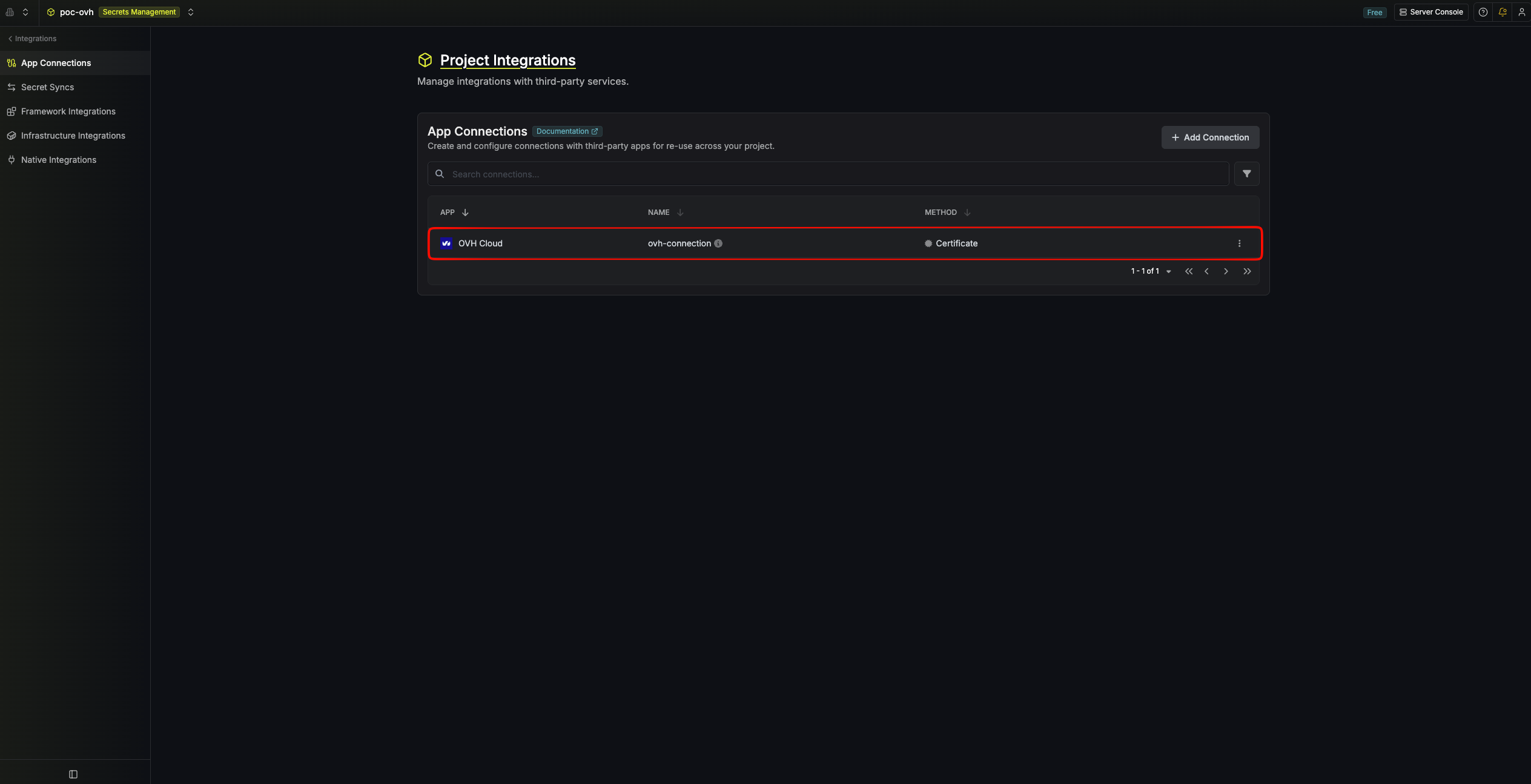
- Certificate (mTLS): a PEM-encoded client certificate and private key that OVHcloud issues for your KMS domain
- Token: an OVHcloud KMS access token
Generate an OVHcloud KMS access certificate
1
Open the OVHcloud KMS dashboard
Log in to the OVHcloud Control Panel and navigate to Identity, Security & Operations > Key Management Service.
2
Create an OVHcloud KMS domain
Select Order an OKMS Domain.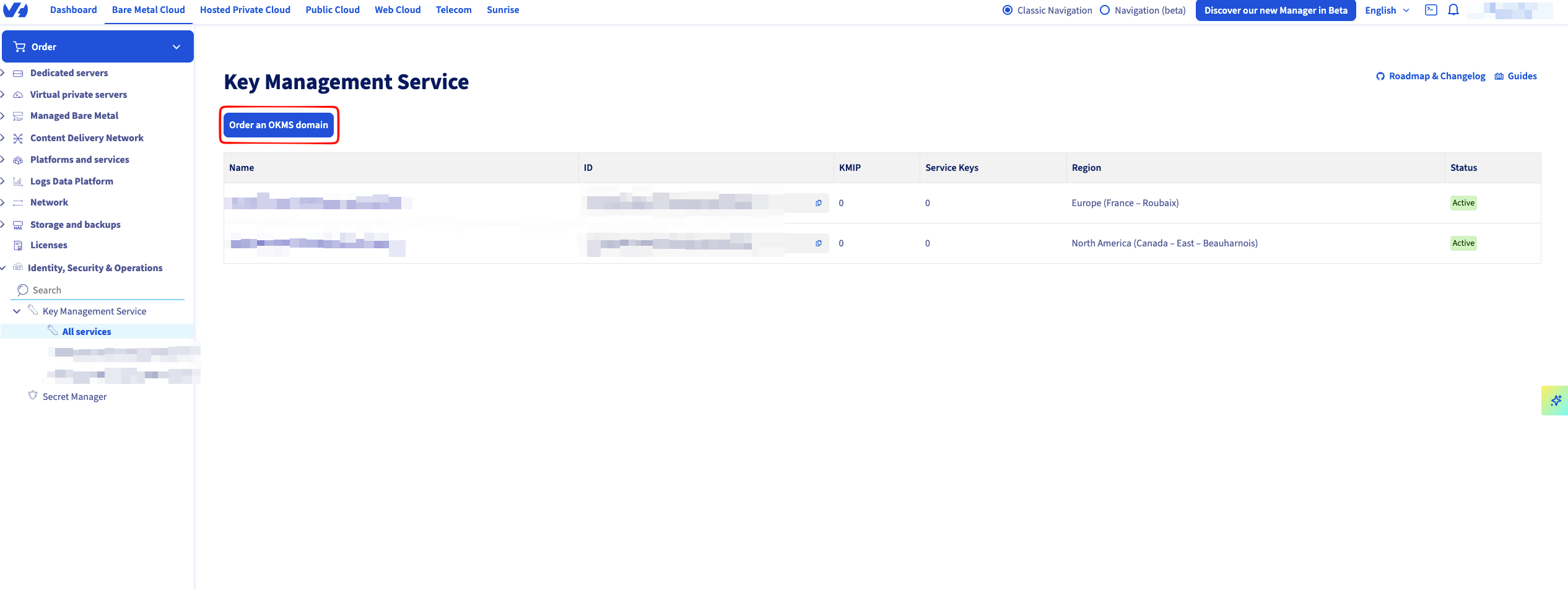
3
Select your OVHcloud KMS region
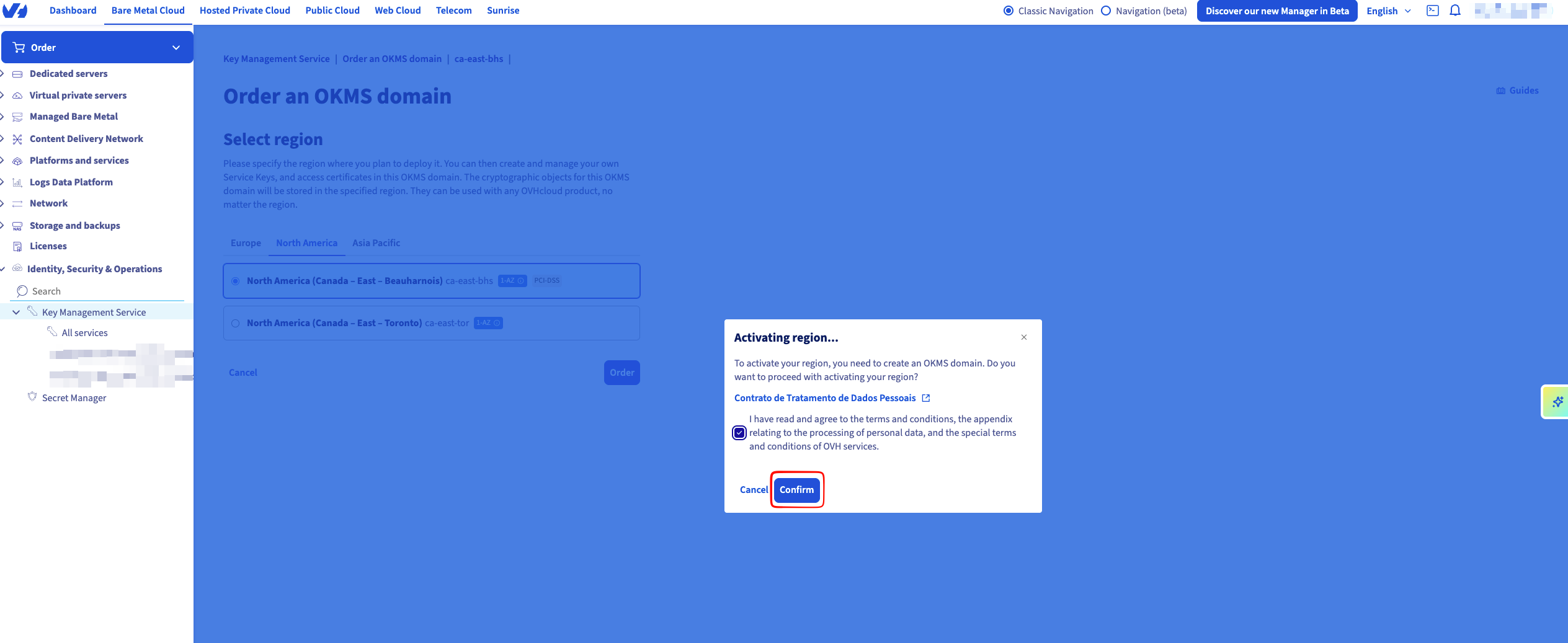
Select the OVHcloud KMS region that you want to use, then accept the terms to confirm.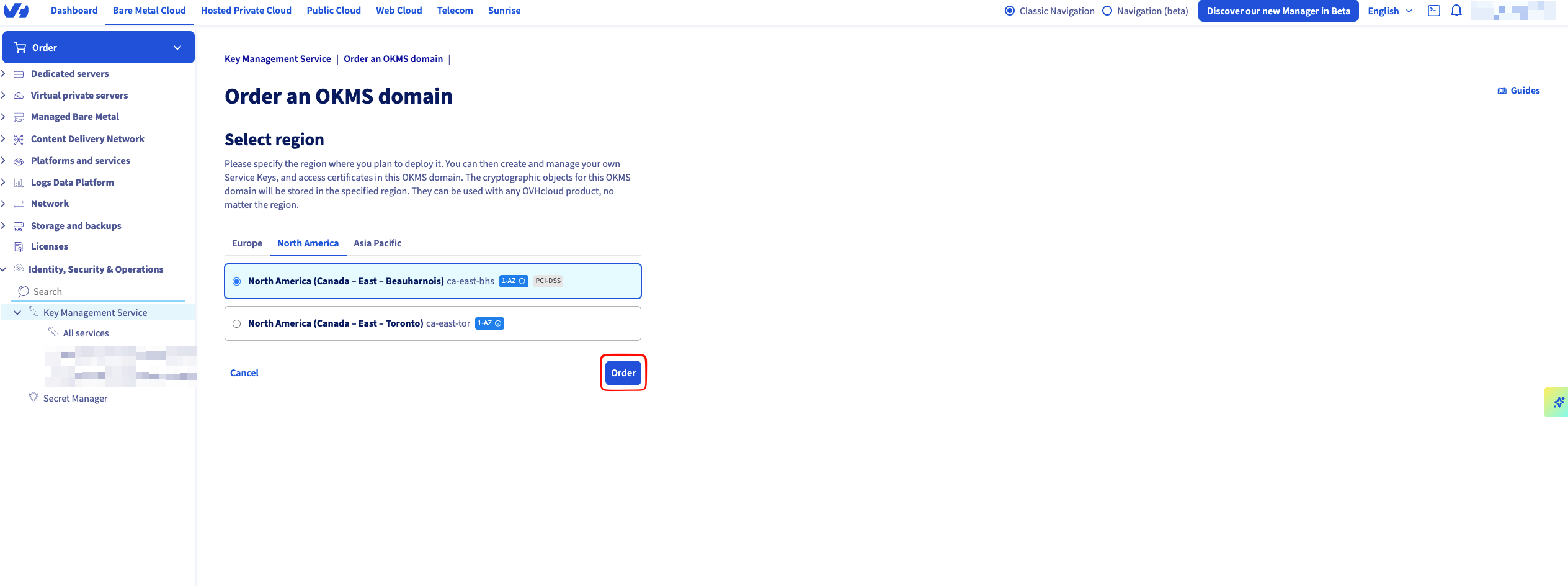
4
Check your summary
On the summary page, select your domain.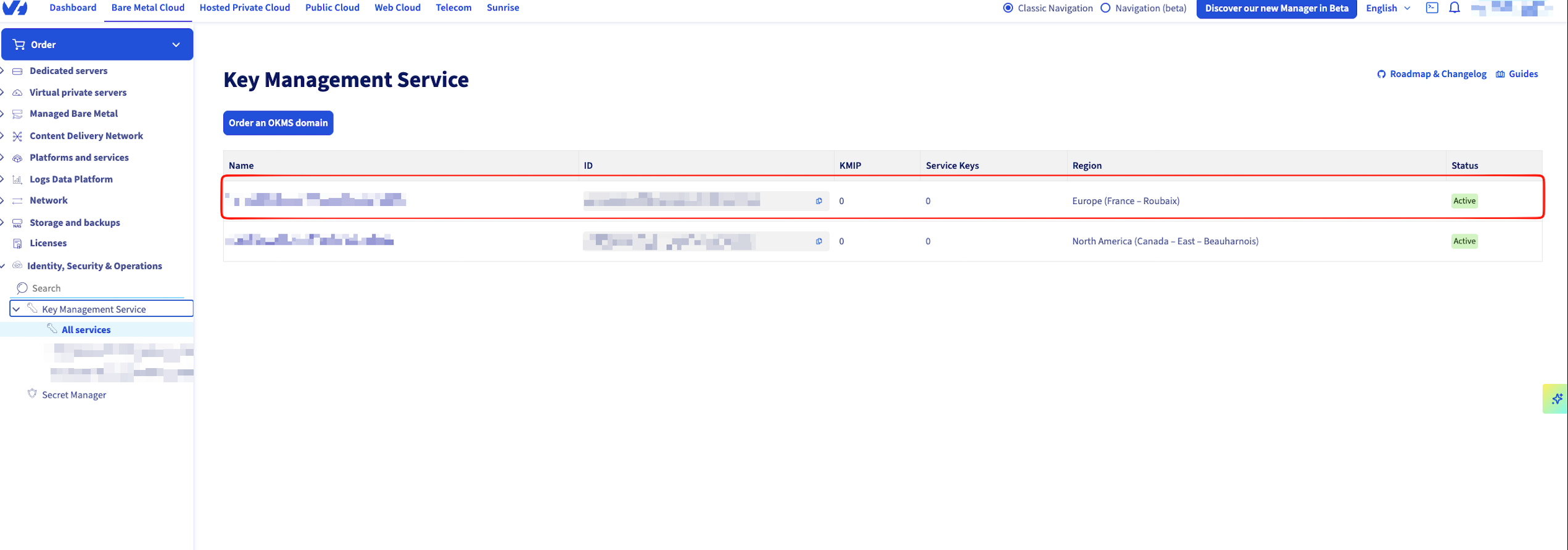 You’ll need the following values to create the connection:
- OKMS ID: the UUID-style identifier on the summary page (the KMS ID field in Infisical)
-
REST API endpoint: the base URL of your KMS domain, such as
https://eu-west-rbx.okms.ovh.net(the REST API Endpoint field in Infisical)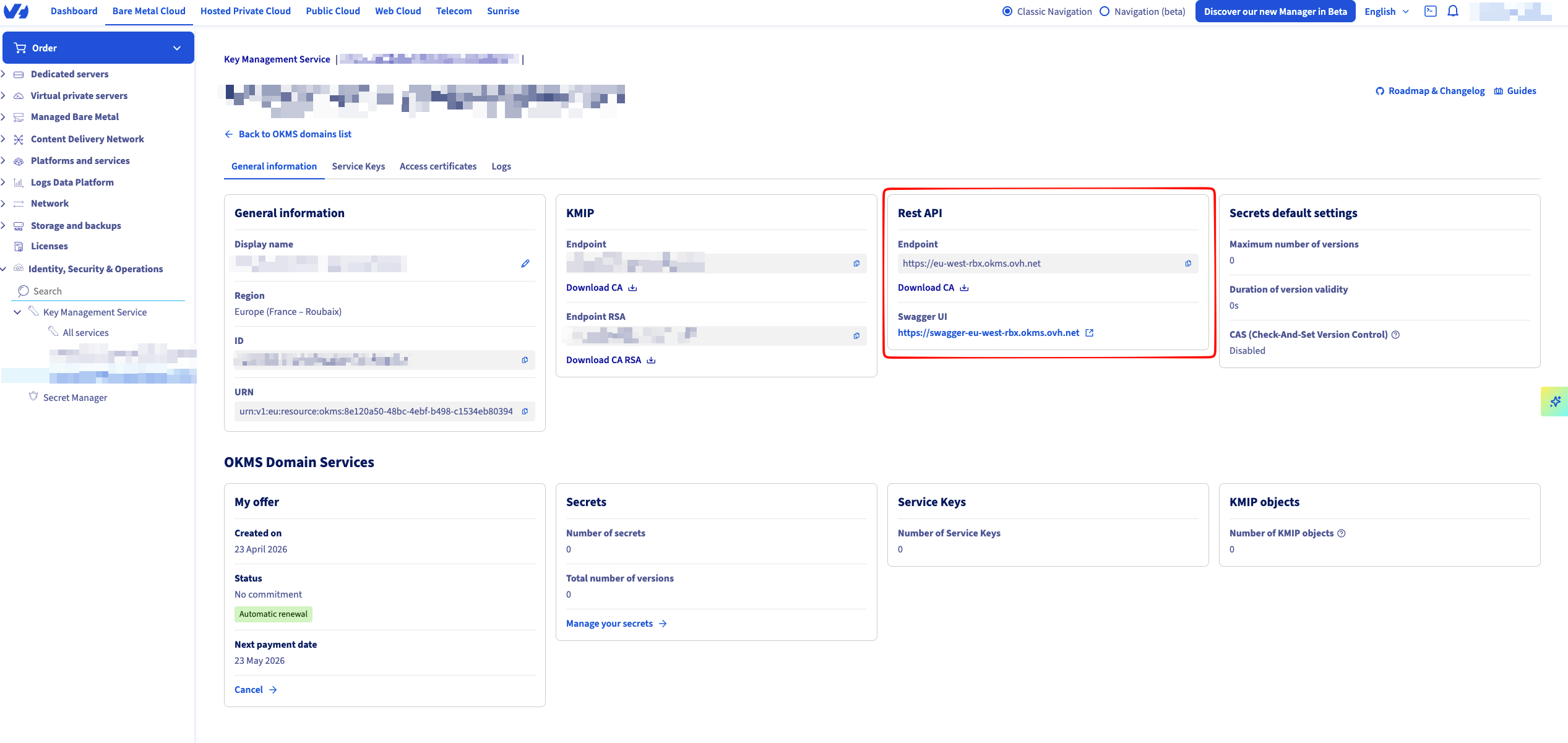
5
Generate an access certificate
Open the Access certificate tab.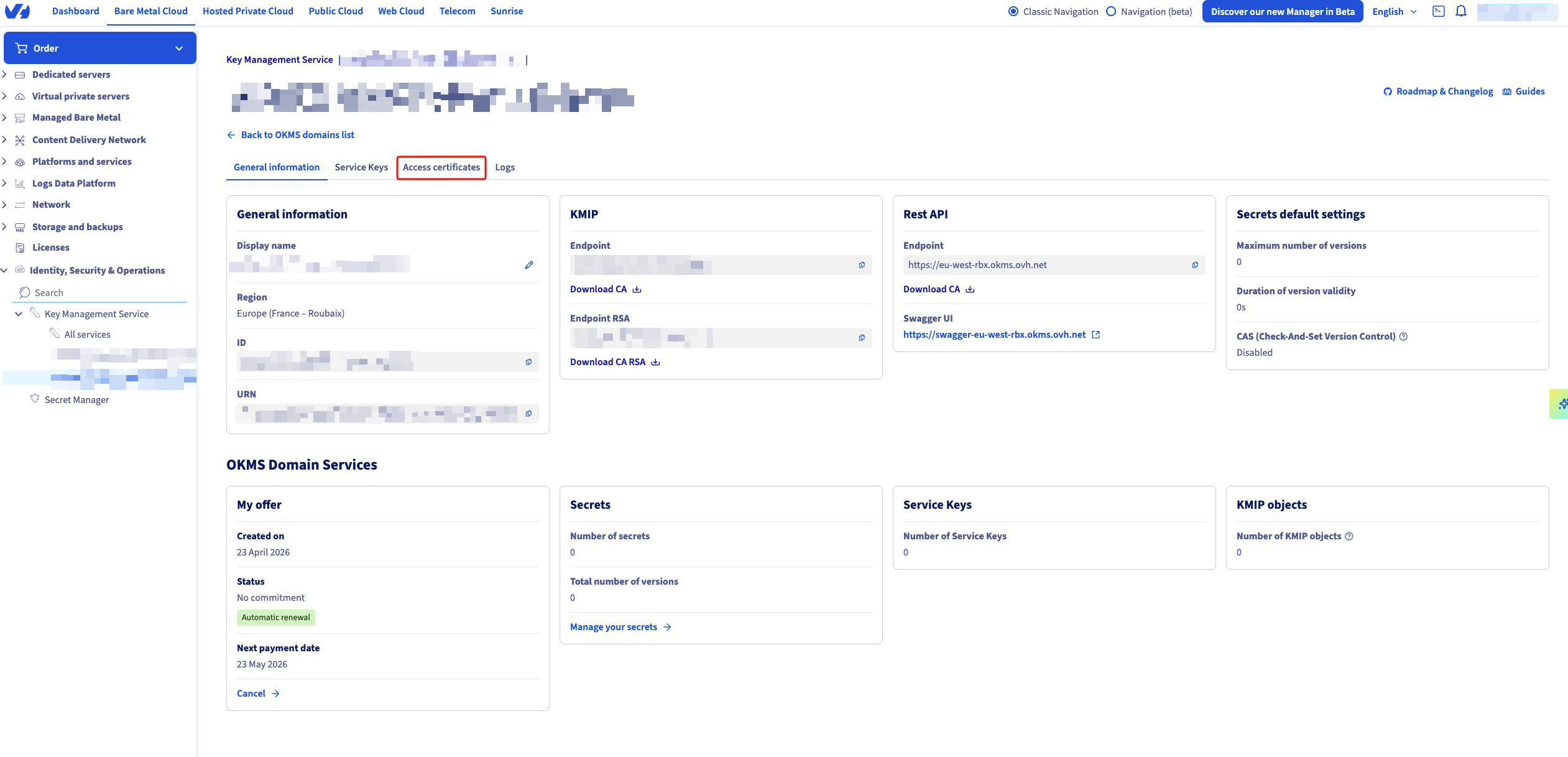 Select Generate an access certificate.
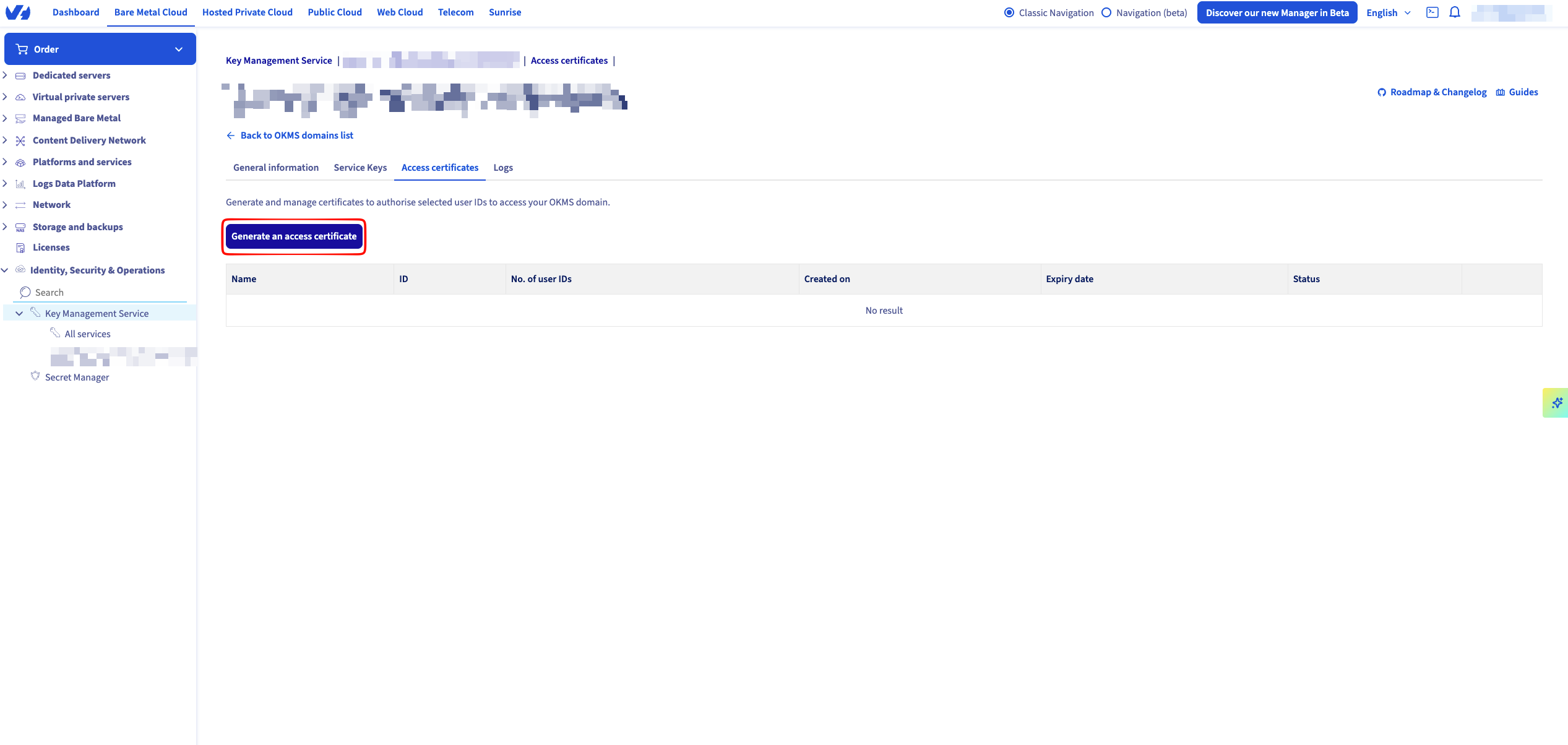 Define the validity of the certificate and download the two PEM files offered:
Select Generate an access certificate.Define the validity of the certificate and download the two PEM files offered:-
*_privatekey.pem: the private key -
*_certificate.pem: the public certificate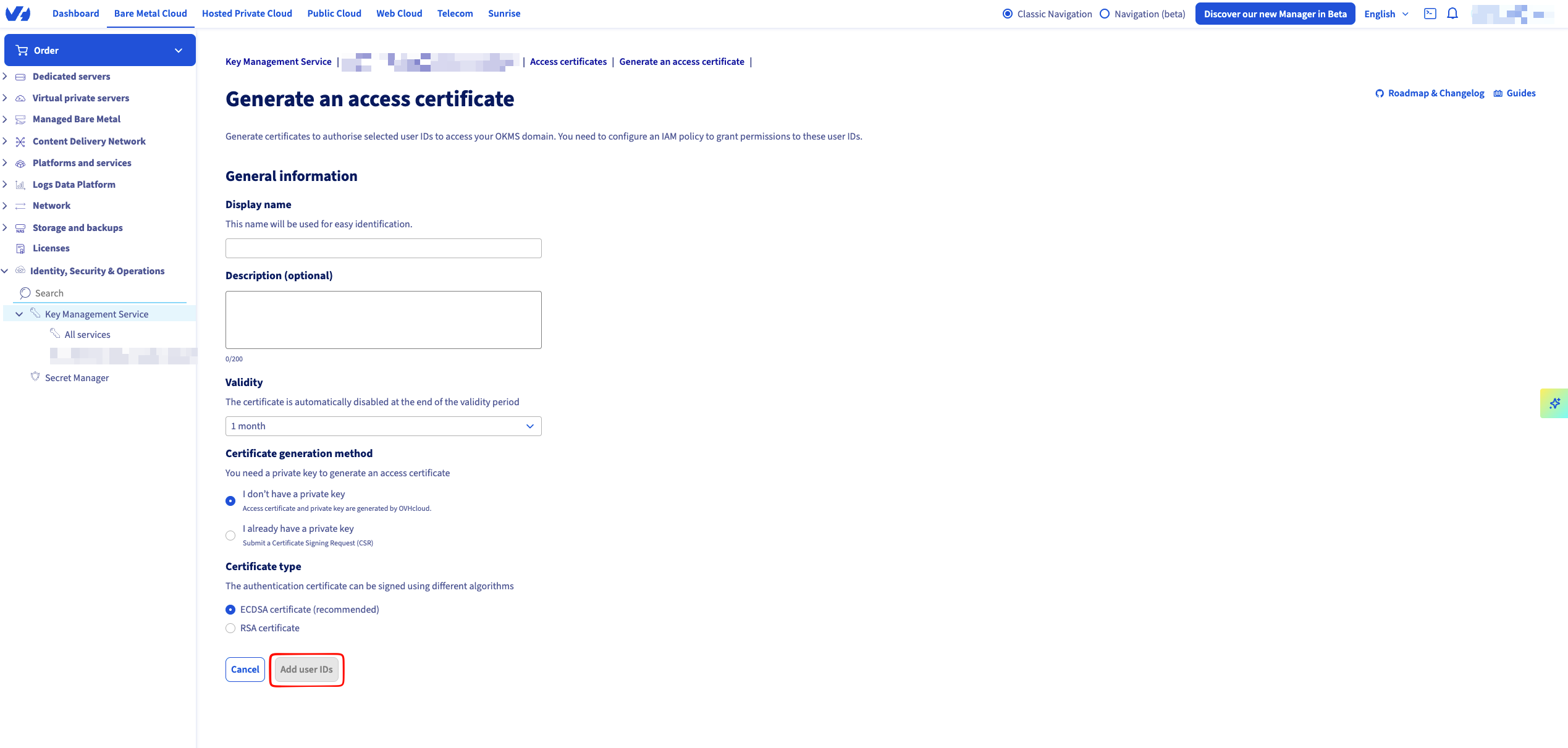
Create an OVHcloud connection in Infisical
- Infisical UI
- API
1
Navigate to App Connections
In your Infisical dashboard, navigate to the Integrations tab in the desired project, then select App Connections.
2
Select OVHcloud Connection
Select + Add Connection, then select OVHcloud Connection from the list of integrations.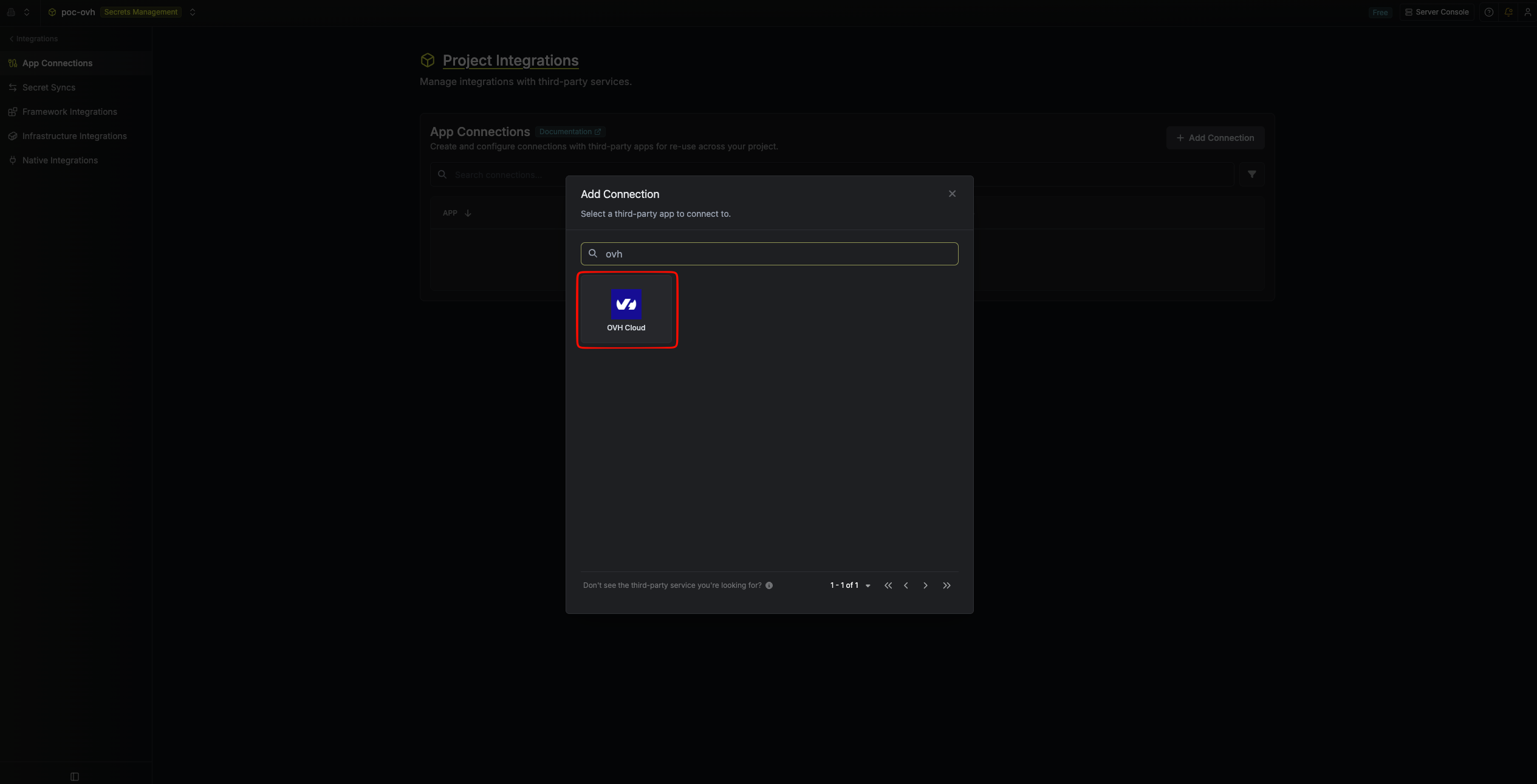
3
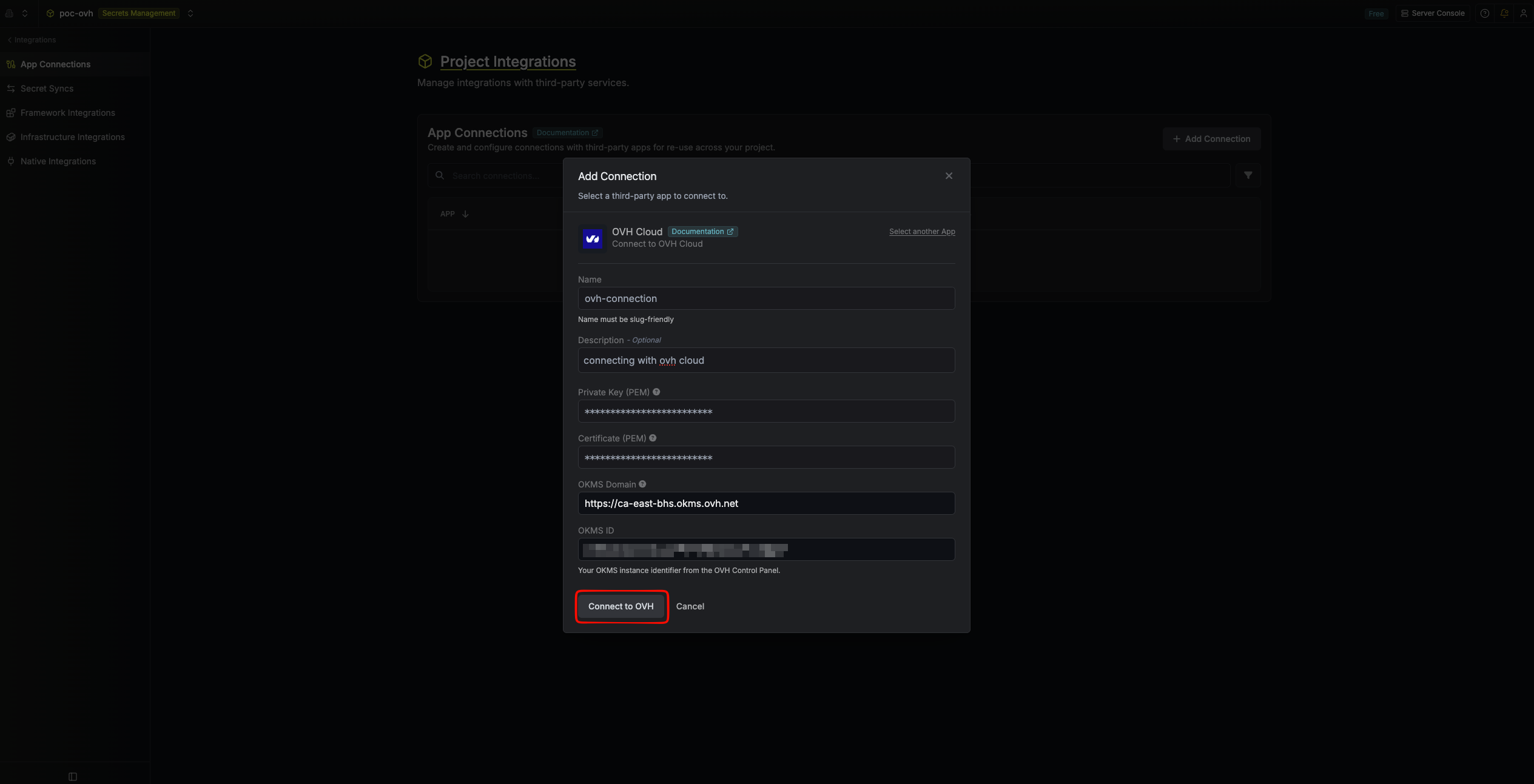
Fill out the OVHcloud connection form
Complete the form by providing:
- Name: a descriptive name for the connection
- Description (optional)
- Method: Certificate or Token
- Private Key (PEM): paste the full contents of
*_privatekey.pem, including the-----BEGIN PRIVATE KEY-----and-----END PRIVATE KEY-----lines - Certificate (PEM): paste the full contents of
*_certificate.pem, including the-----BEGIN CERTIFICATE-----and-----END CERTIFICATE-----lines
- Token: paste your OVHcloud KMS access token
-
REST API Endpoint: the base URL of your KMS domain, such as
https://eu-west-rbx.okms.ovh.net(don’t include/api, because Infisical adds it) -
KMS ID: the KMS ID from the OVHcloud Control Panel
okms:apikms:serviceKey/get in addition to the secret permissions that the sync uses.4
Connection created
After you submit the form, your OVHcloud connection is created and ready to use with Secret Syncs.