

- Set up and add secrets to Infisical Cloud
- Create a Cloudflare Connection
- Infisical UI
- API
-
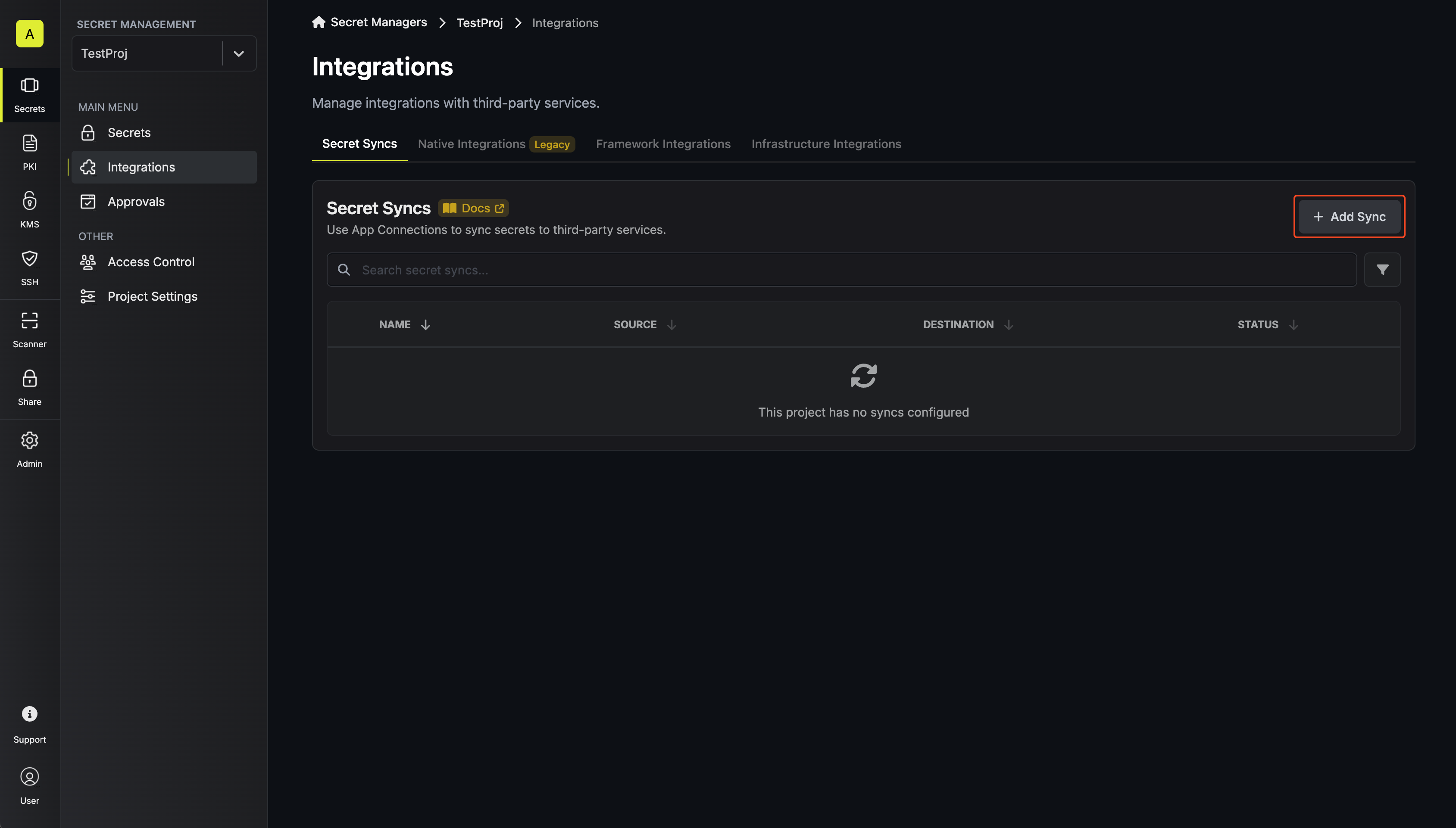
Navigate to Project > Integrations and select the Secret Syncs tab. Select the Add Sync button.
-
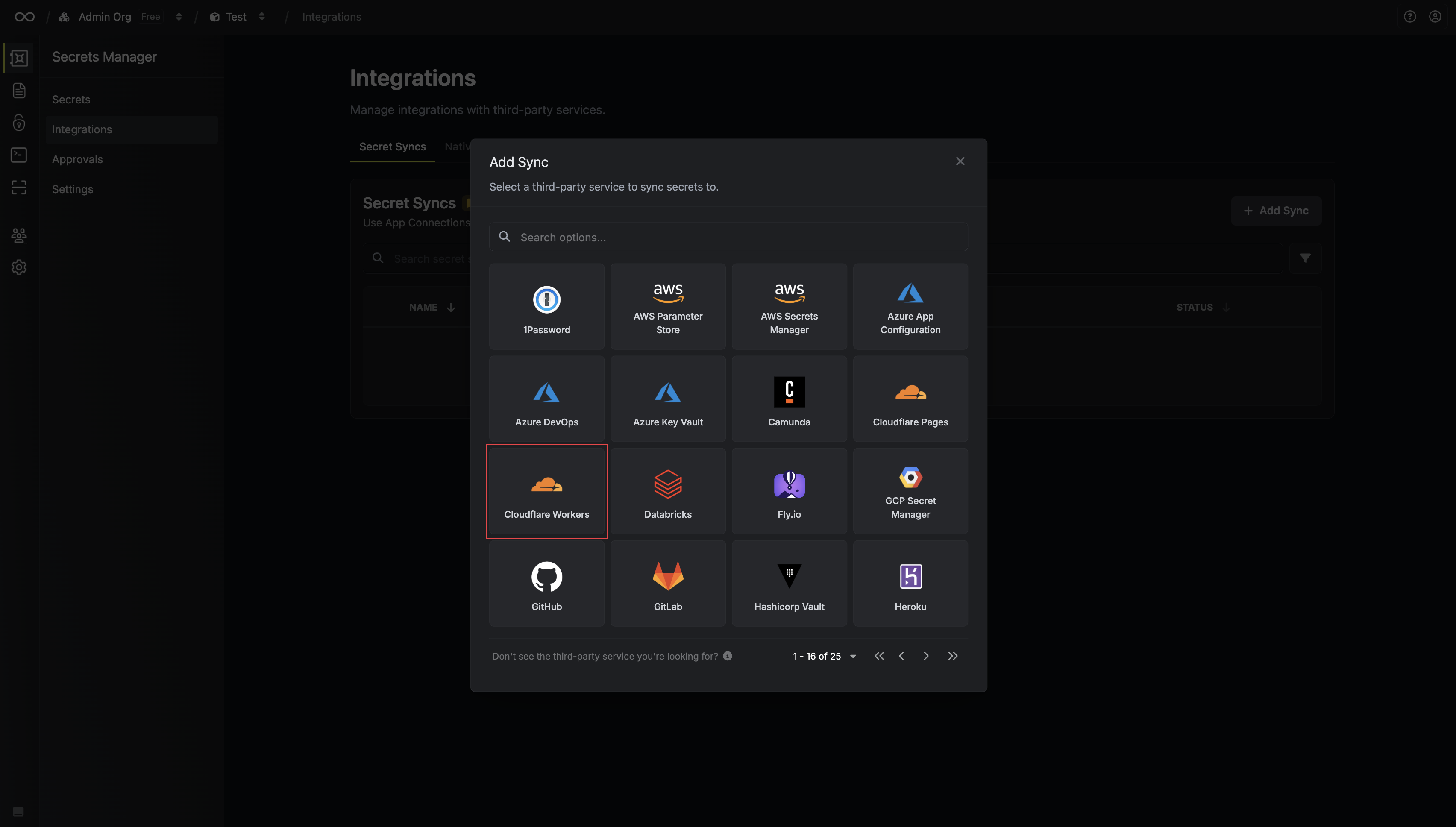
Select the Cloudflare Workers option.
-
Configure the Source from where secrets should be retrieved, then click Next.
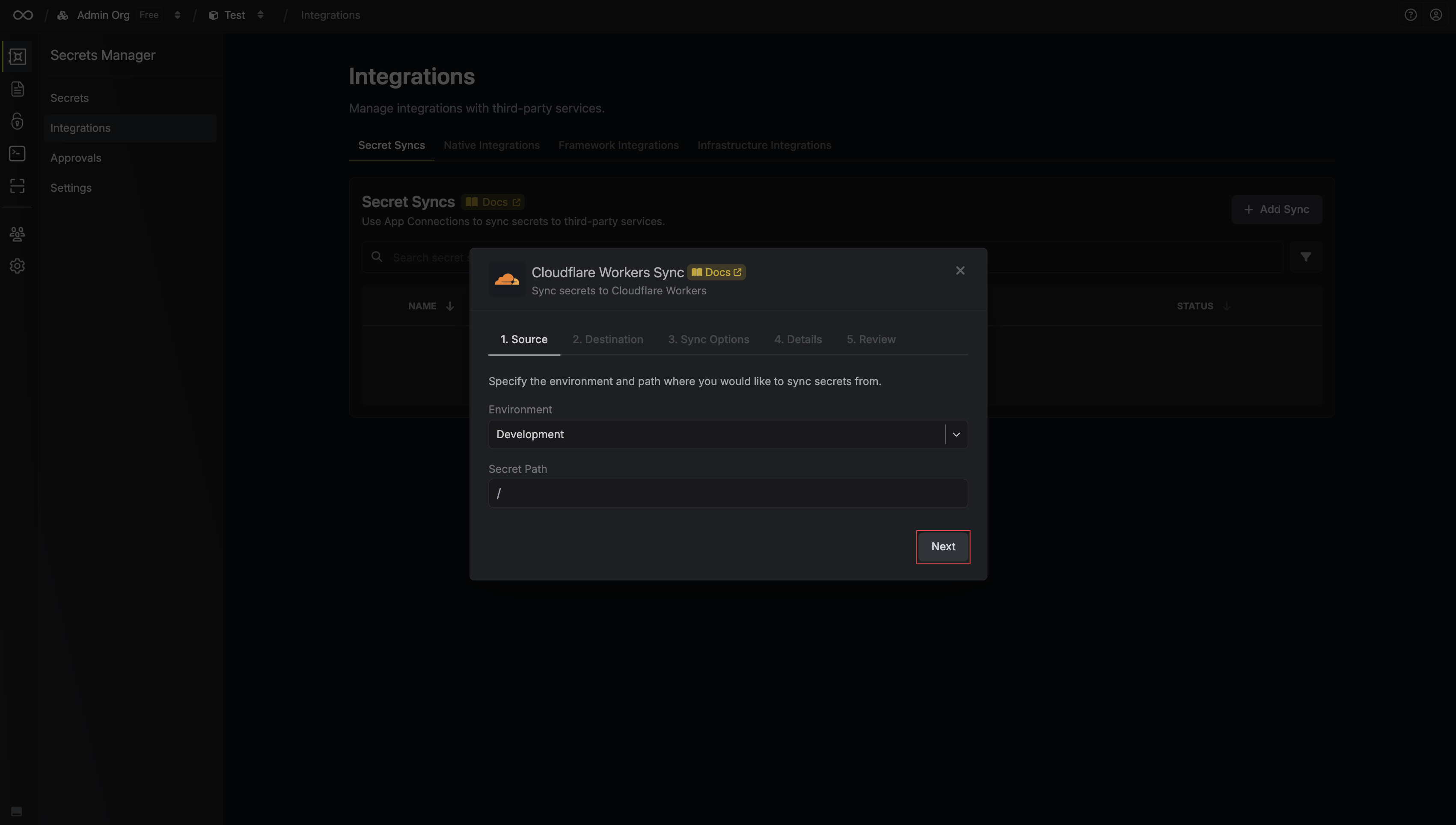
- Environment: The project environment to retrieve secrets from.
- Secret Path: The folder path to retrieve secrets from.
- Configure the Destination to where secrets should be deployed, then click Next.
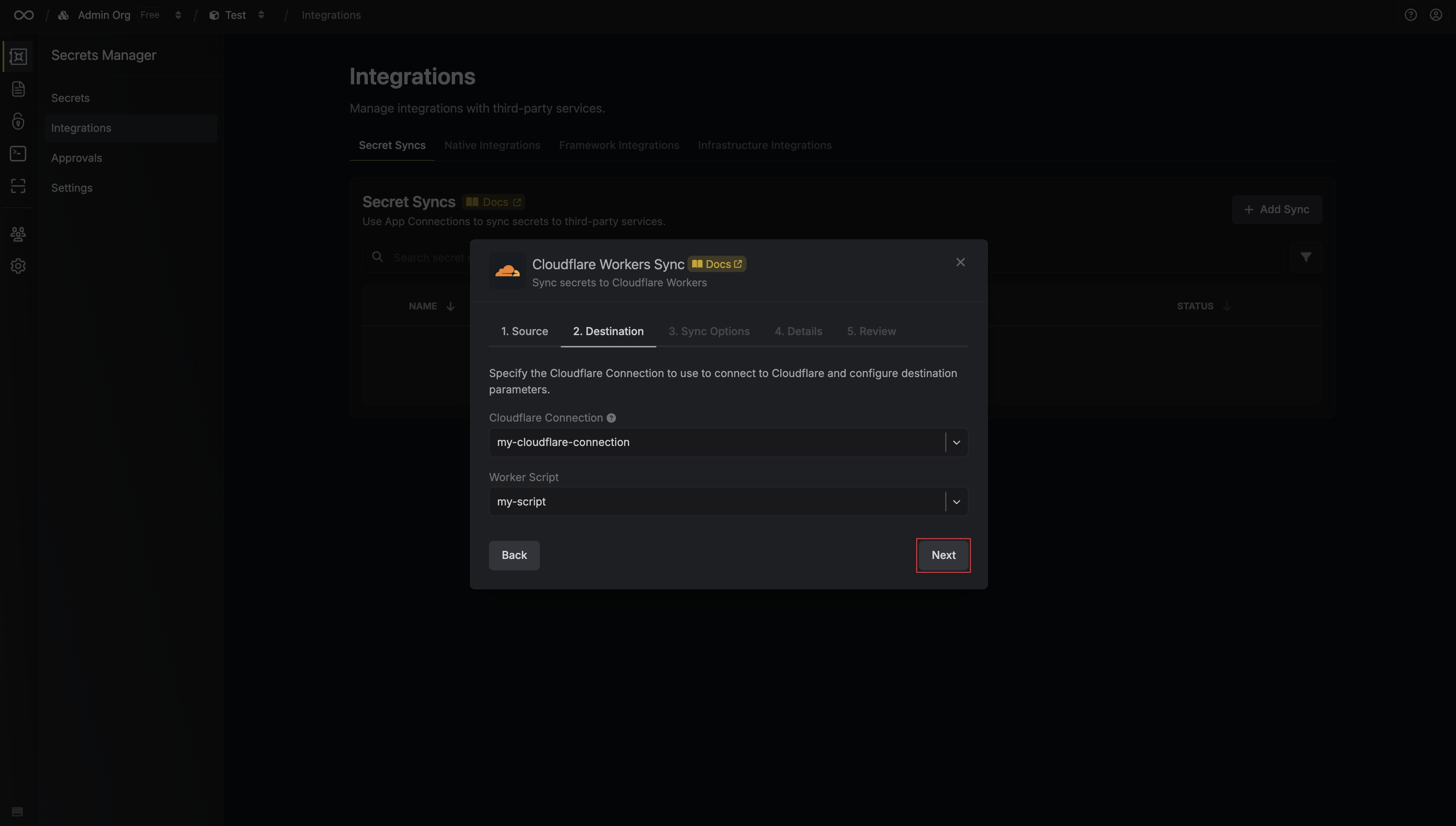
- Cloudflare Connection: The Cloudflare Connection to authenticate with.
- Cloudflare Workers Script: Choose the Cloudflare Workers script you want to sync secrets to.
- Configure the Sync Options to specify how secrets should be synced, then click Next.
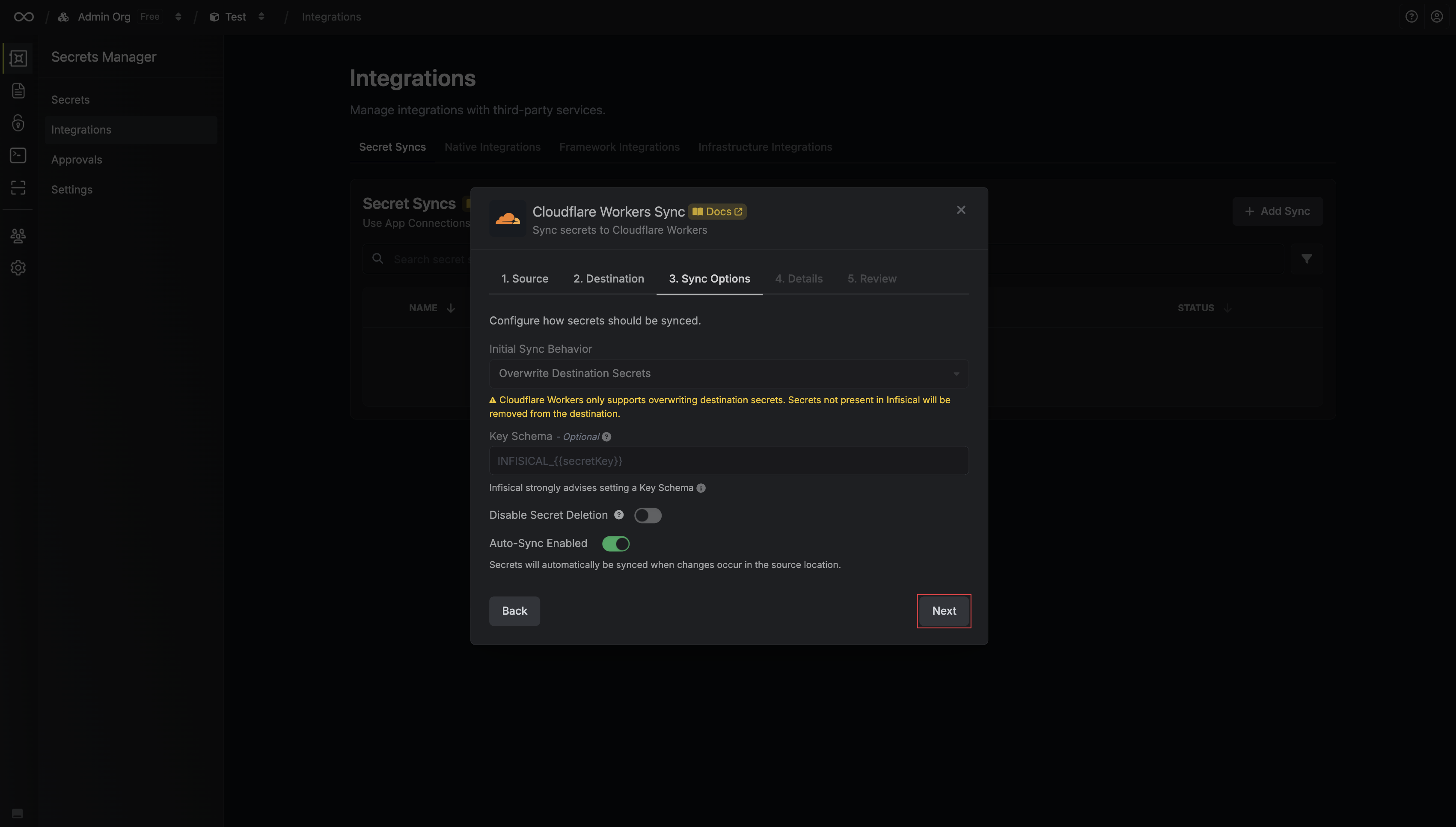
- Initial Sync Behavior: Determines how Infisical should resolve the initial sync.
- Overwrite Destination Secrets: Removes any secrets at the destination endpoint not present in Infisical.
- Key Schema: Template that determines how secret names are transformed when syncing, using
{{secretKey}}as a placeholder for the original secret name and{{environment}}for the environment. - Auto-Sync Enabled: If enabled, secrets will automatically be synced from the source location when changes occur. Disable to enforce manual syncing only.
- Disable Secret Deletion: If enabled, Infisical will not remove secrets from the sync destination. Enable this option if you intend to manage some secrets manually outside of Infisical.
- Variable type: How Cloudflare stores each synced secret
- Secret: Encrypted, so you can’t read the value in the Cloudflare dashboard
- Text: Plain text that you can read in the Cloudflare dashboard
- JSON: A JSON value that your Worker receives already parsed (each secret value must be valid JSON)
- Configure the Details of your Cloudflare Workers Sync, then click Next.
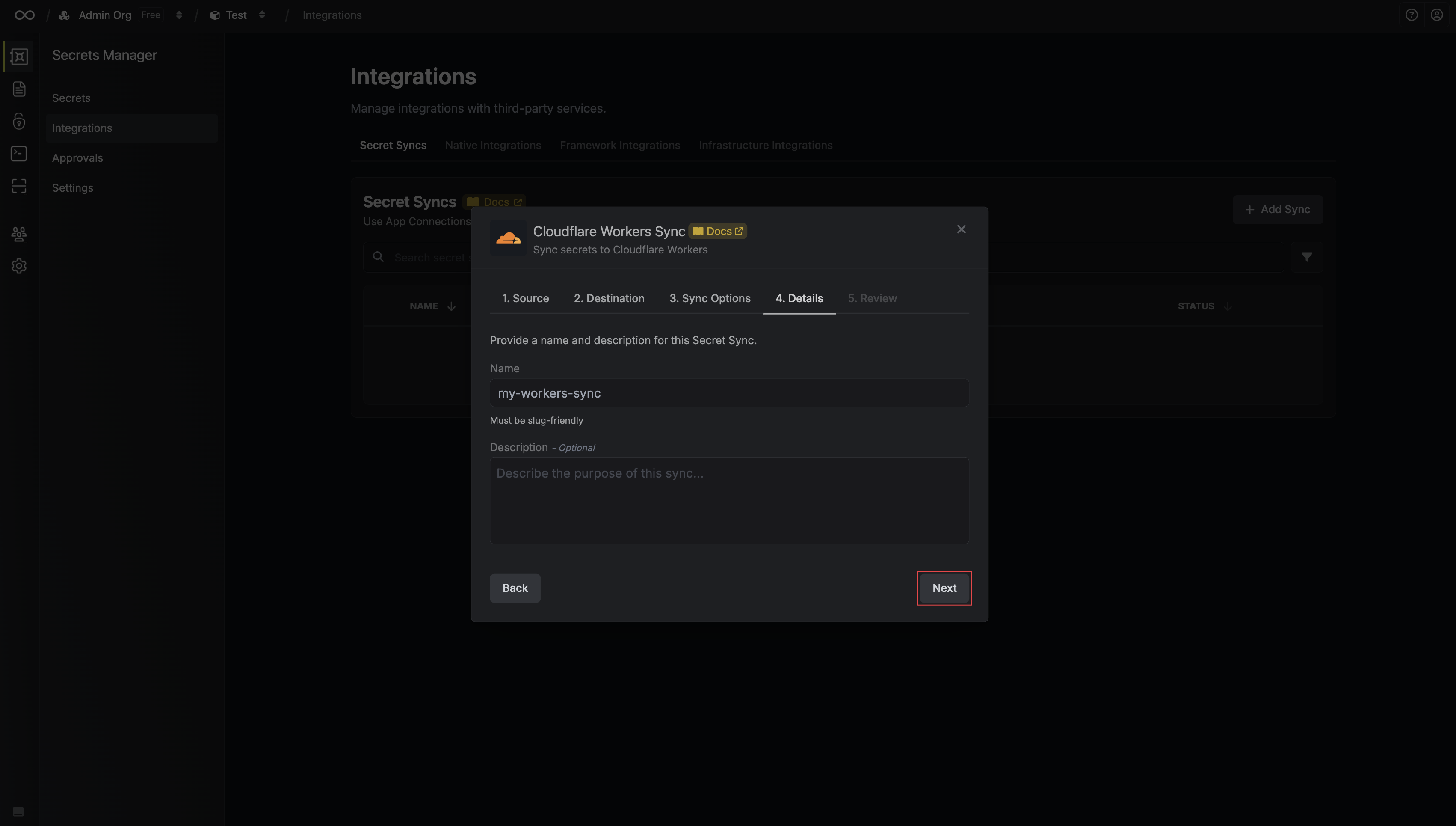
- Name: The name of your sync. Must be slug-friendly.
- Description: An optional description for your sync.
-
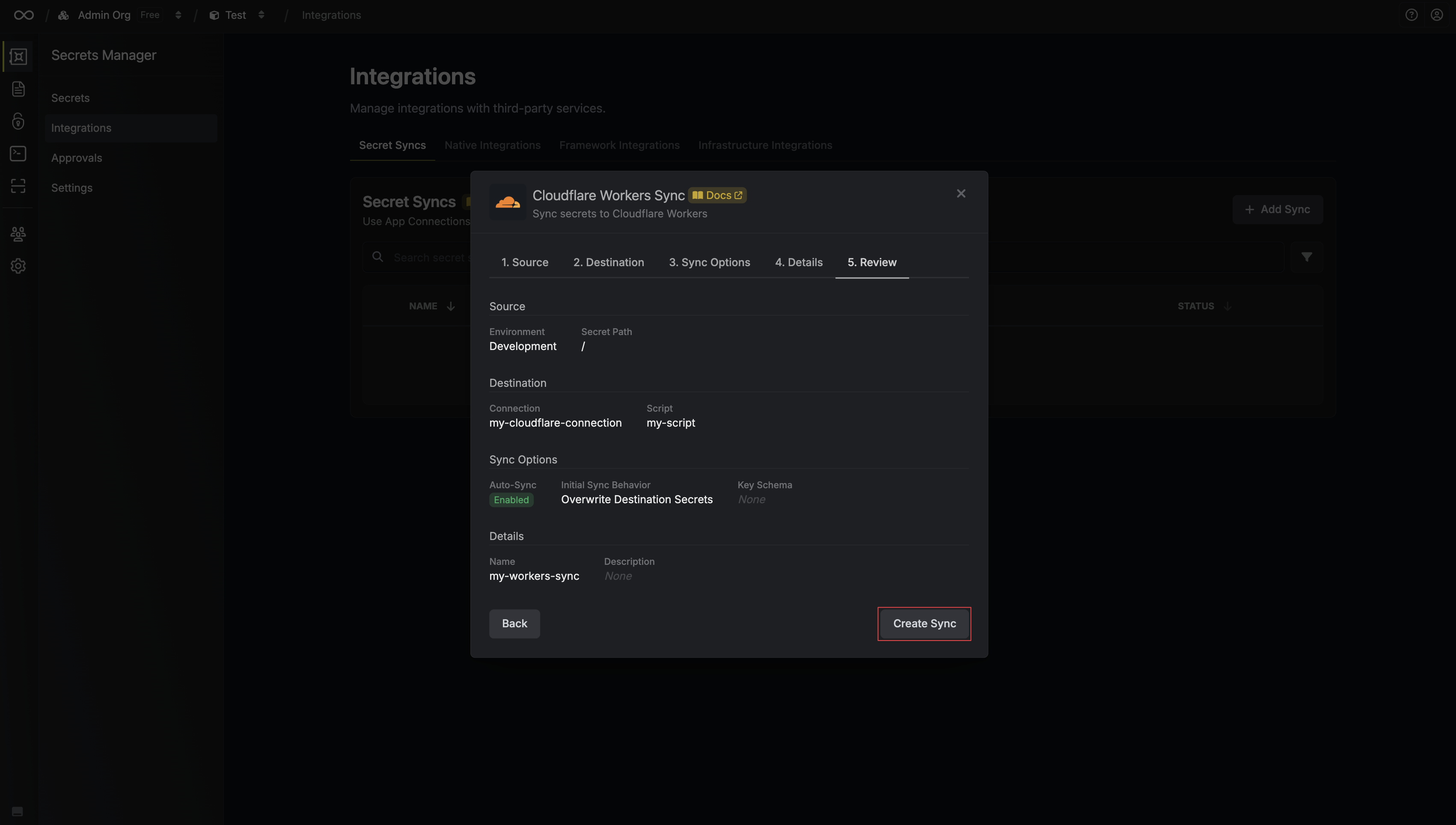
Review your Cloudflare Workers Sync configuration, then click Create Sync.
-
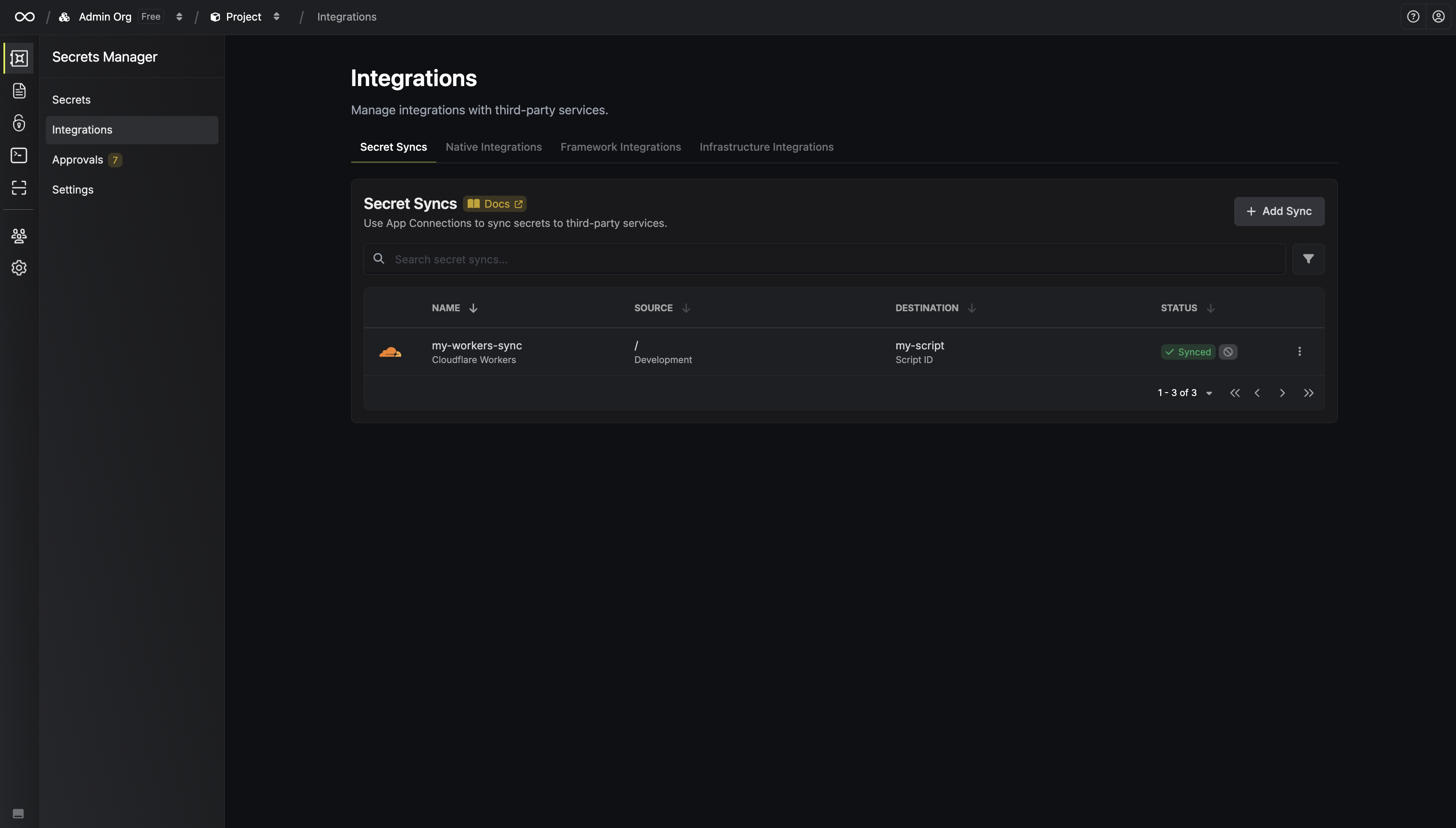
If enabled, your Cloudflare Workers Sync will begin syncing your secrets to the destination endpoint.
Syncing while a version is pending
If someone uploads a version of the Worker without deploying it, for example withwrangler versions upload, that version is pending, and Cloudflare doesn’t let Infisical change the Worker’s secrets directly. Instead, Cloudflare creates a new version from the pending one with the updated secrets, and Infisical labels it with the infisical-sync tag.
Infisical doesn’t deploy the new version, because deploying it also deploys the pending changes. The sync’s status shows the ID of the new version, and the secrets take effect when you deploy that version in Cloudflare.