

GITHUB_TOKEN. Then, any service can use the variable by referencing the key within double braces: {{GITHUB_TOKEN}}.
When an agent sends a request, the proxy replaces each reference with the variable’s value.
Only Agent Vault admins can view and update global variables.
Add a variable
To add a variable:1
In Agent Vault, go to Variables and select the Global Variables tab.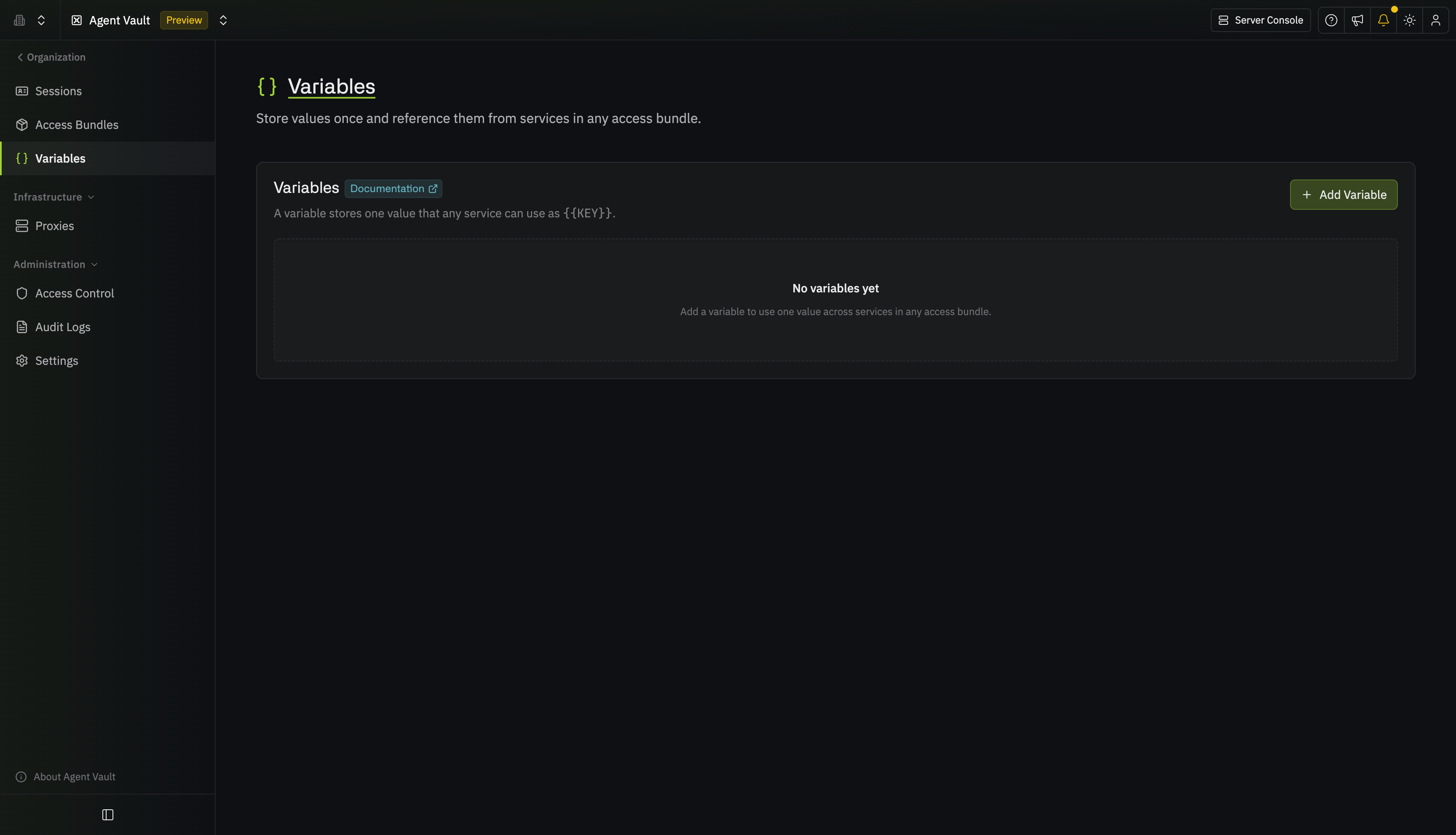
2
Select Add Global Variable.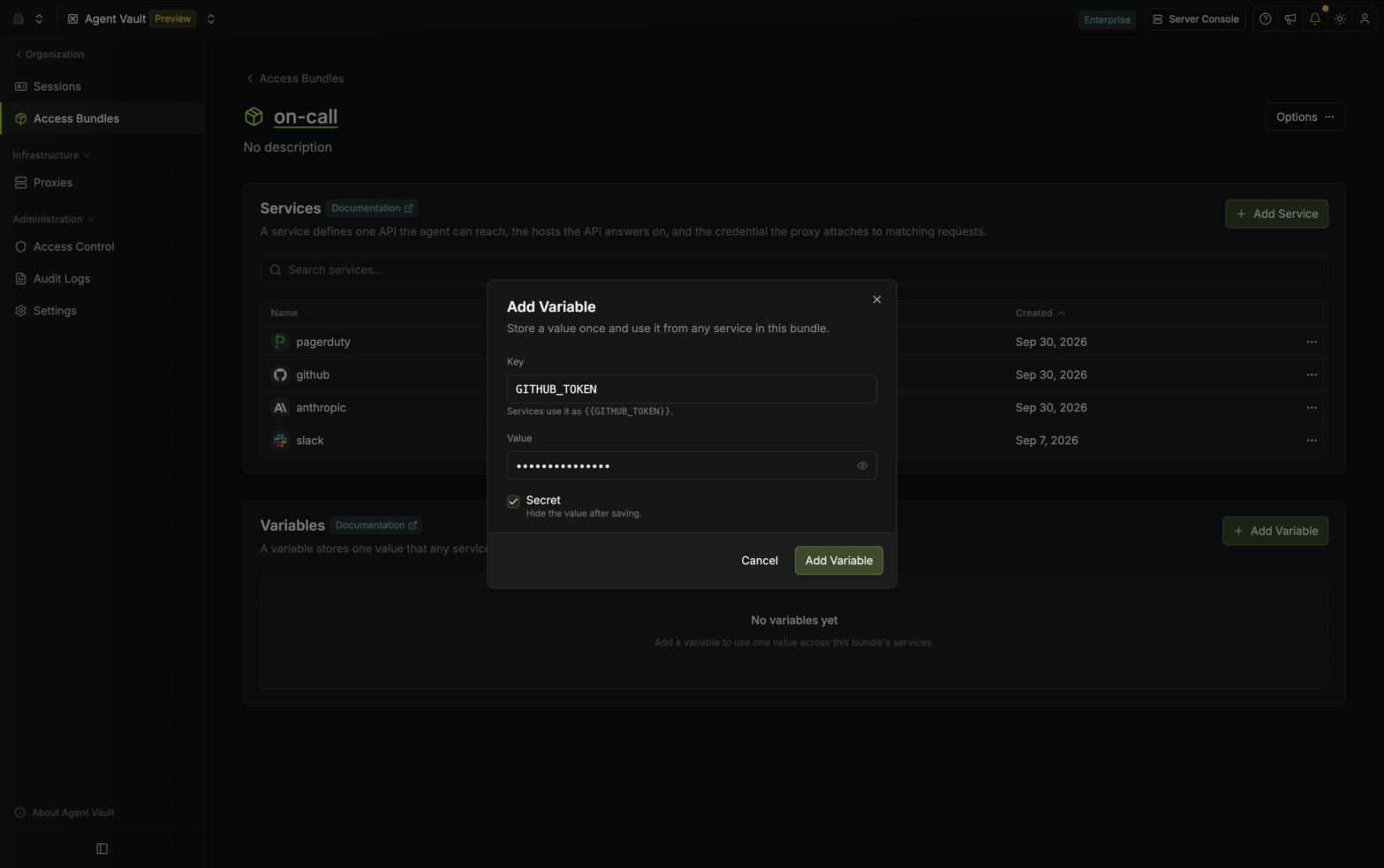
3
Enter a Key and a Value. To view the value later, select the eye icon next to it. Each time someone views or copies a value, Infisical adds an event to the audit log.
A key can be up to 64 characters long. It must start with a letter and use only uppercase letters, numbers, and underscores. No two global variables can have the same key.
4
Select Add Global Variable. The variable appears in the list on the Global Variables tab.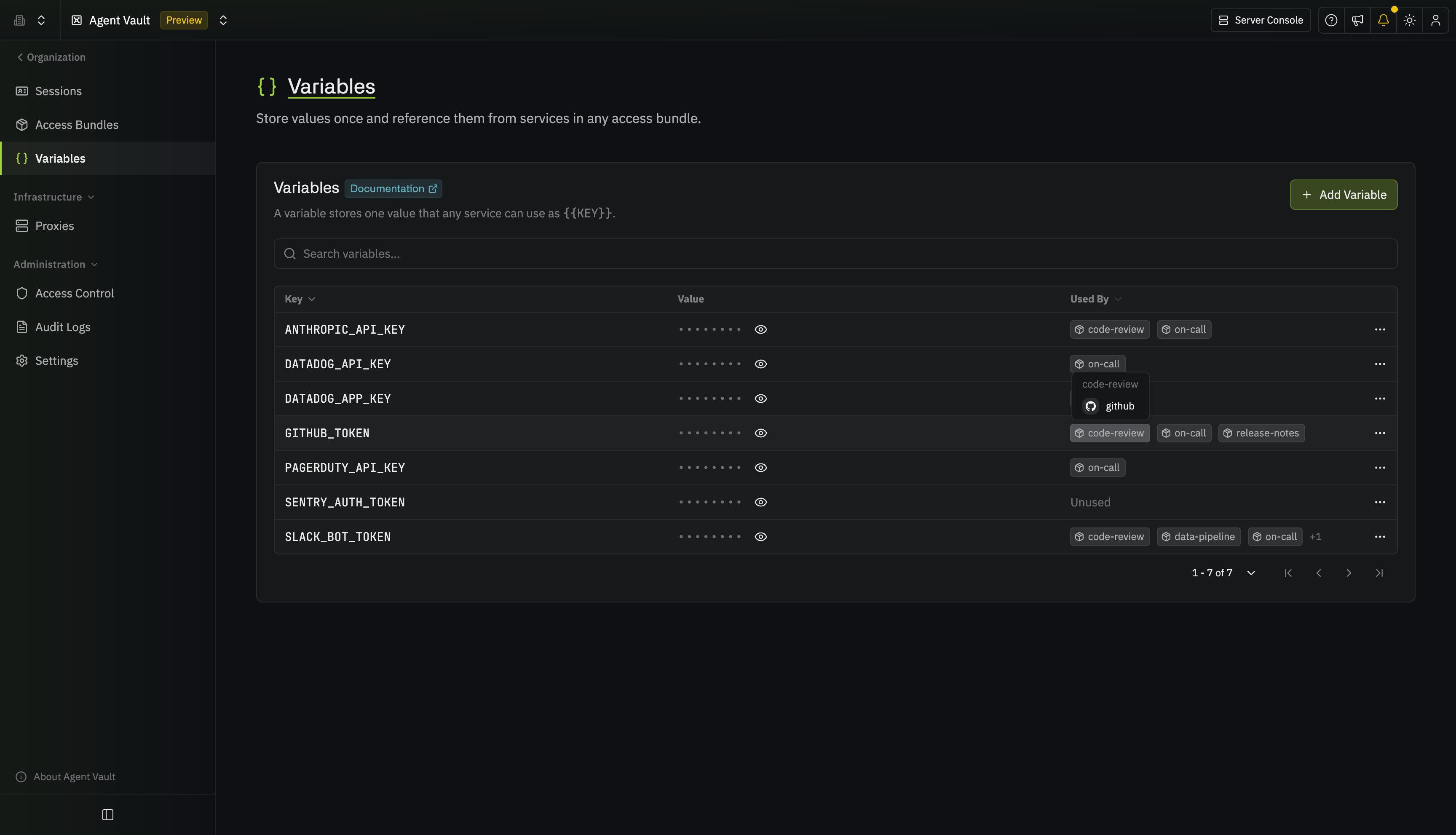
Agent Vault can hold up to 500 global variables.
Use a variable in a service
You can use a variable in the following fields when configuring a service:- Token in a Bearer credential
- Username and Password in a Basic credential
- Value in a custom header
- With in a substitution
1
Add a service, or open an existing service’s actions menu and select Edit. Then go to the Credential step.
2
In a field that accepts variables, type 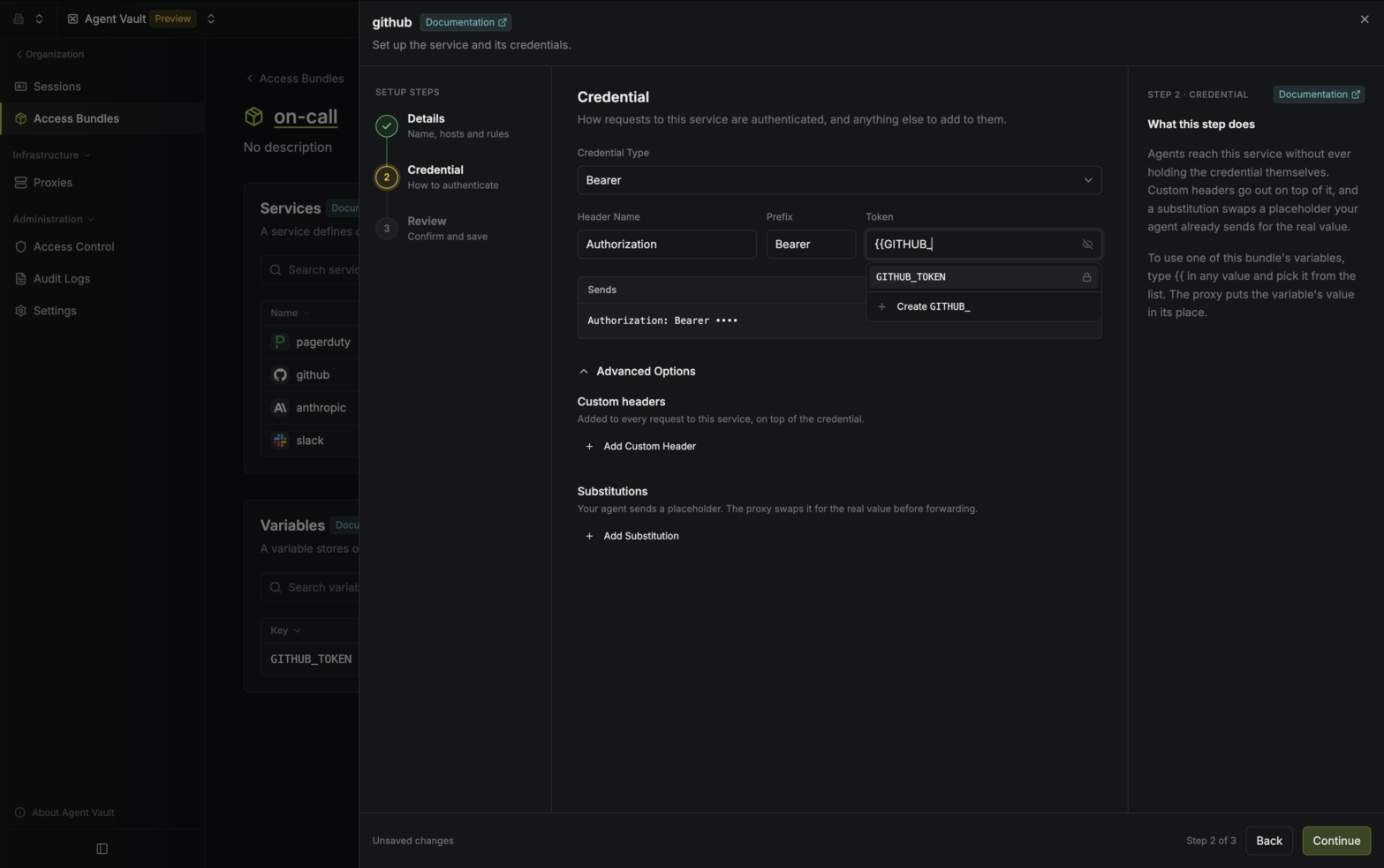
{{. A list of your variables appears.3
Select a variable from the list. Infisical inserts the reference, such as 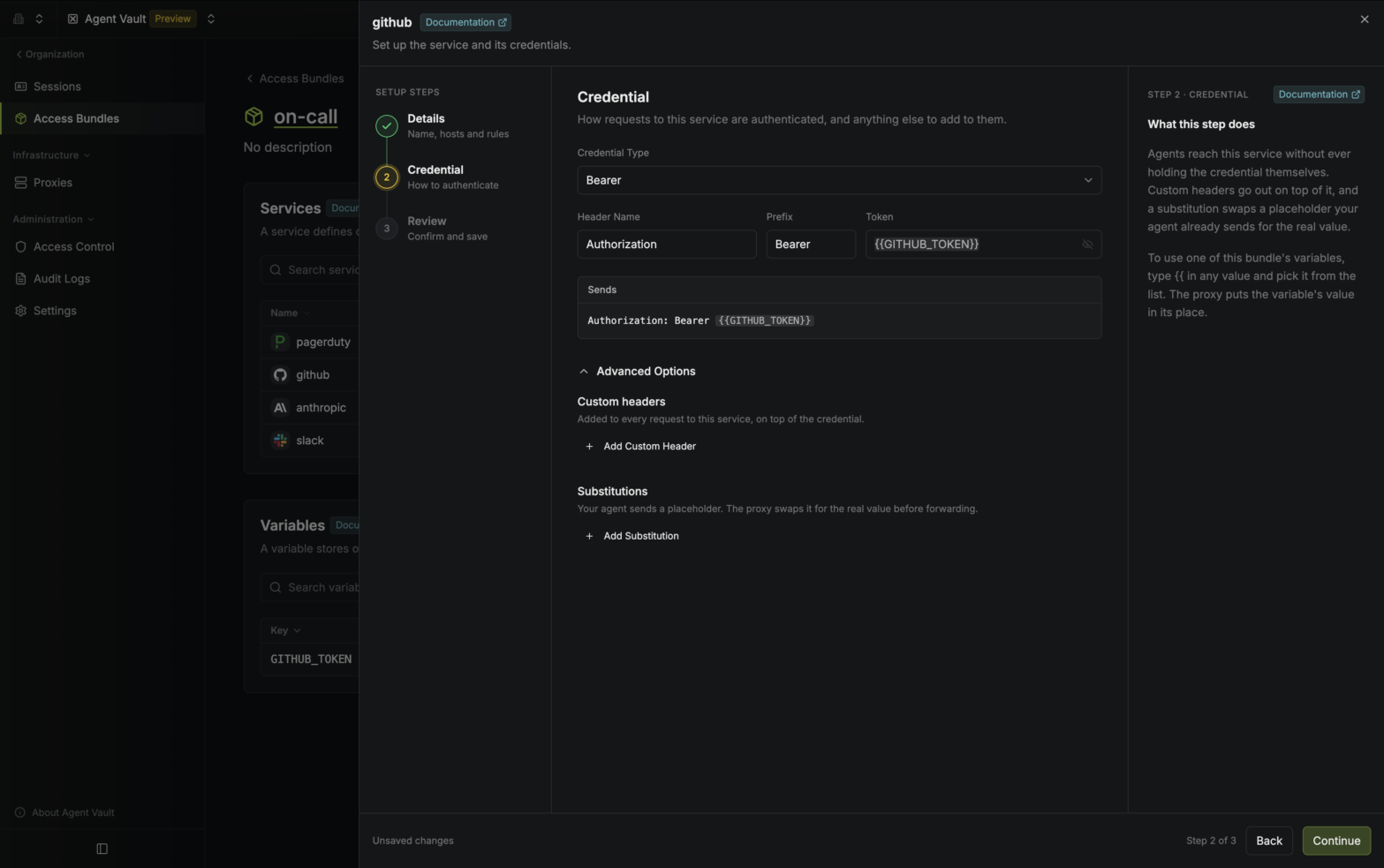 A reference can fill a whole field or part of one. For example, if a custom header’s Value is
{{GITHUB_TOKEN}}.org-{{ORG_ID}}, the proxy sends org- followed by the value of ORG_ID.Check variable usage
To check which services are using a variable:1
In Agent Vault, go to Variables.
2
In the variable’s Used By column, hover over an access bundle to see which of the access bundle’s services use the variable.
Update a variable
To update a variable:1
In Agent Vault, go to Variables.
2
Open the variable’s actions menu and select Edit.
3
Update the key or the value. Leave Value blank to keep the current value.
4
Select Save.
If you rename a variable, the services that use it keep working without changes. If you change a variable’s value, the proxy starts using the new value within one poll interval (60 seconds by default), so you don’t need to restart running agents.
Delete a variable
To delete a variable:1
In Agent Vault, go to Variables.
2
Open the variable’s actions menu and select Delete.
3
Select Delete Variable.
If any service still uses the variable, the dialog lists those services, and you can’t delete the variable until you remove the reference from each one.
Personal variables
A personal variable works like a global variable, with two differences: only your personal values can use it, and only you can read it. Use one when several services ask you for the same value, such as a personal GitHub token that services in two access bundles require. To see your personal variables, go to Variables in Agent Vault. If you’re an admin, select the Personal Variables tab. You add, update, and delete personal variables the same way as global variables, with these limits:- You can keep up to 100 personal variables
- A personal variable’s key only has to be unique among your own personal variables (it can match a global variable’s key, or another member’s)
- If your personal values for a service use a variable, you can’t delete the variable until you remove it from the service