

Prerequisites
- An Infisical account on Infisical Cloud or a self-hosted instance
Step 1: Configure in Infisical
Create a project
In Infisical, a project holds all secrets for one application or service. To create a project:1
Log in to Infisical.
2
Select Secrets Management > + Add New Project.
3
In the Project Name field, enter a name for the project (e.g.,
orders-service).4
Select Create Project.
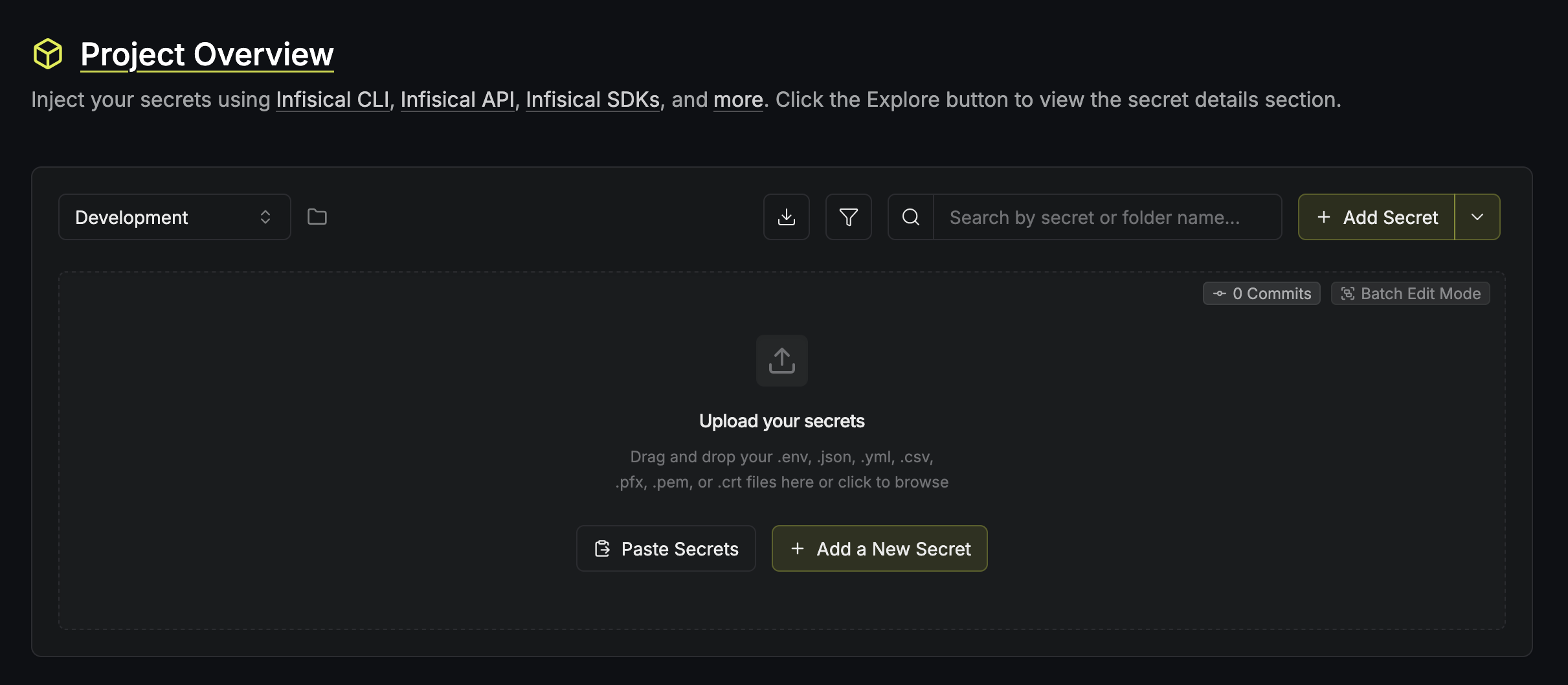
Within a project, secrets are organized across environments. Every new project starts with three environments: Development, Staging, and Production.
Add your secrets
You have two options for adding secrets to your project:- Create secrets manually
- Import secrets from an existing file
To create a new secret from scratch:
1
Select + Add a New Secret.
2
In the Key and Value fields, enter a key-value pair. For example: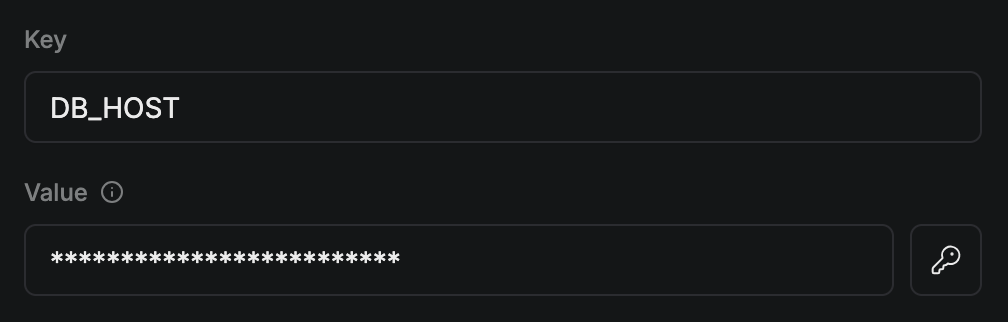
3
Select Create Secret.
4
Repeat these steps for each key-value pair you want to add.
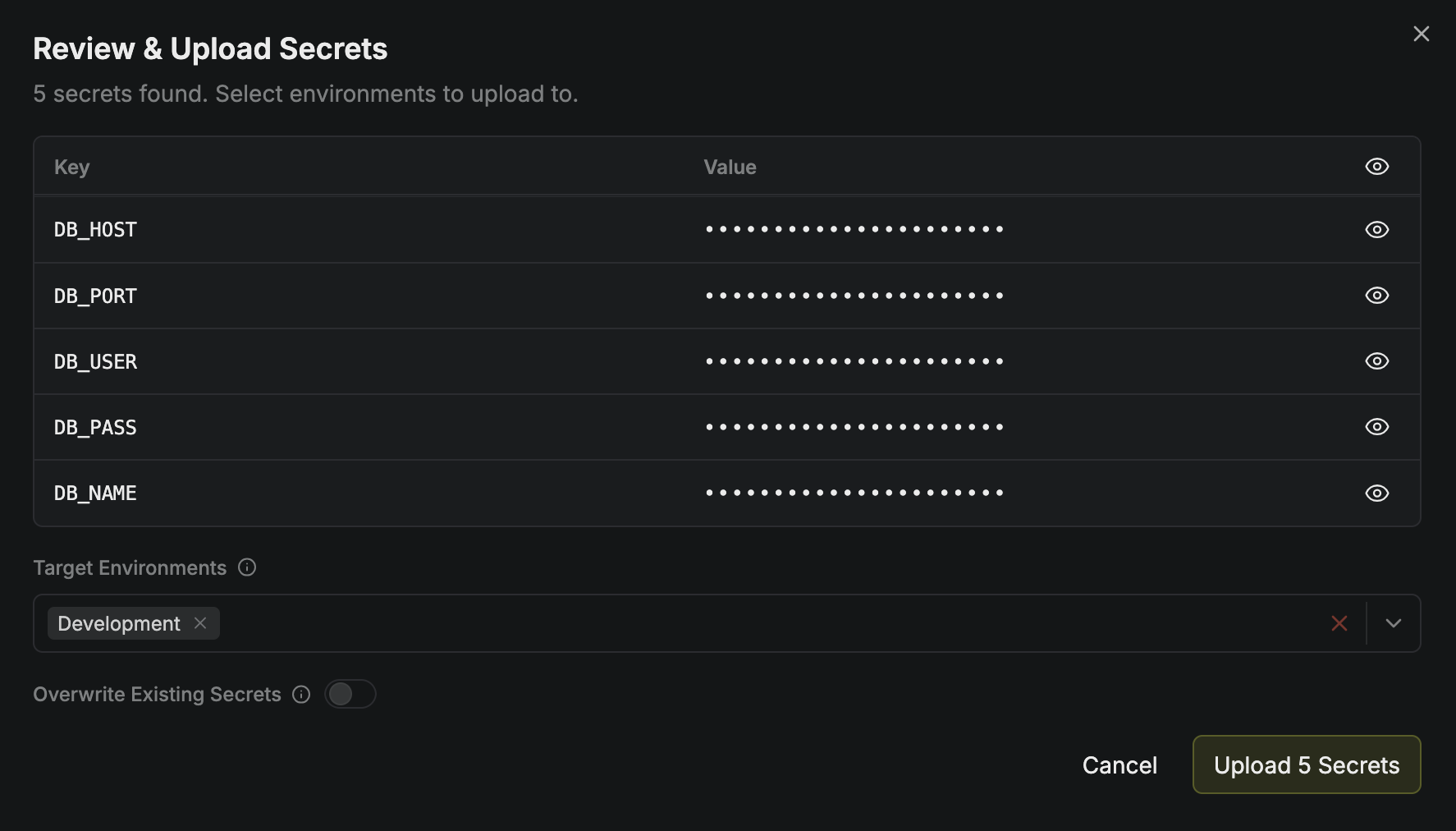
Step 2: Connect to your stack
Select your application stack or runtime environment. Each guide covers the authentication and delivery method appropriate for that destination.Local Development
Inject secrets into a local process with the Infisical CLI.
Docker
Deliver secrets to a container when it starts.
Kubernetes
Deliver secrets to workloads with the Kubernetes Operator.
Node.js
Fetch secrets from a Node.js application with the SDK.
Python
Fetch secrets from a Python application with the SDK.
Go
Fetch secrets from a Go application with the SDK.
.NET
Fetch secrets from a .NET application with the SDK.
Java
Fetch secrets from a Java application with the SDK.
Rust
Fetch secrets from a Rust application with the SDK.
Next.js + Vercel
Use secrets during local development and on Vercel.
GitHub Actions
Inject secrets into a GitHub Actions workflow at runtime.
GitLab CI/CD
Deliver secrets to GitLab projects and pipelines.
AWS Secrets Manager
Sync secrets to AWS Secrets Manager.
Terraform
Fetch secrets in Terraform configurations with the provider.
Ansible
Manage secrets in playbooks with the Ansible collection.
Browse All Delivery Options
Search frameworks, platforms, CI/CD tools, and secret sync destinations.
Next steps
Core Concepts
Understand how projects, environments, folders, and secrets fit together.
Secrets Delivery
Deliver secrets to production with SDKs, agents, Kubernetes, and CI/CD.
Access Control
Scope who can access which environments and paths.