Folder-level access controls are a paid feature.If you’re using Infisical Cloud, then they’re available under the Pro plan.
If you’re self-hosting Infisical, contact sales@infisical.com to purchase a license.
How folder access works
When you give a single user or machine identity a role on a folder, that role takes precedence over their project role. You can use folder access to:- Give someone access to a single folder their project role doesn’t reach
- Hold someone to a lower role inside a sensitive folder
- Hand out short-lived access for an incident or a one-off task
Folder access roles
There are five different folder access roles, listed here from least to most privileged. Each role includes everything the roles before it allow.Granting folder access
1
Navigate to your project’s Secrets page and select an environment. You can set access on the folder you’re currently viewing, or on any folder in the list. To set access on the current folder, select Manage Access at the right end of the folder path, above the secrets table.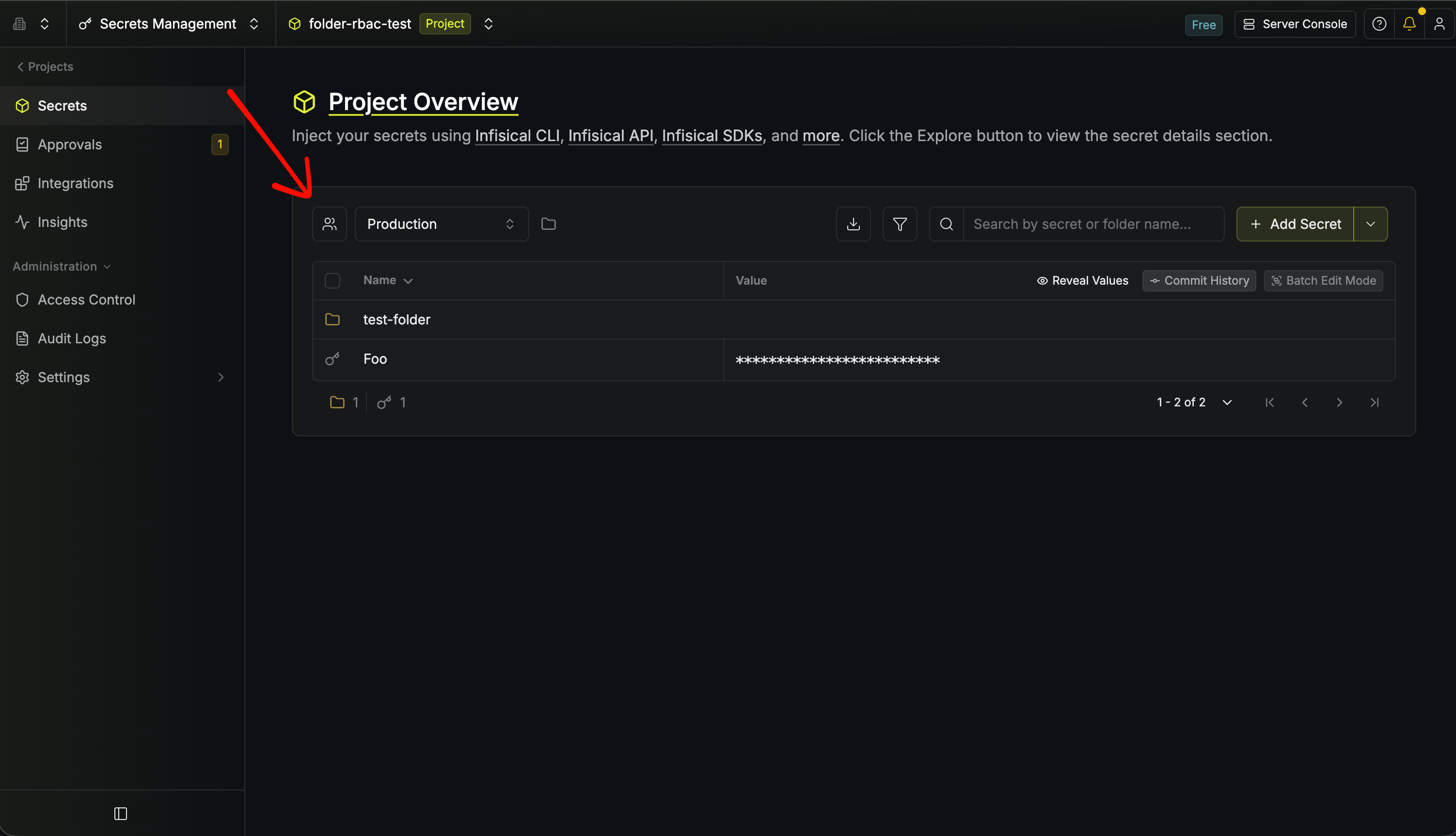 To set access on a folder in the list, hover over its row and select the members icon that appears.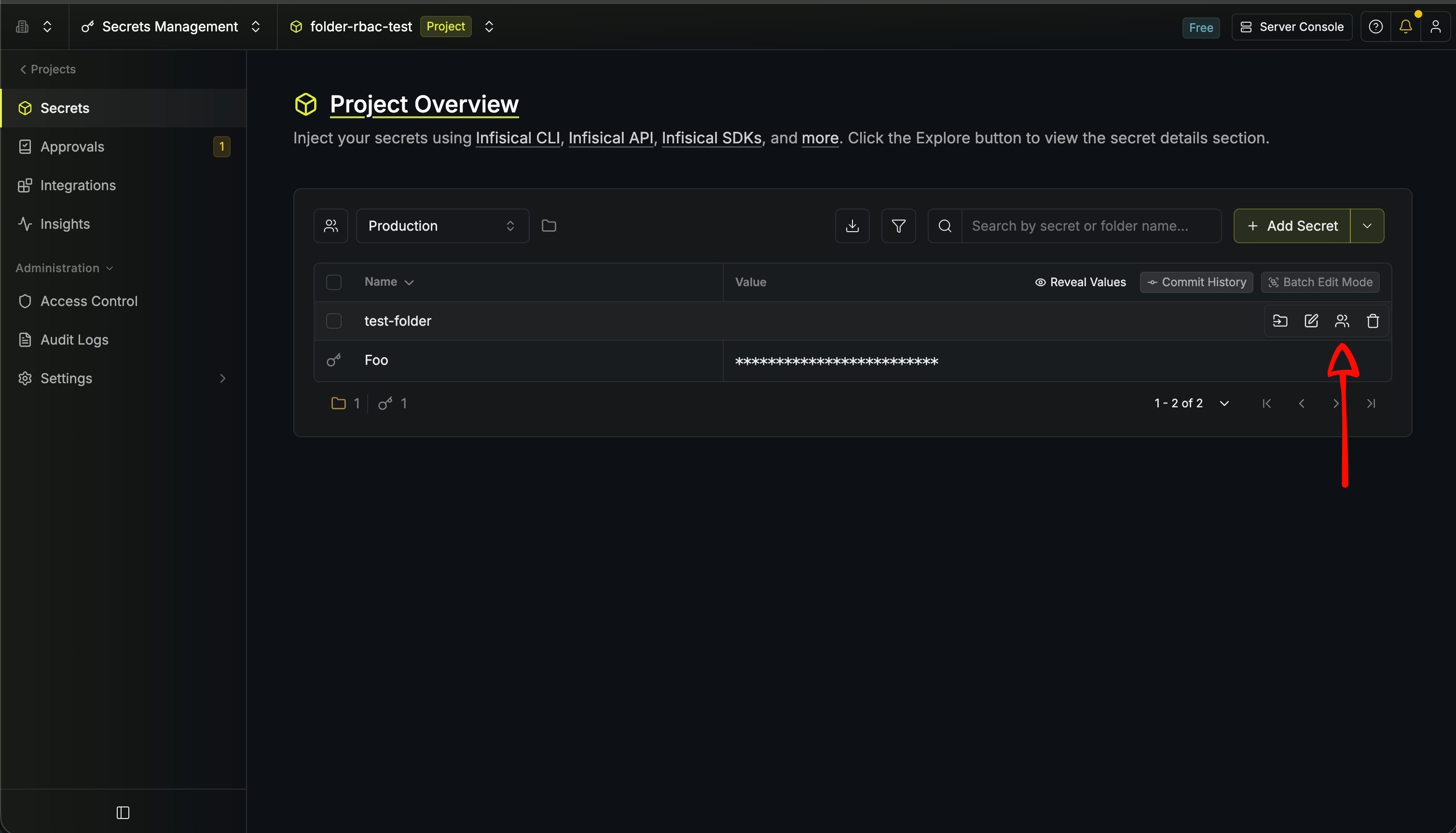
To set access on a folder in the list, hover over its row and select the members icon that appears.2
Review the Manage Permissions sheet. The list shows users and machine identities with folder grants or access through their project roles. To override project access in this folder, open the role menu with the Project badge and choose a folder role.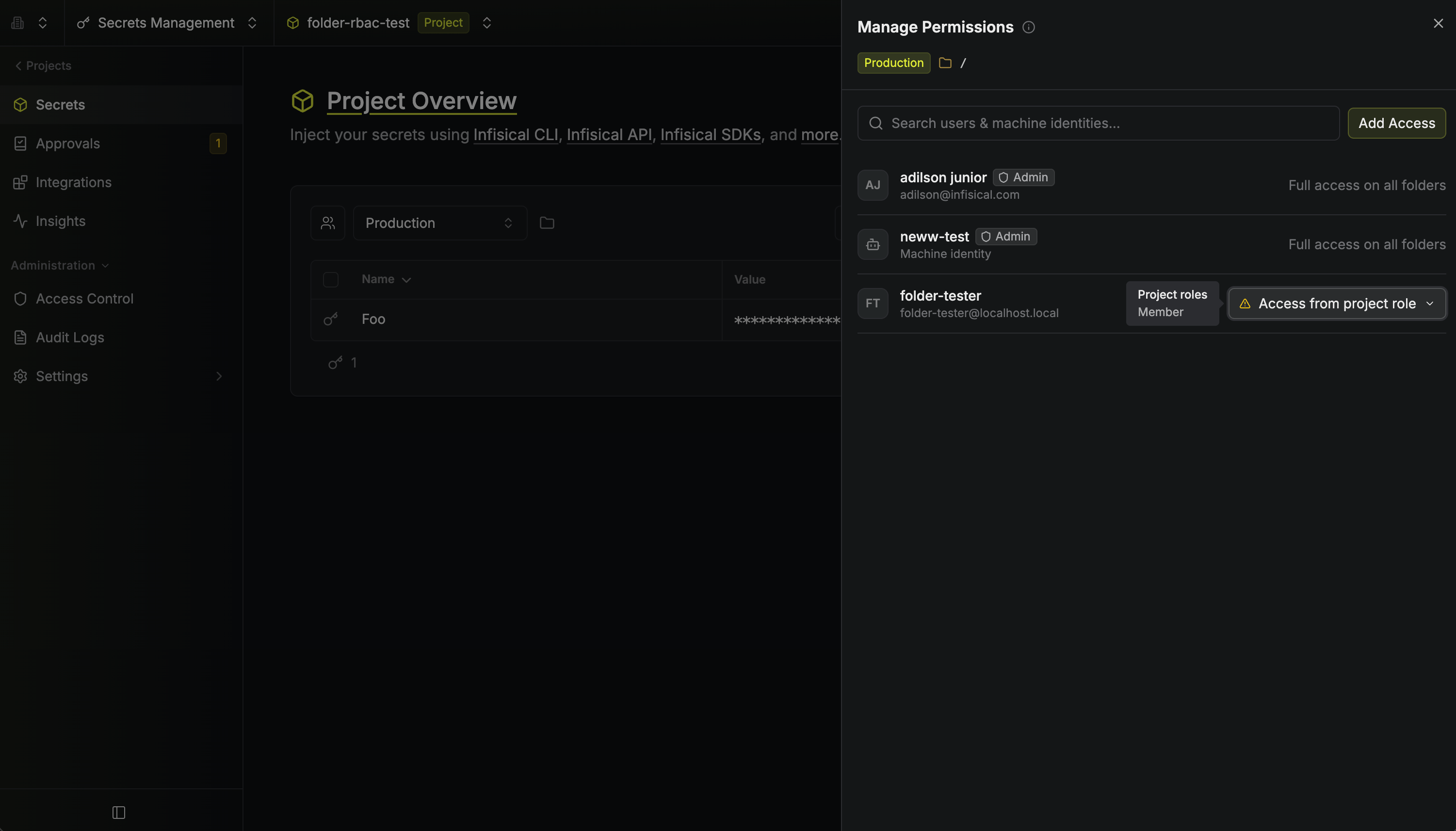 To change an existing grant, open the row’s role menu, then open the current role’s submenu and choose a new role. Project admins have full access on all folders and can’t receive a folder grant.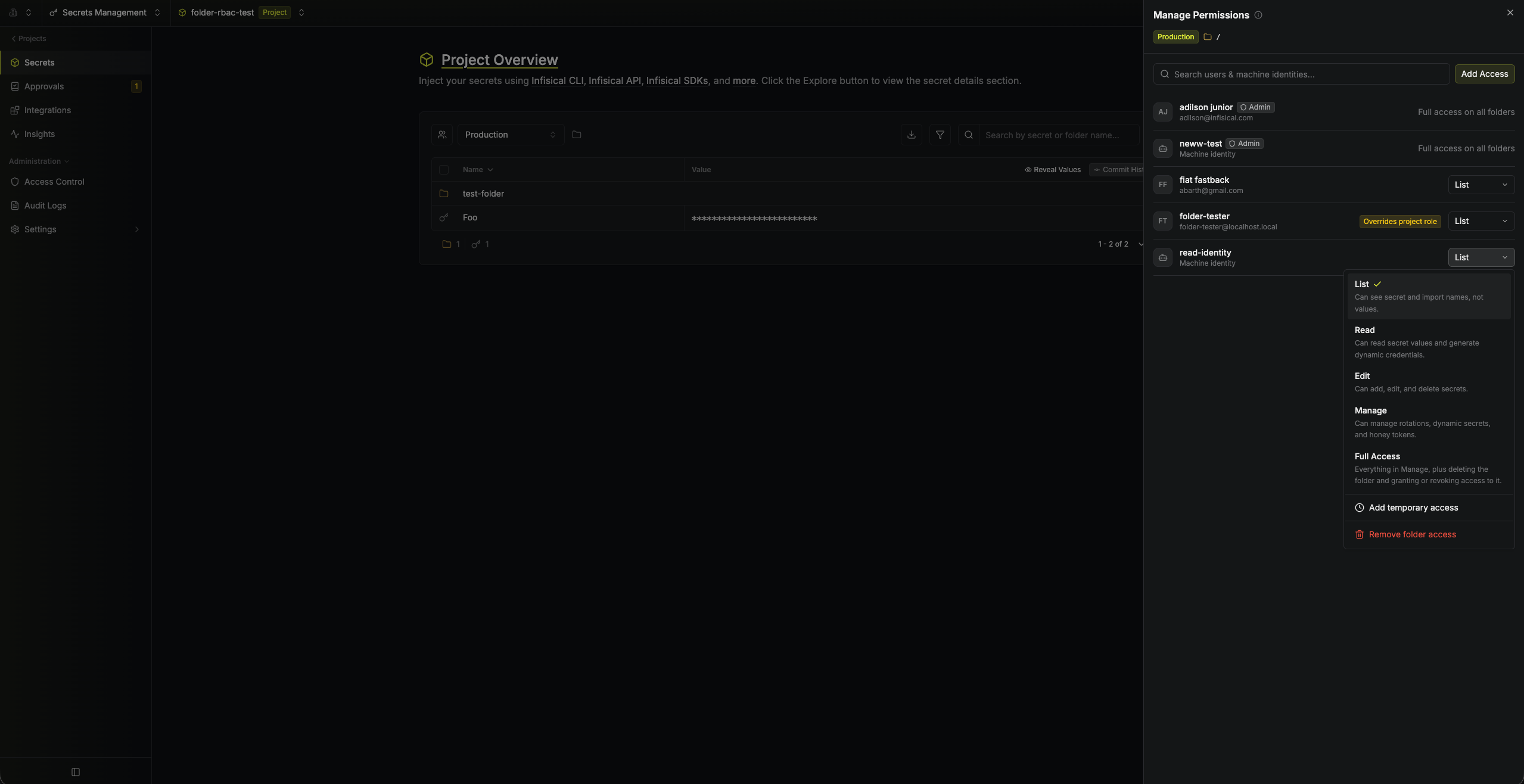
To change an existing grant, open the row’s role menu, then open the current role’s submenu and choose a new role. Project admins have full access on all folders and can’t receive a folder grant.3
Search for a user or machine identity, or expand No Access. Select Grant Access beside the member, then choose a role. Changes save automatically.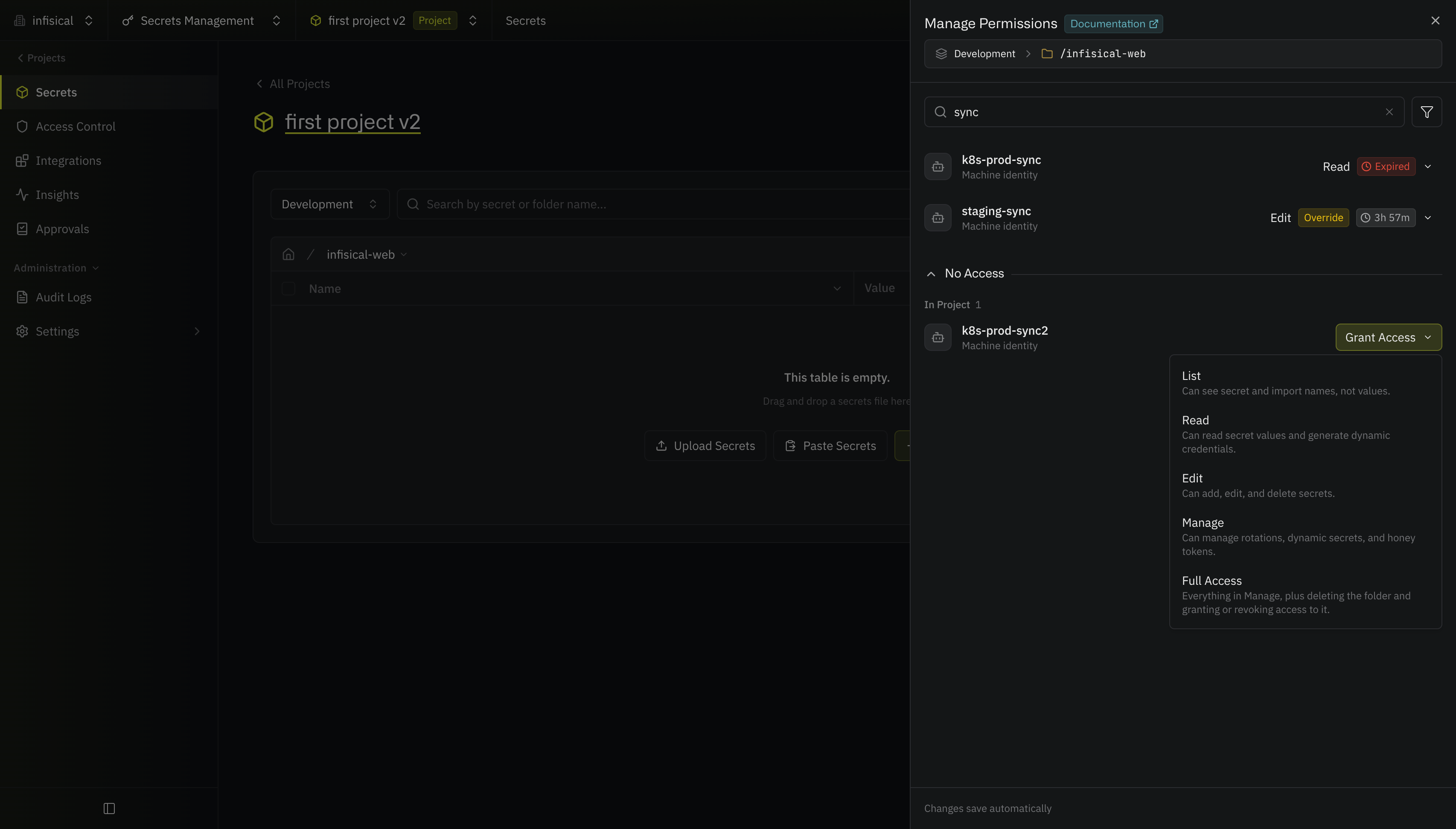 If you can add project members, the In Organization, Not in Project subsection also lists organization members outside the project. Granting access from this subsection adds the member to the project with the No Access project role before granting folder access.
If you can add project members, the In Organization, Not in Project subsection also lists organization members outside the project. Granting access from this subsection adds the member to the project with the No Access project role before granting folder access.4
Confirm that the member appears in the access list with the role you chose. If the grant replaces access from a project role, the row shows an Override badge.
Setting temporary access
To set an expiration, open an existing folder grant’s role menu and select Add Temporary Access or Edit Temporary Access. Enter a duration, such as4h, then select Apply.
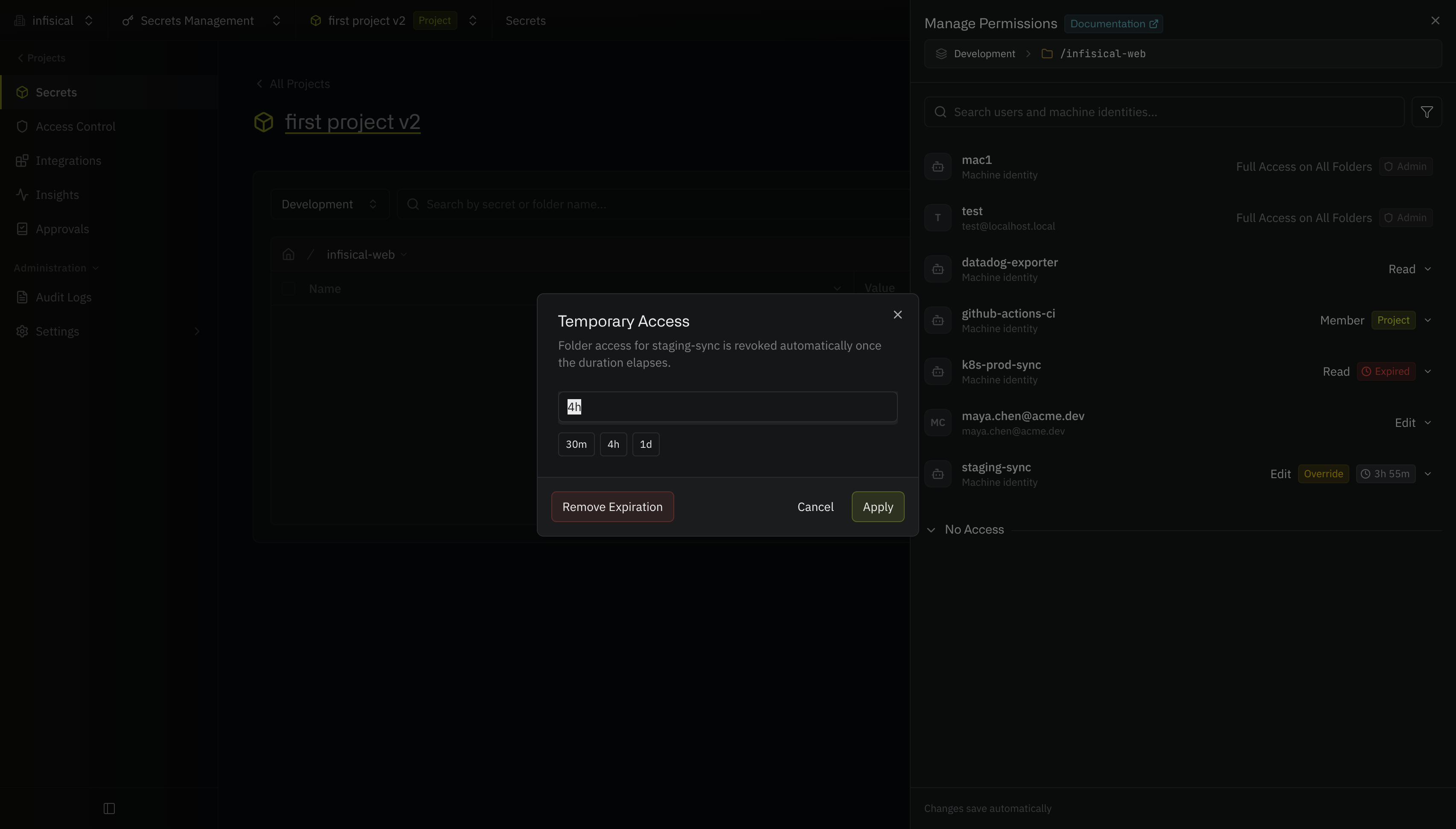 The row shows the time remaining. Once the grant expires, the user or machine identity falls back to their project roles.
Full Access can’t be temporary. A Full Access holder can grant folder
access to other people, and those accesses would outlive their own expiration.
Grant Full Access permanently, or use Manage for time-bound access.
Reviewing folder access
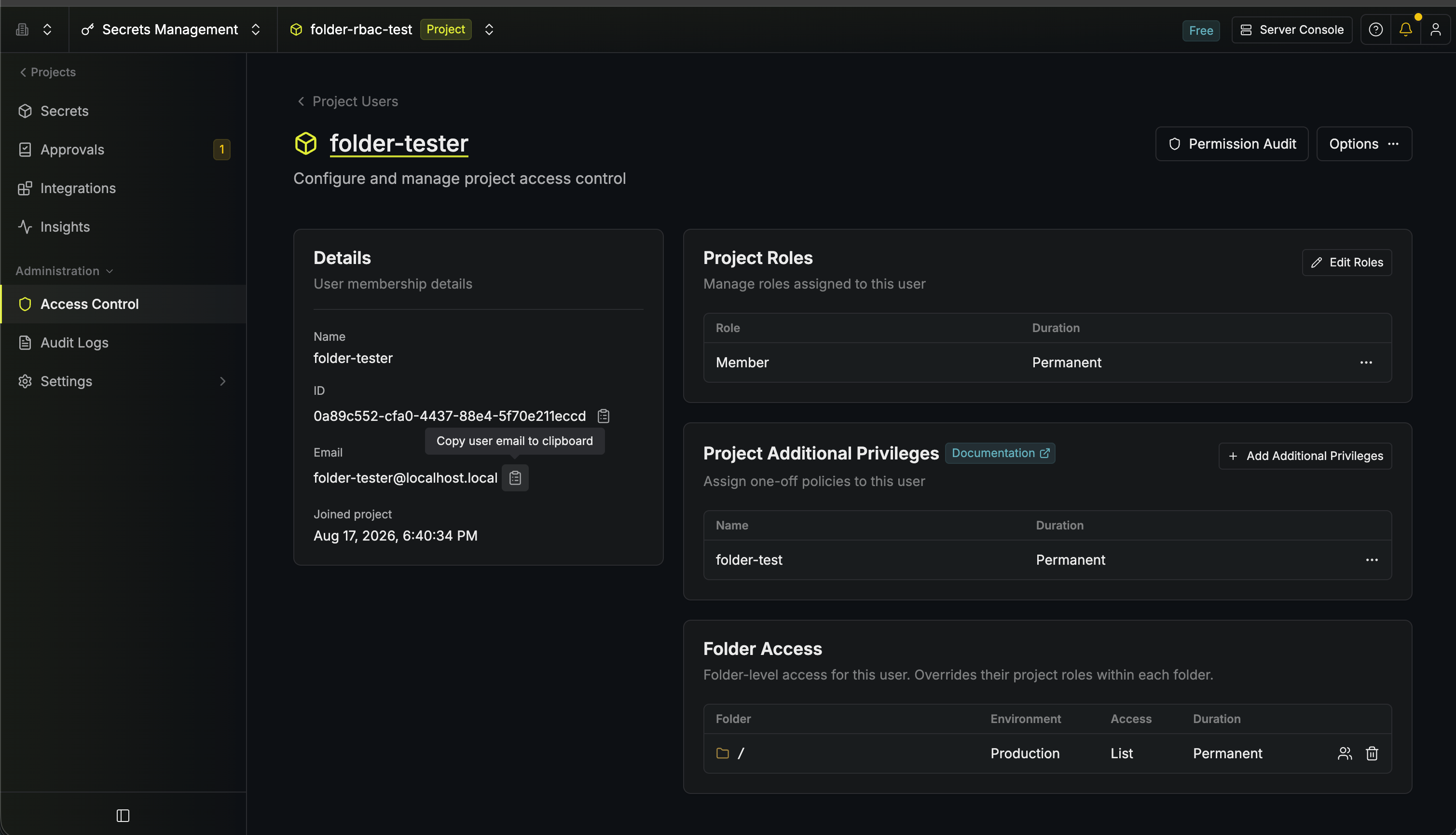
To see every folder a user or machine identity has been granted access to, go to your project’s Access Control page and open that user/identity. The Folder Access lists each grant with its folder, environment, role, and duration, and lets you change or revoke it.