

Choose a connection mode
There are two ways to connect a Gateway, and your network usually decides which one you can use:- On Infisical Cloud? Use relay mode. Cloud runs outside your network and has no route into it, so there’s no address it could dial.
- Self-hosted, and you can open an inbound port on the Gateway host? Use direct listen. It’s the simpler setup, with no relay in the path.
- Self-hosted, but the Gateway sits behind NAT or a firewall you can’t change? Use relay mode.
Host requirements
Deployment steps
Set up a relay server (relay mode only)
- Managed relay (Infisical Cloud, US/EU only): If you’re using Infisical Cloud in the US or EU regions, you can use the provided managed relay.
- Self-hosted relay: For all other cases, deploy your own relay server. See the Relay Deployment Guide.
Create the gateway in the UI
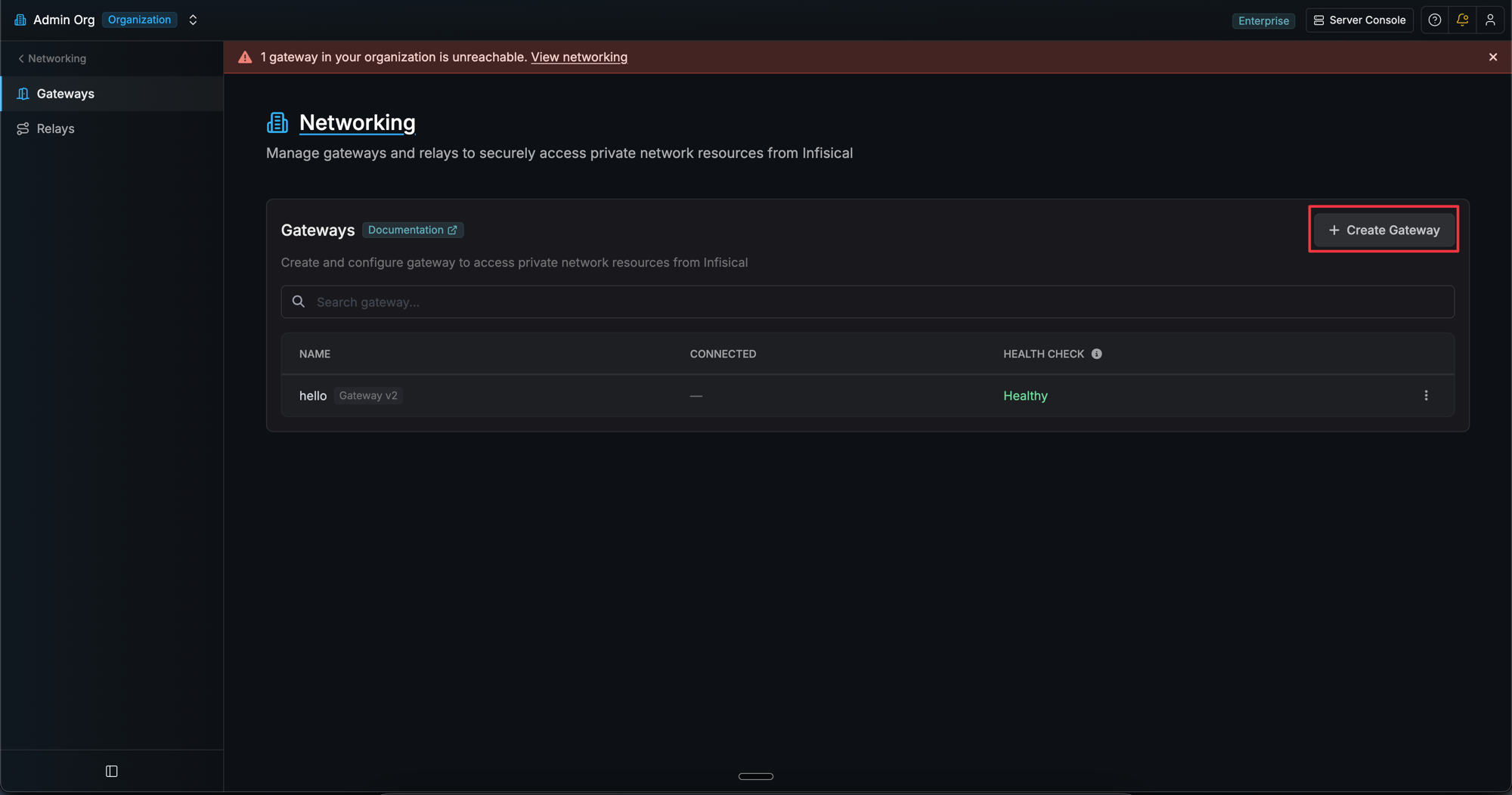
- Go to Organization Settings > Networking > Gateways.
- Select Create Gateway.
- Enter a name for the gateway, then select Create Gateway.
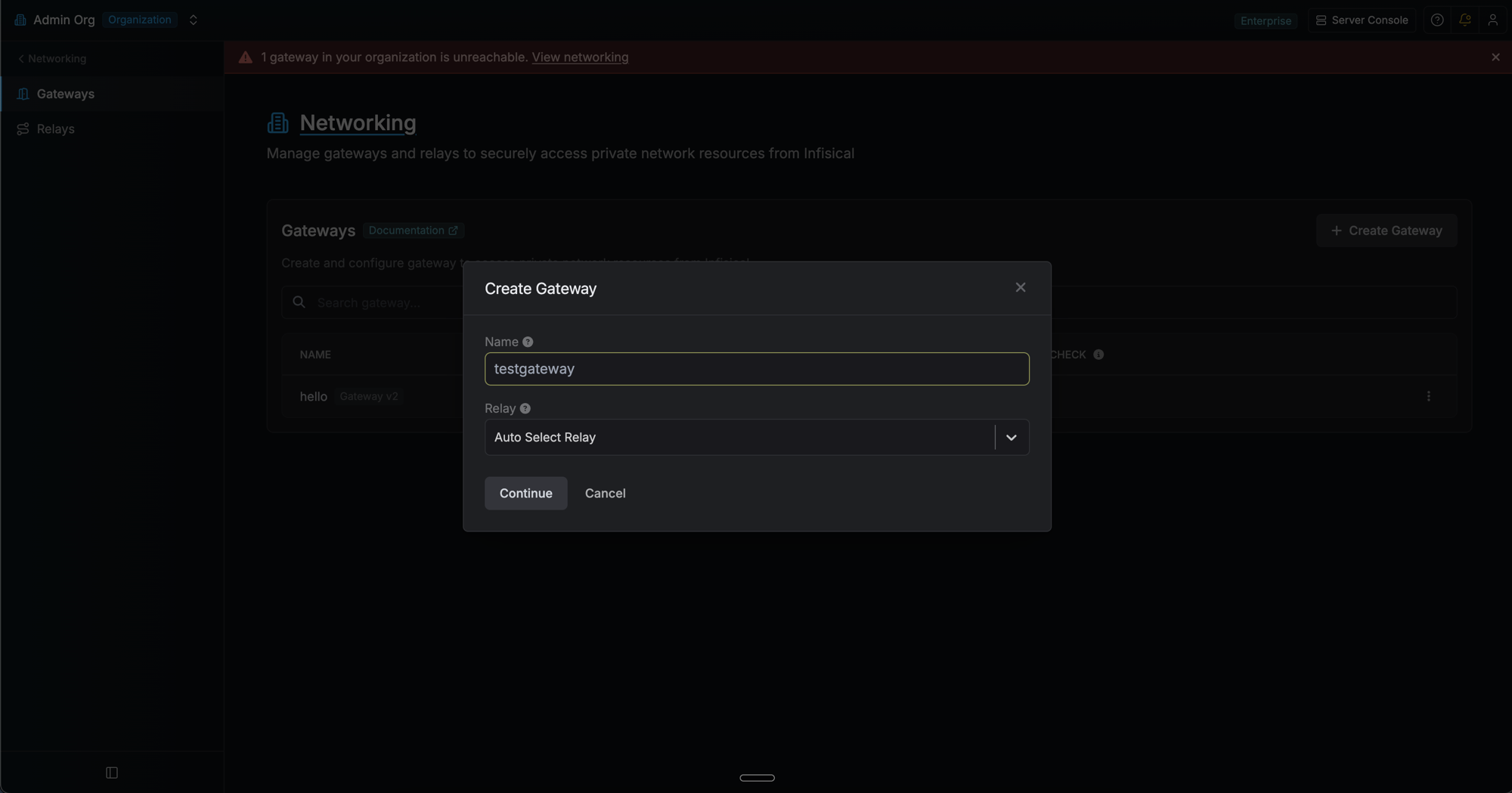
- (Optional) Open the new gateway’s detail page and change the method under Authentication in the Details card. Three methods are supported:
- Token (default): a one-time enrollment token (1h expiry) bootstraps the gateway.
- AWS: the gateway authenticates by signing an
sts:GetCallerIdentityrequest with whatever AWS credentials it can resolve on the host (instance role, env vars, shared profile). Configure the allowed principal ARNs and/or account IDs that match your hosts. - Kubernetes: the gateway authenticates with the projected service account token of the pod it runs in, so no credential has to be distributed to the cluster. Configure the cluster’s API server URL and the allowed namespaces and/or service account names.
- In the Deployment card, select Generate deploy command. For the AWS and Kubernetes methods the command is shown without this step.
- Under Connection Mode, select Direct Listen or Relay.
- For Direct Listen, enter the Listen Address that Infisical will dial, as
host:port. - For Relay, pick a relay, or leave Auto Select Relay so the gateway chooses the healthiest one.
- For Direct Listen, enter the Listen Address that Infisical will dial, as
- Copy the generated CLI command.
Install the Infisical CLI
Configure network and firewall
- Inbound on the port in your listen address, from the Infisical instance host only
- Outbound TCP 443 to the Infisical instance host
Run the CLI command
--listen-address=<host:port>for direct listen, wherehost:portis the address Infisical dials--target-relay-name=<relay-name>to pin a relay, or omit it to let the gateway pick the healthiest one
gateway.listenAddress to the address Infisical dials:Token Auth
Token Auth
- Linux (Production)
- Foreground
- Kubernetes (Helm)
AWS Auth
AWS Auth
- Linux (Production)
- Foreground
- Kubernetes (Helm)
Kubernetes Auth
Kubernetes Auth
Clusters with a private API server
By default Infisical calls your API server directly, which requires an address it can reach. If your API server is private, select a gateway or gateway pool under Gateway and the check is tunnelled through it instead. Two modes are available:- Kubernetes (Helm)
- Other in-cluster deployment
system:auth-delegator ClusterRole by default, which is what lets its own token act as the token reviewer. Set serviceAccount.createAsAuthDelegator=false only if you configure a separate Token Reviewer JWT on the gateway instead.infisical-gateway and service account infisical-gateway.Verify your gateway deployment
- Check logs for the “Gateway started successfully” message. In direct listen mode you’ll also see “Direct gateway listener started” with the listen address it’s advertising and the port it bound.
- Verify registration in the Infisical UI. Go to Networking > Gateways and confirm the gateway shows a Healthy status. A gateway running both modes stays healthy while either one works.
- Test connectivity by creating a resource that uses the gateway to access a private service.
Managing a gateway
From the gateway’s detail page (select the gateway row in the list):- Generate deploy command: Generates a fresh enrollment token (token method) or re-displays the start command for the AWS and Kubernetes methods. Selecting this on a token-method gateway doesn’t disconnect the running gateway; the next login with the new token rotates credentials atomically.
- Edit auth method: Switch between Token, AWS, and Kubernetes, or update the allowlists of the current method. Existing gateways keep their JWT until they restart and re-authenticate.
- Options → Revoke Access — Disconnects the running gateway and invalidates outstanding enrollment tokens. The gateway must re-authenticate to reconnect. Gated by the dedicated
revoke-gateway-accesspermission, separate fromedit-gateways. - Options → Delete Gateway — Permanently removes the gateway.
Running both modes
A Gateway can run both modes at once. Pass--target-relay-name and --listen-address together, and Infisical uses the listen address first, falling back to the relay when that address stops answering. Health checks probe each mode separately, so the Gateway stays healthy while either one works.
A Gateway declares its transports every time it registers, so its mode is set by which flags it starts with:
Frequently asked questions
Do I need to open any inbound ports on my firewall?
Do I need to open any inbound ports on my firewall?
- Outbound SSH to relay servers on port 2222
- Outbound HTTPS to Infisical API endpoints on port 443
- SSH reverse tunnels carry all return traffic, so nothing needs to be configured for it
Can I switch a gateway between relay and direct listen?
Can I switch a gateway between relay and direct listen?
--target-relay-name.Why does my direct listen gateway fail to register?
Why does my direct listen gateway fail to register?
host:port, with a port in the range 1 to 65535. Use gateway.internal:8443, not https://gateway.internal or gateway.internal: an address is rejected if it has no port, or if it carries a scheme or a path.Direct listen is also unavailable on Infisical Cloud, which runs outside your network and has no route into it. On Cloud, use relay mode.Do PAM sessions work in direct listen mode?
Do PAM sessions work in direct listen mode?
How do I test network connectivity from the gateway?
How do I test network connectivity from the gateway?
- Test SSH port to relay:
- Test outbound API access (replace with your Infisical domain if different):
How do I troubleshoot relay connectivity issues?
How do I troubleshoot relay connectivity issues?
- Verify the relay server is running and accessible
- Check firewall rules allow outbound connections on port 2222
- Confirm the relay name matches exactly
- Test SSH port to relay:
How do I troubleshoot direct listen connectivity issues?
How do I troubleshoot direct listen connectivity issues?
- Confirm the gateway logged “Direct gateway listener started” and check the port it bound
- From the Infisical instance host, test the listen address:
- Check the inbound firewall rule allows the Infisical instance host on that port
- Confirm the listen address resolves from the Infisical host, not just from your own machine
--bind to set the local address and keep --listen-address as the address Infisical dials.How do I troubleshoot authentication failures?
How do I troubleshoot authentication failures?
system:auth-delegator ClusterRole. The gateway’s audit log records the reviewed namespace and service account name for each login, and the reason code for each failure.Where can I find gateway logs?
Where can I find gateway logs?
- systemd service:
- Local installation: Logs appear in the terminal where you started the gateway
What happens if my enrollment token expires?
What happens if my enrollment token expires?
Where are gateway credentials stored?
Where are gateway credentials stored?
- Running as root/sudo:
/etc/infisical/gateways/<gateway-name>.conf - Running as a regular user:
~/.infisical/gateways/<gateway-name>.conf
/etc/infisical/gateways/<gateway-name>.conf. All config files are created with restricted permissions (0600).Can I run multiple gateways on the same machine?
Can I run multiple gateways on the same machine?
~/.infisical/gateways/my-gateway.conf). You can enroll and start multiple gateways in separate terminal sessions using different names.What happens if there is a network interruption?
What happens if there is a network interruption?
- Automatic reconnection: The gateway will automatically attempt to reconnect to relay servers if the SSH connection is lost
- Transport fallback: A gateway running both modes falls back to its relay when its listen address stops answering, and returns to direct connections once it recovers
- Connection retry logic: Built-in retry mechanisms handle temporary network outages without manual intervention
- Automatic failover: Gateways configured with automatic relay selection will switch to a different healthy relay if the current one becomes unreachable
- Gateway Pools: If the gateway itself becomes unavailable, a Gateway Pool will automatically route through a healthy member
- Persistent SSH tunnels: SSH connections are automatically re-established when connectivity is restored
- Certificate rotation: The gateway handles certificate renewal automatically during reconnection
- Graceful degradation: The gateway logs connection issues and continues attempting to restore connectivity