Learn how to deploy Infisical on Amazon Web Services using Elastic Container Service (ECS) with Fargate. This guide covers setting up Infisical in a production-ready AWS environment using Amazon RDS (PostgreSQL) for the database, Amazon ElastiCache (Redis) for caching, and an Application Load Balancer (ALB) for routing traffic.
Prerequisites
An AWS account with permissions to create VPCs, ECS clusters, RDS, ElastiCache, and ALB resources
Basic knowledge of AWS networking (VPC, subnets, security groups) and ECS concepts
AWS CLI installed and configured (optional, for CLI examples)
An Infisical Docker image tag from Docker Hub
Do not use the latest tag in production. Always pin to a specific version to avoid unexpected changes during upgrades.
System Requirements
The following are minimum requirements for running Infisical on AWS ECS:
Component Minimum Recommended (Production) ECS Task vCPU 0.25 vCPU 1 vCPU ECS Task Memory 512 MB 2 GB RDS Instance db.t3.micro db.t3.small or larger ElastiCache Node cache.t3.micro cache.t3.small or larger
For production deployments with many users or secrets, increase these values accordingly.
Deployment Steps
Set up network infrastructure (VPC, subnets, security groups)
Create an AWS Virtual Private Cloud (VPC) network for hosting Infisical: VPC and Subnets:
Create a VPC spanning at least two Availability Zones
In each AZ, create one public subnet (for the ALB) and one private subnet (for ECS tasks, RDS, and Redis)
Configure route tables: public subnets route to an Internet Gateway, private subnets route to a NAT Gateway
NAT Gateway:
Deploy a NAT Gateway in a public subnet to allow outbound internet access from private subnets
This is required for pulling container images and sending emails
Security Groups:
Create the following security groups:Security Group Inbound Rules Purpose ALB SG 80, 443 from 0.0.0.0/0 Allow HTTP/HTTPS from internet ECS Tasks SG 8080 from ALB SG Allow traffic from ALB only RDS SG 5432 from ECS Tasks SG Allow PostgreSQL from ECS Redis SG 6379 from ECS Tasks SG Allow Redis from ECS
For additional security, consider placing CloudFront in front of the ALB, using AWS WAF for web application firewall protection, or restricting the ALB security group to specific IP ranges if your users access Infisical from known networks.
Verify: After creating the VPC, confirm you have:
At least 2 public subnets and 2 private subnets across different AZs
A NAT Gateway with an Elastic IP
Security groups with the rules described above
# Verify VPC and subnets
aws ec2 describe-vpcs --filters "Name=tag:Name,Values=*infisical*"
aws ec2 describe-subnets --filters "Name=vpc-id,Values=<vpc-id>"
Provision the database (PostgreSQL) and cache (Redis)
Set up the persistence layers for Infisical: Amazon RDS (PostgreSQL):
Create a PostgreSQL 14+ database instance in the private subnets
Enable Multi-AZ deployment for high availability
Disable public accessibility
Enable automated backups with at least 7-day retention
Use the RDS security group created earlier
aws rds create-db-instance \
--db-instance-identifier infisical-db \
--db-instance-class db.t3.small \
--engine postgres \
--engine-version 14 \
--master-username infisical \
--master-user-password < your-secure-passwor d> \
--allocated-storage 20 \
--db-name infisical \
--vpc-security-group-ids < rds-sg-i d> \
--db-subnet-group-name < db-subnet-grou p> \
--multi-az \
--backup-retention-period 7 \
--no-publicly-accessible
Amazon ElastiCache (Redis):
Create a Redis replication group in the private subnets
Enable Multi-AZ with automatic failover
Enable encryption in-transit and at-rest
Use the Redis security group created earlier
aws elasticache create-replication-group \
--replication-group-id infisical-redis \
--replication-group-description "Redis for Infisical" \
--engine redis \
--cache-node-type cache.t3.small \
--num-cache-clusters 2 \
--automatic-failover-enabled \
--multi-az-enabled \
--at-rest-encryption-enabled \
--transit-encryption-enabled \
--security-group-ids < redis-sg-i d> \
--cache-subnet-group-name < cache-subnet-grou p>
Verify: Wait for both services to become available:# Check RDS status
aws rds describe-db-instances --db-instance-identifier infisical-db --query 'DBInstances[0].DBInstanceStatus'
# Check ElastiCache status
aws elasticache describe-replication-groups --replication-group-id infisical-redis --query 'ReplicationGroups[0].Status'
Note the connection endpoints:
Database URI: postgresql://infisical:<password>@<rds-endpoint>:5432/infisical
Redis URI: redis://<elasticache-endpoint>:6379
Securely store Infisical secrets and configuration
Generate and store the required secrets using AWS Systems Manager Parameter Store or Secrets Manager: Generate secrets: # Generate ENCRYPTION_KEY (16-byte hex string)
ENCRYPTION_KEY =$( openssl rand -hex 16 )
echo "ENCRYPTION_KEY: $ENCRYPTION_KEY "
# Generate AUTH_SECRET (32-byte base64 string)
AUTH_SECRET =$( openssl rand -base64 32 )
echo "AUTH_SECRET: $AUTH_SECRET "
Store your ENCRYPTION_KEY securely outside of AWS as well. Without this key, you cannot decrypt your secrets even if you restore the database.
Parameter Store (SSM)
Secrets Manager
# Store secrets in Parameter Store
aws ssm put-parameter --name "/infisical/ENCRYPTION_KEY" --value " $ENCRYPTION_KEY " --type "SecureString"
aws ssm put-parameter --name "/infisical/AUTH_SECRET" --value " $AUTH_SECRET " --type "SecureString"
aws ssm put-parameter --name "/infisical/DB_CONNECTION_URI" --value "postgresql://infisical:<password>@<rds-endpoint>:5432/infisical" --type "SecureString"
aws ssm put-parameter --name "/infisical/REDIS_URL" --value "redis://<elasticache-endpoint>:6379" --type "SecureString"
# Store secrets in Secrets Manager
aws secretsmanager create-secret --name "infisical/ENCRYPTION_KEY" --secret-string " $ENCRYPTION_KEY "
aws secretsmanager create-secret --name "infisical/AUTH_SECRET" --secret-string " $AUTH_SECRET "
aws secretsmanager create-secret --name "infisical/DB_CONNECTION_URI" --secret-string "postgresql://infisical:<password>@<rds-endpoint>:5432/infisical"
aws secretsmanager create-secret --name "infisical/REDIS_URL" --secret-string "redis://<elasticache-endpoint>:6379"
Verify: Confirm secrets are stored:# For Parameter Store
aws ssm get-parameters --names "/infisical/ENCRYPTION_KEY" "/infisical/AUTH_SECRET" --with-decryption
# For Secrets Manager
aws secretsmanager list-secrets --filters Key=name,Values=infisical
Set up IAM roles for ECS
Create IAM roles with the necessary permissions for ECS tasks: Task Execution Role (for ECS agent operations):Create a file named ecs-task-execution-trust-policy.json: {
"Version" : "2012-10-17" ,
"Statement" : [
{
"Effect" : "Allow" ,
"Principal" : {
"Service" : "ecs-tasks.amazonaws.com"
},
"Action" : "sts:AssumeRole"
}
]
}
Create the role and attach policies: # Create the execution role
aws iam create-role \
--role-name InfisicalECSExecutionRole \
--assume-role-policy-document file://ecs-task-execution-trust-policy.json
# Attach the managed policy
aws iam attach-role-policy \
--role-name InfisicalECSExecutionRole \
--policy-arn arn:aws:iam::aws:policy/service-role/AmazonECSTaskExecutionRolePolicy
Task Role (for application access to AWS services):Create a file named infisical-task-policy.json: {
"Version" : "2012-10-17" ,
"Statement" : [
{
"Effect" : "Allow" ,
"Action" : [
"ssm:GetParameter" ,
"ssm:GetParameters" ,
"ssm:GetParametersByPath"
],
"Resource" : "arn:aws:ssm:*:*:parameter/infisical/*"
},
{
"Effect" : "Allow" ,
"Action" : [
"secretsmanager:GetSecretValue"
],
"Resource" : "arn:aws:secretsmanager:*:*:secret:infisical/*"
},
{
"Effect" : "Allow" ,
"Action" : [
"kms:Decrypt"
],
"Resource" : "*" ,
"Condition" : {
"StringEquals" : {
"kms:ViaService" : "ssm.*.amazonaws.com"
}
}
}
]
}
For production environments, scope down the KMS Resource to specific key ARNs used by SSM Parameter Store in your account instead of using "*". You can find your KMS key ARN in the AWS KMS console or by running aws kms list-keys.
Create the task role: # Create the task role
aws iam create-role \
--role-name InfisicalTaskRole \
--assume-role-policy-document file://ecs-task-execution-trust-policy.json
# Create and attach the custom policy
aws iam put-role-policy \
--role-name InfisicalTaskRole \
--policy-name InfisicalSecretsAccess \
--policy-document file://infisical-task-policy.json
Enable ECS Exec (for container debugging):Add the following to the task role policy to enable aws ecs execute-command: {
"Effect" : "Allow" ,
"Action" : [
"ssmmessages:CreateControlChannel" ,
"ssmmessages:CreateDataChannel" ,
"ssmmessages:OpenControlChannel" ,
"ssmmessages:OpenDataChannel"
],
"Resource" : "*"
}
Verify: Confirm roles are created:aws iam get-role --role-name InfisicalECSExecutionRole
aws iam get-role --role-name InfisicalTaskRole
Create the ECS cluster and task definition
Create ECS Cluster: aws ecs create-cluster \
--cluster-name infisical-cluster \
--capacity-providers FARGATE FARGATE_SPOT \
--default-capacity-provider-strategy capacityProvider=FARGATE,weight= 1
Create Task Definition: Create a file named infisical-task-definition.json: {
"family" : "infisical" ,
"networkMode" : "awsvpc" ,
"requiresCompatibilities" : [ "FARGATE" ],
"cpu" : "1024" ,
"memory" : "2048" ,
"executionRoleArn" : "arn:aws:iam::<account-id>:role/InfisicalECSExecutionRole" ,
"taskRoleArn" : "arn:aws:iam::<account-id>:role/InfisicalTaskRole" ,
"containerDefinitions" : [
{
"name" : "infisical" ,
"image" : "infisical/infisical:v0.151.0" ,
"essential" : true ,
"portMappings" : [
{
"containerPort" : 8080 ,
"protocol" : "tcp"
}
],
"environment" : [
{ "name" : "HOST" , "value" : "0.0.0.0" },
{ "name" : "SITE_URL" , "value" : "https://infisical.example.com" }
],
"secrets" : [
{
"name" : "ENCRYPTION_KEY" ,
"valueFrom" : "arn:aws:ssm:<region>:<account-id>:parameter/infisical/ENCRYPTION_KEY"
},
{
"name" : "AUTH_SECRET" ,
"valueFrom" : "arn:aws:ssm:<region>:<account-id>:parameter/infisical/AUTH_SECRET"
},
{
"name" : "DB_CONNECTION_URI" ,
"valueFrom" : "arn:aws:ssm:<region>:<account-id>:parameter/infisical/DB_CONNECTION_URI"
},
{
"name" : "REDIS_URL" ,
"valueFrom" : "arn:aws:ssm:<region>:<account-id>:parameter/infisical/REDIS_URL"
}
],
"logConfiguration" : {
"logDriver" : "awslogs" ,
"options" : {
"awslogs-group" : "/ecs/infisical" ,
"awslogs-region" : "<region>" ,
"awslogs-stream-prefix" : "infisical" ,
"awslogs-create-group" : "true"
}
},
"healthCheck" : {
"command" : [ "CMD-SHELL" , "wget -q --spider http://localhost:8080/api/status || exit 1" ],
"interval" : 30 ,
"timeout" : 5 ,
"retries" : 3 ,
"startPeriod" : 60
}
}
]
}
Register the task definition: aws ecs register-task-definition --cli-input-json file://infisical-task-definition.json
Verify: Confirm task definition is registered:aws ecs describe-task-definition --task-definition infisical
Create the Application Load Balancer
Create ALB: aws elbv2 create-load-balancer \
--name infisical-alb \
--subnets < public-subnet- 1> < public-subnet- 2> \
--security-groups < alb-sg-i d> \
--scheme internet-facing \
--type application
Create Target Group: aws elbv2 create-target-group \
--name infisical-tg \
--protocol HTTP \
--port 8080 \
--vpc-id < vpc-i d> \
--target-type ip \
--health-check-path /api/status \
--health-check-interval-seconds 30 \
--healthy-threshold-count 2 \
--unhealthy-threshold-count 3
Create HTTP Listener: aws elbv2 create-listener \
--load-balancer-arn < alb-ar n> \
--protocol HTTP \
--port 80 \
--default-actions Type=forward,TargetGroupArn= < target-group-ar n>
Verify: Check ALB is active:aws elbv2 describe-load-balancers --names infisical-alb --query 'LoadBalancers[0].State.Code'
Note the ALB DNS name for accessing Infisical: aws elbv2 describe-load-balancers --names infisical-alb --query 'LoadBalancers[0].DNSName' --output text
Deploy the ECS service
Create the ECS service with the ALB integration: aws ecs create-service \
--cluster infisical-cluster \
--service-name infisical-service \
--task-definition infisical \
--desired-count 2 \
--launch-type FARGATE \
--platform-version LATEST \
--network-configuration "awsvpcConfiguration={subnets=[<private-subnet-1>,<private-subnet-2>],securityGroups=[<ecs-tasks-sg-id>],assignPublicIp=DISABLED}" \
--load-balancers "targetGroupArn=<target-group-arn>,containerName=infisical,containerPort=8080" \
--enable-execute-command \
--deployment-configuration "minimumHealthyPercent=50,maximumPercent=200"
Verify deployment: # Check service status
aws ecs describe-services --cluster infisical-cluster --services infisical-service --query 'services[0].status'
# Watch task status
aws ecs list-tasks --cluster infisical-cluster --service-name infisical-service
aws ecs describe-tasks --cluster infisical-cluster --tasks < task-ar n>
# Check target health
aws elbv2 describe-target-health --target-group-arn < target-group-ar n>
Once tasks are running and healthy, access Infisical via the ALB DNS name: curl http:// < alb-dns-nam e> /api/status
For production, run at least 2 Infisical tasks spread across different Availability Zones for high availability and zero-downtime deployments.
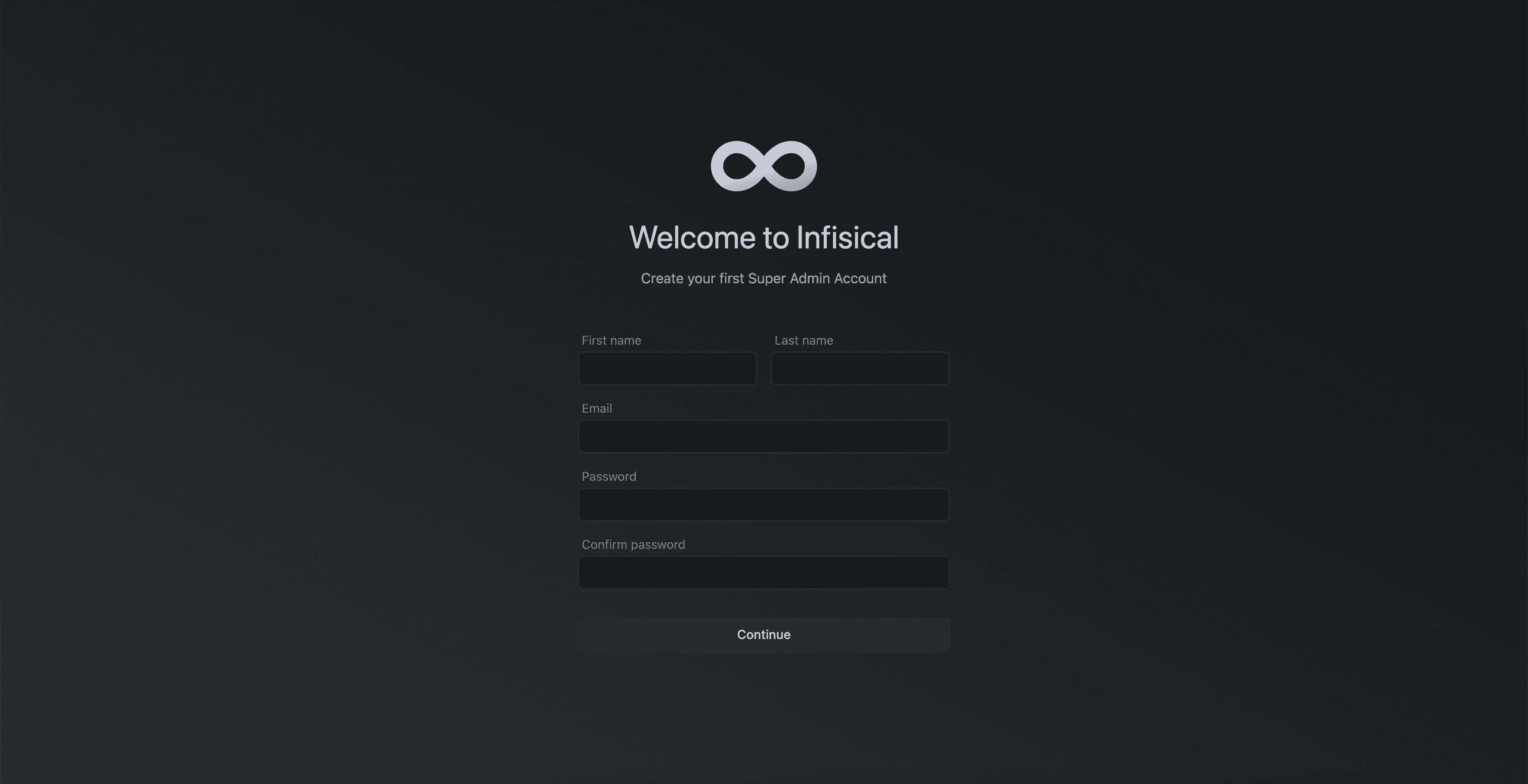
After completing the above steps, your Infisical instance should be running on AWS. Visit http://<alb-dns-name> to access the Infisical web interface and create your admin account.
Additional Configuration
Custom Domain with Route 53 and HTTPS
Set up a custom domain with SSL/TLS using AWS Certificate Manager and Route 53: 1. Request an SSL Certificate: aws acm request-certificate \
--domain-name infisical.example.com \
--validation-method DNS \
--region < regio n>
2. Validate the certificate by adding the CNAME record to your DNS (Route 53 or external DNS).3. Create HTTPS Listener: aws elbv2 create-listener \
--load-balancer-arn < alb-ar n> \
--protocol HTTPS \
--port 443 \
--ssl-policy ELBSecurityPolicy-TLS13-1-2-2021-06 \
--certificates CertificateArn= < acm-certificate-ar n> \
--default-actions Type=forward,TargetGroupArn= < target-group-ar n>
4. Redirect HTTP to HTTPS: aws elbv2 modify-listener \
--listener-arn < http-listener-ar n> \
--default-actions Type=redirect,RedirectConfig="{Protocol=HTTPS,Port=443,StatusCode=HTTP_301}"
5. Create Route 53 Record: aws route53 change-resource-record-sets \
--hosted-zone-id < hosted-zone-i d> \
--change-batch '{
"Changes": [{
"Action": "CREATE",
"ResourceRecordSet": {
"Name": "infisical.example.com",
"Type": "A",
"AliasTarget": {
"HostedZoneId": "<alb-hosted-zone-id>",
"DNSName": "<alb-dns-name>",
"EvaluateTargetHealth": true
}
}
}]
}'
6. Update SITE_URL in your ECS task definition to use https://infisical.example.com.
SMTP/Email Configuration (AWS SES)
Configure AWS SES for sending emails (invitations, password resets, etc.): 1. Verify your domain in SES: aws ses verify-domain-identity --domain example.com
2. Create SMTP credentials:
Go to AWS SES Console > SMTP Settings > Create SMTP Credentials
Note the SMTP username and password
3. Add SMTP environment variables to your ECS task definition:{
"environment" : [
{ "name" : "SMTP_HOST" , "value" : "email-smtp.<region>.amazonaws.com" },
{ "name" : "SMTP_PORT" , "value" : "587" },
{ "name" : "SMTP_SECURE" , "value" : "false" },
{ "name" : "SMTP_FROM_ADDRESS" , "value" : "noreply@example.com" },
{ "name" : "SMTP_FROM_NAME" , "value" : "Infisical" }
],
"secrets" : [
{ "name" : "SMTP_USERNAME" , "valueFrom" : "arn:aws:ssm:<region>:<account-id>:parameter/infisical/SMTP_USERNAME" },
{ "name" : "SMTP_PASSWORD" , "valueFrom" : "arn:aws:ssm:<region>:<account-id>:parameter/infisical/SMTP_PASSWORD" }
]
}
4. Request production access if you’re in the SES sandbox (limited to verified emails only).SMTP Provider Host Port AWS SES email-smtp..amazonaws.com 587 SendGrid smtp.sendgrid.net 587 Mailgun smtp.mailgun.org 587
VPC Endpoints for ECR (Air-Gapped Environments)
For environments without internet access, configure VPC endpoints to pull container images from ECR: Create VPC Endpoints: # ECR API endpoint
aws ec2 create-vpc-endpoint \
--vpc-id < vpc-i d> \
--service-name com.amazonaws. < regio n> .ecr.api \
--vpc-endpoint-type Interface \
--subnet-ids < private-subnet- 1> < private-subnet- 2> \
--security-group-ids < vpc-endpoint-s g>
# ECR Docker endpoint
aws ec2 create-vpc-endpoint \
--vpc-id < vpc-i d> \
--service-name com.amazonaws. < regio n> .ecr.dkr \
--vpc-endpoint-type Interface \
--subnet-ids < private-subnet- 1> < private-subnet- 2> \
--security-group-ids < vpc-endpoint-s g>
# S3 Gateway endpoint (for ECR image layers)
aws ec2 create-vpc-endpoint \
--vpc-id < vpc-i d> \
--service-name com.amazonaws. < regio n> .s3 \
--vpc-endpoint-type Gateway \
--route-table-ids < private-route-table-i d>
# CloudWatch Logs endpoint
aws ec2 create-vpc-endpoint \
--vpc-id < vpc-i d> \
--service-name com.amazonaws. < regio n> .logs \
--vpc-endpoint-type Interface \
--subnet-ids < private-subnet- 1> < private-subnet- 2> \
--security-group-ids < vpc-endpoint-s g>
Push Infisical image to ECR: # Create ECR repository
aws ecr create-repository --repository-name infisical
# Login to ECR
aws ecr get-login-password --region < regio n> | docker login --username AWS --password-stdin < account-i d> .dkr.ecr. < regio n> .amazonaws.com
# Pull and push image
docker pull infisical/infisical:v0.151.0
docker tag infisical/infisical:v0.151.0 < account-i d> .dkr.ecr. < regio n> .amazonaws.com/infisical:v0.151.0
docker push < account-i d> .dkr.ecr. < regio n> .amazonaws.com/infisical:v0.151.0
Update your task definition to use the ECR image URL.
Infisical automatically runs database migrations on startup. For manual migration handling: Check migration status: # Exec into a running container
aws ecs execute-command \
--cluster infisical-cluster \
--task < task-i d> \
--container infisical \
--interactive \
--command "/bin/sh"
# Inside the container, check migration status
npm run migration:status
Run migrations manually: # Inside the container
npm run migration:latest
Rollback migrations: # Inside the container
npm run migration:rollback
Always back up your database before running migrations manually. Take an RDS snapshot before any upgrade.
Container Debugging (ECS Exec)
Use ECS Exec to troubleshoot running containers: Prerequisites:
ECS service must have --enable-execute-command flag
Task role must have SSM permissions (included in IAM setup above)
AWS CLI Session Manager plugin installed locally
Install Session Manager plugin: # macOS
brew install session-manager-plugin
# Linux
curl "https://s3.amazonaws.com/session-manager-downloads/plugin/latest/ubuntu_64bit/session-manager-plugin.deb" -o "session-manager-plugin.deb"
sudo dpkg -i session-manager-plugin.deb
Exec into a container: # Get task ID
TASK_ID =$( aws ecs list-tasks --cluster infisical-cluster --service-name infisical-service --query 'taskArns[0]' --output text | cut -d '/' -f3 )
# Start interactive session
aws ecs execute-command \
--cluster infisical-cluster \
--task $TASK_ID \
--container infisical \
--interactive \
--command "/bin/sh"
Common debugging commands: # Check environment variables
env | grep -E "DB_|REDIS_|SITE_"
# Test database connectivity
nc -zv < rds-endpoin t> 5432
# Test Redis connectivity
nc -zv < elasticache-endpoin t> 6379
# Check application logs
cat /app/logs/ * .log
Database Backups:
RDS automated backups are enabled by default (7-day retention recommended)
Take manual snapshots before upgrades:
aws rds create-db-snapshot \
--db-instance-identifier infisical-db \
--db-snapshot-identifier infisical-pre-upgrade- $( date +%Y%m%d )
Export to S3 (for cross-region DR): aws rds start-export-task \
--export-task-identifier infisical-export- $( date +%Y%m%d ) \
--source-arn arn:aws:rds: < regio n> : < account-i d> :snapshot:infisical-snapshot \
--s3-bucket-name infisical-backups \
--iam-role-arn arn:aws:iam:: < account-i d> :role/RDSExportRole \
--kms-key-id < kms-key-i d>
Encryption Key Backup:
Store your ENCRYPTION_KEY in multiple secure locations:
AWS Secrets Manager (already done)
Offline secure storage (e.g., hardware security module, safe deposit box)
Secondary AWS region
Without the ENCRYPTION_KEY, encrypted secrets cannot be recovered even with a database restore.
1. Back up the database: aws rds create-db-snapshot \
--db-instance-identifier infisical-db \
--db-snapshot-identifier infisical-pre-upgrade- $( date +%Y%m%d )
2. Update the task definition with the new image tag:# Edit infisical-task-definition.json with new version
# Then register the new revision
aws ecs register-task-definition --cli-input-json file://infisical-task-definition.json
3. Update the service: aws ecs update-service \
--cluster infisical-cluster \
--service infisical-service \
--task-definition infisical: < new-revisio n>
4. Monitor the deployment: aws ecs describe-services --cluster infisical-cluster --services infisical-service --query 'services[0].deployments'
5. Verify health: curl https://infisical.example.com/api/status
Rollback if needed: aws ecs update-service \
--cluster infisical-cluster \
--service infisical-service \
--task-definition infisical: < previous-revisio n>
CloudWatch Logs:
Logs are automatically sent to /ecs/infisical log group
Set retention policy:
aws logs put-retention-policy --log-group-name /ecs/infisical --retention-in-days 30
CloudWatch Alarms: # High CPU alarm
aws cloudwatch put-metric-alarm \
--alarm-name infisical-high-cpu \
--metric-name CPUUtilization \
--namespace AWS/ECS \
--statistic Average \
--period 300 \
--threshold 80 \
--comparison-operator GreaterThanThreshold \
--dimensions Name=ClusterName,Value=infisical-cluster Name=ServiceName,Value=infisical-service \
--evaluation-periods 2 \
--alarm-actions < sns-topic-ar n>
# Unhealthy target alarm
aws cloudwatch put-metric-alarm \
--alarm-name infisical-unhealthy-targets \
--metric-name UnHealthyHostCount \
--namespace AWS/ApplicationELB \
--statistic Average \
--period 60 \
--threshold 1 \
--comparison-operator GreaterThanOrEqualToThreshold \
--dimensions Name=TargetGroup,Value= < target-group-arn-suffi x> Name=LoadBalancer,Value= < alb-arn-suffi x> \
--evaluation-periods 2 \
--alarm-actions < sns-topic-ar n>
Enable Container Insights: aws ecs update-cluster-settings \
--cluster infisical-cluster \
--settings name=containerInsights,value=enabled
Configure ECS Service Auto Scaling to handle load changes: Register scalable target: aws application-autoscaling register-scalable-target \
--service-namespace ecs \
--scalable-dimension ecs:service:DesiredCount \
--resource-id service/infisical-cluster/infisical-service \
--min-capacity 2 \
--max-capacity 10
Create scaling policy (target tracking): aws application-autoscaling put-scaling-policy \
--service-namespace ecs \
--scalable-dimension ecs:service:DesiredCount \
--resource-id service/infisical-cluster/infisical-service \
--policy-name infisical-cpu-scaling \
--policy-type TargetTrackingScaling \
--target-tracking-scaling-policy-configuration '{
"TargetValue": 70.0,
"PredefinedMetricSpecification": {
"PredefinedMetricType": "ECSServiceAverageCPUUtilization"
},
"ScaleOutCooldown": 60,
"ScaleInCooldown": 120
}'
Infrastructure as Code
Troubleshooting
Check task status and stopped reason: aws ecs describe-tasks --cluster infisical-cluster --tasks < task-ar n> --query 'tasks[0].stoppedReason'
View CloudWatch logs: aws logs tail /ecs/infisical --follow
Common causes:
Secrets not found: Verify SSM parameters exist and task role has permissions
Image pull failed: Check ECR permissions or Docker Hub rate limits
Insufficient resources: Increase task CPU/memory or check Fargate capacity
Network issues: Verify NAT Gateway is working and security groups allow egress
Database connection errors
Test connectivity from ECS task: # Exec into container
aws ecs execute-command --cluster infisical-cluster --task < task-i d> --container infisical --interactive --command "/bin/sh"
# Test database connection
nc -zv < rds-endpoin t> 5432
Check security groups:
RDS security group must allow inbound 5432 from ECS tasks security group
ECS tasks security group must allow outbound to RDS
Verify connection string: aws ssm get-parameter --name /infisical/DB_CONNECTION_URI --with-decryption
ALB health checks failing
Check target health: aws elbv2 describe-target-health --target-group-arn < target-group-ar n>
Verify health check endpoint: # From inside the container
curl http://localhost:8080/api/status
Common causes:
Health check path is wrong (should be /api/status)
Security group doesn’t allow ALB to reach ECS tasks on port 8080
Application is crashing on startup (check logs)
Health check timeout is too short (increase to 10 seconds)
Cannot access Infisical in browser
Check ALB is accessible: curl -v http:// < alb-dns-nam e> /api/status
Verify DNS resolution: nslookup infisical.example.com
Check ALB security group:
Must allow inbound 80/443 from 0.0.0.0/0
Check SITE_URL:
Must match the URL you’re accessing (including protocol)
Check SES sending status: Verify SMTP credentials:
Ensure SMTP username/password are correct
Check if you’re still in SES sandbox (can only send to verified emails)
Test SMTP connectivity: # From inside container
nc -zv email-smtp. < regio n> .amazonaws.com 587
Check application logs for email errors: aws logs filter-log-events --log-group-name /ecs/infisical --filter-pattern "smtp OR email OR mail"
Verify prerequisites: # Check service has execute-command enabled
aws ecs describe-services --cluster infisical-cluster --services infisical-service --query 'services[0].enableExecuteCommand'
# Check task role has SSM permissions
aws iam get-role-policy --role-name InfisicalTaskRole --policy-name InfisicalSecretsAccess
Check managed agent status: aws ecs describe-tasks --cluster infisical-cluster --tasks < task-ar n> --query 'tasks[0].containers[0].managedAgents'
Common fixes:
Ensure Session Manager plugin is installed locally
Verify VPC has route to SSM endpoints (via NAT or VPC endpoint)
Redeploy service after enabling execute-command