Learn how to deploy Infisical using Docker Compose. This method runs Infisical and its dependencies (PostgreSQL and Redis) as containers on a single Docker host. It’s ideal for trying out Infisical, development environments, or small-scale deployments that don’t require high availability.

Prerequisites

  • A Linux server (Ubuntu 20.04+ recommended) or macOS/Windows with Docker Desktop
  • Docker Engine (version 20.10+)
  • Docker Compose (version 2.0+ recommended)
This Docker Compose configuration is not designed for high-availability production scenarios. It includes just the essential components needed to set up an Infisical proof of concept (POC). To run Infisical in a highly available manner, see the Docker Swarm guide or Kubernetes guide.

System Requirements

The following are minimum requirements for running Infisical with Docker Compose:
ComponentMinimumRecommended
CPU2 cores4 cores
RAM4 GB8 GB
Disk20 GB50 GB+ (SSD recommended)
These requirements include resources for Infisical, PostgreSQL, and Redis containers. For larger deployments with many secrets or users, increase resources accordingly.

Deployment Steps

1

Verify prerequisites

Confirm that Docker and Docker Compose are installed on your machine:
docker --version
docker compose version
You should see version information for both commands. If not, install Docker and Docker Compose following the official documentation.
2

Download the Docker Compose file

You can obtain the Infisical docker compose file by using a command-line downloader such as wget or curl. If your system doesn’t have either of these, you can use an equivalent command that works with your machine.
curl -o docker-compose.prod.yml https://raw.githubusercontent.com/Infisical/infisical/main/docker-compose.prod.yml
3

Configure environment variables

Infisical requires a set of credentials used for connecting to dependent services such as Postgres, Redis, etc. The default credentials can be downloaded using one of the commands listed below.
curl -o .env https://raw.githubusercontent.com/Infisical/infisical/main/.env.example
Once downloaded, the credentials file will be saved to your working directory as .env file. View all available configurations here.
The .env file contains secrets that control the security of your deployment. Do not commit it to version control, and protect access to it:
chmod 600 .env
4

Start Infisical

Start all services in detached mode:
docker compose -f docker-compose.prod.yml up -d
This command starts three containers:
  • backend: The main Infisical application (exposed on host port 80, internal port 8080)
  • db: PostgreSQL database for storing encrypted secrets
  • redis: Redis for caching and job queues
5

Verify the deployment

Check that all containers are running:
docker compose -f docker-compose.prod.yml ps
You should see all three services with a status of Up. Next, verify Infisical is responding:
curl -s http://localhost:80/api/status | head -c 100
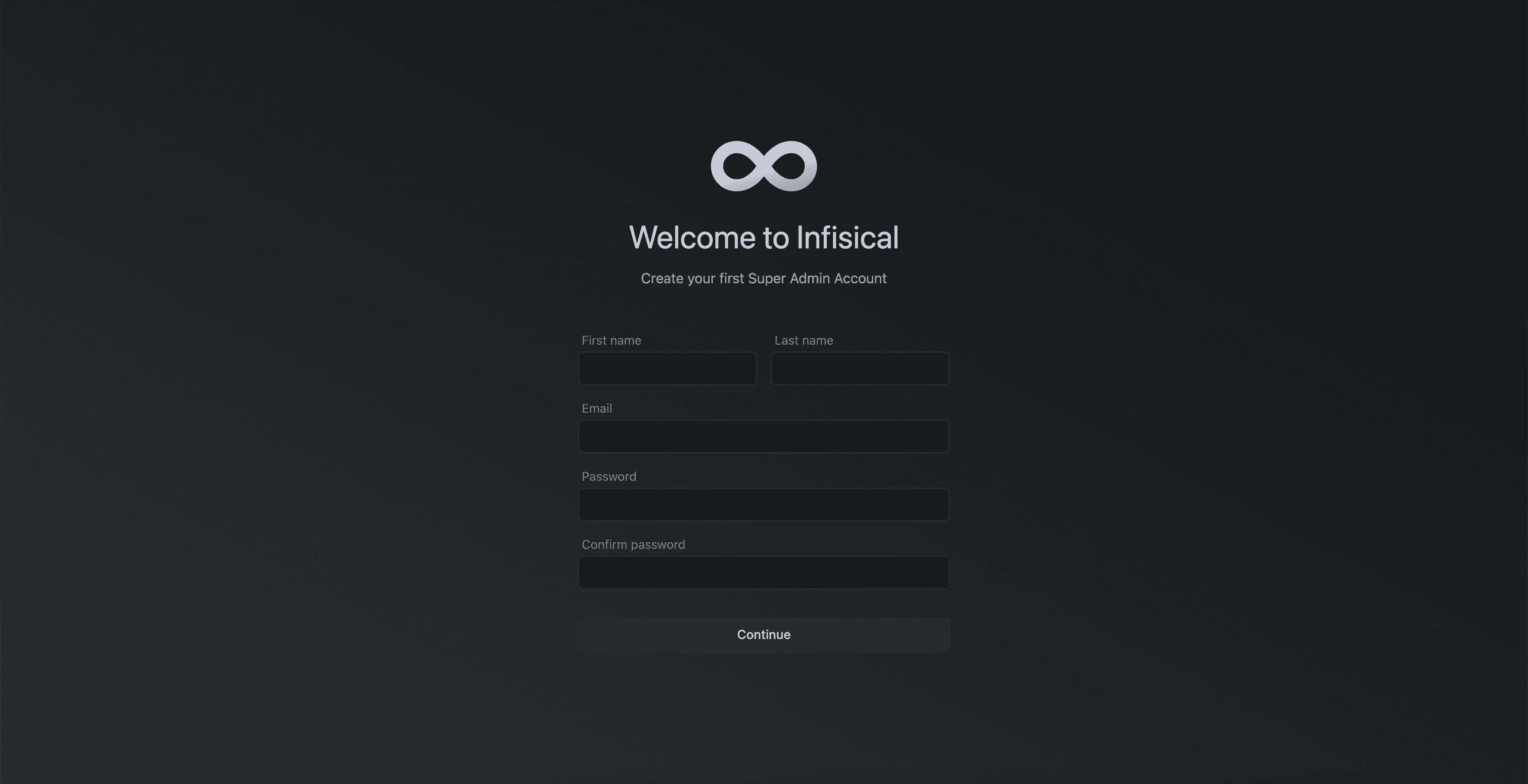
If successful, open your browser and navigate to http://localhost:80 (or your configured domain) to create your admin account.
The first user to sign up becomes the instance administrator. Make sure to complete this step before exposing Infisical to others.

Managing Your Deployment

Stopping and Restarting Services

To stop all Infisical services:
docker compose -f docker-compose.prod.yml down
To restart services:
docker compose -f docker-compose.prod.yml up -d
To restart a specific service (e.g., after configuration changes):
docker compose -f docker-compose.prod.yml restart backend

Data Persistence and Volumes

The Docker Compose configuration uses named volumes to persist data:
VolumePurposeData Stored
pg_dataPostgreSQL dataAll encrypted secrets, users, projects, and configuration
redis_dataRedis dataCache and job queue data (can be regenerated)
Critical: The pg_data volume contains all your encrypted secrets. Never delete this volume unless you intend to lose all data. Always back up before any maintenance operations.
To view volumes:
docker volume ls | grep -E "pg_data|redis_data"
To back up the PostgreSQL volume:
docker compose -f docker-compose.prod.yml exec db pg_dump -U infisical infisical > backup_$(date +%Y%m%d_%H%M%S).sql

Viewing Logs

To view logs from all services:
docker compose -f docker-compose.prod.yml logs -f
To view logs from a specific service:
docker compose -f docker-compose.prod.yml logs -f backend
docker compose -f docker-compose.prod.yml logs -f db
docker compose -f docker-compose.prod.yml logs -f redis
To view the last 100 lines of logs:
docker compose -f docker-compose.prod.yml logs --tail=100 backend
Logs are also available directly from Docker:
docker logs <container_name> --since 1h

Additional Configuration

Configure your firewall to allow traffic to Infisical while securing other services:Required ports:
PortServiceAccess
80HTTP (Infisical)Public (or internal network)
443HTTPS (if using TLS)Public (or internal network)
Internal ports (should NOT be exposed publicly):
PortServiceNotes
5432PostgreSQLContainer-to-container only
6379RedisContainer-to-container only
UFW (Ubuntu/Debian):
# Allow HTTP/HTTPS
sudo ufw allow 80/tcp
sudo ufw allow 443/tcp

# Ensure database ports are not exposed
sudo ufw deny 5432/tcp
sudo ufw deny 6379/tcp

sudo ufw enable
firewalld (RHEL/CentOS):
sudo firewall-cmd --permanent --add-service=http
sudo firewall-cmd --permanent --add-service=https
sudo firewall-cmd --reload
Never expose PostgreSQL (5432) or Redis (6379) ports to the public internet. These should only be accessible within the Docker network.
Infisical uses email for user invitations, password resets, and notifications. Configure SMTP by adding these variables to your .env file:
SMTP_HOST=smtp.example.com
SMTP_PORT=587
SMTP_USERNAME=your-smtp-username
SMTP_PASSWORD=your-smtp-password
SMTP_FROM_ADDRESS=infisical@example.com
SMTP_FROM_NAME=Infisical
Common SMTP providers:
SMTP_HOST=email-smtp.us-east-1.amazonaws.com
SMTP_PORT=587
SMTP_USERNAME=your-ses-smtp-username
SMTP_PASSWORD=your-ses-smtp-password
SMTP_FROM_ADDRESS=noreply@yourdomain.com
SMTP_FROM_NAME=Infisical
After updating the .env file, restart Infisical:
docker compose -f docker-compose.prod.yml restart backend
We recommend securing your Infisical deployment with HTTPS using a reverse proxy like NGINX.1. Obtain SSL certificates (e.g., via Let’s Encrypt):
sudo apt install certbot
sudo certbot certonly --standalone -d secrets.example.com
2. Create NGINX configuration directory:
mkdir -p ./nginx/certs
sudo cp /etc/letsencrypt/live/secrets.example.com/fullchain.pem ./nginx/certs/
sudo cp /etc/letsencrypt/live/secrets.example.com/privkey.pem ./nginx/certs/
3. Add NGINX service to docker-compose.prod.yml:
nginx:
  image: nginx:alpine
  ports:
    - "80:80"
    - "443:443"
  volumes:
    - ./nginx/nginx.conf:/etc/nginx/nginx.conf:ro
    - ./nginx/certs:/etc/nginx/certs:ro
  depends_on:
    - backend
4. Create ./nginx/nginx.conf:
events {}

http {
  server {
    listen 80;
    server_name secrets.example.com;
    return 301 https://$host$request_uri;
  }

  server {
    listen 443 ssl;
    server_name secrets.example.com;

    ssl_certificate /etc/nginx/certs/fullchain.pem;
    ssl_certificate_key /etc/nginx/certs/privkey.pem;

    location / {
      proxy_pass http://backend:8080;
      proxy_set_header Host $host;
      proxy_set_header X-Real-IP $remote_addr;
      proxy_set_header X-Forwarded-For $proxy_add_x_forwarded_for;
      proxy_set_header X-Forwarded-Proto $scheme;
    }
  }
}
5. Update .env:
SITE_URL=https://secrets.example.com
6. Restart services:
docker compose -f docker-compose.prod.yml down
docker compose -f docker-compose.prod.yml up -d
For higher availability, use external managed services like AWS RDS and ElastiCache.Update your .env:
DB_CONNECTION_URI=postgresql://<user>:<password>@<host>:5432/<dbname>
REDIS_URL=redis://:<password>@<host>:6379
Remove or comment out db and redis services in docker-compose.prod.yml.Ensure firewall/VPC access to these services is properly configured.
Regular backups are critical for protecting your data.Database backup:
docker compose -f docker-compose.prod.yml exec db pg_dump -U infisical infisical > backup_$(date +%Y%m%d).sql
Automated daily backups (cron):
# Add to crontab (crontab -e)
0 2 * * * cd /path/to/infisical && docker compose -f docker-compose.prod.yml exec -T db pg_dump -U infisical infisical > /backups/infisical_$(date +\%Y\%m\%d).sql
Restore from backup:
docker compose -f docker-compose.prod.yml exec -T db psql -U infisical infisical < backup.sql
Also back up your ENCRYPTION_KEY from the .env file. Without this key, you cannot decrypt secrets even if you restore the database.
Infisical exposes Prometheus metrics when enabled.1. Add to .env:
OTEL_TELEMETRY_COLLECTION_ENABLED=true
OTEL_EXPORT_TYPE=prometheus
2. Expose port 9464 in docker-compose.prod.yml by adding to the backend service:
ports:
  - "80:8080"
  - "9464:9464"
3. Configure Prometheus to scrape localhost:9464 or the container DNS.See the Monitoring Guide for full setup.
Keeping Infisical up-to-date ensures you receive the latest features and security patches.1. Back up your database:
docker compose -f docker-compose.prod.yml exec db pg_dump -U infisical infisical > backup_before_upgrade.sql
2. Update the image tag in docker-compose.prod.yml to the desired version.3. Pull and restart:
docker compose -f docker-compose.prod.yml pull
docker compose -f docker-compose.prod.yml up -d
4. Verify the upgrade:
docker compose -f docker-compose.prod.yml logs -f backend
Watch for successful database migration messages. See the Upgrade Guide for more details.

Troubleshooting

Check container status:
docker compose -f docker-compose.prod.yml ps -a
View startup logs:
docker compose -f docker-compose.prod.yml logs
Common causes:
  • Port 80 already in use: Stop other services or change the port mapping
  • Insufficient memory: Ensure at least 4GB RAM is available
  • Invalid .env file: Check for syntax errors or missing required variables
Check if PostgreSQL is running:
docker compose -f docker-compose.prod.yml exec db pg_isready
Verify database credentials:
docker compose -f docker-compose.prod.yml exec db psql -U infisical -c "SELECT 1"
Check Infisical logs for connection errors:
docker compose -f docker-compose.prod.yml logs backend | grep -i "database\|postgres\|connection"
If the database was corrupted, you may need to restore from backup or recreate the volume:
docker compose -f docker-compose.prod.yml down -v  # WARNING: Deletes all data
docker compose -f docker-compose.prod.yml up -d
Verify the service is running:
curl -v http://localhost:80/api/status
Check if the port is listening:
sudo netstat -tlnp | grep :80
# or
sudo ss -tlnp | grep :80
Check firewall rules:
sudo ufw status
# or
sudo firewall-cmd --list-all
Verify SITE_URL is correct in your .env file and matches how you’re accessing Infisical.
Test SMTP connectivity:
docker compose -f docker-compose.prod.yml exec backend nc -zv smtp.example.com 587
Check Infisical logs for email errors:
docker compose -f docker-compose.prod.yml logs backend | grep -i "smtp\|email\|mail"
Common issues:
  • Incorrect SMTP credentials
  • Firewall blocking outbound port 587 or 465
  • SMTP provider requires specific authentication (e.g., Gmail App Passwords)
Check resource usage:
docker stats
Check for slow database queries:
docker compose -f docker-compose.prod.yml exec db psql -U infisical -c "SELECT * FROM pg_stat_activity WHERE state = 'active'"
Solutions:
  • Increase container memory limits in docker-compose.prod.yml
  • Add more CPU cores to the host
  • Consider migrating to a managed database for better performance
If you have lost access to your admin account, you can reset it via the database:
# Connect to the database
docker compose -f docker-compose.prod.yml exec db psql -U infisical

# Find the user
SELECT id, email FROM users WHERE email = 'admin@example.com';

# The password must be reset through the application password reset flow
# or by deleting and recreating the user
For security reasons, passwords are hashed and cannot be directly reset in the database. Use the “Forgot Password” flow if SMTP is configured, or contact Infisical support for assistance.

Your Infisical instance should now be running on port 80 (or 443 if using TLS). Visit http://localhost:80 or https://<your-domain> to access your instance. self-hosted sign up