

Azure SCIM provisioning is a paid feature.If you’re using Infisical Cloud, then it’s available under the Enterprise Tier. If you’re self-hosting Infisical,
then you should contact sales@infisical.com to purchase an enterprise license to use it.
1
Create a SCIM token in Infisical
In Infisical, head to SSO & Provisioning and select the Provisioning tab. Under SCIM Provisioning,
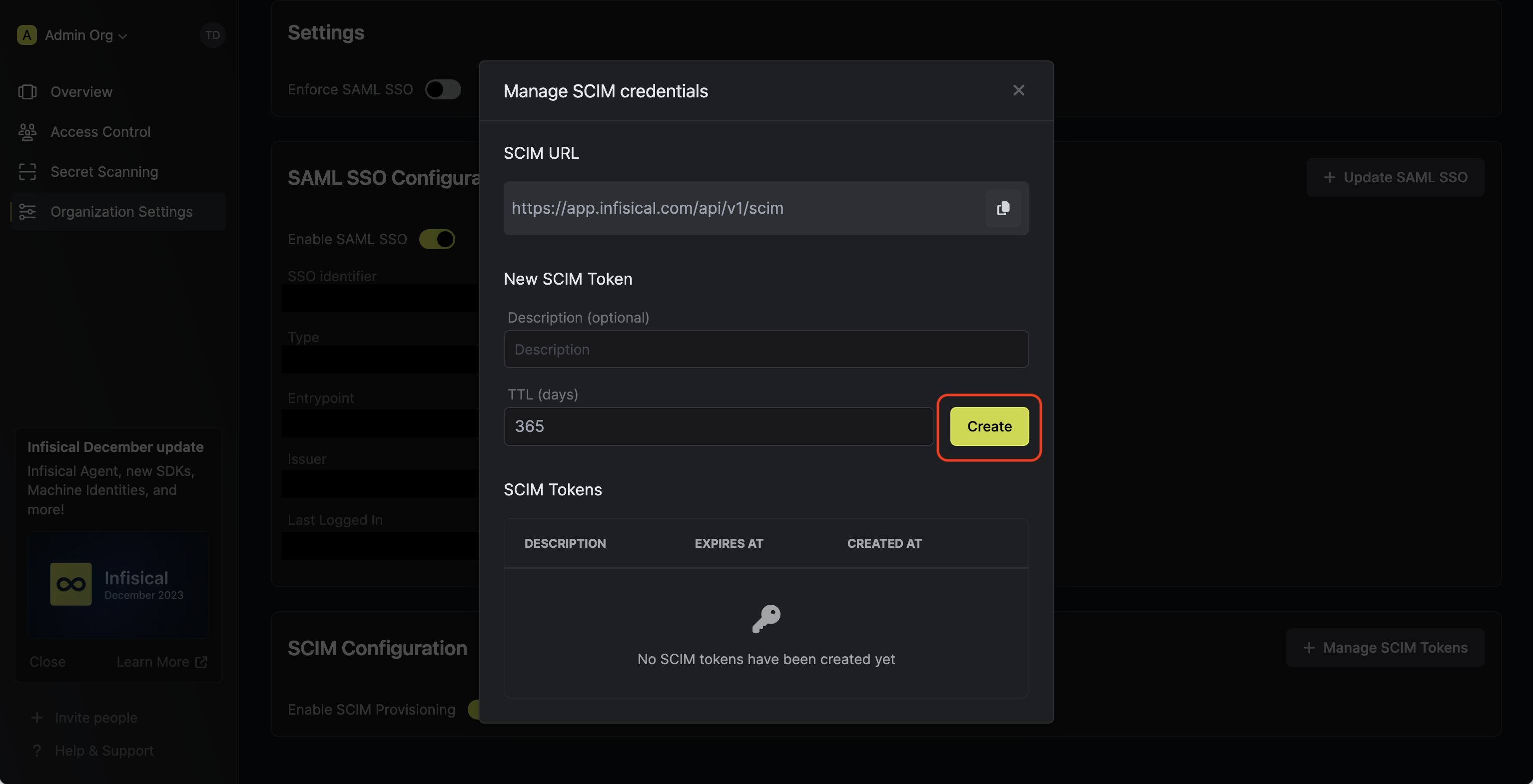
turn on the Enable SCIM toggle to allow Azure to provision and deprovision users for your organization.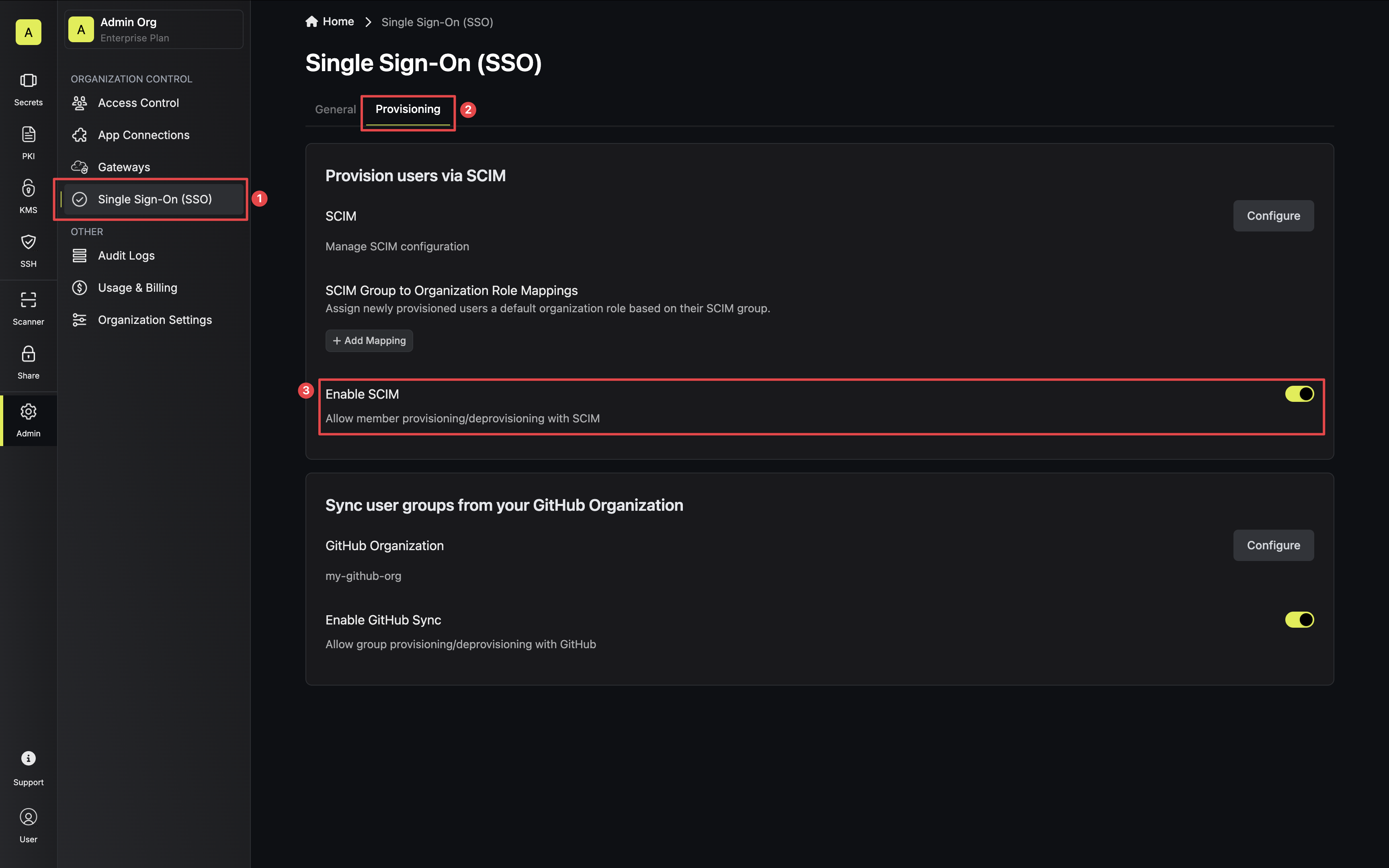 Next, select Configure on the SCIM Provisioning card, then select Create Token in the Manage SCIM Credentials modal to generate a SCIM token for Azure.
 Next, copy the SCIM URL and New SCIM Token to use when configuring SCIM in Azure.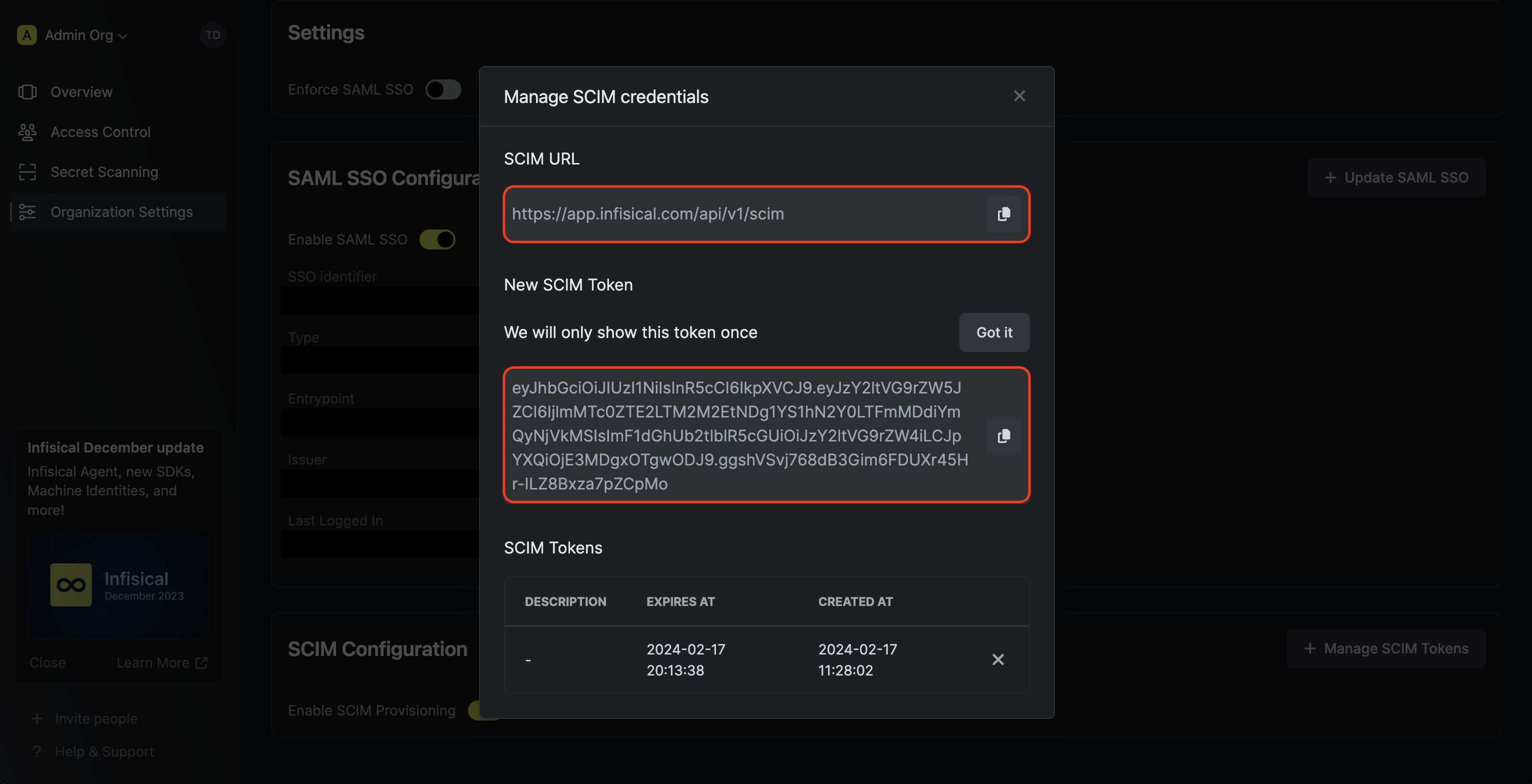
Next, select Configure on the SCIM Provisioning card, then select Create Token in the Manage SCIM Credentials modal to generate a SCIM token for Azure.Next, copy the SCIM URL and New SCIM Token to use when configuring SCIM in Azure.2
Add Users and Groups in Azure
In Azure, navigate to Enterprise Application > Users and Groups. Add any users and/or groups to your application that you would like
to be provisioned over to Infisical.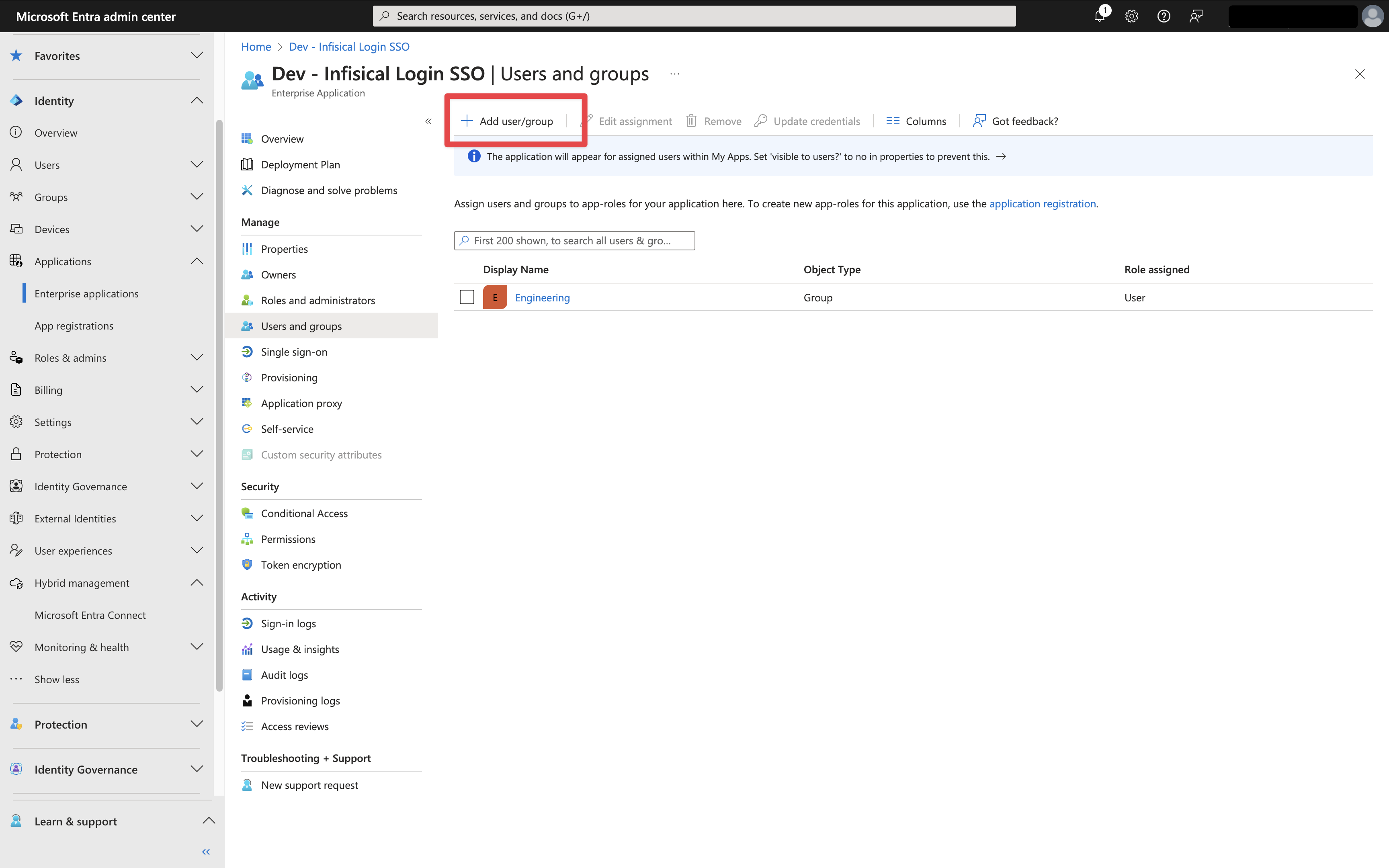
3
Configure SCIM in Azure
In Azure, head to your Enterprise Application > Provisioning > Overview and press Get started.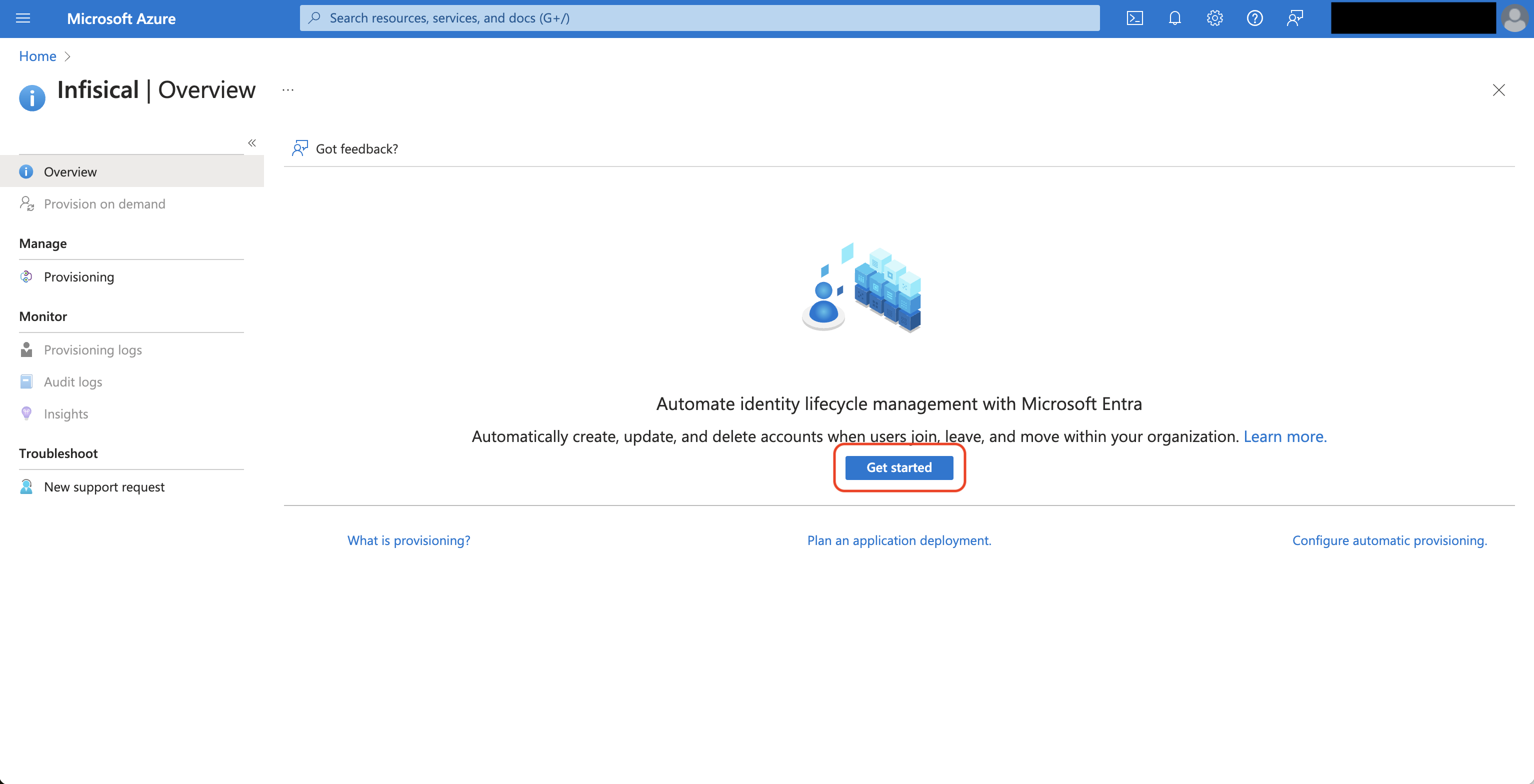 Next, set the following fields:
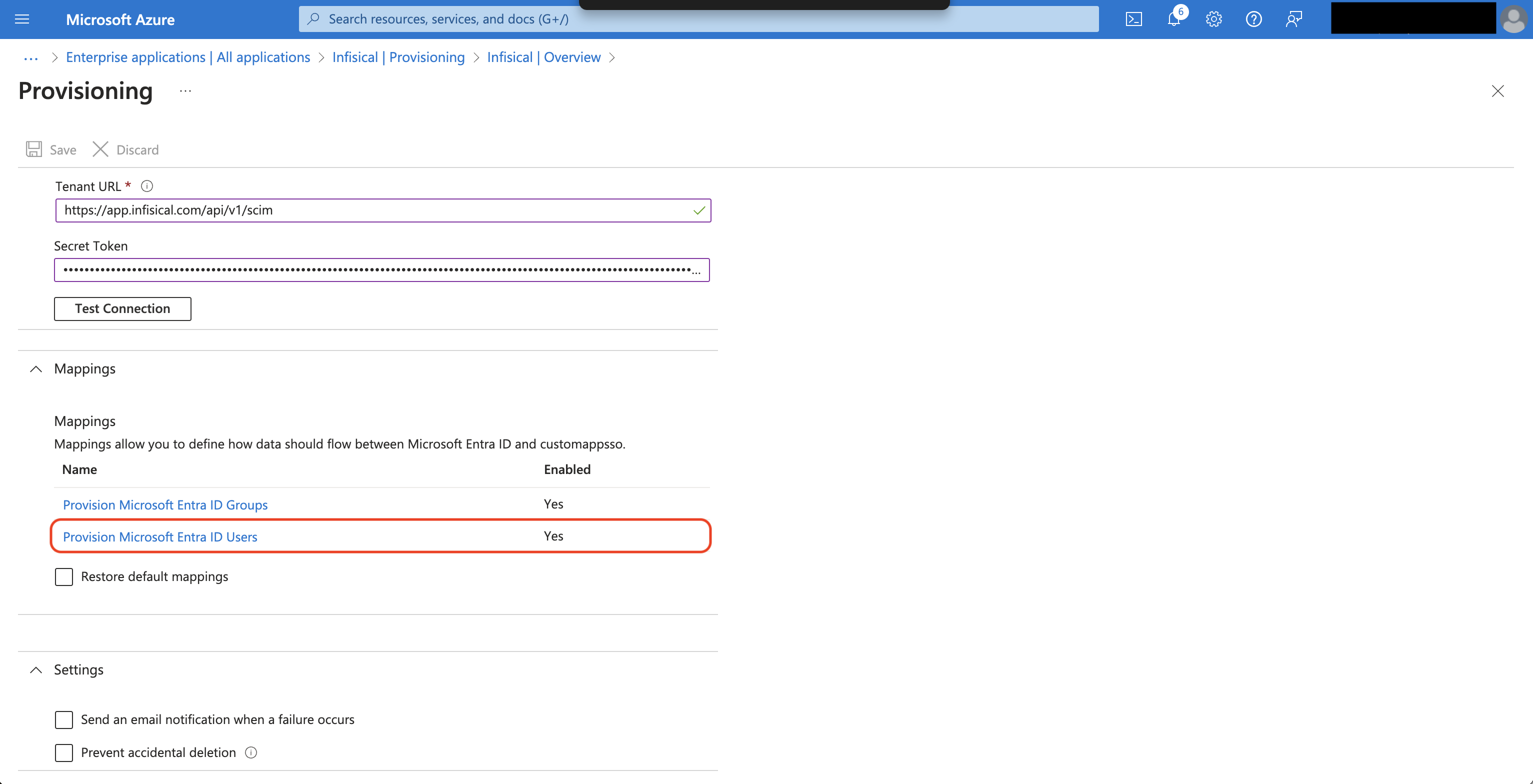
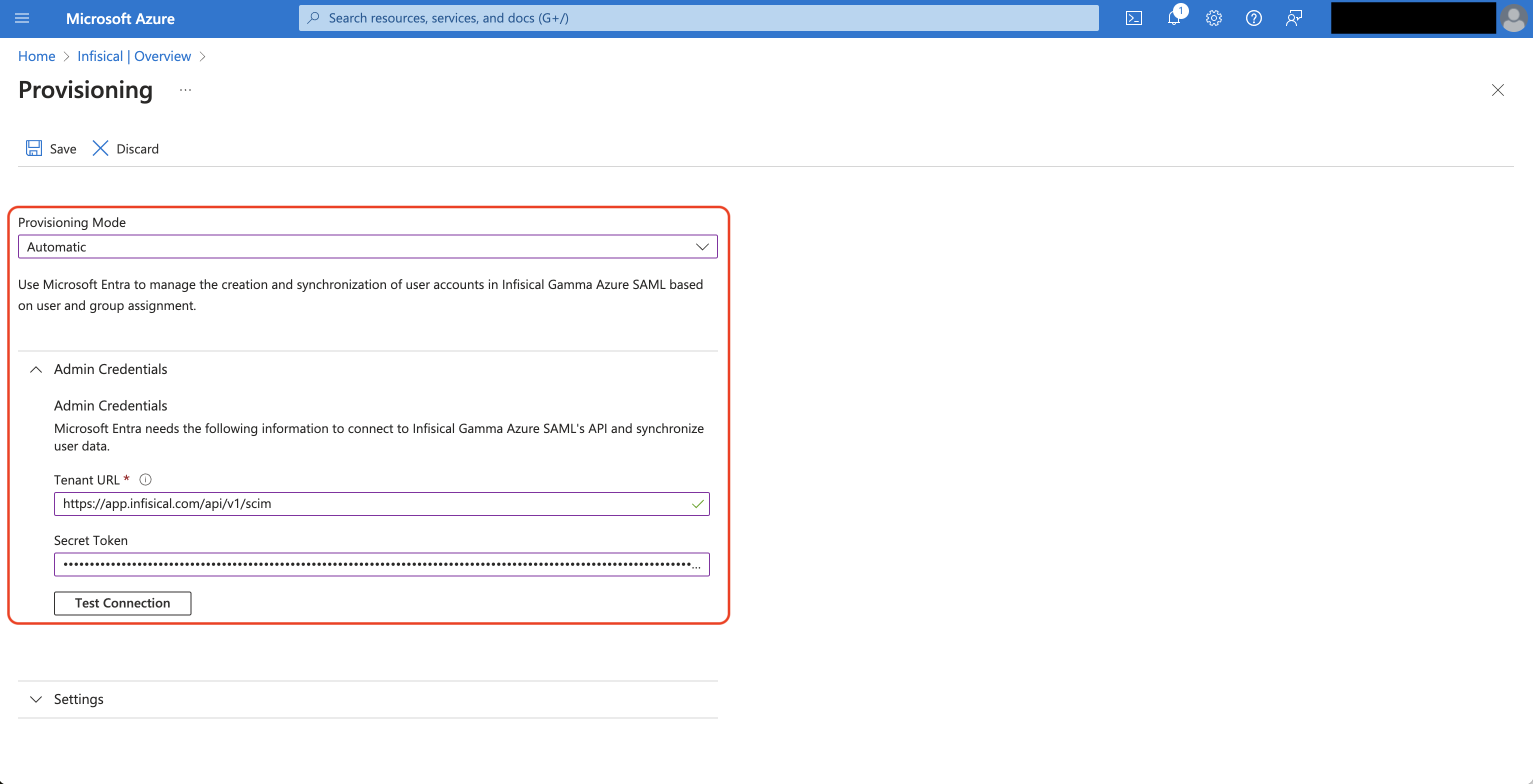 After you hit Save, select Provision Microsoft Entra ID Users under the Mappings subsection.
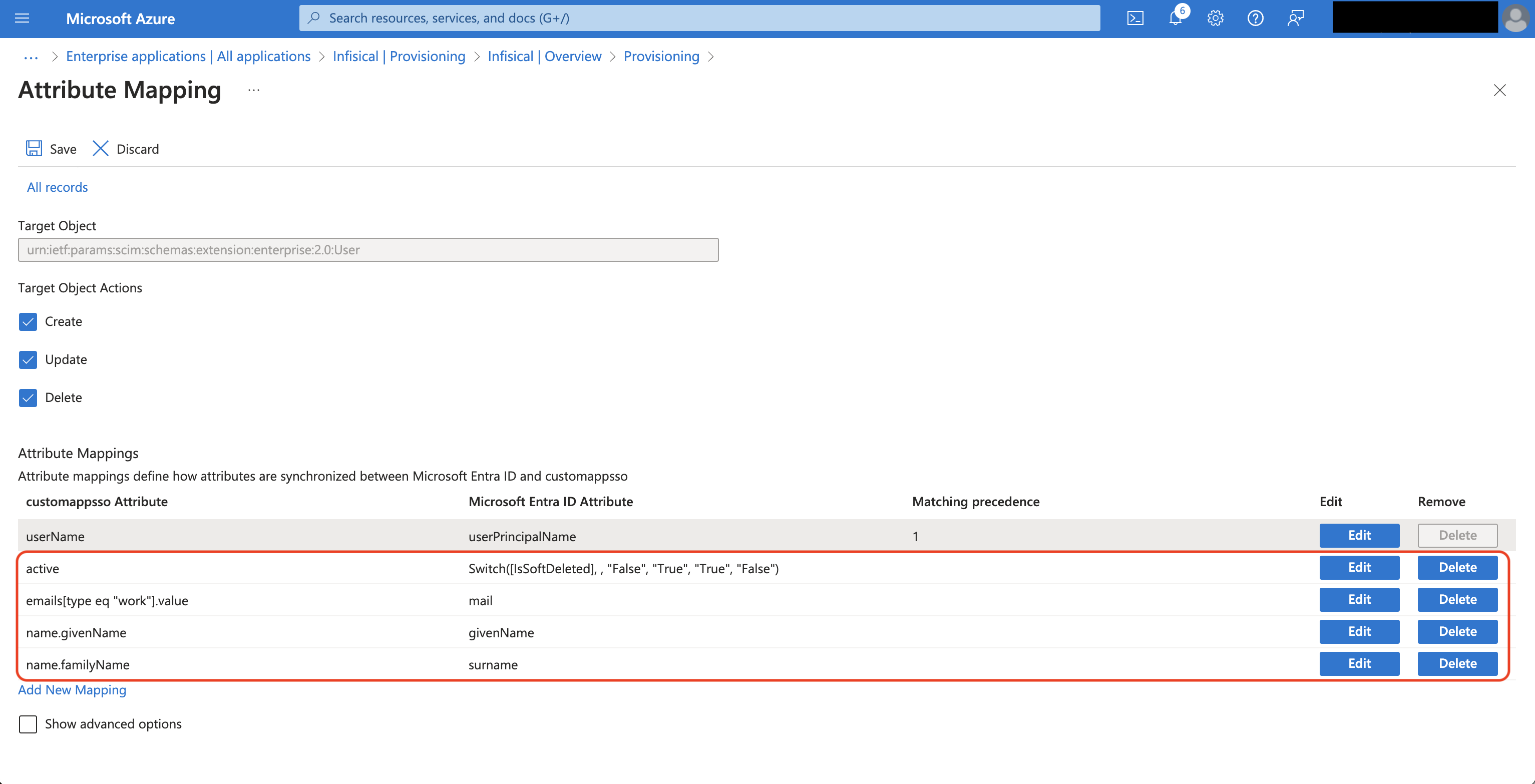
 Next, adjust the mappings so you have them configured as below:
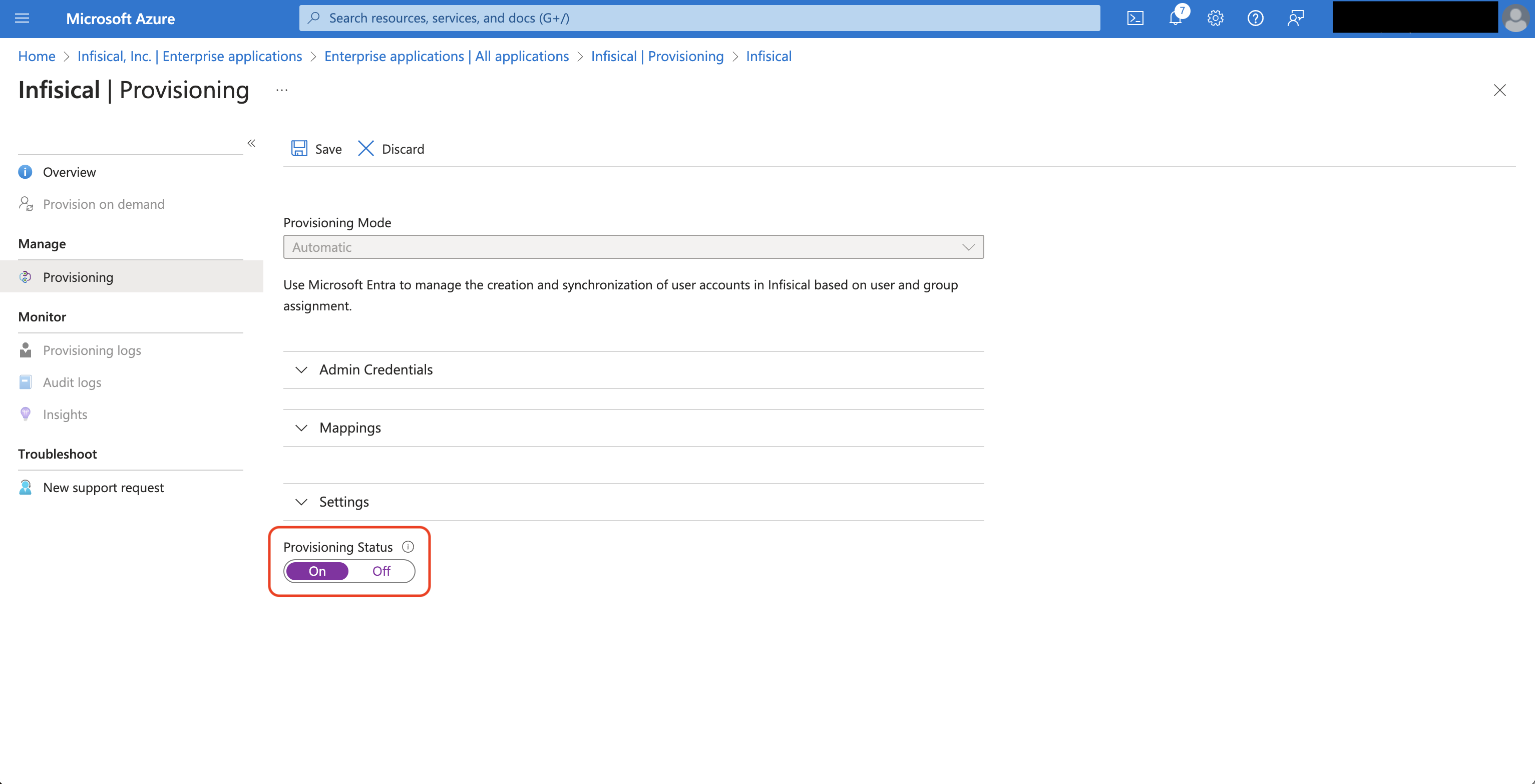
 Finally, head to your Enterprise Application > Provisioning and set the Provisioning Status to On.
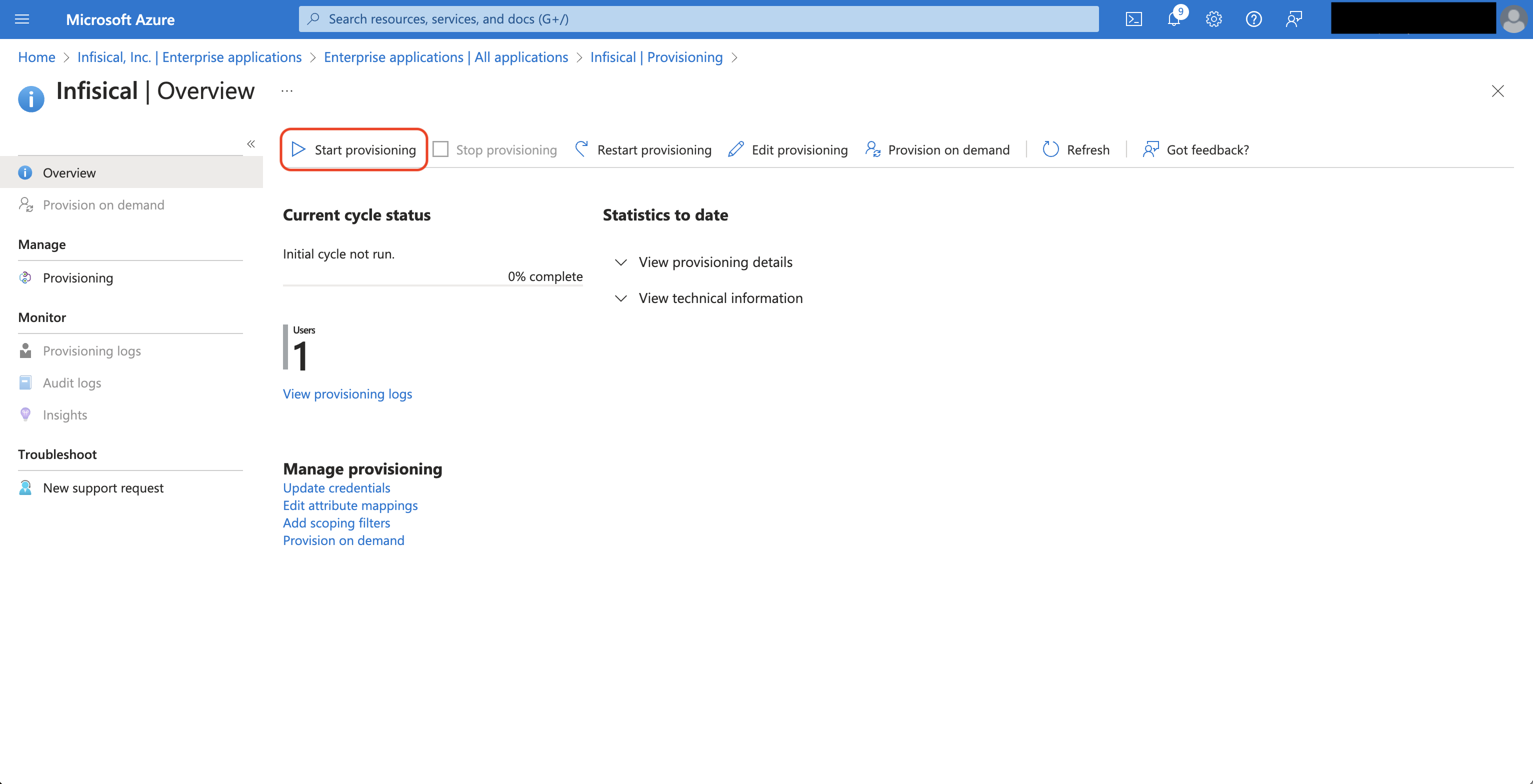
 Alternatively, you can go to Overview and press Start provisioning to have Azure start provisioning/deprovisioning users to Infisical.
 Now Azure can provision/deprovision users to/from your organization in Infisical.
Next, set the following fields:- Provisioning Mode: Select Automatic.
- Tenant URL: Input the SCIM URL from Step 1 with
?aadOptscim062020appended as a query parameter. - Secret Token: Input the New SCIM Token from Step 1.
After you hit Save, select Provision Microsoft Entra ID Users under the Mappings subsection.Next, adjust the mappings so you have them configured as below:Finally, head to your Enterprise Application > Provisioning and set the Provisioning Status to On.Alternatively, you can go to Overview and press Start provisioning to have Azure start provisioning/deprovisioning users to Infisical.Now Azure can provision/deprovision users to/from your organization in Infisical.