

JumpCloud SCIM provisioning is a paid feature.If you’re using Infisical Cloud, then it’s available under the Enterprise Tier. If you’re self-hosting Infisical,
then you should contact sales@infisical.com to purchase an enterprise license to use it.
1
Create a SCIM token in Infisical
In Infisical, head to SSO & Provisioning and select the Provisioning tab. Under SCIM Provisioning,
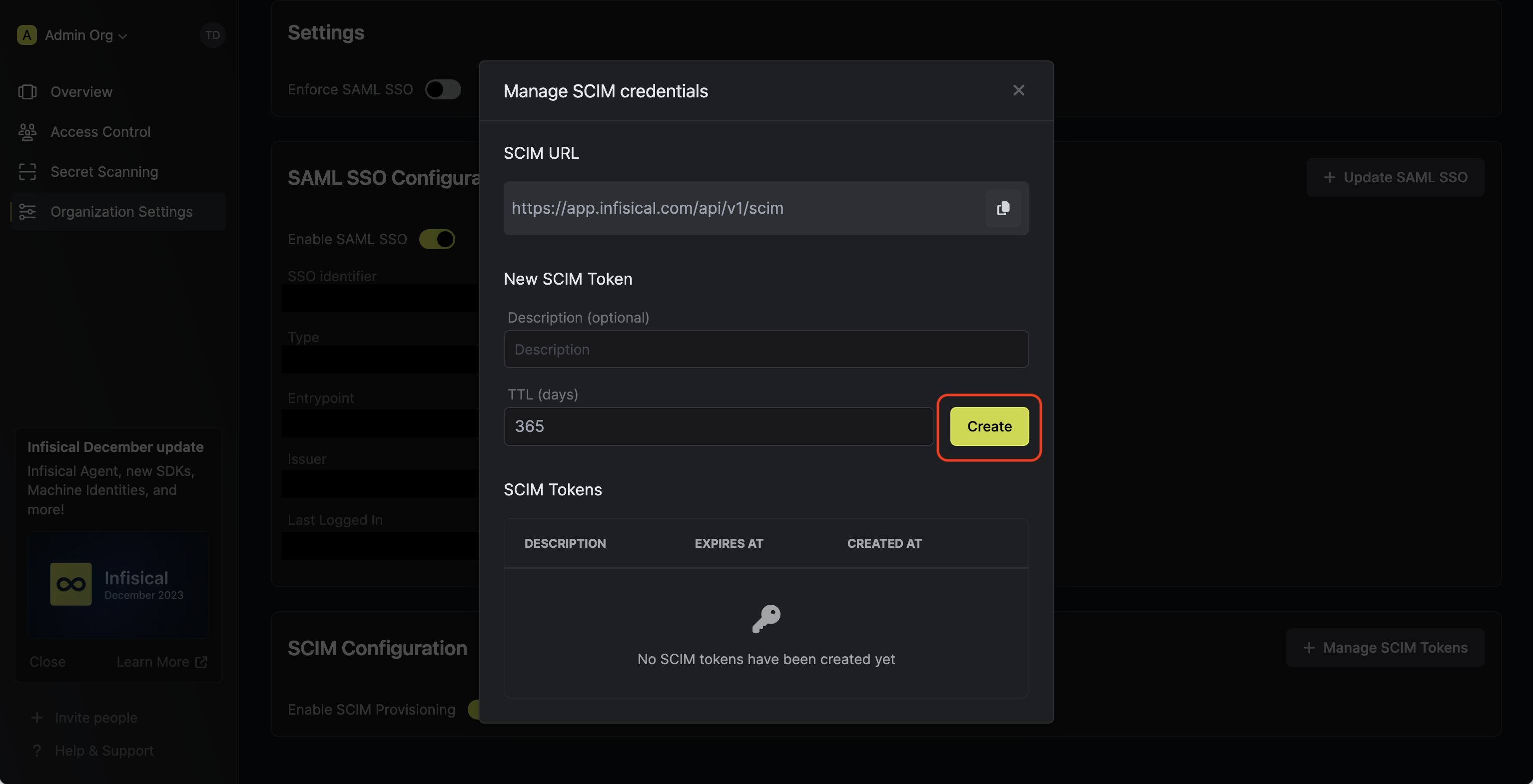
turn on the Enable SCIM toggle to allow JumpCloud to provision and deprovision users and user groups for your organization.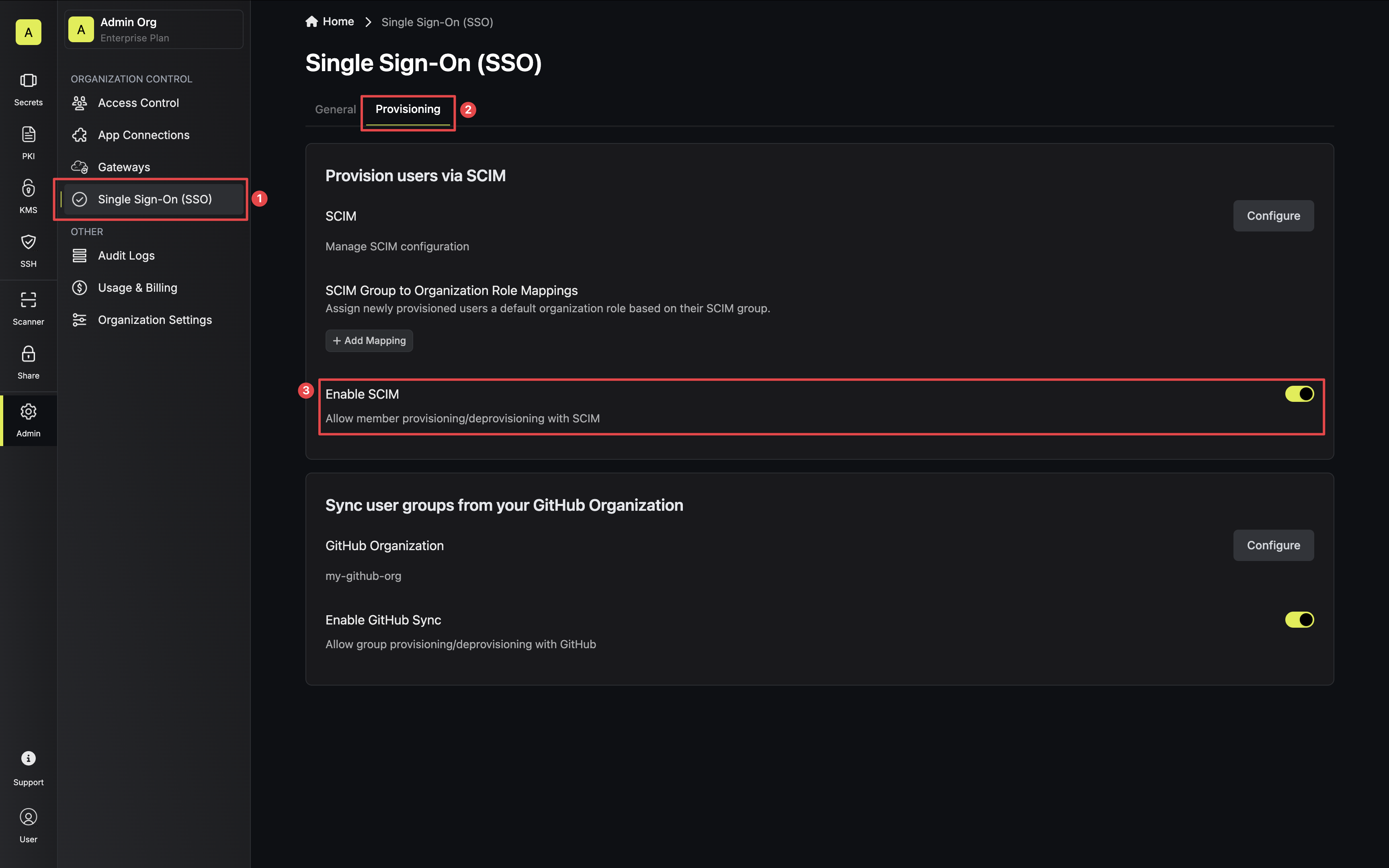 Next, select Configure on the SCIM Provisioning card, then select Create Token in the Manage SCIM Credentials modal to generate a SCIM token for JumpCloud.
 Next, copy the SCIM URL and New SCIM Token to use when configuring SCIM in JumpCloud.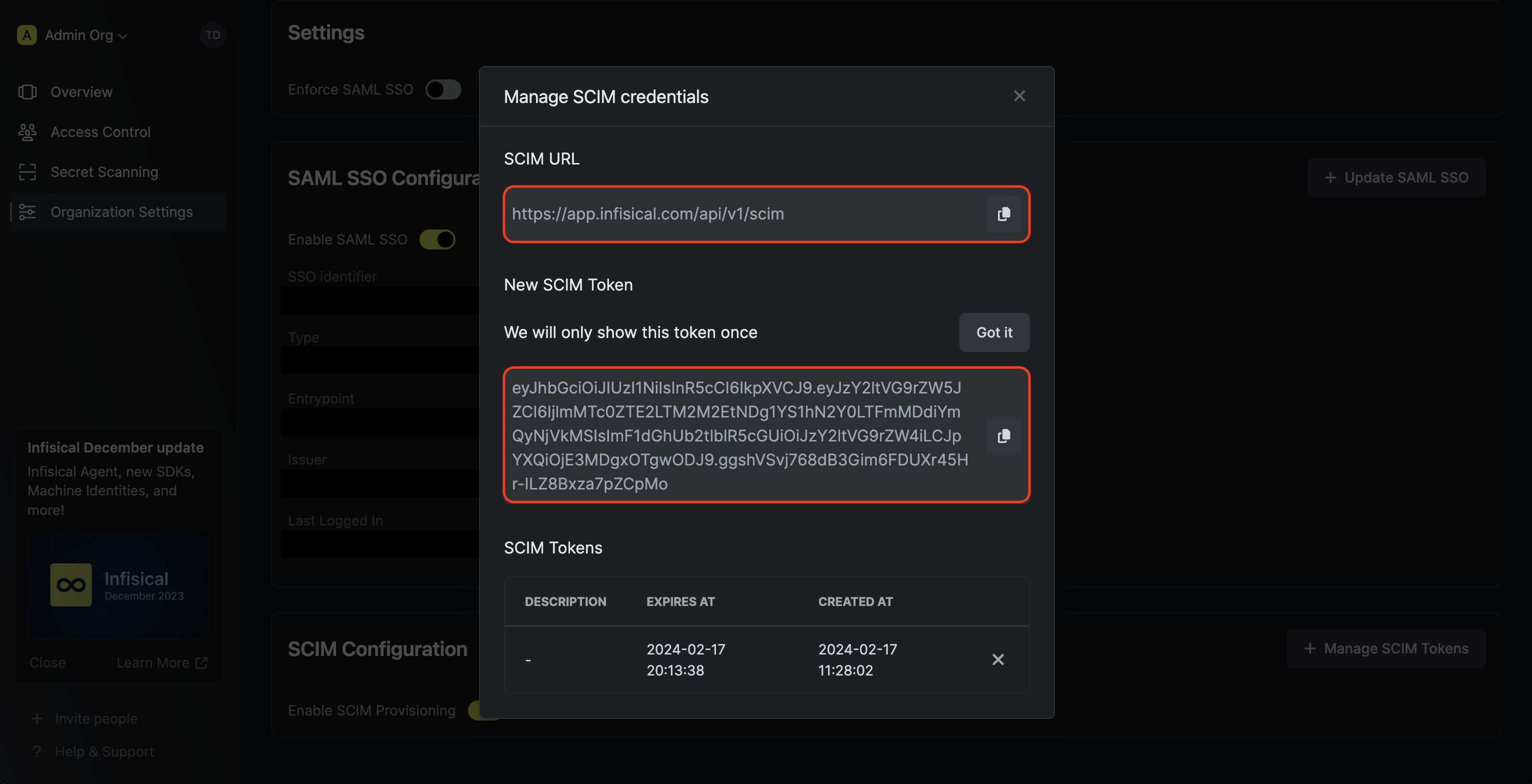
Next, select Configure on the SCIM Provisioning card, then select Create Token in the Manage SCIM Credentials modal to generate a SCIM token for JumpCloud.Next, copy the SCIM URL and New SCIM Token to use when configuring SCIM in JumpCloud.2
Configure SCIM in JumpCloud
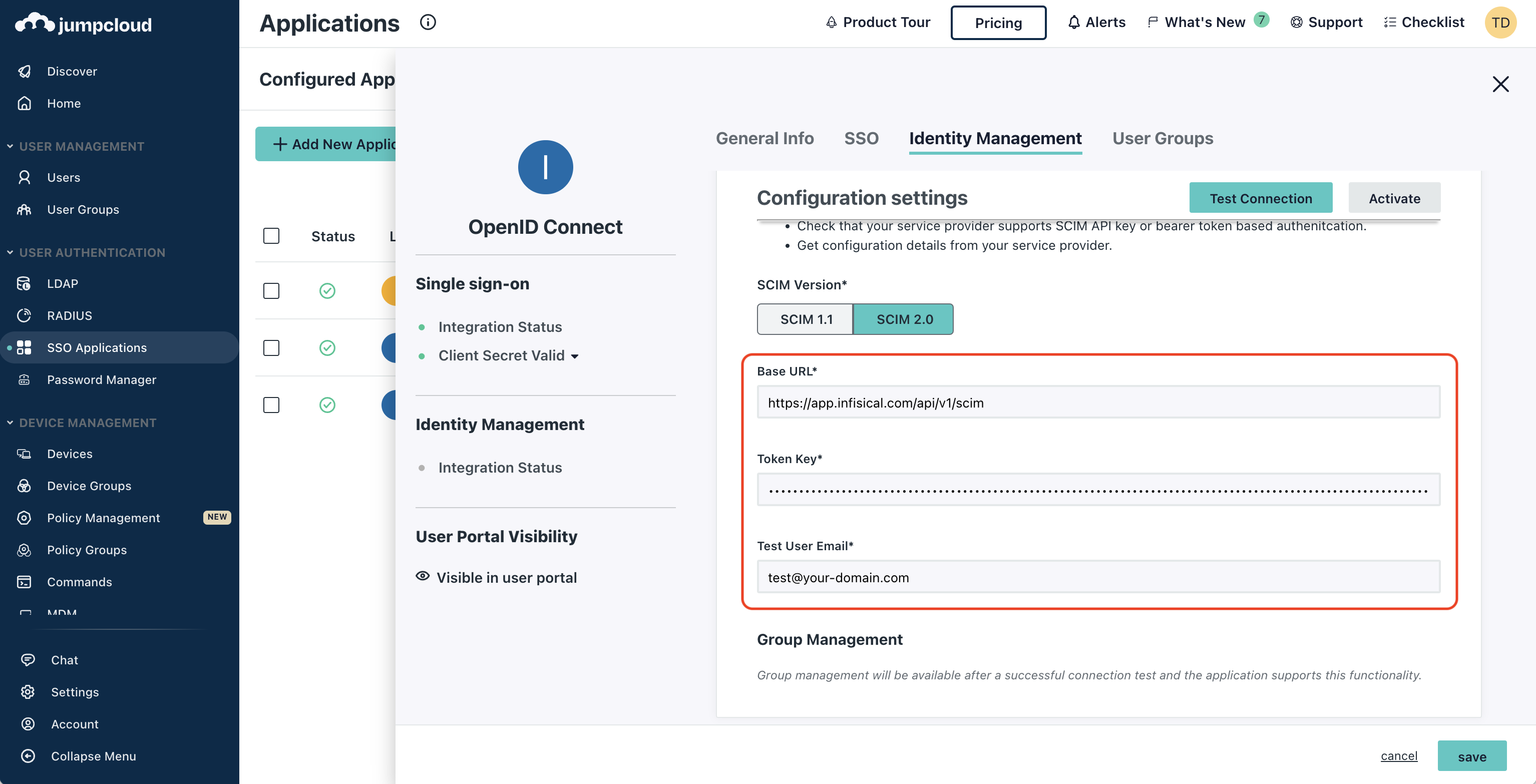
In JumpCloud, head to your Application > Identity Management > Configuration settings and make sure that
API Type is set to SCIM API and SCIM Version is set to SCIM 2.0.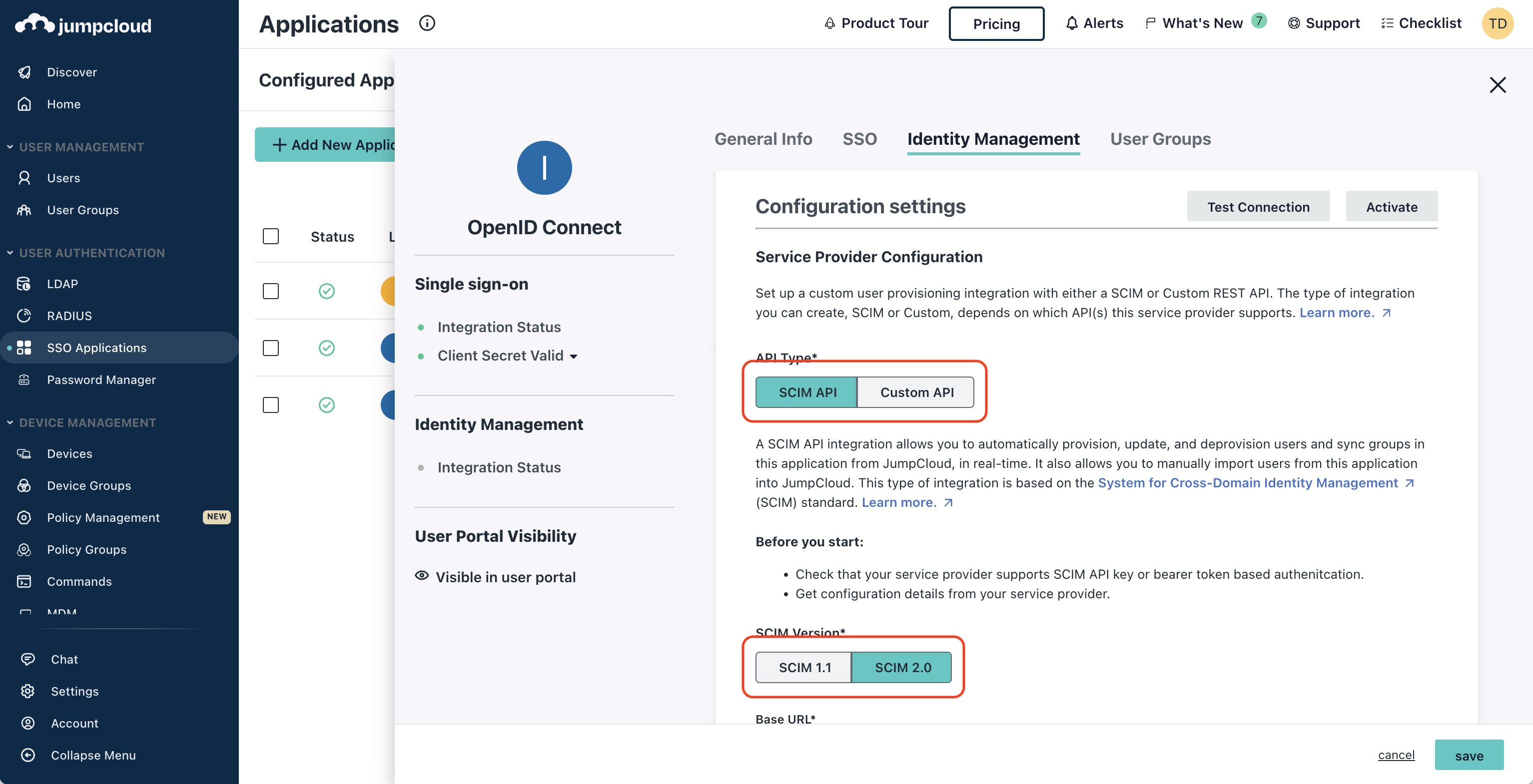 Next, set the following SCIM connection fields:
 Next, press Test Connection to check that SCIM is configured properly. Finally, press Activate
to have JumpCloud start provisioning/deprovisioning users to Infisical.
Next, press Test Connection to check that SCIM is configured properly. Finally, press Activate
to have JumpCloud start provisioning/deprovisioning users to Infisical.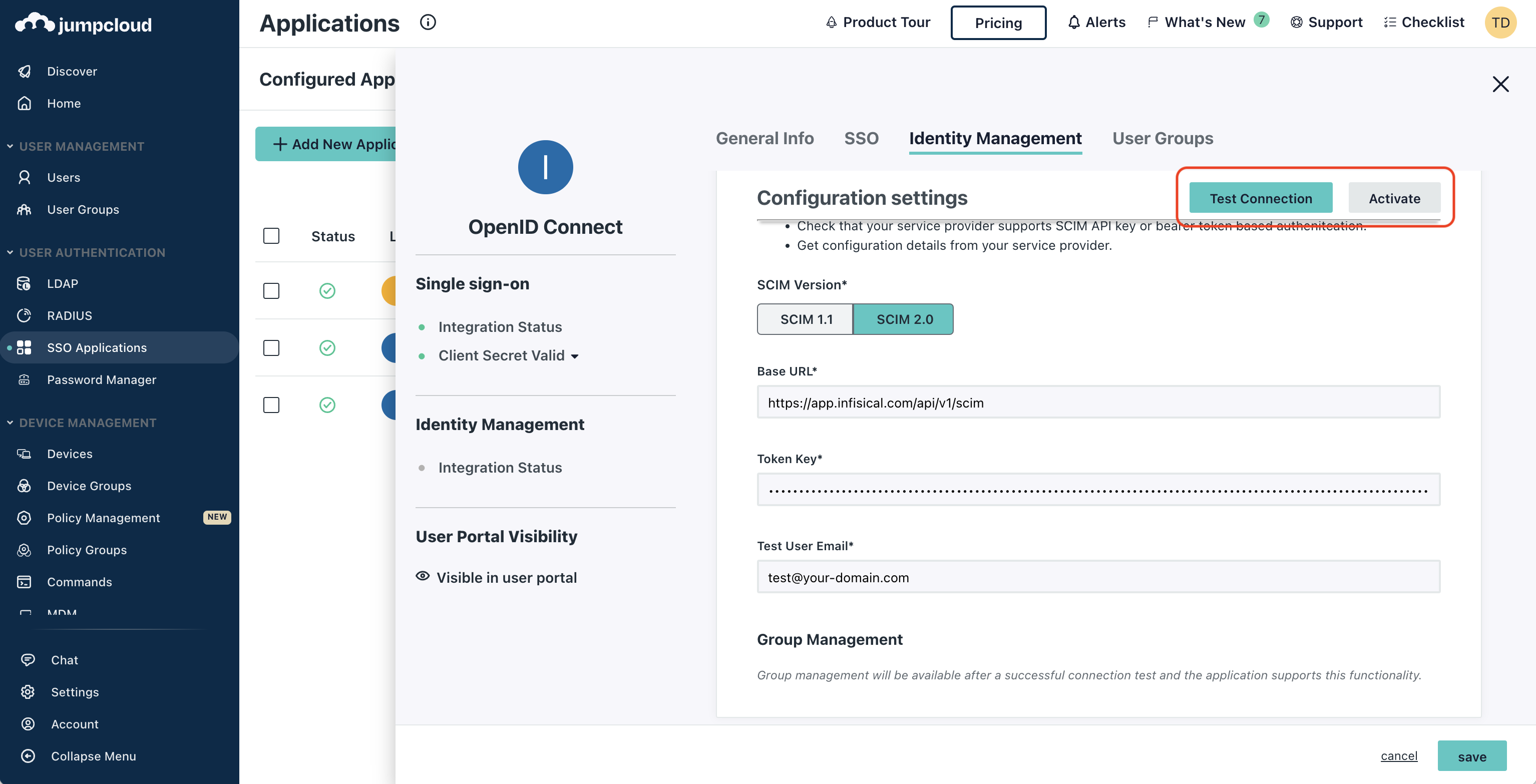 Now JumpCloud can provision/deprovision users and user groups to/from your organization in Infisical.
Next, set the following SCIM connection fields:- Base URL: Input the SCIM URL from Step 1.
- Token Key: Input the New SCIM Token from Step 1.
- Test User Email: Input a test user email to be used by JumpCloud for testing the SCIM connection.
Next, press Test Connection to check that SCIM is configured properly. Finally, press Activate
to have JumpCloud start provisioning/deprovisioning users to Infisical.Now JumpCloud can provision/deprovision users and user groups to/from your organization in Infisical.