

- A code-review bundle that grants access to GitHub and Slack
- A customer-feedback bundle that grants access to Discord, Resend, and Slack
- A marketing bundle that grants access to Twilio and Google Docs

Create an access bundle
To create a new access bundle:1
In your Agent Vault project, go to Access Bundles and select Create Access Bundle.
2
Give the bundle a name that says what job it’s for, like code-review or marketing, and optionally a Description.
3
Select Create Access Bundle. The access bundle appears in the list.
Manage access to access bundles
Since access bundles provide authentication to external APIs, members of your Agent Vault project can’t create sessions with them by default. They need explicit access for each bundle.Grant access
To allow a user, group, or machine identity to create sessions for a given access bundle:1
Make sure the user, group, or machine identity is a member of the Agent Vault project. If not, add them under Access Control.
2
Open the access bundle from Access Bundles and select Options > Manage Access.
3
Under No Access, find the user, group, or machine identity, and select Grant Access next to it. The change saves right away.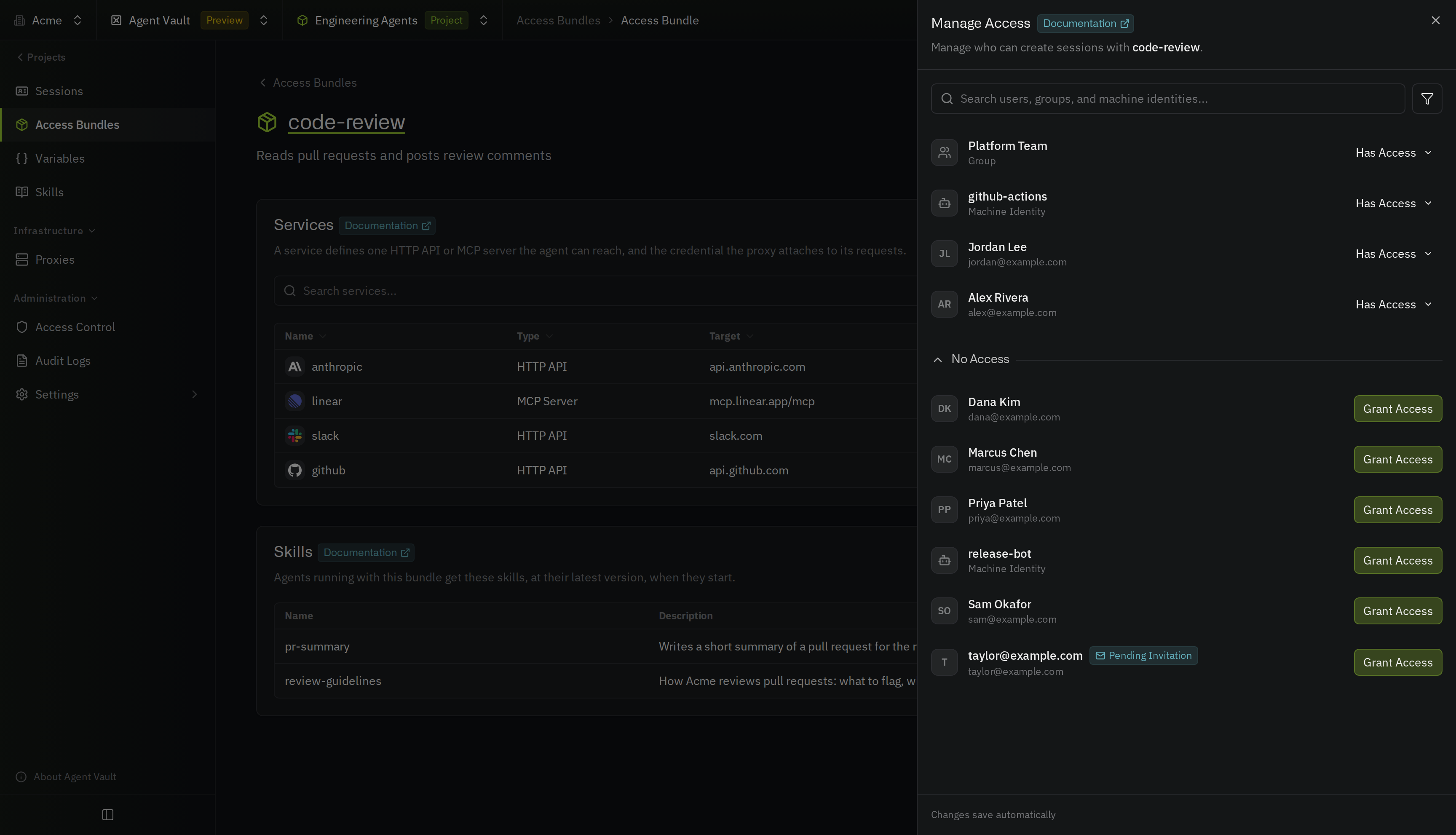
Revoke access
To revoke access from a user, group, or machine identity, open the bundle and select Options > Manage Access. Find them with the search box, select Has Access next to them, and select Revoke Access. If any of their agents are running, those agents lose the bundle’s credentials within one poll interval.Set up your personal values
Some services ask you for part of their credential, such as your own API key (see member-provided values), or ask you to connect your own account to an MCP server. Until you set up your personal values for one of these services, your sessions can’t use it, and the service shows Requires Setup. This applies to admins too. To set up your personal values:1
In your Agent Vault project, go to Access Bundles and select the access bundle.
2
Select Requires Setup next to the service, or open the service’s actions menu and select Set Up My Personal Values.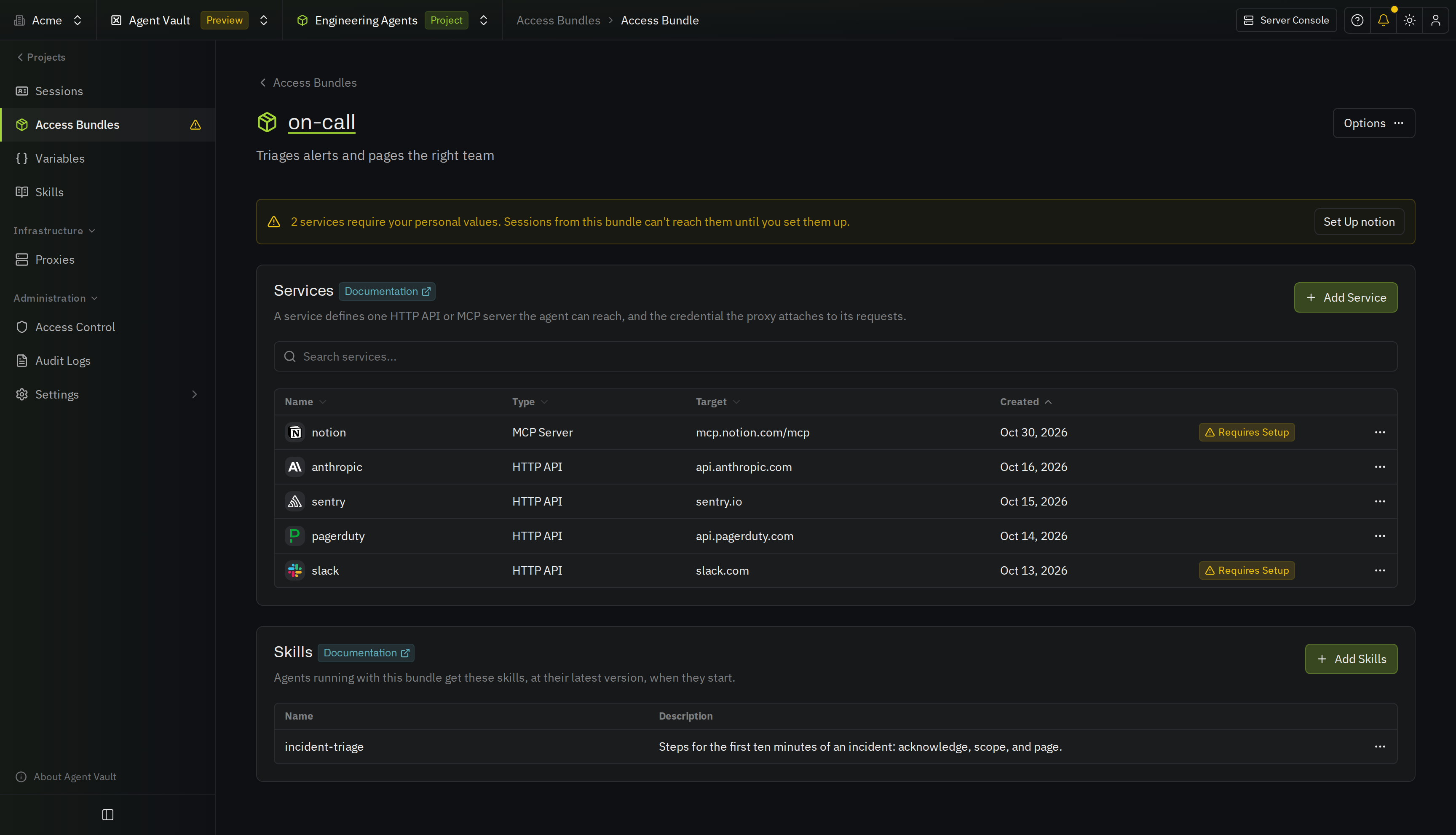
3
Enter each value. To use one of your personal variables, type 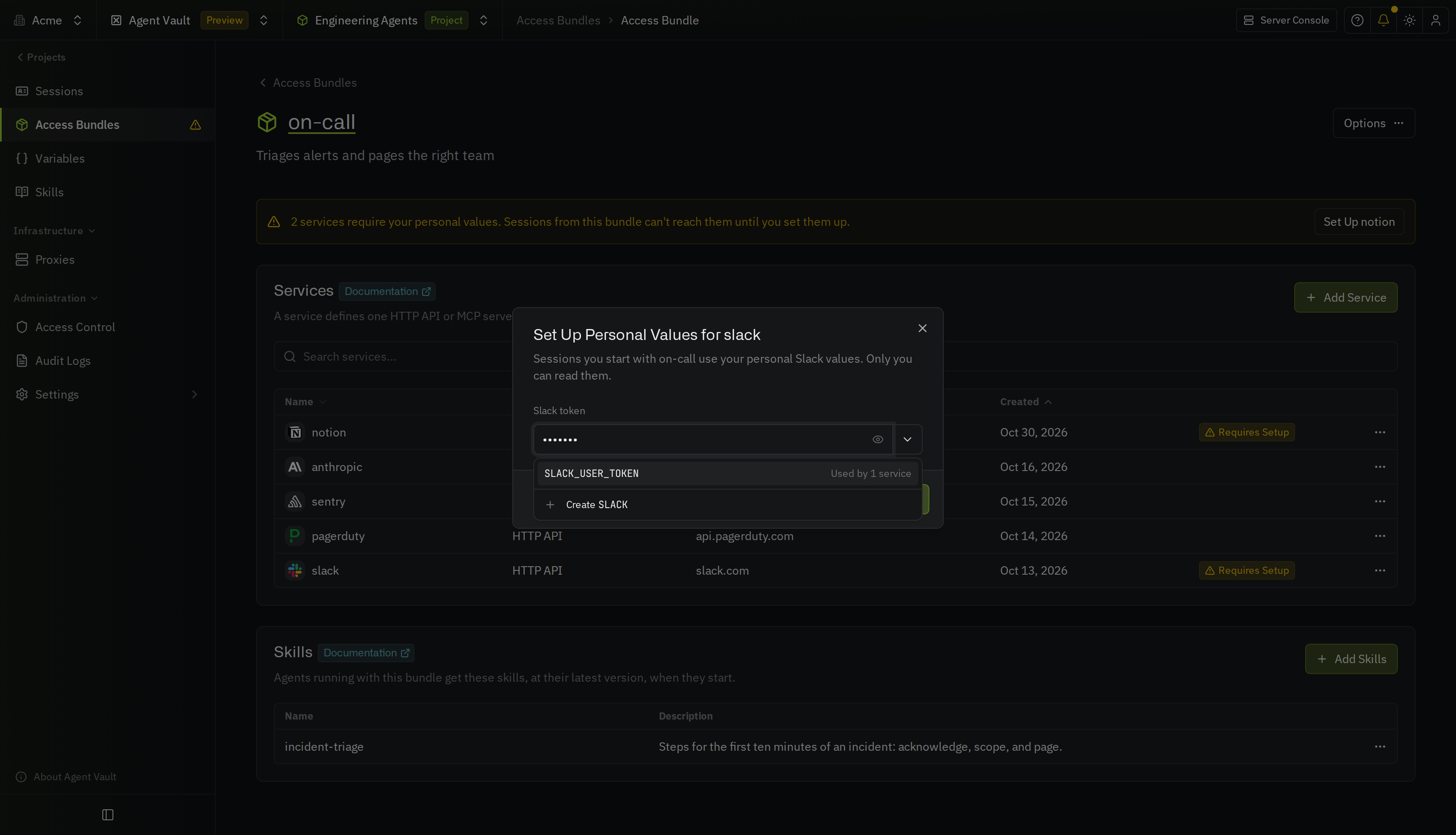 For an MCP service that uses OAuth, select Connect Account instead, then sign in to the provider in the pop-up window and approve access. When you approve, Infisical saves the connection, closes the dialog, and the service shows Configured.
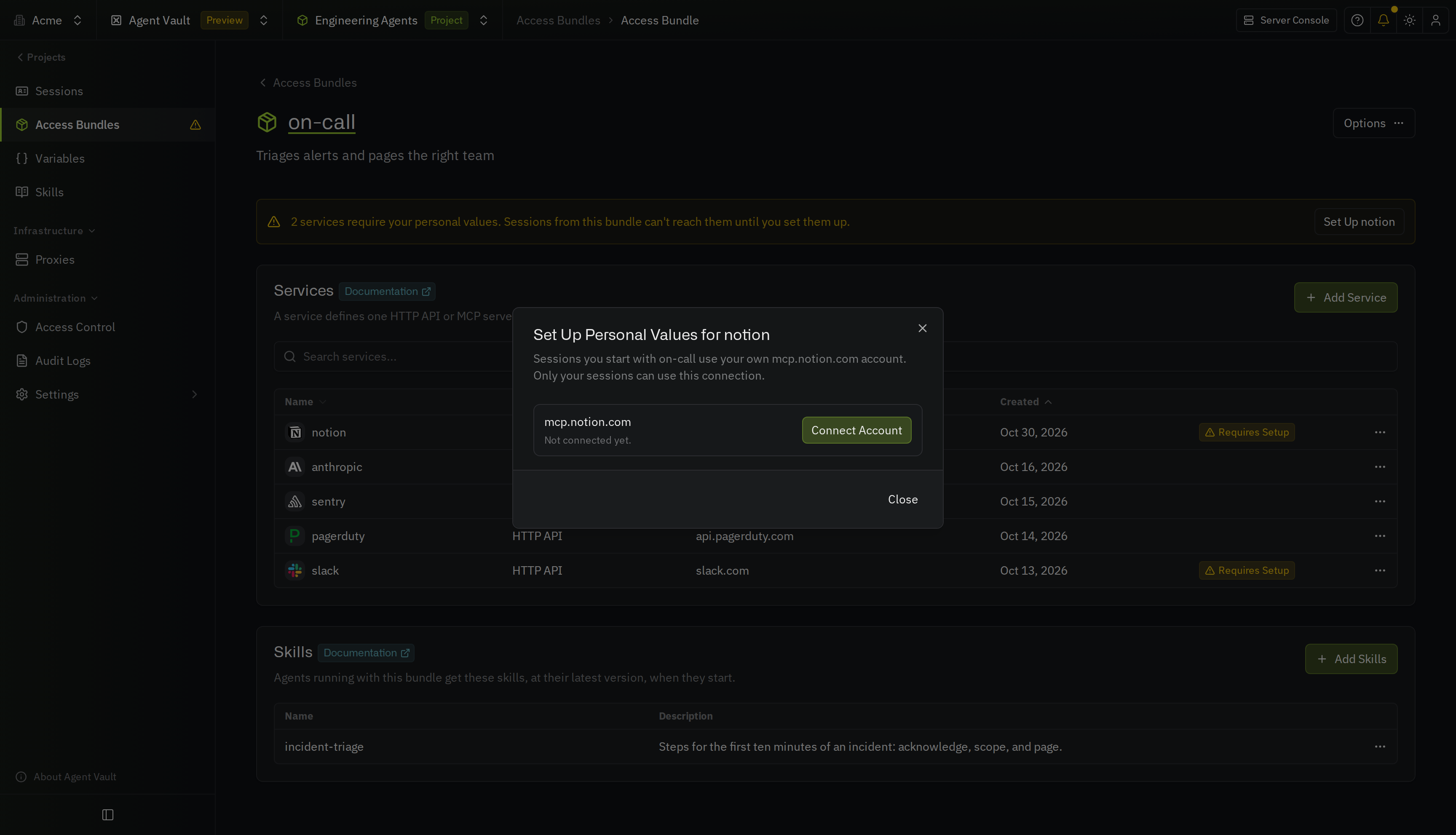
{{ or select the arrow at the end of the field, then pick a variable from the list.4
If you entered values, select Save. The service shows Configured.
- To change your personal values, open the service’s actions menu, select Update My Personal Values, and enter the values you want to change
- To delete your personal values, select Remove in the same dialog, then select Remove Personal Values (Disconnect Account for an OAuth service)