

Choose where to run the proxy
You can run the proxy in one of two ways:- One proxy for several agents: one proxy runs on its own machine or as a Kubernetes Deployment, and every agent sends its requests to it. Agents send their session token to the proxy over plain HTTP, so this is suitable only for agents on a private network that you control
- One proxy per agent: the orchestrator starts a proxy in a separate container with each agent, such as a Modal sidecar or a linked Daytona sandbox, and stops the proxy when the agent finishes. This is suitable for a managed sandbox platform, where a shared proxy would have to accept connections from the internet
Supported connections
Agents connect to the proxy as an HTTP proxy. If you turn on the SOCKS5 port, clients such as E2B can also connect over SOCKS5 over TLS. Over either connection, the proxy attaches credentials to HTTP/1.1 requests, over both HTTPS and plain HTTP. These connections fail through the proxy:- WebSocket connections, such as to a
wss://URL - Clients that only speak HTTP/2, such as gRPC clients
- Other TCP traffic through the SOCKS5 port, such as SSH
Create a proxy and start it
1
In your Agent Vault project, go to Proxies and select Create Proxy.
2
Enter a Name. Optionally, add a Description. To set the traffic policy, exceptions, or poll interval now, expand Advanced Options. You can change these settings later.
3
Select Create. The Proxy Token dialog shows the proxy token, and commands for the CLI, systemd, Docker, and Kubernetes with your token and instance filled in.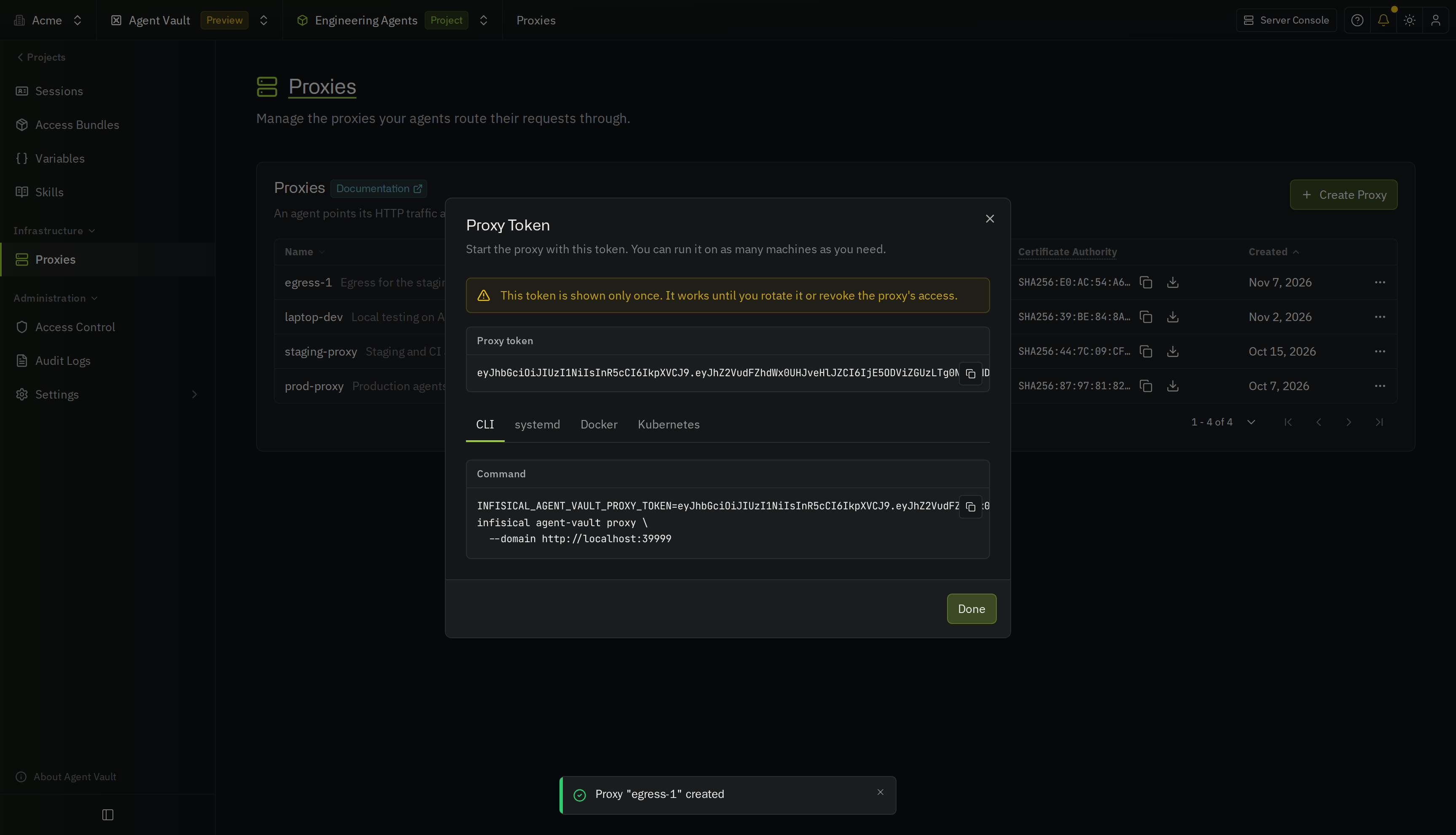
4
Run one of the commands on each machine where the proxy will run.
- CLI
- Docker
- Kubernetes
- systemd
Command flags
The commands use these settings:INFISICAL_AGENT_VAULT_PROXY_TOKENor--proxy-token: the proxy token (prefer the environment variable, because other users on the machine can read anything on a command line)--domainorINFISICAL_DOMAIN: your Infisical instance URL (required for EU Cloud and self-hosted instances, because the default is Infisical Cloud in the US)
127.0.0.1, pass --listen-host or set INFISICAL_AGENT_VAULT_LISTEN_HOST. To also accept SOCKS5 connections, see Accept connections over SOCKS5.
Each time the proxy starts, it loads its settings and certificate authority from Infisical and, if it can, saves a copy in its data directory (~/.infisical/agent-vault, or /etc/infisical/agent-vault as root, or --data-dir). If it can’t reach Infisical for 60 seconds, it starts from that copy, or exits if there isn’t one.
For the proxy’s other flags, such as the port and the data directory, check out the
agent-vault proxy CLI reference.Settings
To change a setting, select Edit Settings on the proxy’s menu. If the proxy is running, it applies the change within one poll interval (60 seconds by default).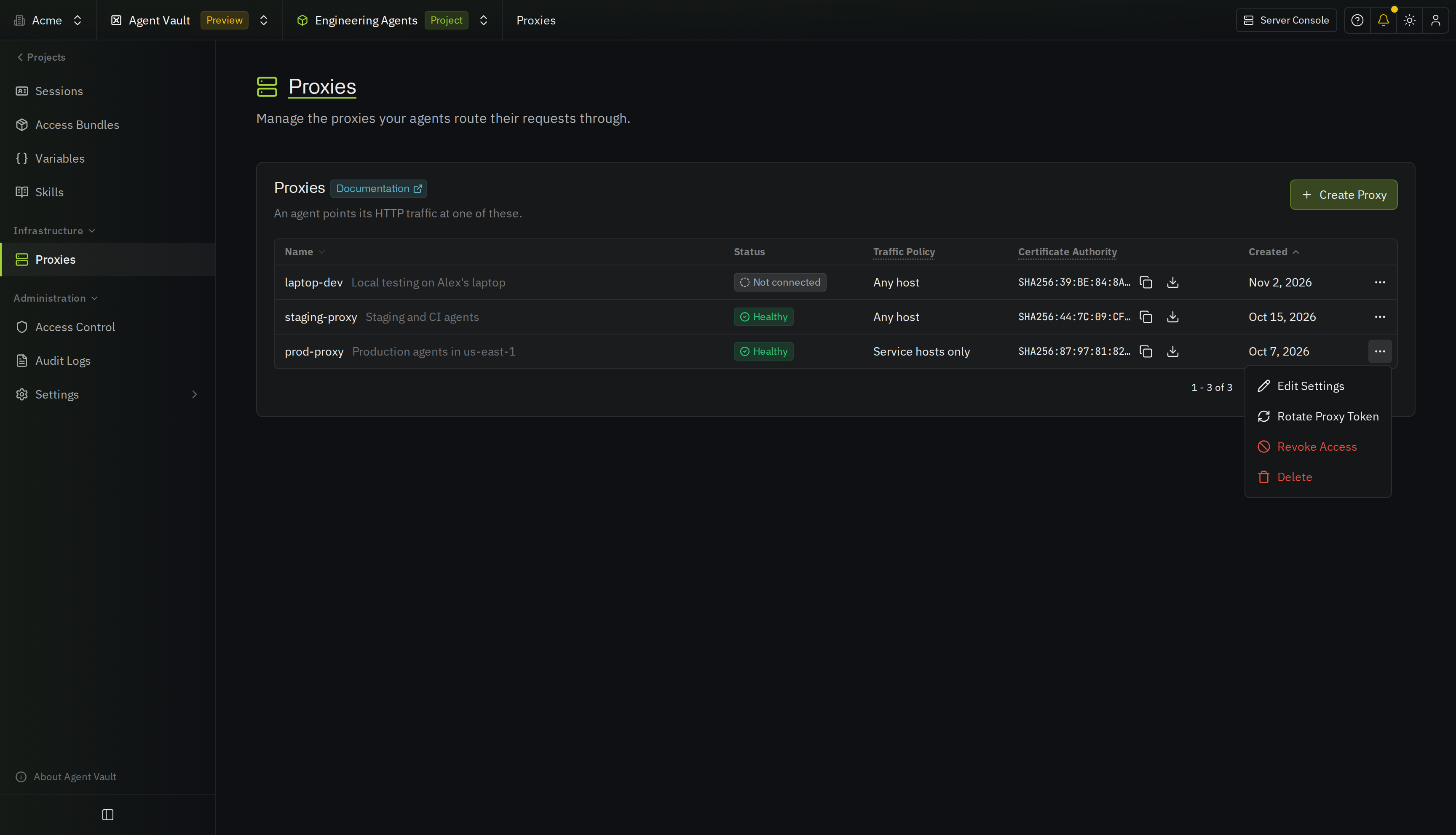
Traffic policy
The Traffic Policy setting controls which hosts agents can reach through the proxy:- Any host (default): the proxy forwards every request, and attaches a credential only for hosts covered by a service
- Service hosts only: the proxy refuses requests to hosts that none of the session’s services cover, unless the host is an exception (the session’s services are the ones in its access bundle and its inline services)
Blocked requests
If the policy blocks a request, the proxy still accepts the connection and completes the TLS handshake, so the agent gets a 403 response instead of a connection error:- A request to a port the service’s host pattern doesn’t name, such as
example.com:8443for a service onexample.com, which only covers port443 - A request that breaks the service’s method or path rules, under either traffic policy
- A request to a service whose personal values aren’t set up yet for the session’s owner, or, for a session on behalf of a user, for that user
- A call to a tool the service doesn’t allow. The agent gets an MCP error that names the tool
- A request the proxy can’t read to check which tools it calls, such as a compressed body, a body in a character set other than UTF-8, or JSON that isn’t a valid MCP message or doesn’t match its
Mcp-MethodandMcp-Nameheaders. The proxy also blocks a request with a body that isn’t aPOST. The agent gets a 400 - A request with a body larger than 32 MiB. The agent gets a 413
Exceptions
Exceptions allow your agents to access hosts that none of the session’s services cover, even when your proxy uses Service hosts only. Use exceptions for hosts every agent needs, such as a package registry or a documentation site. To add exceptions, select the policy and enter the hosts in Exceptions as a comma-separated list. The field doesn’t appear under Any host, because that policy already lets every host through. Exception hosts behave differently from hosts that are covered by services:- Credentials: The proxy never attaches a credential to requests to an exception host
- Ports: An exception with no port matches the host on every port, while a service’s host pattern with no port only matches port
443 - Interception: The proxy still decrypts requests to an exception host, but doesn’t block them
- Scope: An exception applies to every agent that uses the proxy
Poll interval
The poll interval is how often, in seconds, the proxy re-checks each active session with Infisical and applies settings changes. It defaults to 60 and can be set from 10 to 300. If the proxy can’t reach Infisical:- The proxy keeps using the session data it last fetched for five poll intervals
- After that, the proxy refuses the affected requests with a 502 until it reaches Infisical again, instead of forwarding them without their credentials
- The Proxies page marks the proxy Unreachable after three missed check-ins
Certificate trust
The proxy decrypts HTTPS traffic to attach the credential, so each agent has to trust the proxy’s certificate authority (CA). Infisical generates a self-signed CA for each proxy when you create the proxy, and a new one each time you rotate the proxy’s token.- With the CLI
- Without the CLI
If you start the agent with
infisical agent-vault run, the CLI sets up trust for you. On every run, it fetches the certificate from the proxy and sets these variables for the agent: SSL_CERT_FILE, NODE_EXTRA_CA_CERTS, REQUESTS_CA_BUNDLE, CURL_CA_BUNDLE, GIT_SSL_CAINFO, and DENO_CERT.On macOS, if you run the CLI in a terminal, it also adds the certificate to your login keychain for tools such as gh and docker that read the system trust store. macOS asks you to approve the change. To skip this step on a machine that already trusts the proxy, pass --no-ca-trust.Download the certificate authority
To give the proxy’s CA to a sandbox provider, or to get the CA without connecting to the proxy, download it from Infisical:- In Infisical: on the Proxies page of your Agent Vault project, select the download icon next to the fingerprint in the Certificate Authority column
- With the API: call the endpoint that gets a proxy’s certificate authority as a member or admin of the proxy’s Agent Vault project
Pin the proxy’s certificate
If the agent runs on a network you don’t fully control, pin the proxy’s certificate so the agent only talks to your proxy. Copy the fingerprint from the Certificate Authority column on the Proxies page, and pass it with--ca-fingerprint:

Use your own certificate authority
To serve your own CA instead of the one Infisical generates, pass it to the proxy with--ca-cert and --ca-key, or with the INFISICAL_AGENT_VAULT_CA_CERT and INFISICAL_AGENT_VAULT_CA_KEY environment variables. Each value can be the PEM text, the PEM encoded as base64, or the path to a PEM file. The key has to be an ECDSA P-256 key.
APIs with a private certificate authority
The proxy checks the certificate of each API it connects to, the way any HTTPS client does. If an API uses a private certificate authority, the machine running the proxy has to trust that authority. The agent’s machine doesn’t need to trust it.Accept connections over SOCKS5
Some sandbox providers, such as E2B, send a sandbox’s traffic to a SOCKS5 proxy from outside the sandbox, instead of settingHTTPS_PROXY in the sandbox. To support them, turn on the proxy’s SOCKS5 port, which only accepts SOCKS5 over TLS.
Turn on the SOCKS5 port
Pass--socks5-port with the port number, and --socks5-tls-name with the DNS name or IP address that clients connect to:
- Interfaces: the SOCKS5 port listens on all interfaces, on a different port from
--port - Who can reach it: only the clients that connect to the SOCKS5 port need to reach it, so limit the port to their addresses with a firewall, a private network, or a VPN where you can
- The HTTP port: on a public machine, keep the HTTP port (
17323by default) off the internet, such as with--listen-host 127.0.0.1, because agents send their session token to it unencrypted - Environment variables: each flag has an environment variable, listed in the CLI reference
agent-vault: SOCKS5 listening. Log lines about SOCKS5 sign-ins and requests have the field door set to socks5.
Certificate for the SOCKS5 port
With--socks5-tls-name, the proxy makes the port’s certificate from its CA and renews the certificate before it expires. Clients check the certificate with the proxy’s CA, which you can download from Infisical, or with your own CA’s certificate if you use your own.
To serve your own certificate instead, such as one from a publicly trusted CA, pass --socks5-tls-cert and --socks5-tls-key in place of --socks5-tls-name:
- Formats: each value can be the PEM text, the PEM encoded as base64, or the path to a PEM file
- Key types: RSA, ECDSA, or Ed25519
- Expired certificates: the proxy doesn’t start if the certificate has expired
- Renewal: the proxy reads the certificate only when it starts, so restart the proxy each time you renew the certificate (the proxy warns in its log when fewer than 14 days are left)
Sessions on the SOCKS5 port
Clients sign in with a SOCKS5 username and password. The proxy ignores the username, so you can use any value, such asx-agent-vault. Set the password to the session token. After sign-in, the proxy handles requests the same way it handles them on the HTTP port, including the traffic policy and the limits in Supported connections.
- If the session isn’t valid, the proxy refuses the sign-in and logs the reason, so the client reports a failed sign-in (if the password isn’t a session token, the proxy logs the reason only with
--log-level debug) - If the proxy can’t check the session, such as when Infisical is unreachable, it accepts the sign-in and refuses the connection with a general failure, so the client can try again later
- If you revoke a session while a connection is open, the next request on that connection gets a 403 with
the session is no longer valid, or it belongs to a different Agent Vault project than this proxy(within one poll interval)
Requests to private addresses
The SOCKS5 port refuses requests to private, loopback, link-local, and other internal addresses, such as a cloud metadata endpoint or the proxy’s own network interfaces, under either traffic policy. The client gets a 403:--socks5-allow-private-destinations.
Rotate a proxy’s token
Rotate the token if it leaked, or to bring back a proxy whose access you revoked:1
On the Proxies page, select Rotate Proxy Token on the proxy’s menu, then select Rotate.
2
Store the new token from the Proxy Token dialog somewhere safe.
3
Restart the proxy with the new token on every machine where it runs.
- Restart every agent that uses the proxy, because those agents still trust the old certificate
- Update any
--ca-fingerprintpin - Replace any
ca.pemfile you mounted for an agent - Download the CA again for any SOCKS5 client you gave it to
- On macOS, replace the certificate in your login keychain
Revoke or delete a proxy
Both actions are on the proxy’s menu:
Revoke access if you think a machine running the proxy is compromised.
High availability
To keep the proxy available when one machine goes down, run it on several machines with the same proxy token and put a load balancer in front of them. Every machine serves the same certificate authority, so agents trust whichever machine they reach.- Load balancer type: use a TCP (layer 4) load balancer, because agents send
CONNECTrequests that most HTTP load balancers don’t forward. You don’t need sticky sessions - Health checks: send an HTTP
GETto/_agent-vault/caon each machine, which returns200while the proxy is serving (if the HTTP port only listens locally, open a TCP connection to the SOCKS5 port instead) - Your own certificate authority (optional): if you want to use your own, pass the same
--ca-certand--ca-keyto every machine