

Prerequisites
- The Admin role in your Agent Vault project
- An access bundle to add the MCP server to
- A running proxy that your agent can reach
- An account with the MCP server’s provider, or a token the server accepts
Add an MCP server
1
In your Agent Vault project, go to Access Bundles. Select your access bundle, then select Add Service.
2
On the Choose a template panel, pick a template under MCP Servers, or select Custom MCP Server to connect any other remote MCP server.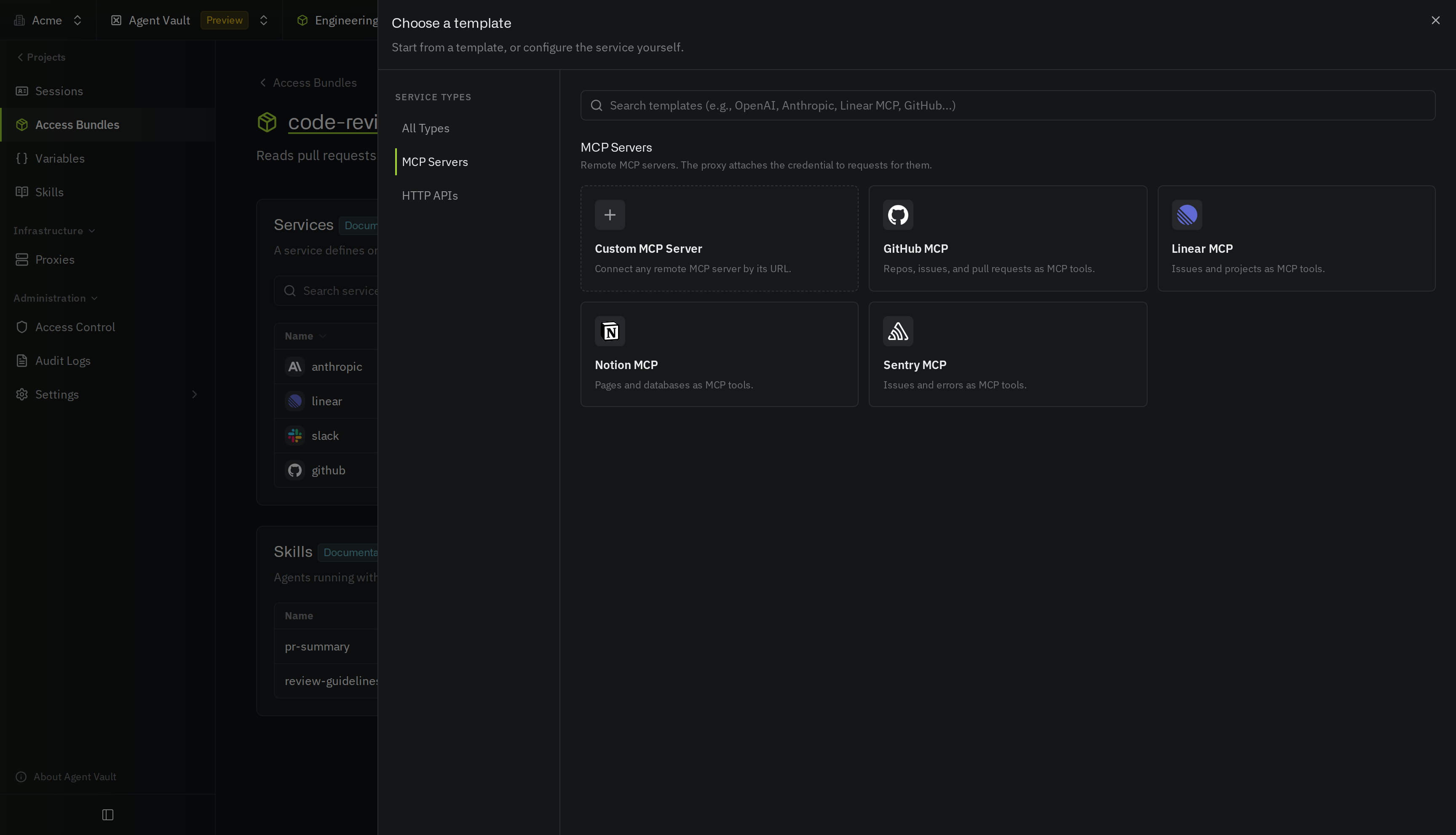
3
On the Details step, enter a Name, and check the Transport and Server URL. A template fills in the transport and server URL for you. Select Continue.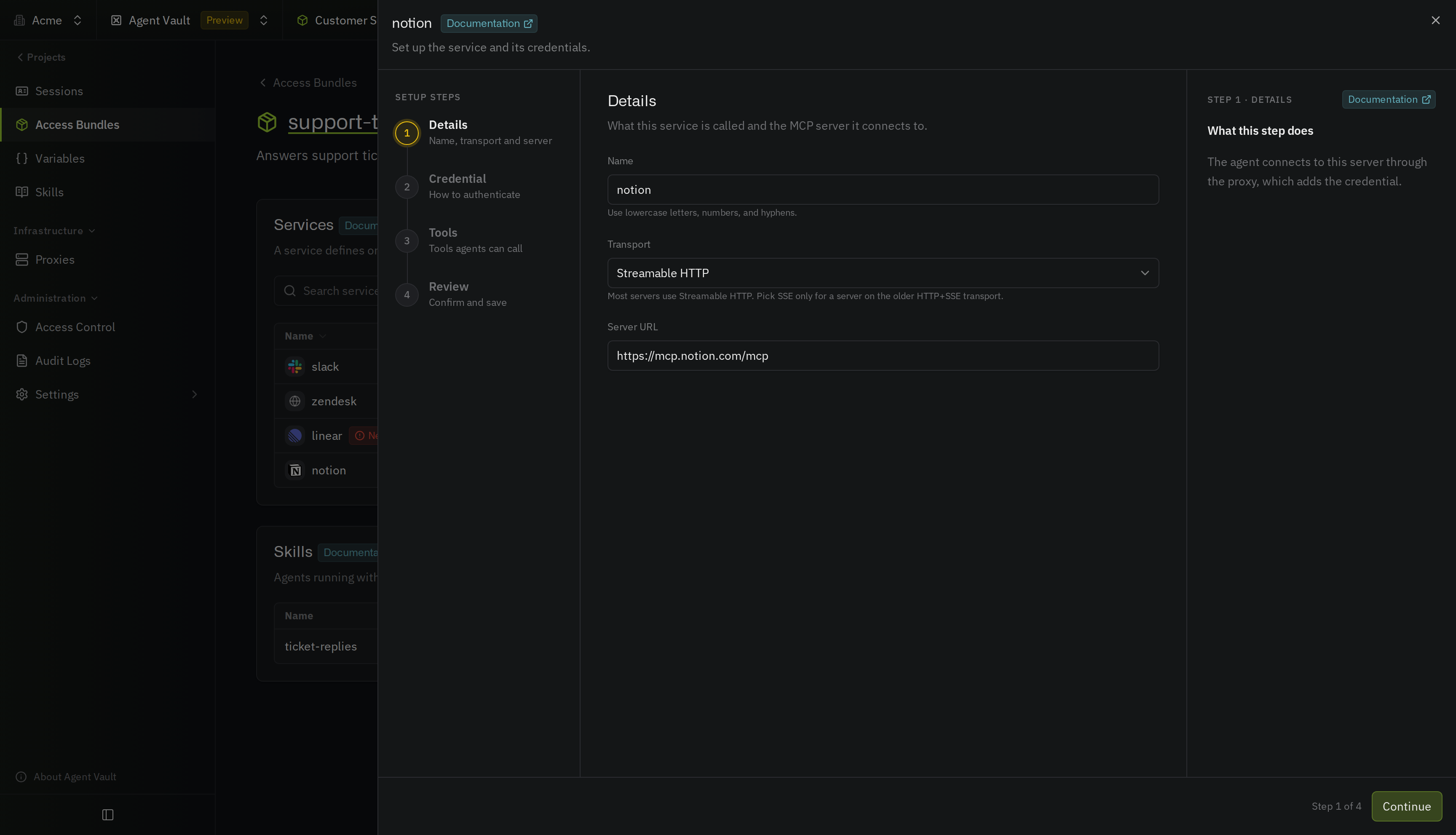
4
On the Credential step, pick a Credential Type and set up the credential. Select Continue.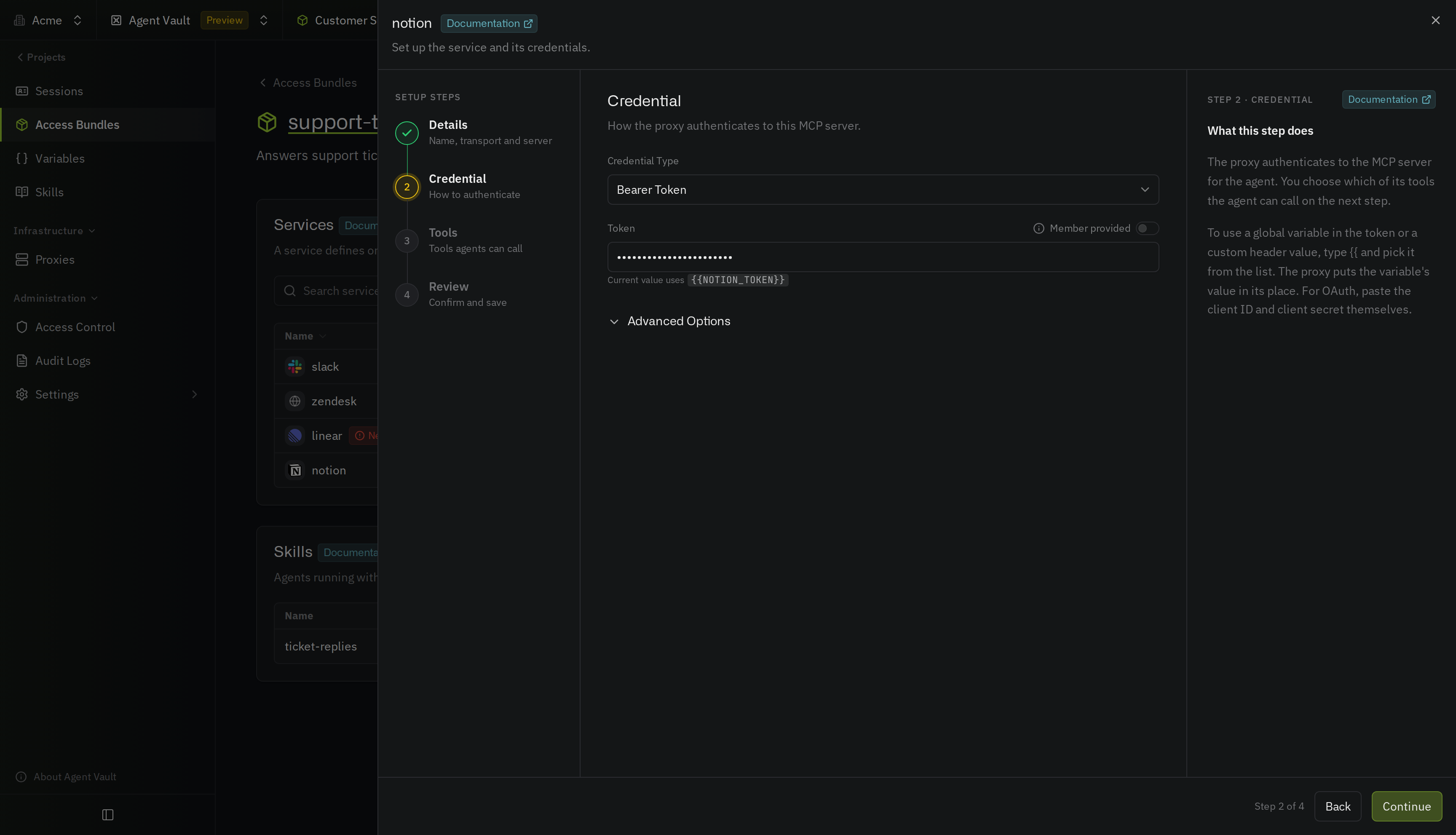
5
On the Tools step, choose which of the server’s tools agents can call. Select Continue.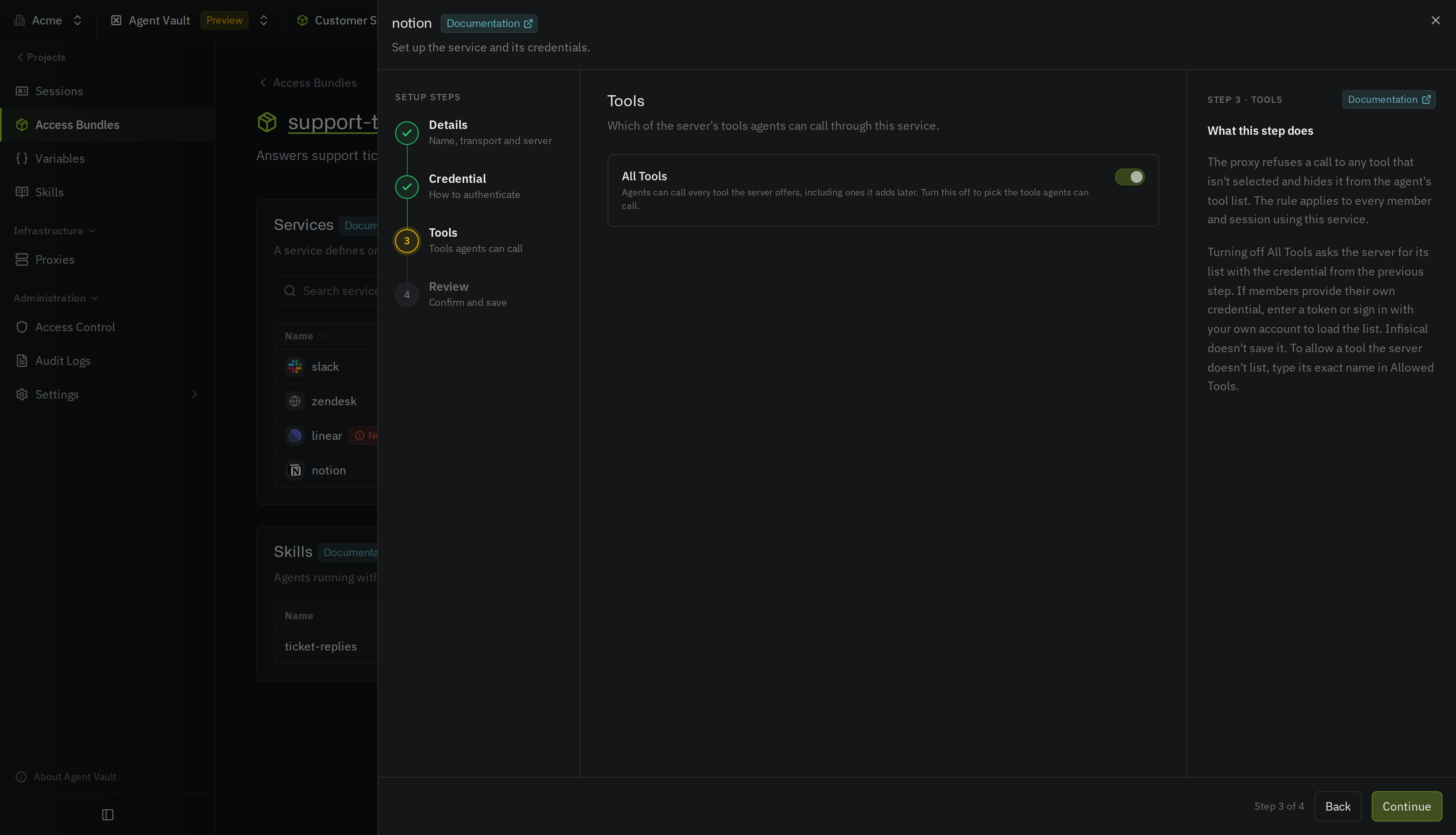
6
On the Review step, select Add Service. The service appears in the bundle’s list with the type MCP Server.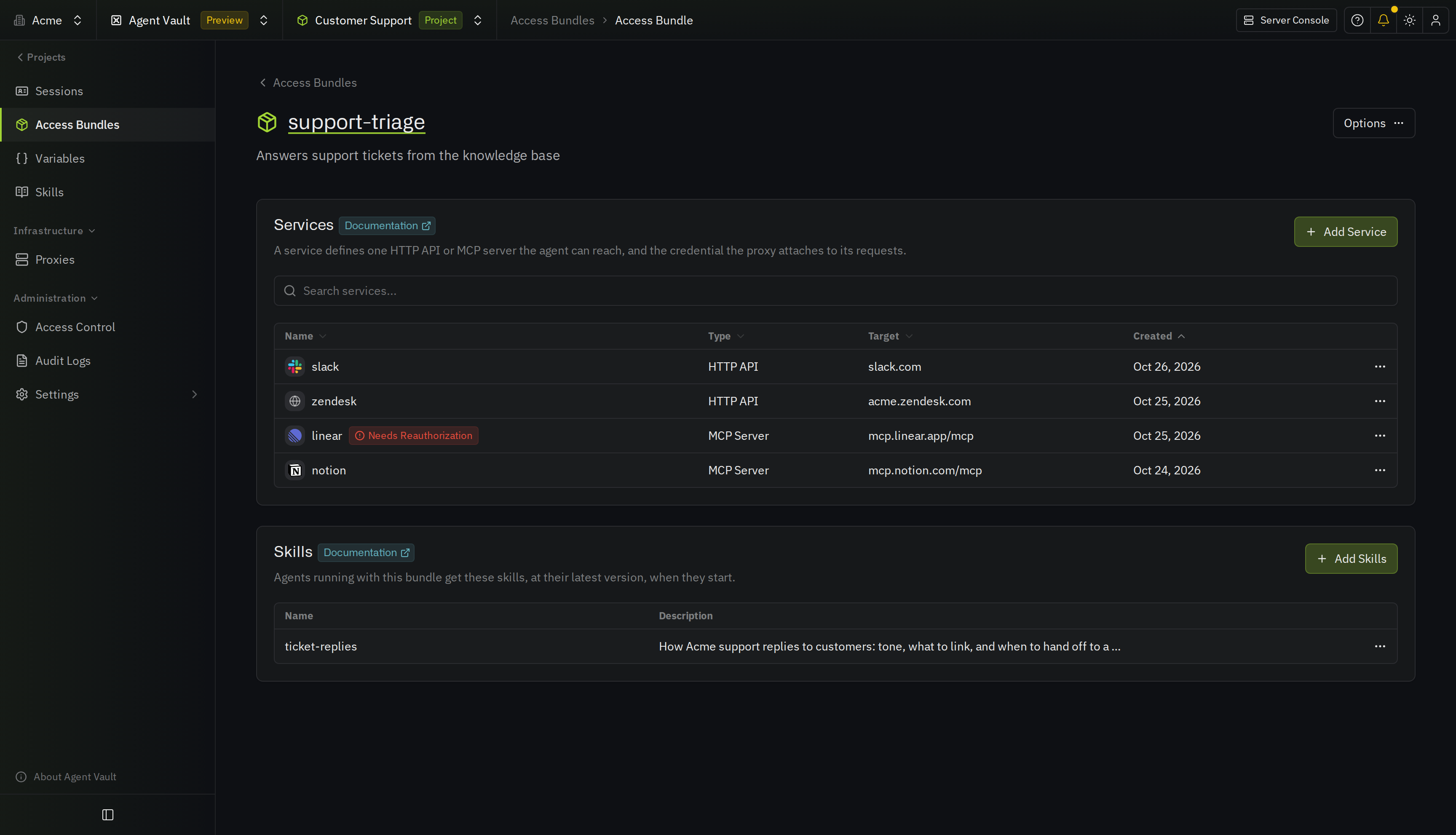
Server URL and transport
- Server URL: The URL your agent connects to, such as
https://mcp.linear.app/mcp(it must start withhttps://, and can’t include a username, password, query string, or fragment) - Transport: Streamable HTTP for most servers, or SSE if the server uses the older HTTP+SSE transport
443, the service covers only that port. Two services in the same access bundle can’t cover the same host, as described in host conflicts.
Credential types
OAuth
With OAuth, you sign in to the provider from Infisical, and Infisical stores the tokens the provider returns. If the provider also returns a refresh token, Infisical renews the access token before the token expires. If the provider doesn’t return one, reauthorize the service when the access token expires or the server rejects it. The proxy only receives the access token, and the agent never receives any token.1
Under Credential Type, select OAuth, then select Authorize.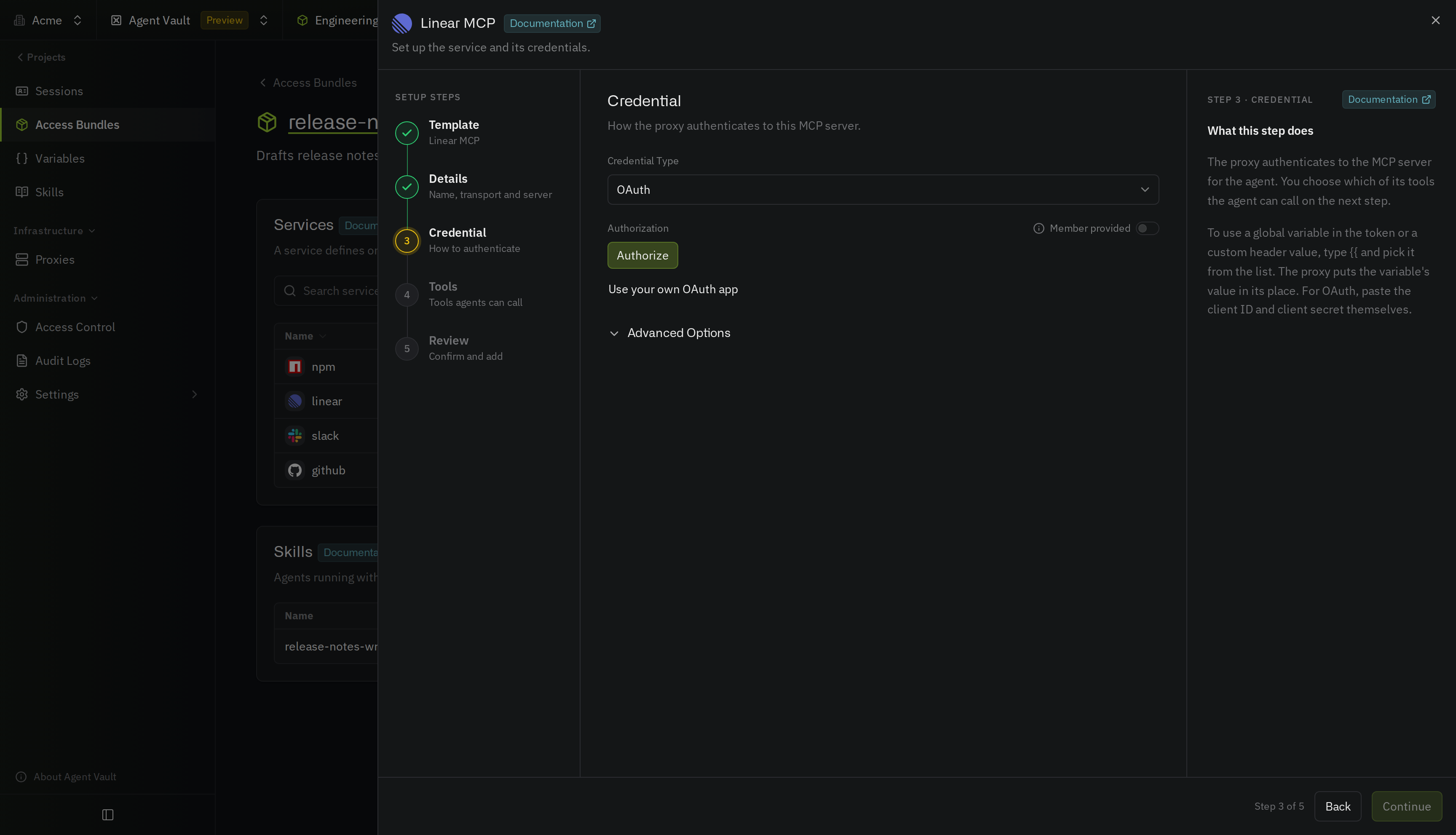
Some servers, such as GitHub’s, don’t let Infisical register itself as an OAuth client. For these servers, Infisical asks for an OAuth app of your own instead. Create an OAuth app with the provider, and set its redirect URI to the Redirect URI that Infisical shows. Then enter the app’s Client ID and Client Secret (leave Client Secret empty for a public client), and authorize again.
2
In the pop-up window, sign in to the provider and approve access.
3
When Infisical shows Authorized and the scopes the provider granted, select Continue. Continue stays disabled until the authorization succeeds.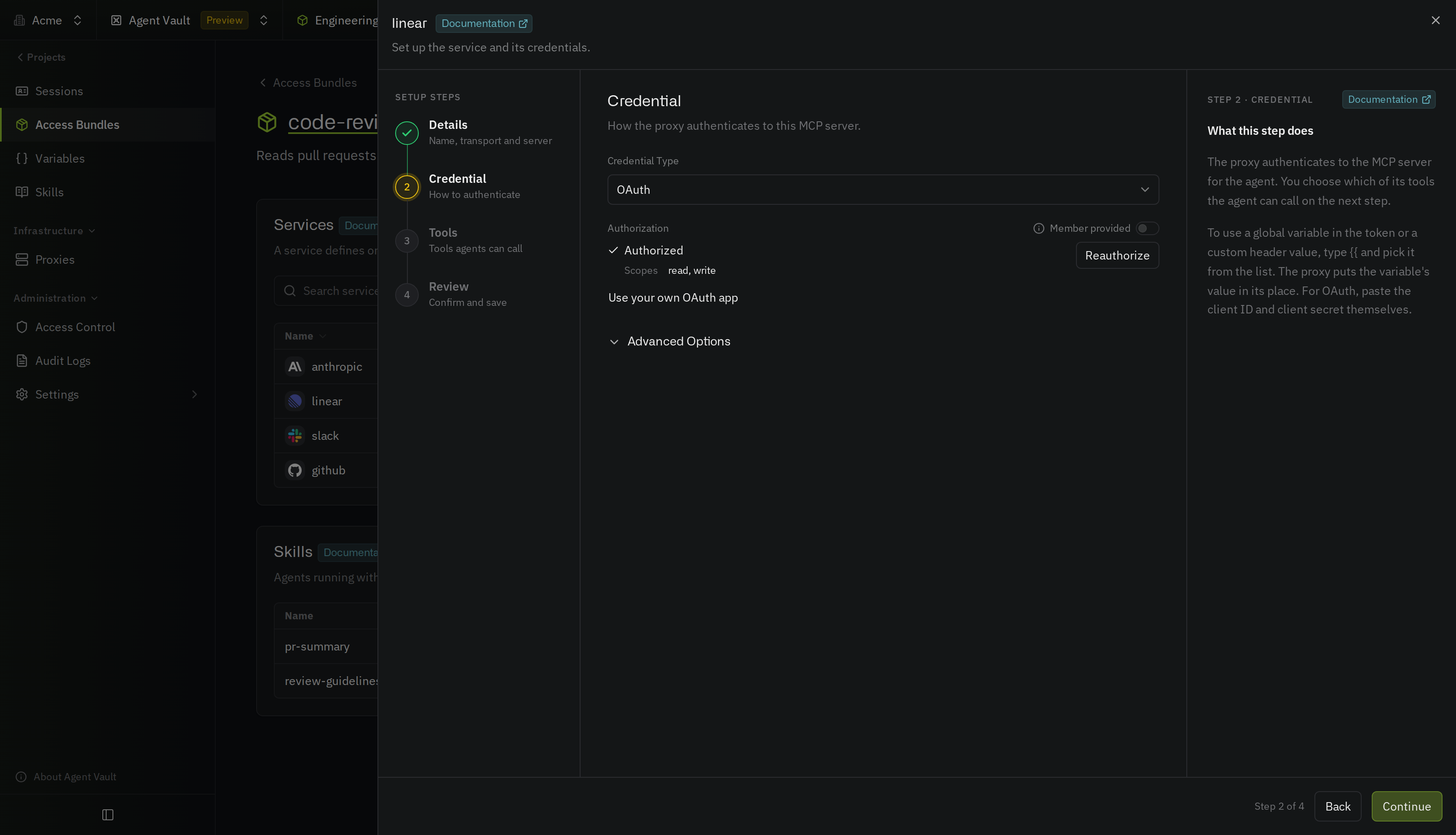
Bearer token
With a Bearer token, you paste a token the MCP server accepts into Token, such as a GitHub personal access token for GitHub MCP. The proxy sends the token asAuthorization: Bearer <token>.
To send the token in a different header or with a different prefix, expand Advanced Options and change Header Name or Prefix. To use a token that several services share, type {{ in Token and select a variable.
Leave the credential to each member
By default, every session calls the server’s tools as the same account. If each member should use their own account instead, turn on Member provided next to Token or Authorization. You don’t sign in or enter a token yourself. Each member then sets up their personal values for the service:- Bearer token: Each member enters their own token
- OAuth: Each member connects their own account to the provider
1
Create an OAuth app with the provider, and set its redirect URI to the Redirect URI that Infisical shows.
2
Enter the app’s Client ID and Client Secret on the Credential step.
3
Continue to the Review step, then select Add Service again, or Save if you’re editing the service.
Custom headers
If the MCP server needs another header besides the credential, such as an organization ID, add it as a custom header. The proxy adds custom headers to every request to the server, whichever auth method the service uses.1
On the Credential step, expand Advanced Options and select Add Custom Header.
2
Enter the header’s Name, an optional Prefix, and the Value. To use a variable, type
{{ in Value.Authorization unless you changed a Bearer token’s Header Name. Infisical also won’t save a header that the proxy sets itself, such as Host or Content-Length.
Allowed tools
By default, agents can call every tool the MCP server offers. To keep agents away from tools they shouldn’t use, such as tools that delete data, allow only the tools you select. The list applies to every session that uses the service.1
On the Tools step, turn off All Tools.
2
Infisical loads the server’s list of tools with the service’s credential. In Allowed Tools, select the tools that agents can call.If the credential is member provided, Infisical has no credential of its own to load the list with. Select Load Tools next to Allowed Tools, then enter your own token, or for OAuth, sign in with your own account. Infisical uses it only to load the list and doesn’t save it.
3
To allow a tool that the list doesn’t include, type the tool’s exact name in Allowed Tools, then select the option to add it. A tool name can contain only letters, numbers, underscores, hyphens, and dots, so the list leaves out any server tool with other characters in its name.
Connect your agent
1
Create a session for the access bundle, and copy the
infisical agent-vault run command it gives you.2
Add the MCP server to your agent by its server URL. Don’t add a token, and don’t sign in to the server from the agent.If the service uses the SSE transport, use
- Claude Code
- Codex
- OpenCode
--transport sse instead.3
Start the agent with the command from the session. For example, with Claude Code:
4
Ask the agent to use one of the server’s tools, such as listing your Linear issues. The call appears in the session’s logs with the tool name.
Limitations
- Remote servers only: An MCP service covers MCP servers that the agent reaches over HTTPS. A local MCP server that the agent starts as a process isn’t an MCP service, but you can add HTTP services for the APIs that the local server calls
- No OAuth on private networks: Infisical connects to the MCP server and to the provider to set up OAuth and refresh the access token, so if either one is on a private network, use a Bearer token instead, or set
ALLOW_INTERNAL_IP_CONNECTIONStotrueif you self-host Infisical on that network - No connectors that run in a vendor’s cloud: Custom connectors in claude.ai or ChatGPT connect from the vendor’s servers, so their traffic never reaches your proxy
- No WebSocket transports: The proxy doesn’t support WebSocket connections
Troubleshooting
The agent gets a 502 response from the MCP server
The agent gets a 502 response from the MCP server
If the server rejects an OAuth service’s token, the proxy gets a fresh token from Infisical and sends the request again. If that doesn’t work, or if the server rejects a Bearer token, the proxy returns a Try again in a moment: The proxy couldn’t get a valid token from Infisical this time. Try the tool call again.The service’s credential was rejected: The server rejected the service’s Bearer token. Edit the service and paste a new token.The service rejected your credential: The server rejected the token you set for a member-provided service. Update your personal values for the service.Reconnect your account: The service is member provided, and the provider no longer accepts your login, or the server asked for scopes your connection doesn’t grant. On the access bundle page, select Requires Setup or Missing Scopes next to the service, then select Reconnect. If the message under your connection says the provider refused the service’s OAuth app, reconnecting won’t help. Ask a project admin to update the service’s OAuth app.
502 response to the agent. Its message says what to do:The service needs to be reauthorized: The provider no longer accepts the service’s login, or the server asked for scopes the authorization lacks. The access bundle’s Services table shows Needs Reauthorization or Missing Scopes for the service. Open the service’s menu, select Edit, and continue to the Credential step. Select Reauthorize, sign in to the provider again, then continue and select Save.The tools don't load
The tools don't load
If Infisical can’t get the server’s list of tools, the Tools step shows the reason, such as a credential that the server rejected. You can still add tools by typing their names in Allowed Tools.Infisical can’t load the list in these cases:
- The MCP server is on a private network (if you self-host Infisical on that network, set
ALLOW_INTERNAL_IP_CONNECTIONStotrue) - The service’s credential is member provided and you haven’t loaded the tools with your own token or sign-in on the Tools step
The agent asks you to sign in to the MCP server
The agent asks you to sign in to the MCP server
The request reached the server without a credential. Check that:
- The agent runs through
infisical agent-vault runwith a session for the access bundle - The server URL in the agent has the same host as the service’s Server URL