

Create a session
Anyone granted at least one access bundle in a project can create a session in that project. Admins of the project can create one with any of its access bundles.- Dashboard
- CLI
- API
1
In your Agent Vault project, go to Sessions and select Create Session.
2
Pick the Access Bundle the agent should use, optionally enter a Label that says what the session is for, set a duration under Expires, then select Create Session.
3
Copy the command shown. The session token appears once and can’t be retrieved again.
Label a session
A label is a short description of what a session is for, such asnightly deploy or support ticket triage. If one identity creates many sessions, the label is how you tell the sessions apart on the Sessions page, and you can search sessions by their label. A label can be up to 128 characters, and can’t contain line breaks, tabs, or invisible characters such as zero-width spaces.
You can add, change, or remove a session’s label, even after the session expires or is revoked:
- In your Agent Vault project, go to Sessions, open the session’s menu, and select Add Label or Edit Label
- From an agent or a script, call the endpoint that updates a session, for example to record what the agent is working on
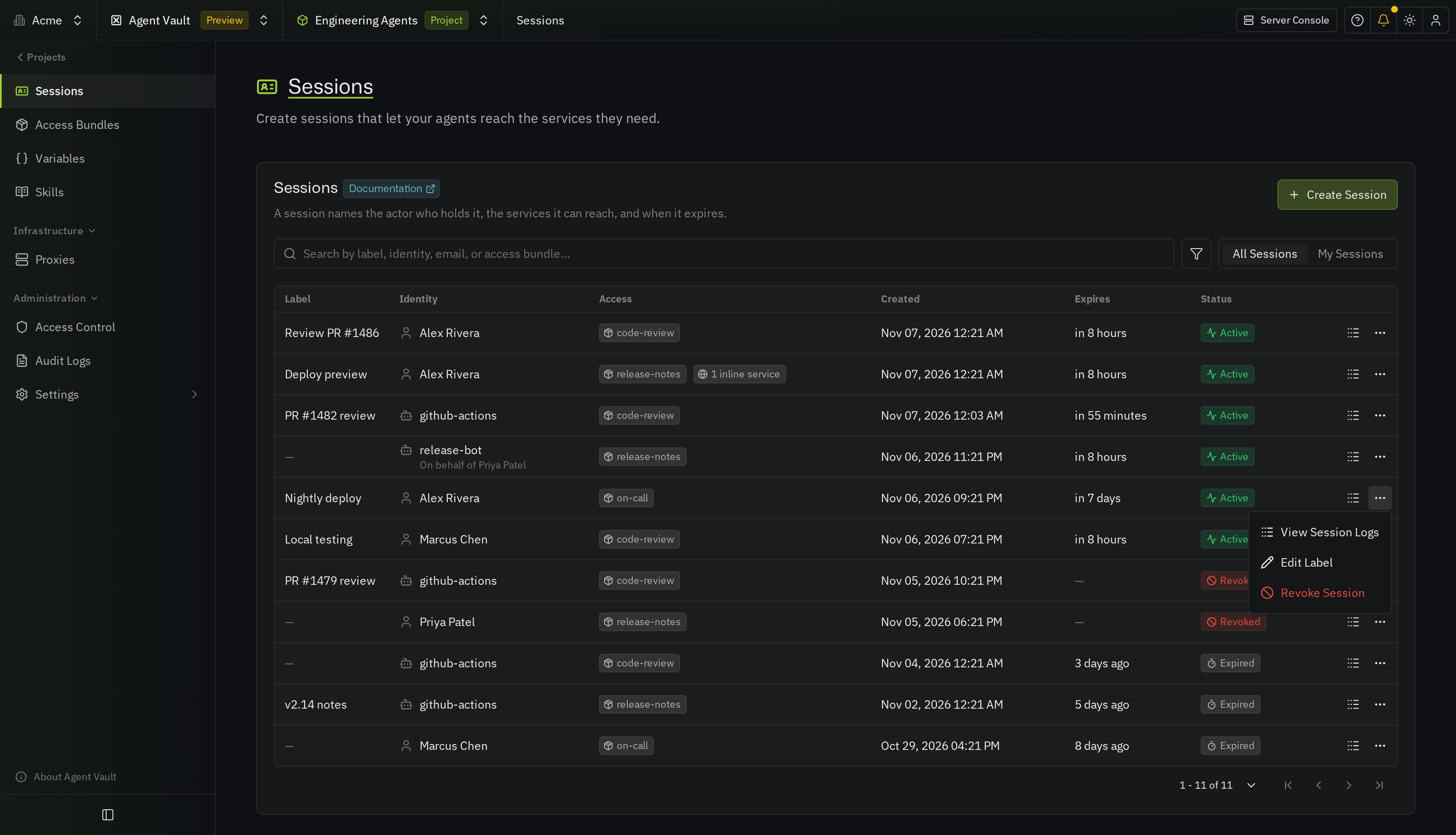
View session logs
Session logs record every request an agent makes during a session. To view them, go to Sessions in your Agent Vault project and select View Session Logs on the session’s row. You can filter and search the requests, and while the session is active, new logs keep appearing.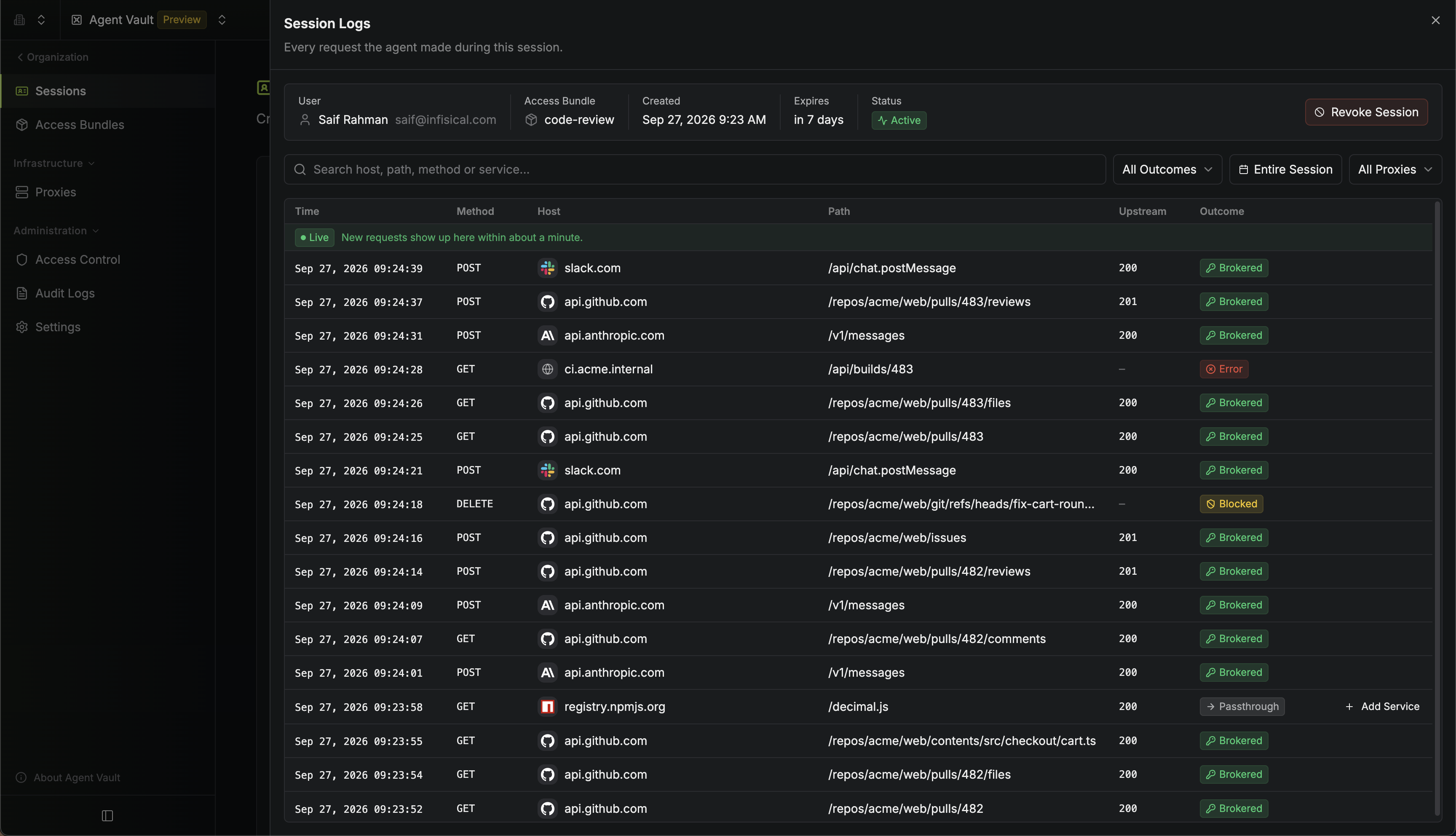
Revoke a session
To revoke a session before it expires, go to Sessions in your Agent Vault project, open the session’s menu, and select Revoke Session. The proxy stops attaching credentials for the session within one poll interval. The Sessions page shows each session as Active, Revoked, or Expired, and keeps expired and revoked sessions so you can audit what an agent had access to during the session:
Access changes
The access bundle and any inline services are chosen when you create the session and can’t be changed afterwards. However, the proxy re-checks whether the agent still gets credentials once every poll interval (60 seconds by default). Here’s how common access changes affect a session:- If someone no longer has any grant on an access bundle, directly or through a group, their sessions for that bundle stop getting credentials
- If someone still has another grant on the bundle, such as through a group, revoking one grant doesn’t affect their sessions
- If you delete an access bundle, every session scoped to it stops getting credentials (the session still lists the bundle’s name, so you can see what it was)
- If you remove someone from the project, the proxy refuses every request on their sessions
- If the user or machine identity that created a session loses the Admin role in the project, the session stops getting credentials for its inline services
If a session stops getting credentials because of a lost grant, a deleted bundle, or a lost Admin role, the proxy still forwards the agent’s requests, without credentials. Whether those requests reach the upstream host depends on the proxy’s traffic policy.