

Prerequisites
- An access bundle with a service for each API the agent calls
- A running proxy that the agent’s machine can reach, in the same Agent Vault project as the access bundle
- The Infisical CLI installed on the agent’s machine
- An agent command that runs without anyone at the terminal, such as
claude -p "<prompt>"for Claude Code - The Admin role in the Agent Vault project, or an admin of the project who can complete Step 1 for you
Step 1: Set up a machine identity
The CLI creates sessions as a machine identity, so that the agent’s access doesn’t depend on a person’s account.1
In your Agent Vault project, go to Access Control > Machine Identities and select Add Machine Identity.
2
On the Create New tab, enter a Name, choose Member in Role, then select Create. Infisical creates the machine identity with Universal Auth and opens its page.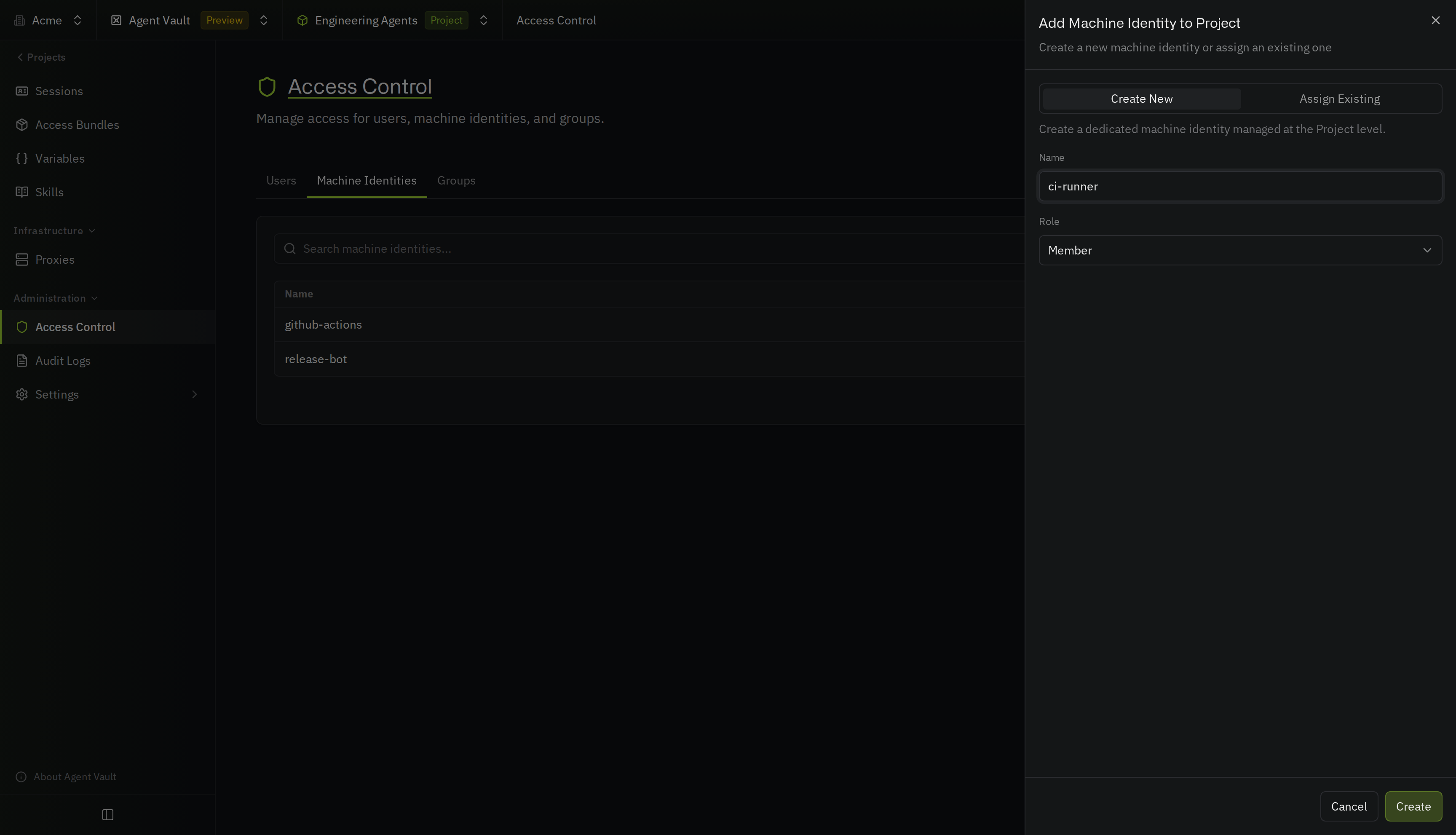
3
On the machine identity’s page, select Universal Auth under Authentication. Copy the Client ID, then select Add Client Secret and copy the client secret.
4
Go to Access Bundles and open the access bundle the agent uses. Select Options > Manage Access. Under No Access, select Grant Access next to the machine identity.
We recommend creating a machine identity for each agent and granting it only the access bundle that agent uses.If you plan on using one machine identity to create sessions with different access bundles for different agents, you should create sessions with the API instead.
Step 2: Start the agent
If the agent won’t start without an API key, such asANTHROPIC_API_KEY for Claude Code, set the key to a placeholder, such as agent-vault. The proxy replaces the placeholder with the real key from the service. If the service uses a substitution, set the key to the service’s placeholder instead.
On the agent’s machine, set the machine identity’s credentials, the ID of your Agent Vault project, and the proxy’s address as environment variables. To get the project’s ID, see Find the project ID.
run-agent.sh and make it executable with chmod +x run-agent.sh:
run-agent.sh
infisical agent-vault sessions createcreates a session in the project and prints only the session token, which the script saves inINFISICAL_AGENT_VAULT_SESSION_TOKENinfisical agent-vault runstarts the agent with the session inINFISICAL_AGENT_VAULT_SESSION_TOKEN, and the agent’s requests go through the proxyinfisical agent-vault sessions revokeends the same session after the agent exits, and the script exits with the agent’s exit code
./run-agent.sh to start the agent.
Choose how long each session lasts
Set--ttl a little longer than the longest run you expect:
- If a run takes longer than the
--ttl, the agent loses access to the APIs partway through the run - If the CLI can’t revoke the session, such as when the machine shuts down mid-run, the session keeps working until the
--ttlruns out (a session created without--ttlnever expires)
Pin the proxy’s certificate
The CLI downloads the proxy’s certificate at the start of each run. If the agent’s machine reaches the proxy over a network you don’t fully control, add--ca-fingerprint with the proxy’s fingerprint to the run command in the script, so the CLI only starts the agent if the certificate matches:
Step 3: Run the agent automatically
Run the script from Step 2 wherever your agents start. The systemd and container examples runinfisical agent-vault run --access-bundle instead, so the CLI revokes the session when the service or container stops:
- Schedule (cron)
- Service (systemd)
- Container
- CI (GitHub Actions)
Store the environment variables in a file that only the job’s user can read, such as Then load the file in the crontab entry. This entry runs the agent every 30 minutes:
/etc/agent-vault/agent.env with mode 0600:Step 4: Verify it works
After the agent runs, go to Sessions in your Agent Vault project and select All Sessions. Each run has its own session, with the machine identity’s name in the Identity column. A session’s Status is Active while the agent runs, and Revoked after the agent exits. View a session’s logs to check which requests the agent made during that run.Your agent now runs on its own with a new session each time, and each session ends when the agent exits.
Troubleshooting
The job hangs or fails before the agent starts
The job hangs or fails before the agent starts
If the output mentions logging in, the CLI didn’t find the machine identity’s credentials. Check that
INFISICAL_UNIVERSAL_AUTH_CLIENT_ID and INFISICAL_UNIVERSAL_AUTH_CLIENT_SECRET are set in the job’s environment. Cron starts jobs with an almost empty environment, so load the variables in the cron job, as the cron example shows.The CLI stops because no Agent Vault project is set
The CLI stops because no Agent Vault project is set
infisical agent-vault sessions create needs to know which Agent Vault project to create the session in. Set INFISICAL_AGENT_VAULT_PROJECT_ID to the project’s ID in the job’s environment, or pass --project-id <project-id>. If neither is set, the CLI reads the project from INFISICAL_PROJECT_ID.Creating the session fails after the CLI reads the project from INFISICAL_PROJECT_ID
Creating the session fails after the CLI reads the project from INFISICAL_PROJECT_ID
INFISICAL_PROJECT_ID may be set to the ID of a Secrets Management project. Set INFISICAL_AGENT_VAULT_PROJECT_ID to the ID of your Agent Vault project, which the CLI reads first.The CLI fails with "the proxy address is required"
The CLI fails with "the proxy address is required"
Set
INFISICAL_AGENT_VAULT_PROXY_ADDRESS, or pass --proxy <proxy-host>:17323.The CLI fails with "No access bundle named ... is granted to you"
The CLI fails with "No access bundle named ... is granted to you"
The machine identity doesn’t have a grant on the access bundle, the name in
--access-bundle is wrong, or the access bundle is in a different Agent Vault project from the one the CLI uses. Check the name on the Access Bundles page of the project, and grant the bundle to the machine identity.Requests fail with "the session is no longer valid, or it belongs to a different Agent Vault project" as soon as the agent starts
Requests fail with "the session is no longer valid, or it belongs to a different Agent Vault project" as soon as the agent starts
The proxy and the session are in different Agent Vault projects. A proxy only accepts sessions from its own project, so it refuses every request with a 403 and logs
agent-vault: refused, the session is no longer valid, or it belongs to a different Agent Vault project than this proxy. Set --proxy or INFISICAL_AGENT_VAULT_PROXY_ADDRESS to the address of a proxy in the session’s project, or create a proxy in that project.The agent loses access to APIs partway through a run
The agent loses access to APIs partway through a run
If the agent’s requests start failing with a 403 from the proxy, such as
CONNECT tunnel failed, response 403, the session expired before the agent finished. Set a longer --ttl.Requests to a service fail with "needs your own credential or sign-in" or "needs your personal values"
Requests to a service fail with "needs your own credential or sign-in" or "needs your personal values"
The service needs each member’s own credential or sign-in, and whoever the session belongs to hasn’t set theirs up yet. For a session a machine identity started on behalf of a user, that’s the user. A user sets it up under Access Bundles in the Agent Vault project: select the bundle named in the message, then set up the personal values. A machine identity sets typed values with the set personal values endpoint, but it can’t sign in to an OAuth service, so start the session on behalf of a user who has. Once it’s saved, the proxy picks it up within one poll interval.
A session stays Active after the agent stopped
A session stays Active after the agent stopped
The CLI couldn’t revoke the session, for example because the machine shut down or the process was killed. Revoke the session on the Sessions page, or let it expire at the end of its
--ttl.Next steps
Create sessions with the API
Create a session for each agent run from your own code.
CLI reference
Every flag of
infisical agent-vault sessions create and infisical agent-vault run.