{
    "secretSync": {
        "id": "3c90c3cc-0d44-4b50-8888-8dd25736052a",
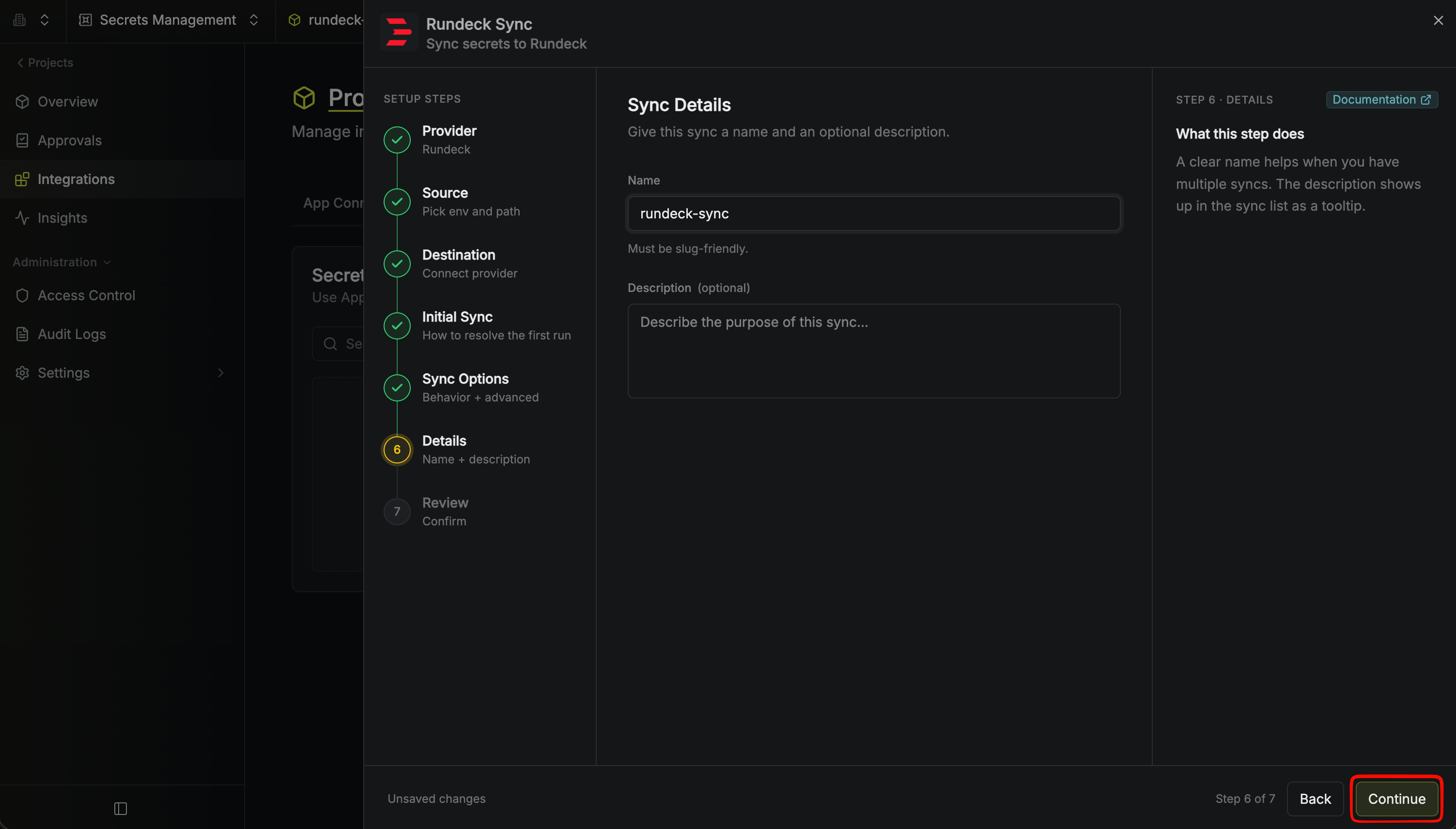
        "name": "my-rundeck-sync",
        "description": "an example sync",
        "isEnabled": true,
        "version": 1,
        "folderId": "3c90c3cc-0d44-4b50-8888-8dd25736052a",
        "connectionId": "3c90c3cc-0d44-4b50-8888-8dd25736052a",
        "createdAt": "2023-11-07T05:31:56Z",
        "updatedAt": "2023-11-07T05:31:56Z",
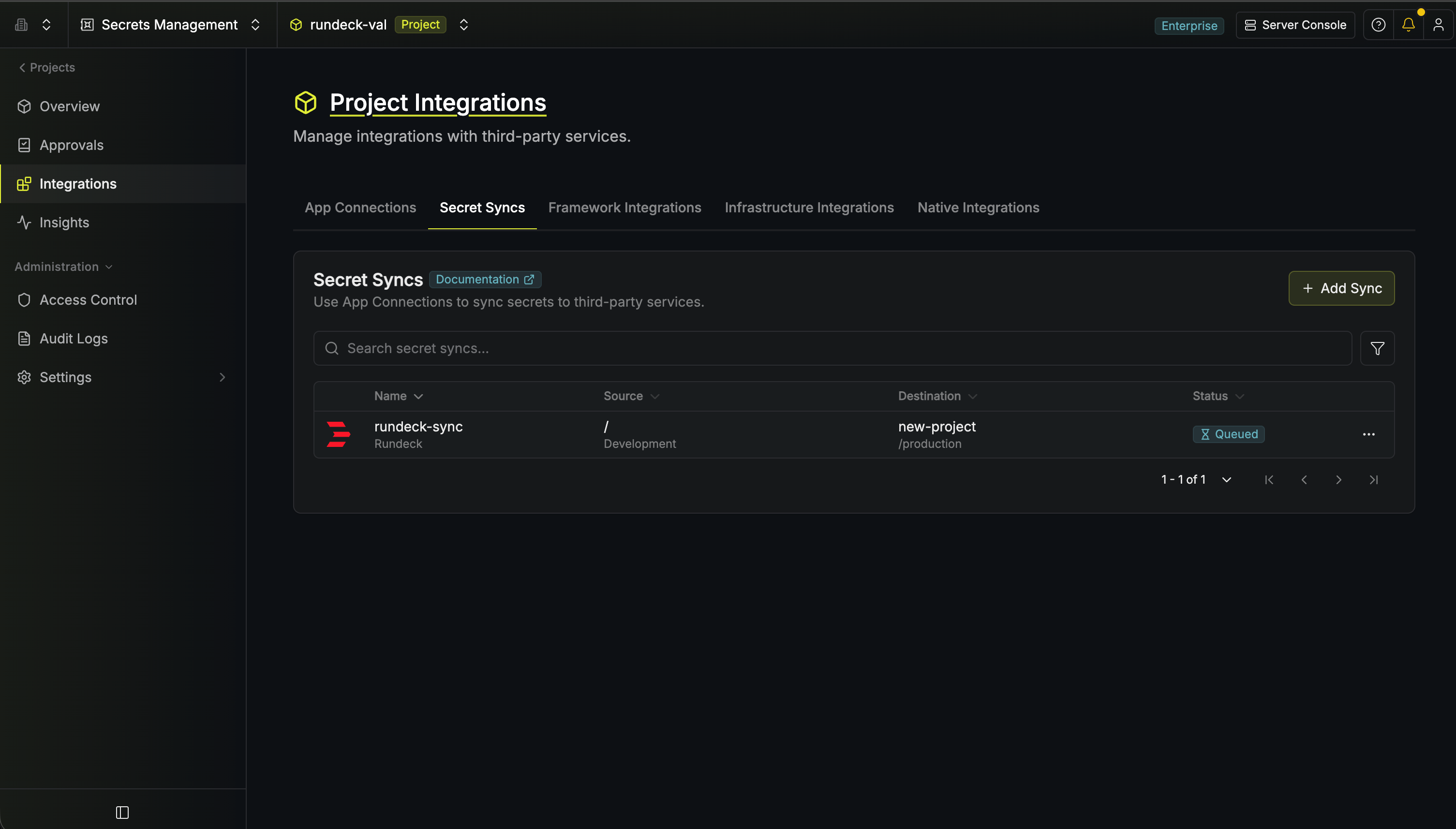
        "syncStatus": "succeeded",
        "lastSyncJobId": "123",
        "lastSyncMessage": null,
        "lastSyncedAt": "2023-11-07T05:31:56Z",
        "importStatus": null,
        "lastImportJobId": null,
        "lastImportMessage": null,
        "lastImportedAt": null,
        "removeStatus": null,
        "lastRemoveJobId": null,
        "lastRemoveMessage": null,
        "lastRemovedAt": null,
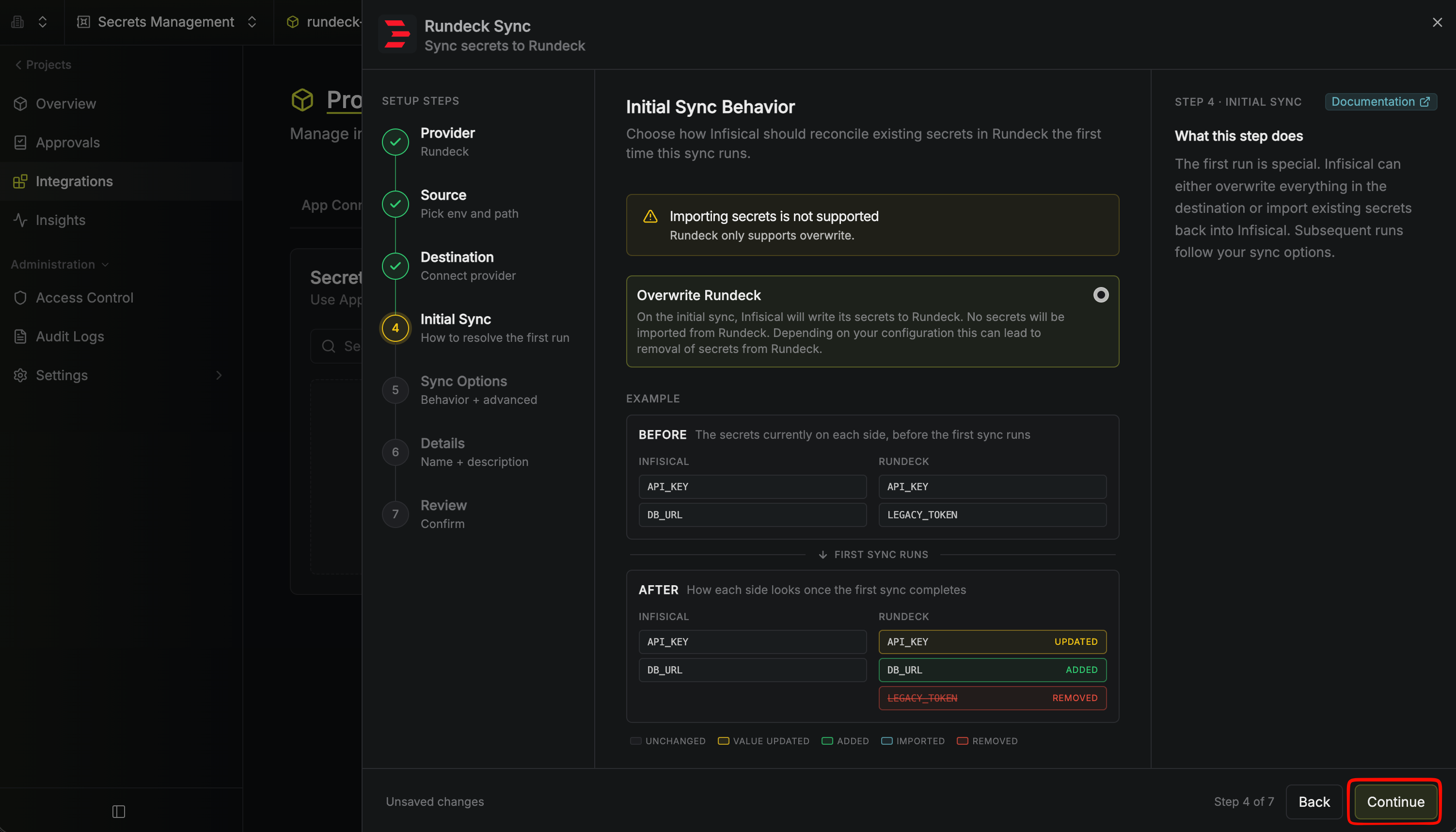
        "syncOptions": {
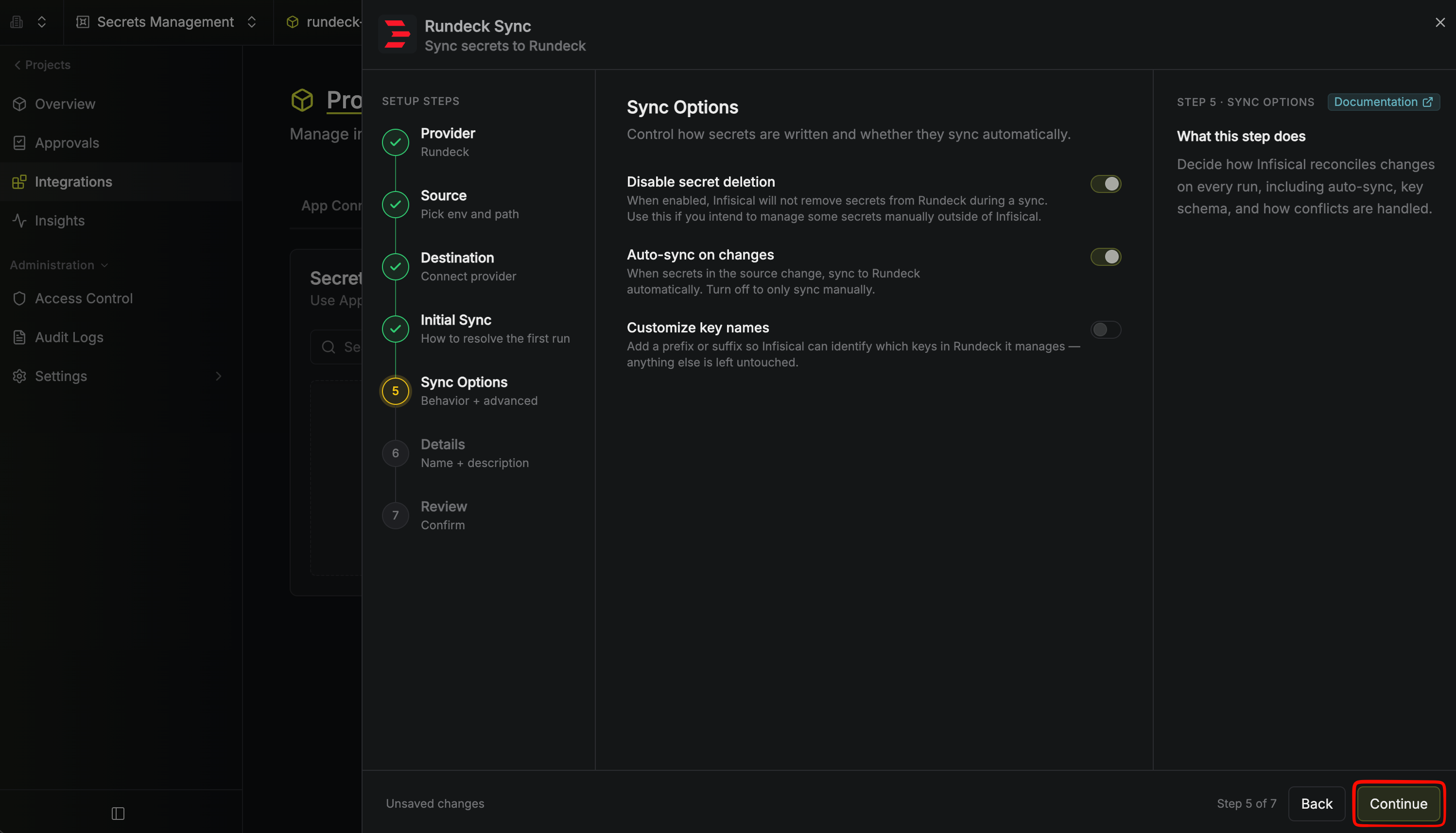
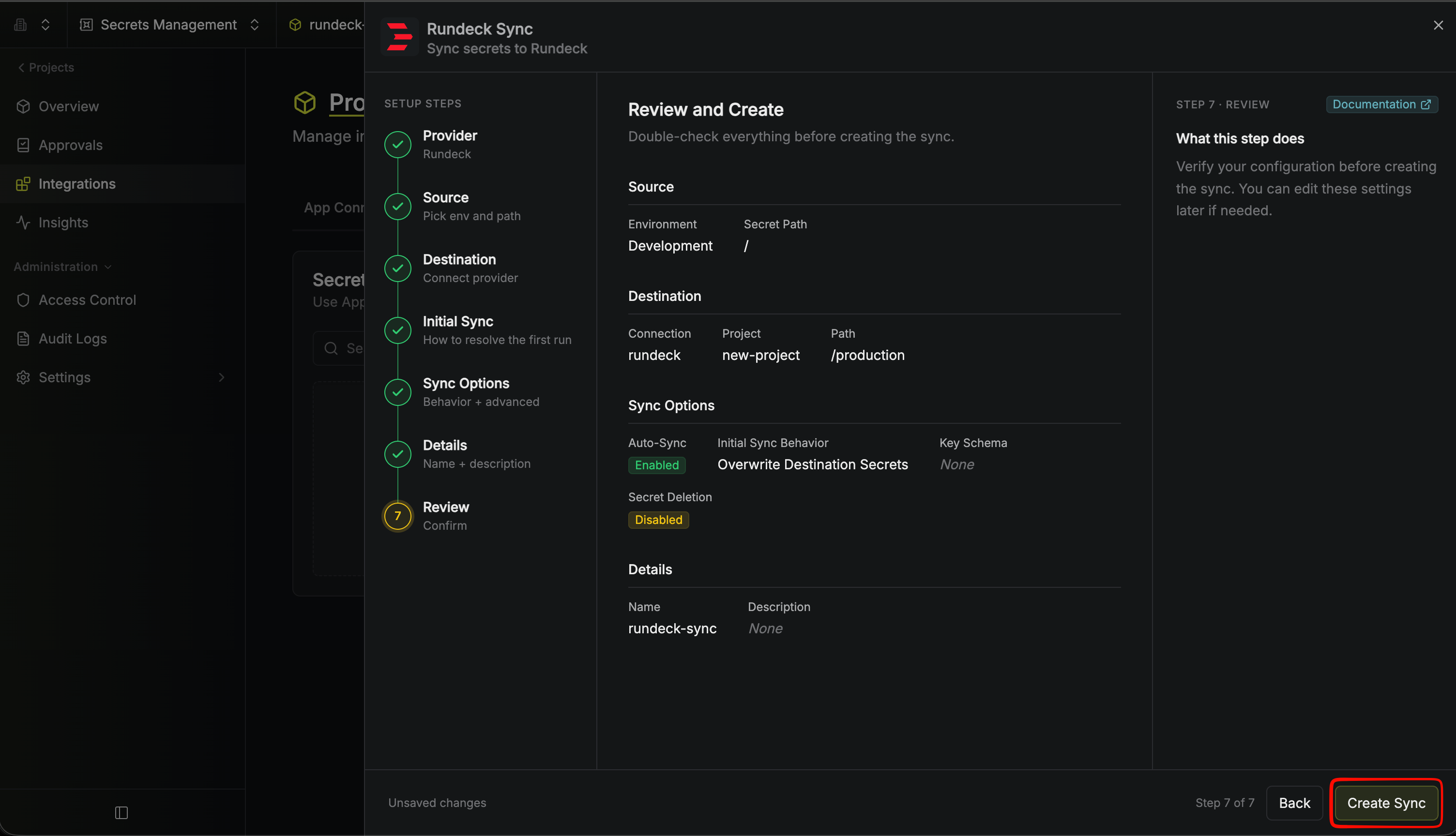
            "initialSyncBehavior": "overwrite-destination"
        },
        "projectId": "3c90c3cc-0d44-4b50-8888-8dd25736052a",
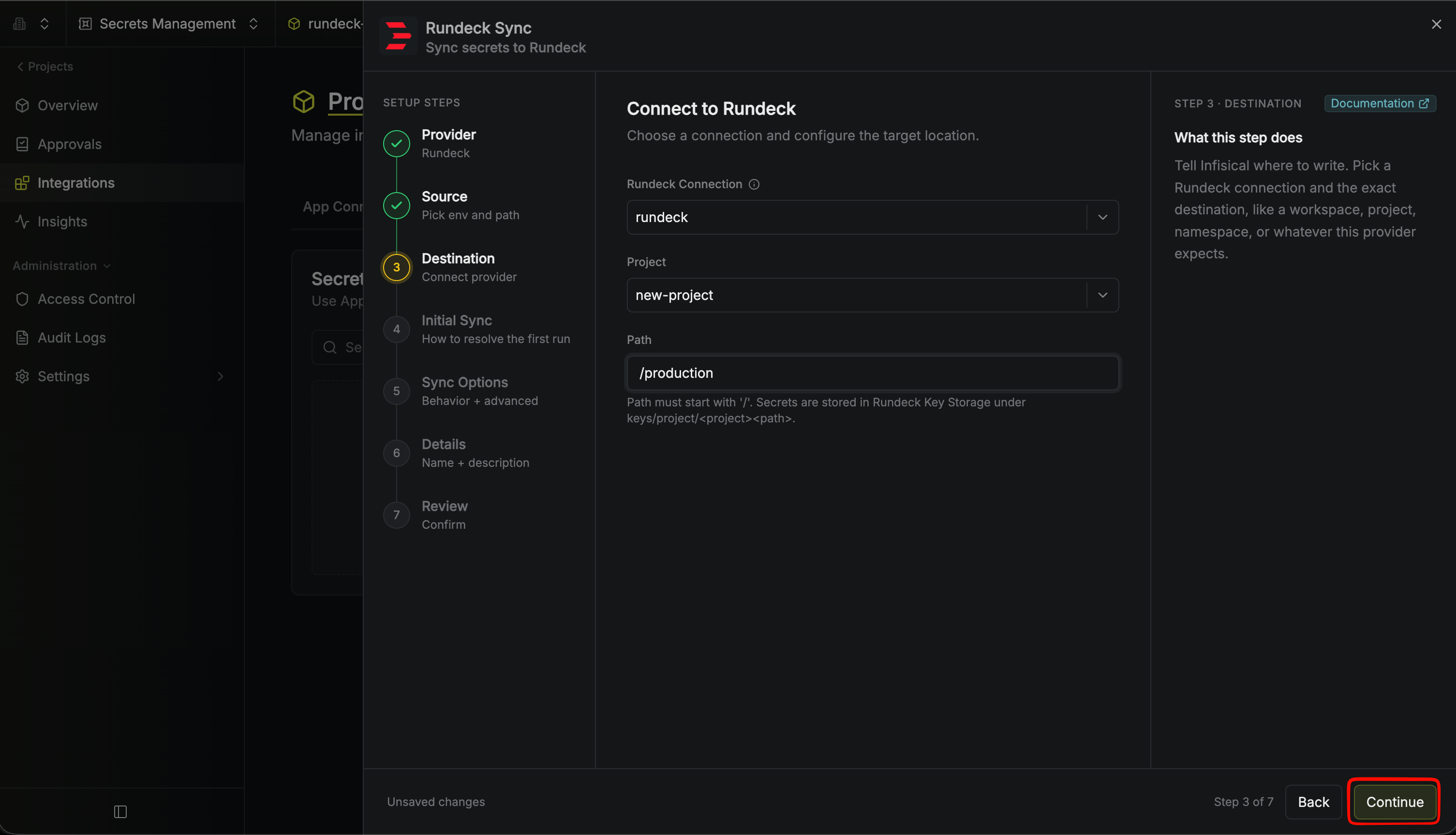
        "connection": {
            "app": "rundeck",
            "name": "my-rundeck-connection",
            "id": "3c90c3cc-0d44-4b50-8888-8dd25736052a"
        },
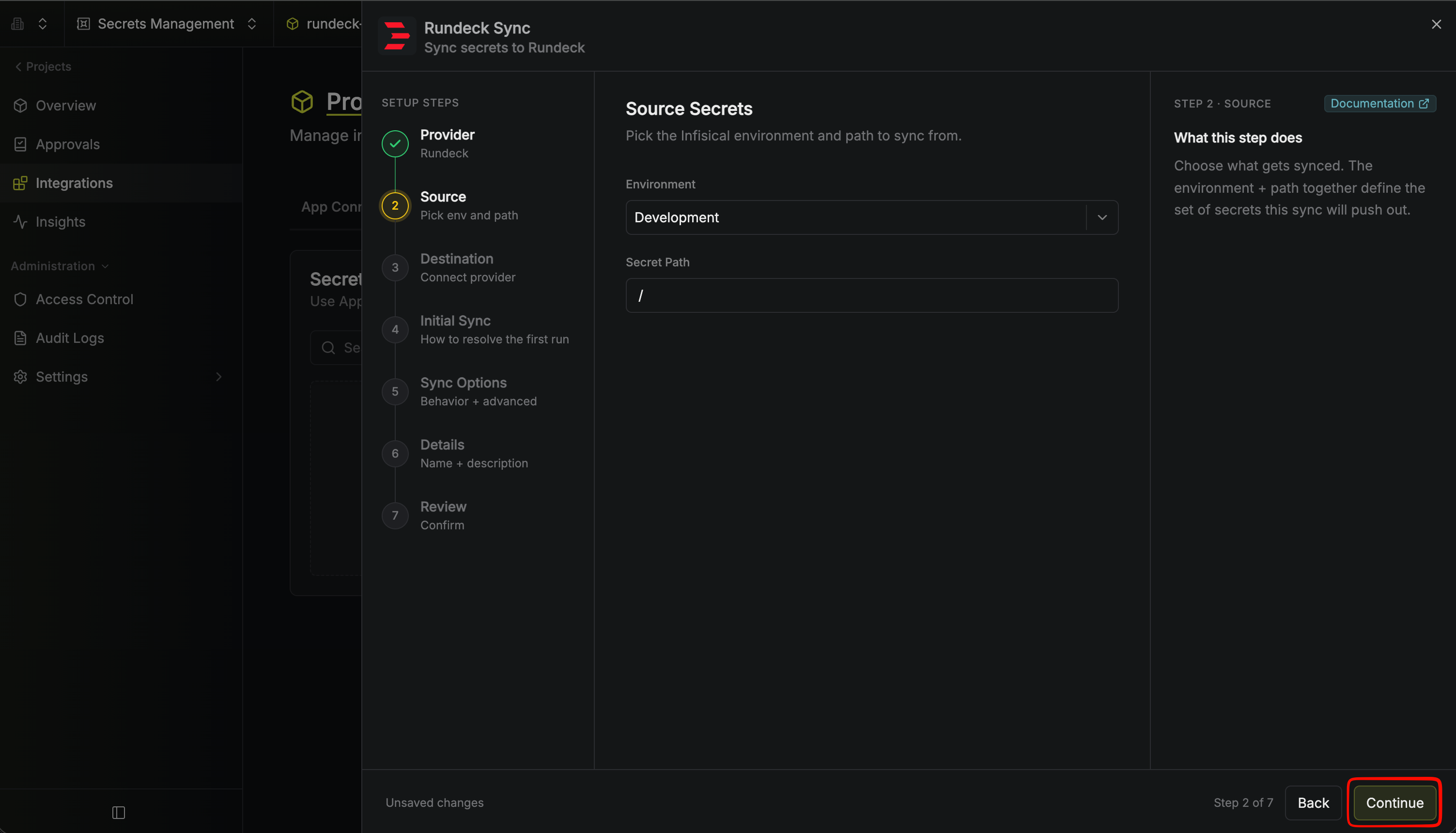
        "environment": {
            "slug": "dev",
            "name": "Development",
            "id": "3c90c3cc-0d44-4b50-8888-8dd25736052a"
        },
        "folder": {
            "id": "3c90c3cc-0d44-4b50-8888-8dd25736052a",
            "path": "/my-secrets"
        },
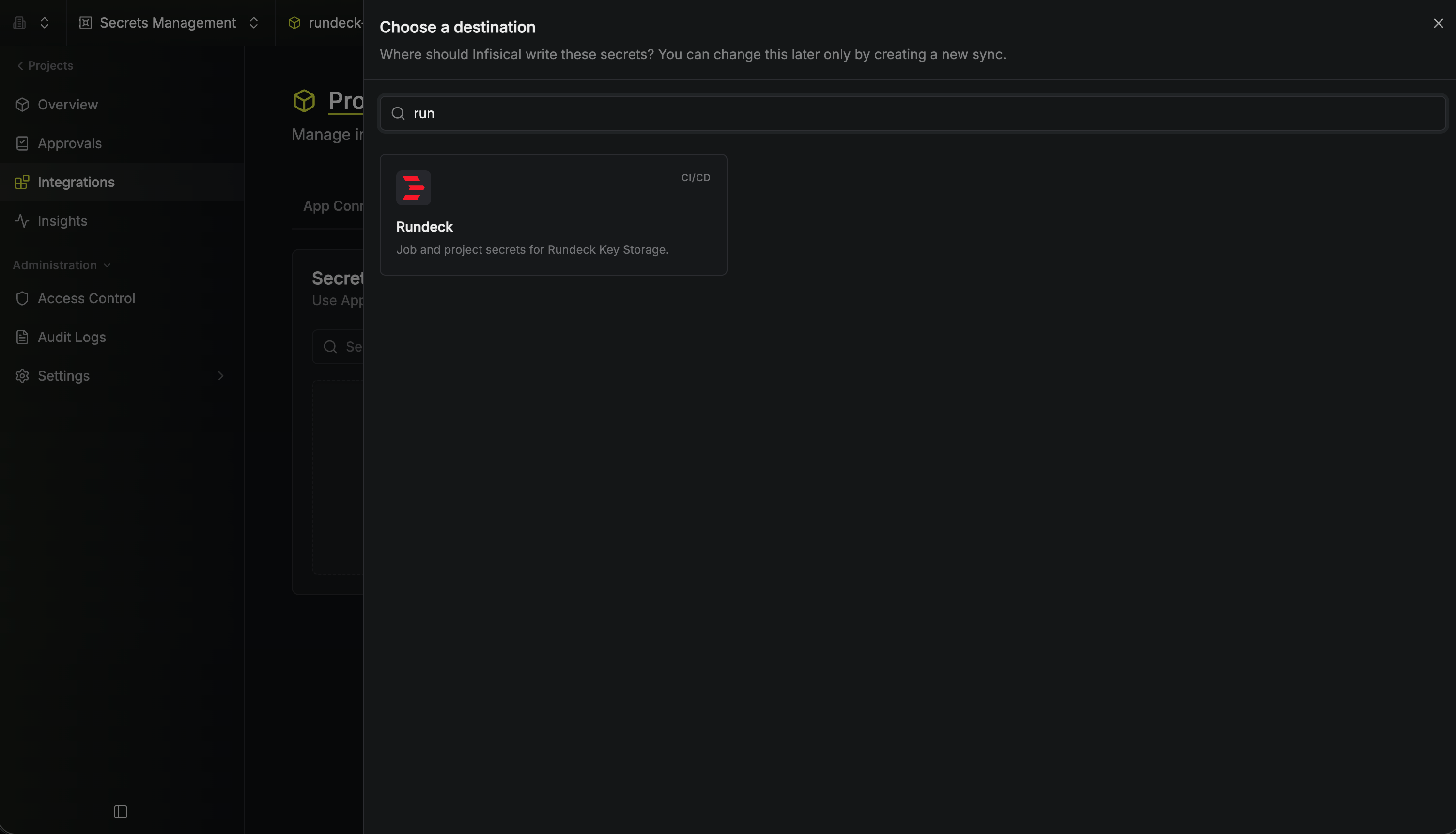
        "destination": "rundeck",
        "destinationConfig": {
            "project": "web-app",
            "path": "/production"
        }
    }
}