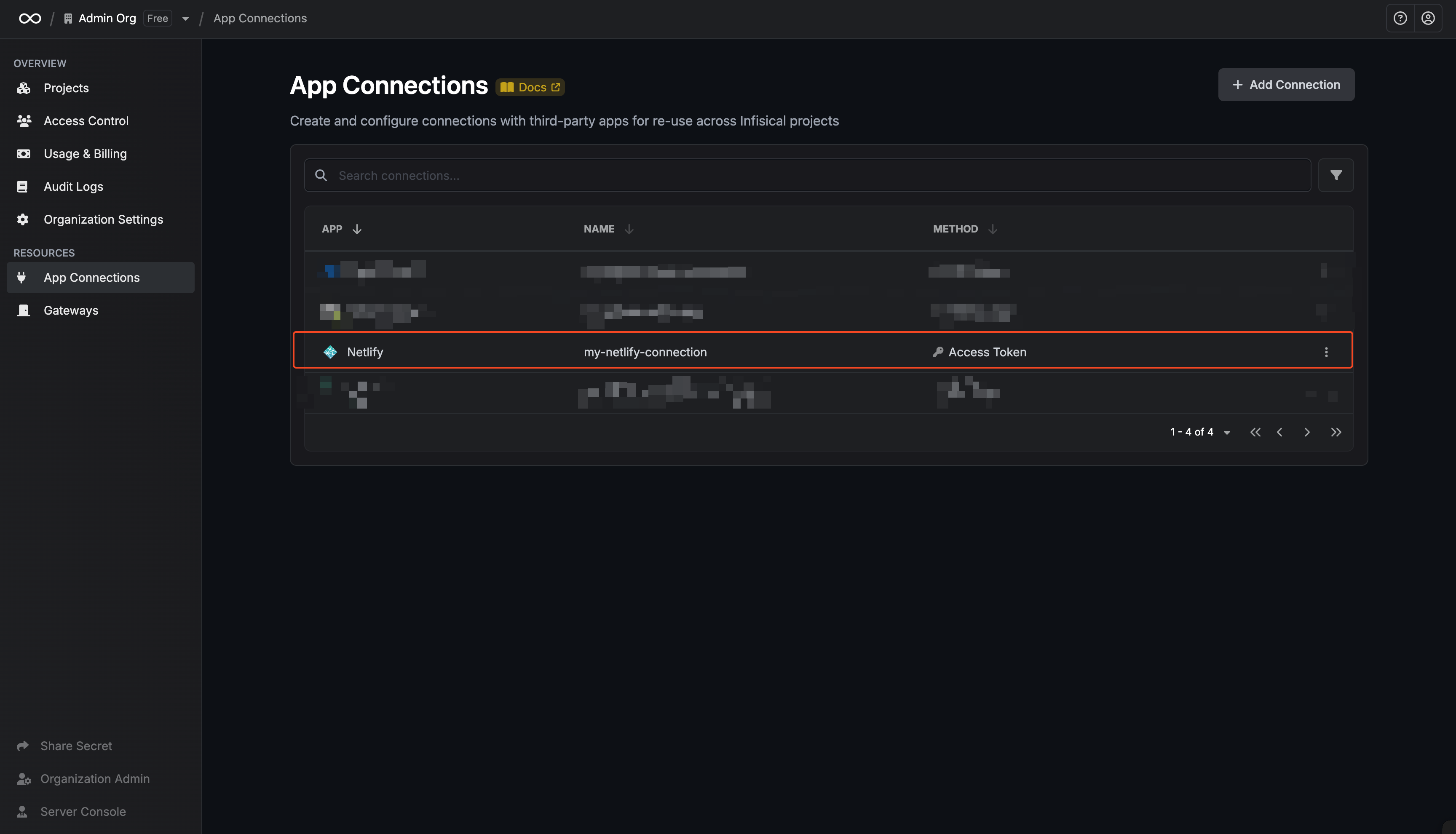
Netlify requires the token to have full access to enable secret management for your sites and services.
Create a Netlify personal access token
1
From your Netlify dashboard, click on your user avatar and go to 'User settings'
2
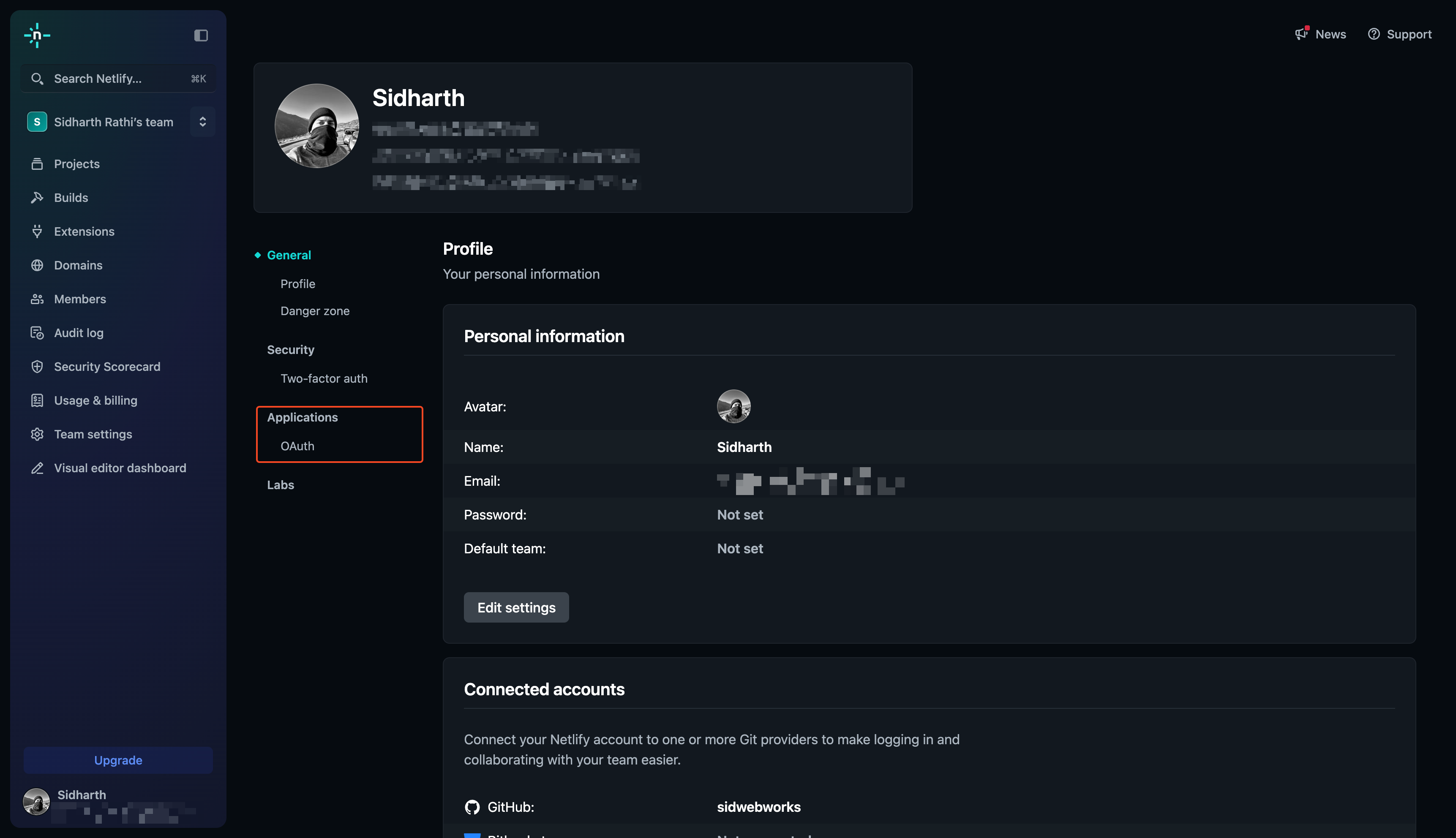
In the left sidebar, click on 'Applications' and scroll to 'Personal Access Tokens'
3
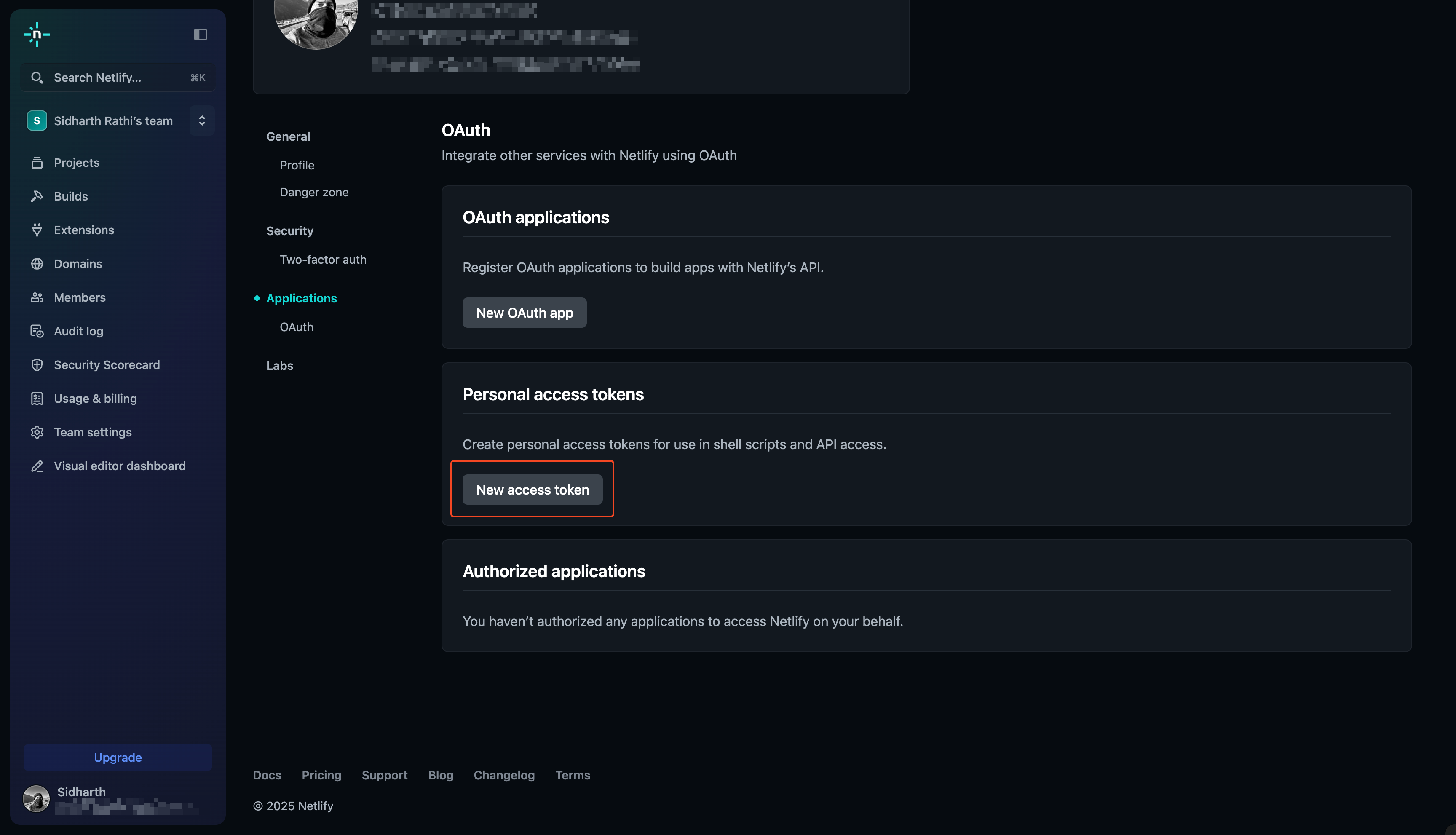
Click 'New access token'
Provide a name for your token and generate it.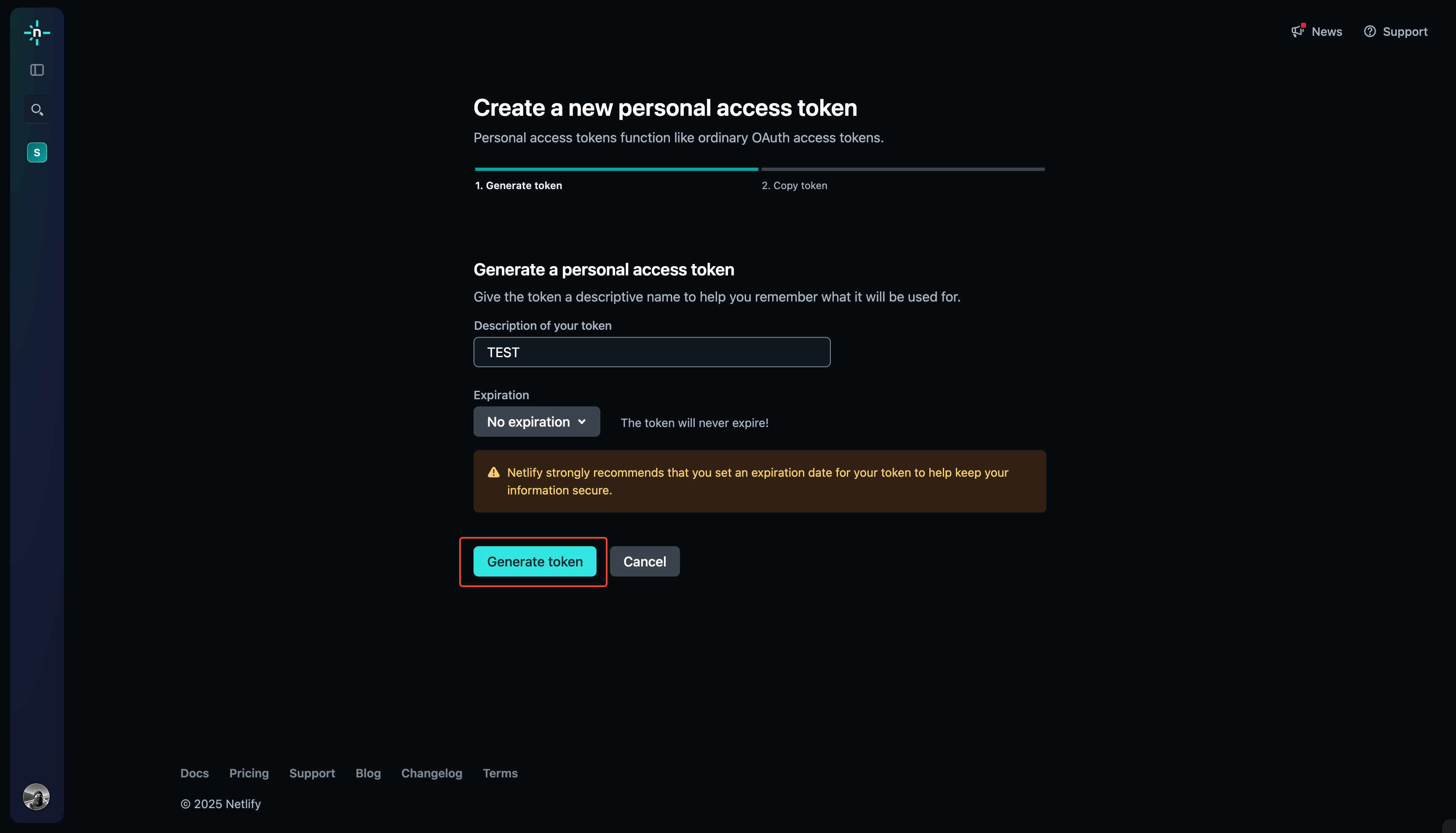
4
Copy the token securely
Make sure to copy the token now—you won’t be able to access it again.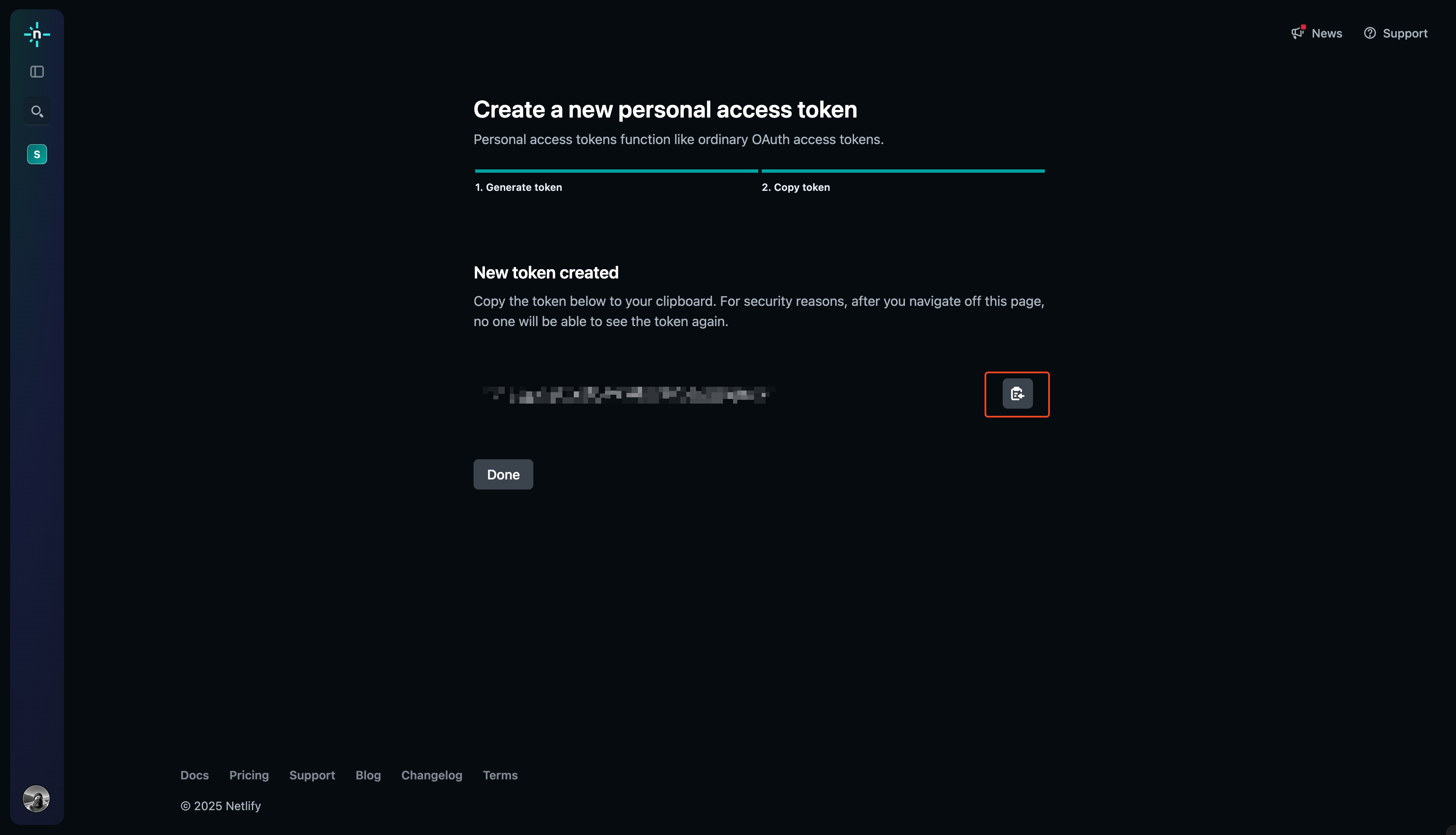
Create a Netlify connection in Infisical
- Infisical UI
- API
1
Navigate to App Connections
In your Infisical dashboard, navigate to the Integrations tab in the desired project, then select App Connections.
2
Select Netlify Connection
Click + Add Connection and choose Netlify Connection from the list of integrations.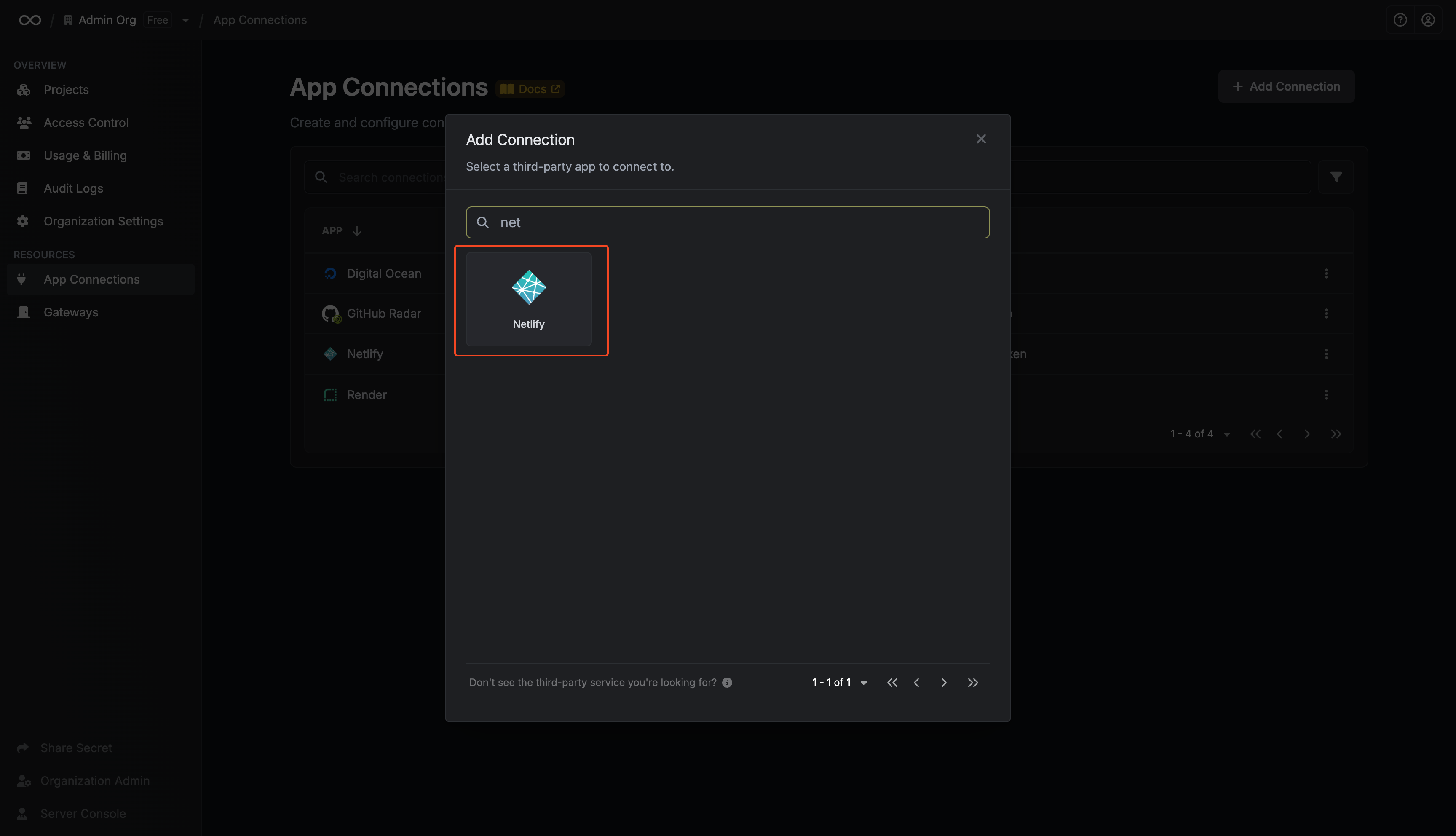
3
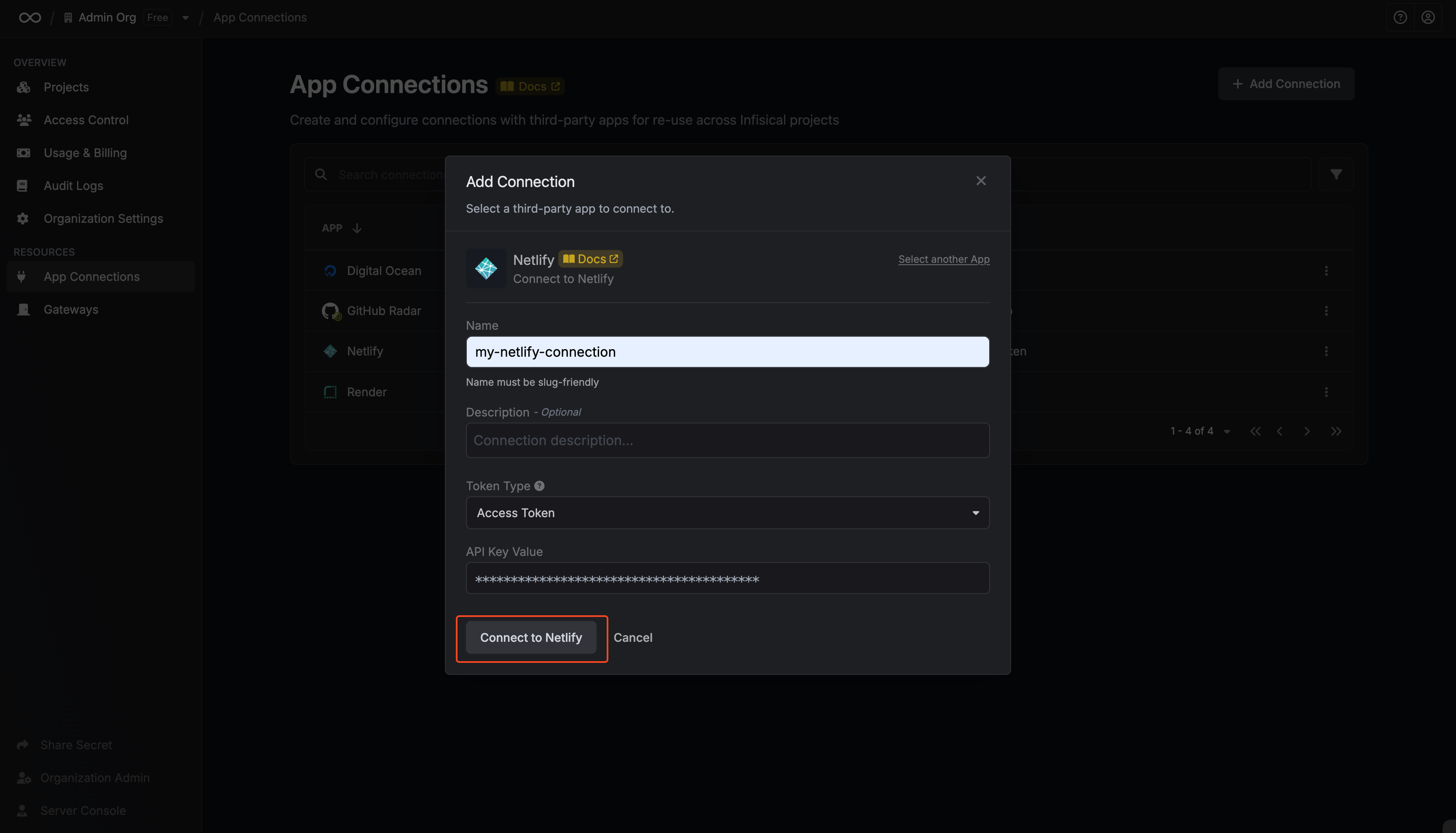
Fill out the Netlify Connection form
Complete the form by providing:
- A descriptive name for the connection
- An optional description
-
The API Token from the previous step
4
Connection created
After submitting the form, your Netlify Connection will be successfully created and ready to use with your Infisical project.