Self-Hosted Instance
Self-Hosted Instance
Using the Azure Key Vault connection on a self-hosted instance of Infisical requires configuring an application in Azure
and registering your instance with it.Prerequisites:
- Set up Azure and have an existing Key Vault instance.
1
Create an application in Azure
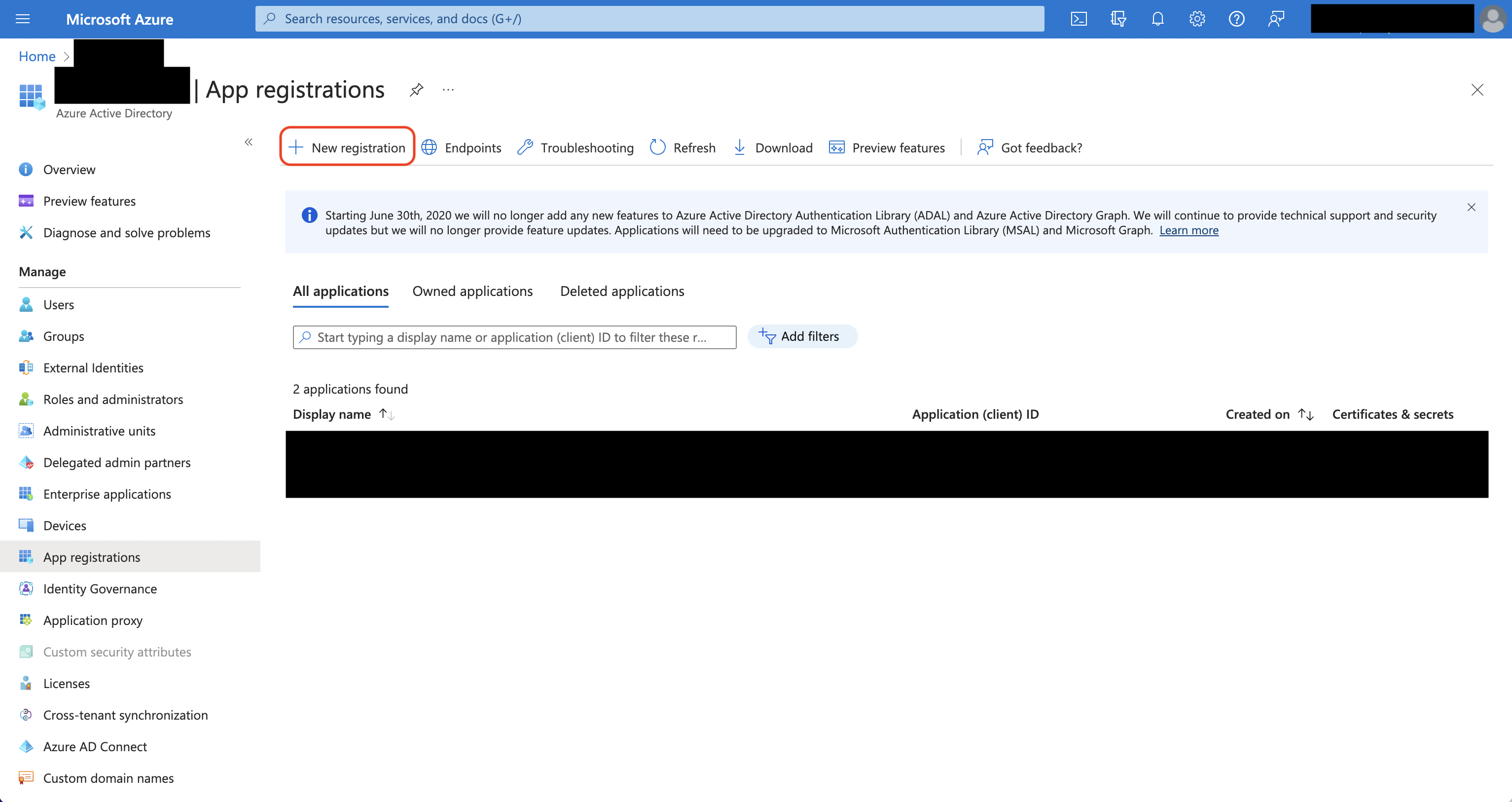
Navigate to Entra ID > App registrations to create a new application.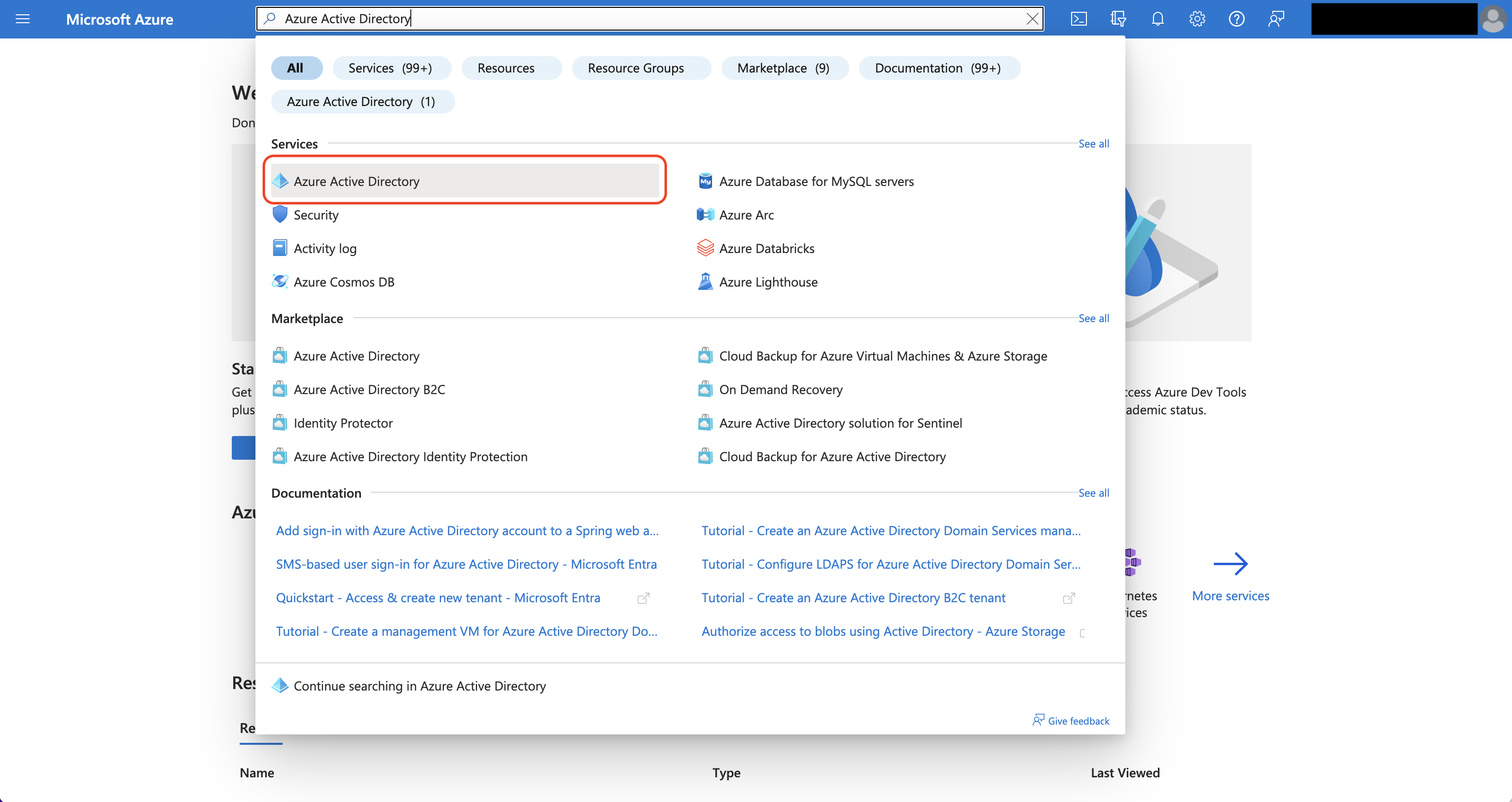
 Create the application. As part of the form, set the Redirect URI to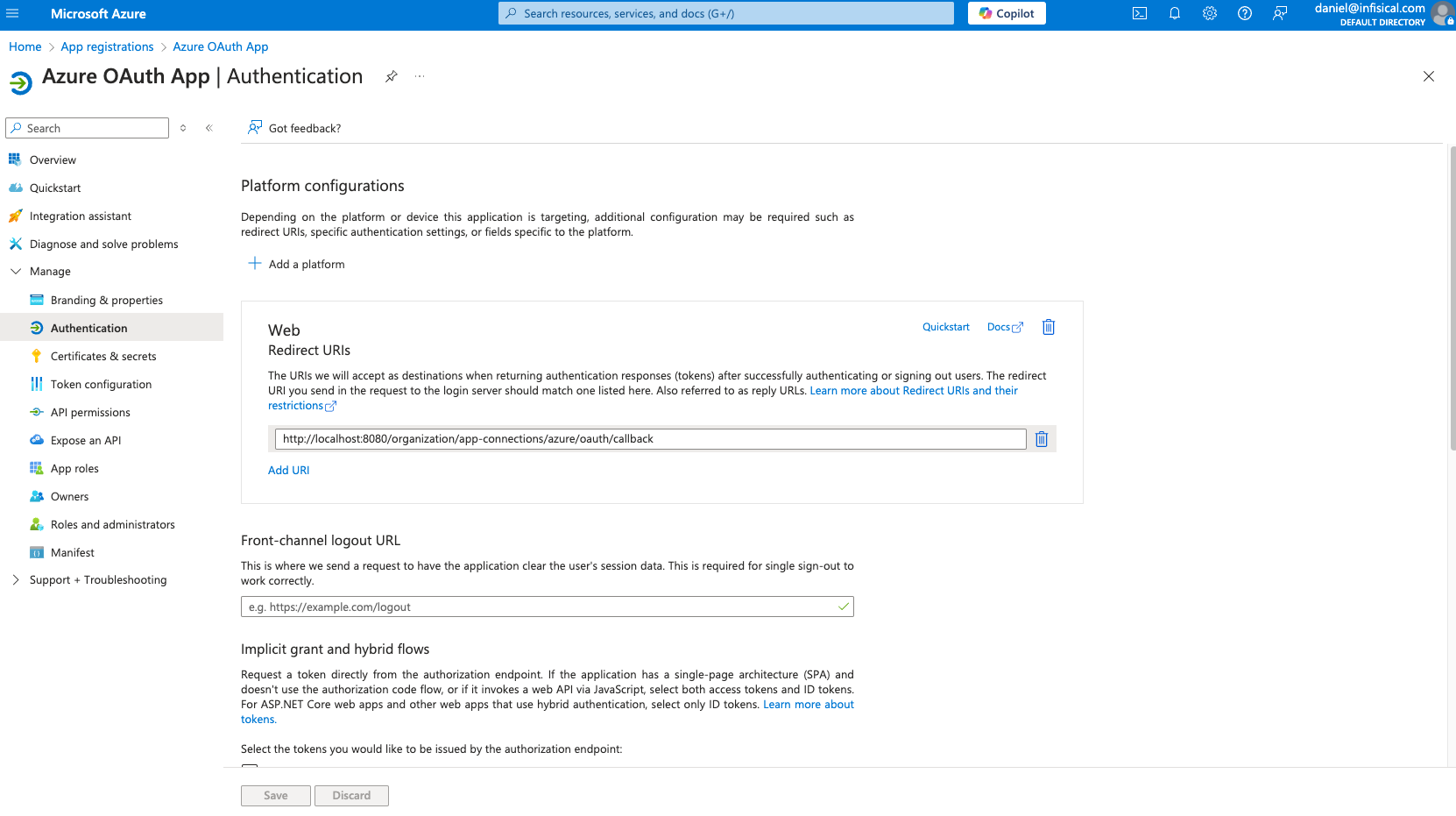
Azure Active Directory is now Microsoft Entra ID.
Create the application. As part of the form, set the Redirect URI to https://your-domain.com/organization/app-connections/azure/oauth/callback.2
Assign API permissions to the application
For the Azure Connection to work with Key Vault, you need to assign multiple permissions to the application.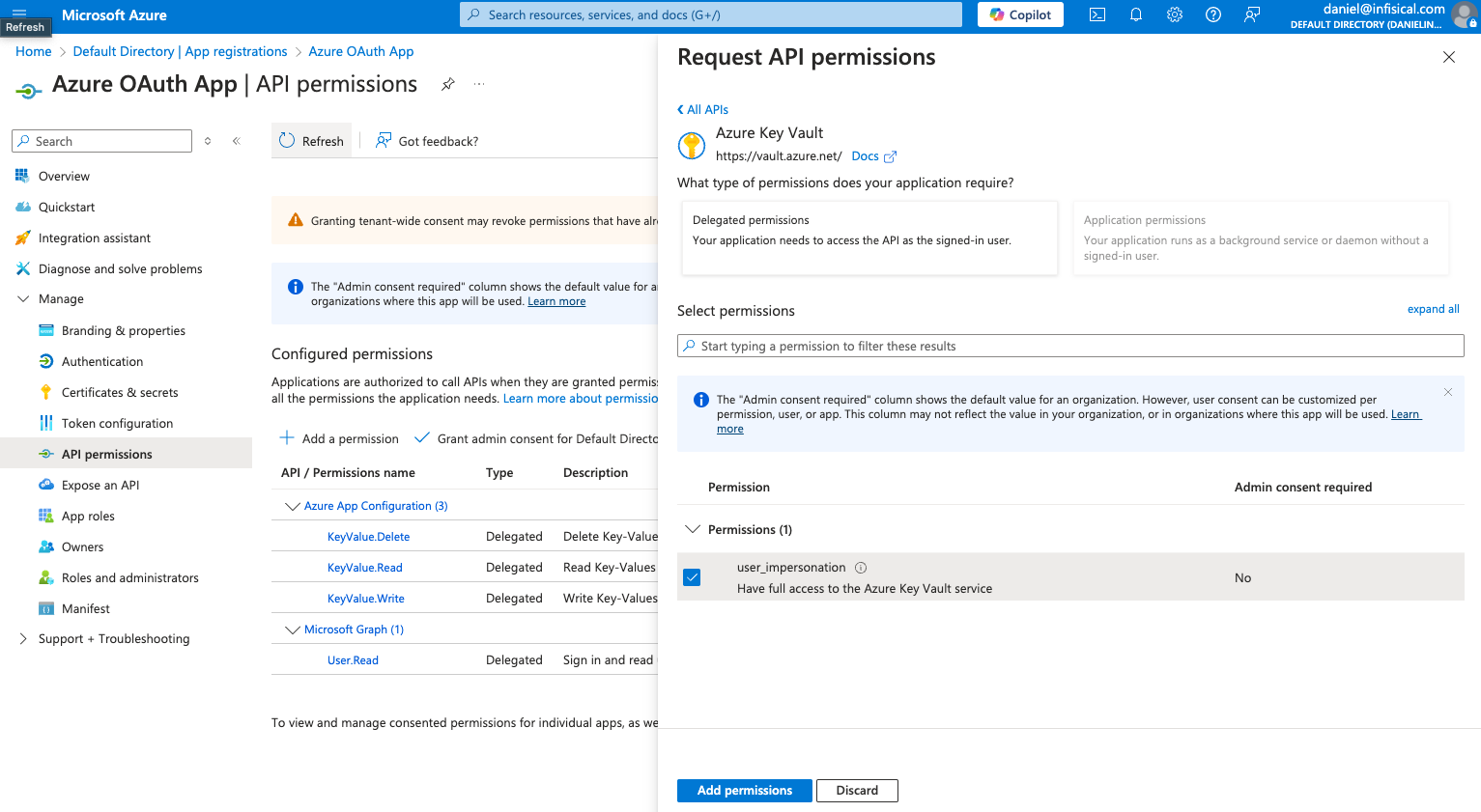
Azure Key Vault permissions
Set the API permissions of the Azure application to includeuser.impersonation for the Key Vault API.3
Add your application credentials to Infisical
Obtain the Application (Client) ID in Overview and generate a Client Secret in Certificate & secrets for your Azure application.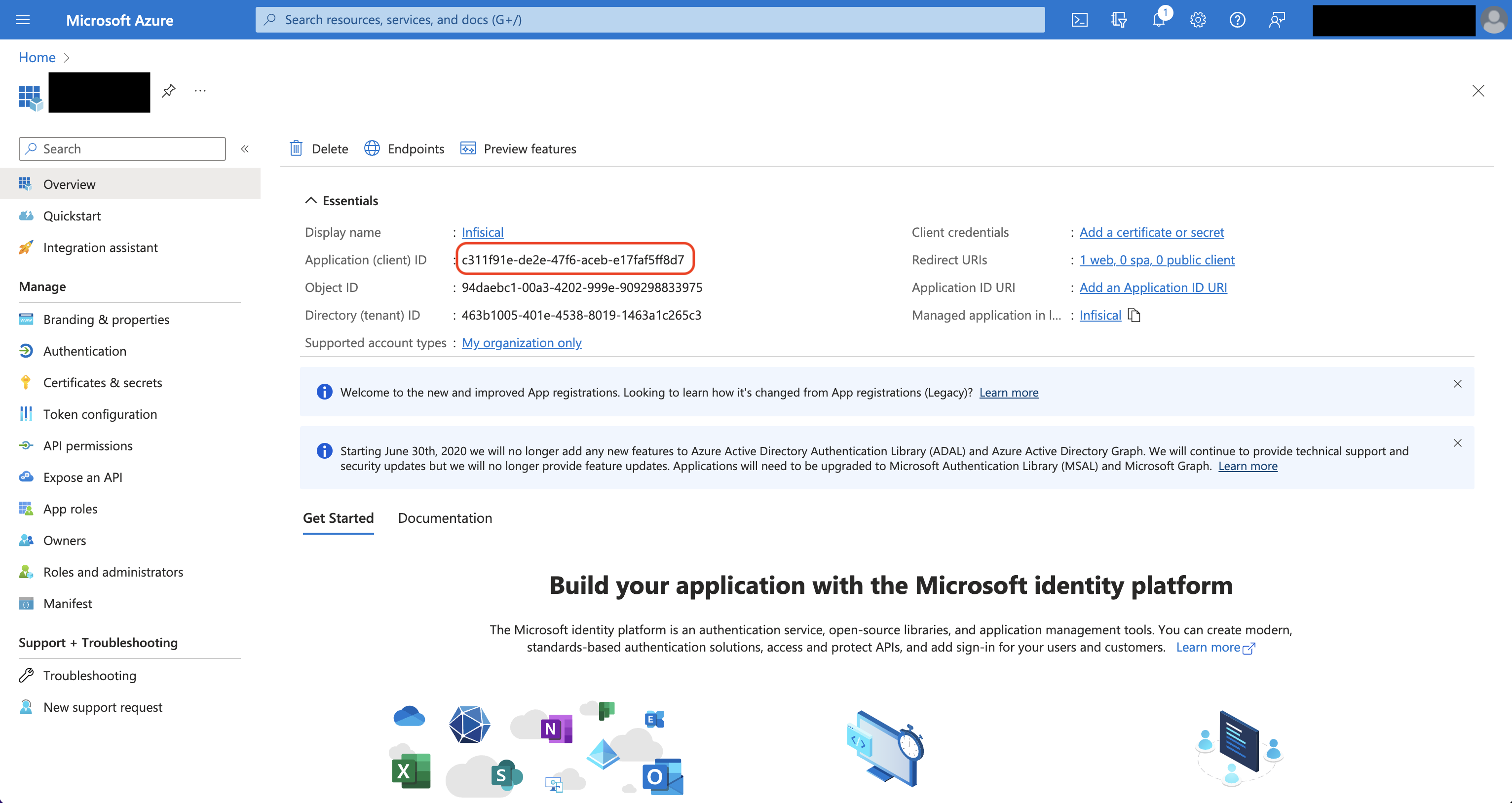
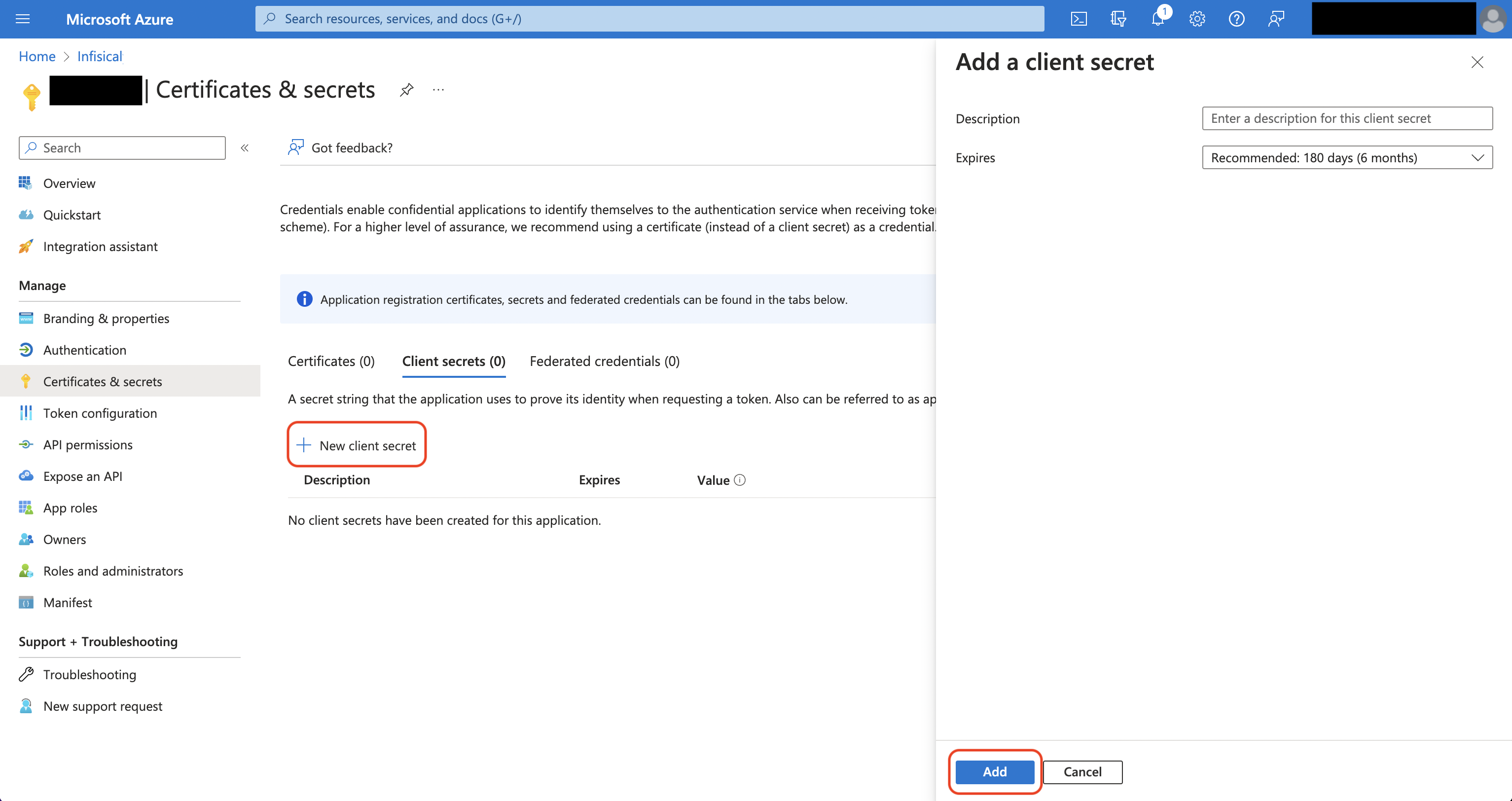
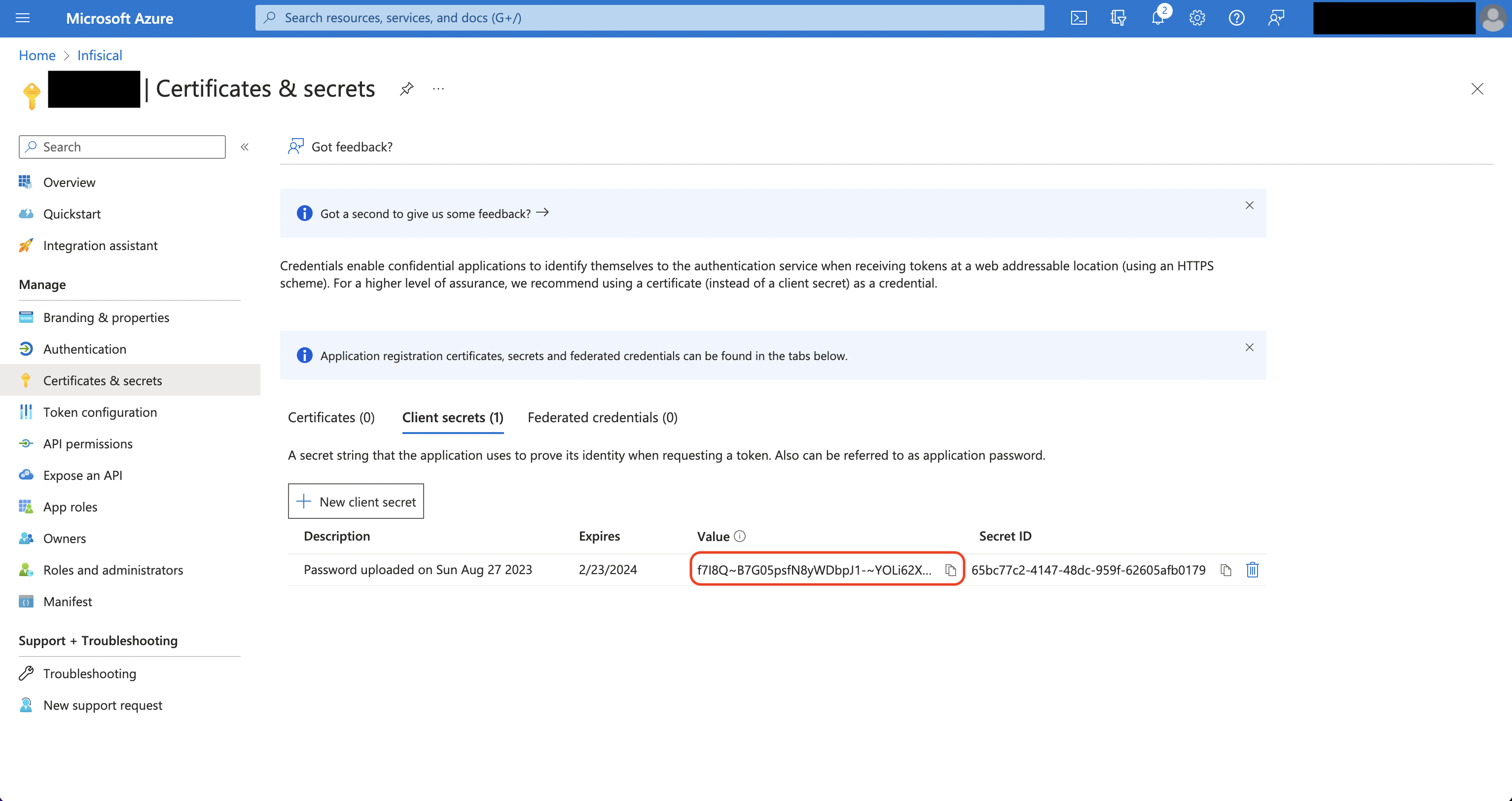 Back in your Infisical instance, add two new environment variables for the credentials of your Azure application.
Back in your Infisical instance, add two new environment variables for the credentials of your Azure application.INF_APP_CONNECTION_AZURE_KEY_VAULT_CLIENT_ID: The Application (Client) ID of your Azure application.INF_APP_CONNECTION_AZURE_KEY_VAULT_CLIENT_SECRET: The Client Secret of your Azure application.
Client Secret Authentication
Client Secret Authentication
To use client secret authentication, ensure your Azure Service Principal has the required permissions and is connected to the Azure Key Vault instances you want to use.Prerequisites:
- Set up Azure and have an existing Key Vault instance.
- The service principal must be connected to your target Azure Key Vault instance(s)
1
Assign API permissions to the service principal
Configure the required API permissions for your App Registration to interact with Azure Key Vault:
Azure Key Vault permissions
Set the API permissions of your Azure service principal to includeuser_impersonation for the Key Vault API.If you want to configure automatic client secret rotation for this App Connection, you also need to grant either
Application.ReadWrite.OwnedBy or Application.ReadWrite.All permissions.Certificate Authentication
Certificate Authentication
To use certificate authentication, ensure your Azure Service Principal has access to the Azure Key Vault instances you want to use. You’ll need a certificate uploaded to the App Registration and the matching private key kept locally.Prerequisites:
- Set up Azure and have an existing Key Vault instance.
- The service principal must be granted access to your target Azure Key Vault instance(s) via Access Policies or RBAC (e.g. the Key Vault Secrets Officer role).
- A certificate (PEM) uploaded to your App Registration and the matching PEM private key.
1
Upload your certificate to your Azure App Registration
In the Azure Portal, navigate to your App Registration and open the Certificates & secrets section. Choose the Certificates tab and press the Upload certificate button. Select and upload your public certificate (PEM/CER/CRT).You will need both the certificate body and the matching private key (in PEM format) to configure the connection in Infisical.
Setup Azure connection in Infisical
1
Navigate to App Connections
Navigate to the Integrations tab in the desired project, then select App Connections. 
2
Add Connection
Select the Azure Connection option from the connection options modal. 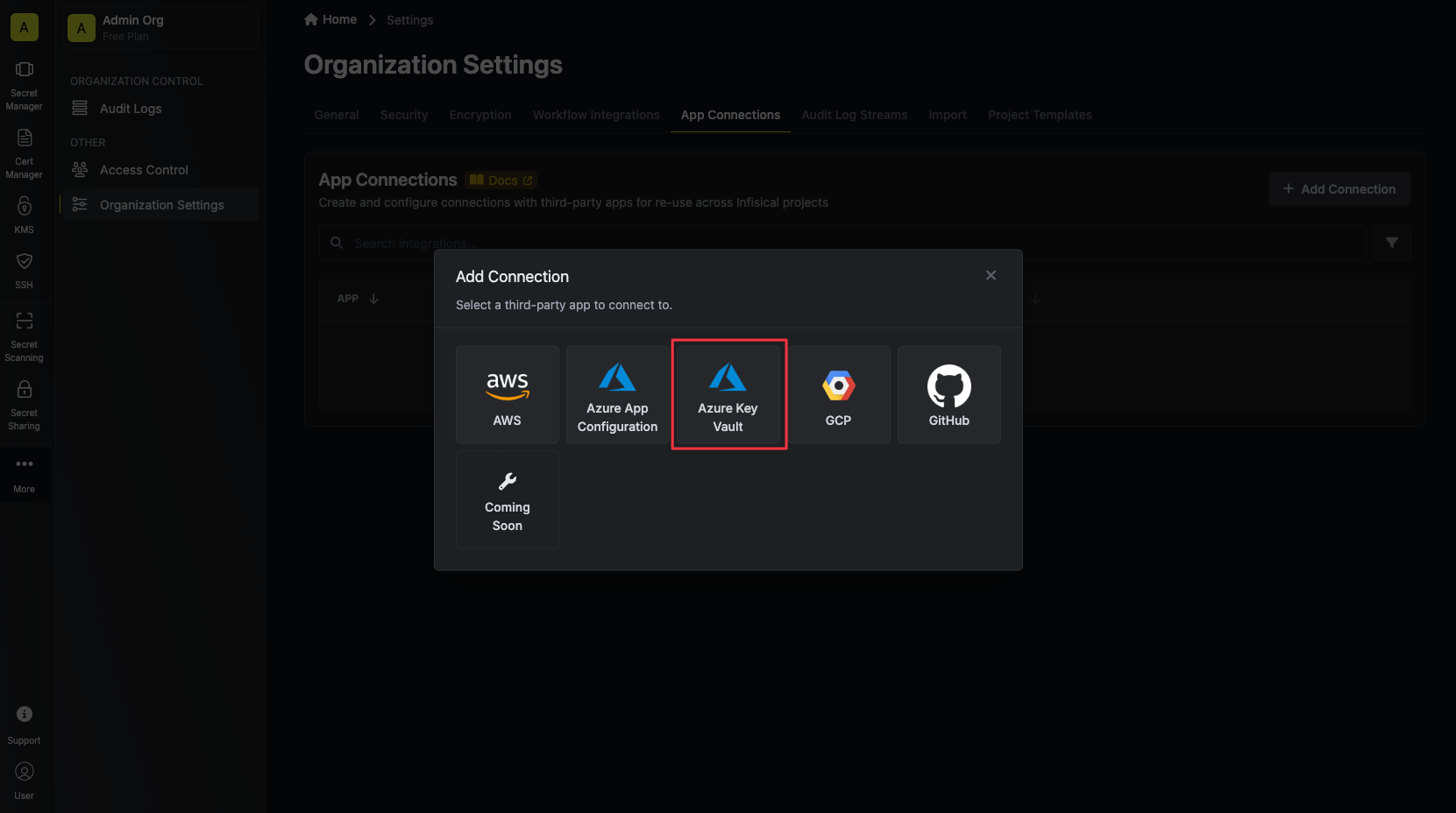
3
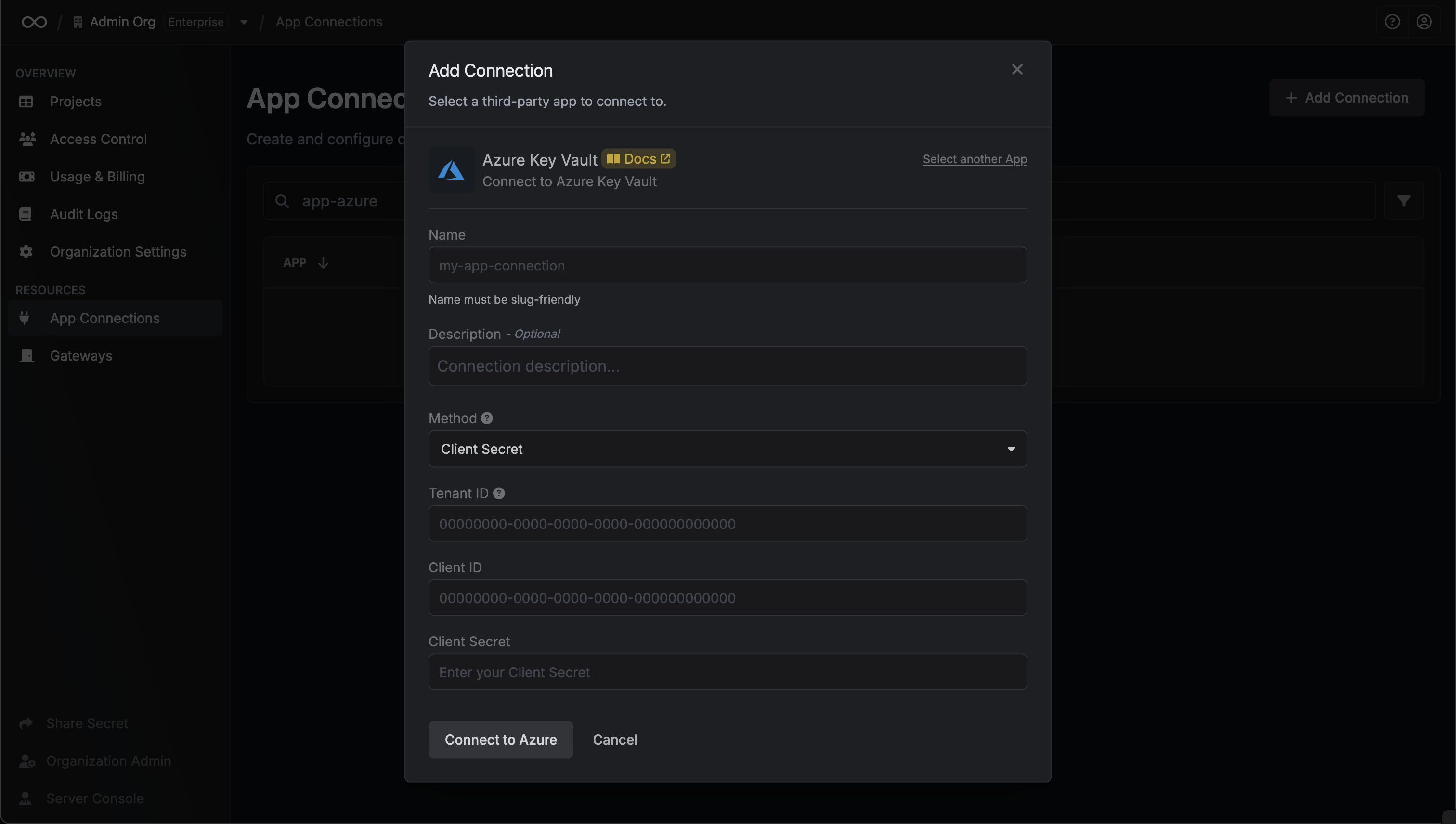
Create Connection
- OAuth
- Client Secret
- Certificate
1
Authorize Connection
You can optionally authenticate against a specific tenant by providing the Azure Tenant or Directory ID.Now select the OAuth method and click Connect to Azure.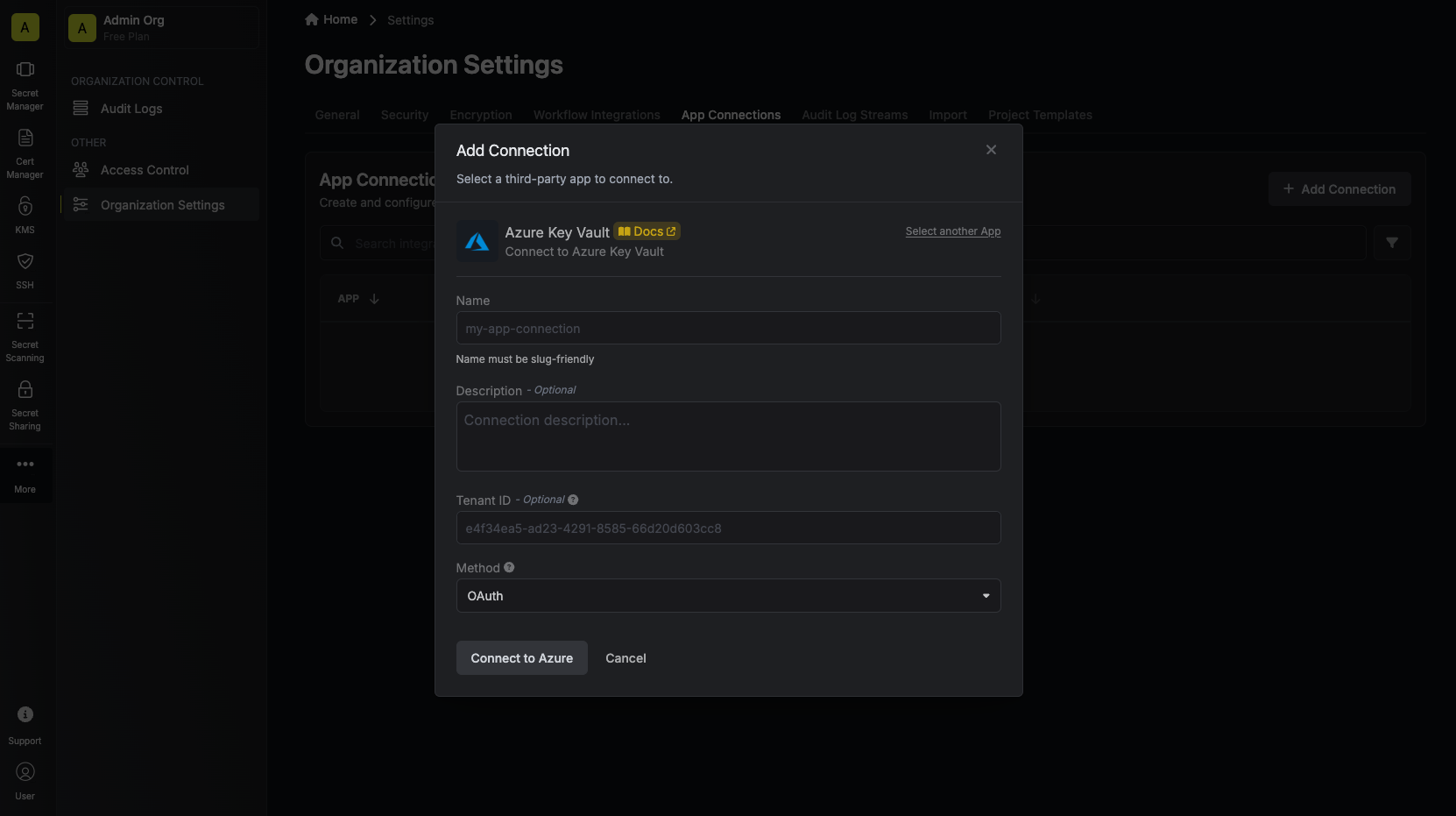
2
Grant Access
You will then be redirected to Azure to grant Infisical access to your Azure account. Once granted,
you will redirect you back to Infisical’s App Connections page. 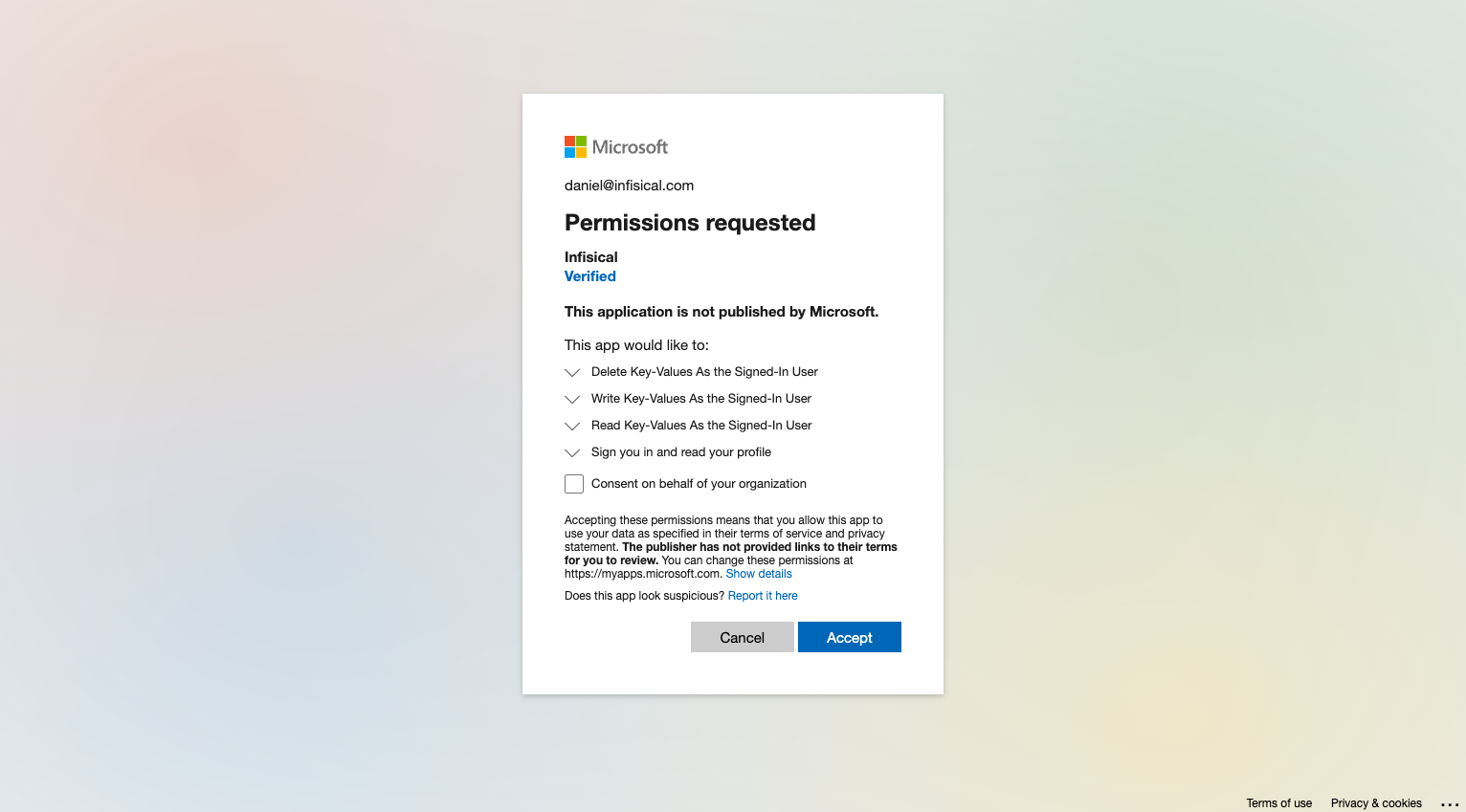
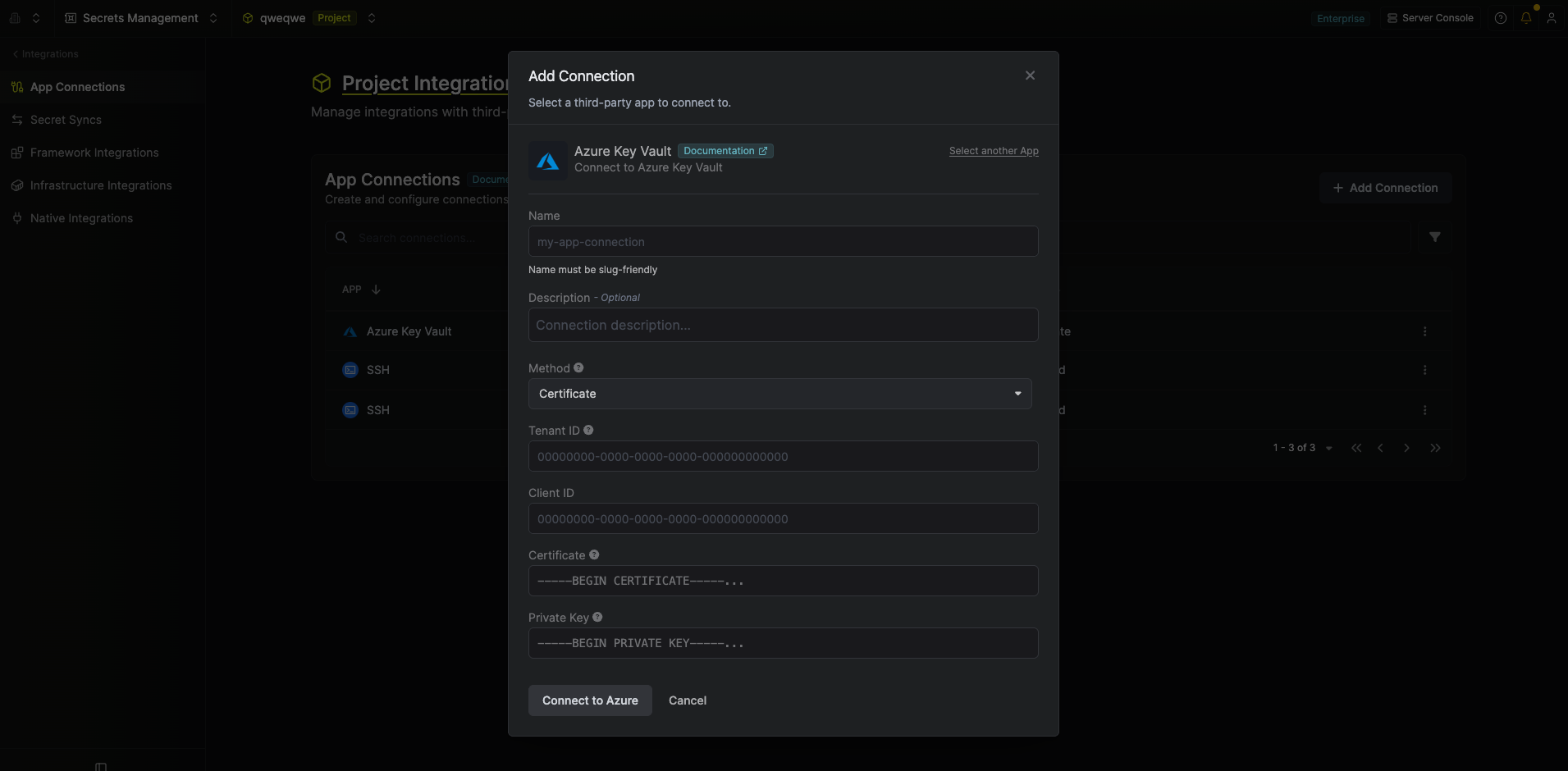
4
Connection Created
Your Azure Key Vault Connection is now available for use. 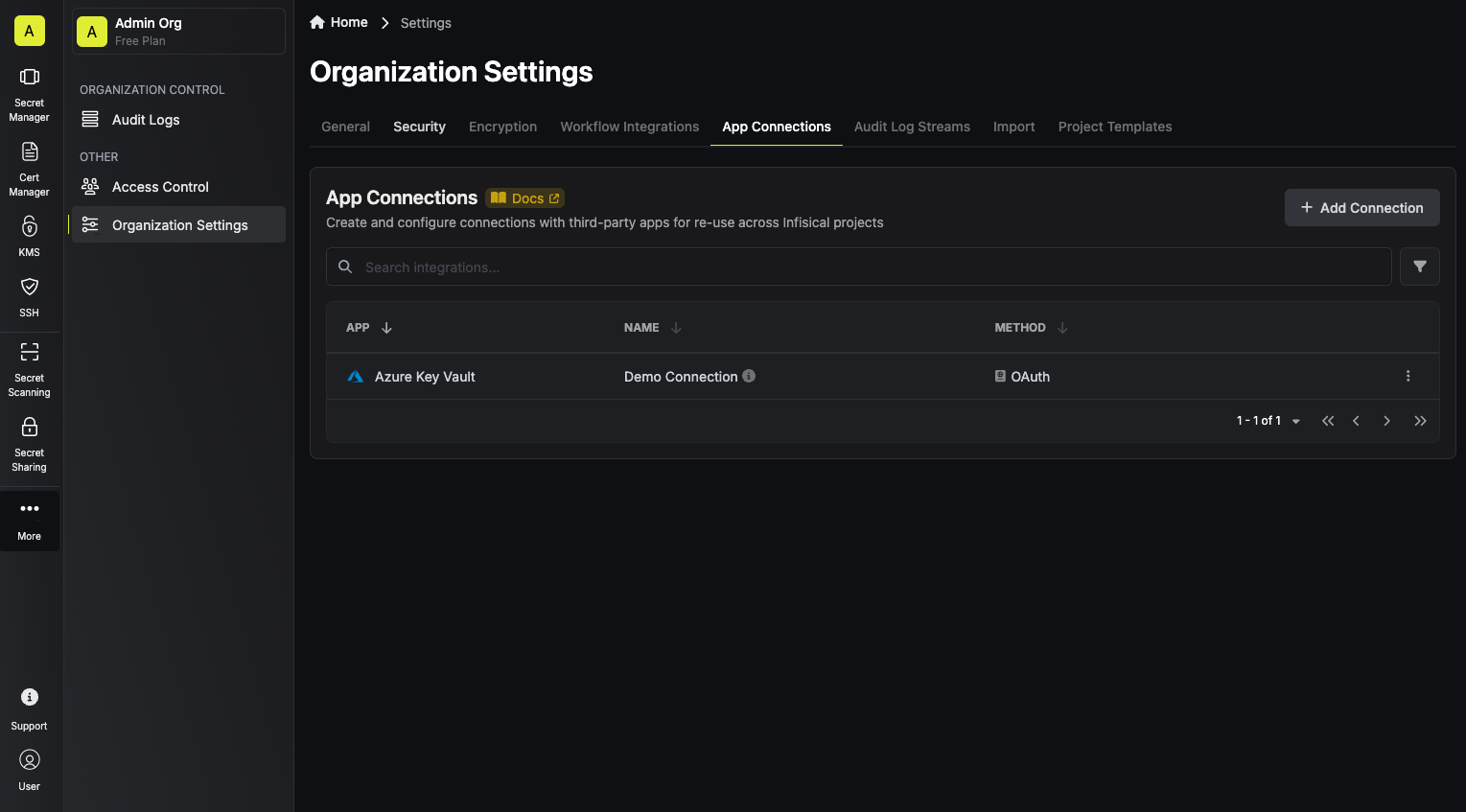
Automatic credential rotation
When using the Client Secret authentication method, Infisical can automatically rotate the Client Secret of your Azure application on a recurring schedule. When enabled, Infisical will immediately generate a new Client Secret on connection creation and revoke the original one, ensuring that no external party retains access using the credentials you provided.Automatic Credential Rotation is only available for the Client Secret authentication method.
1
Locate the Key ID of your Client Secret
Before enabling rotation, you’ll need the Key ID of the Client Secret you’re using to authenticate. Navigate to your App Registration in the Azure Portal, then go to Certificates & secrets. Copy the Secret ID (Key ID) of the secret you’re providing to Infisical.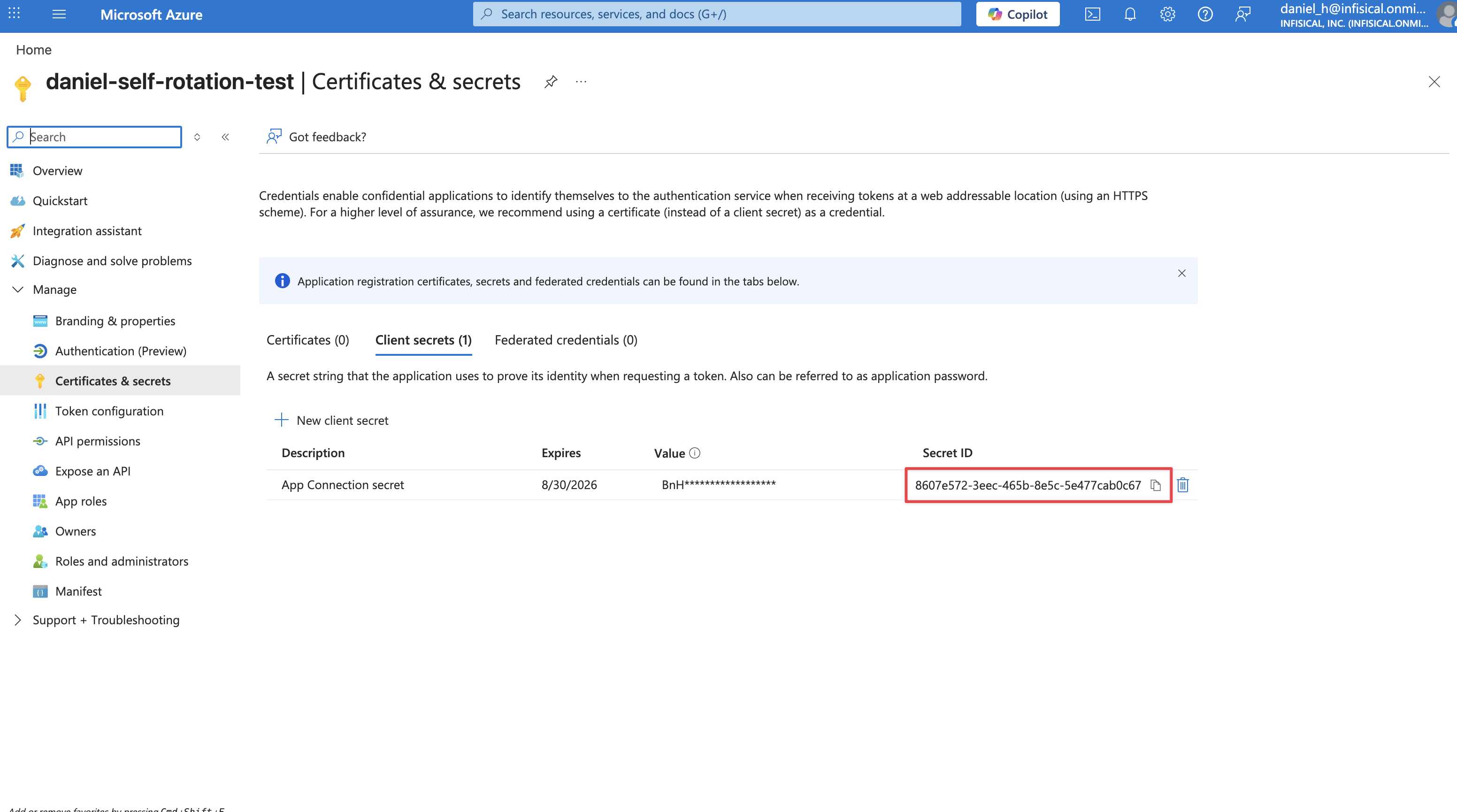
2
Enable Automatic Credential Rotation
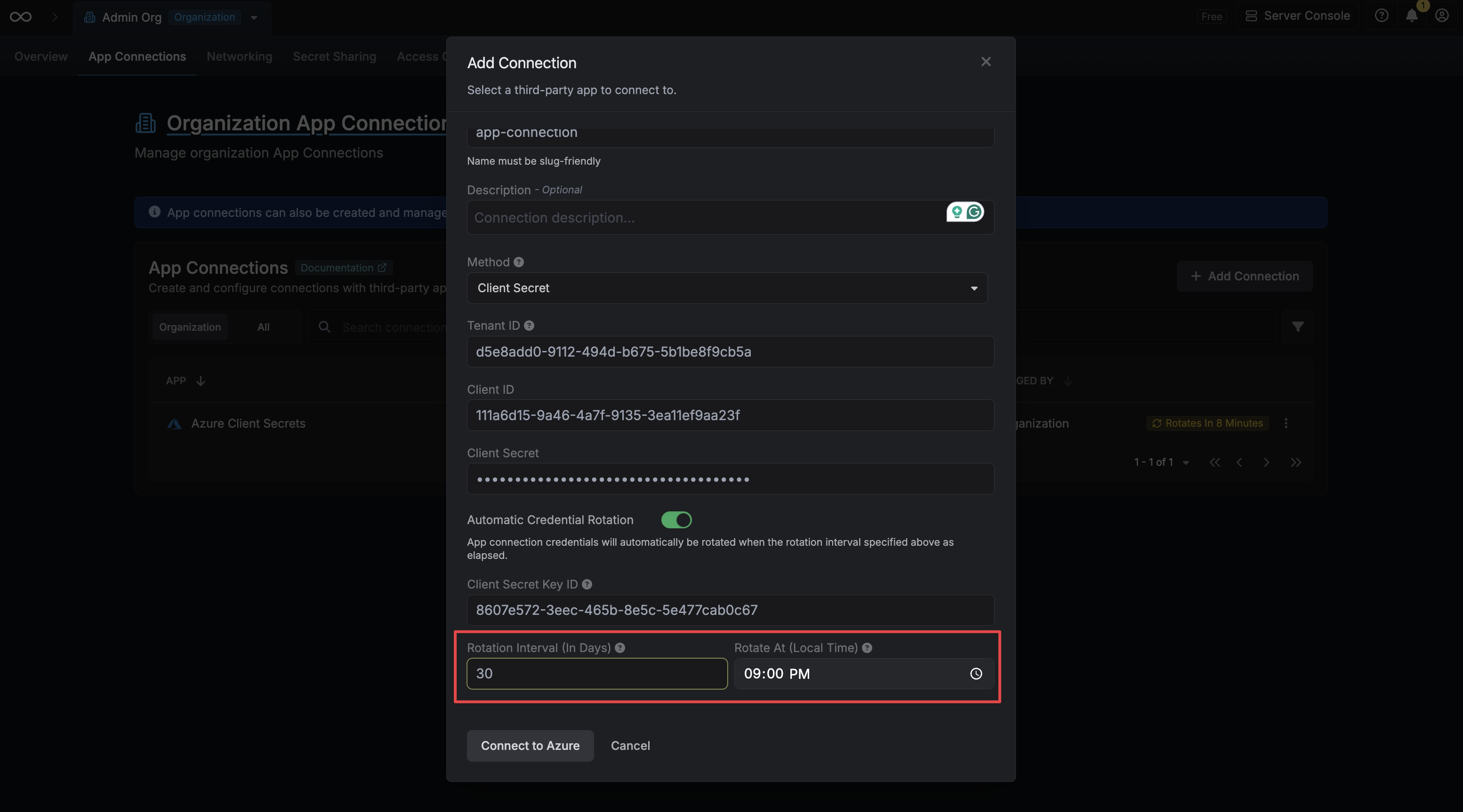
When creating or editing your connection, toggle on the Automatic Credential Rotation switch.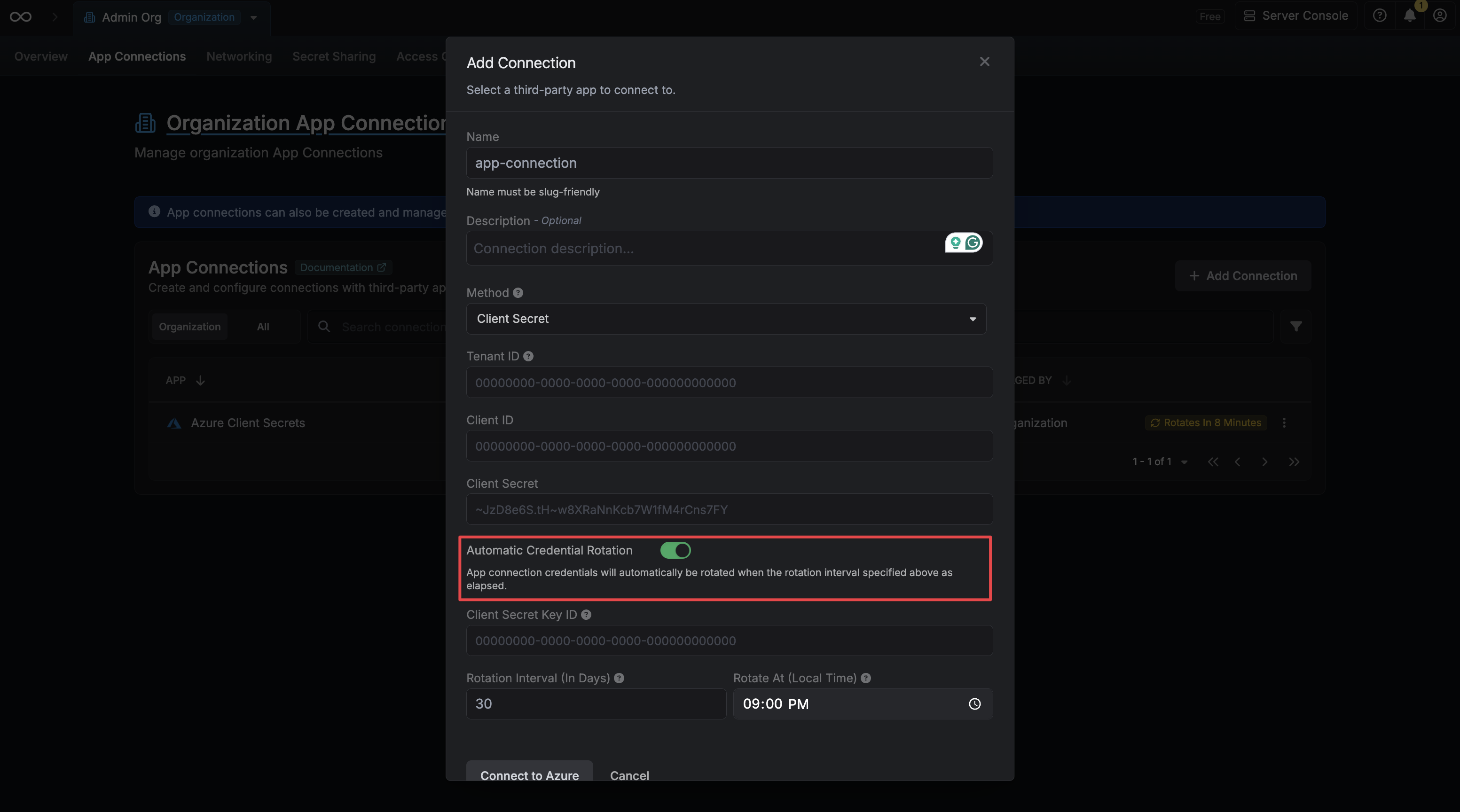
3
Provide the Client Secret Key ID
Enter the Key ID you copied in the previous step into the Client Secret Key ID field. Infisical uses this to revoke your original secret after generating a new one.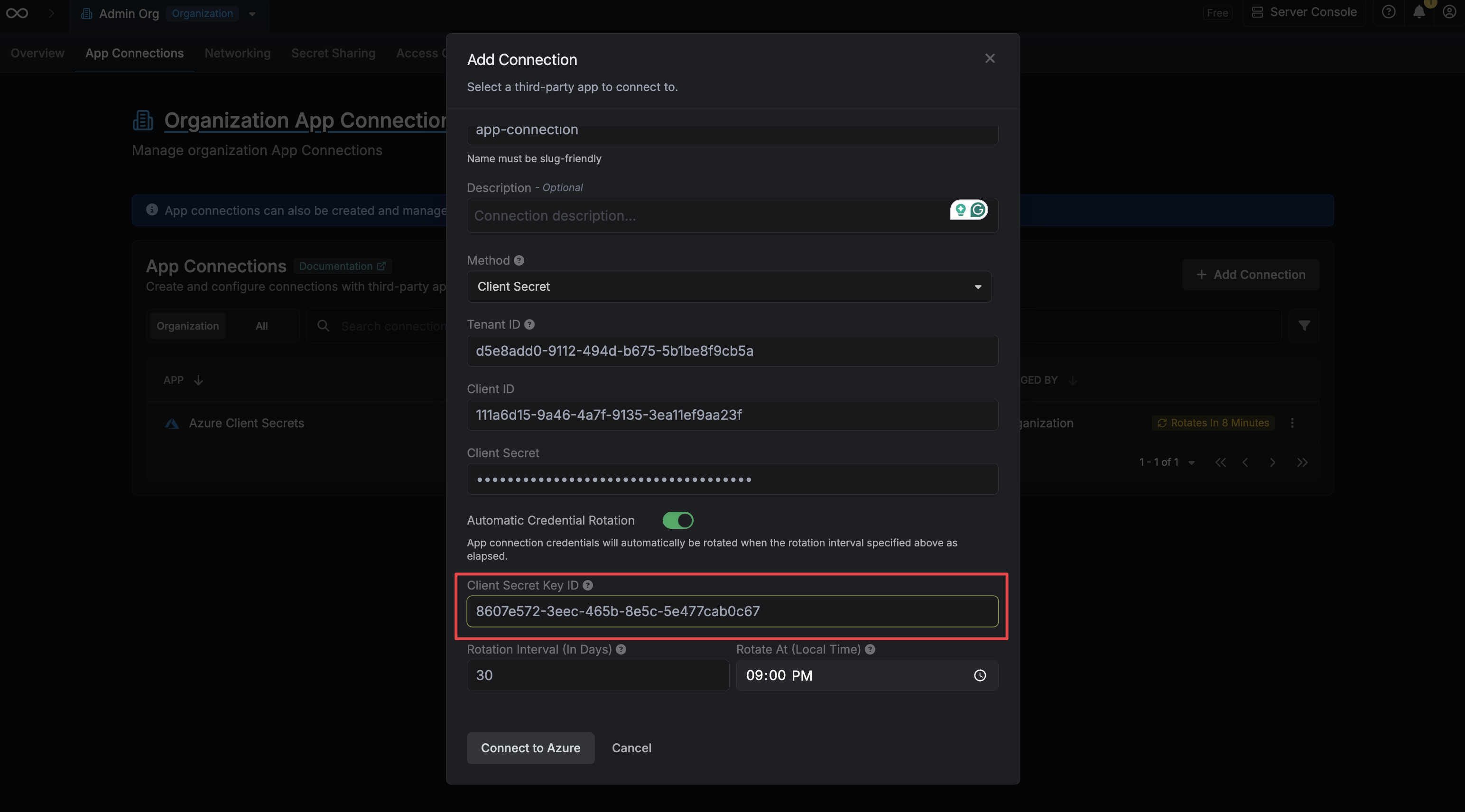
4
Configure the Rotation Schedule
Set the Rotation Interval (in days) to define how often the credential should be rotated, and set Rotate At to the local time of day at which the rotation should occur.
- Rotation Interval – How many days between each rotation.
-
Rotate At – The local time of day at which the rotation will be triggered.