

This guide only authenticates Infisical with Snowflake. Once the app connection is ready, you can use it to set up integrations.
Prerequisites
- A Snowflake account where you can create users, roles, and network policies, such as with the
ACCOUNTADMINrole
Step 1: Create a Snowflake user and programmatic access token
Infisical needs a Snowflake user with a programmatic access token, a network policy, and a role with privileges for the integration you’ll set up.1
In Snowsight, open the sidebar and select Users & roles under Governance & Security.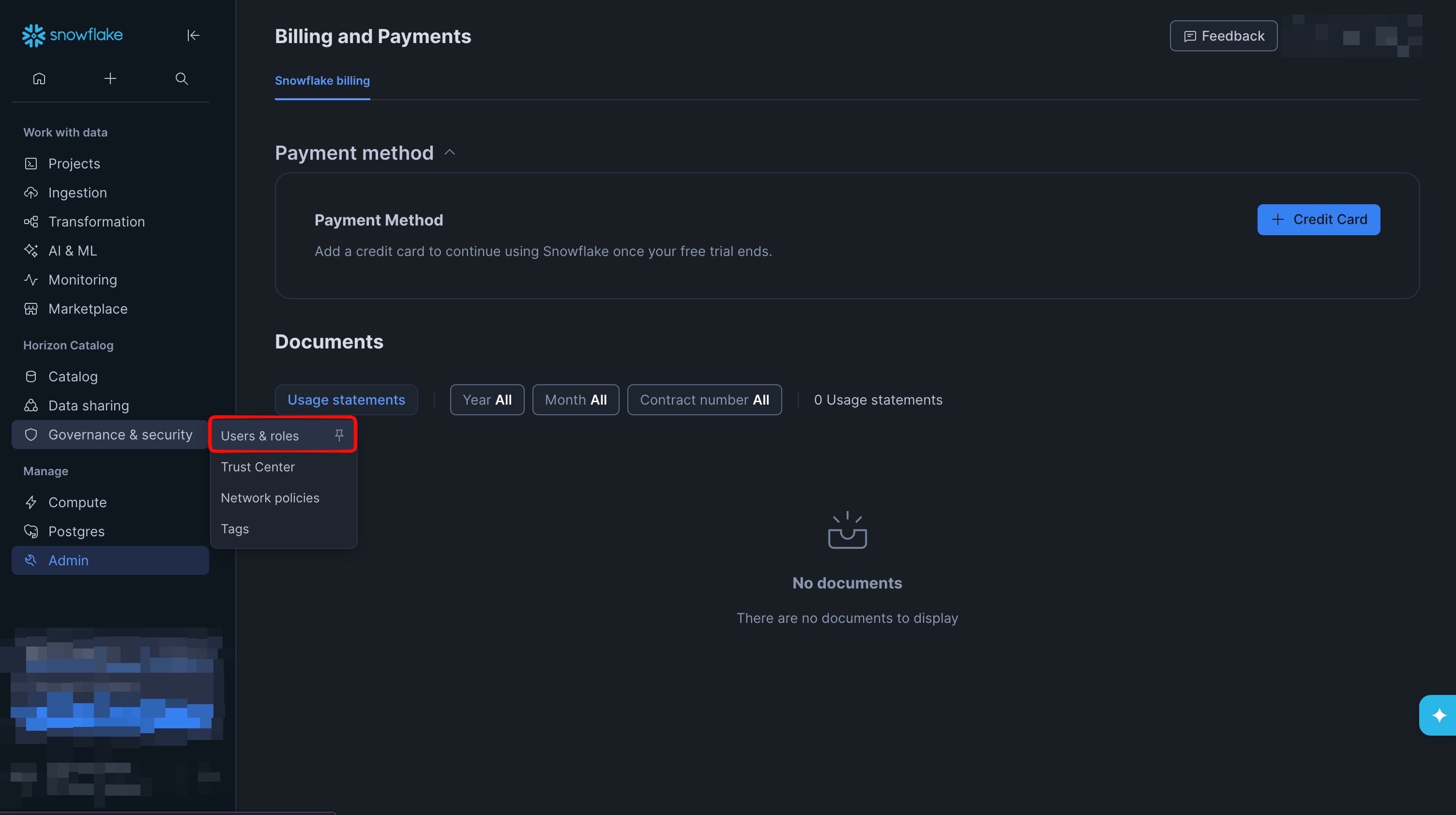
2
Select Create user, then enter a Username for the user Infisical will authenticate as.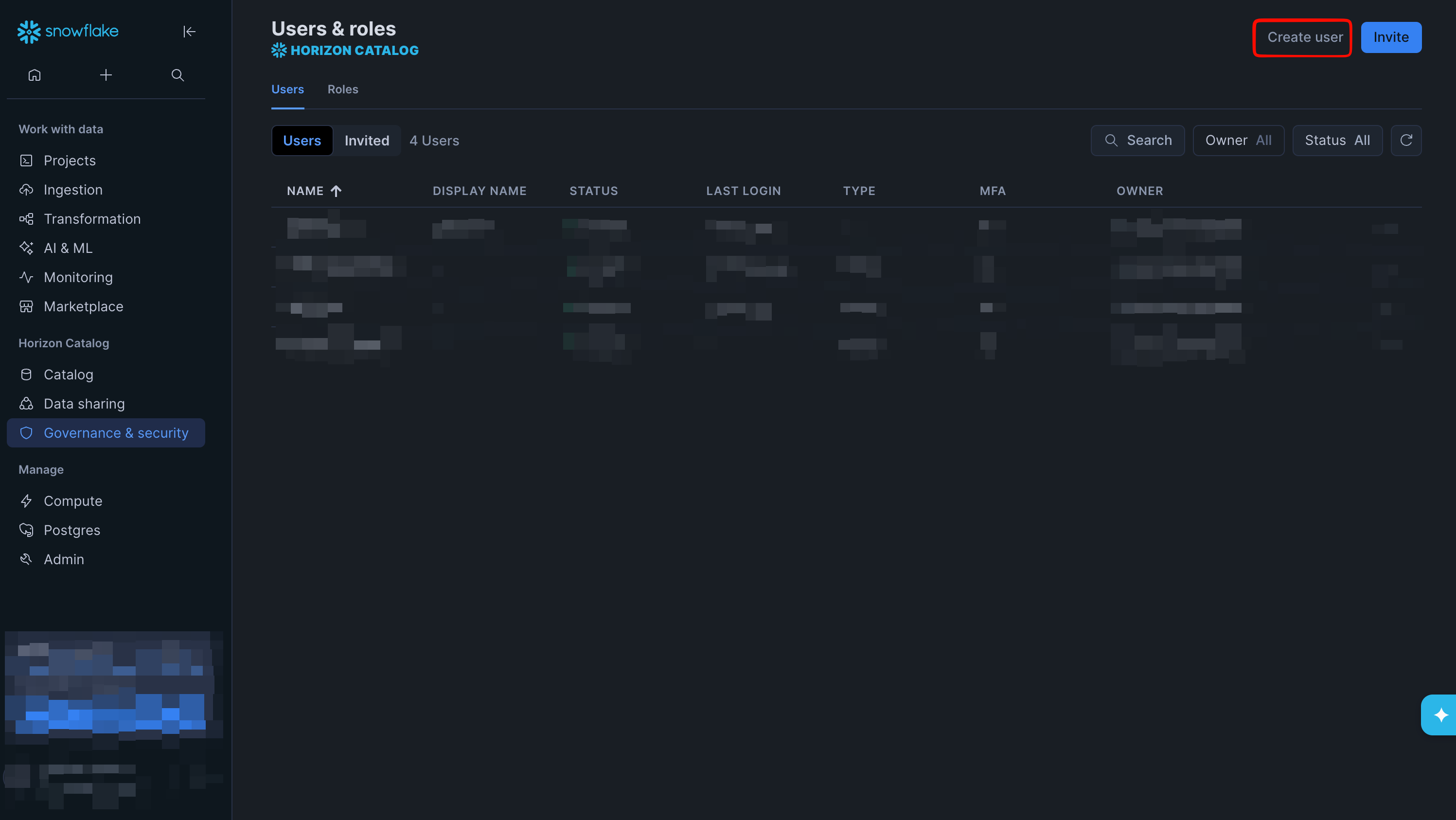
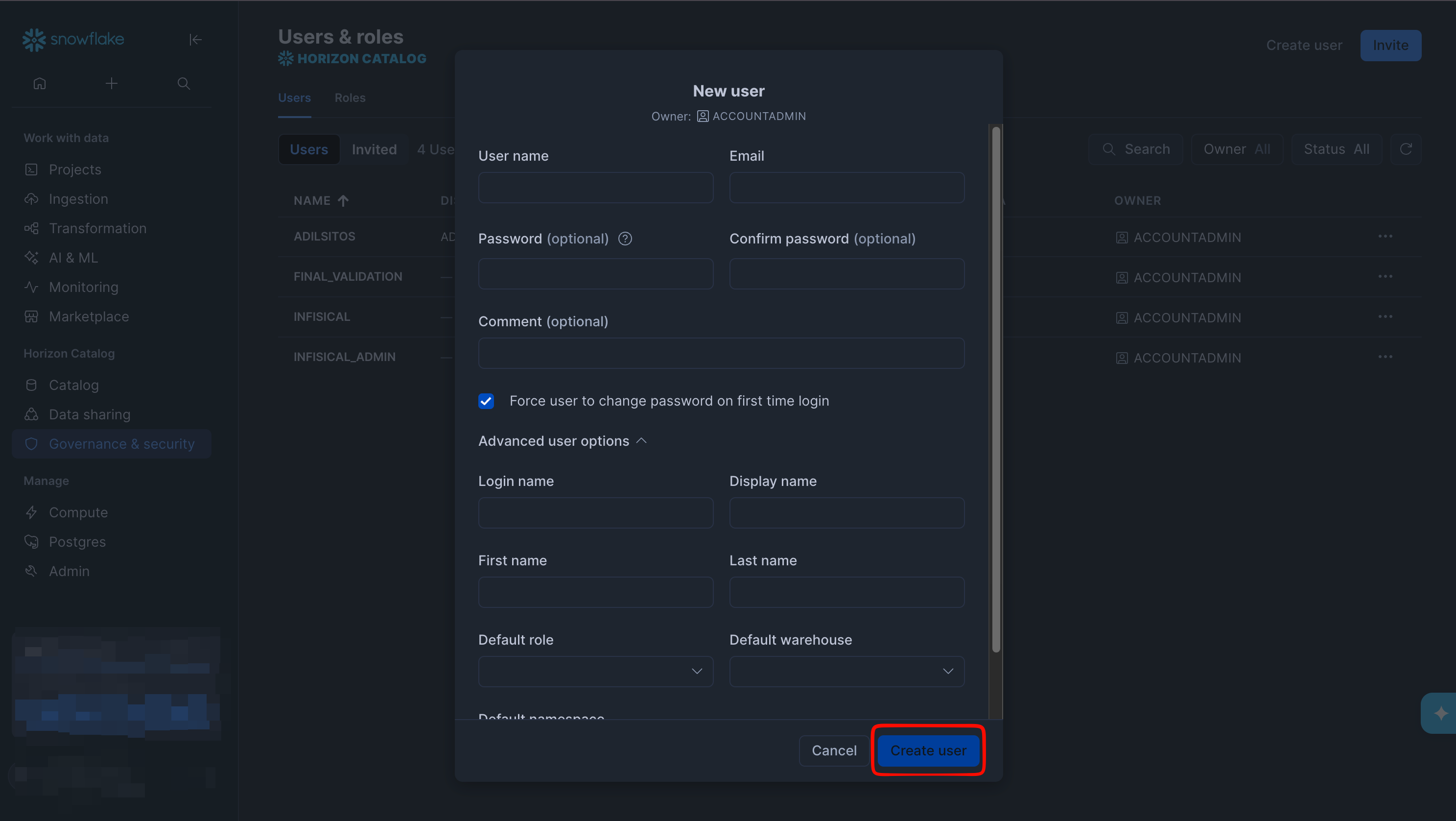
3
If a user authenticates with a programmatic access token, Snowflake requires the user to have a network policy. Attach one to the user:To run SQL in Snowflake, select Projects, then Workspaces, to open the query editor.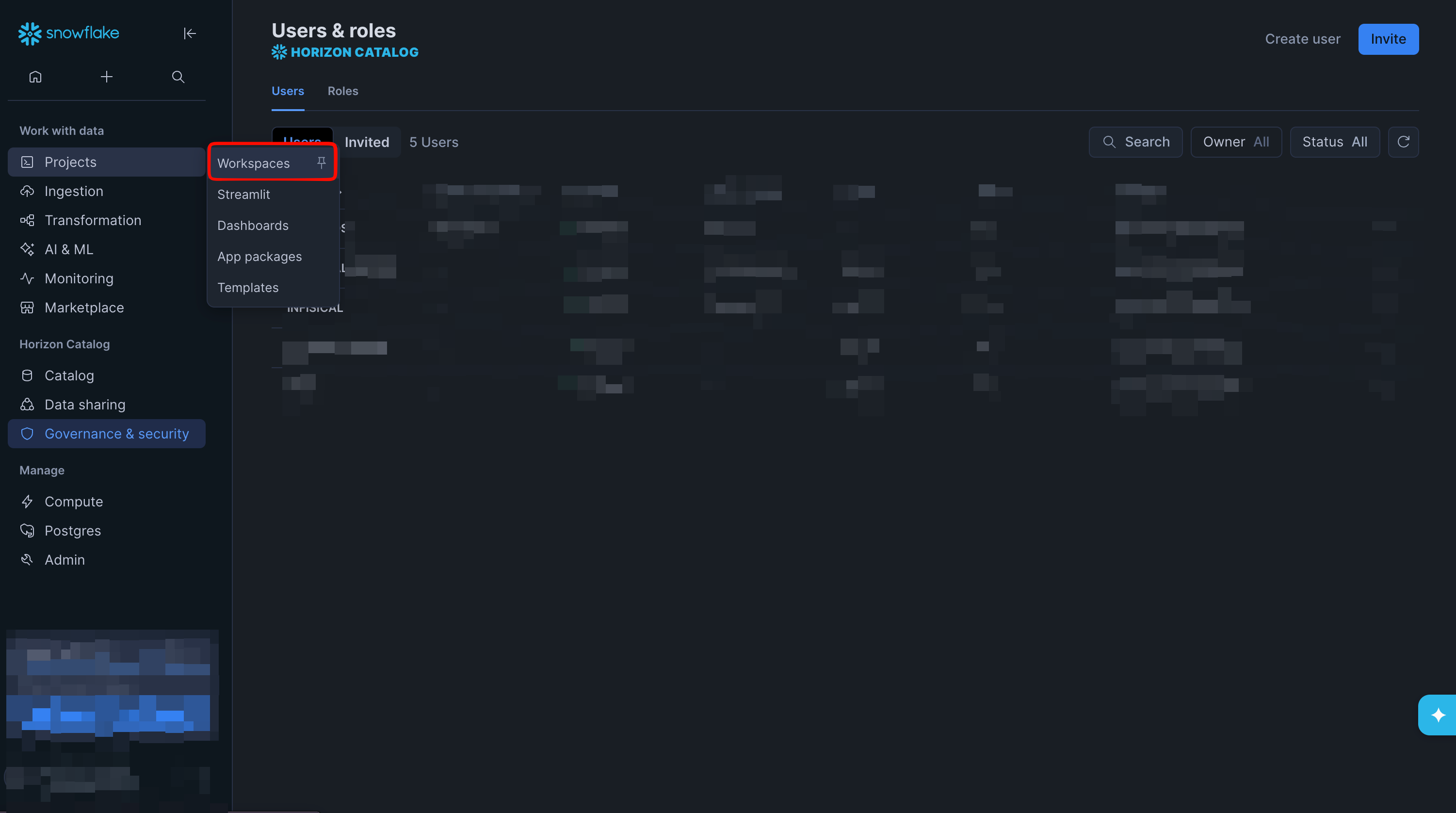 The following statements create a network policy and attach it to a user named
The following statements create a network policy and attach it to a user named INFISICAL. Replace INFISICAL with the username you entered.4
Create a role for the user, grant the role the privileges for the integration you’ll set up, and make it the user’s default role, using the same query editor.A connection signs in with one role. If you want one connection for both a sync and a rotation, grant both sets of privileges to the same role and make that role the user’s default.
Infisical doesn’t choose a role when it signs in, so Snowflake runs every Infisical operation under the user’s default role. If you skip the
ALTER USER statement, the default role stays PUBLIC, and syncs and rotations fail even though the grants exist.- Secret syncs
- Secret rotations
The role needs access to the database and schema the sync writes to, and ownership of every secret in that schema that the sync manages. The following statements grant those privileges on the
PUBLIC schema of a database named SECRET_SYNC_TEST:Snowflake only lets the role that owns a secret replace or drop it. If a secret already exists in the schema, it stays owned by the role that created it, so the sync fails on that secret until you transfer ownership with the
GRANT OWNERSHIP ON ALL SECRETS statement. The GRANT OWNERSHIP ON FUTURE SECRETS statement covers secrets created later.5
Go back to Governance & Security > Users & roles and select the user. Open the Programmatic access tokens tab and select Generate new token. Give the token a name, such as 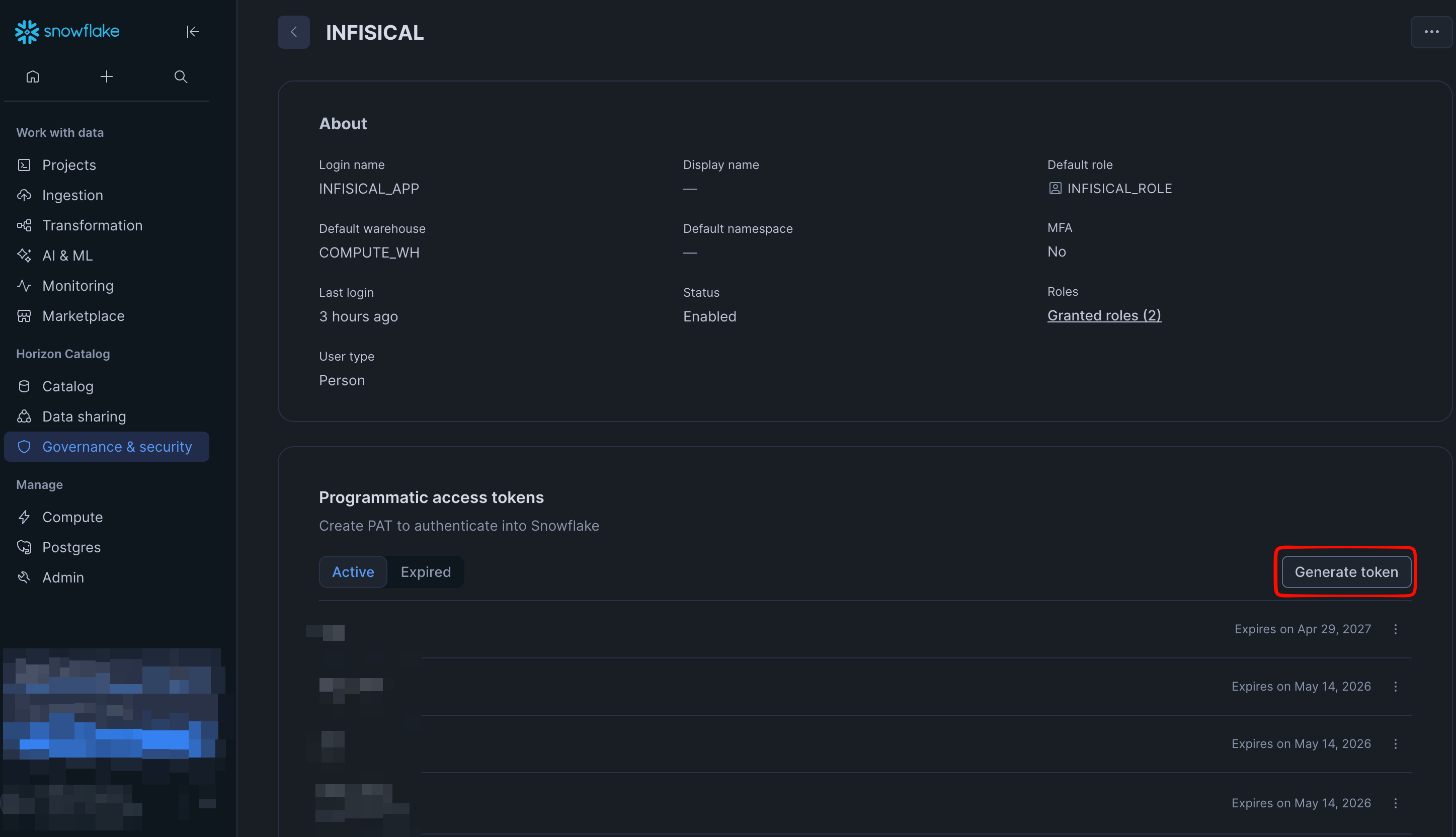
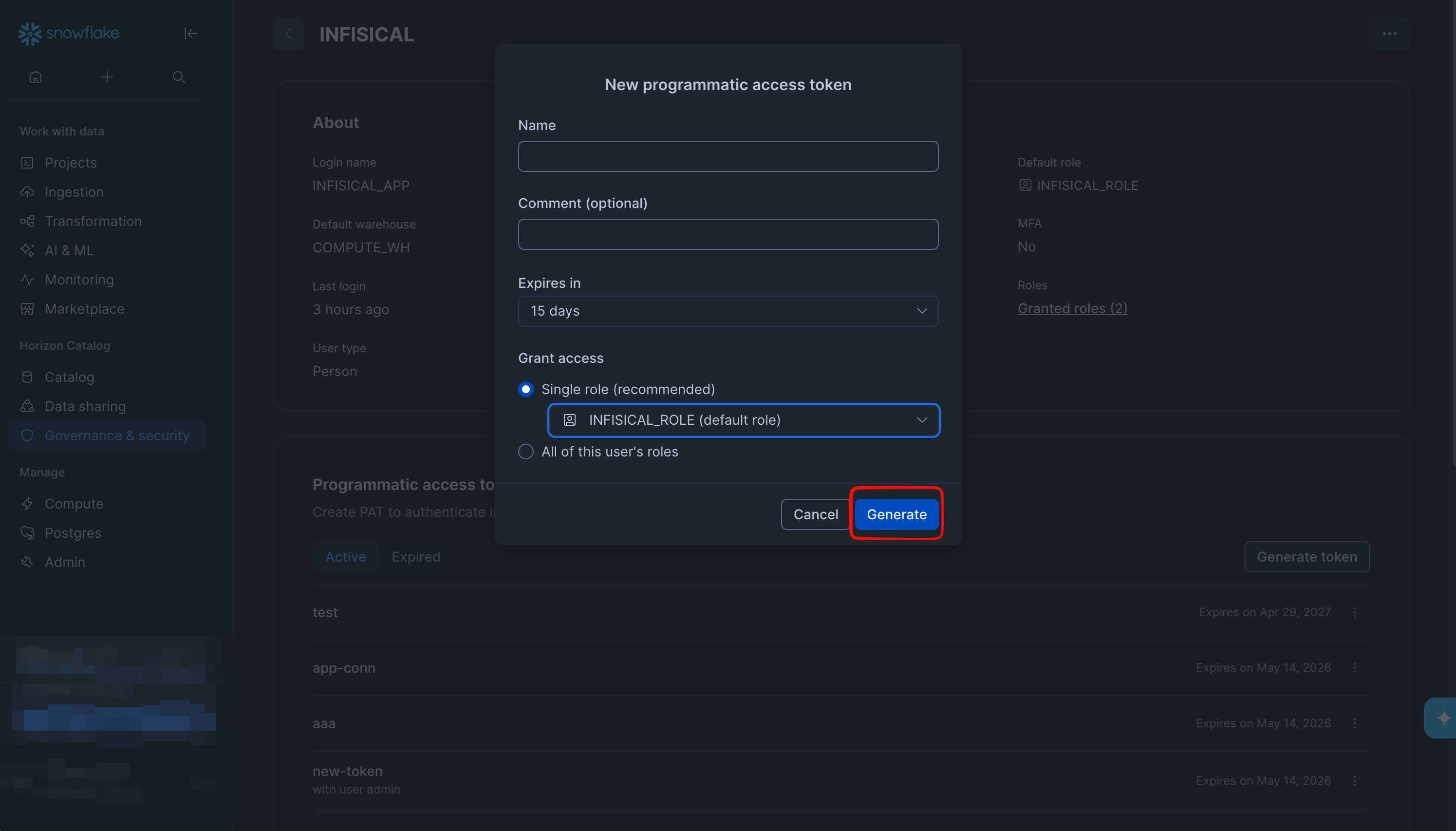
infisical, restrict it to the role you made the user’s default, and set its expiration to match your security policy.6
Copy the token. Snowflake shows the token only once, so save it for the Infisical form.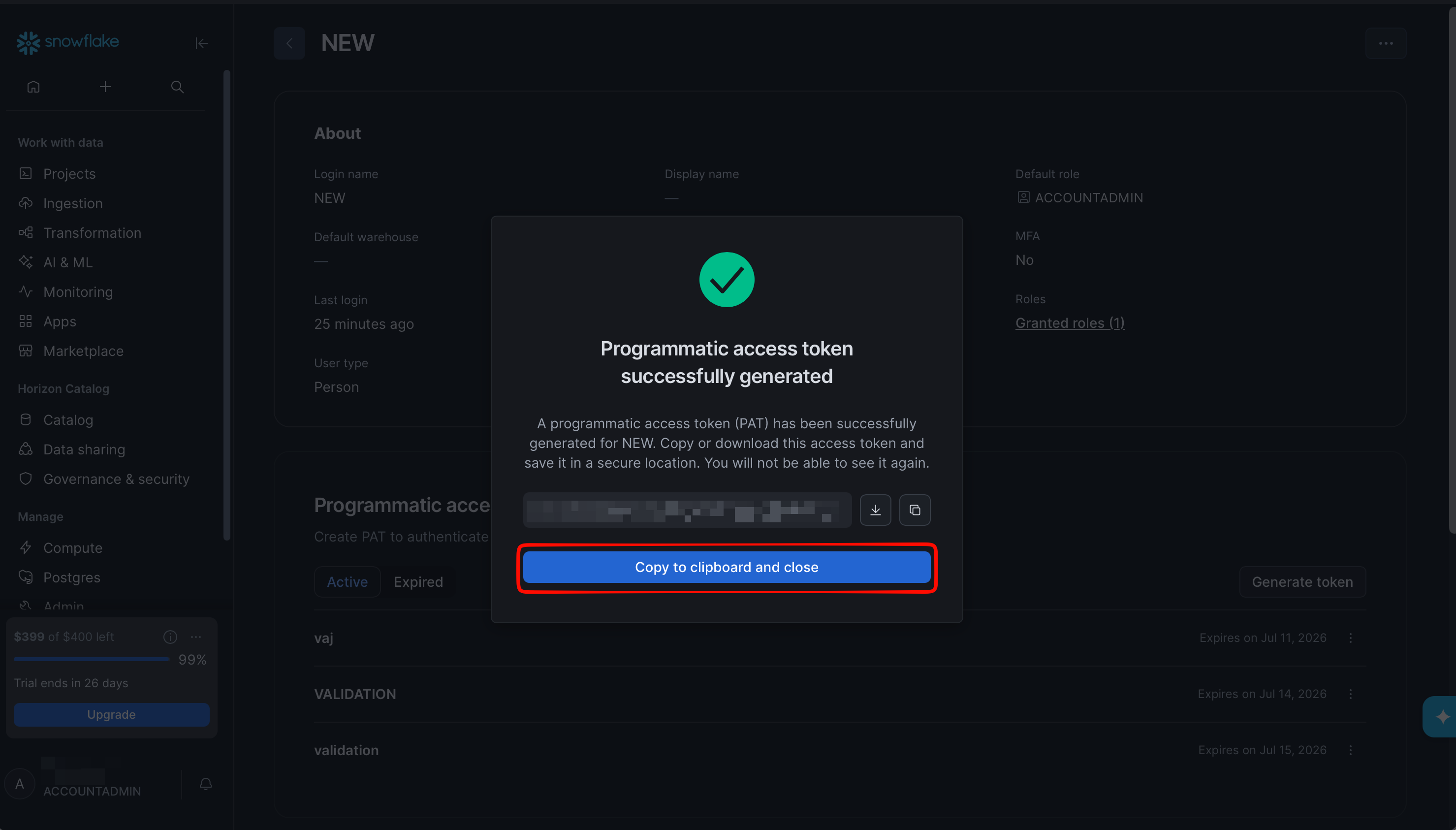
7
Copy your account identifier, which has the form 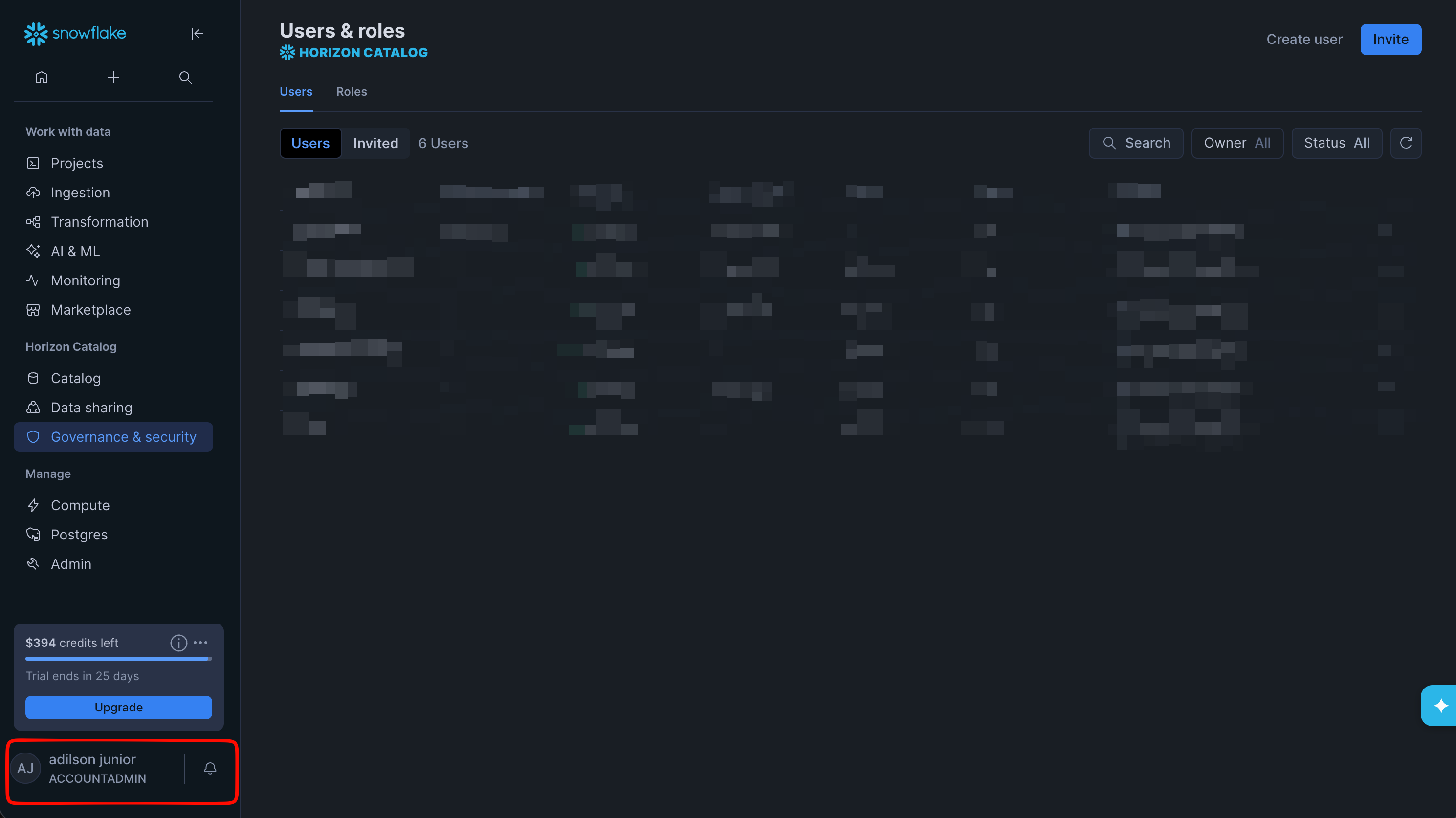
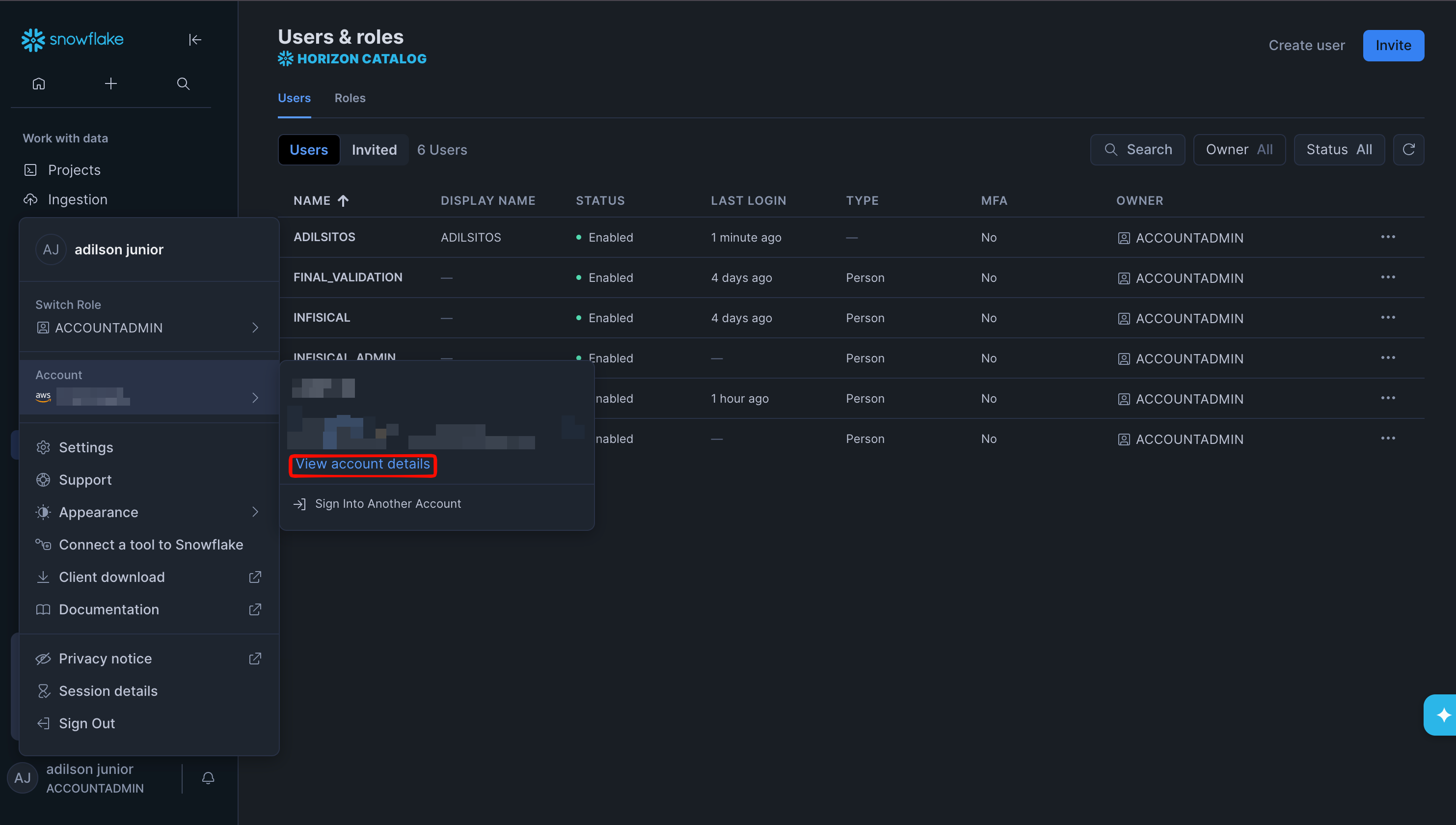
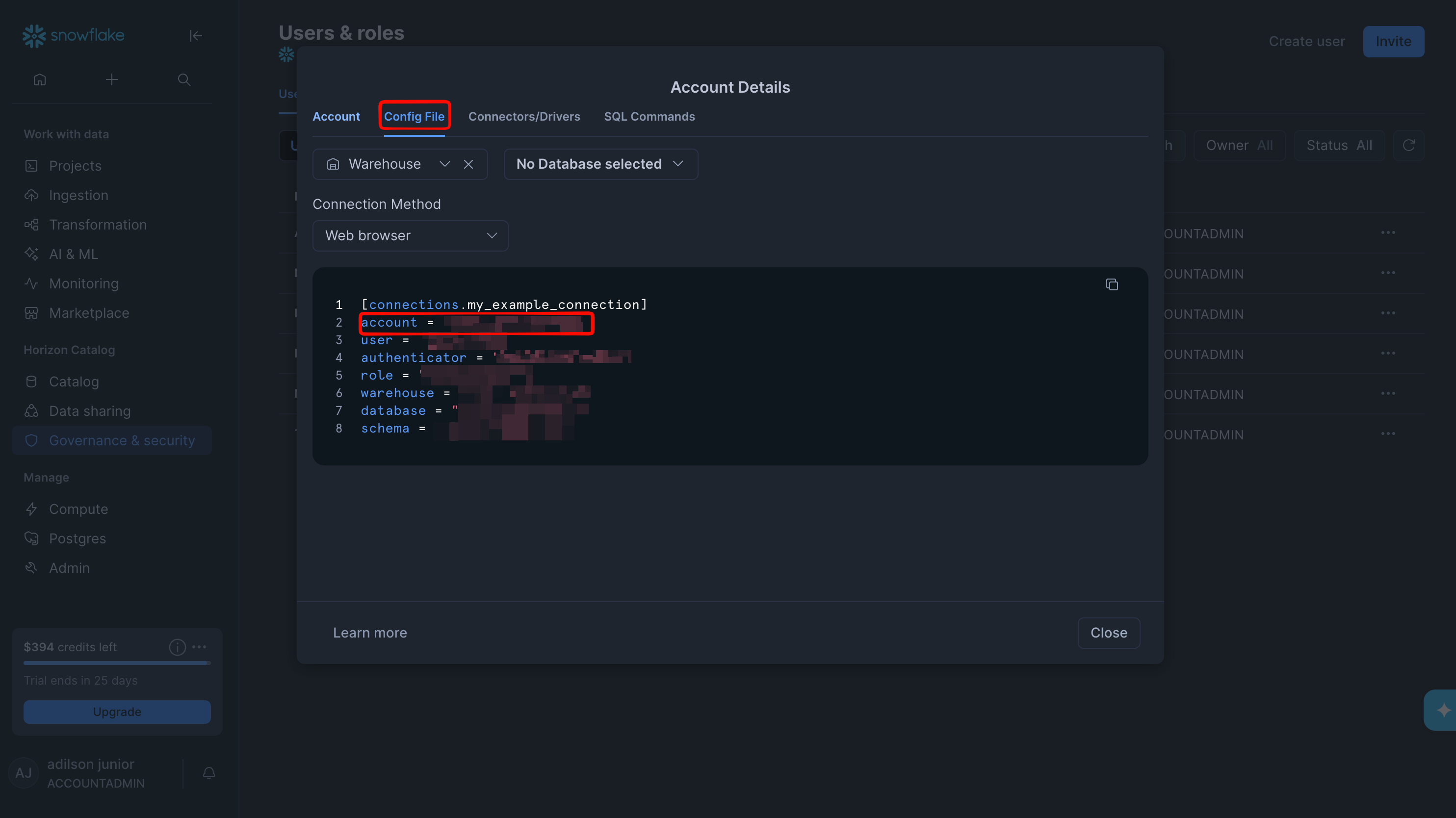
orgName-accountName. You can read both parts from your Snowsight URL: https://app.snowflake.com/orgName/accountName/.You can also select your username in the bottom-left corner, open Account details, and copy the Account value from the Config File tab.Step 2: Create the app connection
Next, create the app connection in Infisical.1
In the sidebar, select Organization Settings, then open the App Connections tab.
2
Select + Add Connection and choose Snowflake Connection.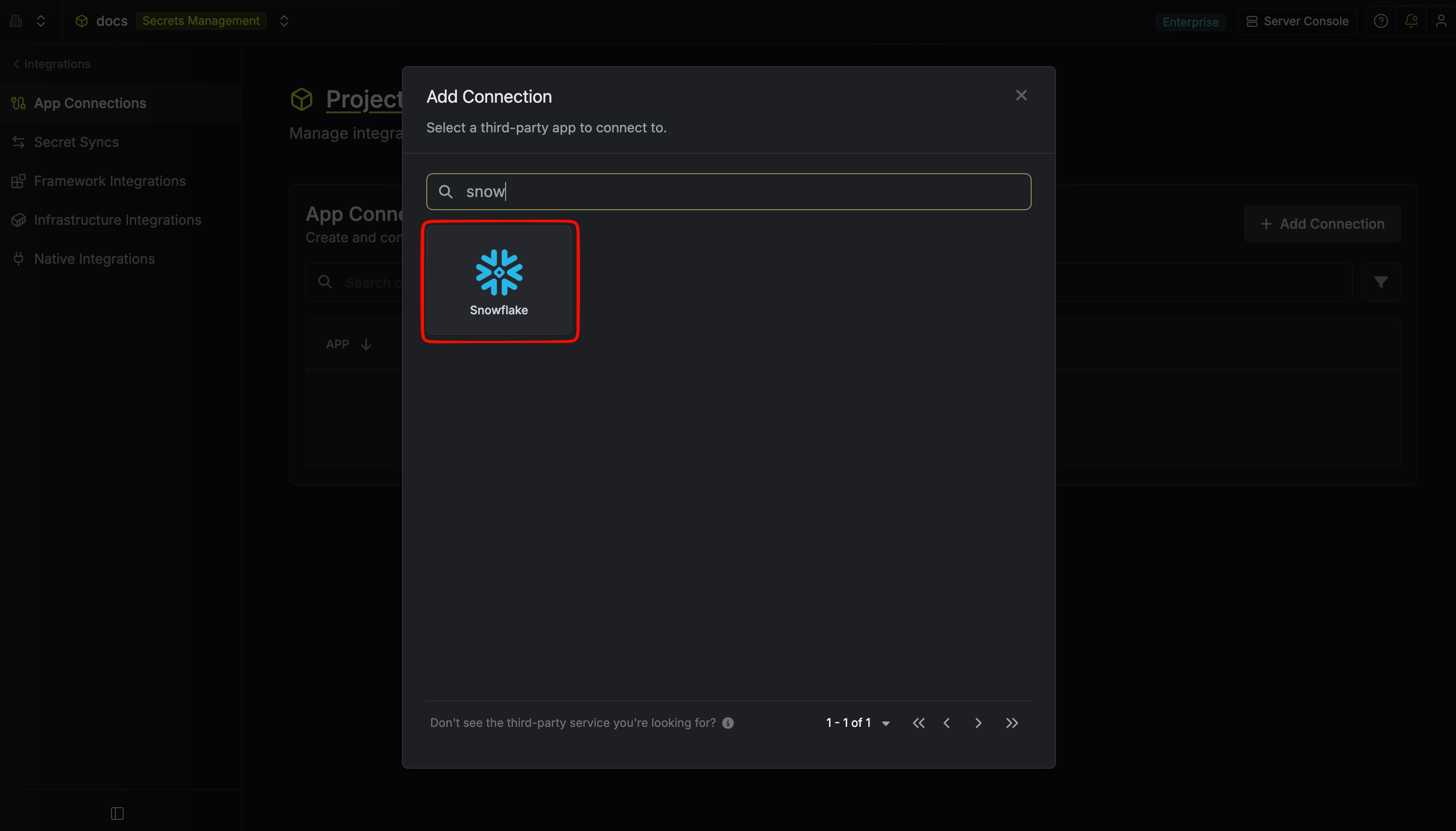
3
Fill out the form’s fields: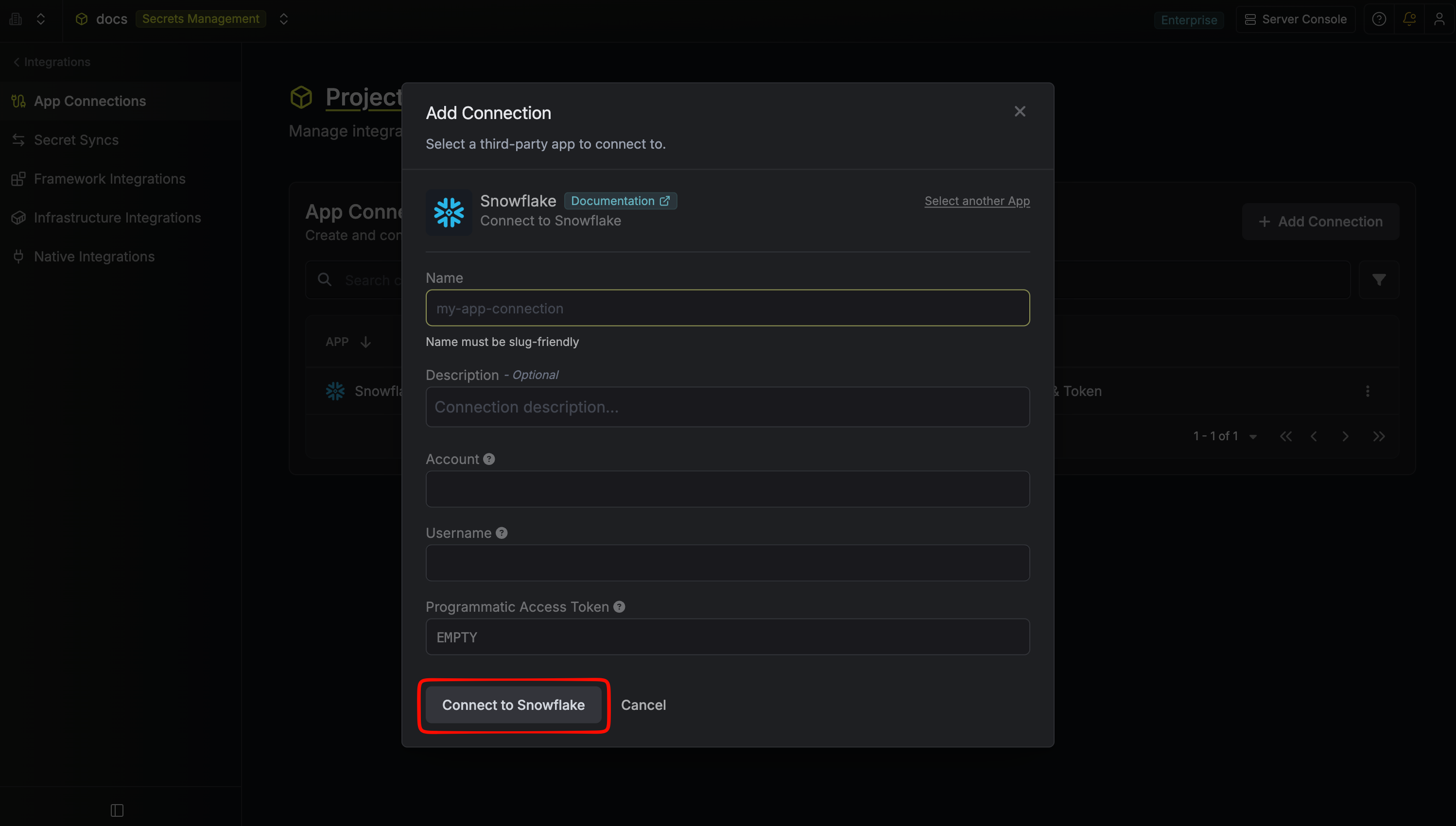
- Name: A descriptive name for the connection
- Description (optional): A note for future reference
- Account: Your Snowflake account identifier, such as
orgName-accountName - Username: The Snowflake user you created for Infisical
- Programmatic Access Token: The token you generated for that user
Your Snowflake app connection is ready to use.
Create the connection with the API
Create the connection with the API
Send the account identifier, username, and programmatic access token to the create endpoint for Snowflake connections. The token goes in the
password field.Step 3: Configure integrations
Now that your Snowflake app connection is configured, you can use it to set up the following integrations:Snowflake secret sync
Sync secrets from Infisical to Snowflake secrets in a schema.
Snowflake user key pair rotation
Rotate the RSA key pair of a Snowflake user.