Configure a connected app in Salesforce
1
Open Settings
In the top-right corner, select the gear icon.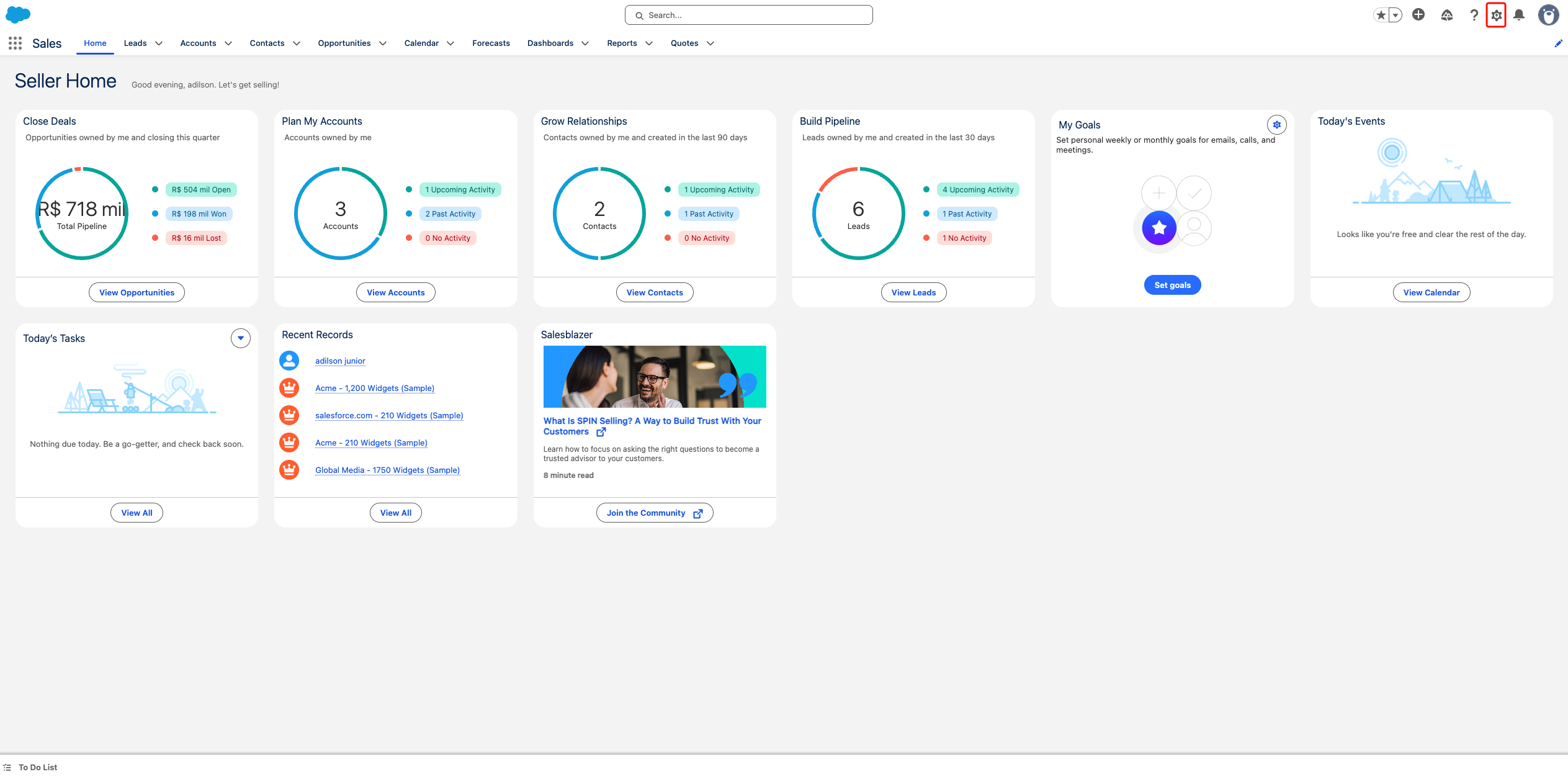 Click the Setup option.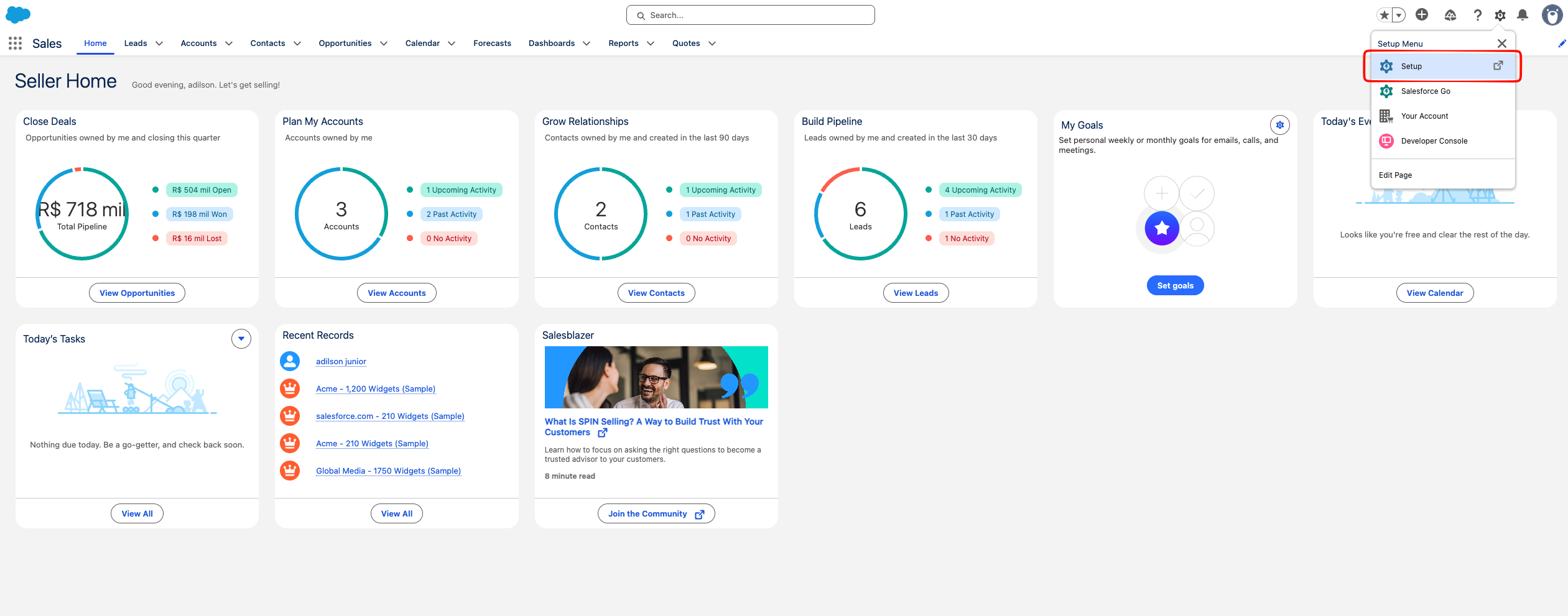
Click the Setup option.2
Create a Connected App
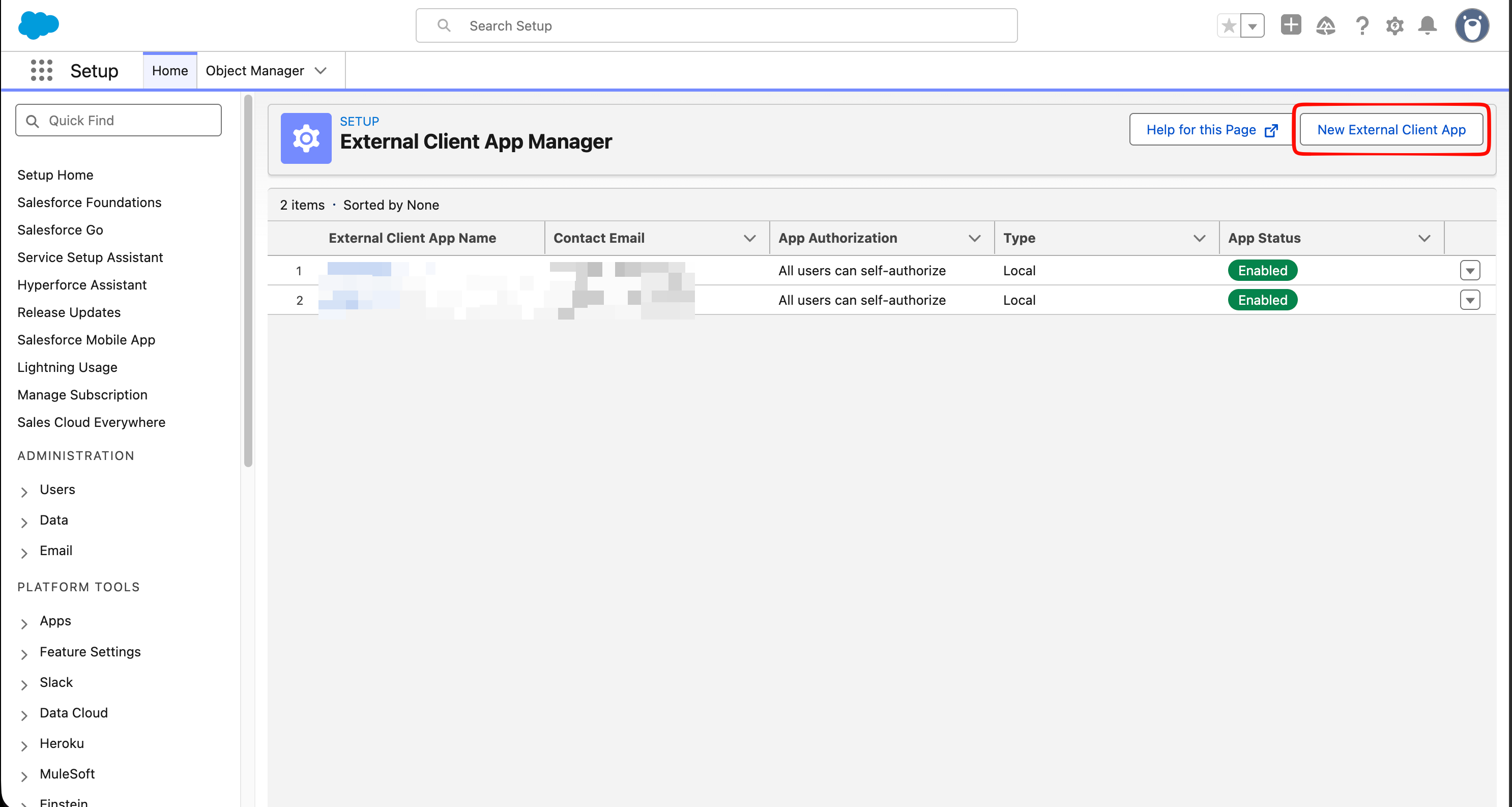
In Salesforce Setup, search for External Client App Manager and select it from the results.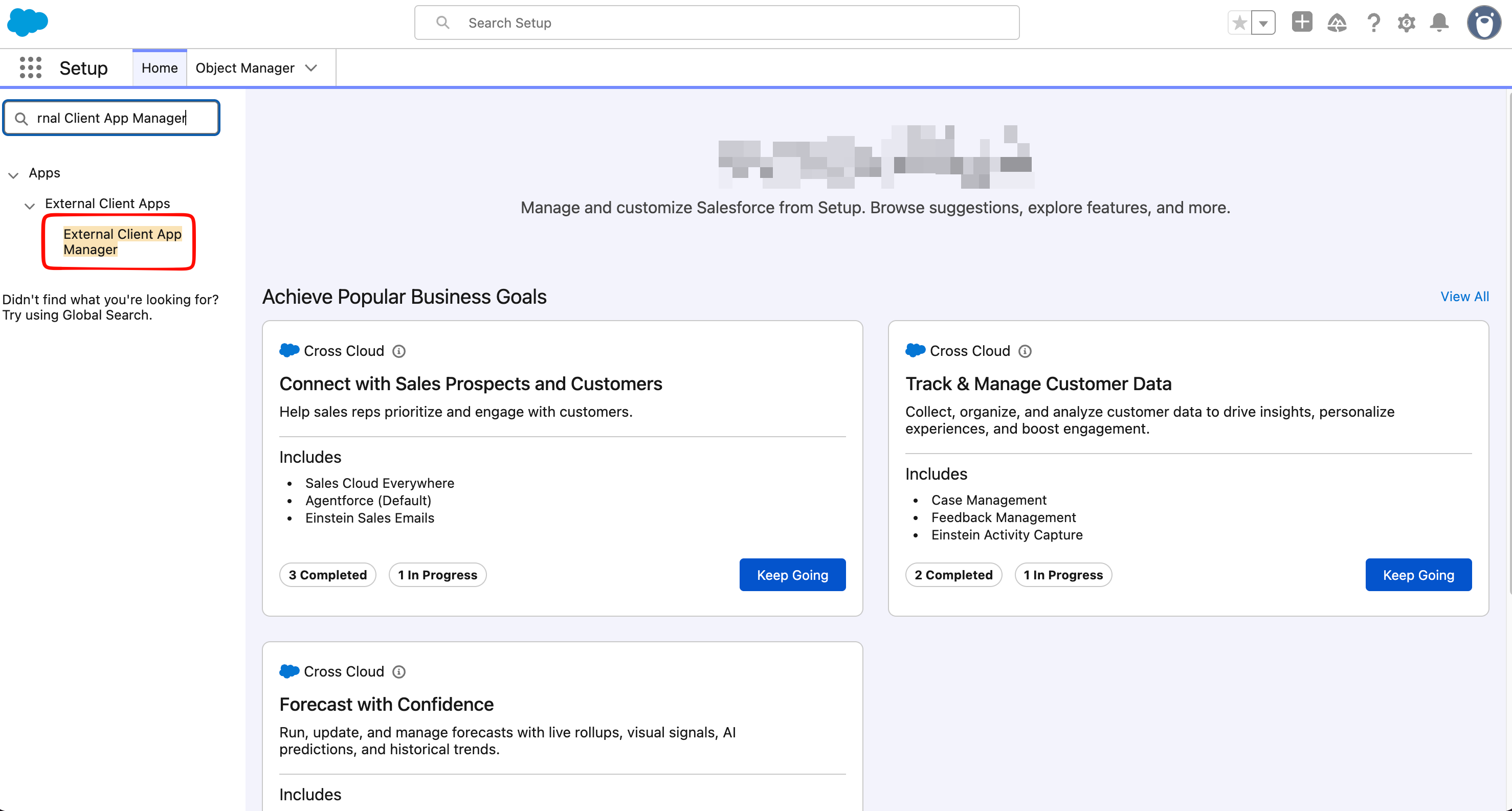 Click New External Client App.
 Provide a name, API name, and contact email.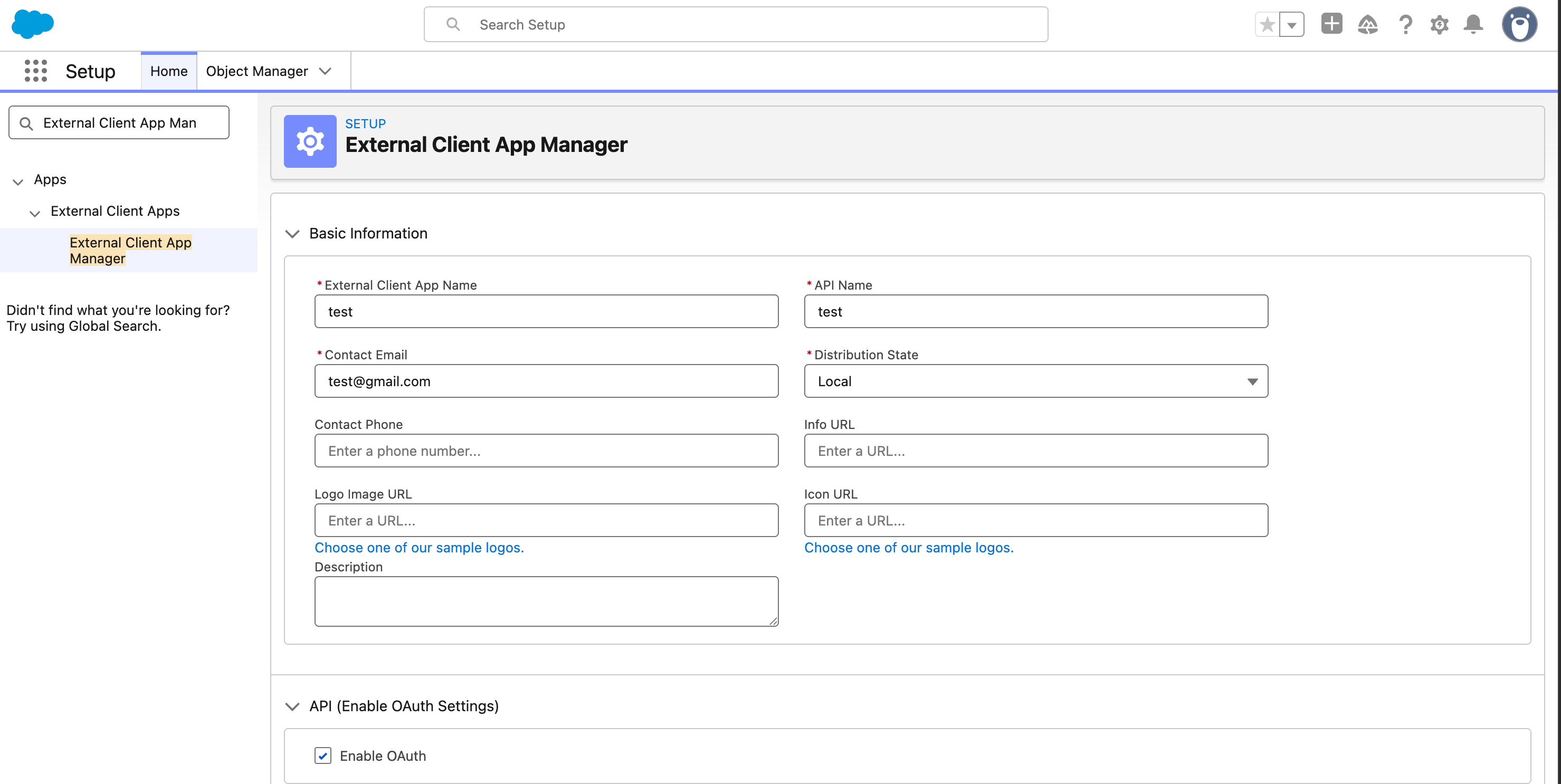
Click New External Client App.Provide a name, API name, and contact email.3
Enable OAuth Settings
Under API (Enable OAuth Settings):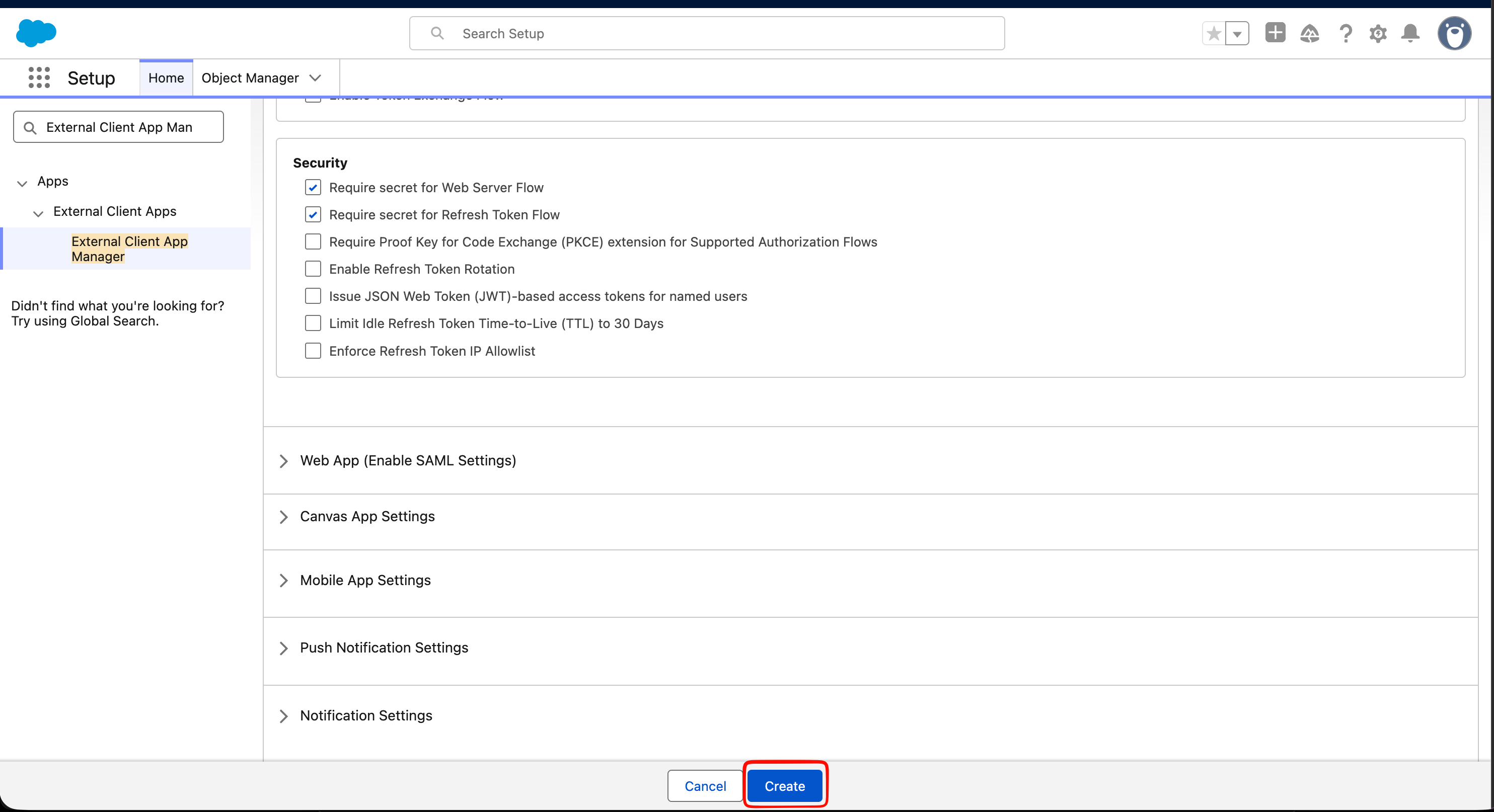
- Check Enable OAuth.
-
Provide a callback URL.
The callback URL is only used by Salesforce’s OAuth Web Server Flow. Since this External Client App is used solely to rotate secrets via the Client Credentials Flow, the callback URL is never invoked — any valid URL (e.g.
https://localhost) works. - Add the OAuth scopes your integration requires. For secret rotation, you must select Manage user data via APIs (api).
-
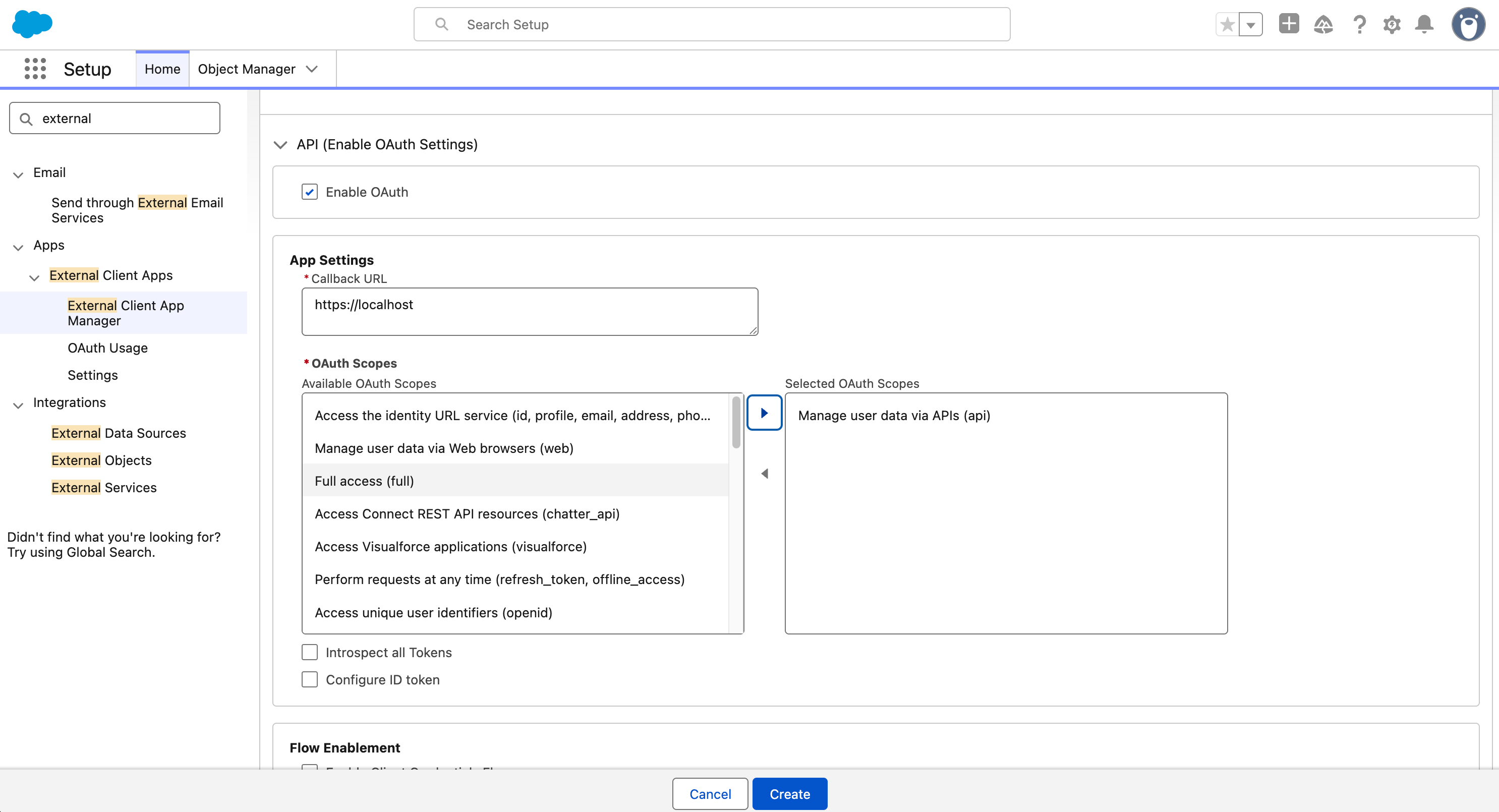
Check Enable Client Credentials Flow and Enable Token Exchange Flow (along with the sub-option Require secret for Token Exchange Flow).
4
Configure the Policies
Go back to the External Client App Manager page and select the External Client App you just created. To do this, search again for External Client App Manager.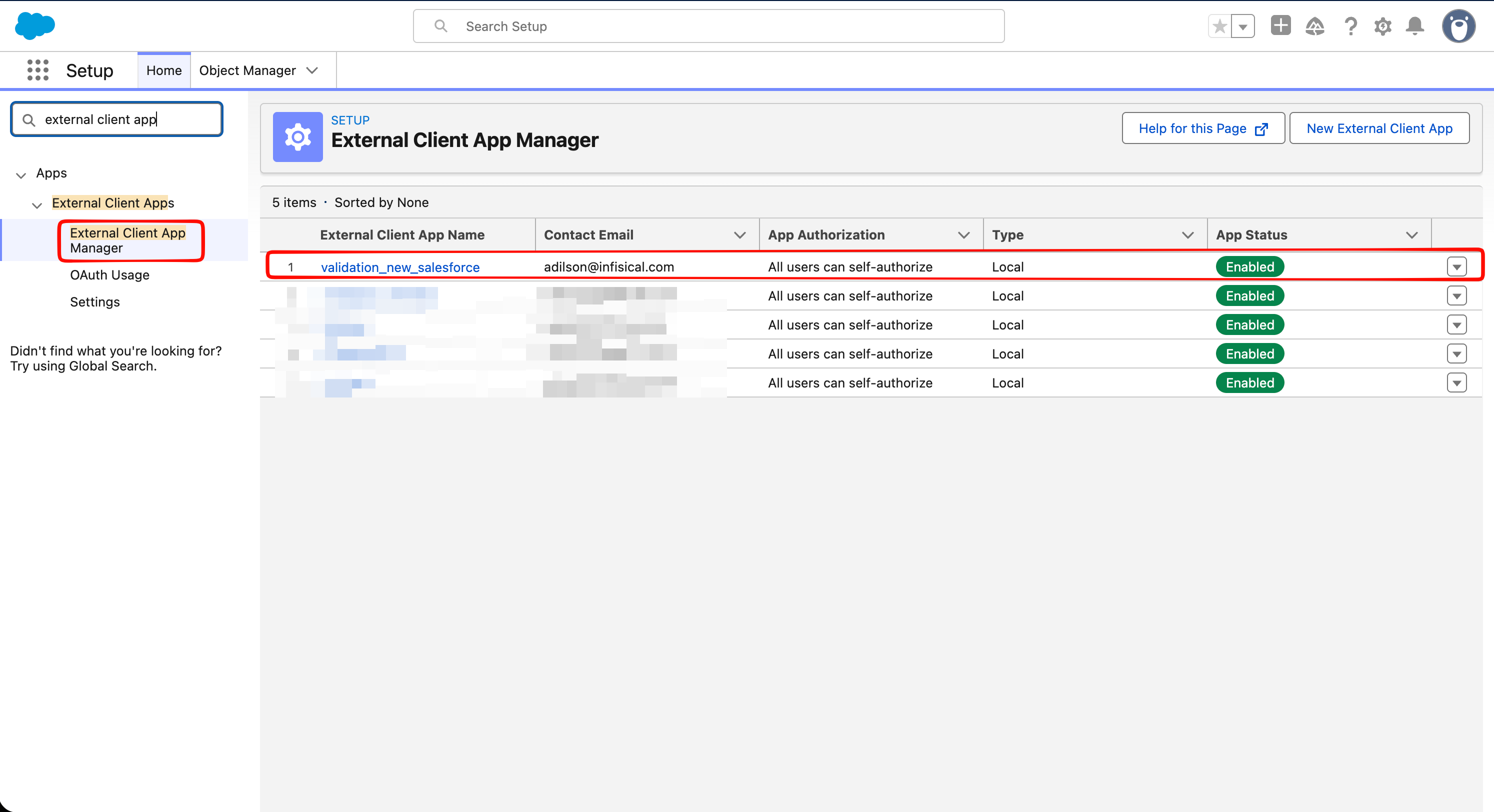 Click the app you just created, select the Policies tab, and click Edit.
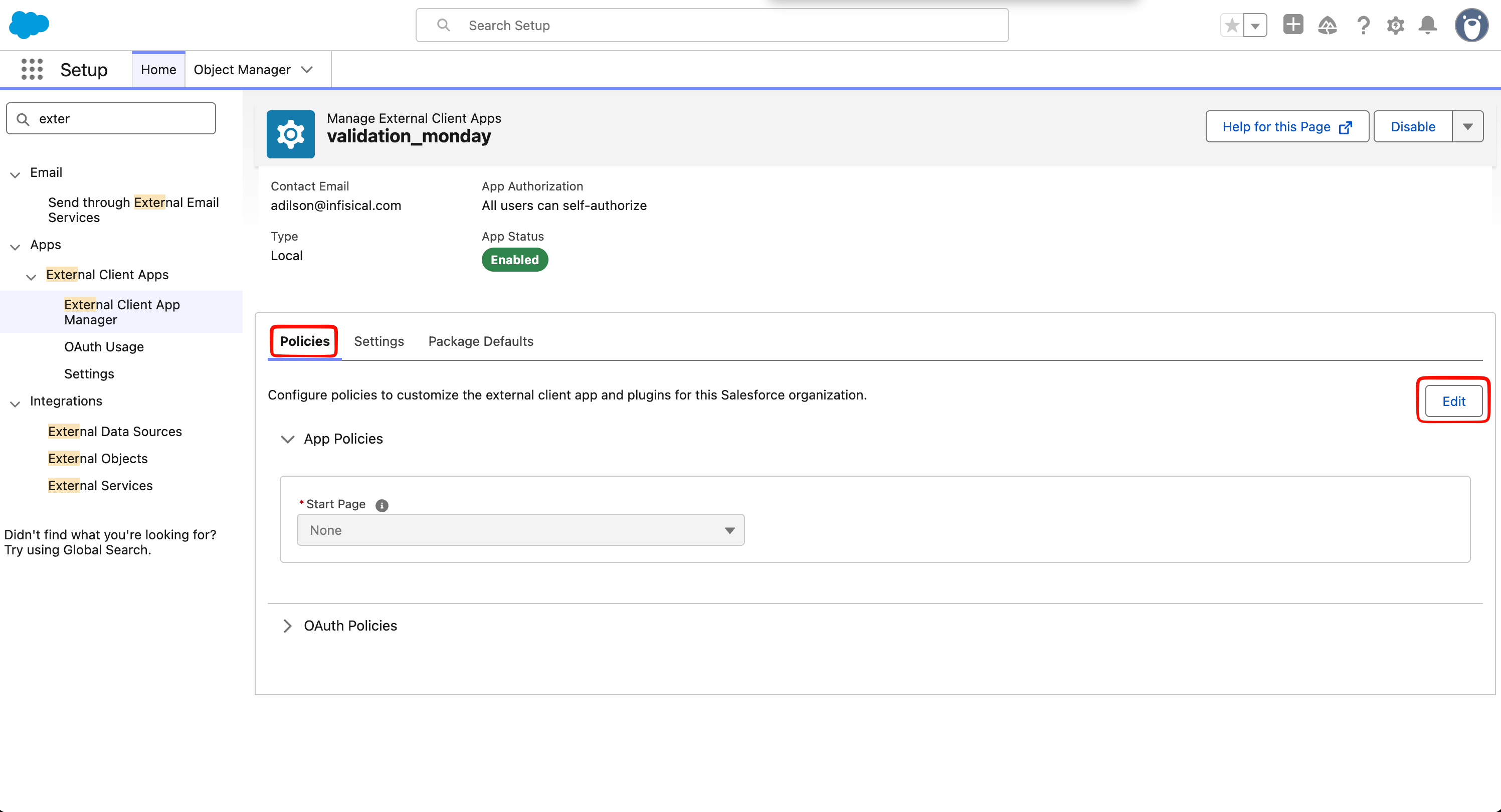 Under the OAuth Policies section, check Enable Client Credentials Flow and provide a username under Run As (Username) to specify which user the flow runs as.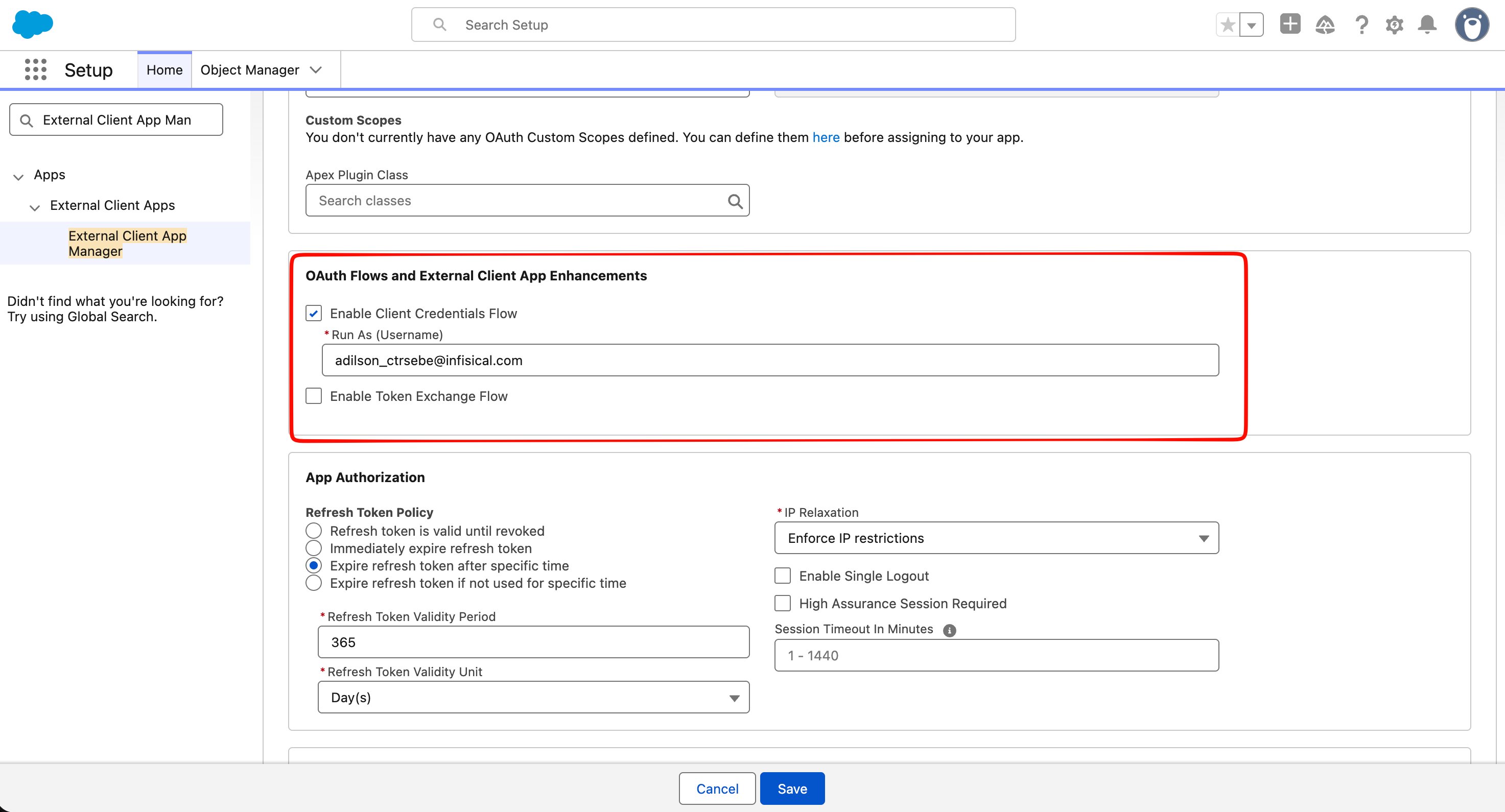
Click the app you just created, select the Policies tab, and click Edit.Under the OAuth Policies section, check Enable Client Credentials Flow and provide a username under Run As (Username) to specify which user the flow runs as.5
Copy the Consumer Key and Consumer Secret
Back on the Settings tab, go to the OAuth Settings section and click Consumer Key and Secret to open a new page where the values are displayed.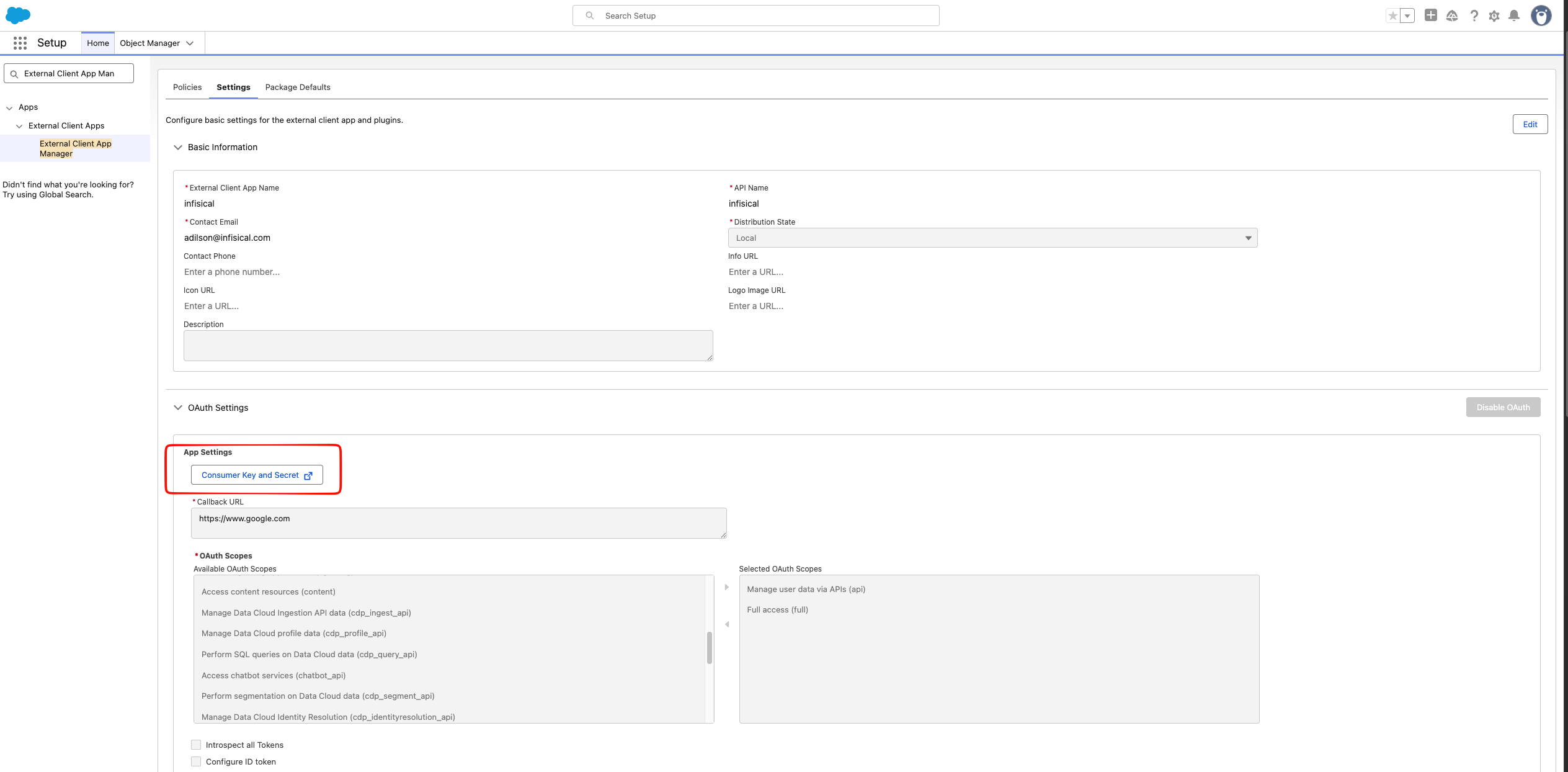 Copy both the Consumer Key and Consumer Secret for later.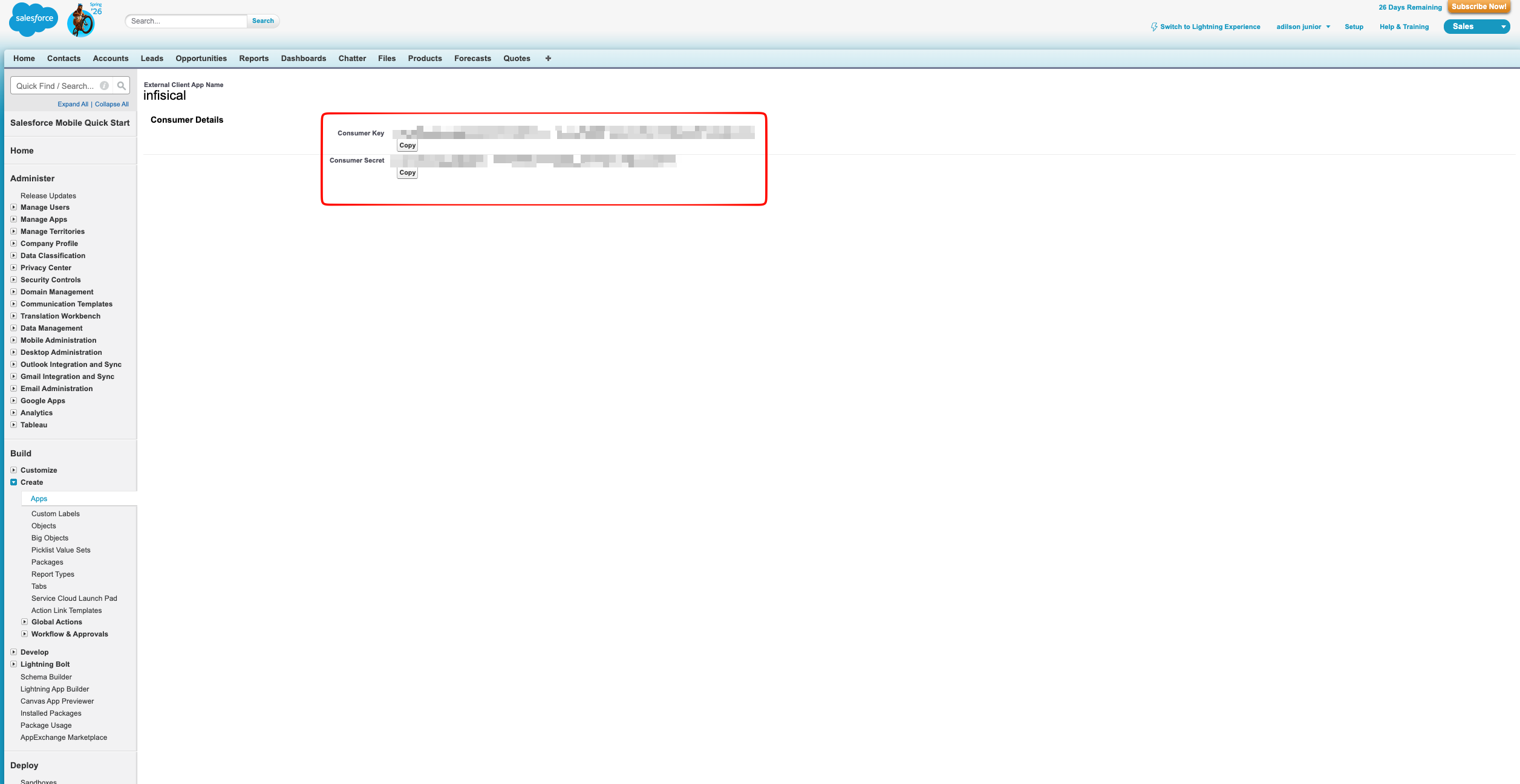
Copy both the Consumer Key and Consumer Secret for later.6
Enable access to External Client App Consumer
Search again for External Client Apps and click the Settings sub-option. Under External Client App Settings, enable Allow access to External Client App consumer secrets via REST API.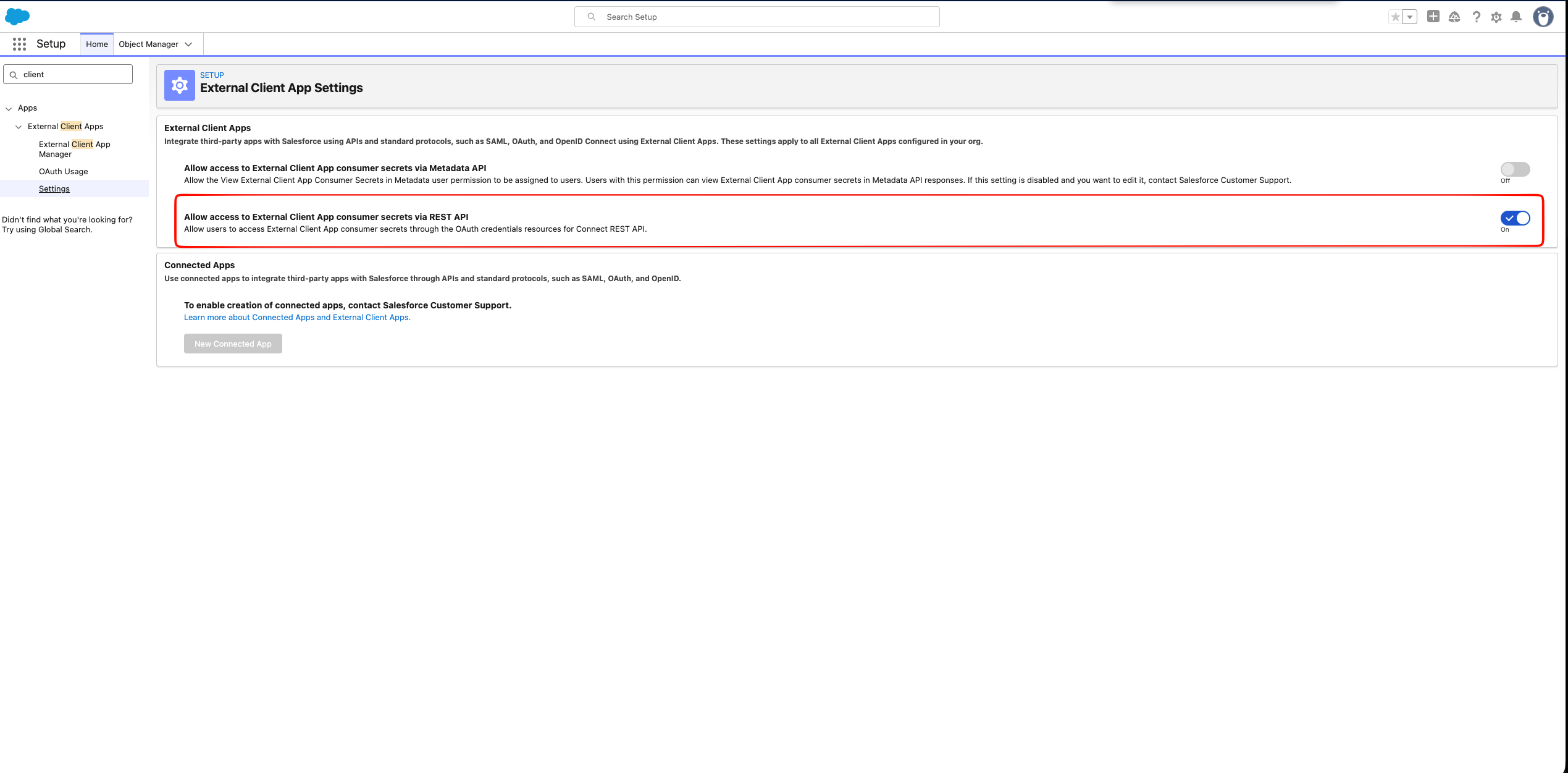
7
Identify Your My Domain URL
In Salesforce Setup, search for My Domain.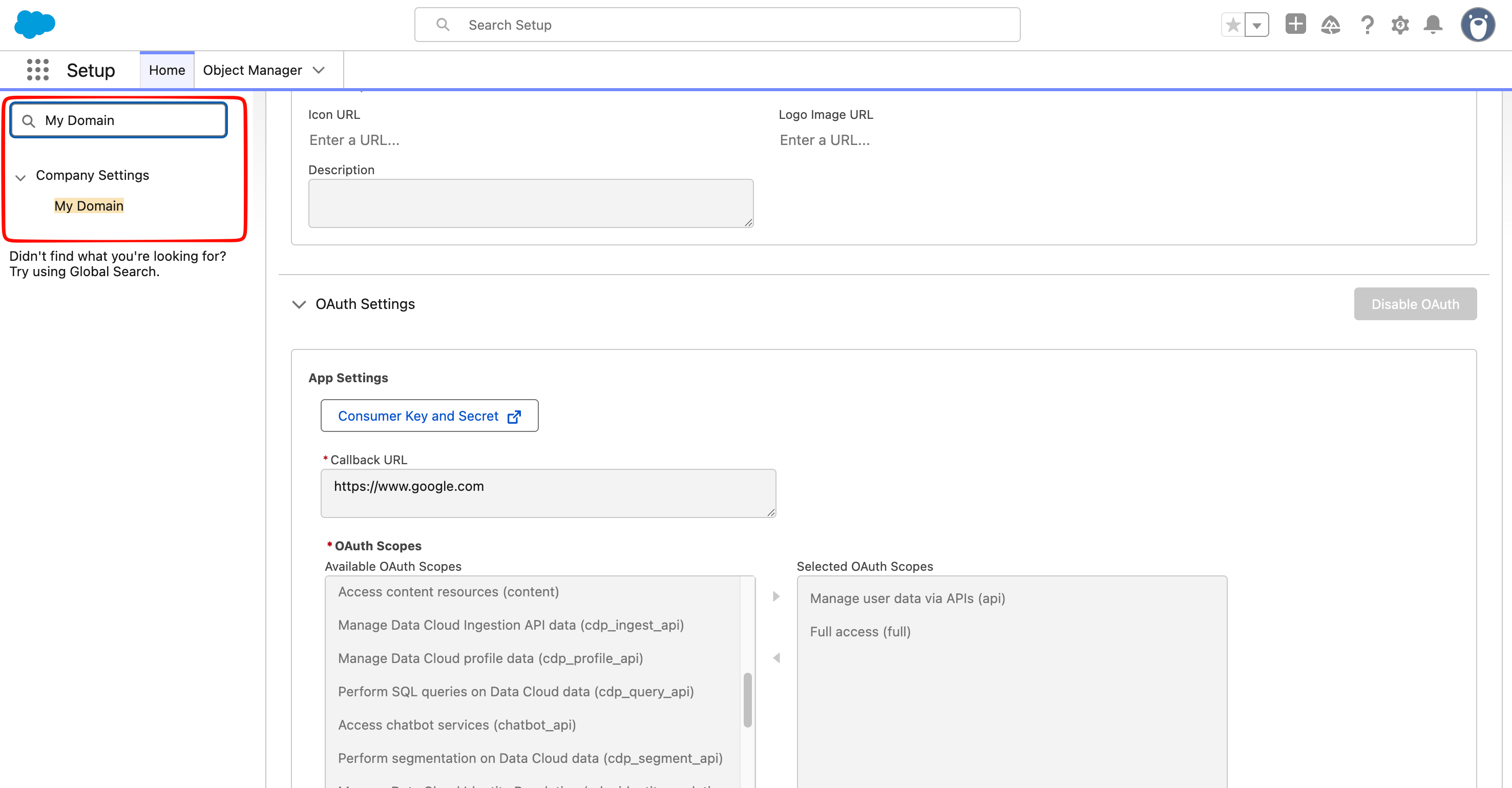 Copy the Current My Domain URL (e.g.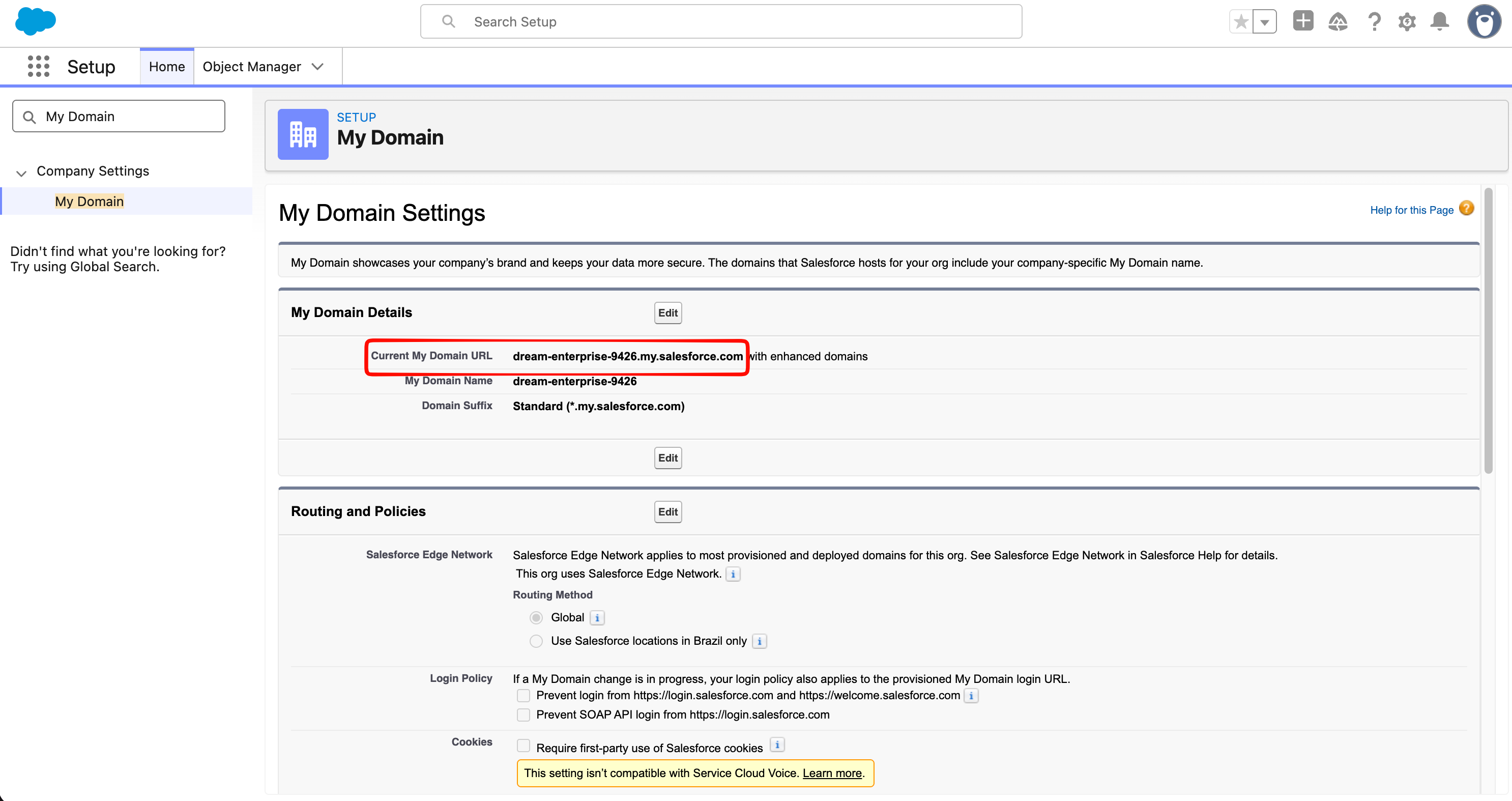
Copy the Current My Domain URL (e.g. my-org.my.salesforce.com). This is your instance URL.Setup Salesforce connection in Infisical
- Infisical UI
- API
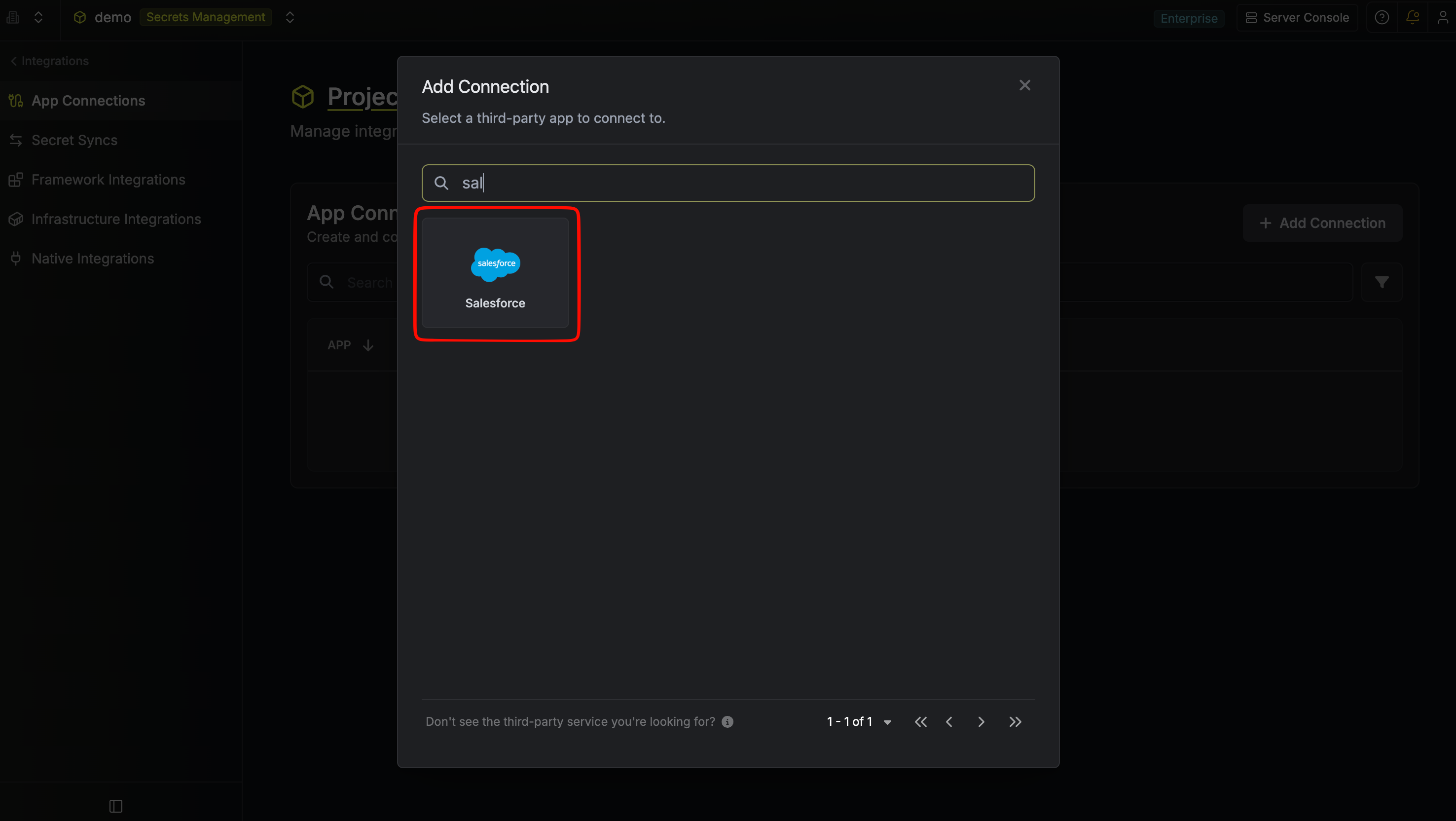
- Navigate to App Connections in your organization or project.
-
Select the Salesforce Connection option.
-
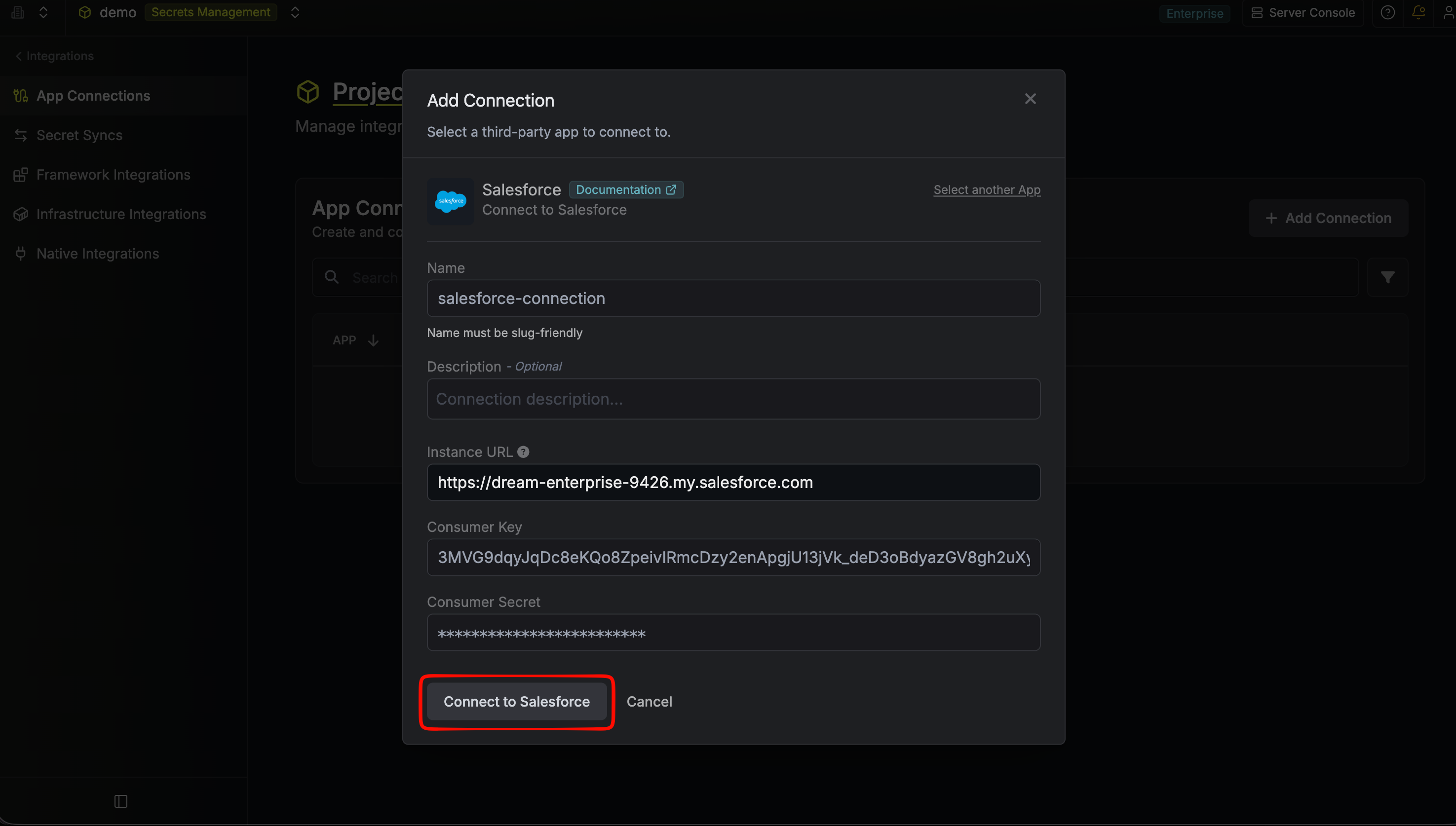
Enter your Instance URL, Consumer Key, and Consumer Secret from the previous section, then click Connect to Salesforce.
-
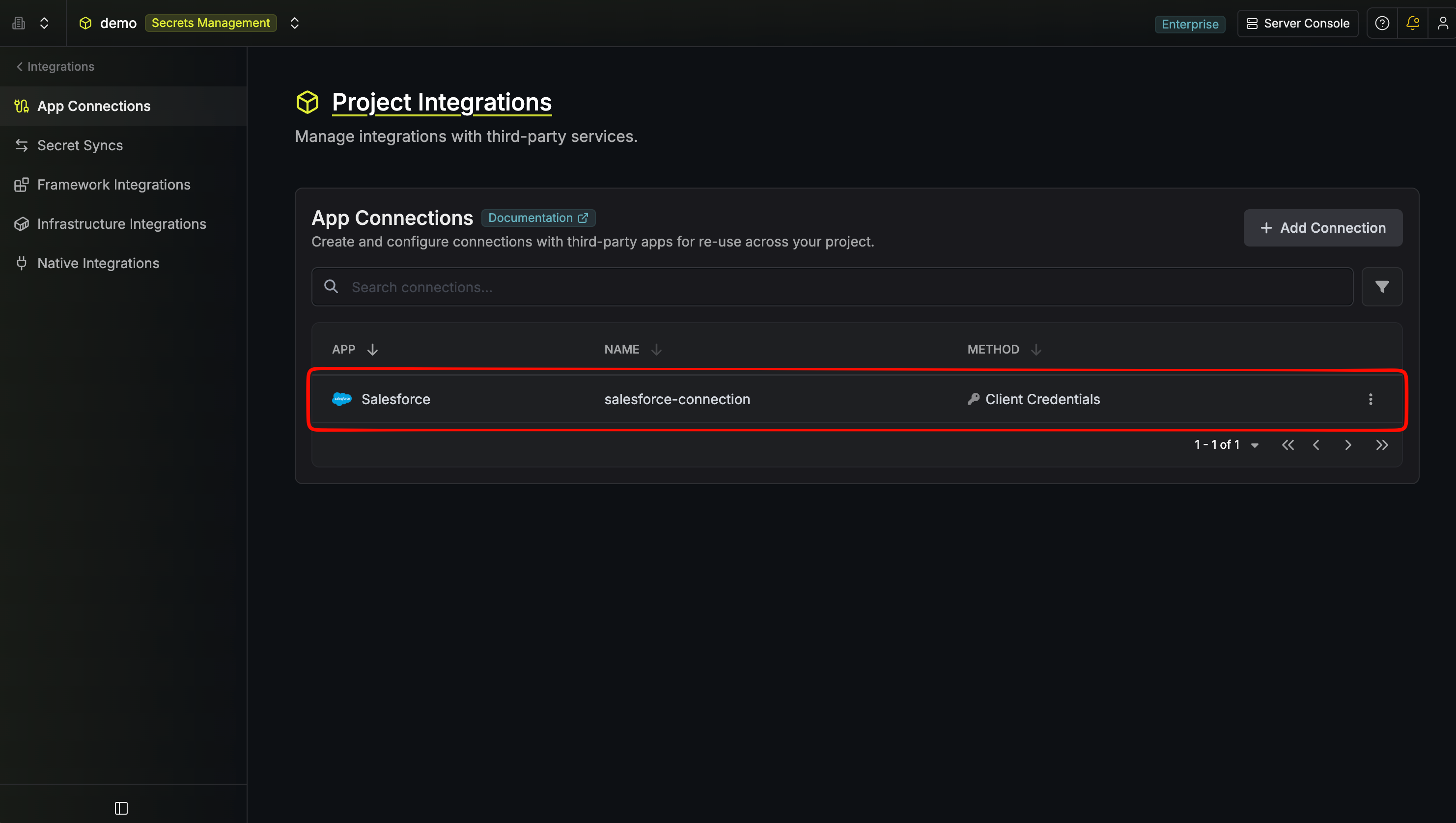
Your Salesforce Connection is now available for use.